ℹ️ Skipped - page is already crawled
| Filter | Status | Condition | Details |
|---|---|---|---|
| HTTP status | PASS | download_http_code = 200 | HTTP 200 |
| Age cutoff | PASS | download_stamp > now() - 6 MONTH | 0.2 months ago |
| History drop | PASS | isNull(history_drop_reason) | No drop reason |
| Spam/ban | PASS | fh_dont_index != 1 AND ml_spam_score = 0 | ml_spam_score=0 |
| Canonical | PASS | meta_canonical IS NULL OR = '' OR = src_unparsed | Not set |
| Property | Value |
|---|---|
| URL | https://zapier.com/blog/zoom-tips/ |
| Last Crawled | 2026-04-09 16:45:59 (7 days ago) |
| First Indexed | 2018-11-18 08:29:49 (7 years ago) |
| HTTP Status Code | 200 |
| Meta Title | 21 Zoom tips and tricks for better video meetings | Zapier |
| Meta Description | Zoom is packed with features to help you run facilitate video meetings. Here are 21 Zoom tips and tricks to use before, during, and after your next meeting. |
| Meta Canonical | null |
| Boilerpipe Text | I share my screen in Zoom meetings all the time. And yet, every time I go to share my screen, I spend a few awkward seconds hovering over the toolbar as if I've never seen the
Share
button before. Then I found the
keyboard shortcut
to share instantly. Technically, it saves me only one click—but it also saves me from looking like someone who just opened Zoom for the first time.
There are plenty of other useful Zoom features to help you look like a pro Zoomer, too. Here are 21 of my favorite Zoom tips, organized by when you'll need them: before, during, or after a meeting.
Before a Zoom meeting
Add a profile picture
Mute Zoom audio when joining a meeting
Turn your Zoom video off by default
Give attendees a waiting room
Automatically schedule meetings—and let people know about them
Schedule recurring meetings with the same URL
Give someone else scheduling privileges
Collect information from attendees
Learn a few of the most useful Zoom keyboard shortcuts
During a Zoom meeting
Record a Zoom meeting as a video
Turn on closed captions
Co-host calls
Pin participants' videos
Turn on Zoom gallery view
Mute and unmute with the space bar
Raise your hand (and give other non-verbal feedback)
Have a collaborative annotation session
Brainstorm ideas on a Zoom Whiteboard
Take and share notes
After a Zoom meeting
Get AI-powered meeting summaries
Check who attended a Zoom meeting
Note: Some of the tips include Zap templates (what we call our pre-built workflows at Zapier). Simply click on the Zap template to get started. You'll need a Zapier account if you don't already have one.
Zoom web portal vs. Zoom desktop client
Let me clarify one thing: The Zoom web portal and Zoom desktop client are
not
the same thing. Here's the difference:
Zoom web portal
: This refers to your web account (CompanyName.zoom.us).
Zoom desktop client
: This refers to the Zoom app.
Zoom desktop client.
For reasons unbeknownst to me, the Zoom desktop client and mobile app have different features than the Zoom web portal. Additionally, you need to select
Save
for any edits made in the web portal, whereas Zoom automatically saves most changes made in the Zoom desktop client or the mobile app.
I've crossed my fingers for years now that Zoom would allow you to update all your settings directly from the web portal
or
Zoom desktop client. But as it turns out, that's not a surefire method for achieving wish fulfillment. Anyway, let's dive in.
Zoom tips: Before a meeting
Before most Zoom meetings, I do a little pre-call scramble: adjust my lighting, check my background, and hope my mic isn't randomly picking up lawnmowers. But a lot of that stress is avoidable with the right settings in place ahead of time. Use these Zoom tips help you show up prepared to your next meeting.
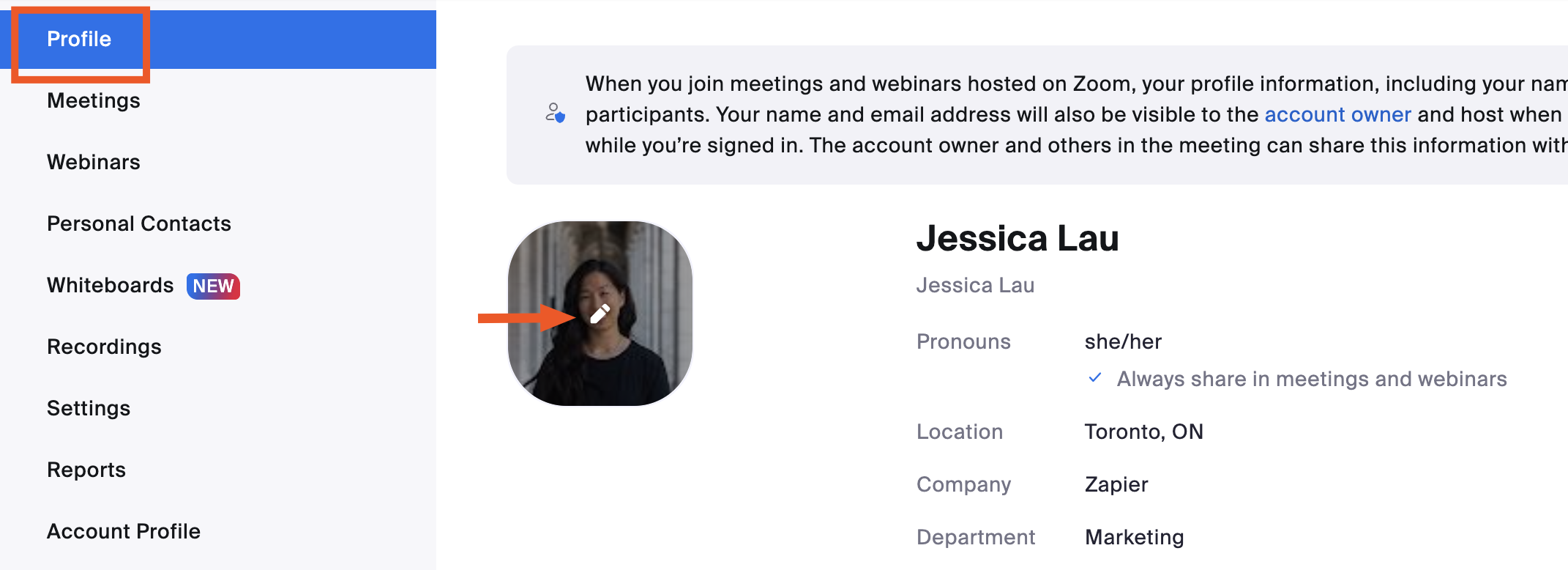
1. Add a profile picture
There are plenty of occasions when you'd
rather not show your face live
on Zoom—but you also don't want to be
just
a black box with a name. Get the best of both worlds: Here's how to add a profile picture in Zoom, which will appear instead whenever your
video's off
.
Log in to your Zoom web portal.
Click
Profile
.
In the main section with your name, click the pencil icon in the picture frame.
Click
Choose Files
to upload your picture.
Click
Save.
2. Mute Zoom audio when joining a meeting
No one wants to be
that
person who joins a meeting late, only to have their dog bark and interrupt the speaker because
of course
that's when your mute button disappears from view. Here's how to
mute your audio
by default.
Log in to your Zoom desktop client.
Click your profile picture, and then select
Settings
.
In the
Settings
window, click
Meetings & webinars
.
Under
Join experience
, click the toggle next to
Keep my microphone muted
.
3. Turn your Zoom video off by default
Despite my best efforts, I always remember to check for food in my teeth
after
I've joined a meeting. If you, like me, regularly need an extra moment before you're camera-ready, here's how to join Zoom meetings with your camera automatically turned off.
Log in to your Zoom desktop client.
Click your profile picture, and then select
Settings
.
In the
Settings
window, click
Meetings & webinars
.
Under
Join experience
, click the toggle next to
Keep my camera off
.
4. Give attendees a waiting room
If you're hosting a meeting, it's a good idea to give attendees a waiting room where they can hang out until you let them into the main room.
Log in to your Zoom web portal.
In the side panel, click
Settings
.
Click the
Meeting
tab.
Under
Security
, click the toggle next to
Waiting Room
.
Now, attendees will automatically be placed in a waiting room for every meeting, and you'll have to manually let them in.
If you want to enable waiting rooms only for specific meetings, you can also set this up. When you schedule the meeting, click the
Waiting Room
checkbox (under
Security
).
5. Automatically schedule meetings—and let people know about them
Scheduling Zoom meetings
eats up a surprising amount of time—especially if you run a lot of them. With Zapier, you can
connect Zoom
with your calendar or scheduling app—along with thousands of others—so you can automate your meeting-related workflows. Create Zoom meetings for new calendar events, add
Zoom links
to calendar invites, and send meeting reminders. Here are a few pre-made workflows to get you started.
Create Zoom meetings for new Calendly events
Calendly + Zoom
More details
When the time comes, you'll want to jump right into the discussion and not worry about setting up a meeting and sending out links. Zapier can do all of that for you once you activate this Zap. Every new event created on Calendly will trigger the automation, creating a Zoom meeting for each one. You can then add a step to your Zap to send the Join URL to the invitee by email or any other medium you'd like.
Create detailed Google Calendar events from new Zoom meetings
Zoom + Google Calendar
More details
Don't waste time creating Google Calendar events every time you schedule a new Zoom meeting—let this integration do it automatically! Every time a new Zoom meeting is created, Zapier will build a detailed Google Calendar event.
Update Google calendar events with Zoom meeting links when new bookings are made via OnceHub
OnceHub + Zoom + Google Calendar
More details
If you're looking for better ways to keep your calendar updated with meeting info, try this integration. Once active, it will create a new Zoom meeting whenever a booking is made via OnceHub and automatically insert the Zoom meeting link into the location field of a matching Google Calendar event. Your customers then receive an updated Google Calendar invite with the Zoom meeting link, allowing them to access all relevant booking details from one single place, without any effort on your part.
Get Slack notifications for new Zoom meetings
Zoom + Slack
More details
If you want to easily keep track of meeting in Zoom, Zapier can help. This integration allows you to get automatically notified in Slack every time a new Zoom meeting is created.
Zapier is the most connected AI orchestration platform—integrating with thousands of apps from partners like Google, Salesforce, and Microsoft. Use forms, data tables, and logic to build secure, automated, AI-powered systems for your business-critical workflows across your organization's technology stack.
Learn more
.
6. Schedule recurring meetings with the same URL
To minimize last-minute messages of "Where's the meeting link?", Zoom lets you schedule recurring meetings with the same URL. Here's how.
Log in to your Zoom web portal.
In the side panel, click
Meetings.
Click
Schedule a Meeting.
Edit the meeting options as needed.
In the
Time Zone
field, check the
Recurring meeting
box.
Edit the recurrence, including the number of times the meeting occurs and how often it occurs.
Click
Save.
If you export the meeting to your Google Calendar, Outlook Calendar, or Yahoo Calendar, the recurrence pattern and meeting URL are automatically included in the calendar event. Plus, the meeting settings remain locked, so you don't have to update it for every meeting.
Additionally, if you meet with the same group but on an irregular schedule, you can also set your recurrence to
No Fixed Time.
This lets you use the same settings and meeting URL no matter when you get together. When I teach, I use this option to host open office hours for student meetings.
Note: You can't schedule recurring meetings with your Personal Meeting ID (PMI) since this ID is reserved for you and the link never changes. Also, meeting IDs expire after one year, so you'll have to generate a new one then.
7. Give someone else scheduling privileges
If someone else manages your calendar and bookings, here's how to give them Zoom privileges so they can schedule meetings on your behalf.
Log in to your Zoom web portal.
In the side panel, click
Settings.
Click the
Meeting
tab.
Under
Schedule Privilege
, click
Add
.
Add your scheduling assistants by inputting their email addresses. Click
Save
.
Once done, your assigned scheduling assistant must log out of their Zoom desktop client and log back in for the feature to take effect.
This feature is also helpful if your assistant has scheduled a meeting, but the meeting host needs to be changed from you to someone else. Here's
how to transfer a meeting between Zoom users
.
Requirements:
The primary Zoom account holder and everyone who receives scheduling privileges must share the same account or have linked accounts. Everyone must also be Licensed or On-Prem. And for webinars, everyone must have the webinar add-on.
8. Collect information from attendees
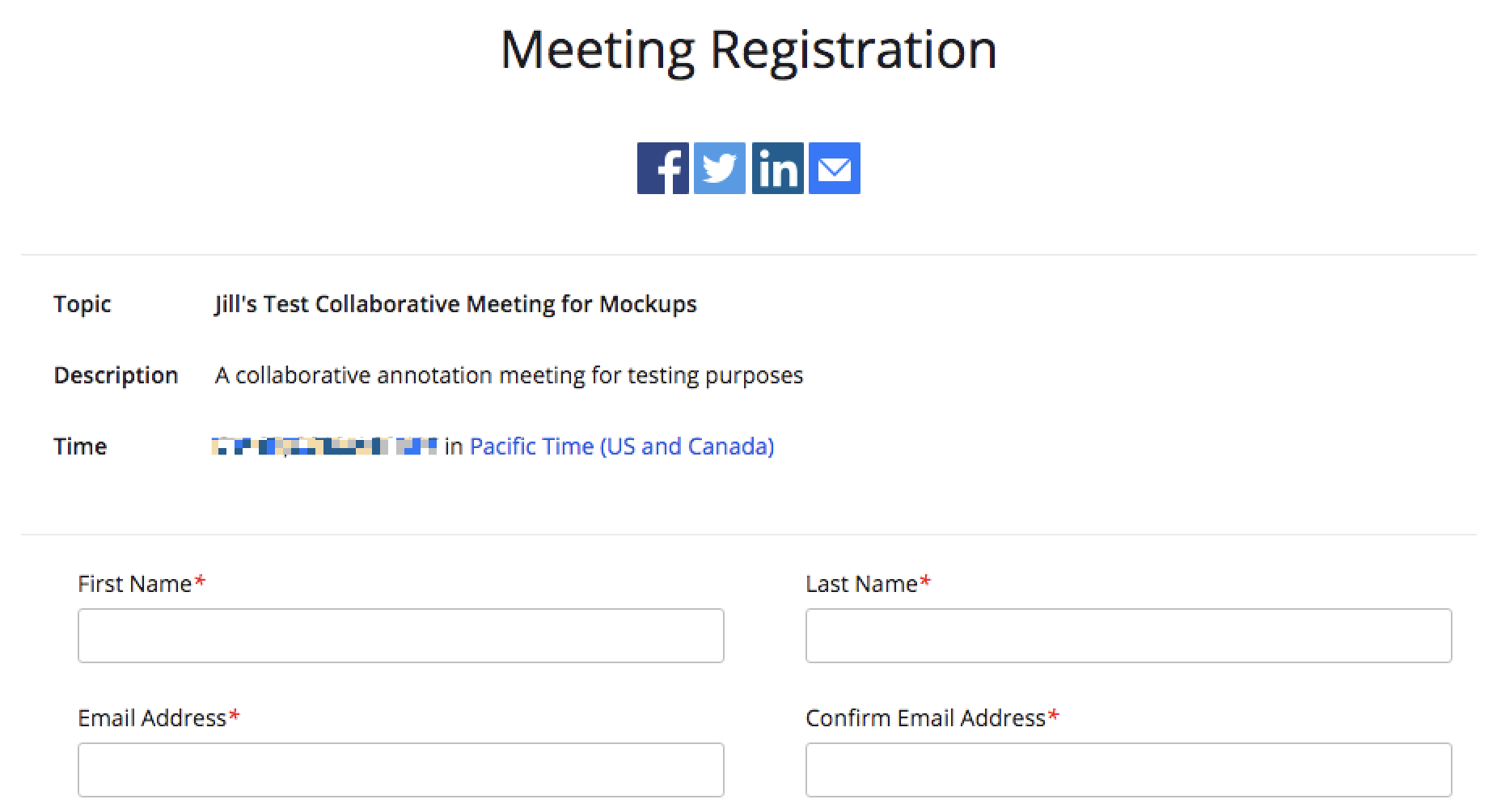
For any number of reasons, you may want to ask attendees to share a few details about themselves prior to joining the call. For example, you might want to require that attendees provide their name, company affiliation, or industry.
Here's how to collect this information.
Log in to the Zoom web portal.
In the side panel, click
Meetings
.
Click
Schedule a Meeting.
Next to
Registration
, click the
Required
checkbox.
Click
Save
.
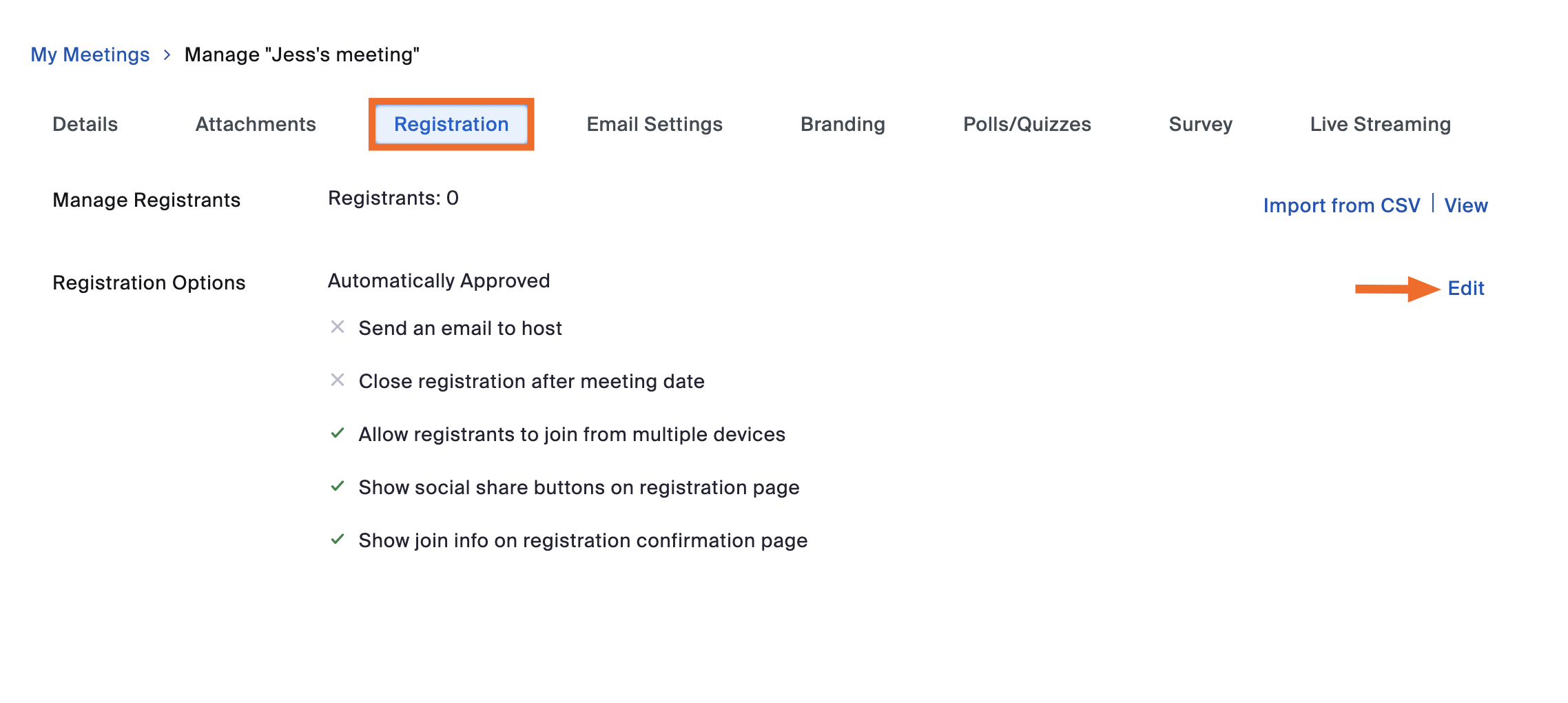
After you've created the meeting, click the
Registration
tab, and then select
Edit
.
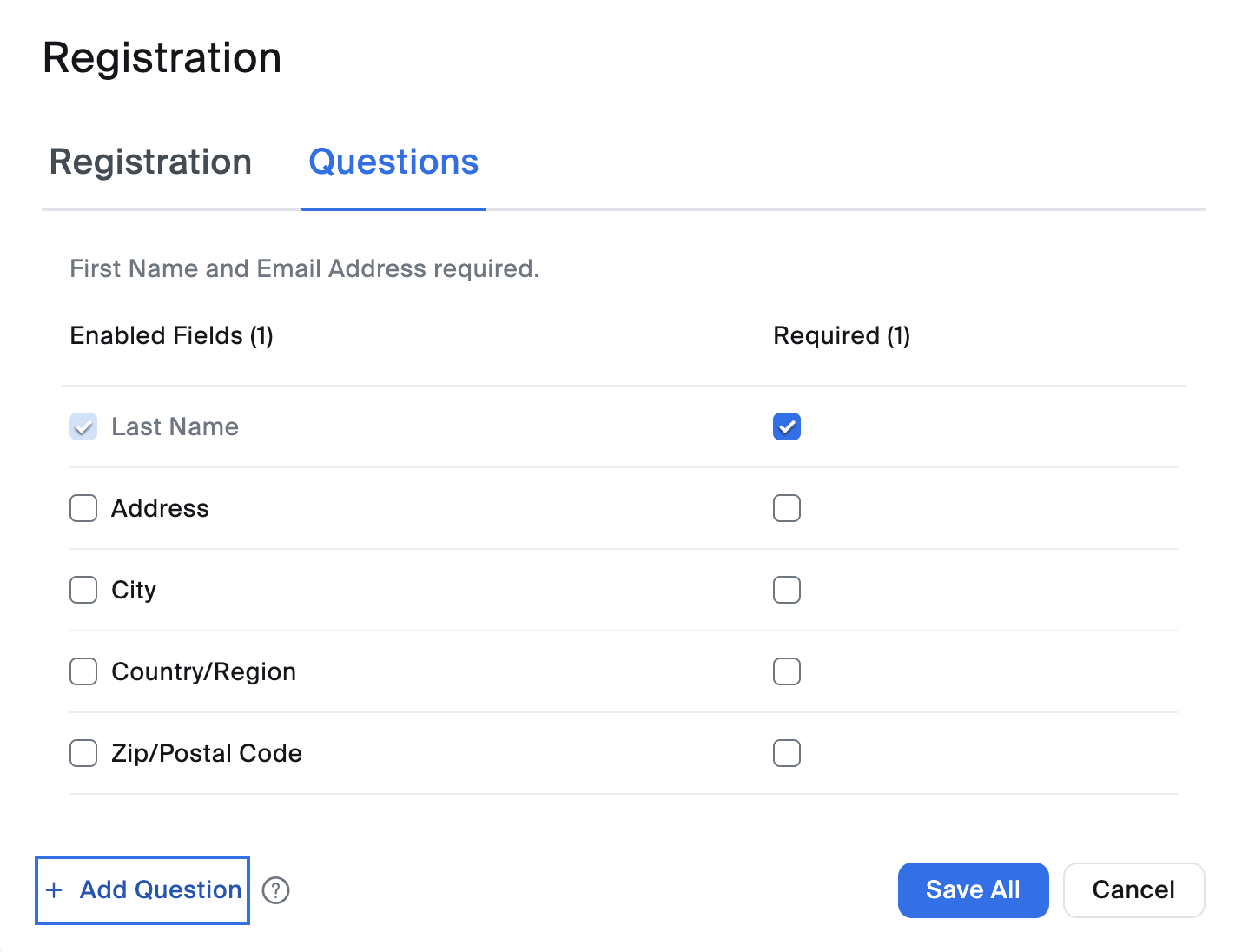
In the
Registration
window, click the
Questions
tab. Here, you can add standard fields, such as name and organization, by selecting the checkbox next to the field name. To make specific fields mandatory, select the
Required
checkbox to the right of the field name. You can also create your own questions by clicking
Add Question
.
Click
Save All.
If you're using Zoom to run a digital event like a webinar, you might want to let attendees register using a form on your website or an event management app instead. Here are some handy pre-made Zaps that automatically register all attendees, regardless of where they sign up.
Add new Eventbrite attendees as Zoom webinar registrants
Eventbrite + Zoom
More details
Rather than hassling with CSV files to register attendees for a Zoom webinar, use Zapier to start automatically importing them. Once you set up this Eventbrite-Zoom integration, new event attendees from that point forward are registered for the webinar.
Create Zoom registrants from new contact activities on ClickFunnels
ClickFunnels Classic + Zoom
More details
Want to register new contacts for your upcoming webinar? With this integration, you can, using their recent activity on your website as a trigger. You specify the activity – viewing a certain page, accessing a specific funnel etc. We'll track it, and turn the contact performing the activity into a registrant on Zoom. Make it super easy for leads to join your live demo or class with this automation.
Add new Leadpages leads as Zoom registrants
Leadpages + Zoom
More details
If you're trying to set up a webinar or conference call, time spent updating contact details keeps you from working on the content itself. Get a little help by setting up this integration. Zapier will then log each new respondent you receive on Leadpages as an event registrant on Zoom, so you can be sure everyone will be set up when the time comes.
Generate Zoom registrants for new Gravity Forms form submissions
Gravity Forms + Zoom
More details
Got a big meeting or presentation coming up? The last thing on your mind should be how to get everyone registered. Use this integration and that step will be done for you! After set-up, Gravity Forms submissions will create Zoom registrants. Just send out the form, and submissions will become registrants!
You can make this automation even more powerful by making sure that any registrant information collected is also added to your CRM or email marketing tool, so you can easily follow up with potential leads or customers.
Add new Zoom registrants to Mailchimp as subscribers
Zoom + Mailchimp
More details
Stay in touch with your Zoom webinar registrants by adding them to a Mailchimp subscriber list. Use Zapier to start automatically adding new Zoom Webinar registrants to Mailchimp as new subscribers.
Update ActiveCampaign contacts from new Zoom registrants
Zoom + ActiveCampaign
More details
Webinars are a great way to generate leads, but the follow-up marketing tasks will take you time and effort. Save on both when you use this integration to automatically create a new ActiveCampaign contact, or update an existing contact, whenever a new registrant is added to a Zoom webinar. Keep your marketing on target without losing time to manual updates!
Requirements
: This feature is limited to hosts with a paid Zoom account. The meeting must also be generated automatically (you can't use your PMI) and cannot be a No Fixed Time recurring meeting.
9. Learn a few of the most useful Zoom keyboard shortcuts
Zoom has quite a list of
keyboard shortcuts
, but here are my go-tos that I think are worth learning.
I
is for invite. Press
command
+
I
(macOS) or
Alt
+
I
(Windows) to jump to the
Invite
window, where you can grab the link to the meeting or send invitations to others via email.
M
is for mute. Press
command
+
control
+
M
(macOS) or
Alt
+
M
(Windows) when you're the meeting host and want to mute everyone else on the line. If using windows, press
Alt
+
M
again to unmute. For mac, press
command
+
control
+
U
(macOS).
S
is for share. Press
command
+
shift
+
S
(macOS) or
Alt
+
Shift
+
S
(Windows) to share your screen.
Zoom tips: During a meeting
Once your Zoom meeting kicks off, you're juggling a lot: screen sharing, staying on mute (until you're not), and trying not to accidentally share your inbox instead of your slides. These Zoom tips help you stay focused, collaborate smoothly, and actually
look
like someone who has Zoom figured out.
10. Record a Zoom meeting as a video
Zoom lets you record
your web conferencing calls as videos, a handy feature for sharing the meeting with people who may have missed it or for reviewing what was said.
Note
: If you record meeting attendees' video or audio, it's common courtesy—and in some places a requirement—to inform them before you do. Once you begin recording, Zoom will also notify all participants that the meeting is being recorded.
When you record, you must choose
whether to use the local or cloud option
. Here's the difference:
Local
means you store the video file yourself, whether locally on your computer or in another storage space that you provide.
Cloud
means Zoom stores the video for you in its cloud storage. One major convenience of the cloud option is that people can stream the video in a web browser once it's ready. This option is available for paying users only. The amount of available cloud storage will vary depending on the account type.
When creating a video from a conference call, it makes a big difference in the final quality if you optimize a few settings in advance. For example, some calls might be broadcast-style, where only the host appears on screen. In that case, set Zoom to only record the audio and video of the host. Other calls might be in the style of a collaborative meeting, in which case you want to record everyone. Be sure to check out Zoom's
local recording settings
and
cloud recording settings
at least a few minutes before starting a call.
Requirements
: To record videos, you need Zoom on macOS, Windows, or Linux. If you don't have the option to record, edit your recording settings in your Zoom web portal or have your account administrator enable it.
If you need to share the recording later, try one of these Zaps to automatically share once the recording has finished.
Send Slack channel messages for new Zoom recordings
Zoom + Slack
More details
When you have new recordings available, you'll want to know about it. This integration helps by automatically sending a channel message in Slack with details of a new Zoom recording. It's never been easier to be notified of your new recordings.
Upload new Zoom recordings to Google Drive
Zoom + Google Drive
More details
With this integration, you won't forget to upload a recording after a video call. This template will automatically upload new Zoom recordings in Google Drive. Just select which Drive and folder you'd like your file to go. Learn how in our
11. Turn on closed captions
One of the perks of working remotely is that I can take meetings anywhere, including a noisy coffee shop. The only downside is that it makes it tricky to hear what people are saying in meetings (even with headphones on). That's where it's helpful to turn on closed captions.
To do this, click
Show captions
in the Zoom control bar. If you don't see this, you may have to first click
More
, and then select
Captions
. Click the up arrow (
∧
) next to
Show captions
to reveal even more features:
Choose your language
. Zoom currently supports 35 different languages for automated captioning.
View full transcript
. This gives you a view of
everything
that's been said in the meeting so far—not just what's currently being said.
Caption settings
. This lets you change the font style, size, color, and position.
Set up manual captions
. If you're the meeting host, you can assign an attendee to manually type the captions.
Adjust other host caption controls
. This lets you enable or disable closed captions, as well as set the caption language (attendees won't be able to change it).
Note
: Whether you're hosting a meeting for two or 200, don't wait for someone to request closed captioning—always enable Zoom's closed captions. The feature isn't 100% accurate, but it's a positive step towards making meetings more accessible.
12. Add a co-host
Double the hosts, double the fun! That's a saying, right? Here's how to add a co-host to your Zoom meeting.
Once your co-host has joined the meeting, click
Participants
in the Zoom control bar.
Hover over the name of your co-host, and click
More
.
Click
Make Co-Host
.
Requirements
: To use co-hosting, you need a Pro, Business, Education, or API Partner account with Zoom, and you need to run on macOS, Windows, Android, or iOS.
13. Pin participants' videos
If you join a meeting with your camera on and your dog in the background, I
will
privately message you to ask your dog's name, nicknames, and quirks. Which is to say, I'm very easily distracted. But when I need to reign in my focus, I pin the speaker's window so everyone else is hidden. Here's how.
During a Zoom meeting, hover over the video of the participant you want to pin.
Click the
menu
(
…
) >
Pin.
You can pin up to 9 total videos.
14. Turn on Zoom gallery view
Let's say you're teaching a class or taking a class—it can be helpful to see everyone in the meeting. Here's how to turn on the gallery view in Zoom.
During a Zoom meeting, click
View
in the top-right corner.
Select
Gallery
. If the meeting has 49 or fewer attendees, you may need to adjust the size of your window to see all windows displayed on one page. If your meeting has more than 49 attendees, you'll have the option to navigate through multiple pages.
15. Mute and unmute with the space bar
I have no problem playing favorites, and this Zoom tip is inexplicably my favorite.
If you're on mute and need to speak,
press and hold your spacebar
while in the Zoom app to quickly unmute. Be sure to hold the spacebar down while you're talking.
Note
: This push-to-talk feature won't work if you're actively using another application (which is great if you're multitasking).
16. Raise your hand (and give other non-verbal feedback)
So you've asked a question in the chat, but it looks like the speaker may have missed it. You don't want to interrupt, so what do you do? Raise your hand!
In the control bar, select
React
>
Raise Hand
. This will pin a ✋ to the top of your video and move your thumbnail to the top of the gallery, which will hopefully catch the attention of the speaker. To lower your hand, select
React
>
Lower Hand
. If you don't see these options, you may need to ask the host to
enable non-verbal feedback
.
While you're there, you can choose other meeting reactions—for example, thumbs up, heart, and clapping hands—or non-verbal feedback—for example, yes, no, slow down, and speed up.
If you're constantly raising your hand or giving a thumbs up, save yourself a click.
In the Zoom control bar, click the up arrow (
∧
) next to
React
.
Click
Recognize hand gestures
.
17. Have a collaborative annotation session
When screen sharing, it can be immensely helpful to point participants to specific areas of your screen or to let everyone draw on visual materials, such as mockups or graphic designs. Zoom has built-in annotation tools for this.
Share your screen (or have someone else share their screen).
Click
Annotate
in the Zoom control bar.
Select any of the tools that appear in the floating toolbar.
Here are a few of my favorite annotation tools:
Spotlight:
Turn the host's cursor into a red dot or arrow (available only to the participant who started a screen share or whiteboard).
Stamp
: Choose a shape—for example, a checkmark, X, or heart—and click anywhere on the screen to stamp it.
Vanishing pen:
Mark up a shared screen or whiteboard. The markings will fade away within a few seconds, so you don't have to erase or undo your previous drawings (available only to the participant who started a screen share or whiteboard).
To disable attendee annotation altogether, select
More
(
...
) in the Zoom control bar, and then select
Disable annotation for others
.
18. Brainstorm ideas on a Zoom Whiteboard
Zoom's annotation tools are useful for a simple collaborative experience. But if you need more advanced capabilities—like sticky notes, flowchart builders, and the ability to upload images directly to your shared screen—try using Zoom Whiteboard.
Click
Whiteboards
in the Zoom control bar.
Select
New whiteboard
to start from scratch, or click
Existing whiteboards
to choose from an existing template. If you go with the template option, click the template you want to use, and then click
Use template
.
Zoom will automatically share your screen, showing only the whiteboard and editing tools.
From there, you can mark up your whiteboard in many of the same ways you can on other
online whiteboards
. You can even add a timer to the screen, which is helpful if you want to give participants a time limit to contribute ideas.
By default, all participants will be able to edit the board. To change this, click the dropdown next to the list of participants in the top-right corner, and click the toggle next to
Meeting participants can edit
.
To add more pages to your whiteboard, click the
Page
icon in the top-left corner, and then click
Add page
. Note: You can only add blank whiteboard pages—not templated ones.
If you want to share your final whiteboard, you can share a direct link to it, or you can export it as a PDF, PNG, or PowerPoint.
19. Take and share notes
Raise your hand if you've ever tried to live-type meeting notes in a separate Google Doc, only to miss half the conversation while hunting for the right tab to switch back to. Same.
Zoom's solution: Zoom Notes—a built-in note-taking app that pops open right inside your meeting window. To access it, click
Notes
in the Zoom toolbar. If you don't see it, click
More
(
...
), and select
Notes
.
Now you can jot down ideas in a distraction-free canvas that everyone on the call can see and edit, if you let them.
If you need something richer—like a project brief or multi-page agenda—spin up a Zoom Doc instead.
Click
Docs
in the Zoom toolbar (or click
More
>
Docs
).
Create a new doc any way you want:
From scratch
. Click
Create to co-edit
a new doc.
From your existing docs
. Click any of your recent docs, and then select
Share in meeting
. You can also click
Open privately
to keep the doc to yourself—it'll appear in the side panel.
From a template
. Click the
Templates
tab, select the template you want to use, and then click
Share in meeting
.
Live edit the doc as you normally would.
Both Notes and Docs sync with your Zoom account, so you can keep adding context long after you end the meeting. To access them, log in to your Zoom web portal, and click
Notes
or
Docs
in the side panel.
Zoom tips: After a meeting
The meeting's over—but your work isn't. Whether you're trying to remember who said what or just figure out who actually showed up, these Zoom tips help you wrap things up without digging through recordings or chasing down attendees.
20. Get AI-powered meeting summaries
My post-meeting routine mainly involved replaying the recording at 1.5x speed to remind myself of what next steps I'd absent-mindedly agreed to. But now, I can use Zoom's AI companion to automatically generate meeting summaries, complete with key moments and action items. The AI can also reference anything you captured in
Zoom Notes or Zoom Docs
, so the summaries will reflect the collaborative edits you made.
This feature is disabled by default, so you'll have to enable it first.
Log in to the Zoom web portal.
Click
Settings
in the side panel.
In the
AI Companion
tab, scroll down to
Meeting
, and click the
Meeting summary with AI companion
toggle.
Adjust the meeting summary and share settings as needed.
Click
Save
.
Once your meeting has finished, here's how to access your meeting summary:
Email
. If you enable email summaries, you'll automatically receive an email summary once it's available.
Zoom web portal
. Click
Summaries
in the side panel, and then select the meeting you want the summary for.
Zoom desktop app
. Click
Team Chat
, and select the name of the meeting you want the summary for. You'll then see your entire meeting chat, along with your meeting summary.
Zoom will also automatically add action items to your recommended list of
Zoom Tasks
. To add them to your task list, click
Accept
next to the task.
21. Check who attended a Zoom meeting
Say you're using Zoom to hold a mandatory event, like a university lecture or a training session. You probably want to know who attends. You can get that information from a report once the meeting is finished. Here's how.
Log in to your Zoom web portal.
In the side panel, click
Reports
.
In the
Usage reports
tab, select
Meeting and webinar registrations
. Edit the meeting report fields, including the date of the meeting and type of report you want to create (registration). You can search for a meeting using your meeting ID.
From the list of available reports, click
Generate
for the report you want.
Requirements
: To generate an attendee list, you need to be 1) the host of the meeting, 2) in a role with Usage Reports enabled, or 3) an account administrator or owner. You also need a Pro, API Partner, Business, or Education plan.
More Zoom tips
Not enough for you? For more inspiration on how to use Zoom effectively, here's every other tip we have:
Working with sound
How to DJ a Zoom call
Zoom noise cancellation: How to suppress background noise on Zoom
How to share audio on Zoom
How to join a Zoom meeting by phone
Updating your background or display
How to win at Zoom backgrounds, from a first-place winner
How to blur your background on Zoom—and the case for not doing it
How to not see your own face during Zoom meetings
How to add your pronouns on Zoom
Facilitating meetings
How to facilitate workshops on Zoom
How to share a presentation on Zoom without sharing your browser tabs and address bar
How to react to Zoom chat messages (and other Zoom chat tips)
How to add Zoom to Google Calendar (and make it the default option)
How to quickly find links to your Zoom meetings
Oh, and one last gift for you: Here's
how to automatically close those annoying "Launch Meeting" tabs from Zoom
.
This article was originally published in November 2018. The most recent update was in June 2025. |
| Markdown | [Skip to content](https://zapier.com/blog/zoom-tips/#main)
- Products
Zapier Automation Platform
No-code automation across 8,000+ apps
Products
- [Zaps Do-it-yourself automation for workflows](https://zapier.com/workflows)
- [Tables Store data your Zaps can read and update](https://zapier.com/tables)
- [Forms Capture inputs that trigger workflows](https://zapier.com/forms)
Capabilities
- [App integrations Explore 8,000+ app connections](https://zapier.com/apps)
- [AI automation 🪄 Cutting-edge AI to upgrade your workflows](https://zapier.com/ai)
- [Security Enterprise-grade security](https://zapier.com/security-compliance)
- [Explore templates](https://zapier.com/templates)
- [Explore use cases](https://zapier.com/use-cases)
- [Join Zapier Early Access](https://zapier.com/early-access)
What's new
- [Canvas Plan and map your workflows with AI](https://zapier.com/canvas)
- [Chatbots Answer customer questions with AI chatbots](https://zapier.com/ai/chatbot)
- [Agents Create your own AI assistants for any task](https://zapier.com/agents)
- [FunctionsBeta Code your workflows in a web IDE](https://zapier.com/functions)
- [Zapier MCPBeta Connect AI agents to thousands of apps](https://zapier.com/mcp)
- [Lead RouterBeta Turn complex lead routing into one simple step](https://zapier.com/l/leadrouter)
- Solutions
Solutions
How Zapier can help you automate your work across teams
By team
- [RevOps Drive revenue through automation](https://zapier.com/solutions/revops)
- [Marketing Multiply campaign effectiveness and ROI](https://zapier.com/solutions/marketing)
- [IT Better manage systems with automation](https://zapier.com/solutions/it)
- [HR Empower your HR team with AI automation](https://zapier.com/solutions/hr)
- [Sales Close more deals](https://zapier.com/solutions/sales)
- [Customer Support Elevate customer satisfaction](https://zapier.com/solutions/customer-support)
- [Leaders Streamline decision-making processes](https://zapier.com/solutions/leaders)
- [Executive Assistants Eliminate repetitive admin tasks](https://zapier.com/solutions/executive-assistants)
By app
- [NetSuite](https://zapier.com/apps/netsuite/integrations)
- [Salesforce](https://zapier.com/apps/salesforce/integrations)
- [HubSpot](https://zapier.com/apps/hubspot/integrations)
- [Slack](https://zapier.com/apps/slack/integrations)
- [ChatGPT (OpenAI)](https://zapier.com/apps/chatgpt/integrations)
- [Microsoft Dynamics CRM](https://zapier.com/apps/microsoft-dynamics-crm/integrations)
- [Microsoft Teams](https://zapier.com/apps/microsoft-teams/integrations)
- [Zendesk](https://zapier.com/apps/zendesk/integrations)
- [Jira Software Cloud](https://zapier.com/apps/jira-software-cloud/integrations)
- [View all apps](https://zapier.com/apps)
By use case
- [Lead management Automate your way to more conversions](https://zapier.com/lead-management)
- [Sales pipeline Automate handoffs and streamline sales](https://zapier.com/sales-pipeline-management)
- [Marketing campaigns Boost your marketing campaign's impact](https://zapier.com/marketing-campaigns)
- [Customer support Quickly route tickets and responses](https://zapier.com/customer-support-management)
- [Data management Connect app data for more insights](https://zapier.com/data-management)
- [Project management Deliver projects seamlessly](https://zapier.com/project-management)
- [Tickets and incidents Resolve issues and incidents faster](https://zapier.com/ticket-incident-management)
- [Explore templates](https://zapier.com/templates)
- [Explore use cases](https://zapier.com/use-cases)
- [Join Zapier Early Access](https://zapier.com/early-access)
[Automation for RevOps See how Zapier can take your RevOps and GTM engine to the next level](https://zapier.com/solutions/revops)
Zapier for
- [Startups](https://zapier.com/startups)
- [Small and medium businesses](https://zapier.com/smb)
- [Enterprise](https://zapier.com/enterprise)
- Resources
Resources
Educational resources to move your work forward
Get inspired
- [5 things to automate today Popular workflows to save time](https://zapier.com/blog/what-you-should-automate/)
- [Create custom chatbots Build an AI chatbot in minutes](https://zapier.com/blog/create-custom-ai-chatbots-with-interfaces/)
- [Guides Go deep with dedicated guidance](https://zapier.com/resources/guides)
- [Webinars Join live or watch on demand](https://zapier.com/resources/events)
- [Customer stories See how businesses grow with Zapier](https://zapier.com/customer-stories)
- [Blog Read all about apps and automation](https://zapier.com/blog/)
How to use Zapier
- [Zapier quick-start guide Automate with confidence](https://zapier.com/blog/get-started-with-zapier/)
- [Webhooks and Zapier Connect your favorite apps with Zapier’s webhooks](https://zapier.com/blog/what-are-webhooks/)
- [Help Center Find answers to your questions](https://help.zapier.com/hc/en-us)
- [Zapier Support Get help and find support options](https://zapier.com/app/get-help)
- [Hire a Zapier Solution Partner Find a consultant to help you do more](https://zapier.com/partnerdirectory)
AI & Zapier
- [AI orchestration at work Your guide to intelligent systems](https://zapier.com/blog/ai-orchestration/)
- [Zapier Copilot A personalized automation assistant](https://zapier.com/blog/zapier-copilot-guide/)
- [Zapier's AI tools An AI tool for every need](https://zapier.com/blog/zapier-ai-guide/)
- [How to use Zapier MCP Connect AI to thousands of apps—code-free](https://zapier.com/blog/zapier-mcp-guide/)
- [Zapier Agents Create agents to handle work for you](https://zapier.com/blog/zapier-agents-guide/)
- [Explore templates](https://zapier.com/templates)
- [Explore use cases](https://zapier.com/use-cases)
- [Join Zapier Early Access](https://zapier.com/early-access)
[Implement AI orchestration Three phases to move from disconnected AI pilots to orchestrated systems that scale.](https://zapier.com/resources/guides/how-to-implement-ai-orchestration-in-3-phases-download)
Developer resources
- [Powered by Zapier](https://zapier.com/developer-platform)
- [Build an integration](https://zapier.com/developer-platform/integrations)
- [Embed an integration](https://zapier.com/developer-platform/embed-tools)
- [Integration Partner Program](https://zapier.com/developer-platform/partner-program)
- [Documentation](https://platform.zapier.com/)
- [Enterprise](https://zapier.com/enterprise)
- [Pricing](https://zapier.com/pricing)
- [Explore apps](https://zapier.com/apps)
- [Contact sales](https://zapier.com/l/contact-sales?demo_source=cs_nav_header_/blog/zoom-tips/)
[Log in](https://zapier.com/app/login)[Sign up](https://zapier.com/sign-up)
- Products
Products
- [Zaps](https://zapier.com/workflows)
- [Tables](https://zapier.com/tables)
- [Forms](https://zapier.com/forms)
Capabilities
- [App integrations](https://zapier.com/apps)
- [AI automation 🪄](https://zapier.com/ai)
- [Security](https://zapier.com/security-compliance)
What's new
- [Canvas](https://zapier.com/canvas)
- [Chatbots](https://zapier.com/ai/chatbot)
- [Agents](https://zapier.com/agents)
- [FunctionsBeta](https://zapier.com/functions)
- [Zapier MCPBeta](https://zapier.com/mcp)
- [Lead RouterBeta](https://zapier.com/l/leadrouter)
- Solutions
By team
- [RevOps](https://zapier.com/solutions/revops)
- [Marketing](https://zapier.com/solutions/marketing)
- [IT](https://zapier.com/solutions/it)
- [HR](https://zapier.com/solutions/hr)
- [Sales](https://zapier.com/solutions/sales)
- [Customer Support](https://zapier.com/solutions/customer-support)
- [Leaders](https://zapier.com/solutions/leaders)
- [Executive Assistants](https://zapier.com/solutions/executive-assistants)
By app
- [NetSuite](https://zapier.com/apps/netsuite/integrations)
- [Salesforce](https://zapier.com/apps/salesforce/integrations)
- [HubSpot](https://zapier.com/apps/hubspot/integrations)
- [Slack](https://zapier.com/apps/slack/integrations)
- [ChatGPT (OpenAI)](https://zapier.com/apps/chatgpt/integrations)
- [Microsoft Dynamics CRM](https://zapier.com/apps/microsoft-dynamics-crm/integrations)
- [Microsoft Teams](https://zapier.com/apps/microsoft-teams/integrations)
- [Zendesk](https://zapier.com/apps/zendesk/integrations)
- [Jira Software Cloud](https://zapier.com/apps/jira-software-cloud/integrations)
- [View all apps](https://zapier.com/apps)
By use case
- [Lead management](https://zapier.com/lead-management)
- [Sales pipeline](https://zapier.com/sales-pipeline-management)
- [Marketing campaigns](https://zapier.com/marketing-campaigns)
- [Customer support](https://zapier.com/customer-support-management)
- [Data management](https://zapier.com/data-management)
- [Project management](https://zapier.com/project-management)
- [Tickets and incidents](https://zapier.com/ticket-incident-management)
Zapier for
- [Startups](https://zapier.com/startups)
- [Small and medium businesses](https://zapier.com/smb)
- [Enterprise](https://zapier.com/enterprise)
- Resources
Get inspired
- [5 things to automate today](https://zapier.com/blog/what-you-should-automate/)
- [Create custom chatbots](https://zapier.com/blog/create-custom-ai-chatbots-with-interfaces/)
- [Guides](https://zapier.com/resources/guides)
- [Webinars](https://zapier.com/resources/events)
- [Customer stories](https://zapier.com/customer-stories)
- [Blog](https://zapier.com/blog/)
How to use Zapier
- [Zapier quick-start guide](https://zapier.com/blog/get-started-with-zapier/)
- [Webhooks and Zapier](https://zapier.com/blog/what-are-webhooks/)
- [Help Center](https://help.zapier.com/hc/en-us)
- [Zapier Support](https://zapier.com/app/get-help)
- [Hire a Zapier Solution Partner](https://zapier.com/partnerdirectory)
AI & Zapier
- [AI orchestration at work](https://zapier.com/blog/ai-orchestration/)
- [Zapier Copilot](https://zapier.com/blog/zapier-copilot-guide/)
- [Zapier's AI tools](https://zapier.com/blog/zapier-ai-guide/)
- [How to use Zapier MCP](https://zapier.com/blog/zapier-mcp-guide/)
- [Zapier Agents](https://zapier.com/blog/zapier-agents-guide/)
Developer resources
- [Powered by Zapier](https://zapier.com/developer-platform)
- [Build an integration](https://zapier.com/developer-platform/integrations)
- [Embed an integration](https://zapier.com/developer-platform/embed-tools)
- [Integration Partner Program](https://zapier.com/developer-platform/partner-program)
- [Documentation](https://platform.zapier.com/)
- [Enterprise](https://zapier.com/enterprise)
- [Pricing](https://zapier.com/pricing)
- [Explore apps](https://zapier.com/apps)
- [Contact sales](https://zapier.com/l/contact-sales?demo_source=cs_nav_header_/blog/zoom-tips/)
[Log in](https://zapier.com/app/login)[Sign up](https://zapier.com/sign-up)
[Blog](https://zapier.com/blog/)
Categories
- App picks
- [All articles](https://zapier.com/blog/categories/app-picks/)
- [Best apps](https://zapier.com/blog/all-articles/best-apps/)
- [App of the day](https://zapier.com/blog/all-articles/app-of-the-day/)
- [App comparisons](https://zapier.com/blog/all-articles/app-comparisons/)
- Automation with Zapier
- [All articles](https://zapier.com/blog/categories/zapier-automation/)
- [Automation inspiration](https://zapier.com/blog/all-articles/automation-inspiration/)
- [Zapier tutorials](https://zapier.com/blog/all-articles/zapier-tutorials/)
- [Zapier feature guides](https://zapier.com/blog/all-articles/zapier-feature-guides/)
- [Customer stories](https://zapier.com/blog/all-articles/customers/)
- Productivity
- [All articles](https://zapier.com/blog/categories/productivity/)
- [Productivity tips](https://zapier.com/blog/all-articles/productivity-tips/)
- [App tips](https://zapier.com/blog/all-articles/app-tips/)
- [App tutorials](https://zapier.com/blog/all-articles/app-tutorials/)
- Business growth
- [All articles](https://zapier.com/blog/categories/grow-your-business/)
- [Marketing tips](https://zapier.com/blog/all-articles/marketing-tips/)
- [Business tips](https://zapier.com/blog/all-articles/business-tips/)
- Product & platform
- [All articles](https://zapier.com/blog/categories/zapier-product-and-platform/)
- [Partner case studies](https://zapier.com/blog/all-articles/partner-case-studies/)
- [Product news](https://zapier.com/blog/all-articles/product-news/)
- [Platform tips](https://zapier.com/blog/all-articles/platform-tips/)
- Company updates
- [All articles](https://zapier.com/blog/categories/company-updates/)
- [Company news](https://zapier.com/blog/all-articles/company-news/)
- [Zapier initiatives](https://zapier.com/blog/all-articles/company-initiatives/)
- Remote work
- [All articles](https://zapier.com/blog/categories/remote-work/)
- [Remote work tips](https://zapier.com/blog/all-articles/remote-work-tips/)
- [How we work at Zapier](https://zapier.com/blog/all-articles/how-we-work-at-zapier/)
- [Zapier guides](https://zapier.com/resources/guides)
- App picks
- [All articles](https://zapier.com/blog/categories/app-picks/)
- [Best apps](https://zapier.com/blog/all-articles/best-apps/)
- [App of the day](https://zapier.com/blog/all-articles/app-of-the-day/)
- [App comparisons](https://zapier.com/blog/all-articles/app-comparisons/)
- Automation with Zapier
- [All articles](https://zapier.com/blog/categories/zapier-automation/)
- [Automation inspiration](https://zapier.com/blog/all-articles/automation-inspiration/)
- [Zapier tutorials](https://zapier.com/blog/all-articles/zapier-tutorials/)
- [Zapier feature guides](https://zapier.com/blog/all-articles/zapier-feature-guides/)
- [Customer stories](https://zapier.com/blog/all-articles/customers/)
- Productivity
- [All articles](https://zapier.com/blog/categories/productivity/)
- [Productivity tips](https://zapier.com/blog/all-articles/productivity-tips/)
- [App tips](https://zapier.com/blog/all-articles/app-tips/)
- [App tutorials](https://zapier.com/blog/all-articles/app-tutorials/)
- Business growth
- [All articles](https://zapier.com/blog/categories/grow-your-business/)
- [Marketing tips](https://zapier.com/blog/all-articles/marketing-tips/)
- [Business tips](https://zapier.com/blog/all-articles/business-tips/)
- Product & platform
- [All articles](https://zapier.com/blog/categories/zapier-product-and-platform/)
- [Partner case studies](https://zapier.com/blog/all-articles/partner-case-studies/)
- [Product news](https://zapier.com/blog/all-articles/product-news/)
- [Platform tips](https://zapier.com/blog/all-articles/platform-tips/)
- Company updates
- [All articles](https://zapier.com/blog/categories/company-updates/)
- [Company news](https://zapier.com/blog/all-articles/company-news/)
- [Zapier initiatives](https://zapier.com/blog/all-articles/company-initiatives/)
- Remote work
- [All articles](https://zapier.com/blog/categories/remote-work/)
- [Remote work tips](https://zapier.com/blog/all-articles/remote-work-tips/)
- [How we work at Zapier](https://zapier.com/blog/all-articles/how-we-work-at-zapier/)
- [Zapier guides](https://zapier.com/resources/guides)
- [Home](https://zapier.com/blog)
- [Productivity](https://zapier.com/blog/categories/productivity)
- [App tips](https://zapier.com/blog/categories/app-tips)
[App tips](https://zapier.com/blog/all-articles/app-tips)
16 min read
# 21 Zoom tips and tricks for better video meetings
By Jessica Lau · June 26, 2025

I share my screen in Zoom meetings all the time. And yet, every time I go to share my screen, I spend a few awkward seconds hovering over the toolbar as if I've never seen the *Share* button before. Then I found the [keyboard shortcut](https://zapier.com/blog/zoom-tips/#keyboard-shortcuts) to share instantly. Technically, it saves me only one click—but it also saves me from looking like someone who just opened Zoom for the first time.
Supercharge your Zoom meetings
[Automate Zoom](https://zapier.com/blog/automate-zoom/)
There are plenty of other useful Zoom features to help you look like a pro Zoomer, too. Here are 21 of my favorite Zoom tips, organized by when you'll need them: before, during, or after a meeting.
**Before a Zoom meeting**
- [Add a profile picture](https://zapier.com/blog/zoom-tips/#add-profile-picture)
- [Mute Zoom audio when joining a meeting](https://zapier.com/blog/zoom-tips/#mute-audio)
- [Turn your Zoom video off by default](https://zapier.com/blog/zoom-tips/#default-video-off)
- [Give attendees a waiting room](https://zapier.com/blog/zoom-tips/#waiting-room)
- [Automatically schedule meetings—and let people know about them](https://zapier.com/blog/zoom-tips/#schedule-meetings-automatically)
- [Schedule recurring meetings with the same URL](https://zapier.com/blog/zoom-tips/#schedule-recurring-meetings)
- [Give someone else scheduling privileges](https://zapier.com/blog/zoom-tips/#schedule-privileges)
- [Collect information from attendees](https://zapier.com/blog/zoom-tips/#meeting-registration)
- [Learn a few of the most useful Zoom keyboard shortcuts](https://zapier.com/blog/zoom-tips/#keyboard-shortcuts)
**During a Zoom meeting**
- [Record a Zoom meeting as a video](https://zapier.com/blog/zoom-tips/#record-meeting)
- [Turn on closed captions](https://zapier.com/blog/zoom-tips/#closed-captions)
- [Co-host calls](https://zapier.com/blog/zoom-tips/#cohost-meetings)
- [Pin participants' videos](https://zapier.com/blog/zoom-tips/#pin-video)
- [Turn on Zoom gallery view](https://zapier.com/blog/zoom-tips/#turn-on-gallery-view)
- [Mute and unmute with the space bar](https://zapier.com/blog/zoom-tips/#mute-audio-keyboard-shortcut)
- [Raise your hand (and give other non-verbal feedback)](https://zapier.com/blog/zoom-tips/#reactions)
- [Have a collaborative annotation session](https://zapier.com/blog/zoom-tips/#annotations)
- [Brainstorm ideas on a Zoom Whiteboard](https://zapier.com/blog/zoom-tips/#zoom-whiteboard)
- [Take and share notes](https://zapier.com/blog/zoom-tips/#take-and-share-notes)
**After a Zoom meeting**
- [Get AI-powered meeting summaries](https://zapier.com/blog/zoom-tips/#ai-summaries)
- [Check who attended a Zoom meeting](https://zapier.com/blog/zoom-tips/#meeting-report)
Note: Some of the tips include Zap templates (what we call our pre-built workflows at Zapier). Simply click on the Zap template to get started. You'll need a Zapier account if you don't already have one.
## Zoom web portal vs. Zoom desktop client
Let me clarify one thing: The Zoom web portal and Zoom desktop client are *not* the same thing. Here's the difference:
- **Zoom web portal**: This refers to your web account (CompanyName.zoom.us).
- **Zoom desktop client**: This refers to the Zoom app.

Zoom desktop client.
For reasons unbeknownst to me, the Zoom desktop client and mobile app have different features than the Zoom web portal. Additionally, you need to select **Save** for any edits made in the web portal, whereas Zoom automatically saves most changes made in the Zoom desktop client or the mobile app.
I've crossed my fingers for years now that Zoom would allow you to update all your settings directly from the web portal *or* Zoom desktop client. But as it turns out, that's not a surefire method for achieving wish fulfillment. Anyway, let's dive in.
## Zoom tips: Before a meeting
Before most Zoom meetings, I do a little pre-call scramble: adjust my lighting, check my background, and hope my mic isn't randomly picking up lawnmowers. But a lot of that stress is avoidable with the right settings in place ahead of time. Use these Zoom tips help you show up prepared to your next meeting.
### 1\. Add a profile picture
There are plenty of occasions when you'd [rather not show your face live](https://zapier.com/blog/why-you-should-turn-your-camera-off-on-zoom/) on Zoom—but you also don't want to be *just* a black box with a name. Get the best of both worlds: Here's how to add a profile picture in Zoom, which will appear instead whenever your [video's off](https://zapier.com/blog/avoid-video-on-zoom-calls/).
1. Log in to your Zoom web portal.
2. Click **Profile**.
3. In the main section with your name, click the pencil icon in the picture frame.
4. Click **Choose Files** to upload your picture.
5. Click **Save.**
### 2\. Mute Zoom audio when joining a meeting
No one wants to be *that* person who joins a meeting late, only to have their dog bark and interrupt the speaker because *of course* that's when your mute button disappears from view. Here's how to [mute your audio](https://zapier.com/blog/when-to-mute-video-calls/) by default.
1. Log in to your Zoom desktop client.
2. Click your profile picture, and then select **Settings**.
3. In the *Settings* window, click **Meetings & webinars**.
4. Under *Join experience*, click the toggle next to *Keep my microphone muted*.

### 3\. Turn your Zoom video off by default
Despite my best efforts, I always remember to check for food in my teeth *after* I've joined a meeting. If you, like me, regularly need an extra moment before you're camera-ready, here's how to join Zoom meetings with your camera automatically turned off.
1. Log in to your Zoom desktop client.
2. Click your profile picture, and then select **Settings**.
3. In the *Settings* window, click **Meetings & webinars**.
4. Under *Join experience*, click the toggle next to *Keep my camera off*.
### 4\. Give attendees a waiting room
If you're hosting a meeting, it's a good idea to give attendees a waiting room where they can hang out until you let them into the main room.
1. Log in to your Zoom web portal.
2. In the side panel, click **Settings**.
3. Click the **Meeting** tab.
4. Under *Security*, click the toggle next to **Waiting Room**.

Now, attendees will automatically be placed in a waiting room for every meeting, and you'll have to manually let them in.
If you want to enable waiting rooms only for specific meetings, you can also set this up. When you schedule the meeting, click the **Waiting Room** checkbox (under *Security*).

### 5\. Automatically schedule meetings—and let people know about them
[Scheduling Zoom meetings](https://zapier.com/blog/how-to-schedule-a-zoom-meeting) eats up a surprising amount of time—especially if you run a lot of them. With Zapier, you can [connect Zoom](https://zapier.com/apps/zoom/integrations) with your calendar or scheduling app—along with thousands of others—so you can automate your meeting-related workflows. Create Zoom meetings for new calendar events, add [Zoom links](https://zapier.com/blog/how-to-create-zoom-meeting-link/) to calendar invites, and send meeting reminders. Here are a few pre-made workflows to get you started.
### Create Zoom meetings for new Calendly events
[Try it](https://zapier.com/webintent/create-zap?template=11528)
- 
- 
Calendly, Zoom
Calendly + Zoom
More details
When the time comes, you'll want to jump right into the discussion and not worry about setting up a meeting and sending out links. Zapier can do all of that for you once you activate this Zap. Every new event created on Calendly will trigger the automation, creating a Zoom meeting for each one. You can then add a step to your Zap to send the Join URL to the invitee by email or any other medium you'd like.
[Details](https://zapier.com/apps/calendly/integrations/zoom/11528/create-zoom-meetings-for-new-calendly-events)[Try it](https://zapier.com/webintent/create-zap?template=11528)
### Create detailed Google Calendar events from new Zoom meetings
[Try it](https://zapier.com/webintent/create-zap?template=19201)
- 
- 
Zoom, Google Calendar
Zoom + Google Calendar
More details
Don't waste time creating Google Calendar events every time you schedule a new Zoom meeting—let this integration do it automatically! Every time a new Zoom meeting is created, Zapier will build a detailed Google Calendar event.
[Details](https://zapier.com/apps/google-calendar/integrations/zoom/19201/create-detailed-google-calendar-events-from-new-zoom-meetings)[Try it](https://zapier.com/webintent/create-zap?template=19201)
### Update Google calendar events with Zoom meeting links when new bookings are made via OnceHub
[Try it](https://zapier.com/webintent/create-zap?template=15007)
- 
- 
- 
OnceHub, Zoom, Google Calendar
OnceHub + Zoom + Google Calendar
More details
If you're looking for better ways to keep your calendar updated with meeting info, try this integration. Once active, it will create a new Zoom meeting whenever a booking is made via OnceHub and automatically insert the Zoom meeting link into the location field of a matching Google Calendar event. Your customers then receive an updated Google Calendar invite with the Zoom meeting link, allowing them to access all relevant booking details from one single place, without any effort on your part.
[Details](https://zapier.com/apps/google-calendar/integrations/oncehub/15007/update-google-calendar-events-with-zoom-meeting-links-when-new-bookings-are-made-via-oncehub)[Try it](https://zapier.com/webintent/create-zap?template=15007)
### Get Slack notifications for new Zoom meetings
[Try it](https://zapier.com/webintent/create-zap?template=3893)
- 
- 
Zoom, Slack
Zoom + Slack
More details
If you want to easily keep track of meeting in Zoom, Zapier can help. This integration allows you to get automatically notified in Slack every time a new Zoom meeting is created.
[Details](https://zapier.com/apps/slack/integrations/zoom/3893/get-slack-notifications-for-new-zoom-meetings)[Try it](https://zapier.com/webintent/create-zap?template=3893)
Zapier is the most connected AI orchestration platform—integrating with thousands of apps from partners like Google, Salesforce, and Microsoft. Use forms, data tables, and logic to build secure, automated, AI-powered systems for your business-critical workflows across your organization's technology stack. [Learn more](https://zapier.com/l/contact-sales?demo_source=cs_blog_link_callout_contact_sales_shortzapierexplainer).
### 6\. Schedule recurring meetings with the same URL
To minimize last-minute messages of "Where's the meeting link?", Zoom lets you schedule recurring meetings with the same URL. Here's how.
1. Log in to your Zoom web portal.
2. In the side panel, click **Meetings.**
3. Click **Schedule a Meeting.**
4. Edit the meeting options as needed.
5. In the *Time Zone* field, check the **Recurring meeting** box.
6. Edit the recurrence, including the number of times the meeting occurs and how often it occurs.
7. Click **Save.**
If you export the meeting to your Google Calendar, Outlook Calendar, or Yahoo Calendar, the recurrence pattern and meeting URL are automatically included in the calendar event. Plus, the meeting settings remain locked, so you don't have to update it for every meeting.
Additionally, if you meet with the same group but on an irregular schedule, you can also set your recurrence to **No Fixed Time.** This lets you use the same settings and meeting URL no matter when you get together. When I teach, I use this option to host open office hours for student meetings.
Note: You can't schedule recurring meetings with your Personal Meeting ID (PMI) since this ID is reserved for you and the link never changes. Also, meeting IDs expire after one year, so you'll have to generate a new one then.
### 7\. Give someone else scheduling privileges
If someone else manages your calendar and bookings, here's how to give them Zoom privileges so they can schedule meetings on your behalf.
1. Log in to your Zoom web portal.
2. In the side panel, click **Settings.**
3. Click the **Meeting** tab.
4. Under *Schedule Privilege*, click **Add**.
5. Add your scheduling assistants by inputting their email addresses. Click **Save**.
Once done, your assigned scheduling assistant must log out of their Zoom desktop client and log back in for the feature to take effect.
This feature is also helpful if your assistant has scheduled a meeting, but the meeting host needs to be changed from you to someone else. Here's [how to transfer a meeting between Zoom users](https://support.zoom.us/hc/en-us/articles/201362803-Scheduling-privilege#h_01FCRCKFC93PJ3JPF9XP5JW0X7).
**Requirements:** The primary Zoom account holder and everyone who receives scheduling privileges must share the same account or have linked accounts. Everyone must also be Licensed or On-Prem. And for webinars, everyone must have the webinar add-on.
### 8\. Collect information from attendees
For any number of reasons, you may want to ask attendees to share a few details about themselves prior to joining the call. For example, you might want to require that attendees provide their name, company affiliation, or industry.
Here's how to collect this information.
1. Log in to the Zoom web portal.
2. In the side panel, click **Meetings**.
3. Click **Schedule a Meeting.**
4. Next to *Registration*, click the **Required** checkbox.
5. Click **Save**.
6. After you've created the meeting, click the **Registration** tab, and then select **Edit**.
7. In the *Registration* window, click the **Questions** tab. Here, you can add standard fields, such as name and organization, by selecting the checkbox next to the field name. To make specific fields mandatory, select the *Required* checkbox to the right of the field name. You can also create your own questions by clicking **Add Question**.
8. Click **Save All.**
If you're using Zoom to run a digital event like a webinar, you might want to let attendees register using a form on your website or an event management app instead. Here are some handy pre-made Zaps that automatically register all attendees, regardless of where they sign up.
### Add new Eventbrite attendees as Zoom webinar registrants
[Try it](https://zapier.com/webintent/create-zap?template=3900)
- 
- 
Eventbrite, Zoom
Eventbrite + Zoom
More details
Rather than hassling with CSV files to register attendees for a Zoom webinar, use Zapier to start automatically importing them. Once you set up this Eventbrite-Zoom integration, new event attendees from that point forward are registered for the webinar.
[Details](https://zapier.com/apps/eventbrite/integrations/zoom/3900/add-new-eventbrite-attendees-as-zoom-webinar-registrants)[Try it](https://zapier.com/webintent/create-zap?template=3900)
### Create Zoom registrants from new contact activities on ClickFunnels
[Try it](https://zapier.com/webintent/create-zap?template=61735)
- 
- 
ClickFunnels Classic, Zoom
ClickFunnels Classic + Zoom
More details
Want to register new contacts for your upcoming webinar? With this integration, you can, using their recent activity on your website as a trigger. You specify the activity – viewing a certain page, accessing a specific funnel etc. We'll track it, and turn the contact performing the activity into a registrant on Zoom. Make it super easy for leads to join your live demo or class with this automation.
[Details](https://zapier.com/apps/clickfunnels-classic/integrations/zoom/61735/create-zoom-registrants-from-new-contact-activities-on-clickfunnels)[Try it](https://zapier.com/webintent/create-zap?template=61735)
### Add new Leadpages leads as Zoom registrants
[Try it](https://zapier.com/webintent/create-zap?template=22996)
- 
- 
Leadpages, Zoom
Leadpages + Zoom
More details
If you're trying to set up a webinar or conference call, time spent updating contact details keeps you from working on the content itself. Get a little help by setting up this integration. Zapier will then log each new respondent you receive on Leadpages as an event registrant on Zoom, so you can be sure everyone will be set up when the time comes.
[Details](https://zapier.com/apps/leadpages/integrations/zoom/22996/add-new-leadpages-leads-as-zoom-registrants)[Try it](https://zapier.com/webintent/create-zap?template=22996)
### Generate Zoom registrants for new Gravity Forms form submissions
[Try it](https://zapier.com/webintent/create-zap?template=64000)
- 
- 
Gravity Forms, Zoom
Gravity Forms + Zoom
More details
Got a big meeting or presentation coming up? The last thing on your mind should be how to get everyone registered. Use this integration and that step will be done for you! After set-up, Gravity Forms submissions will create Zoom registrants. Just send out the form, and submissions will become registrants\!
[Details](https://zapier.com/apps/gravity-forms/integrations/zoom/64000/generate-zoom-registrants-for-new-gravity-forms-form-submissions)[Try it](https://zapier.com/webintent/create-zap?template=64000)
You can make this automation even more powerful by making sure that any registrant information collected is also added to your CRM or email marketing tool, so you can easily follow up with potential leads or customers.
### Add new Zoom registrants to Mailchimp as subscribers
[Try it](https://zapier.com/webintent/create-zap?template=3887)
- 
- 
Zoom, Mailchimp
Zoom + Mailchimp
More details
Stay in touch with your Zoom webinar registrants by adding them to a Mailchimp subscriber list. Use Zapier to start automatically adding new Zoom Webinar registrants to Mailchimp as new subscribers.
[Details](https://zapier.com/apps/mailchimp/integrations/zoom/3887/add-new-zoom-registrants-to-mailchimp-as-subscribers)[Try it](https://zapier.com/webintent/create-zap?template=3887)
### Update ActiveCampaign contacts from new Zoom registrants
[Try it](https://zapier.com/webintent/create-zap?template=60540)
- 
- 
Zoom, ActiveCampaign
Zoom + ActiveCampaign
More details
Webinars are a great way to generate leads, but the follow-up marketing tasks will take you time and effort. Save on both when you use this integration to automatically create a new ActiveCampaign contact, or update an existing contact, whenever a new registrant is added to a Zoom webinar. Keep your marketing on target without losing time to manual updates\!
[Details](https://zapier.com/apps/activecampaign/integrations/zoom/60540/update-activecampaign-contacts-from-new-zoom-registrants)[Try it](https://zapier.com/webintent/create-zap?template=60540)
**Requirements**: This feature is limited to hosts with a paid Zoom account. The meeting must also be generated automatically (you can't use your PMI) and cannot be a No Fixed Time recurring meeting.
### 9\. Learn a few of the most useful Zoom keyboard shortcuts
Zoom has quite a list of [keyboard shortcuts](https://zapier.com/blog/zoom-shortcuts/), but here are my go-tos that I think are worth learning.
**I** is for invite. Press `command`\+`I` (macOS) or `Alt`\+`I` (Windows) to jump to the *Invite* window, where you can grab the link to the meeting or send invitations to others via email.
**M** is for mute. Press `command`\+`control`\+`M` (macOS) or `Alt`\+`M` (Windows) when you're the meeting host and want to mute everyone else on the line. If using windows, press `Alt`\+`M` again to unmute. For mac, press `command`\+`control`\+`U` (macOS).
**S** is for share. Press `command`\+`shift`\+`S` (macOS) or `Alt`\+`Shift`\+`S` (Windows) to share your screen.
## Zoom tips: During a meeting
Once your Zoom meeting kicks off, you're juggling a lot: screen sharing, staying on mute (until you're not), and trying not to accidentally share your inbox instead of your slides. These Zoom tips help you stay focused, collaborate smoothly, and actually *look* like someone who has Zoom figured out.
### 10\. Record a Zoom meeting as a video
[Zoom lets you record](https://zapier.com/blog/zoom-recording) your web conferencing calls as videos, a handy feature for sharing the meeting with people who may have missed it or for reviewing what was said.
**Note**: If you record meeting attendees' video or audio, it's common courtesy—and in some places a requirement—to inform them before you do. Once you begin recording, Zoom will also notify all participants that the meeting is being recorded.
Automatically upload Zoom recordings to Google Drive
[Learn how](https://zapier.com/blog/upload-zoom-recordings-google-drive/)
When you record, you must choose [whether to use the local or cloud option](https://zapier.com/blog/where-do-zoom-recordings-go/). Here's the difference:
- **Local** means you store the video file yourself, whether locally on your computer or in another storage space that you provide.
- **Cloud** means Zoom stores the video for you in its cloud storage. One major convenience of the cloud option is that people can stream the video in a web browser once it's ready. This option is available for paying users only. The amount of available cloud storage will vary depending on the account type.
When creating a video from a conference call, it makes a big difference in the final quality if you optimize a few settings in advance. For example, some calls might be broadcast-style, where only the host appears on screen. In that case, set Zoom to only record the audio and video of the host. Other calls might be in the style of a collaborative meeting, in which case you want to record everyone. Be sure to check out Zoom's [local recording settings](https://support.zoom.us/hc/en-us/articles/201362473-Enabling-and-starting-local-recordings) and [cloud recording settings](https://support.zoom.us/hc/en-us/articles/360060316092-Changing-basic-and-advanced-cloud-recording-settings) at least a few minutes before starting a call.
**Requirements**: To record videos, you need Zoom on macOS, Windows, or Linux. If you don't have the option to record, edit your recording settings in your Zoom web portal or have your account administrator enable it.
If you need to share the recording later, try one of these Zaps to automatically share once the recording has finished.
### Send Slack channel messages for new Zoom recordings
[Try it](https://zapier.com/webintent/create-zap?template=209710)
- 
- 
Zoom, Slack
Zoom + Slack
More details
When you have new recordings available, you'll want to know about it. This integration helps by automatically sending a channel message in Slack with details of a new Zoom recording. It's never been easier to be notified of your new recordings.
[Details](https://zapier.com/apps/slack/integrations/zoom/209710/send-slack-channel-messages-for-new-zoom-recordings)[Try it](https://zapier.com/webintent/create-zap?template=209710)
### Upload new Zoom recordings to Google Drive
[Try it](https://zapier.com/webintent/create-zap?template=232845)
- 
- 
Zoom, Google Drive
Zoom + Google Drive
More details
With this integration, you won't forget to upload a recording after a video call. This template will automatically upload new Zoom recordings in Google Drive. Just select which Drive and folder you'd like your file to go. Learn how in our
[Details](https://zapier.com/apps/google-drive/integrations/zoom/232845/upload-new-zoom-recordings-to-google-drive)[Try it](https://zapier.com/webintent/create-zap?template=232845)
### 11\. Turn on closed captions
One of the perks of working remotely is that I can take meetings anywhere, including a noisy coffee shop. The only downside is that it makes it tricky to hear what people are saying in meetings (even with headphones on). That's where it's helpful to turn on closed captions.
To do this, click **Show captions** in the Zoom control bar. If you don't see this, you may have to first click **More**, and then select **Captions**. Click the up arrow (`∧`) next to *Show captions* to reveal even more features:

- **Choose your language**. Zoom currently supports 35 different languages for automated captioning.
- **View full transcript**. This gives you a view of *everything* that's been said in the meeting so far—not just what's currently being said.
- **Caption settings**. This lets you change the font style, size, color, and position.
- **Set up manual captions**. If you're the meeting host, you can assign an attendee to manually type the captions.
- **Adjust other host caption controls**. This lets you enable or disable closed captions, as well as set the caption language (attendees won't be able to change it).
**Note**: Whether you're hosting a meeting for two or 200, don't wait for someone to request closed captioning—always enable Zoom's closed captions. The feature isn't 100% accurate, but it's a positive step towards making meetings more accessible.
### 12\. Add a co-host
Double the hosts, double the fun! That's a saying, right? Here's how to add a co-host to your Zoom meeting.
1. Once your co-host has joined the meeting, click **Participants** in the Zoom control bar.
2. Hover over the name of your co-host, and click **More**.
3. Click **Make Co-Host**.
**Requirements**: To use co-hosting, you need a Pro, Business, Education, or API Partner account with Zoom, and you need to run on macOS, Windows, Android, or iOS.
### 13\. Pin participants' videos
If you join a meeting with your camera on and your dog in the background, I *will* privately message you to ask your dog's name, nicknames, and quirks. Which is to say, I'm very easily distracted. But when I need to reign in my focus, I pin the speaker's window so everyone else is hidden. Here's how.
1. During a Zoom meeting, hover over the video of the participant you want to pin.
2. Click the **menu** (`…`) \> **Pin.** You can pin up to 9 total videos.
### 14\. Turn on Zoom gallery view
Let's say you're teaching a class or taking a class—it can be helpful to see everyone in the meeting. Here's how to turn on the gallery view in Zoom.
1. During a Zoom meeting, click **View** in the top-right corner.
2. Select **Gallery**. If the meeting has 49 or fewer attendees, you may need to adjust the size of your window to see all windows displayed on one page. If your meeting has more than 49 attendees, you'll have the option to navigate through multiple pages.
### 15\. Mute and unmute with the space bar
I have no problem playing favorites, and this Zoom tip is inexplicably my favorite.
If you're on mute and need to speak, **press and hold your spacebar** while in the Zoom app to quickly unmute. Be sure to hold the spacebar down while you're talking.
**Note**: This push-to-talk feature won't work if you're actively using another application (which is great if you're multitasking).
### 16\. Raise your hand (and give other non-verbal feedback)
So you've asked a question in the chat, but it looks like the speaker may have missed it. You don't want to interrupt, so what do you do? Raise your hand\!
In the control bar, select **React** \> **Raise Hand**. This will pin a ✋ to the top of your video and move your thumbnail to the top of the gallery, which will hopefully catch the attention of the speaker. To lower your hand, select **React** \> **Lower Hand**. If you don't see these options, you may need to ask the host to [enable non-verbal feedback](https://support.zoom.com/hc/en/article?id=zm_kb&sysparm_article=KB0058408).

While you're there, you can choose other meeting reactions—for example, thumbs up, heart, and clapping hands—or non-verbal feedback—for example, yes, no, slow down, and speed up.
If you're constantly raising your hand or giving a thumbs up, save yourself a click.
1. In the Zoom control bar, click the up arrow (`∧`) next to *React*.
2. Click [**Recognize hand gestures**](https://zapier.com/blog/zoom-hand-gestures/).
### 17\. Have a collaborative annotation session
When screen sharing, it can be immensely helpful to point participants to specific areas of your screen or to let everyone draw on visual materials, such as mockups or graphic designs. Zoom has built-in annotation tools for this.
1. Share your screen (or have someone else share their screen).
2. Click **Annotate** in the Zoom control bar.
3. Select any of the tools that appear in the floating toolbar.

Here are a few of my favorite annotation tools:
- **Spotlight:** Turn the host's cursor into a red dot or arrow (available only to the participant who started a screen share or whiteboard).
- **Stamp**: Choose a shape—for example, a checkmark, X, or heart—and click anywhere on the screen to stamp it.
- **Vanishing pen:** Mark up a shared screen or whiteboard. The markings will fade away within a few seconds, so you don't have to erase or undo your previous drawings (available only to the participant who started a screen share or whiteboard).
To disable attendee annotation altogether, select **More** (`...`) in the Zoom control bar, and then select **Disable annotation for others**.
### 18\. Brainstorm ideas on a Zoom Whiteboard
Zoom's annotation tools are useful for a simple collaborative experience. But if you need more advanced capabilities—like sticky notes, flowchart builders, and the ability to upload images directly to your shared screen—try using Zoom Whiteboard.
1. Click **Whiteboards** in the Zoom control bar.
2. Select **New whiteboard** to start from scratch, or click **Existing whiteboards** to choose from an existing template. If you go with the template option, click the template you want to use, and then click **Use template**.
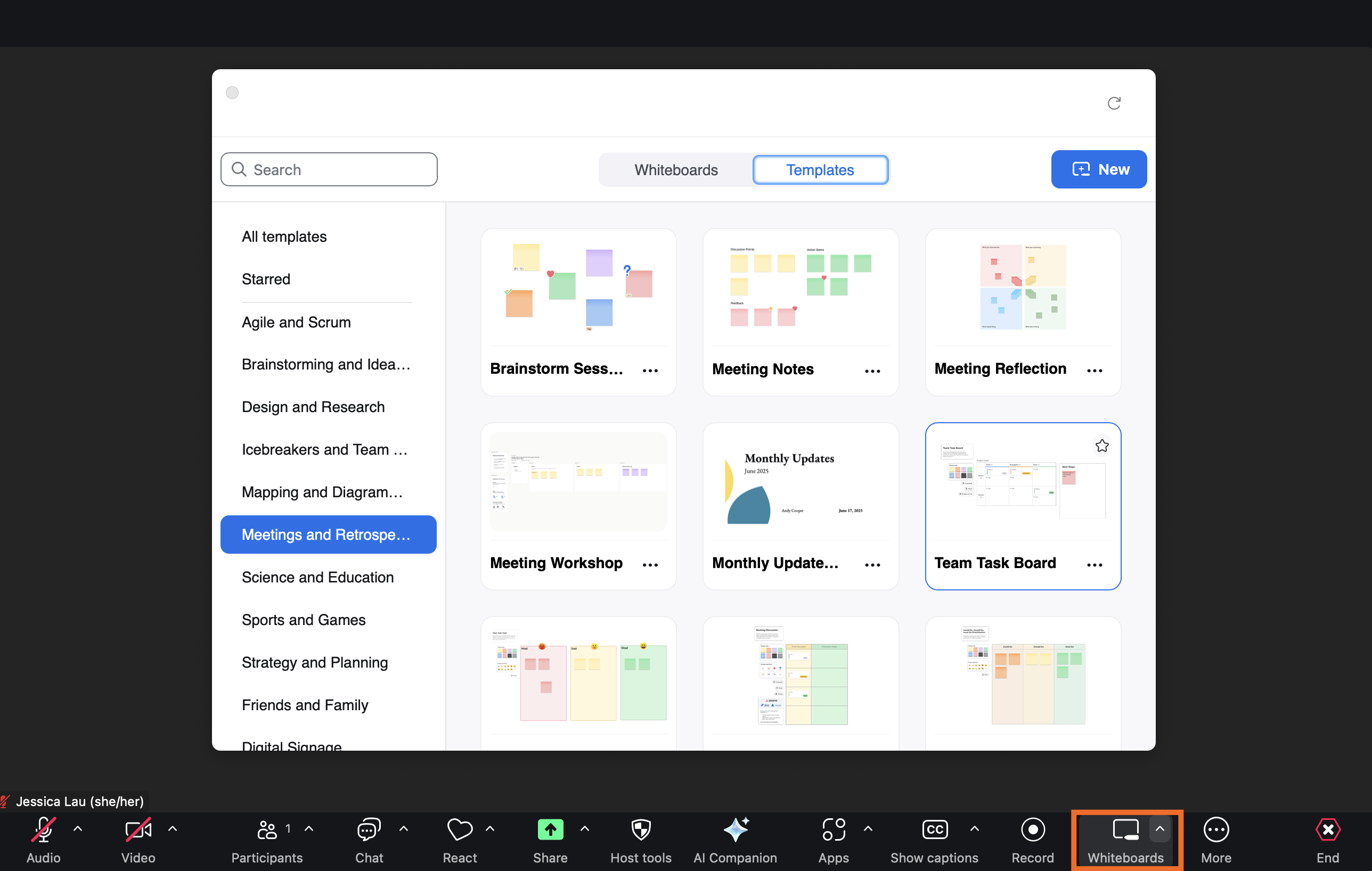
3. Zoom will automatically share your screen, showing only the whiteboard and editing tools.
From there, you can mark up your whiteboard in many of the same ways you can on other [online whiteboards](https://zapier.com/blog/best-online-whiteboard/). You can even add a timer to the screen, which is helpful if you want to give participants a time limit to contribute ideas.
By default, all participants will be able to edit the board. To change this, click the dropdown next to the list of participants in the top-right corner, and click the toggle next to *Meeting participants can edit*.

To add more pages to your whiteboard, click the **Page** icon in the top-left corner, and then click **Add page**. Note: You can only add blank whiteboard pages—not templated ones.

If you want to share your final whiteboard, you can share a direct link to it, or you can export it as a PDF, PNG, or PowerPoint.
### 19\. Take and share notes
Raise your hand if you've ever tried to live-type meeting notes in a separate Google Doc, only to miss half the conversation while hunting for the right tab to switch back to. Same.
Zoom's solution: Zoom Notes—a built-in note-taking app that pops open right inside your meeting window. To access it, click **Notes** in the Zoom toolbar. If you don't see it, click **More** (`...`), and select **Notes**.
Now you can jot down ideas in a distraction-free canvas that everyone on the call can see and edit, if you let them.

If you need something richer—like a project brief or multi-page agenda—spin up a Zoom Doc instead.
1. Click **Docs** in the Zoom toolbar (or click **More** \> **Docs**).
2. Create a new doc any way you want:
- **From scratch**. Click **Create to co-edit** a new doc.
- **From your existing docs**. Click any of your recent docs, and then select **Share in meeting**. You can also click **Open privately** to keep the doc to yourself—it'll appear in the side panel.
- **From a template**. Click the **Templates** tab, select the template you want to use, and then click **Share in meeting**.
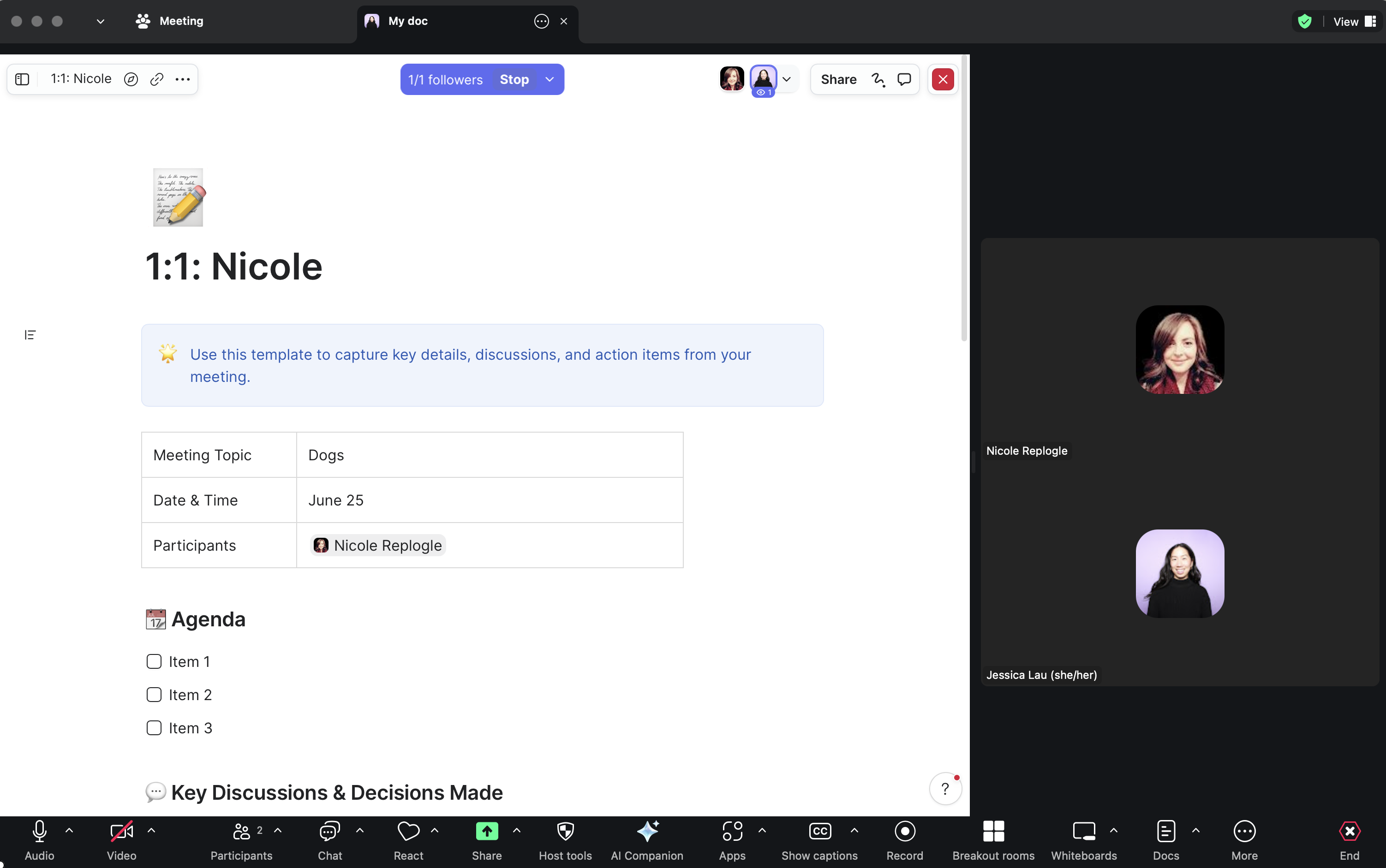
3. Live edit the doc as you normally would.
Both Notes and Docs sync with your Zoom account, so you can keep adding context long after you end the meeting. To access them, log in to your Zoom web portal, and click **Notes** or **Docs** in the side panel.

## Zoom tips: After a meeting
The meeting's over—but your work isn't. Whether you're trying to remember who said what or just figure out who actually showed up, these Zoom tips help you wrap things up without digging through recordings or chasing down attendees.
### 20\. Get AI-powered meeting summaries
My post-meeting routine mainly involved replaying the recording at 1.5x speed to remind myself of what next steps I'd absent-mindedly agreed to. But now, I can use Zoom's AI companion to automatically generate meeting summaries, complete with key moments and action items. The AI can also reference anything you captured in [Zoom Notes or Zoom Docs](https://zapier.com/blog/zoom-tips/#take-and-share-notes), so the summaries will reflect the collaborative edits you made.
This feature is disabled by default, so you'll have to enable it first.
1. Log in to the Zoom web portal.
2. Click **Settings** in the side panel.
3. In the *AI Companion* tab, scroll down to *Meeting*, and click the **Meeting summary with AI companion** toggle.
4. Adjust the meeting summary and share settings as needed.
5. Click **Save**.

Once your meeting has finished, here's how to access your meeting summary:
- **Email**. If you enable email summaries, you'll automatically receive an email summary once it's available.
- **Zoom web portal**. Click **Summaries** in the side panel, and then select the meeting you want the summary for.
- **Zoom desktop app**. Click **Team Chat**, and select the name of the meeting you want the summary for. You'll then see your entire meeting chat, along with your meeting summary.

Zoom will also automatically add action items to your recommended list of [Zoom Tasks](https://support.zoom.com/hc/en/article?id=zm_kb&sysparm_article=KB0078280). To add them to your task list, click **Accept** next to the task.

### 21\. Check who attended a Zoom meeting
Say you're using Zoom to hold a mandatory event, like a university lecture or a training session. You probably want to know who attends. You can get that information from a report once the meeting is finished. Here's how.
1. Log in to your Zoom web portal.
2. In the side panel, click **Reports**.
3. In the *Usage reports* tab, select **Meeting and webinar registrations**. Edit the meeting report fields, including the date of the meeting and type of report you want to create (registration). You can search for a meeting using your meeting ID.
4. From the list of available reports, click **Generate** for the report you want.
**Requirements**: To generate an attendee list, you need to be 1) the host of the meeting, 2) in a role with Usage Reports enabled, or 3) an account administrator or owner. You also need a Pro, API Partner, Business, or Education plan.
## More Zoom tips
Not enough for you? For more inspiration on how to use Zoom effectively, here's every other tip we have:
**Working with sound**
- [How to DJ a Zoom call](https://zapier.com/blog/how-to-dj-on-zoom/)
- [Zoom noise cancellation: How to suppress background noise on Zoom](https://zapier.com/blog/zoom-noise-cancellation/)
- [How to share audio on Zoom](https://zapier.com/blog/zoom-music/)
- [How to join a Zoom meeting by phone](https://zapier.com/blog/join-zoom-meeting-by-phone/)
**Updating your background or display**
- [How to win at Zoom backgrounds, from a first-place winner](https://zapier.com/blog/zoom-virtual-background-winner/)
- [How to blur your background on Zoom—and the case for not doing it](https://zapier.com/blog/how-to-blur-background-in-zoom/)
- [How to not see your own face during Zoom meetings](https://zapier.com/blog/hide-myself-in-zoom-meetings/)
- [How to add your pronouns on Zoom](https://zapier.com/blog/add-pronouns-on-zoom/)
**Facilitating meetings**
- [How to facilitate workshops on Zoom](https://zapier.com/blog/how-to-facilitate-a-zoom-meeting/)
- [How to share a presentation on Zoom without sharing your browser tabs and address bar](https://zapier.com/blog/share-part-of-screen-on-zoom/)
- [How to react to Zoom chat messages (and other Zoom chat tips)](https://zapier.com/blog/zoom-chat-tips/)
- [How to add Zoom to Google Calendar (and make it the default option)](https://zapier.com/blog/add-zoom-to-google-calendar-as-default/)
- [How to quickly find links to your Zoom meetings](https://zapier.com/blog/find-zoom-links/)
Oh, and one last gift for you: Here's [how to automatically close those annoying "Launch Meeting" tabs from Zoom](https://zapier.com/blog/automatically-close-the-launch-meeting-zoom-tab/).
*This article was originally published in November 2018. The most recent update was in June 2025.*
Get productivity tips delivered straight to your inbox
We’ll email you 1-3 times per week—and never share your information.
[ Jessica Lau Jessica Lau is a senior content specialist at Zapier. Outside of writing, she likes to snuggle her dogs, and provide unsolicited podcast and book recommendations.](https://zapier.com/blog/author/jessica-lau)
**tags**
**mentioned apps**
Try Zapier
Free forever for core features. 14-day trial for premium features and apps.
[Sign up](https://zapier.com/sign-up)[Learn more](https://zapier.com/how-it-works)

## Related articles
- [](https://zapier.com/blog/how-to-create-zoom-meeting-link/)
[App tips](https://zapier.com/blog/all-articles/app-tips)
[How to create a Zoom meeting link and share itHow to create a Zoom meeting link and share...](https://zapier.com/blog/how-to-create-zoom-meeting-link/)
- [](https://zapier.com/blog/best-zoom-alternatives/)
[Best apps](https://zapier.com/blog/all-articles/best-apps)
[The 8 best Zoom alternatives in 2026The 8 best Zoom alternatives in 2026](https://zapier.com/blog/best-zoom-alternatives/)
- [](https://zapier.com/blog/best-video-conferencing-apps/)
[Best apps](https://zapier.com/blog/all-articles/best-apps)
[The best video conferencing software for teams in 2026The best video conferencing software for...](https://zapier.com/blog/best-video-conferencing-apps/)
- [](https://zapier.com/blog/webex-vs-zoom/)
[App comparisons](https://zapier.com/blog/all-articles/app-comparisons)
[Webex vs. Zoom: Which is best?Webex vs. Zoom: Which is best?](https://zapier.com/blog/webex-vs-zoom/)
- [](https://zapier.com/blog/automate-cisco-webex-meetings/)
[Automation inspiration](https://zapier.com/blog/all-articles/automation-inspiration)
[5 ways to automate Cisco Webex Meetings5 ways to automate Cisco Webex Meetings](https://zapier.com/blog/automate-cisco-webex-meetings/)
- [](https://zapier.com/blog/upload-zoom-recordings-google-drive/)
[Zapier tutorials](https://zapier.com/blog/all-articles/zapier-tutorials)
[How to automatically upload Zoom recordings to Google DriveHow to automatically upload Zoom recordings...](https://zapier.com/blog/upload-zoom-recordings-google-drive/)
- [](https://zapier.com/blog/how-to-blur-background-in-zoom/)
[App tips](https://zapier.com/blog/all-articles/app-tips)
[How to blur your background on Zoom—and the case for not doing itHow to blur your background on Zoom—and the...](https://zapier.com/blog/how-to-blur-background-in-zoom/)
- [](https://zapier.com/blog/zoom-vs-teams/)
[App comparisons](https://zapier.com/blog/all-articles/app-comparisons)
[Zoom vs. Teams: Which is better for remote meetings and collaboration?Zoom vs. Teams: Which is better for remote...](https://zapier.com/blog/zoom-vs-teams/)
## Improve your productivity automatically. Use Zapier to get your apps working together.
[Sign up](https://zapier.com/sign-up)
[See how Zapier works](https://zapier.com/how-it-works)

Follow us
- [](http://www.facebook.com/ZapierApp?utm_source=zapier.com&utm_medium=referral&utm_campaign=zapier)
- [](https://www.linkedin.com/company/zapier/?utm_source=zapier.com&utm_medium=referral&utm_campaign=zapier)
- [](https://x.com/zapier?utm_source=zapier.com&utm_medium=referral&utm_campaign=zapier#!)
- [](https://www.youtube.com/user/ZapierApp/videos?utm_source=zapier.com&utm_medium=referral&utm_campaign=zapier)
- [](https://zapier.com/blog/feeds/latest/)
- [Pricing](https://zapier.com/pricing)
- [Help](https://zapier.com/app/get-help)
- [Developer Platform](https://zapier.com/developer-platform/integrations)
- [Press](https://zapier.com/press)
- [Jobs](https://zapier.com/jobs)
- [Enterprise](https://zapier.com/enterprise)
- [Templates](https://zapier.com/templates)
- [App Integrations](https://zapier.com/apps)
- [Partners Program](https://zapier.com/l/partners)
© 2026 Zapier Inc.
Manage cookies
- [Legal](https://zapier.com/legal)
- [Privacy](https://zapier.com/privacy) |
| Readable Markdown | I share my screen in Zoom meetings all the time. And yet, every time I go to share my screen, I spend a few awkward seconds hovering over the toolbar as if I've never seen the *Share* button before. Then I found the [keyboard shortcut](https://zapier.com/blog/zoom-tips/#keyboard-shortcuts) to share instantly. Technically, it saves me only one click—but it also saves me from looking like someone who just opened Zoom for the first time.
There are plenty of other useful Zoom features to help you look like a pro Zoomer, too. Here are 21 of my favorite Zoom tips, organized by when you'll need them: before, during, or after a meeting.
**Before a Zoom meeting**
- [Add a profile picture](https://zapier.com/blog/zoom-tips/#add-profile-picture)
- [Mute Zoom audio when joining a meeting](https://zapier.com/blog/zoom-tips/#mute-audio)
- [Turn your Zoom video off by default](https://zapier.com/blog/zoom-tips/#default-video-off)
- [Give attendees a waiting room](https://zapier.com/blog/zoom-tips/#waiting-room)
- [Automatically schedule meetings—and let people know about them](https://zapier.com/blog/zoom-tips/#schedule-meetings-automatically)
- [Schedule recurring meetings with the same URL](https://zapier.com/blog/zoom-tips/#schedule-recurring-meetings)
- [Give someone else scheduling privileges](https://zapier.com/blog/zoom-tips/#schedule-privileges)
- [Collect information from attendees](https://zapier.com/blog/zoom-tips/#meeting-registration)
- [Learn a few of the most useful Zoom keyboard shortcuts](https://zapier.com/blog/zoom-tips/#keyboard-shortcuts)
**During a Zoom meeting**
- [Record a Zoom meeting as a video](https://zapier.com/blog/zoom-tips/#record-meeting)
- [Turn on closed captions](https://zapier.com/blog/zoom-tips/#closed-captions)
- [Co-host calls](https://zapier.com/blog/zoom-tips/#cohost-meetings)
- [Pin participants' videos](https://zapier.com/blog/zoom-tips/#pin-video)
- [Turn on Zoom gallery view](https://zapier.com/blog/zoom-tips/#turn-on-gallery-view)
- [Mute and unmute with the space bar](https://zapier.com/blog/zoom-tips/#mute-audio-keyboard-shortcut)
- [Raise your hand (and give other non-verbal feedback)](https://zapier.com/blog/zoom-tips/#reactions)
- [Have a collaborative annotation session](https://zapier.com/blog/zoom-tips/#annotations)
- [Brainstorm ideas on a Zoom Whiteboard](https://zapier.com/blog/zoom-tips/#zoom-whiteboard)
- [Take and share notes](https://zapier.com/blog/zoom-tips/#take-and-share-notes)
**After a Zoom meeting**
- [Get AI-powered meeting summaries](https://zapier.com/blog/zoom-tips/#ai-summaries)
- [Check who attended a Zoom meeting](https://zapier.com/blog/zoom-tips/#meeting-report)
Note: Some of the tips include Zap templates (what we call our pre-built workflows at Zapier). Simply click on the Zap template to get started. You'll need a Zapier account if you don't already have one.
## Zoom web portal vs. Zoom desktop client
Let me clarify one thing: The Zoom web portal and Zoom desktop client are *not* the same thing. Here's the difference:
- **Zoom web portal**: This refers to your web account (CompanyName.zoom.us).
- **Zoom desktop client**: This refers to the Zoom app.

Zoom desktop client.
For reasons unbeknownst to me, the Zoom desktop client and mobile app have different features than the Zoom web portal. Additionally, you need to select **Save** for any edits made in the web portal, whereas Zoom automatically saves most changes made in the Zoom desktop client or the mobile app.
I've crossed my fingers for years now that Zoom would allow you to update all your settings directly from the web portal *or* Zoom desktop client. But as it turns out, that's not a surefire method for achieving wish fulfillment. Anyway, let's dive in.
## Zoom tips: Before a meeting
Before most Zoom meetings, I do a little pre-call scramble: adjust my lighting, check my background, and hope my mic isn't randomly picking up lawnmowers. But a lot of that stress is avoidable with the right settings in place ahead of time. Use these Zoom tips help you show up prepared to your next meeting.
### 1\. Add a profile picture
There are plenty of occasions when you'd [rather not show your face live](https://zapier.com/blog/why-you-should-turn-your-camera-off-on-zoom/) on Zoom—but you also don't want to be *just* a black box with a name. Get the best of both worlds: Here's how to add a profile picture in Zoom, which will appear instead whenever your [video's off](https://zapier.com/blog/avoid-video-on-zoom-calls/).
1. Log in to your Zoom web portal.
2. Click **Profile**.
3. In the main section with your name, click the pencil icon in the picture frame.

4. Click **Choose Files** to upload your picture.
5. Click **Save.**
### 2\. Mute Zoom audio when joining a meeting
No one wants to be *that* person who joins a meeting late, only to have their dog bark and interrupt the speaker because *of course* that's when your mute button disappears from view. Here's how to [mute your audio](https://zapier.com/blog/when-to-mute-video-calls/) by default.
1. Log in to your Zoom desktop client.
2. Click your profile picture, and then select **Settings**.
3. In the *Settings* window, click **Meetings & webinars**.
4. Under *Join experience*, click the toggle next to *Keep my microphone muted*.

### 3\. Turn your Zoom video off by default
Despite my best efforts, I always remember to check for food in my teeth *after* I've joined a meeting. If you, like me, regularly need an extra moment before you're camera-ready, here's how to join Zoom meetings with your camera automatically turned off.
1. Log in to your Zoom desktop client.
2. Click your profile picture, and then select **Settings**.
3. In the *Settings* window, click **Meetings & webinars**.
4. Under *Join experience*, click the toggle next to *Keep my camera off*.
### 4\. Give attendees a waiting room
If you're hosting a meeting, it's a good idea to give attendees a waiting room where they can hang out until you let them into the main room.
1. Log in to your Zoom web portal.
2. In the side panel, click **Settings**.
3. Click the **Meeting** tab.
4. Under *Security*, click the toggle next to **Waiting Room**.

Now, attendees will automatically be placed in a waiting room for every meeting, and you'll have to manually let them in.
If you want to enable waiting rooms only for specific meetings, you can also set this up. When you schedule the meeting, click the **Waiting Room** checkbox (under *Security*).

### 5\. Automatically schedule meetings—and let people know about them
[Scheduling Zoom meetings](https://zapier.com/blog/how-to-schedule-a-zoom-meeting) eats up a surprising amount of time—especially if you run a lot of them. With Zapier, you can [connect Zoom](https://zapier.com/apps/zoom/integrations) with your calendar or scheduling app—along with thousands of others—so you can automate your meeting-related workflows. Create Zoom meetings for new calendar events, add [Zoom links](https://zapier.com/blog/how-to-create-zoom-meeting-link/) to calendar invites, and send meeting reminders. Here are a few pre-made workflows to get you started.
Create Zoom meetings for new Calendly events
- 
- 
Calendly + Zoom
More details
When the time comes, you'll want to jump right into the discussion and not worry about setting up a meeting and sending out links. Zapier can do all of that for you once you activate this Zap. Every new event created on Calendly will trigger the automation, creating a Zoom meeting for each one. You can then add a step to your Zap to send the Join URL to the invitee by email or any other medium you'd like.
Create detailed Google Calendar events from new Zoom meetings
- 
- 
Zoom + Google Calendar
More details
Don't waste time creating Google Calendar events every time you schedule a new Zoom meeting—let this integration do it automatically! Every time a new Zoom meeting is created, Zapier will build a detailed Google Calendar event.
Update Google calendar events with Zoom meeting links when new bookings are made via OnceHub
OnceHub + Zoom + Google Calendar
More details
If you're looking for better ways to keep your calendar updated with meeting info, try this integration. Once active, it will create a new Zoom meeting whenever a booking is made via OnceHub and automatically insert the Zoom meeting link into the location field of a matching Google Calendar event. Your customers then receive an updated Google Calendar invite with the Zoom meeting link, allowing them to access all relevant booking details from one single place, without any effort on your part.
Get Slack notifications for new Zoom meetings
- 
- 
Zoom + Slack
More details
If you want to easily keep track of meeting in Zoom, Zapier can help. This integration allows you to get automatically notified in Slack every time a new Zoom meeting is created.
Zapier is the most connected AI orchestration platform—integrating with thousands of apps from partners like Google, Salesforce, and Microsoft. Use forms, data tables, and logic to build secure, automated, AI-powered systems for your business-critical workflows across your organization's technology stack. [Learn more](https://zapier.com/l/contact-sales?demo_source=cs_blog_link_callout_contact_sales_shortzapierexplainer).
### 6\. Schedule recurring meetings with the same URL
To minimize last-minute messages of "Where's the meeting link?", Zoom lets you schedule recurring meetings with the same URL. Here's how.
1. Log in to your Zoom web portal.
2. In the side panel, click **Meetings.**
3. Click **Schedule a Meeting.**
4. Edit the meeting options as needed.
5. In the *Time Zone* field, check the **Recurring meeting** box.
6. Edit the recurrence, including the number of times the meeting occurs and how often it occurs.
7. Click **Save.**
If you export the meeting to your Google Calendar, Outlook Calendar, or Yahoo Calendar, the recurrence pattern and meeting URL are automatically included in the calendar event. Plus, the meeting settings remain locked, so you don't have to update it for every meeting.
Additionally, if you meet with the same group but on an irregular schedule, you can also set your recurrence to **No Fixed Time.** This lets you use the same settings and meeting URL no matter when you get together. When I teach, I use this option to host open office hours for student meetings.
Note: You can't schedule recurring meetings with your Personal Meeting ID (PMI) since this ID is reserved for you and the link never changes. Also, meeting IDs expire after one year, so you'll have to generate a new one then.
### 7\. Give someone else scheduling privileges
If someone else manages your calendar and bookings, here's how to give them Zoom privileges so they can schedule meetings on your behalf.
1. Log in to your Zoom web portal.
2. In the side panel, click **Settings.**
3. Click the **Meeting** tab.
4. Under *Schedule Privilege*, click **Add**.
5. Add your scheduling assistants by inputting their email addresses. Click **Save**.
Once done, your assigned scheduling assistant must log out of their Zoom desktop client and log back in for the feature to take effect.
This feature is also helpful if your assistant has scheduled a meeting, but the meeting host needs to be changed from you to someone else. Here's [how to transfer a meeting between Zoom users](https://support.zoom.us/hc/en-us/articles/201362803-Scheduling-privilege#h_01FCRCKFC93PJ3JPF9XP5JW0X7).
**Requirements:** The primary Zoom account holder and everyone who receives scheduling privileges must share the same account or have linked accounts. Everyone must also be Licensed or On-Prem. And for webinars, everyone must have the webinar add-on.
### 8\. Collect information from attendees
For any number of reasons, you may want to ask attendees to share a few details about themselves prior to joining the call. For example, you might want to require that attendees provide their name, company affiliation, or industry.
Here's how to collect this information.
1. Log in to the Zoom web portal.
2. In the side panel, click **Meetings**.
3. Click **Schedule a Meeting.**
4. Next to *Registration*, click the **Required** checkbox.
5. Click **Save**.
6. After you've created the meeting, click the **Registration** tab, and then select **Edit**.

7. In the *Registration* window, click the **Questions** tab. Here, you can add standard fields, such as name and organization, by selecting the checkbox next to the field name. To make specific fields mandatory, select the *Required* checkbox to the right of the field name. You can also create your own questions by clicking **Add Question**.

8. Click **Save All.**

If you're using Zoom to run a digital event like a webinar, you might want to let attendees register using a form on your website or an event management app instead. Here are some handy pre-made Zaps that automatically register all attendees, regardless of where they sign up.
Add new Eventbrite attendees as Zoom webinar registrants
- 
- 
Eventbrite + Zoom
More details
Rather than hassling with CSV files to register attendees for a Zoom webinar, use Zapier to start automatically importing them. Once you set up this Eventbrite-Zoom integration, new event attendees from that point forward are registered for the webinar.
Create Zoom registrants from new contact activities on ClickFunnels
- 
- 
ClickFunnels Classic + Zoom
More details
Want to register new contacts for your upcoming webinar? With this integration, you can, using their recent activity on your website as a trigger. You specify the activity – viewing a certain page, accessing a specific funnel etc. We'll track it, and turn the contact performing the activity into a registrant on Zoom. Make it super easy for leads to join your live demo or class with this automation.
Add new Leadpages leads as Zoom registrants
- 
- 
Leadpages + Zoom
More details
If you're trying to set up a webinar or conference call, time spent updating contact details keeps you from working on the content itself. Get a little help by setting up this integration. Zapier will then log each new respondent you receive on Leadpages as an event registrant on Zoom, so you can be sure everyone will be set up when the time comes.
Generate Zoom registrants for new Gravity Forms form submissions
- 
- 
Gravity Forms + Zoom
More details
Got a big meeting or presentation coming up? The last thing on your mind should be how to get everyone registered. Use this integration and that step will be done for you! After set-up, Gravity Forms submissions will create Zoom registrants. Just send out the form, and submissions will become registrants\!
You can make this automation even more powerful by making sure that any registrant information collected is also added to your CRM or email marketing tool, so you can easily follow up with potential leads or customers.
Add new Zoom registrants to Mailchimp as subscribers
- 
- 
Zoom + Mailchimp
More details
Stay in touch with your Zoom webinar registrants by adding them to a Mailchimp subscriber list. Use Zapier to start automatically adding new Zoom Webinar registrants to Mailchimp as new subscribers.
Update ActiveCampaign contacts from new Zoom registrants
- 
- 
Zoom + ActiveCampaign
More details
Webinars are a great way to generate leads, but the follow-up marketing tasks will take you time and effort. Save on both when you use this integration to automatically create a new ActiveCampaign contact, or update an existing contact, whenever a new registrant is added to a Zoom webinar. Keep your marketing on target without losing time to manual updates\!
**Requirements**: This feature is limited to hosts with a paid Zoom account. The meeting must also be generated automatically (you can't use your PMI) and cannot be a No Fixed Time recurring meeting.
### 9\. Learn a few of the most useful Zoom keyboard shortcuts
Zoom has quite a list of [keyboard shortcuts](https://zapier.com/blog/zoom-shortcuts/), but here are my go-tos that I think are worth learning.
**I** is for invite. Press `command`\+`I` (macOS) or `Alt`\+`I` (Windows) to jump to the *Invite* window, where you can grab the link to the meeting or send invitations to others via email.
**M** is for mute. Press `command`\+`control`\+`M` (macOS) or `Alt`\+`M` (Windows) when you're the meeting host and want to mute everyone else on the line. If using windows, press `Alt`\+`M` again to unmute. For mac, press `command`\+`control`\+`U` (macOS).
**S** is for share. Press `command`\+`shift`\+`S` (macOS) or `Alt`\+`Shift`\+`S` (Windows) to share your screen.
## Zoom tips: During a meeting
Once your Zoom meeting kicks off, you're juggling a lot: screen sharing, staying on mute (until you're not), and trying not to accidentally share your inbox instead of your slides. These Zoom tips help you stay focused, collaborate smoothly, and actually *look* like someone who has Zoom figured out.
### 10\. Record a Zoom meeting as a video
[Zoom lets you record](https://zapier.com/blog/zoom-recording) your web conferencing calls as videos, a handy feature for sharing the meeting with people who may have missed it or for reviewing what was said.
**Note**: If you record meeting attendees' video or audio, it's common courtesy—and in some places a requirement—to inform them before you do. Once you begin recording, Zoom will also notify all participants that the meeting is being recorded.
When you record, you must choose [whether to use the local or cloud option](https://zapier.com/blog/where-do-zoom-recordings-go/). Here's the difference:
- **Local** means you store the video file yourself, whether locally on your computer or in another storage space that you provide.
- **Cloud** means Zoom stores the video for you in its cloud storage. One major convenience of the cloud option is that people can stream the video in a web browser once it's ready. This option is available for paying users only. The amount of available cloud storage will vary depending on the account type.
When creating a video from a conference call, it makes a big difference in the final quality if you optimize a few settings in advance. For example, some calls might be broadcast-style, where only the host appears on screen. In that case, set Zoom to only record the audio and video of the host. Other calls might be in the style of a collaborative meeting, in which case you want to record everyone. Be sure to check out Zoom's [local recording settings](https://support.zoom.us/hc/en-us/articles/201362473-Enabling-and-starting-local-recordings) and [cloud recording settings](https://support.zoom.us/hc/en-us/articles/360060316092-Changing-basic-and-advanced-cloud-recording-settings) at least a few minutes before starting a call.
**Requirements**: To record videos, you need Zoom on macOS, Windows, or Linux. If you don't have the option to record, edit your recording settings in your Zoom web portal or have your account administrator enable it.
If you need to share the recording later, try one of these Zaps to automatically share once the recording has finished.
Send Slack channel messages for new Zoom recordings
- 
- 
Zoom + Slack
More details
When you have new recordings available, you'll want to know about it. This integration helps by automatically sending a channel message in Slack with details of a new Zoom recording. It's never been easier to be notified of your new recordings.
Upload new Zoom recordings to Google Drive
- 
- 
Zoom + Google Drive
More details
With this integration, you won't forget to upload a recording after a video call. This template will automatically upload new Zoom recordings in Google Drive. Just select which Drive and folder you'd like your file to go. Learn how in our
### 11\. Turn on closed captions
One of the perks of working remotely is that I can take meetings anywhere, including a noisy coffee shop. The only downside is that it makes it tricky to hear what people are saying in meetings (even with headphones on). That's where it's helpful to turn on closed captions.
To do this, click **Show captions** in the Zoom control bar. If you don't see this, you may have to first click **More**, and then select **Captions**. Click the up arrow (`∧`) next to *Show captions* to reveal even more features:

- **Choose your language**. Zoom currently supports 35 different languages for automated captioning.
- **View full transcript**. This gives you a view of *everything* that's been said in the meeting so far—not just what's currently being said.
- **Caption settings**. This lets you change the font style, size, color, and position.
- **Set up manual captions**. If you're the meeting host, you can assign an attendee to manually type the captions.
- **Adjust other host caption controls**. This lets you enable or disable closed captions, as well as set the caption language (attendees won't be able to change it).
**Note**: Whether you're hosting a meeting for two or 200, don't wait for someone to request closed captioning—always enable Zoom's closed captions. The feature isn't 100% accurate, but it's a positive step towards making meetings more accessible.
### 12\. Add a co-host
Double the hosts, double the fun! That's a saying, right? Here's how to add a co-host to your Zoom meeting.
1. Once your co-host has joined the meeting, click **Participants** in the Zoom control bar.
2. Hover over the name of your co-host, and click **More**.
3. Click **Make Co-Host**.
**Requirements**: To use co-hosting, you need a Pro, Business, Education, or API Partner account with Zoom, and you need to run on macOS, Windows, Android, or iOS.
### 13\. Pin participants' videos
If you join a meeting with your camera on and your dog in the background, I *will* privately message you to ask your dog's name, nicknames, and quirks. Which is to say, I'm very easily distracted. But when I need to reign in my focus, I pin the speaker's window so everyone else is hidden. Here's how.
1. During a Zoom meeting, hover over the video of the participant you want to pin.
2. Click the **menu** (`…`) \> **Pin.** You can pin up to 9 total videos.
### 14\. Turn on Zoom gallery view
Let's say you're teaching a class or taking a class—it can be helpful to see everyone in the meeting. Here's how to turn on the gallery view in Zoom.
1. During a Zoom meeting, click **View** in the top-right corner.
2. Select **Gallery**. If the meeting has 49 or fewer attendees, you may need to adjust the size of your window to see all windows displayed on one page. If your meeting has more than 49 attendees, you'll have the option to navigate through multiple pages.
### 15\. Mute and unmute with the space bar
I have no problem playing favorites, and this Zoom tip is inexplicably my favorite.
If you're on mute and need to speak, **press and hold your spacebar** while in the Zoom app to quickly unmute. Be sure to hold the spacebar down while you're talking.
**Note**: This push-to-talk feature won't work if you're actively using another application (which is great if you're multitasking).
### 16\. Raise your hand (and give other non-verbal feedback)
So you've asked a question in the chat, but it looks like the speaker may have missed it. You don't want to interrupt, so what do you do? Raise your hand\!
In the control bar, select **React** \> **Raise Hand**. This will pin a ✋ to the top of your video and move your thumbnail to the top of the gallery, which will hopefully catch the attention of the speaker. To lower your hand, select **React** \> **Lower Hand**. If you don't see these options, you may need to ask the host to [enable non-verbal feedback](https://support.zoom.com/hc/en/article?id=zm_kb&sysparm_article=KB0058408).

While you're there, you can choose other meeting reactions—for example, thumbs up, heart, and clapping hands—or non-verbal feedback—for example, yes, no, slow down, and speed up.
If you're constantly raising your hand or giving a thumbs up, save yourself a click.
1. In the Zoom control bar, click the up arrow (`∧`) next to *React*.
2. Click [**Recognize hand gestures**](https://zapier.com/blog/zoom-hand-gestures/).
### 17\. Have a collaborative annotation session
When screen sharing, it can be immensely helpful to point participants to specific areas of your screen or to let everyone draw on visual materials, such as mockups or graphic designs. Zoom has built-in annotation tools for this.
1. Share your screen (or have someone else share their screen).
2. Click **Annotate** in the Zoom control bar.
3. Select any of the tools that appear in the floating toolbar.

Here are a few of my favorite annotation tools:
- **Spotlight:** Turn the host's cursor into a red dot or arrow (available only to the participant who started a screen share or whiteboard).
- **Stamp**: Choose a shape—for example, a checkmark, X, or heart—and click anywhere on the screen to stamp it.
- **Vanishing pen:** Mark up a shared screen or whiteboard. The markings will fade away within a few seconds, so you don't have to erase or undo your previous drawings (available only to the participant who started a screen share or whiteboard).
To disable attendee annotation altogether, select **More** (`...`) in the Zoom control bar, and then select **Disable annotation for others**.
### 18\. Brainstorm ideas on a Zoom Whiteboard
Zoom's annotation tools are useful for a simple collaborative experience. But if you need more advanced capabilities—like sticky notes, flowchart builders, and the ability to upload images directly to your shared screen—try using Zoom Whiteboard.
1. Click **Whiteboards** in the Zoom control bar.
2. Select **New whiteboard** to start from scratch, or click **Existing whiteboards** to choose from an existing template. If you go with the template option, click the template you want to use, and then click **Use template**.

3. Zoom will automatically share your screen, showing only the whiteboard and editing tools.
From there, you can mark up your whiteboard in many of the same ways you can on other [online whiteboards](https://zapier.com/blog/best-online-whiteboard/). You can even add a timer to the screen, which is helpful if you want to give participants a time limit to contribute ideas.
By default, all participants will be able to edit the board. To change this, click the dropdown next to the list of participants in the top-right corner, and click the toggle next to *Meeting participants can edit*.

To add more pages to your whiteboard, click the **Page** icon in the top-left corner, and then click **Add page**. Note: You can only add blank whiteboard pages—not templated ones.

If you want to share your final whiteboard, you can share a direct link to it, or you can export it as a PDF, PNG, or PowerPoint.
### 19\. Take and share notes
Raise your hand if you've ever tried to live-type meeting notes in a separate Google Doc, only to miss half the conversation while hunting for the right tab to switch back to. Same.
Zoom's solution: Zoom Notes—a built-in note-taking app that pops open right inside your meeting window. To access it, click **Notes** in the Zoom toolbar. If you don't see it, click **More** (`...`), and select **Notes**.
Now you can jot down ideas in a distraction-free canvas that everyone on the call can see and edit, if you let them.

If you need something richer—like a project brief or multi-page agenda—spin up a Zoom Doc instead.
1. Click **Docs** in the Zoom toolbar (or click **More** \> **Docs**).
2. Create a new doc any way you want:
- **From scratch**. Click **Create to co-edit** a new doc.
- **From your existing docs**. Click any of your recent docs, and then select **Share in meeting**. You can also click **Open privately** to keep the doc to yourself—it'll appear in the side panel.
- **From a template**. Click the **Templates** tab, select the template you want to use, and then click **Share in meeting**.

3. Live edit the doc as you normally would.
Both Notes and Docs sync with your Zoom account, so you can keep adding context long after you end the meeting. To access them, log in to your Zoom web portal, and click **Notes** or **Docs** in the side panel.

## Zoom tips: After a meeting
The meeting's over—but your work isn't. Whether you're trying to remember who said what or just figure out who actually showed up, these Zoom tips help you wrap things up without digging through recordings or chasing down attendees.
### 20\. Get AI-powered meeting summaries
My post-meeting routine mainly involved replaying the recording at 1.5x speed to remind myself of what next steps I'd absent-mindedly agreed to. But now, I can use Zoom's AI companion to automatically generate meeting summaries, complete with key moments and action items. The AI can also reference anything you captured in [Zoom Notes or Zoom Docs](https://zapier.com/blog/zoom-tips/#take-and-share-notes), so the summaries will reflect the collaborative edits you made.
This feature is disabled by default, so you'll have to enable it first.
1. Log in to the Zoom web portal.
2. Click **Settings** in the side panel.
3. In the *AI Companion* tab, scroll down to *Meeting*, and click the **Meeting summary with AI companion** toggle.
4. Adjust the meeting summary and share settings as needed.
5. Click **Save**.

Once your meeting has finished, here's how to access your meeting summary:
- **Email**. If you enable email summaries, you'll automatically receive an email summary once it's available.
- **Zoom web portal**. Click **Summaries** in the side panel, and then select the meeting you want the summary for.
- **Zoom desktop app**. Click **Team Chat**, and select the name of the meeting you want the summary for. You'll then see your entire meeting chat, along with your meeting summary.

Zoom will also automatically add action items to your recommended list of [Zoom Tasks](https://support.zoom.com/hc/en/article?id=zm_kb&sysparm_article=KB0078280). To add them to your task list, click **Accept** next to the task.

### 21\. Check who attended a Zoom meeting
Say you're using Zoom to hold a mandatory event, like a university lecture or a training session. You probably want to know who attends. You can get that information from a report once the meeting is finished. Here's how.
1. Log in to your Zoom web portal.
2. In the side panel, click **Reports**.
3. In the *Usage reports* tab, select **Meeting and webinar registrations**. Edit the meeting report fields, including the date of the meeting and type of report you want to create (registration). You can search for a meeting using your meeting ID.
4. From the list of available reports, click **Generate** for the report you want.
**Requirements**: To generate an attendee list, you need to be 1) the host of the meeting, 2) in a role with Usage Reports enabled, or 3) an account administrator or owner. You also need a Pro, API Partner, Business, or Education plan.
## More Zoom tips
Not enough for you? For more inspiration on how to use Zoom effectively, here's every other tip we have:
**Working with sound**
- [How to DJ a Zoom call](https://zapier.com/blog/how-to-dj-on-zoom/)
- [Zoom noise cancellation: How to suppress background noise on Zoom](https://zapier.com/blog/zoom-noise-cancellation/)
- [How to share audio on Zoom](https://zapier.com/blog/zoom-music/)
- [How to join a Zoom meeting by phone](https://zapier.com/blog/join-zoom-meeting-by-phone/)
**Updating your background or display**
- [How to win at Zoom backgrounds, from a first-place winner](https://zapier.com/blog/zoom-virtual-background-winner/)
- [How to blur your background on Zoom—and the case for not doing it](https://zapier.com/blog/how-to-blur-background-in-zoom/)
- [How to not see your own face during Zoom meetings](https://zapier.com/blog/hide-myself-in-zoom-meetings/)
- [How to add your pronouns on Zoom](https://zapier.com/blog/add-pronouns-on-zoom/)
**Facilitating meetings**
- [How to facilitate workshops on Zoom](https://zapier.com/blog/how-to-facilitate-a-zoom-meeting/)
- [How to share a presentation on Zoom without sharing your browser tabs and address bar](https://zapier.com/blog/share-part-of-screen-on-zoom/)
- [How to react to Zoom chat messages (and other Zoom chat tips)](https://zapier.com/blog/zoom-chat-tips/)
- [How to add Zoom to Google Calendar (and make it the default option)](https://zapier.com/blog/add-zoom-to-google-calendar-as-default/)
- [How to quickly find links to your Zoom meetings](https://zapier.com/blog/find-zoom-links/)
Oh, and one last gift for you: Here's [how to automatically close those annoying "Launch Meeting" tabs from Zoom](https://zapier.com/blog/automatically-close-the-launch-meeting-zoom-tab/).
*This article was originally published in November 2018. The most recent update was in June 2025.* |
| Shard | 53 (laksa) |
| Root Hash | 5649975585208184653 |
| Unparsed URL | com,zapier!/blog/zoom-tips/ s443 |