ℹ️ Skipped - page is already crawled
| Filter | Status | Condition | Details |
|---|---|---|---|
| HTTP status | PASS | download_http_code = 200 | HTTP 200 |
| Age cutoff | PASS | download_stamp > now() - 6 MONTH | 0.7 months ago |
| History drop | PASS | isNull(history_drop_reason) | No drop reason |
| Spam/ban | PASS | fh_dont_index != 1 AND ml_spam_score = 0 | ml_spam_score=0 |
| Canonical | PASS | meta_canonical IS NULL OR = '' OR = src_unparsed | Not set |
| Property | Value |
|---|---|
| URL | https://xiaomiui.net/three-different-methods-to-install-google-on-huawei-11008/ |
| Last Crawled | 2026-03-18 11:09:02 (20 days ago) |
| First Indexed | 2022-03-06 21:32:24 (4 years ago) |
| HTTP Status Code | 200 |
| Meta Title | How to install Google on Huawei — Three different methods - Xiaomiui.Net |
| Meta Description | On May 15, 2019, restrictions were imposed on Huawei by the U.S. government, and some phones could not use Google products due to this situation. But against |
| Meta Canonical | null |
| Boilerpipe Text | On May 15, 2019, restrictions were imposed on Huawei by the U.S. government, and some phones could not use Google products due to this situation. But against this situation, some solutions developed by third-party developers to install Google product. Although these methods are not stable, we take no responsibility for problems that may occur when using the methods here.
1. Method: OurPlay
OurPlay is an application developed as an alternative to GSpace and Dual Space. Installing GMSCore, Play Store and necessary services ready for use by automatically installing them in the sandbox. According to users, the games run smoothly. It can be run in any EMUI version, so you do not have to switch versions. And it is recommended for use by the community. Detailed information can be found in this video.
https://youtu.be/4puAW_m0_Is
2. Method: Googlefier
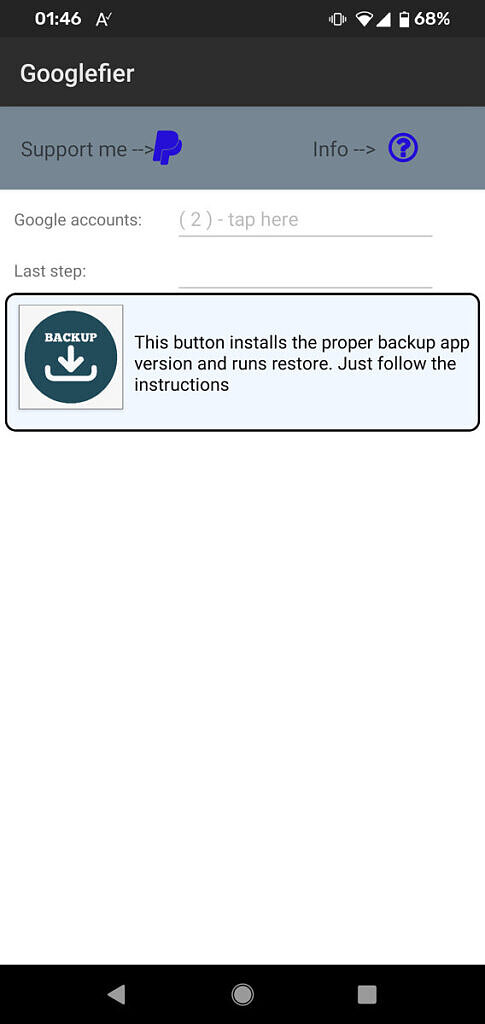
Googlefier is the most popular method, but it only supports EMUI 10, so to use it, you need to downgrade your phone to EMUI 10 first. After you install and run the app, it will complete the installation phase with simple instructions. If your Huawei device is still running EMUI 10, then simply
download the APK from the forum thread linked
below and install it on your Huawei device, Googlefier will install basic services on your device. Once installed, grant the app all the necessary permissions and then follow the steps described to install GMS on your phone.
Roll Back to EMUI 10 from EMUI 11
The first thing you need to do is
backup your phone
because rolling back to EMUI 10 will wipe everything from it. Once you’ve done that, follow the steps below. Also note that this method does not work with the Huawei Mate X2, whose software cannot be rolled back.
Download the Huawei HiSuite software for your Windows PC from the
Huawei website
Enable HDB. To do this, go to Settings > Security > More Settings > Allow Connection via HDB
Connect your device to your computer
Select “Transfer files”
Give your consent to the requested permissions
HiSuite will ask for a verification code to confirm synchronisation. This is displayed on the screen of your device
On the HiSuite home screen, tap the “Refresh” button
Then tap the “Switch to another version” button
Tap on “Restore” after “Reset”
After this process, EMUI 10 will be installed on your device.
3. Method: GSpace
GSpace is officially available in the Huawei App Gallery. It has the same logic as OurPlay, Google products are installed in the virtual environment. But users have indicated that they have problems with the games. |
| Markdown | [](https://xiaomiui.net/) No.1 Fan Community
- Smartphones
- [Redmi](https://xiaomiui.net/redmi/)
- [POCO](https://xiaomiui.net/poco/)
- [Blackshark](https://xiaomiui.net/blackshark/)
- [Guides](https://xiaomiui.net/guides/)
- [Home](https://xiaomiui.net/ "Xiaomi News")
- [Mobile](https://xiaomiui.net/mobile/ "Mobile")
# How to install Google on Huawei — Three different methods
[Erdil Sualp Bayram](https://xiaomiui.net/author/erdils/)
Mar. 6, 2022, 17:06

On May 15, 2019, restrictions were imposed on Huawei by the U.S. government, and some phones could not use Google products due to this situation. But against this situation, some solutions developed by third-party developers to install Google product. Although these methods are not stable, we take no responsibility for problems that may occur when using the methods here.
[](https://xiaomiui.net/three-different-methods-to-install-google-on-huawei-11008/3e7e4fd5fd334106a0eef29938850619/)
## 1\. Method: OurPlay
OurPlay is an application developed as an alternative to GSpace and Dual Space. Installing GMSCore, Play Store and necessary services ready for use by automatically installing them in the sandbox. According to users, the games run smoothly. It can be run in any EMUI version, so you do not have to switch versions. And it is recommended for use by the community. Detailed information can be found in this video.
https://youtu.be/4puAW\_m0\_Is
## 2\. Method: Googlefier
Googlefier is the most popular method, but it only supports EMUI 10, so to use it, you need to downgrade your phone to EMUI 10 first. After you install and run the app, it will complete the installation phase with simple instructions. If your Huawei device is still running EMUI 10, then simply [download the APK from the forum thread linked](https://forum.xda-developers.com/android/apps-games/googlefier-install-gms-huawei-honor-t4180485) below and install it on your Huawei device, Googlefier will install basic services on your device. Once installed, grant the app all the necessary permissions and then follow the steps described to install GMS on your phone.
### Roll Back to EMUI 10 from EMUI 11
The first thing you need to do is ***backup your phone*** because rolling back to EMUI 10 will wipe everything from it. Once you’ve done that, follow the steps below. Also note that this method does not work with the Huawei Mate X2, whose software cannot be rolled back.
- Download the Huawei HiSuite software for your Windows PC from the [Huawei website](https://consumer.huawei.com/en/support/hisuite/)
- Enable HDB. To do this, go to Settings \> Security \> More Settings \> Allow Connection via HDB
- Connect your device to your computer
- Select “Transfer files”
- Give your consent to the requested permissions
- HiSuite will ask for a verification code to confirm synchronisation. This is displayed on the screen of your device
- On the HiSuite home screen, tap the “Refresh” button
- Then tap the “Switch to another version” button
- Tap on “Restore” after “Reset”
- After this process, EMUI 10 will be installed on your device.
## 3\. Method: GSpace
GSpace is officially available in the Huawei App Gallery. It has the same logic as OurPlay, Google products are installed in the virtual environment. But users have indicated that they have problems with the games.

[Facebook](http://www.facebook.com/sharer.php?u=https://xiaomiui.net/three-different-methods-to-install-google-on-huawei-11008/) [X](https://twitter.com/intent/tweet?text=How%20to%20install%20Google%20on%20Huawei%20%E2%80%94%20Three%20different%20methods&url=https://xiaomiui.net/three-different-methods-to-install-google-on-huawei-11008/) [Whatsapp](<whatsapp://send?text=How to install Google on Huawei — Three different methods%0Ahttps://xiaomiui.net/three-different-methods-to-install-google-on-huawei-11008/>) [Telegram](https://telegram.me/share/url?text=%20How%20to%20install%20Google%20on%20Huawei%20%E2%80%94%20Three%20different%20methods&url=https://xiaomiui.net/three-different-methods-to-install-google-on-huawei-11008/)
### Related Articles
- [ Bypass Samsung FRP With/Without Password \| Free and Advanced Ways](https://xiaomiui.net/bypass-samsung-frp-with-without-password-free-and-advanced-ways-70334/ "Bypass Samsung FRP With/Without Password | Free and Advanced Ways")
- [ Mobile Gaming in 2026: How Smartphones Are Changing Online Entertainment](https://xiaomiui.net/mobile-gaming-in-2026-how-smartphones-are-changing-online-entertainment-70170/ "Mobile Gaming in 2026: How Smartphones Are Changing Online Entertainment")
- [ The Future of Work is Unified: A Roadmap For the Modern Leader](https://xiaomiui.net/the-future-of-work-is-unified-a-roadmap-for-the-modern-leader-70131/ "The Future of Work is Unified: A Roadmap For the Modern Leader")
- [ Turn Your Smartphone Into A Remote‑Work Hub](https://xiaomiui.net/turn-your-smartphone-into-a-remote-work-hub-69840/ "Turn Your Smartphone Into A Remote‑Work Hub")
Latest Devices[All Devices](https://xiaomiui.net/smartphones/)
[Redmi Note 13 4G NFC](https://xiaomiui.net/smartphones/redmi-note-13-4g-nfc/)
[Redmi Note 13 4G](https://xiaomiui.net/smartphones/redmi-note-13-4g/)
[POCO X6 Pro](https://xiaomiui.net/smartphones/poco-x6-pro/)
[POCO X6 5G](https://xiaomiui.net/smartphones/poco-x6-5g/)
[POCO M6 Pro 4G](https://xiaomiui.net/smartphones/poco-m6-pro-4g/)
[Redmi Note 13 Pro 4G](https://xiaomiui.net/smartphones/redmi-note-13-pro-4g/)
[Redmi 13R](https://xiaomiui.net/smartphones/redmi-13r/)
[Redmi 13C 5G](https://xiaomiui.net/smartphones/redmi-13c-5g/)
Latest News
1. ### Poco X8 Pro series launched with familiar details
2. ### Oppo Find N6 now official… Here are the details
3. ### Vivo T5x 5G debuts with higher price vs. predecessor
4. ### Oppo Find X9 Ultra: What To Expect
5. ### Oppo K14 5G unveiled in India
Top by Daily Interest
1. [Xiaomi Redmi Note 10 5G](https://xiaomiui.net/smartphones/xiaomi-redmi-note-10-5g/)
2. [Xiaomi 12T Pro](https://xiaomiui.net/smartphones/xiaomi-12t-pro/)
3. [Xiaomi Mi 2](https://xiaomiui.net/smartphones/xiaomi-mi-2/)
4. [Xiaomi Redmi K30](https://xiaomiui.net/smartphones/xiaomi-redmi-k30/)
5. [Xiaomi Pad 5 Pro Wi-Fi](https://xiaomiui.net/smartphones/xiaomi-pad-5-pro-wi-fi/)
6. [Xiaomi Redmi Pad](https://xiaomiui.net/smartphones/xiaomi-redmi-pad/)
7. [Xiaomi Mi A1](https://xiaomiui.net/smartphones/xiaomi-mi-a1-/)
8. [POCO X4 GT](https://xiaomiui.net/smartphones/poco-x4-gt/)
9. [Redmi Note 13 Pro](https://xiaomiui.net/smartphones/redmi-note-13-pro/)
10. [Xiaomi Mi 6](https://xiaomiui.net/smartphones/xiaomi-mi-6/)
## Categories
- [News](https://xiaomiui.net/news/)
- [Mobile](https://xiaomiui.net/mobile/)
- [Android](https://xiaomiui.net/mobile/android/)
- [Leaks & Upcoming Devices](https://xiaomiui.net/leaks/)
- [Products](https://xiaomiui.net/xiaomi-products/)
- [MIUI](https://xiaomiui.net/miui/)
- [Reviews](https://xiaomiui.net/reviews/)
- [HyperOS](https://xiaomiui.net/hyperos/)
- [Wearable](https://xiaomiui.net/wearable/) |
| Readable Markdown | On May 15, 2019, restrictions were imposed on Huawei by the U.S. government, and some phones could not use Google products due to this situation. But against this situation, some solutions developed by third-party developers to install Google product. Although these methods are not stable, we take no responsibility for problems that may occur when using the methods here.
[](https://xiaomiui.net/three-different-methods-to-install-google-on-huawei-11008/3e7e4fd5fd334106a0eef29938850619/)
## 1\. Method: OurPlay
OurPlay is an application developed as an alternative to GSpace and Dual Space. Installing GMSCore, Play Store and necessary services ready for use by automatically installing them in the sandbox. According to users, the games run smoothly. It can be run in any EMUI version, so you do not have to switch versions. And it is recommended for use by the community. Detailed information can be found in this video.
https://youtu.be/4puAW\_m0\_Is
## 2\. Method: Googlefier
Googlefier is the most popular method, but it only supports EMUI 10, so to use it, you need to downgrade your phone to EMUI 10 first. After you install and run the app, it will complete the installation phase with simple instructions. If your Huawei device is still running EMUI 10, then simply [download the APK from the forum thread linked](https://forum.xda-developers.com/android/apps-games/googlefier-install-gms-huawei-honor-t4180485) below and install it on your Huawei device, Googlefier will install basic services on your device. Once installed, grant the app all the necessary permissions and then follow the steps described to install GMS on your phone.
### Roll Back to EMUI 10 from EMUI 11
The first thing you need to do is ***backup your phone*** because rolling back to EMUI 10 will wipe everything from it. Once you’ve done that, follow the steps below. Also note that this method does not work with the Huawei Mate X2, whose software cannot be rolled back.
- Download the Huawei HiSuite software for your Windows PC from the [Huawei website](https://consumer.huawei.com/en/support/hisuite/)
- Enable HDB. To do this, go to Settings \> Security \> More Settings \> Allow Connection via HDB
- Connect your device to your computer
- Select “Transfer files”
- Give your consent to the requested permissions
- HiSuite will ask for a verification code to confirm synchronisation. This is displayed on the screen of your device
- On the HiSuite home screen, tap the “Refresh” button
- Then tap the “Switch to another version” button
- Tap on “Restore” after “Reset”
- After this process, EMUI 10 will be installed on your device.

## 3\. Method: GSpace
GSpace is officially available in the Huawei App Gallery. It has the same logic as OurPlay, Google products are installed in the virtual environment. But users have indicated that they have problems with the games.
 |
| Shard | 70 (laksa) |
| Root Hash | 15898768762821269870 |
| Unparsed URL | net,xiaomiui!/three-different-methods-to-install-google-on-huawei-11008/ s443 |