ℹ️ Skipped - page is already crawled
| Filter | Status | Condition | Details |
|---|---|---|---|
| HTTP status | PASS | download_http_code = 200 | HTTP 200 |
| Age cutoff | PASS | download_stamp > now() - 6 MONTH | 0.2 months ago |
| History drop | PASS | isNull(history_drop_reason) | No drop reason |
| Spam/ban | PASS | fh_dont_index != 1 AND ml_spam_score = 0 | ml_spam_score=0 |
| Canonical | PASS | meta_canonical IS NULL OR = '' OR = src_unparsed | Not set |
| Property | Value |
|---|---|
| URL | https://www.whatismybrowser.com/detect/what-is-my-local-ip-address/ |
| Last Crawled | 2026-04-07 00:34:42 (5 days ago) |
| First Indexed | 2024-05-21 05:54:11 (1 year ago) |
| HTTP Status Code | 200 |
| Meta Title | What is my Local IP Address? - WhatIsMyBrowser.com |
| Meta Description | As well as your Public IP Address, if you are connected to a computer network you will also have a Local IP Address, here's what it is. |
| Meta Canonical | null |
| Boilerpipe Text | Updated at: Feb 25, 2022
We have detected your local IP Address as:
JavaScript is not enabled.
JavaScript needs to be enabled in order to detect your local IP address.
Detection didn't work? Here's how to find your local IP Address
Unfortunately most web browsers now prevent websites from automatically detecting what your local IP Address is, so we can't detect it for you. Instead, here are the steps you need to take to find your local IP address.
Find local IP Address on Windows
Find local IP Address on macOS
Find local IP Address on Windows
The easiest and quickest way to find your local IP address on a Windows 10 computer is to type a special command into the command prompt. These instructions will clearly show you how to do this.
Search for the
Command Prompt
tool
In the bottom-left corner of your Windows desktop, you will see an input box which says
Type here to search
. Windows will search your whole system for anything you type in there.
We want to open a command prompt, so search for the command prompt by typing in
Command Prompt
Note that you can also search for the abbreviation:
cmd
Press the Enter key to run the Command Prompt tool
Now that you've searched for the Command Prompt, Windows has found it and has highlighted as the main search result.
Simply press the
Enter
key on your keyboard to run the Command Prompt tool. Alternatively you can double click the icon.
If Windows Search hasn't found the Command Prompt, make sure that you've typed
Command Prompt
properly - remember you can also search for the abbreviation:
cmd
. Also make sure that the
All
tab is selected at the top of the Search window (and not "Documents" or "Web" etc).
You'll see a fresh Command Prompt window appear
Now that you have selected the Command Prompt from the Windows Search, you'll now see a fresh Command Prompt window. It's possible to type lots of different commands into it to get Windows to perform certain tasks or show you various information.
Use the
ipconfig
command
Now that you have a Command Prompt open, simply type the command
ipconfig
into it and then press the
Enter
key. The
I
nternet
P
rotocol
Config
uration
tool will now run and show you some information about your local network connection.
Look for your local IP Address Number
The ipconfig tool will have printed a number of things on the command prompt, it will look something like this screenshot:
We have underlined the line which says
IPv4 Address
, you can see the IP Address (in this example, it begins with
192.168...
) in the right-hand column.
If you have more than one local network connection (perhaps you have two network cards, or perhaps you are connected by WiFi and a network cable) you may have more than one network adaptor; you will need to look for the IPv4 Address line under each adaptor section of the read-out.
Find local IP Address on macOS
To find your local IP Address on macOS you need to look at your Network Settings. Here is how to easily find your network details.
Click the Apple Menu icon
In the top-left corner of your Mac screen, click the small Apple icon. It will expand a list of System options.
Click the "System Preferences" item
Click the "Network" icon
The System Preferences window will have a number of icons which let you view and control various settings for your Mac. Near the middle you will see the "Network" icon as shown in the screenshot. Click on it to open your Network settings.
Look for your local IP Address Number
System Preferences will show you a list of your network adaptors up the side of the Network window; it will put the connected interfaces at the top (and highlight them with a Green dot).
If you only have one connected network adaptor (as shown in the screenshot above), you simply need to look to the right of the Network window: macOS will show you what your local IP Address is and how you are connected to your local network.
If you have more than one network adaptor, you will probably also have more than one local IP address. This can happen if you are using a laptop with WiFi but also have it plugged in to a network cable or Thunderbolt or USB network adaptor. If you do have more than one network adaptor, you can click on each one in the left-hand section of the Network window and look over on the right-hand side of the window to read each local IP address.
How did we (used to) detect local IP Addresses?
For a while, it was possible to persuade the WebRTC API in some web browsers to reveal what your local IP address/s were. Most web browser manufacturers have now blocked web browsers from finding this information, as it can also lead to a loss of your privacy online. As a result, we're not able to easily show you what your local IP address is to help you with your troubleshooting; instead you need to go thorugh your computer's network settings and find it yourself.
It is still actually possible for web browsers to provide this type of detection, however it is disabled by default (and probably shouldn't be enabled).
More questions?
If you have any more questions, use the
contact form
and we'll answer it and add your question here.
Update my web browser
Do I need to update my browser?
Find out if your browser is out of date
Is my browser out of date?
Why should I update my browser?
There are very good reasons to, find out here!
Why update your browser?
Is it free to update Chrome?
Find out about the cost of updating Chrome...
Does Chrome cost anything?
Find other web browsers
A big list of every web browser
You might know about Chrome, Safari, or Firefox, but did you know there are lots more browsers to choose from?
Get help with our guides
How to enable JavaScript
Change your JavaScript settings
Guide to enabling Javascript
How to enable Cookies
Configure your cookie settings for privacy
Guide to enabling cookies
Related articles
Web Browsers without AI
Some web browsers manufacturers have started adding AI features to their browsers, others have decided not to.
Which web browsers don't have AI in them?
I can't log in to a website.
We've got a detailed guide to help you solve login problems
How to fix website log in problems
Why do websites use cookies?
Why are cookies useful? Do you need them?
What's the deal with cookies?
Clear Cache, Cookies and History
How to reset your browsing history
How to reset your browser
Try a different web browser
Different web browsers have different features - try a different one to see if you prefer it.
Experiment a bit!
Use a VPN to hide your IP address
We recommend
NordVPN
to hide your IP address or to unblock websites.
Hide your IP Address |
| Markdown | [WhatIsMyBrowser.com](https://www.whatismybrowser.com/)
- [My browser](https://www.whatismybrowser.com/)
- [Guides](https://www.whatismybrowser.com/guides/)
- [Detect my settings](https://www.whatismybrowser.com/detect/)
- [Tools](https://www.whatismybrowser.com/developers/tools/)
1. [Homepage](https://www.whatismybrowser.com/)
2. [Detect my settings](https://www.whatismybrowser.com/detect/)
3. [What is my local IP Address?](https://www.whatismybrowser.com/detect/what-is-my-local-ip-address/)
# What is my local IP Address?
Updated at: Feb 25, 2022
## We have detected your local IP Address as:
JavaScript is not enabled.
JavaScript needs to be enabled in order to detect your local IP address.
## Detection didn't work? Here's how to find your local IP Address
Unfortunately most web browsers now prevent websites from automatically detecting what your local IP Address is, so we can't detect it for you. Instead, here are the steps you need to take to find your local IP address.
- [Find local IP Address on Windows](https://www.whatismybrowser.com/detect/what-is-my-local-ip-address/#windows)
- [Find local IP Address on macOS](https://www.whatismybrowser.com/detect/what-is-my-local-ip-address/#macos)
## Find local IP Address on Windows
The easiest and quickest way to find your local IP address on a Windows 10 computer is to type a special command into the command prompt. These instructions will clearly show you how to do this.
1. ## Search for the *Command Prompt* tool
In the bottom-left corner of your Windows desktop, you will see an input box which says *Type here to search*. Windows will search your whole system for anything you type in there.
We want to open a command prompt, so search for the command prompt by typing in **Command Prompt**

Note that you can also search for the abbreviation: **cmd**
2. ## Press the Enter key to run the Command Prompt tool
Now that you've searched for the Command Prompt, Windows has found it and has highlighted as the main search result.
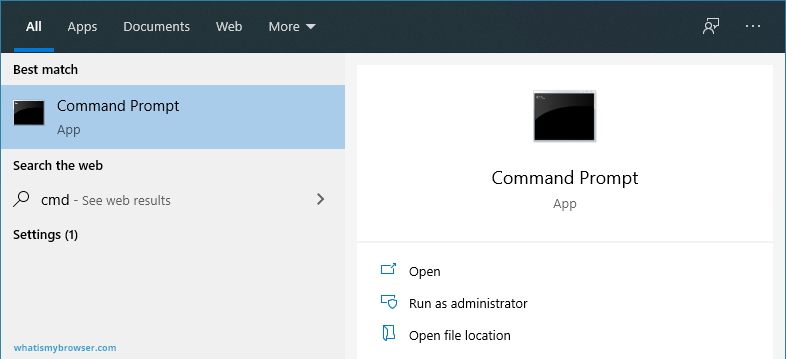
Simply press the **Enter** key on your keyboard to run the Command Prompt tool. Alternatively you can double click the icon.
If Windows Search hasn't found the Command Prompt, make sure that you've typed **Command Prompt** properly - remember you can also search for the abbreviation: **cmd**. Also make sure that the **All** tab is selected at the top of the Search window (and not "Documents" or "Web" etc).
3. ## You'll see a fresh Command Prompt window appear
Now that you have selected the Command Prompt from the Windows Search, you'll now see a fresh Command Prompt window. It's possible to type lots of different commands into it to get Windows to perform certain tasks or show you various information.

4. ## Use the **ipconfig** command
Now that you have a Command Prompt open, simply type the command ipconfig into it and then press the **Enter** key. The I nternet P rotocol Config uration tool will now run and show you some information about your local network connection.
5. ## Look for your local IP Address Number
The ipconfig tool will have printed a number of things on the command prompt, it will look something like this screenshot:
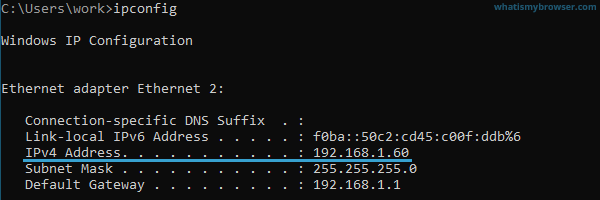
We have underlined the line which says **IPv4 Address**, you can see the IP Address (in this example, it begins with **192\.168...**) in the right-hand column.
If you have more than one local network connection (perhaps you have two network cards, or perhaps you are connected by WiFi and a network cable) you may have more than one network adaptor; you will need to look for the IPv4 Address line under each adaptor section of the read-out.
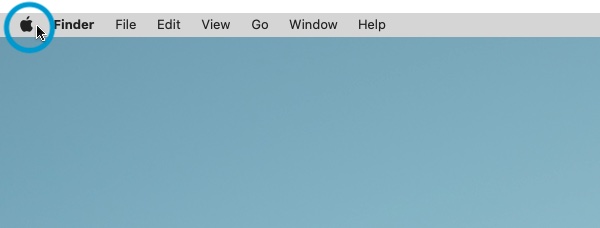
1. ## Click the Apple Menu icon
In the top-left corner of your Mac screen, click the small Apple icon. It will expand a list of System options.
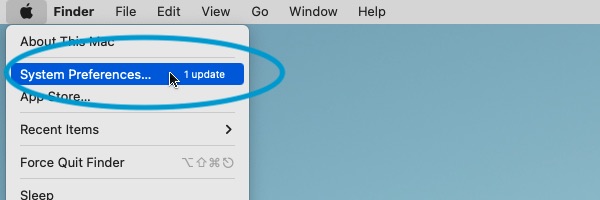
2. ## Click the "System Preferences" item
3. ## Click the "Network" icon
The System Preferences window will have a number of icons which let you view and control various settings for your Mac. Near the middle you will see the "Network" icon as shown in the screenshot. Click on it to open your Network settings.

4. ## Look for your local IP Address Number
System Preferences will show you a list of your network adaptors up the side of the Network window; it will put the connected interfaces at the top (and highlight them with a Green dot).
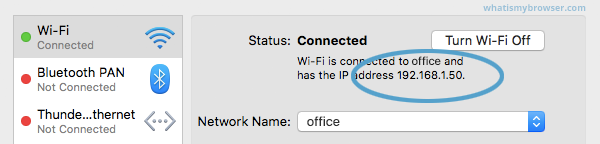
If you only have one connected network adaptor (as shown in the screenshot above), you simply need to look to the right of the Network window: macOS will show you what your local IP Address is and how you are connected to your local network.
If you have more than one network adaptor, you will probably also have more than one local IP address. This can happen if you are using a laptop with WiFi but also have it plugged in to a network cable or Thunderbolt or USB network adaptor. If you do have more than one network adaptor, you can click on each one in the left-hand section of the Network window and look over on the right-hand side of the window to read each local IP address.
## [Update my web browser](https://www.whatismybrowser.com/guides/how-to-update-your-browser/)
- ### [Do I need to update my browser?](https://www.whatismybrowser.com/)
Find out if your browser is out of date
[Is my browser out of date?](https://www.whatismybrowser.com/)
- ### [Why should I update my browser?](https://www.whatismybrowser.com/guides/how-to-update-your-browser/faq/why-should-i-update-my-web-browser)
There are very good reasons to, find out here!
[Why update your browser?](https://www.whatismybrowser.com/guides/how-to-update-your-browser/faq/why-should-i-update-my-web-browser)
- ### [Is it free to update Chrome?](https://www.whatismybrowser.com/guides/how-to-update-your-browser/faq/is-it-free-to-update-chrome)
Find out about the cost of updating Chrome...
[Does Chrome cost anything?](https://www.whatismybrowser.com/guides/how-to-update-your-browser/faq/is-it-free-to-update-chrome)
[Read more about updating your browser...](https://www.whatismybrowser.com/guides/how-to-update-your-browser/faq/)
## [Find other web browsers](https://www.webbrowserdirectory.com/)
- ### [A big list of every web browser](https://www.webbrowserdirectory.com/browsers/)
You might know about Chrome, Safari, or Firefox, but did you know there are lots more browsers to choose from?
[Web Browser Directory](https://www.webbrowserdirectory.com/)
## [Get help with our guides](https://www.whatismybrowser.com/guides/)
- ### [How to enable JavaScript](https://www.whatismybrowser.com/guides/how-to-enable-javascript/)
Change your JavaScript settings
[Guide to enabling Javascript](https://www.whatismybrowser.com/guides/how-to-enable-javascript/)
- ### [How to enable Cookies](https://www.whatismybrowser.com/guides/how-to-enable-cookies/)
Configure your cookie settings for privacy
[Guide to enabling cookies](https://www.whatismybrowser.com/guides/how-to-enable-cookies/)
## [Related articles](https://www.whatismybrowser.com/guides/)
- ### [Web Browsers without AI](https://www.whatismybrowser.com/guides/ai/web-browsers-without-ai/)
Some web browsers manufacturers have started adding AI features to their browsers, others have decided not to.
[Which web browsers don't have AI in them?](https://www.whatismybrowser.com/guides/ai/web-browsers-without-ai/)
- ### [I can't log in to a website.](https://www.whatismybrowser.com/guides/troubleshooting/website/cant-log-in)
We've got a detailed guide to help you solve login problems
[How to fix website log in problems](https://www.whatismybrowser.com/guides/troubleshooting/website/cant-log-in)
- ### [Why do websites use cookies?](https://www.whatismybrowser.com/guides/how-to-enable-cookies/faq/why-do-websites-use-cookies)
Why are cookies useful? Do you need them?
[What's the deal with cookies?](https://www.whatismybrowser.com/guides/how-to-enable-cookies/faq/why-do-websites-use-cookies)
- ### [Clear Cache, Cookies and History](https://www.whatismybrowser.com/guides/clear-cache-history-cookies/)
How to reset your browsing history
[How to reset your browser](https://www.whatismybrowser.com/guides/clear-cache-history-cookies/)
- ### [Try a different web browser](https://www.whatismybrowser.com/guides/how-to-try-a-different-web-browser/)
Different web browsers have different features - try a different one to see if you prefer it.
[Experiment a bit\!](https://www.whatismybrowser.com/guides/how-to-try-a-different-web-browser/)
- ### [Use a VPN to hide your IP address](https://go.nordvpn.net/aff_c?offer_id=252&aff_id=8126)
We recommend [NordVPN](https://nordvpn.com/what-is-a-vpn/) to hide your IP address or to unblock websites.
[Hide your IP Address](https://go.nordvpn.net/aff_c?offer_id=252&aff_id=8126)
## [Guides](https://www.whatismybrowser.com/guides/)
- [Clear Cache, History and Cookies](https://www.whatismybrowser.com/guides/clear-cache-history-cookies/)
- [Search whatismybrowser.com](https://www.whatismybrowser.com/search/)
- [Guides about the Internet](https://www.whatismybrowser.com/guides/)
- [Why update my browser?](https://www.whatismybrowser.com/guides/how-to-update-your-browser/faq/why-should-i-update-my-web-browser)
## [Tools](https://www.whatismybrowser.com/developers/tools/)
- [Use our IFrame on your site](https://www.whatismybrowser.com/developers/tools/iframe/)
- [User agent parser](https://explore.whatismybrowser.com/useragents/parse/)
- [Send browser info via email](https://www.whatismybrowser.com/developers/tools/send-to-tech-help/)
- [Minimum System Requirements](https://www.whatismybrowser.com/minimum-system-requirements/)
## [Developers](https://developers.whatismybrowser.com/)
- [Latest user agents](https://www.whatismybrowser.com/guides/the-latest-user-agent/)
- [User Agent Parsing API](https://developers.whatismybrowser.com/api/)
- [Explore User Agents](https://explore.whatismybrowser.com/useragents/explore/)
- [Frequently Asked Questions](https://www.whatismybrowser.com/faq/)
## Connect
- [About Us](https://www.whatismybrowser.com/about/)
- [Contact Us](https://www.whatismybrowser.com/about/contact/)
- [Status](https://status.whatismybrowser.com/)
- [Media Kit](https://www.whatismybrowser.com/about/media/)
## Other languages
- [What is my browser?](https://www.whatismybrowser.com/)
- [Quel est mon navigateur ?](https://www.whatismybrowser.com/fr/)
- [Was ist mein Browser?](https://www.whatismybrowser.com/de/)
- [¿Cual es mi navegador?](https://www.whatismybrowser.com/es/)
- [Qual é o meu navegador?](https://www.whatismybrowser.com/pt/)
- [Aký mám prehliadač?](https://www.whatismybrowser.com/sk/)
[Accessibility Statement](https://www.whatismybrowser.com/about/accessibility/) [Security Statement](https://www.whatismybrowser.com/about/security/)
[WhatIsMyBrowser.com](https://www.whatismybrowser.com/) © 2010 - 2026. [Legal](https://www.whatismybrowser.com/about/legal/) |
| Readable Markdown | Updated at: Feb 25, 2022
## We have detected your local IP Address as:
JavaScript is not enabled.
JavaScript needs to be enabled in order to detect your local IP address.
## Detection didn't work? Here's how to find your local IP Address
Unfortunately most web browsers now prevent websites from automatically detecting what your local IP Address is, so we can't detect it for you. Instead, here are the steps you need to take to find your local IP address.
- [Find local IP Address on Windows](https://www.whatismybrowser.com/detect/what-is-my-local-ip-address/#windows)
- [Find local IP Address on macOS](https://www.whatismybrowser.com/detect/what-is-my-local-ip-address/#macos)
## Find local IP Address on Windows
The easiest and quickest way to find your local IP address on a Windows 10 computer is to type a special command into the command prompt. These instructions will clearly show you how to do this.
1. ## Search for the *Command Prompt* tool
In the bottom-left corner of your Windows desktop, you will see an input box which says *Type here to search*. Windows will search your whole system for anything you type in there.
We want to open a command prompt, so search for the command prompt by typing in **Command Prompt**

Note that you can also search for the abbreviation: **cmd**
2. ## Press the Enter key to run the Command Prompt tool
Now that you've searched for the Command Prompt, Windows has found it and has highlighted as the main search result.

Simply press the **Enter** key on your keyboard to run the Command Prompt tool. Alternatively you can double click the icon.
If Windows Search hasn't found the Command Prompt, make sure that you've typed **Command Prompt** properly - remember you can also search for the abbreviation: **cmd**. Also make sure that the **All** tab is selected at the top of the Search window (and not "Documents" or "Web" etc).
3. ## You'll see a fresh Command Prompt window appear
Now that you have selected the Command Prompt from the Windows Search, you'll now see a fresh Command Prompt window. It's possible to type lots of different commands into it to get Windows to perform certain tasks or show you various information.

4. ## Use the **ipconfig** command
Now that you have a Command Prompt open, simply type the command ipconfig into it and then press the **Enter** key. The I nternet P rotocol Config uration tool will now run and show you some information about your local network connection.
5. ## Look for your local IP Address Number
The ipconfig tool will have printed a number of things on the command prompt, it will look something like this screenshot:

We have underlined the line which says **IPv4 Address**, you can see the IP Address (in this example, it begins with **192\.168...**) in the right-hand column.
If you have more than one local network connection (perhaps you have two network cards, or perhaps you are connected by WiFi and a network cable) you may have more than one network adaptor; you will need to look for the IPv4 Address line under each adaptor section of the read-out.
1. ## Click the Apple Menu icon
In the top-left corner of your Mac screen, click the small Apple icon. It will expand a list of System options.

2. ## Click the "System Preferences" item

3. ## Click the "Network" icon
The System Preferences window will have a number of icons which let you view and control various settings for your Mac. Near the middle you will see the "Network" icon as shown in the screenshot. Click on it to open your Network settings.

4. ## Look for your local IP Address Number
System Preferences will show you a list of your network adaptors up the side of the Network window; it will put the connected interfaces at the top (and highlight them with a Green dot).

If you only have one connected network adaptor (as shown in the screenshot above), you simply need to look to the right of the Network window: macOS will show you what your local IP Address is and how you are connected to your local network.
If you have more than one network adaptor, you will probably also have more than one local IP address. This can happen if you are using a laptop with WiFi but also have it plugged in to a network cable or Thunderbolt or USB network adaptor. If you do have more than one network adaptor, you can click on each one in the left-hand section of the Network window and look over on the right-hand side of the window to read each local IP address.
## [Update my web browser](https://www.whatismybrowser.com/guides/how-to-update-your-browser/)
- ### [Do I need to update my browser?](https://www.whatismybrowser.com/)
Find out if your browser is out of date
[Is my browser out of date?](https://www.whatismybrowser.com/)
- ### [Why should I update my browser?](https://www.whatismybrowser.com/guides/how-to-update-your-browser/faq/why-should-i-update-my-web-browser)
There are very good reasons to, find out here!
[Why update your browser?](https://www.whatismybrowser.com/guides/how-to-update-your-browser/faq/why-should-i-update-my-web-browser)
- ### [Is it free to update Chrome?](https://www.whatismybrowser.com/guides/how-to-update-your-browser/faq/is-it-free-to-update-chrome)
Find out about the cost of updating Chrome...
[Does Chrome cost anything?](https://www.whatismybrowser.com/guides/how-to-update-your-browser/faq/is-it-free-to-update-chrome)
## [Find other web browsers](https://www.webbrowserdirectory.com/)
- ### [A big list of every web browser](https://www.webbrowserdirectory.com/browsers/)
You might know about Chrome, Safari, or Firefox, but did you know there are lots more browsers to choose from?
## [Get help with our guides](https://www.whatismybrowser.com/guides/)
- ### [How to enable JavaScript](https://www.whatismybrowser.com/guides/how-to-enable-javascript/)
Change your JavaScript settings
[Guide to enabling Javascript](https://www.whatismybrowser.com/guides/how-to-enable-javascript/)
- ### [How to enable Cookies](https://www.whatismybrowser.com/guides/how-to-enable-cookies/)
Configure your cookie settings for privacy
[Guide to enabling cookies](https://www.whatismybrowser.com/guides/how-to-enable-cookies/)
## [Related articles](https://www.whatismybrowser.com/guides/)
- ### [Web Browsers without AI](https://www.whatismybrowser.com/guides/ai/web-browsers-without-ai/)
Some web browsers manufacturers have started adding AI features to their browsers, others have decided not to.
[Which web browsers don't have AI in them?](https://www.whatismybrowser.com/guides/ai/web-browsers-without-ai/)
- ### [I can't log in to a website.](https://www.whatismybrowser.com/guides/troubleshooting/website/cant-log-in)
We've got a detailed guide to help you solve login problems
[How to fix website log in problems](https://www.whatismybrowser.com/guides/troubleshooting/website/cant-log-in)
- ### [Why do websites use cookies?](https://www.whatismybrowser.com/guides/how-to-enable-cookies/faq/why-do-websites-use-cookies)
Why are cookies useful? Do you need them?
[What's the deal with cookies?](https://www.whatismybrowser.com/guides/how-to-enable-cookies/faq/why-do-websites-use-cookies)
- ### [Clear Cache, Cookies and History](https://www.whatismybrowser.com/guides/clear-cache-history-cookies/)
How to reset your browsing history
[How to reset your browser](https://www.whatismybrowser.com/guides/clear-cache-history-cookies/)
- ### [Try a different web browser](https://www.whatismybrowser.com/guides/how-to-try-a-different-web-browser/)
Different web browsers have different features - try a different one to see if you prefer it.
[Experiment a bit\!](https://www.whatismybrowser.com/guides/how-to-try-a-different-web-browser/)
- ### [Use a VPN to hide your IP address](https://go.nordvpn.net/aff_c?offer_id=252&aff_id=8126)
We recommend [NordVPN](https://nordvpn.com/what-is-a-vpn/) to hide your IP address or to unblock websites.
[Hide your IP Address](https://go.nordvpn.net/aff_c?offer_id=252&aff_id=8126) |
| Shard | 37 (laksa) |
| Root Hash | 16523812111627313037 |
| Unparsed URL | com,whatismybrowser!www,/detect/what-is-my-local-ip-address/ s443 |