ℹ️ Skipped - page is already crawled
| Filter | Status | Condition | Details |
|---|---|---|---|
| HTTP status | PASS | download_http_code = 200 | HTTP 200 |
| Age cutoff | PASS | download_stamp > now() - 6 MONTH | 0.1 months ago |
| History drop | PASS | isNull(history_drop_reason) | No drop reason |
| Spam/ban | PASS | fh_dont_index != 1 AND ml_spam_score = 0 | ml_spam_score=0 |
| Canonical | PASS | meta_canonical IS NULL OR = '' OR = src_unparsed | Not set |
| Property | Value |
|---|---|
| URL | https://www.pcrisk.com/blog/mac/12197-how-to-take-a-screenshot-on-a-mac |
| Last Crawled | 2026-04-13 08:24:12 (2 days ago) |
| First Indexed | 2026-01-17 16:55:28 (2 months ago) |
| HTTP Status Code | 200 |
| Meta Title | How to Take a Screenshot on a Mac? |
| Meta Description | null |
| Meta Canonical | null |
| Boilerpipe Text | How to Take a Screenshot on Mac?
The 'Print Screen' feature is well known among Windows OS users since keyboards have a button with an associated label. If you are a new Mac user, you might not be aware of this feature, but it will enable you to capture a screenshot of the entire screen or any window within it.
To make keyboards look simpler, Apple decided to manufacture keyboards without a dedicated Print Screen key (and other dedicated keys). Despite this, a combination of simple key presses will invoke the exact function you are looking for. The combinations (six available) are easy to remember and deliver more options when choosing the type of screen capture you prefer.
Video showing How to Take a Screenshot on Mac.
Table of Contents:
Introduction
How to capture the screen to a specific file on the desktop?
How to capture screen to Mac's Clipboard?
How to change the location where screen images are being saved?
Timed screenshots.
Screenshot troubleshooting.
Video showing How to Take a Screenshot on Mac.
Download Computer Malware Repair Tool
It is recommended to run a free scan with Combo Cleaner - a tool to detect viruses and malware on your device. You will need to purchase the full version to remove infections. Free trial available. Combo Cleaner is owned and operated by Rcs Lt, the parent company of PCRisk.com
read more
.
How to capture the screen to a specific file on the desktop?
A screenshot in the Mac OS takes a 'picture' of your screen, a portion of it, or the active window. This is automatically saved to a unique file on your Mac desktop (unless you have changed the destination folder where screenshots are saved).
We describe how to change the destination folder below. We will use the
Command
and
Shift
buttons for each type of screen capture to execute a function, followed by a number or another key.
Command
,
Shift
, and the number
4
capture a custom area selected by your mouse or touchpad when left-clicking and dragging to select a preferred area. When dragging, you will see figures near the mouse pointer, which are the pixel dimensions of your selected box. Before you drag, the coordinates of the start of the selection are displayed.
Command
+
Shift
+
4
+
space bar
combination capture a specific window. When you click the space bar, your mouse pointer changes to a 'mini camera'.Ddrag it to your preferred window and left-click it.
The Mac automatically saves screenshots to a unique file, thus saving you unnecessary steps (you would otherwise have to paste images to export as files). It also allows you to save your screen images onto a Clipboard (as Windows does by default).
[Back to Table of Contents]
How to capture screen to Mac's Clipboard?
Saving screen images directly to the clipboard is useful when you do not need to store the image as a file. For example, if you want to send the screenshot via third-party apps. To save screen capture to the clipboard, the combinations similar to those used to save them to a file, just add the
Control
button. We repeat the combinations here:
Hold down
Command
+
Control
+
Shift
+
3.
This command will take a screenshot of the entire screen and save it to the clipboard (you can then paste it anywhere).
Use the
Command
+
Control
+
Shift
+
4
combination to select a specific area, which will be saved to your clipboard. When dragging, you will see small figures near the mouse pointer, which are the dimensions of your selected box in pixels. Before you start to drag, you will see the coordinates where you are starting the selection.
If you want to save the active window image, use the combination of
Command
+
Control
+
Shift
+
4
, but before left-clicking the mouse, push the space bar - your pointer will change into a 'mini camera'. Then click your preferred window.
Note:
if you own an older Mac, your keyboard command key might have an Apple logo. Also, entire screen images will capture all displays if you use multiple monitors (in which case, the rectangular drawn box method or specific window does not apply).
[Back to Table of Contents]
How to change the location where screen images are being saved?
By default, your Mac will save screenshots to your desktop with the filename (including the date it was created). This can be changed by following some easy tips - all you need to know is the path of your desired folder.
1. To change your destination folder, open Terminal, which is listed under Utilities in the Application folder.
2. Type the command:
defaults write com.apple.screencapture location ~/Desktop/screenshots
- screenshots are the folder for screen captures (use a path to your desired folder).
3. Press the
Return
key.
4. Next, type:
killall SystemUIServer
and click
Return
.
Take a few screenshots to check where your images are being saved.
[Back to Table of Contents]
Timed screenshots.
If simple screen capturing functions are not powerful enough for you, you might wish to try the Grab application, which you can find under
Utilities
in the
Application
folder. This app has some improved screen-capturing functions, one of which is delayed screenshots.
When you launch Grab at the top menu, you will see options for regular screenshots (such as small selection, the entire screen, or specific window), but there is also a function called timed screen that allows you to choose a time period after which it will take a screen picture.
[Back to Table of Contents]
Screenshot troubleshooting.
Taking screenshots on a Mac is quite simple, and in most cases, works perfectly. Unfortunately, even these easy tasks can fail. You might follow the above instructions/key combinations exactly and see a blank, white image. In most cases, the screen is blocked by the software you are trying to capture.
For example, Apple DVD player software blocks for reasons of copyright. Of course, there are alternatives to solve this issue - you can use a third-party DVD player or third-party screenshot software to avoid blocking issues.
[Back to Top] |
| Markdown | [](https://www.pcrisk.com/)
- [Removal guides](https://www.pcrisk.com/removal-guides)
- [News](https://www.pcrisk.com/internet-threat-news)
- [Reviews](https://www.pcrisk.com/reviews)
- [Blog](https://www.pcrisk.com/blog)
- [Website Scanner](https://scanner.pcrisk.com/)
- [About Us](https://www.pcrisk.com/about-us)
- [Contact Us](https://www.pcrisk.com/contact-us)

[Home](https://www.pcrisk.com/)
[Blog](https://www.pcrisk.com/blog/)
[Mac](https://www.pcrisk.com/blog/mac)
# How to Take a Screenshot on a Mac?

Karolina Peistariene
•
September 15, 2021 (updated)
Quick Links:
- [Introduction](https://www.pcrisk.com/blog/mac/12197-how-to-take-a-screenshot-on-a-mac#introduction)
- [Table Of Contents](https://www.pcrisk.com/blog/mac/12197-how-to-take-a-screenshot-on-a-mac#quickul)
- [Video Instructions](https://www.pcrisk.com/blog/mac/12197-how-to-take-a-screenshot-on-a-mac#video)
Get Free Scanner and check your computer for errors
[Fix It Now](https://www.pcrisk.com/download-combo-cleaner-windows)
To fix found issues, you have to purchase the full version of Combo Cleaner. Free trial available. Combo Cleaner is owned and operated by Rcs Lt, the parent company of PCRisk.com [read more](https://www.pcrisk.com/about-us "Read more about us").
### How to Take a Screenshot on Mac?
The 'Print Screen' feature is well known among Windows OS users since keyboards have a button with an associated label. If you are a new Mac user, you might not be aware of this feature, but it will enable you to capture a screenshot of the entire screen or any window within it.
To make keyboards look simpler, Apple decided to manufacture keyboards without a dedicated Print Screen key (and other dedicated keys). Despite this, a combination of simple key presses will invoke the exact function you are looking for. The combinations (six available) are easy to remember and deliver more options when choosing the type of screen capture you prefer.
### Video showing How to Take a Screenshot on Mac.
**Table of Contents:**
- [Introduction](https://www.pcrisk.com/blog/mac/12197-how-to-take-a-screenshot-on-a-mac#introduction)
- [How to capture the screen to a specific file on the desktop?](https://www.pcrisk.com/blog/mac/12197-how-to-take-a-screenshot-on-a-mac#mac-screen-shot-to-file)
- [How to capture screen to Mac's Clipboard?](https://www.pcrisk.com/blog/mac/12197-how-to-take-a-screenshot-on-a-mac#mac-screen-shot-to-clipboard)
- [How to change the location where screen images are being saved?](https://www.pcrisk.com/blog/mac/12197-how-to-take-a-screenshot-on-a-mac#change-location-mac-saves-images)
- [Timed screenshots.](https://www.pcrisk.com/blog/mac/12197-how-to-take-a-screenshot-on-a-mac#mac-timed-screen-shots)
- [Screenshot troubleshooting.](https://www.pcrisk.com/blog/mac/12197-how-to-take-a-screenshot-on-a-mac#mac-screen-shot-troubleshooting)
- [Video showing How to Take a Screenshot on Mac.](https://www.pcrisk.com/blog/mac/12197-how-to-take-a-screenshot-on-a-mac#video)
[Download Computer Malware Repair Tool](https://www.pcrisk.com/download-combo-cleaner-windows)
It is recommended to run a free scan with Combo Cleaner - a tool to detect viruses and malware on your device. You will need to purchase the full version to remove infections. Free trial available. Combo Cleaner is owned and operated by Rcs Lt, the parent company of PCRisk.com [read more](https://www.pcrisk.com/about-us "Read more about us").
### How to capture the screen to a specific file on the desktop?
A screenshot in the Mac OS takes a 'picture' of your screen, a portion of it, or the active window. This is automatically saved to a unique file on your Mac desktop (unless you have changed the destination folder where screenshots are saved).
We describe how to change the destination folder below. We will use the **Command** and **Shift** buttons for each type of screen capture to execute a function, followed by a number or another key.
**Command**, **Shift**, and the number **4** capture a custom area selected by your mouse or touchpad when left-clicking and dragging to select a preferred area. When dragging, you will see figures near the mouse pointer, which are the pixel dimensions of your selected box. Before you drag, the coordinates of the start of the selection are displayed.
**Command** + **Shift** + **4** \+ **space bar** combination capture a specific window. When you click the space bar, your mouse pointer changes to a 'mini camera'.Ddrag it to your preferred window and left-click it.
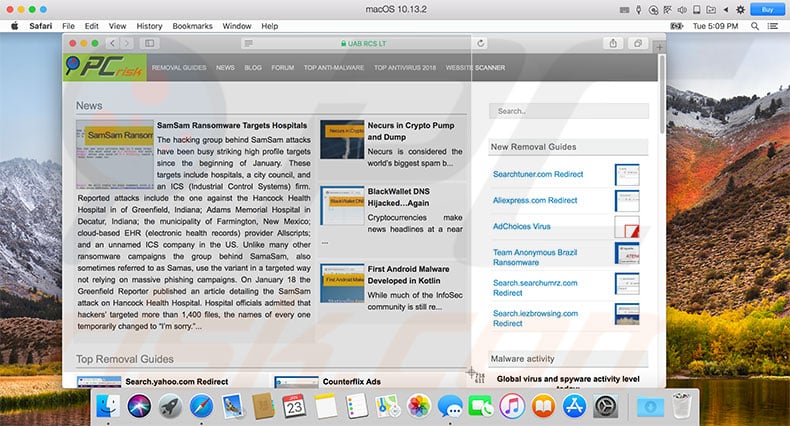
The Mac automatically saves screenshots to a unique file, thus saving you unnecessary steps (you would otherwise have to paste images to export as files). It also allows you to save your screen images onto a Clipboard (as Windows does by default).
[\[Back to Table of Contents\]](https://www.pcrisk.com/blog/mac/12197-how-to-take-a-screenshot-on-a-mac#quickul)
### How to capture screen to Mac's Clipboard?
Saving screen images directly to the clipboard is useful when you do not need to store the image as a file. For example, if you want to send the screenshot via third-party apps. To save screen capture to the clipboard, the combinations similar to those used to save them to a file, just add the **Control** button. We repeat the combinations here:
Hold down **Command** + **Control** + **Shift** + **3\.** This command will take a screenshot of the entire screen and save it to the clipboard (you can then paste it anywhere).
Use the **Command** + **Control** + **Shift** + **4** combination to select a specific area, which will be saved to your clipboard. When dragging, you will see small figures near the mouse pointer, which are the dimensions of your selected box in pixels. Before you start to drag, you will see the coordinates where you are starting the selection.
If you want to save the active window image, use the combination of **Command** + **Control** + **Shift** + **4**, but before left-clicking the mouse, push the space bar - your pointer will change into a 'mini camera'. Then click your preferred window.
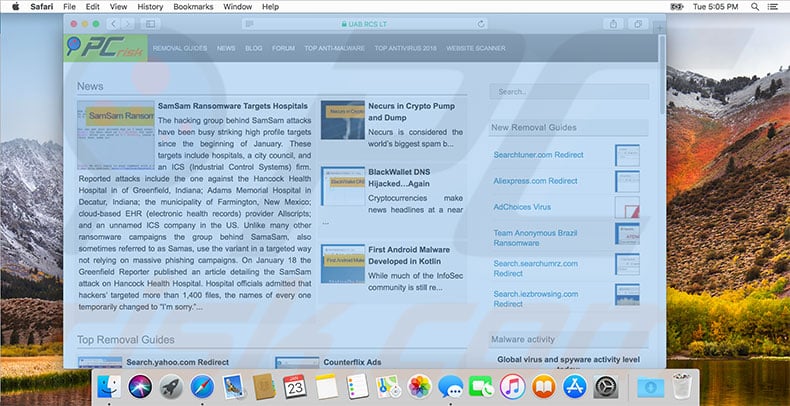
***Note:*** if you own an older Mac, your keyboard command key might have an Apple logo. Also, entire screen images will capture all displays if you use multiple monitors (in which case, the rectangular drawn box method or specific window does not apply).
[\[Back to Table of Contents\]](https://www.pcrisk.com/blog/mac/12197-how-to-take-a-screenshot-on-a-mac#quickul)
### How to change the location where screen images are being saved?
By default, your Mac will save screenshots to your desktop with the filename (including the date it was created). This can be changed by following some easy tips - all you need to know is the path of your desired folder.
1\. To change your destination folder, open Terminal, which is listed under Utilities in the Application folder.
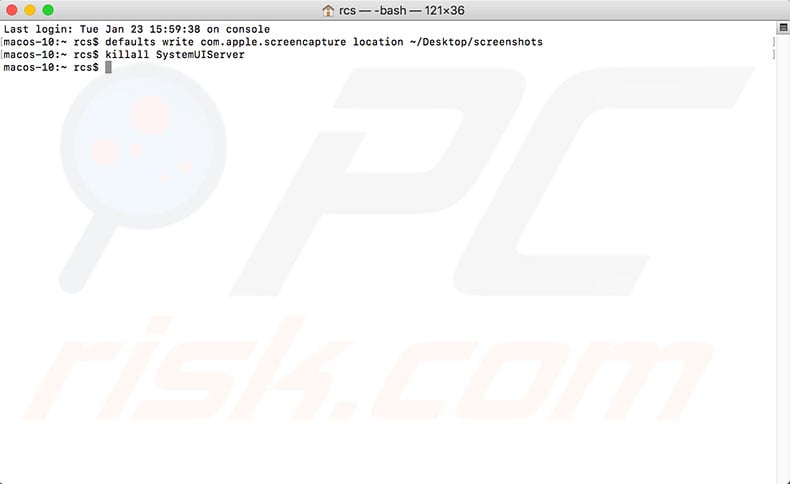
2\. Type the command: **defaults write com.apple.screencapture location ~/Desktop/screenshots** - screenshots are the folder for screen captures (use a path to your desired folder).
3\. Press the **Return** key.
4\. Next, type: **killall SystemUIServer** and click **Return**.
Take a few screenshots to check where your images are being saved.
[\[Back to Table of Contents\]](https://www.pcrisk.com/blog/mac/12197-how-to-take-a-screenshot-on-a-mac#quickul)
### Timed screenshots.
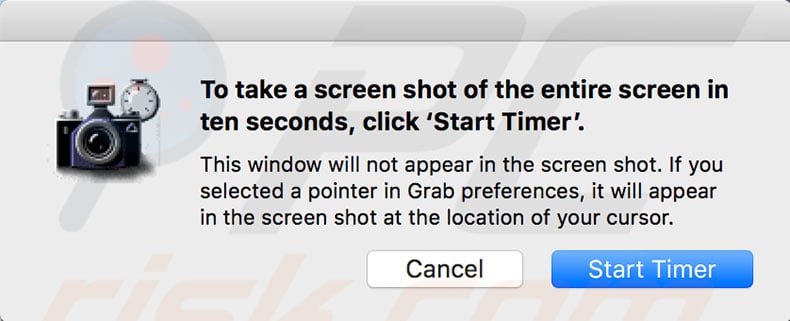
If simple screen capturing functions are not powerful enough for you, you might wish to try the Grab application, which you can find under **Utilities** in the **Application** folder. This app has some improved screen-capturing functions, one of which is delayed screenshots.
When you launch Grab at the top menu, you will see options for regular screenshots (such as small selection, the entire screen, or specific window), but there is also a function called timed screen that allows you to choose a time period after which it will take a screen picture.
[\[Back to Table of Contents\]](https://www.pcrisk.com/blog/mac/12197-how-to-take-a-screenshot-on-a-mac#quickul)
### Screenshot troubleshooting.
Taking screenshots on a Mac is quite simple, and in most cases, works perfectly. Unfortunately, even these easy tasks can fail. You might follow the above instructions/key combinations exactly and see a blank, white image. In most cases, the screen is blocked by the software you are trying to capture.
For example, Apple DVD player software blocks for reasons of copyright. Of course, there are alternatives to solve this issue - you can use a third-party DVD player or third-party screenshot software to avoid blocking issues.
[\[Back to Top\]](https://www.pcrisk.com/blog/mac/12197-how-to-take-a-screenshot-on-a-mac#startOfPage)
Share:
 Facebook
 X.com
 LinkedIn
 Copy Link

Karolina Peistariene
Author of how-to guides for Mac users
Responsible for collecting, analyzing, and presenting problem-solving solution articles related to macOS issues. Years of macOS experience combined with solid research and analyzing skills help Karolina provide readers with working and helpful solutions as well as introduce various features Mac has to offer.
▼ Show Discussion
[Back to top](https://www.pcrisk.com/blog/mac/12197-how-to-take-a-screenshot-on-a-mac#main_component)
## New Blog Articles
1. [How to access Twitch at school or work in 2026 with a VPN](https://www.pcrisk.com/blog/tips/14023-how-to-access-twitch-at-school-or-work-with-a-vpn)
2. [Best VPNs for YouTube in 2026 \| Top 5 Picks](https://www.pcrisk.com/blog/tips/14022-best-vpns-for-youtube-top-5-picks)
3. [How to Change Netflix Region in 2026 With a VPN](https://www.pcrisk.com/blog/tips/14021-how-to-change-netflix-region-with-vpn)
4. [Best VPNs for online gambling in 2026 \| Top 5 Picks](https://www.pcrisk.com/blog/tips/14020-best-vpns-for-online-gambling-top-5-picks)
5. [Best VPNs for FanDuel in 2026: How to Access FanDuel in Restricted US States](https://www.pcrisk.com/blog/tips/14019-best-vpns-for-fanduel)
## Most Read Blog Articles
- 01
[How to Unblock xHamster in the US with a VPN in 2026](https://www.pcrisk.com/blog/tips/13998-unblock-xhamster-in-us-with-vpn)
[Tips](https://www.pcrisk.com/blog/tips) • March 31, 2026
- 02
[10 Ways to Fix" DNS server isn't responding" Error on Windows 10](https://www.pcrisk.com/blog/windows/12235-how-to-fix-the-dns-server-isnt-responding-error)
[Windows](https://www.pcrisk.com/blog/windows) • March 13, 2024
- 03
[How to Fix "WiFi Doesn't Have a Valid IP Configuration" on Windows 10](https://www.pcrisk.com/blog/windows/12113-how-to-fix-wifi-doesnt-have-a-valid-ip-configuration-problem)
[Windows](https://www.pcrisk.com/blog/windows) • August 31, 2022
- 04
[How to Fix Microphone Not Working in Windows 10](https://www.pcrisk.com/blog/windows/12487-microphone-is-not-working-how-to-fix-it)
[Windows](https://www.pcrisk.com/blog/windows) • April 21, 2024
- 05
[How to Fix "The action cannot be completed because the file is open in another program" Error](https://www.pcrisk.com/blog/windows/12202-the-action-cannot-be-completed-because-the-file-is-open-in-another-program)
[Windows](https://www.pcrisk.com/blog/windows) • April 21, 2024
## New Virus Removal Guides
1. [Mightytechy.com Redirect](https://www.pcrisk.com/removal-guides/35171-mightytechy-com-redirect)
2. [Email Account Disable Request Scam](https://www.pcrisk.com/removal-guides/35170-email-account-disable-request-scam)
3. [Webmail - Two-Factor Authentication (2FA) Email Scam](https://www.pcrisk.com/removal-guides/35169-webmail-two-factor-authentication-2fa-email-scam)
4. [Web App Security Email Scam](https://www.pcrisk.com/removal-guides/35167-web-app-security-email-scam)
5. [Remus Stealer](https://www.pcrisk.com/removal-guides/35166-remus-stealer)
6. [Marco Stealer](https://www.pcrisk.com/removal-guides/35165-marco-stealer)
[RCS LT, UAB](https://www.pcrisk.com/about-us) is a cyber security company.
RCS LT is a publisher of [pcrisk.com](https://www.pcrisk.com/) website and developer of Combo Cleaner anti-malware application.
[](https://maps.app.goo.gl/RL3Qqgk3s2yG3kZm9 "RCS LT on Google Maps")
Address
18, I. Kanto str, 44296 Kaunas, Lithuania, European Union
## Main sections
- [Removal guides](https://www.pcrisk.com/removal-guides)
- [News](https://www.pcrisk.com/internet-threat-news)
- [Blog](https://www.pcrisk.com/blog)
- [Software Reviews](https://www.pcrisk.com/reviews)
## Company
- [Contact us](https://www.pcrisk.com/contact-us)
- [About Us](https://www.pcrisk.com/about-us)
## Useful Resources
- [Website scanner](https://scanner.pcrisk.com/)
- [Search this Blog](https://www.pcrisk.com/blog/search)
© 2026 RCS LT, UAB All rights reserved.
- [Privacy policy](https://www.pcrisk.com/privacy-policy)
- [Site Disclaimer](https://www.pcrisk.com/site-disclaimer)
- [Terms of use](https://www.pcrisk.com/terms-of-use)
- [](https://www.facebook.com/pcrisk)
- [](https://x.com/pcrisk)
- [](https://www.linkedin.com/company/rcs-lt/)
- [](https://www.youtube.com/@pc-risk) |
| Readable Markdown | ### How to Take a Screenshot on Mac?
The 'Print Screen' feature is well known among Windows OS users since keyboards have a button with an associated label. If you are a new Mac user, you might not be aware of this feature, but it will enable you to capture a screenshot of the entire screen or any window within it.

To make keyboards look simpler, Apple decided to manufacture keyboards without a dedicated Print Screen key (and other dedicated keys). Despite this, a combination of simple key presses will invoke the exact function you are looking for. The combinations (six available) are easy to remember and deliver more options when choosing the type of screen capture you prefer.
### Video showing How to Take a Screenshot on Mac.
**Table of Contents:**
- [Introduction](https://www.pcrisk.com/blog/mac/12197-how-to-take-a-screenshot-on-a-mac#introduction)
- [How to capture the screen to a specific file on the desktop?](https://www.pcrisk.com/blog/mac/12197-how-to-take-a-screenshot-on-a-mac#mac-screen-shot-to-file)
- [How to capture screen to Mac's Clipboard?](https://www.pcrisk.com/blog/mac/12197-how-to-take-a-screenshot-on-a-mac#mac-screen-shot-to-clipboard)
- [How to change the location where screen images are being saved?](https://www.pcrisk.com/blog/mac/12197-how-to-take-a-screenshot-on-a-mac#change-location-mac-saves-images)
- [Timed screenshots.](https://www.pcrisk.com/blog/mac/12197-how-to-take-a-screenshot-on-a-mac#mac-timed-screen-shots)
- [Screenshot troubleshooting.](https://www.pcrisk.com/blog/mac/12197-how-to-take-a-screenshot-on-a-mac#mac-screen-shot-troubleshooting)
- [Video showing How to Take a Screenshot on Mac.](https://www.pcrisk.com/blog/mac/12197-how-to-take-a-screenshot-on-a-mac#video)
[Download Computer Malware Repair Tool](https://www.pcrisk.com/download-combo-cleaner-windows)
It is recommended to run a free scan with Combo Cleaner - a tool to detect viruses and malware on your device. You will need to purchase the full version to remove infections. Free trial available. Combo Cleaner is owned and operated by Rcs Lt, the parent company of PCRisk.com [read more](https://www.pcrisk.com/about-us "Read more about us").
### How to capture the screen to a specific file on the desktop?
A screenshot in the Mac OS takes a 'picture' of your screen, a portion of it, or the active window. This is automatically saved to a unique file on your Mac desktop (unless you have changed the destination folder where screenshots are saved).
We describe how to change the destination folder below. We will use the **Command** and **Shift** buttons for each type of screen capture to execute a function, followed by a number or another key.
**Command**, **Shift**, and the number **4** capture a custom area selected by your mouse or touchpad when left-clicking and dragging to select a preferred area. When dragging, you will see figures near the mouse pointer, which are the pixel dimensions of your selected box. Before you drag, the coordinates of the start of the selection are displayed.
**Command** + **Shift** + **4** \+ **space bar** combination capture a specific window. When you click the space bar, your mouse pointer changes to a 'mini camera'.Ddrag it to your preferred window and left-click it.

The Mac automatically saves screenshots to a unique file, thus saving you unnecessary steps (you would otherwise have to paste images to export as files). It also allows you to save your screen images onto a Clipboard (as Windows does by default).
[\[Back to Table of Contents\]](https://www.pcrisk.com/blog/mac/12197-how-to-take-a-screenshot-on-a-mac#quickul)
### How to capture screen to Mac's Clipboard?
Saving screen images directly to the clipboard is useful when you do not need to store the image as a file. For example, if you want to send the screenshot via third-party apps. To save screen capture to the clipboard, the combinations similar to those used to save them to a file, just add the **Control** button. We repeat the combinations here:
Hold down **Command** + **Control** + **Shift** + **3\.** This command will take a screenshot of the entire screen and save it to the clipboard (you can then paste it anywhere).
Use the **Command** + **Control** + **Shift** + **4** combination to select a specific area, which will be saved to your clipboard. When dragging, you will see small figures near the mouse pointer, which are the dimensions of your selected box in pixels. Before you start to drag, you will see the coordinates where you are starting the selection.
If you want to save the active window image, use the combination of **Command** + **Control** + **Shift** + **4**, but before left-clicking the mouse, push the space bar - your pointer will change into a 'mini camera'. Then click your preferred window.

***Note:*** if you own an older Mac, your keyboard command key might have an Apple logo. Also, entire screen images will capture all displays if you use multiple monitors (in which case, the rectangular drawn box method or specific window does not apply).
[\[Back to Table of Contents\]](https://www.pcrisk.com/blog/mac/12197-how-to-take-a-screenshot-on-a-mac#quickul)
### How to change the location where screen images are being saved?
By default, your Mac will save screenshots to your desktop with the filename (including the date it was created). This can be changed by following some easy tips - all you need to know is the path of your desired folder.
1\. To change your destination folder, open Terminal, which is listed under Utilities in the Application folder.
2\. Type the command: **defaults write com.apple.screencapture location ~/Desktop/screenshots** - screenshots are the folder for screen captures (use a path to your desired folder).
3\. Press the **Return** key.
4\. Next, type: **killall SystemUIServer** and click **Return**.
Take a few screenshots to check where your images are being saved.

[\[Back to Table of Contents\]](https://www.pcrisk.com/blog/mac/12197-how-to-take-a-screenshot-on-a-mac#quickul)
### Timed screenshots.
If simple screen capturing functions are not powerful enough for you, you might wish to try the Grab application, which you can find under **Utilities** in the **Application** folder. This app has some improved screen-capturing functions, one of which is delayed screenshots.
When you launch Grab at the top menu, you will see options for regular screenshots (such as small selection, the entire screen, or specific window), but there is also a function called timed screen that allows you to choose a time period after which it will take a screen picture.

[\[Back to Table of Contents\]](https://www.pcrisk.com/blog/mac/12197-how-to-take-a-screenshot-on-a-mac#quickul)
### Screenshot troubleshooting.
Taking screenshots on a Mac is quite simple, and in most cases, works perfectly. Unfortunately, even these easy tasks can fail. You might follow the above instructions/key combinations exactly and see a blank, white image. In most cases, the screen is blocked by the software you are trying to capture.
For example, Apple DVD player software blocks for reasons of copyright. Of course, there are alternatives to solve this issue - you can use a third-party DVD player or third-party screenshot software to avoid blocking issues.
[\[Back to Top\]](https://www.pcrisk.com/blog/mac/12197-how-to-take-a-screenshot-on-a-mac#startOfPage) |
| Shard | 65 (laksa) |
| Root Hash | 7893718534291517265 |
| Unparsed URL | com,pcrisk!www,/blog/mac/12197-how-to-take-a-screenshot-on-a-mac s443 |