ℹ️ Skipped - page is already crawled
| Filter | Status | Condition | Details |
|---|---|---|---|
| HTTP status | PASS | download_http_code = 200 | HTTP 200 |
| Age cutoff | PASS | download_stamp > now() - 6 MONTH | 0 months ago |
| History drop | PASS | isNull(history_drop_reason) | No drop reason |
| Spam/ban | PASS | fh_dont_index != 1 AND ml_spam_score = 0 | ml_spam_score=0 |
| Canonical | PASS | meta_canonical IS NULL OR = '' OR = src_unparsed | Not set |
| Property | Value | ||||||||||||
|---|---|---|---|---|---|---|---|---|---|---|---|---|---|
| URL | https://www.idropnews.com/how-to/mac-keyboard-shortcuts-windows-switchers/246395/ | ||||||||||||
| Last Crawled | 2026-04-23 01:15:34 (20 hours ago) | ||||||||||||
| First Indexed | 2026-02-28 01:37:12 (1 month ago) | ||||||||||||
| HTTP Status Code | 200 | ||||||||||||
| Content | |||||||||||||
| Meta Title | 14 Essential Mac Keyboard Shortcuts for Windows Switchers | ||||||||||||
| Meta Description | Just moved from Windows to Mac? These 14 essential keyboard shortcuts will help you overcome muscle memory and master macOS in no time. | ||||||||||||
| Meta Canonical | null | ||||||||||||
| Boilerpipe Text | Toggle Dark Mode
If you’ve spent years on Windows, your hands probably know what to do before your brain finishes the thought. CTRL-C and CTRL-V for copy and paste. ALT+TAB to switch. The Windows key to search. That muscle memory is there to stay, and it’s exactly why switching to a Mac can feel awkward at first.
For some of us, the biggest adjustment isn’t Finder or the Dock — it’s the keyboard. On macOS, the Command key takes over most of what Control does on Windows. For most keyboards, that will mean getting used to switching from using your pinky to your thumb, since CMD is typically located where the ALT key lives on a PC keyboard.
There are also several Mac-specific shortcuts that completely change how the system feels once you start using them.
Whether you’re switching from Windows to Mac or just want to up your macOS game, here are some of the most common keyboard shortcuts you need to learn.
Command + Space: Spotlight Search
Spotlight replaces far more than just the Start menu. It’s a universal launcher, a file finder, a calculator, a search box, and a settings navigator, all built into one shortcut. Pressing
Command + Space
brings up a search field that lets you open apps, locate documents, do quick math, check definitions, convert units, and jump into system settings.
If you’re used to browsing menus or clicking around the Dock, this shortcut feels almost unfairly fast. After a few days of using it, you’ll stop thinking about where apps live; you’ll just type their names and move on.
Spotlight is also smarter than most people realize. It learns your habits. If you open Notes every morning at the same time, Spotlight will start suggesting that app immediately when you type the first letter. That subtle efficiency is one of the reasons macOS feels smoother than other operating systems.
Command + Tab: Switch Apps
This is the closest equivalent to Alt+Tab on Windows, but there’s a key difference. On macOS, Command + Tab switches between
applications
, not individual windows. If you have three Safari windows open, they still count as one Safari app when you switch, which definitely takes some time to get used to.
That distinction is key: macOS treats the app as the primary unit, whereas Windows focuses on individual windows. Once you understand that, multitasking becomes more predictable. You stop thinking in terms of stacking windows and start thinking in terms of jumping between tasks.
Holding
Command
and tapping
Tab
cycles through open apps. It’s ideal for jumping from a browser to Messages to Finder without touching the trackpad or mouse.
Pro Tip:
The list of open apps will be shown as a row of icons in the middle of your screen, which will remain displayed until you release the Command key. In addition to tapping the Tab key to cycle through them, you can also use the left and right arrow keys, or even click on one of the icons with your mouse or trackpad to select it.
Command + `: Switch Windows Within The Same App
This is the companion shortcut that makes Command + Tab make sense. While the previous shortcut switches apps, this one switches
between windows inside the current app
.
If you have multiple windows open, all you need to do is press
Command +`
(that’s the grave accent, or “backtick,” located above the Tab key), and your Mac will start switching between windows in the app you currently have open.
If you’ve ever had multiple Finder windows open or several Safari windows and couldn’t quickly locate the one you needed, this shortcut lets you switch between them instantly. It cycles through open windows of the active app without leaving it, which avoids a lot of confusion.
Windows users often assume that app switching and window switching are the same behavior. On macOS, they’re intentionally separate. Once you learn both shortcuts, managing multiple apps and windows becomes far easier.
Command + Q: Quit App
This is one of the most important transitions for Windows users. On macOS, closing a window does not necessarily quit the app. You can close every window for an app and still have it running in the Dock.
Command + Q
is the real way to exit. It fully quits the active app and removes it from your active session. Using this will keep your Dock tidy and prevent apps you thought you closed from sitting in the background and consuming resources.
It’s also faster than navigating menus. If you’re done with something, you press Command + Q and move on.
Pro Tip:
You can use
Command + Tab
and
Command + Q
to quickly close an app. Once you’ve highlighted the app icon in the application switcher, keep holding the
Command
key and tap
Q
to quit it right away.
Command + W: Close Window Or Tab
Command + W
closes the current window in most apps and the current tab in browsers. It’s that quick and easy. If you’re done with a document or web page but want to keep the app open, this is the way to go.
It feels similar to what many Windows apps do with Ctrl+W, but on macOS, it becomes important to know this shortcut because closing and quitting are separate actions.
Command + H: Hide App
Hiding is a uniquely Mac concept that often surprises new users. Instead of minimizing a single window,
Command + H
hides all windows of the active app instantly while keeping it running.
This is perfect when you want to clear visual clutter without minimizing multiple windows individually. The app remains active in the background, ready to return when you switch back to it.
There’s even an advanced variation:
Option + Command + H
hides all other apps except the one you’re currently using. It’s a fast way to isolate your focus.
If you want to make the app appear on your screen again, simply click the icon in your Dock, or use
Command + Tab
to select it from the application switcher.
Command + M: Minimize Window
If hiding feels weird as a Windows user, minimizing an app may feel more normal.
Command + M
sends the current window to the Dock. It’s useful when you want to put a window away temporarily but still keep it accessible.
Minimizing works well if you only have one or two windows you want tucked away. Keep in mind, though, that overusing this shortcut can crowd the Dock, which is why you might want to quit or hide apps instead.
Command + Option + Esc: Force Quit
Every operating system needs an emergency exit. On Mac, that’s
Command + Option + Esc
. This opens the Force Quit panel, which lets you terminate an unresponsive app without restarting your entire computer.
If an app freezes and refuses to close normally, this shortcut gives you control immediately. It’s macOS’s equivalent of the Windows task manager shortcut, but a bit more straightforward.
Pro Tip:
You can also force quit an unresponsive app by right-clicking its icon in the Dock. If the app is truly hung, a
Force Quit
option should appear on the menu; but you can also make it appear by holding down the
OPT
key to toggle the standard Quit option to Force Quit.
Command + Shift + 5: Screenshot Toolbar
macOS has one of the most capable built-in screenshot systems available, and this shortcut unlocks the full toolbar. Instead of just grabbing the entire screen, you can capture specific windows, selected areas, or record a video of your screen entirely.
The toolbar also includes options for save location, timers, and microphone recording. It eliminates the need for third-party screenshot utilities for most users.
If you create tutorials, document bugs, or share visual instructions, this shortcut alone can change how quickly you work.
Command + Shift + 4: Screenshot Selection
If you want the fastest option to take a screenshot of something on your screen, this is it. It turns your cursor into a crosshair that lets you drag and capture exactly the portion of the screen you need.
It’s precise, quick, and ideal for grabbing part of a webpage or a specific settings panel. There’s no need to crop afterward.
For many users, this becomes the default screenshot shortcut because it’s so flexible.
Pro Tip:
Tapping the
Spacebar
after pressing
Command + Shift + 4
will turn the tool into window capture mode, which lets you click a window and capture it cleanly with consistent borders. This produces professional-looking screenshots with almost no effort. If you frequently document workflows or share app previews, this small detail makes a noticeable difference.
Command + Shift + T: Reopen Closed Tab
Accidentally closing the wrong tab in Safari or other browsers is almost guaranteed these days.
Command + Shift + T
instantly restores the last closed tab in most browsers. Pressing it repeatedly continues restoring previous tabs.
This shortcut quietly saves time and frustration, especially when you’re juggling research or multiple references. It’s the undo button for browsing.
Spacebar in Finder: Quick Look
Quick Look is one of the most efficient file management features on macOS. Selecting a file in Finder and pressing
Spacebar
instantly previews it in a floating window. No separate app launches, and no waiting for a full program to load.
It works with PDFs, images, videos, and many document formats. You can scroll through a folder, preview files one by one, and close the preview just as quickly.
This single shortcut transforms how you browse files. Instead of opening and closing documents repeatedly, you just glance and move on.
Pro Tip:
Pressing the
arrow keys
while Quick Look is open will switch it to viewing the next adjacent file, making this a really quick way to triage a whole folder, especially when combined with the next key…
Command + Delete in Finder: Move To Trash
Selecting a file and pressing
Command + Delete
sends it to the Trash. It’s quick, consistent, and prevents accidental deletion during typing — and it even works while viewing a file in Quick Look.
This shortcut becomes second nature once you use Finder regularly. Cleaning up Downloads or organizing folders becomes much faster without dragging files manually. It’s a small adjustment from Windows habits, but one that pays off.
Command + Comma (,): Open App Settings
This shortcut opens the preferences or settings for the active app. It works across a surprising number of macOS applications. Instead of going to the app’s name and then clicking settings,
Command + Comma
jumps directly to the app’s configuration.
This consistency is one of macOS’s strengths. Once you learn it, you stop guessing where settings live. You just open them instantly.
Learn These Basic Keyboard Shortcuts
Switching from Windows to macOS isn’t about abandoning everything you know. It’s about retraining your brain a little bit.
Keyboard shortcuts are where that transition either feels slow or suddenly clicks into place. When your fingers start reaching for Command instead of Control, and when you stop dragging windows around manually, then your Mac begins to feel more like a productivity machine without actually being different hardware.
You don’t need to memorize every shortcut at once. Pick a few that match how you work and repeat them until they become muscle memory. Over time, the keyboard stops feeling odd, and the Mac starts feeling like yours. | ||||||||||||
| Markdown | [](https://www.idropnews.com/)
- [Apple Lineup](https://www.idropnews.com/apple-2026-product-lineup/)
- [iPhone 17](https://www.idropnews.com/iphone-17-lineup/)
- [iOS 26](https://www.idropnews.com/ios-26/)
- [macOS Tahoe](https://www.idropnews.com/macos-tahoe/)
- [Apple Watch Series 10](https://www.idropnews.com/apple-watch-series-10/)
- [Apple Vision Pro](https://www.idropnews.com/news/apple-vision-pro/)
- [AirPods Max](https://www.idropnews.com/airpods-max/)
- [AirPods Pro](https://www.idropnews.com/airpods-pro/)
- [Apple TV](https://www.idropnews.com/news/apple-tv/)
- [iPad](https://www.idropnews.com/rumors/ipad-rumors/)
- [News](https://www.idropnews.com/category/news/)
- [AirPods](https://www.idropnews.com/news/airpods/)
- [Apple TV](https://www.idropnews.com/news/apple-tv/)
- [Apple Watch](https://www.idropnews.com/news/apple-watch-news/)
- [Deals](https://www.idropnews.com/deals/)
- [Fast Tech](https://www.idropnews.com/news/fast-tech/)
- [iPad](https://www.idropnews.com/news/ipad/)
- [iPhone](https://www.idropnews.com/news/iphone/)
- [Mac](https://www.idropnews.com/news/mac/)
- [Apple Vision Pro](https://www.idropnews.com/news/apple-vision-pro/)
- [How To](https://www.idropnews.com/how-to/)
- [AirDrop](https://www.idropnews.com/airdrop/)
- [AirPods](https://www.idropnews.com/how-to/airpods-how-to/)
- [Apple TV](https://www.idropnews.com/how-to/apple-tv-how-to/)
- [Apple Watch](https://www.idropnews.com/how-to/apple-watch-how-to/)
- [iPad](https://www.idropnews.com/how-to/ipad-how-to/)
- [iPhone](https://www.idropnews.com/how-to/iphone-how-to/)
- [Mac](https://www.idropnews.com/how-to/mac-how-to/)
- [Rumors](https://www.idropnews.com/rumors/)
- [AirPods](https://www.idropnews.com/rumors/airpods-rumors/)
- [AirTag](https://www.idropnews.com/rumors/airtag-rumors/)
- [Apple TV](https://www.idropnews.com/rumors/appletv/)
- [Apple Watch](https://www.idropnews.com/rumors/watch-rumors/)
- [CarPlay](https://www.idropnews.com/rumors/carplay-rumors/)
- [HomePod](https://www.idropnews.com/rumors/homepod-rumors/)
- [iPad](https://www.idropnews.com/rumors/ipad-rumors/)
- [iPhone](https://www.idropnews.com/rumors/iphone-rumors/)
- [Mac](https://www.idropnews.com/rumors/mac-rumors/)
- [Store](https://store.idropnews.com/?utm_source=idropnews.com&utm_medium=homepage&utm_campaign=navbar)
- [Giveaways](https://www.idropnews.com/giveaways/)
- [iPhone 17 Pro](https://www.idropnews.com/giveaways/iphone-17-pro-giveaway-win-a-free-iphone/258563/)
- [\$500 Amazon Gift Card](https://www.idropnews.com/giveaways/2026-amazon-gift-card-giveaway-500-dollar/258726/)
- [iPad (11th Gen)](https://www.idropnews.com/giveaways/ipad-giveaway-win-a-free-apple-ipad/258629/)
- [MacBook Pro w/ M4](https://www.idropnews.com/giveaways/macbook-pro-giveaway-with-an-m4-chip/242416/)
- [Wallpapers](https://www.idropnews.com/iphone-wallpapers/)
- [Abstract](https://www.idropnews.com/iphone-8-wallpapers/abstract/)
- [Apple](https://www.idropnews.com/iphone-8-wallpapers/apple/)
- [Featured](https://www.idropnews.com/iphone-8-wallpapers/featured-collections/)
- [Latest](https://www.idropnews.com/latest-iphone-wallpapers/)
- [Nature](https://www.idropnews.com/iphone-8-wallpapers/nature-wallpapers/)
- [Ocean](https://www.idropnews.com/iphone-8-wallpapers/ocean-wallpapers/)
- [Photography](https://www.idropnews.com/iphone-8-wallpapers/photography-wallpapers/)
- [Popular](https://www.idropnews.com/iphone-wallpapers/)
- [Space](https://www.idropnews.com/iphone-8-wallpapers/space/)
- [Travel](https://www.idropnews.com/iphone-8-wallpapers/travel-wallpapers/)
[Enter for a Chance to Win: iPad Giveaway - Win a Free Apple iPad](https://www.idropnews.com/giveaways/ipad-giveaway-win-a-free-apple-ipad/258629/?utm_source=giveaways-navigation-banner)
- [How To](https://www.idropnews.com/how-to/)/
- [Mac](https://www.idropnews.com/how-to/mac-how-to/)/
- [Master Your Mac: 14 Keyboard Shortcuts Every Windows Switcher Needs](https://www.idropnews.com/how-to/mac-keyboard-shortcuts-windows-switchers/246395/)
# Master Your Mac: 14 Keyboard Shortcuts Every Windows Switcher Needs
*Stop clicking and start typing — your Mac is faster than you think*
By [Sergio Velasquez](https://www.idropnews.com/author/sergio-velasquez/)
8 Min Read
Published: Feb 27th, 2026
 [YouTube](https://www.youtube.com/watch?v=CcgrxSDn9b0)
Text Size
\- \+
Toggle Dark Mode
If you’ve spent years on Windows, your hands probably know what to do before your brain finishes the thought. CTRL-C and CTRL-V for copy and paste. ALT+TAB to switch. The Windows key to search. That muscle memory is there to stay, and it’s exactly why switching to a Mac can feel awkward at first.
For some of us, the biggest adjustment isn’t Finder or the Dock — it’s the keyboard. On macOS, the Command key takes over most of what Control does on Windows. For most keyboards, that will mean getting used to switching from using your pinky to your thumb, since CMD is typically located where the ALT key lives on a PC keyboard.
[This Limited-Time Microsoft Office Deal Gets You Lifetime Access for Just \$39 Sick and tired of subscriptions? Get a lifetime license for Microsoft Office Home and Business 2021 at a great price! ](https://store.idropnews.com/sales/microsoft-office-pro-plus-2021-for-windows-lifetime-license?utm_source=sponsorship)
There are also several Mac-specific shortcuts that completely change how the system feels once you start using them.
Whether you’re switching from Windows to Mac or just want to up your macOS game, here are some of the most common keyboard shortcuts you need to learn.
## Command + Space: Spotlight Search

[Sergio Velasquez / iDrop News](https://www.idropnews.com/how-to/mac-keyboard-shortcuts-windows-switchers/246395/)
Spotlight replaces far more than just the Start menu. It’s a universal launcher, a file finder, a calculator, a search box, and a settings navigator, all built into one shortcut. Pressing **Command + Space** brings up a search field that lets you open apps, locate documents, do quick math, check definitions, convert units, and jump into system settings.
If you’re used to browsing menus or clicking around the Dock, this shortcut feels almost unfairly fast. After a few days of using it, you’ll stop thinking about where apps live; you’ll just type their names and move on.
Spotlight is also smarter than most people realize. It learns your habits. If you open Notes every morning at the same time, Spotlight will start suggesting that app immediately when you type the first letter. That subtle efficiency is one of the reasons macOS feels smoother than other operating systems.
## Command + Tab: Switch Apps
This is the closest equivalent to Alt+Tab on Windows, but there’s a key difference. On macOS, Command + Tab switches between *applications*, not individual windows. If you have three Safari windows open, they still count as one Safari app when you switch, which definitely takes some time to get used to.
That distinction is key: macOS treats the app as the primary unit, whereas Windows focuses on individual windows. Once you understand that, multitasking becomes more predictable. You stop thinking in terms of stacking windows and start thinking in terms of jumping between tasks.
Holding **Command** and tapping **Tab** cycles through open apps. It’s ideal for jumping from a browser to Messages to Finder without touching the trackpad or mouse.
**Pro Tip:** The list of open apps will be shown as a row of icons in the middle of your screen, which will remain displayed until you release the Command key. In addition to tapping the Tab key to cycle through them, you can also use the left and right arrow keys, or even click on one of the icons with your mouse or trackpad to select it.
## Command + \`: Switch Windows Within The Same App
This is the companion shortcut that makes Command + Tab make sense. While the previous shortcut switches apps, this one switches *between windows inside the current app*.
If you have multiple windows open, all you need to do is press **Command +\`** (that’s the grave accent, or “backtick,” located above the Tab key), and your Mac will start switching between windows in the app you currently have open.
If you’ve ever had multiple Finder windows open or several Safari windows and couldn’t quickly locate the one you needed, this shortcut lets you switch between them instantly. It cycles through open windows of the active app without leaving it, which avoids a lot of confusion.
Windows users often assume that app switching and window switching are the same behavior. On macOS, they’re intentionally separate. Once you learn both shortcuts, managing multiple apps and windows becomes far easier.
## Command + Q: Quit App
This is one of the most important transitions for Windows users. On macOS, closing a window does not necessarily quit the app. You can close every window for an app and still have it running in the Dock.
**Command + Q** is the real way to exit. It fully quits the active app and removes it from your active session. Using this will keep your Dock tidy and prevent apps you thought you closed from sitting in the background and consuming resources.
It’s also faster than navigating menus. If you’re done with something, you press Command + Q and move on.
**Pro Tip:** You can use **Command + Tab** and **Command + Q** to quickly close an app. Once you’ve highlighted the app icon in the application switcher, keep holding the **Command** key and tap **Q** to quit it right away.
## Command + W: Close Window Or Tab

[Moritz Kindler](https://unsplash.com/@moritz_photography)
**Command + W** closes the current window in most apps and the current tab in browsers. It’s that quick and easy. If you’re done with a document or web page but want to keep the app open, this is the way to go.
It feels similar to what many Windows apps do with Ctrl+W, but on macOS, it becomes important to know this shortcut because closing and quitting are separate actions.
## Command + H: Hide App
Hiding is a uniquely Mac concept that often surprises new users. Instead of minimizing a single window, **Command + H** hides all windows of the active app instantly while keeping it running.
This is perfect when you want to clear visual clutter without minimizing multiple windows individually. The app remains active in the background, ready to return when you switch back to it.
There’s even an advanced variation: **Option + Command + H** hides all other apps except the one you’re currently using. It’s a fast way to isolate your focus.
If you want to make the app appear on your screen again, simply click the icon in your Dock, or use **Command + Tab** to select it from the application switcher.
## Command + M: Minimize Window
If hiding feels weird as a Windows user, minimizing an app may feel more normal. **Command + M** sends the current window to the Dock. It’s useful when you want to put a window away temporarily but still keep it accessible.
Minimizing works well if you only have one or two windows you want tucked away. Keep in mind, though, that overusing this shortcut can crowd the Dock, which is why you might want to quit or hide apps instead.
## Command + Option + Esc: Force Quit
Every operating system needs an emergency exit. On Mac, that’s **Command + Option + Esc**. This opens the Force Quit panel, which lets you terminate an unresponsive app without restarting your entire computer.
If an app freezes and refuses to close normally, this shortcut gives you control immediately. It’s macOS’s equivalent of the Windows task manager shortcut, but a bit more straightforward.
**Pro Tip:** You can also force quit an unresponsive app by right-clicking its icon in the Dock. If the app is truly hung, a **Force Quit** option should appear on the menu; but you can also make it appear by holding down the **OPT** key to toggle the standard Quit option to Force Quit.
## Command + Shift + 5: Screenshot Toolbar
macOS has one of the most capable built-in screenshot systems available, and this shortcut unlocks the full toolbar. Instead of just grabbing the entire screen, you can capture specific windows, selected areas, or record a video of your screen entirely.
The toolbar also includes options for save location, timers, and microphone recording. It eliminates the need for third-party screenshot utilities for most users.
If you create tutorials, document bugs, or share visual instructions, this shortcut alone can change how quickly you work.
## Command + Shift + 4: Screenshot Selection
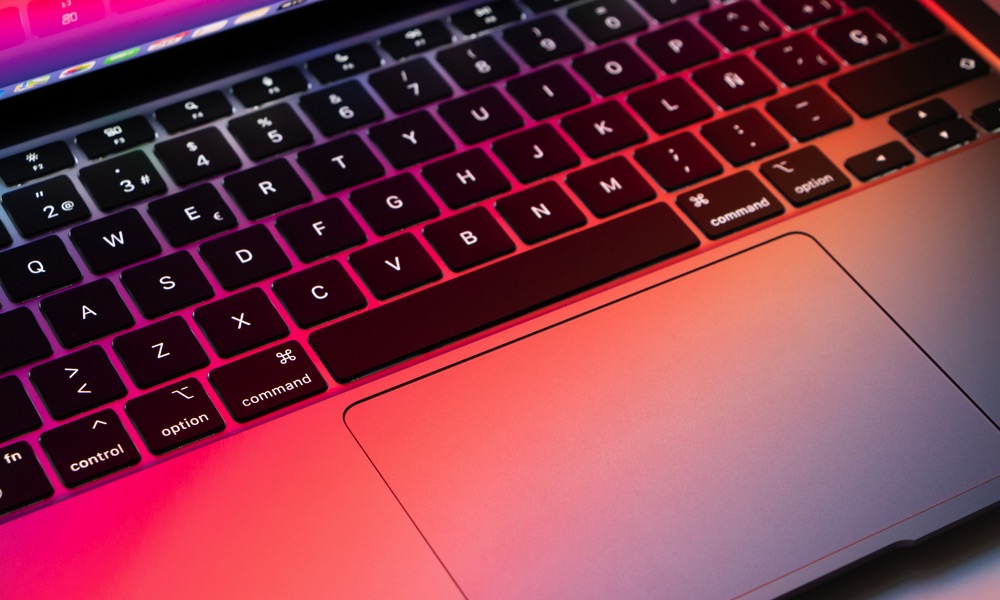
[Nanain / Shutterstock](https://www.shutterstock.com/g/Nanain)
If you want the fastest option to take a screenshot of something on your screen, this is it. It turns your cursor into a crosshair that lets you drag and capture exactly the portion of the screen you need.
It’s precise, quick, and ideal for grabbing part of a webpage or a specific settings panel. There’s no need to crop afterward.
For many users, this becomes the default screenshot shortcut because it’s so flexible.
**Pro Tip:** Tapping the **Spacebar** after pressing **Command + Shift + 4** will turn the tool into window capture mode, which lets you click a window and capture it cleanly with consistent borders. This produces professional-looking screenshots with almost no effort. If you frequently document workflows or share app previews, this small detail makes a noticeable difference.
## Command + Shift + T: Reopen Closed Tab
Accidentally closing the wrong tab in Safari or other browsers is almost guaranteed these days. **Command + Shift + T** instantly restores the last closed tab in most browsers. Pressing it repeatedly continues restoring previous tabs.
This shortcut quietly saves time and frustration, especially when you’re juggling research or multiple references. It’s the undo button for browsing.
## Spacebar in Finder: Quick Look
Quick Look is one of the most efficient file management features on macOS. Selecting a file in Finder and pressing **Spacebar** instantly previews it in a floating window. No separate app launches, and no waiting for a full program to load.
It works with PDFs, images, videos, and many document formats. You can scroll through a folder, preview files one by one, and close the preview just as quickly.
This single shortcut transforms how you browse files. Instead of opening and closing documents repeatedly, you just glance and move on.
**Pro Tip:** Pressing the **arrow keys** while Quick Look is open will switch it to viewing the next adjacent file, making this a really quick way to triage a whole folder, especially when combined with the next key…
## Command + Delete in Finder: Move To Trash
Selecting a file and pressing **Command + Delete** sends it to the Trash. It’s quick, consistent, and prevents accidental deletion during typing — and it even works while viewing a file in Quick Look.
This shortcut becomes second nature once you use Finder regularly. Cleaning up Downloads or organizing folders becomes much faster without dragging files manually. It’s a small adjustment from Windows habits, but one that pays off.
## Command + Comma (,): Open App Settings
This shortcut opens the preferences or settings for the active app. It works across a surprising number of macOS applications. Instead of going to the app’s name and then clicking settings, **Command + Comma** jumps directly to the app’s configuration.
This consistency is one of macOS’s strengths. Once you learn it, you stop guessing where settings live. You just open them instantly.
## Learn These Basic Keyboard Shortcuts
Switching from Windows to macOS isn’t about abandoning everything you know. It’s about retraining your brain a little bit.
Comment
Keyboard shortcuts are where that transition either feels slow or suddenly clicks into place. When your fingers start reaching for Command instead of Control, and when you stop dragging windows around manually, then your Mac begins to feel more like a productivity machine without actually being different hardware.
You don’t need to memorize every shortcut at once. Pick a few that match how you work and repeat them until they become muscle memory. Over time, the keyboard stops feeling odd, and the Mac starts feeling like yours.
[Share](https://www.facebook.com/sharer/sharer.php?u=https%3A%2F%2Fdevelopers.facebook.com%2Fdocs%2Fplugins%2F&src=sdkpreparse)
**Read Next:** [Snag a ‘Free’ iPhone 17e With These Carrier Pre-Orders](https://www.idropnews.com/news/iphone-17e-free-carrier-preorder-deals/260701/)
Sponsored
[ This Limited-Time Microsoft Office Deal Gets You Lifetime Access for Just \$50 \$49.97 86% off \$349.99 Shop](https://store.idropnews.com/sales/microsoft-office-home-and-business-for-mac-2021-lifetime-license?utm_source=bottomofpost&utm_medium=bottomofpost&utm_campaign=bottomofpost&utm_term=bottomofpost)
[ Microsoft Office Pro Lifetime for One Payment of \$50 \$49.97 86% off \$349.99 Shop](https://store.idropnews.com/sales/microsoft-office-pro-plus-2021-for-windows-lifetime-license?utm_source=bottomofpost&utm_medium=bottomofpost&utm_campaign=bottomofpost&utm_term=bottomofpost)
[ Microsoft Windows 11 Pro for One Payment of \$40 \$39.97 80% off \$199.99 Shop](https://store.idropnews.com/sales/microsoft-windows-11-pro?utm_source=bottomofpost&utm_medium=bottomofpost&utm_campaign=bottomofpost&utm_term=bottomofpost)
[ 7 Of The Best Side Hustles You Can Start Today To Make Extra Cash *Make Legitimate Cash Now* Check It Out](https://www.idropnews.com/link/2249/FBSideHustles)
[ The Best Money Moves To Supplement Social Security in 2022 *Money Moves You Can Make Now* Learn More](https://www.idropnews.com/link/2200/FBSocialSec)
[ 4 Real Things You Can Do Right Now to Make Legitimate Cash *Money Moves To Make In Retirement* Get Started](https://www.idropnews.com/link/2199/FBBrilRetire)

[ Win a Free iPad - Win a Free Apple iPad\$500 Amazon Gift Card - Win a Free Amazon Gift CardiPhone 17 Pro - Win a Free iPhone Enter \* Guaranteed by iDrop News.](https://www.idropnews.com/giveaways/?utm_source=giveaways-sidebar-banner)
### Trending
1. [ The \$10,000 Apple Pay ‘Hack’ That Isn’t Actually a Threat News](https://www.idropnews.com/news/mkbhd-veritasium-apple-pay-10000-hack-explained/262545/)
2. [ 5 Android Features We’re Begging Apple to Steal for iOS 26 News](https://www.idropnews.com/news/android-features-iphone-needs-ios-26/262025/)
3. [ The Hit List: 7 Apps You Should Delete for Better Privacy Apps](https://www.idropnews.com/apps/apps-to-delete-for-privacy-2026/261469/)
4. [ Beyond the Mute Switch: 8 Pro Ways to Use the Action Button Gallery](https://www.idropnews.com/gallery/iphone-action-button-creative-uses/261425/)
5. [ The iPad Air May Finally Get the Screen it Deserves iPad](https://www.idropnews.com/rumors/oled-ipad-air-release-date-2027/262579/)
Newsletter
[ iPhone WallpapersExpress Yourself Browse](https://www.idropnews.com/latest-iphone-wallpapers/?utm_source=wallpapers-sidebar-banner)
[Contact Us](https://www.idropnews.com/contact-us/) • [Unsubscribe](https://www.idropnews.com/unsubscribe/) • [Notifications](https://www.idropnews.com/push-notifications/) • [Meet the Team](https://www.idropnews.com/theteam/) • [Newsletter](https://www.idropnews.com/subscribe-to-our-newsletter/) • [Write for Us](https://www.idropnews.com/write-for-us/) • [Store Support](https://www.idropnews.com/store-support/) • [Report-a-Bug](https://www.idropnews.com/report-a-bug/)
- [News](https://www.idropnews.com/news/)
- [iPhone](https://www.idropnews.com/news/iphone/)
- [iPad](https://www.idropnews.com/news/ipad/)
- [Mac](https://www.idropnews.com/news/mac/)
- [Apple TV](https://www.idropnews.com/news/apple-tv/)
- [Apple Watch](https://www.idropnews.com/news/apple-watch-news/)
- [Fast Tech](https://www.idropnews.com/news/fast-tech/)
- [Rumors](https://www.idropnews.com/rumors/)
- [iPhone](https://www.idropnews.com/rumors/iphone-rumors/)
- [iPad](https://www.idropnews.com/rumors/ipad-rumors/)
- [Mac](https://www.idropnews.com/rumors/mac-rumors/)
- [Apple TV](https://www.idropnews.com/rumors/appletv/)
- [Apple Watch](https://www.idropnews.com/rumors/watch-rumors/)
- [How To](https://www.idropnews.com/how-to/)
- [AirDrop](https://www.idropnews.com/airdrop/)
- [Apple TV](https://www.idropnews.com/how-to/apple-tv-how-to/)
- [Apple Watch](https://www.idropnews.com/how-to/apple-watch-how-to/)
- [iCloud](https://www.idropnews.com/how-to/icloud-how-to/)
- [iPad](https://www.idropnews.com/how-to/ipad-how-to/)
- [iPhone](https://www.idropnews.com/how-to/iphone-how-to/)
- [Mac](https://www.idropnews.com/how-to/mac-how-to/)
- [Mail Drop](https://www.idropnews.com/mail-drop/)
- [Features]()
- [Apple Gloves](https://www.idropnews.com/news/apple-glove-concept-images/137681/)
- [Reviews](https://www.idropnews.com/reviews/)
- [Privacy](https://www.idropnews.com/tag/privacy/)
- [Security](https://www.idropnews.com/tag/security/)
- [Store](http://store.idropnews.com/)
- [AAPL](https://www.idropnews.com/aapl/)
- [Concepts](https://www.idropnews.com/tag/concept-images/)
- [Apple Giveaways](https://www.idropnews.com/giveaways/)
- [Company]()
- [About Us](https://www.idropnews.com/about-us/)
- [Privacy Policy](https://www.idropnews.com/privacy-policy/)
- [Contact Us](https://www.idropnews.com/contact-us/)
- [Advertise](https://www.idropnews.com/advertise/)
- [Store Support](https://www.idropnews.com/store-support/)
- [Terms of Use](https://www.idropnews.com/terms-of-use/)
- [Unsubscribe](https://www.idropnews.com/unsubscribe/)
- [Wallpapers](https://www.idropnews.com/iphone-wallpapers/)
- [Latest](https://www.idropnews.com/latest-iphone-wallpapers/)
- [Abstract](https://www.idropnews.com/iphone-8-wallpapers/abstract/)
- [Apple](https://www.idropnews.com/iphone-8-wallpapers/apple/)
- [Illustration](https://www.idropnews.com/iphone-8-wallpapers/illustration-wallpapers/)
- [Photography](https://www.idropnews.com/iphone-8-wallpapers/photography-wallpapers/)
- [Nature](https://www.idropnews.com/iphone-8-wallpapers/nature-wallpapers/)
- [Space](https://www.idropnews.com/iphone-8-wallpapers/space/)
- [Privacy Policy](https://www.idropnews.com/privacy-policy/)
- [CCPA Privacy Statement](https://www.idropnews.com/ccpa-privacy-statement/)
- [Do Not Sell My Information](https://www.idropnews.com/ccpa-privacy-statement#optOutLink)
- [Publishing Guidelines](https://www.idropnews.com/publishing-guidelines/)
- [Disclosures](https://www.idropnews.com/advertising-disclosures/)
Copyright © 2026 [iDrop News](https://www.idropnews.com/). All rights reserved. By using iDrop News you agree to our [terms and conditions.](https://www.idropnews.com/terms-of-use/) iDrop News and its contents are not affiliated or endorsed by Apple, Inc.
- [Home](https://www.idropnews.com/)
- [News](https://www.idropnews.com/news/)
- [Rumors](https://www.idropnews.com/rumors/)
- [How To](https://www.idropnews.com/how-to/)
- [Store](https://store.idropnews.com/)
- [Giveaways](https://www.idropnews.com/giveaways/)
- [Wallpapers](https://www.idropnews.com/latest-iphone-wallpapers/)
- [Fast Tech](https://www.idropnews.com/news/fast-tech/)
- [Reviews](https://www.idropnews.com/reviews/)
- [Site Map](https://www.idropnews.com/sitemap/)
Social Sharing

 | ||||||||||||
| Readable Markdown | Toggle Dark Mode
If you’ve spent years on Windows, your hands probably know what to do before your brain finishes the thought. CTRL-C and CTRL-V for copy and paste. ALT+TAB to switch. The Windows key to search. That muscle memory is there to stay, and it’s exactly why switching to a Mac can feel awkward at first.
For some of us, the biggest adjustment isn’t Finder or the Dock — it’s the keyboard. On macOS, the Command key takes over most of what Control does on Windows. For most keyboards, that will mean getting used to switching from using your pinky to your thumb, since CMD is typically located where the ALT key lives on a PC keyboard.
There are also several Mac-specific shortcuts that completely change how the system feels once you start using them.
Whether you’re switching from Windows to Mac or just want to up your macOS game, here are some of the most common keyboard shortcuts you need to learn.
## Command + Space: Spotlight Search
Spotlight replaces far more than just the Start menu. It’s a universal launcher, a file finder, a calculator, a search box, and a settings navigator, all built into one shortcut. Pressing **Command + Space** brings up a search field that lets you open apps, locate documents, do quick math, check definitions, convert units, and jump into system settings.
If you’re used to browsing menus or clicking around the Dock, this shortcut feels almost unfairly fast. After a few days of using it, you’ll stop thinking about where apps live; you’ll just type their names and move on.
Spotlight is also smarter than most people realize. It learns your habits. If you open Notes every morning at the same time, Spotlight will start suggesting that app immediately when you type the first letter. That subtle efficiency is one of the reasons macOS feels smoother than other operating systems.
## Command + Tab: Switch Apps
This is the closest equivalent to Alt+Tab on Windows, but there’s a key difference. On macOS, Command + Tab switches between *applications*, not individual windows. If you have three Safari windows open, they still count as one Safari app when you switch, which definitely takes some time to get used to.
That distinction is key: macOS treats the app as the primary unit, whereas Windows focuses on individual windows. Once you understand that, multitasking becomes more predictable. You stop thinking in terms of stacking windows and start thinking in terms of jumping between tasks.
Holding **Command** and tapping **Tab** cycles through open apps. It’s ideal for jumping from a browser to Messages to Finder without touching the trackpad or mouse.
**Pro Tip:** The list of open apps will be shown as a row of icons in the middle of your screen, which will remain displayed until you release the Command key. In addition to tapping the Tab key to cycle through them, you can also use the left and right arrow keys, or even click on one of the icons with your mouse or trackpad to select it.
## Command + \`: Switch Windows Within The Same App
This is the companion shortcut that makes Command + Tab make sense. While the previous shortcut switches apps, this one switches *between windows inside the current app*.
If you have multiple windows open, all you need to do is press **Command +\`** (that’s the grave accent, or “backtick,” located above the Tab key), and your Mac will start switching between windows in the app you currently have open.
If you’ve ever had multiple Finder windows open or several Safari windows and couldn’t quickly locate the one you needed, this shortcut lets you switch between them instantly. It cycles through open windows of the active app without leaving it, which avoids a lot of confusion.
Windows users often assume that app switching and window switching are the same behavior. On macOS, they’re intentionally separate. Once you learn both shortcuts, managing multiple apps and windows becomes far easier.
## Command + Q: Quit App
This is one of the most important transitions for Windows users. On macOS, closing a window does not necessarily quit the app. You can close every window for an app and still have it running in the Dock.
**Command + Q** is the real way to exit. It fully quits the active app and removes it from your active session. Using this will keep your Dock tidy and prevent apps you thought you closed from sitting in the background and consuming resources.
It’s also faster than navigating menus. If you’re done with something, you press Command + Q and move on.
**Pro Tip:** You can use **Command + Tab** and **Command + Q** to quickly close an app. Once you’ve highlighted the app icon in the application switcher, keep holding the **Command** key and tap **Q** to quit it right away.
## Command + W: Close Window Or Tab
**Command + W** closes the current window in most apps and the current tab in browsers. It’s that quick and easy. If you’re done with a document or web page but want to keep the app open, this is the way to go.
It feels similar to what many Windows apps do with Ctrl+W, but on macOS, it becomes important to know this shortcut because closing and quitting are separate actions.
## Command + H: Hide App
Hiding is a uniquely Mac concept that often surprises new users. Instead of minimizing a single window, **Command + H** hides all windows of the active app instantly while keeping it running.
This is perfect when you want to clear visual clutter without minimizing multiple windows individually. The app remains active in the background, ready to return when you switch back to it.
There’s even an advanced variation: **Option + Command + H** hides all other apps except the one you’re currently using. It’s a fast way to isolate your focus.
If you want to make the app appear on your screen again, simply click the icon in your Dock, or use **Command + Tab** to select it from the application switcher.
## Command + M: Minimize Window
If hiding feels weird as a Windows user, minimizing an app may feel more normal. **Command + M** sends the current window to the Dock. It’s useful when you want to put a window away temporarily but still keep it accessible.
Minimizing works well if you only have one or two windows you want tucked away. Keep in mind, though, that overusing this shortcut can crowd the Dock, which is why you might want to quit or hide apps instead.
## Command + Option + Esc: Force Quit
Every operating system needs an emergency exit. On Mac, that’s **Command + Option + Esc**. This opens the Force Quit panel, which lets you terminate an unresponsive app without restarting your entire computer.
If an app freezes and refuses to close normally, this shortcut gives you control immediately. It’s macOS’s equivalent of the Windows task manager shortcut, but a bit more straightforward.
**Pro Tip:** You can also force quit an unresponsive app by right-clicking its icon in the Dock. If the app is truly hung, a **Force Quit** option should appear on the menu; but you can also make it appear by holding down the **OPT** key to toggle the standard Quit option to Force Quit.
## Command + Shift + 5: Screenshot Toolbar
macOS has one of the most capable built-in screenshot systems available, and this shortcut unlocks the full toolbar. Instead of just grabbing the entire screen, you can capture specific windows, selected areas, or record a video of your screen entirely.
The toolbar also includes options for save location, timers, and microphone recording. It eliminates the need for third-party screenshot utilities for most users.
If you create tutorials, document bugs, or share visual instructions, this shortcut alone can change how quickly you work.
## Command + Shift + 4: Screenshot Selection
If you want the fastest option to take a screenshot of something on your screen, this is it. It turns your cursor into a crosshair that lets you drag and capture exactly the portion of the screen you need.
It’s precise, quick, and ideal for grabbing part of a webpage or a specific settings panel. There’s no need to crop afterward.
For many users, this becomes the default screenshot shortcut because it’s so flexible.
**Pro Tip:** Tapping the **Spacebar** after pressing **Command + Shift + 4** will turn the tool into window capture mode, which lets you click a window and capture it cleanly with consistent borders. This produces professional-looking screenshots with almost no effort. If you frequently document workflows or share app previews, this small detail makes a noticeable difference.
## Command + Shift + T: Reopen Closed Tab
Accidentally closing the wrong tab in Safari or other browsers is almost guaranteed these days. **Command + Shift + T** instantly restores the last closed tab in most browsers. Pressing it repeatedly continues restoring previous tabs.
This shortcut quietly saves time and frustration, especially when you’re juggling research or multiple references. It’s the undo button for browsing.
## Spacebar in Finder: Quick Look
Quick Look is one of the most efficient file management features on macOS. Selecting a file in Finder and pressing **Spacebar** instantly previews it in a floating window. No separate app launches, and no waiting for a full program to load.
It works with PDFs, images, videos, and many document formats. You can scroll through a folder, preview files one by one, and close the preview just as quickly.
This single shortcut transforms how you browse files. Instead of opening and closing documents repeatedly, you just glance and move on.
**Pro Tip:** Pressing the **arrow keys** while Quick Look is open will switch it to viewing the next adjacent file, making this a really quick way to triage a whole folder, especially when combined with the next key…
## Command + Delete in Finder: Move To Trash
Selecting a file and pressing **Command + Delete** sends it to the Trash. It’s quick, consistent, and prevents accidental deletion during typing — and it even works while viewing a file in Quick Look.
This shortcut becomes second nature once you use Finder regularly. Cleaning up Downloads or organizing folders becomes much faster without dragging files manually. It’s a small adjustment from Windows habits, but one that pays off.
## Command + Comma (,): Open App Settings
This shortcut opens the preferences or settings for the active app. It works across a surprising number of macOS applications. Instead of going to the app’s name and then clicking settings, **Command + Comma** jumps directly to the app’s configuration.
This consistency is one of macOS’s strengths. Once you learn it, you stop guessing where settings live. You just open them instantly.
## Learn These Basic Keyboard Shortcuts
Switching from Windows to macOS isn’t about abandoning everything you know. It’s about retraining your brain a little bit.
Keyboard shortcuts are where that transition either feels slow or suddenly clicks into place. When your fingers start reaching for Command instead of Control, and when you stop dragging windows around manually, then your Mac begins to feel more like a productivity machine without actually being different hardware.
You don’t need to memorize every shortcut at once. Pick a few that match how you work and repeat them until they become muscle memory. Over time, the keyboard stops feeling odd, and the Mac starts feeling like yours. | ||||||||||||
| ML Classification | |||||||||||||
| ML Categories |
Raw JSON{
"/Computers_and_Electronics": 988,
"/Computers_and_Electronics/Computer_Hardware": 639,
"/Computers_and_Electronics/Computer_Hardware/Computer_Peripherals": 253,
"/Internet_and_Telecom": 124
} | ||||||||||||
| ML Page Types |
Raw JSON{
"/Article": 995,
"/Article/How_to": 860
} | ||||||||||||
| ML Intent Types |
Raw JSON{
"Informational": 999
} | ||||||||||||
| Content Metadata | |||||||||||||
| Language | en-us | ||||||||||||
| Author | Sergio Velasquez | ||||||||||||
| Publish Time | 2026-02-27 20:00:44 (1 month ago) | ||||||||||||
| Original Publish Time | 2026-02-27 20:00:44 (1 month ago) | ||||||||||||
| Republished | No | ||||||||||||
| Word Count (Total) | 2,494 | ||||||||||||
| Word Count (Content) | 1,908 | ||||||||||||
| Links | |||||||||||||
| External Links | 15 | ||||||||||||
| Internal Links | 116 | ||||||||||||
| Technical SEO | |||||||||||||
| Meta Nofollow | No | ||||||||||||
| Meta Noarchive | No | ||||||||||||
| JS Rendered | No | ||||||||||||
| Redirect Target | null | ||||||||||||
| Performance | |||||||||||||
| Download Time (ms) | 95 | ||||||||||||
| TTFB (ms) | 80 | ||||||||||||
| Download Size (bytes) | 65,047 | ||||||||||||
| Shard | 100 (laksa) | ||||||||||||
| Root Hash | 17575621408916897900 | ||||||||||||
| Unparsed URL | com,idropnews!www,/how-to/mac-keyboard-shortcuts-windows-switchers/246395/ s443 | ||||||||||||