ℹ️ Skipped - page is already crawled
| Filter | Status | Condition | Details |
|---|---|---|---|
| HTTP status | PASS | download_http_code = 200 | HTTP 200 |
| Age cutoff | PASS | download_stamp > now() - 6 MONTH | 0.4 months ago |
| History drop | PASS | isNull(history_drop_reason) | No drop reason |
| Spam/ban | PASS | fh_dont_index != 1 AND ml_spam_score = 0 | ml_spam_score=0 |
| Canonical | PASS | meta_canonical IS NULL OR = '' OR = src_unparsed | Not set |
| Property | Value | |||||||||
|---|---|---|---|---|---|---|---|---|---|---|
| URL | https://www.hivelocity.net/kb/how-to-open-edit-move-and-copy-a-file-in-linux/ | |||||||||
| Last Crawled | 2026-04-11 10:28:40 (12 days ago) | |||||||||
| First Indexed | 2020-10-29 05:26:02 (5 years ago) | |||||||||
| HTTP Status Code | 200 | |||||||||
| Content | ||||||||||
| Meta Title | How to Open, Edit, Move, and Copy a File in Linux | |||||||||
| Meta Description | Are you a new Linux user? Need to know how to open, edit, move, or copy a file in Linux? Read on to learn these important Linux commands. | |||||||||
| Meta Canonical | null | |||||||||
| Boilerpipe Text | In this tutorial we’ll cover how to open, edit, move, and copy a file within Linux using the terminal window and a few basic commands.
Use the the table of contents below to jump to a specific section or read on to learn more!
Absolute and Relative Paths
When using commands for moving, reading, copying, and deleting files in Linux, there are two ways to type a file path, an
absolute path
and
relative path
.
An
absolute path
is the specific location of the file you are editing irrespective of your current working directory or combined paths. An absolute path must be written with reference to the root directory, starting with a forward slash /. An example of using an absolute path would look like:
cd /usr/bin
A
relative path
on the other hand is the path relative to your current working directory using period and double periods to indicate the current and parent directories. An example of using a relative path when the current working directory is
/usr/
would look like:
cd bin
Both types of path will take you to the same place but require different steps and criteria to do so.
How to Open a File in Linux
While there are multiple ways to open a file in Linux, the easiest way to display the contents of a file is using the
cat
command. For example, let’s say you have a text file named
lorem.txt
, which contains a paragraph of text. Use the
cat
command followed by the name of the file you want to open, like this:
cat lorem.txt
While the example used above contains only one paragraph of text, for large or multipage documents, it may be cumbersome to attempt to open their entire contents in the terminal at once. The
less
command comes in handy in situations where large text is present. By using the
less
command, you can have Linux display the contents of your file one page at a time. Use it the same way you would use the
cat
command:
less longlorem.txt
This command would then output the contents of the
longlorem.txt
file, one page at a time, allowing you to scroll to view more. Note that the colon highlighted at the bottom of the screenshot above is the indication that you can scroll up and down the file.
How to Edit a File in Linux
There are several different tools within Linux that can be used to edit files. The two most popular are
Vi
(or
Vim
) and
Nano
. While each has its advantages, the biggest differences between the two are ease-of-use and functionality.
Vi
is a more powerful and complicated tool, and
Nano
is simpler but can do less. We’ll start with
Nano
.
Nano Editor
To open a file in
Nano
, you must enter the
nano
command followed by the path of the file you are attempting to open. You may also first navigate to the proper directory using the
cd
command, then open the file for editing just using
nano
followed by the filename. For example:
nano sample.txt
If the file specified already exists, it will be opened for editing. If no file exists with this name at this location, a new file will be created.
One of the advantages of
Nano
is, it features a list of shortcuts at the bottom of its interface. These shortcuts allow users to use the tool without having to memorize every command, making it ideal for those who are newer to Linux. Arrow keys can be used for navigation, and the backspace key is used to delete. All-in-all,
Nano
works like a simplified but familiar text editor.
Common nano commands can be found in the table below.
Command
Description
Ctrl + G
Display help
Ctrl + X
Close the current file
Ctrl + O
Save the current file
Ctrl + W
Search for a string or a regular expression
Ctrl + K
Cut the current line
Ctrl + U
Uncut from the cut buffer
Ctrl + J
Justify the current paragraph
Ctrl + T
Check the spelling of the current file
Alt + U
Undo the last operation
Alt + E
Redo the last operation
Vi Editor
The other popular option for editing a file in Linux is to use the
vi
command. Like
nano
,
vi
must be followed either by a specific file path, or if you’re already within the desired directory, just the file name can be used.
For example:
vi sample.txt
The primary difference between
Vi
and
Nano
is that
Vi
features different modes, allowing users to interact with the document in different ways. While this feature gives a greater degree of control over the document, it can also be very confusing and somewhat counter-intuitive for those new to the tool.
The default mode that you enter
Vi
in is the
Command mode
, used for navigation and entering commands. Like
Nano
,
Vi
uses the arrow keys for navigation. However unlike
Nano
, any text entered into
Vi
won’t be treated as a string of text being added to the document, but rather a command being relayed directly to
Vi.
To add text to the document, you must first enter
Insert mode
. To enter Insert mode, press the
i
key. You’ll see the phrase “INSERT” appear in the bottom left corner of your screen, as shown below.
Now, any text you enter will be treated as a string of text being added to the document. To return to Command mode, press the
Esc
key. You’ll know you’ve exited Insert mode when the “INSERT” phrase disappears from the bottom corner.
Unlike
Nano
, to delete a character in
Vi
, you must use the
x
key while in Command mode or using the
backspace
key while in Insert mode. This will delete whichever character is currently highlighted by the cursor.
Vi
also allows you to enter commands, with each command starting with a colon “
:
“. For example:
To save (or write to) a file that you’ve made edits to, use the
:w
command.
To quit
Vi
, use the
:q
command.
To save and quit all at once, combine both commands into
:wq
.
*NOTE:
You can add an exclamation point “
!
” to any command to force it. For example,
:q!
would force
Vi
to quit, overriding any confirmation screens that may otherwise be triggered.
For a list of available navigation shortcuts, check out this post on
Editing Files with Vi
. Scroll to the bottom for a full list of additional movement and editing options or reference the table below.
Command
Description
i
Insert Mode
x
Delete character
:wq
Save and exit
:q!
Quit without saving
/pattern
Search for pattern
n
Repeat search forward
N
Repeat search backward
How to Move a File in Linux
First, it is important to understand that moving a file in Linux and renaming it are the same action. This is because when you are moving a file to a new location within a Linux system, you are really renaming its file path to include new information.
To move a file in Linux, use the
mv
command followed by the source path and then the destination path. For example, if you wanted to move the file
moveme.backup
from its current location in the
/backup
directory to a new location in the
/review
directory, you would do so with the following command:
mv /backup/moveme.backup /review
You can even rename the file as it’s being moved. Doing so would look similar to this:
mv /backup/moveme.backup /review/newfile.backup
Or, if you wanted to rename the file without moving it to a new location, you could simply repeat the above command while omitting the “/review”.
How to Copy a File in Linux
To copy a file in Linux, use the
cp
command followed by the path and name of the source file and then the new file’s path and name. For example:
cp sample.txt sample2.txt
The above command would generate a new file, named s
ample2.txt
, which contains all the contents of the previous file. By default, this new file will be created in the same directory as your current file, unless otherwise specified.
If you’d like to copy the file to a new directory, you can use the desired file path instead of the second file name, or include both to copy the file to a new location under a new name. An example is shown below.
Popular Links
Looking for more information on
Linux
? Search our
Knowledge Base
!
Interested in more articles about
Operating Systems
? Navigate to our
Categories
page using the bar on the left or check out these popular articles:
How to Check the Apache Version on a Linux Dedicated cPanel Server
How to Change a Password in Linux
How to Check if Your Linux Server is Under DDoS Attack
Popular tags within this category include:
Linux
,
Windows
,
Apache
,
CentOS
,
Debian
,
Fedora
,
RedHat
, and more.
Don’t see what you’re looking for? Use the search bar at the top to search our entire Knowledge Base.
The Hivelocity Difference
Seeking a better
Dedicated Server
solution? In the market for
Private Cloud
or
Colocation
services? Check out
Hivelocity’s
extensive list of products for great deals and offers.
With best-in-class customer service, affordable pricing, a wide-range of fully-customizable options, and a network like no other,
Hivelocity
is the hosting solution you’ve been waiting for.
Unsure which of our services is best for your particular needs?
Call
or
live chat
with one of our sales agents today and see the difference Hivelocity can make for you. | |||||||||
| Markdown | [Skip to content](https://www.hivelocity.net/kb/how-to-open-edit-move-and-copy-a-file-in-linux/#content)
[Save 50% off Dedicated Servers](https://www.hivelocity.net/dedicated-servers/)
[Schedule a Call with Sales](https://www.hivelocity.net/about/contact/sales/)
- Products
- \---
- [Dedicated ServersGlobal data centers ready to deploy from \$65/mo.](https://www.hivelocity.net/dedicated-servers/)
- [VPS and VDS Industry leading price per performance from \$10/mo.](https://www.hivelocity.net/vps-and-vds/)
- [ColocationYour infrastructure without constraints](https://www.hivelocity.net/products/colocation/)
- Solutions
- \---
- [Financial Services](https://www.hivelocity.net/financial-services/)
- [Ad Serving](https://www.hivelocity.net/ad-serving/)
- [Crypto Validators](https://www.hivelocity.net/crypto-validator-hosting/)
- [AI Inference](https://www.hivelocity.net/ai-inference-hosting/)
- \---
- [Solana Validator](https://www.hivelocity.net/solana-servers/)
- [Ollama Hosting](https://www.hivelocity.net/ollama-hosting/)
- \---
- [Partner Program](https://www.hivelocity.net/about/partners/)
- Services
- \---
- [Server Management](https://www.hivelocity.net/services/server-management/)
- [DDoS Protection](https://www.hivelocity.net/enhancements/ddos-protection/)
- [Firewall](https://www.hivelocity.net/enhancements/firewall/)
- [Backups](https://www.hivelocity.net/enhancements/rapid-restore/)
- \---
- [Cloud Object Storage](https://www.hivelocity.net/enhancements/storage/)
- [Colo-Cloud Backup](https://www.hivelocity.net/enhancements/colo-cloud-backup-recovery/)
- [Solution Portability](https://www.hivelocity.net/solution-portability-program/)
- Data Centers
- \---
- [Data Center Locations 50+ data centers across 6 continents](https://www.hivelocity.net/data-centers/)
- [Network Looking Glass Test our network](https://www.hivelocity.net/about/network/)
- [Service StatusView our current up-time report](https://stats.uptimerobot.com/PZ2Pxu0kAL)
- \---
- Data centers map
- Developers
- \---
- [API ReferencePurchase, deploy and manage with our API](https://developers.hivelocity.net/reference/introduction)
- [Product DocsGet a deeper understanding of our products](https://developers.hivelocity.net/docs/getting-started)
- [Terraform ProviderTerraform provider for Hivelocity](https://github.com/hivelocity/terraform-provider-hivelocity)
- [Pricing](https://www.hivelocity.net/pricing)
- [Support](https://www.hivelocity.net/about/contact-us/ "Get Support")
- [Log In](https://my.hivelocity.net/login "myVelocity")
[Your Webhosting Questions](https://www.hivelocity.net/kb/)
Answered by the Webhosting Experts
[See where the internet lives](https://www.hivelocity.net/live-feed/)
Back to: [System](https://www.hivelocity.net/kb/category/system/)
[Create a Free Account](https://my.hivelocity.net/sign-up)
[Chat with an Expert](https://www.hivelocity.net/kb/how-to-open-edit-move-and-copy-a-file-in-linux/#chat-now)
[Configure a Bare Metal Server](https://www.hivelocity.net/dedicated-servers/)
[Latest](https://www.hivelocity.net/kb/)
Categories \-
- [System](https://www.hivelocity.net/kb/category/system/)
...
- [Account](https://www.hivelocity.net/kb/category/account/)
- [Applications](https://www.hivelocity.net/kb/category/applications/)
- [Compute](https://www.hivelocity.net/kb/category/compute/)
- [Database](https://www.hivelocity.net/kb/category/database/)
- [Dedicated Server](https://www.hivelocity.net/kb/category/dedicated-server/)
- [Developers](https://www.hivelocity.net/kb/category/developers/)
- [Enterprise Cloud](https://www.hivelocity.net/kb/category/enterprise-cloud/)
- [Network](https://www.hivelocity.net/kb/category/network/)
- [Security](https://www.hivelocity.net/kb/category/security/)
- [Storage](https://www.hivelocity.net/kb/category/storage/)
- [System](https://www.hivelocity.net/kb/category/system/)
- [VPS](https://www.hivelocity.net/kb/category/vps/)
# How to Open, Edit, Move, and Copy a File in Linux
In this tutorial we’ll cover how to open, edit, move, and copy a file within Linux using the terminal window and a few basic commands.
Use the the table of contents below to jump to a specific section or read on to learn more\!
**Contents** [hide](https://www.hivelocity.net/kb/how-to-open-edit-move-and-copy-a-file-in-linux/)
[Absolute and Relative Paths](https://www.hivelocity.net/kb/how-to-open-edit-move-and-copy-a-file-in-linux/#Absolute_and_Relative_Paths)
[How to Open a File in Linux](https://www.hivelocity.net/kb/how-to-open-edit-move-and-copy-a-file-in-linux/#How_to_Open_a_File_in_Linux)
[How to Edit a File in Linux](https://www.hivelocity.net/kb/how-to-open-edit-move-and-copy-a-file-in-linux/#How_to_Edit_a_File_in_Linux)
[Nano Editor](https://www.hivelocity.net/kb/how-to-open-edit-move-and-copy-a-file-in-linux/#Nano_Editor)
[Vi Editor](https://www.hivelocity.net/kb/how-to-open-edit-move-and-copy-a-file-in-linux/#Vi_Editor)
[How to Move a File in Linux](https://www.hivelocity.net/kb/how-to-open-edit-move-and-copy-a-file-in-linux/#How_to_Move_a_File_in_Linux)
[How to Copy a File in Linux](https://www.hivelocity.net/kb/how-to-open-edit-move-and-copy-a-file-in-linux/#How_to_Copy_a_File_in_Linux)
## **Absolute and Relative Paths**
When using commands for moving, reading, copying, and deleting files in Linux, there are two ways to type a file path, an *absolute path* and *relative path*.
An **absolute path** is the specific location of the file you are editing irrespective of your current working directory or combined paths. An absolute path must be written with reference to the root directory, starting with a forward slash /. An example of using an absolute path would look like: **cd /usr/bin**

A **relative path** on the other hand is the path relative to your current working directory using period and double periods to indicate the current and parent directories. An example of using a relative path when the current working directory is */usr/* would look like: **cd bin**
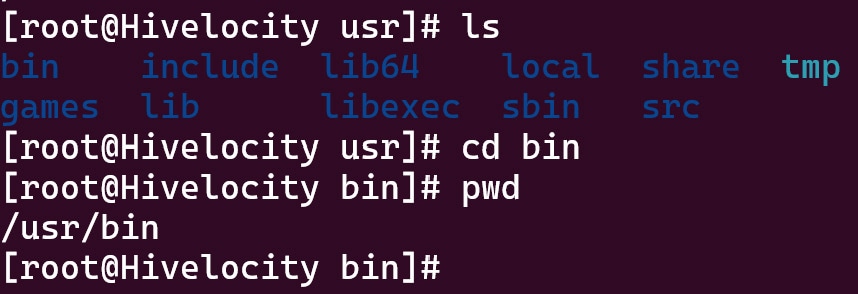
Both types of path will take you to the same place but require different steps and criteria to do so.
## **How to Open a File in Linux**
While there are multiple ways to open a file in Linux, the easiest way to display the contents of a file is using the **cat** command. For example, let’s say you have a text file named *lorem.txt*, which contains a paragraph of text. Use the *cat* command followed by the name of the file you want to open, like this:
**cat lorem.txt**

While the example used above contains only one paragraph of text, for large or multipage documents, it may be cumbersome to attempt to open their entire contents in the terminal at once. The **less** command comes in handy in situations where large text is present. By using the *less* command, you can have Linux display the contents of your file one page at a time. Use it the same way you would use the *cat* command:
**less longlorem.txt**
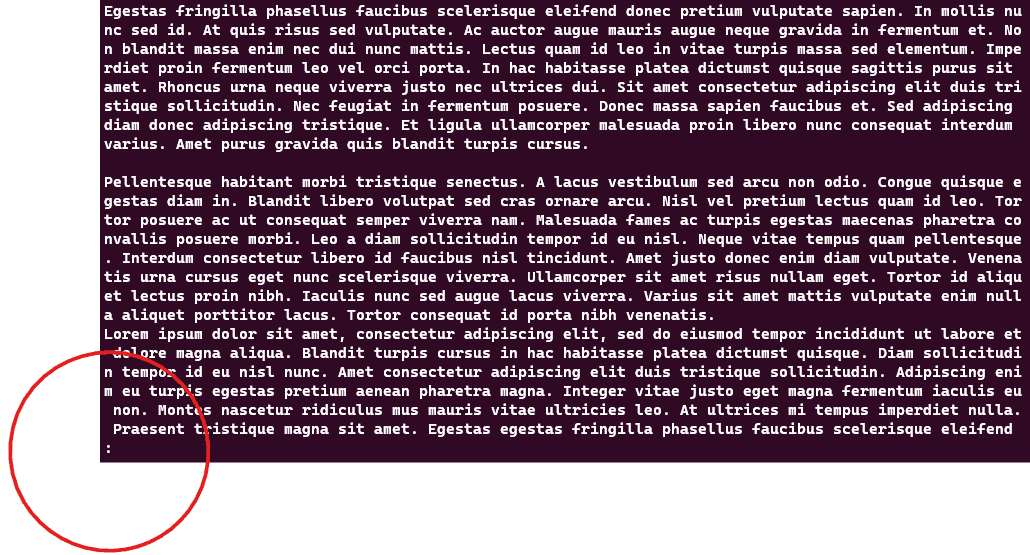
This command would then output the contents of the *longlorem.txt* file, one page at a time, allowing you to scroll to view more. Note that the colon highlighted at the bottom of the screenshot above is the indication that you can scroll up and down the file.
## **How to Edit a File in Linux**
There are several different tools within Linux that can be used to edit files. The two most popular are **Vi** (or **Vim**) and **Nano**. While each has its advantages, the biggest differences between the two are ease-of-use and functionality. *Vi* is a more powerful and complicated tool, and *Nano* is simpler but can do less. We’ll start with *Nano*.
### **Nano Editor**
To open a file in *Nano*, you must enter the **nano** command followed by the path of the file you are attempting to open. You may also first navigate to the proper directory using the **cd** command, then open the file for editing just using *nano* followed by the filename. For example:
**nano sample.txt**
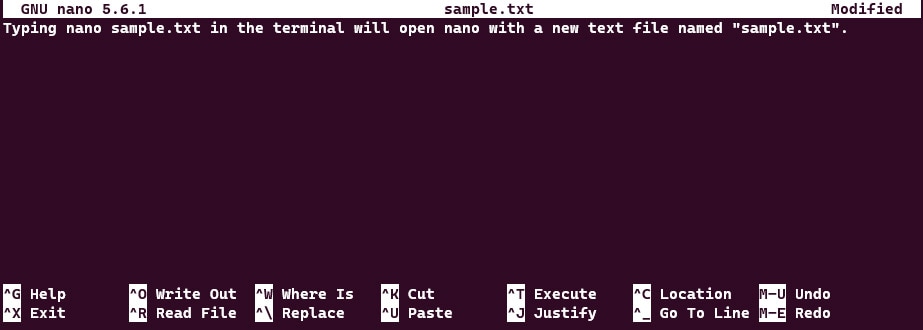
If the file specified already exists, it will be opened for editing. If no file exists with this name at this location, a new file will be created.
One of the advantages of *Nano* is, it features a list of shortcuts at the bottom of its interface. These shortcuts allow users to use the tool without having to memorize every command, making it ideal for those who are newer to Linux. Arrow keys can be used for navigation, and the backspace key is used to delete. All-in-all, *Nano* works like a simplified but familiar text editor.
Common nano commands can be found in the table below.
| | |
|---|---|
| **Command** | **Description** |
| *Ctrl + G* | Display help |
| *Ctrl + X* | Close the current file |
| *Ctrl + O* | Save the current file |
| *Ctrl + W* | Search for a string or a regular expression |
| *Ctrl + K* | Cut the current line |
| *Ctrl + U* | Uncut from the cut buffer |
| *Ctrl + J* | Justify the current paragraph |
| *Ctrl + T* | Check the spelling of the current file |
| *Alt + U* | Undo the last operation |
| *Alt + E* | Redo the last operation |
### **Vi Editor**
The other popular option for editing a file in Linux is to use the **vi** command. Like *nano*, *vi* must be followed either by a specific file path, or if you’re already within the desired directory, just the file name can be used.
For example:
**vi sample.txt**
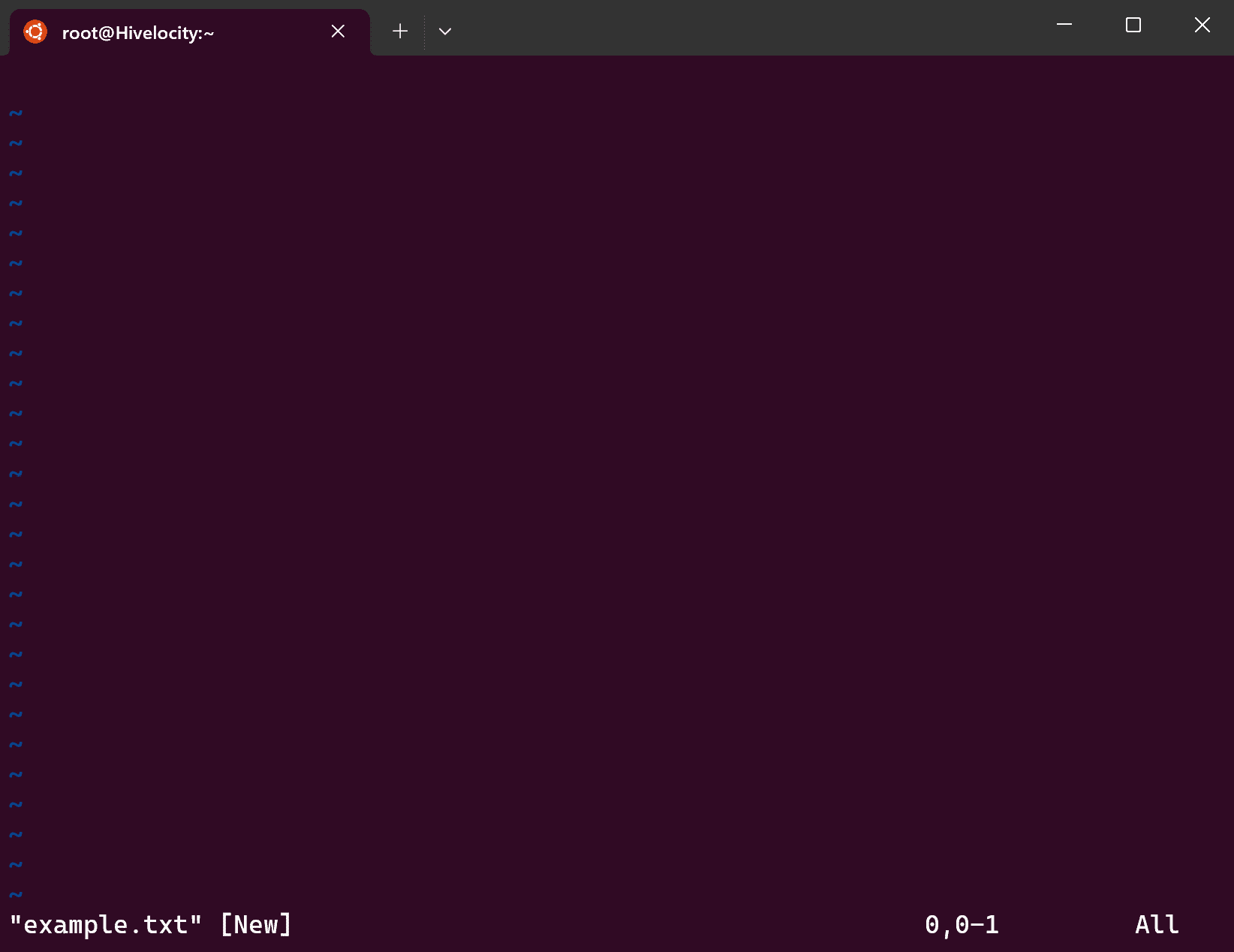
The primary difference between *Vi* and *Nano* is that *Vi* features different modes, allowing users to interact with the document in different ways. While this feature gives a greater degree of control over the document, it can also be very confusing and somewhat counter-intuitive for those new to the tool.
The default mode that you enter *Vi* in is the **Command mode**, used for navigation and entering commands. Like *Nano*, *Vi* uses the arrow keys for navigation. However unlike *Nano*, any text entered into *Vi* won’t be treated as a string of text being added to the document, but rather a command being relayed directly to *Vi.*
To add text to the document, you must first enter **Insert mode**. To enter Insert mode, press the **i** key. You’ll see the phrase “INSERT” appear in the bottom left corner of your screen, as shown below.
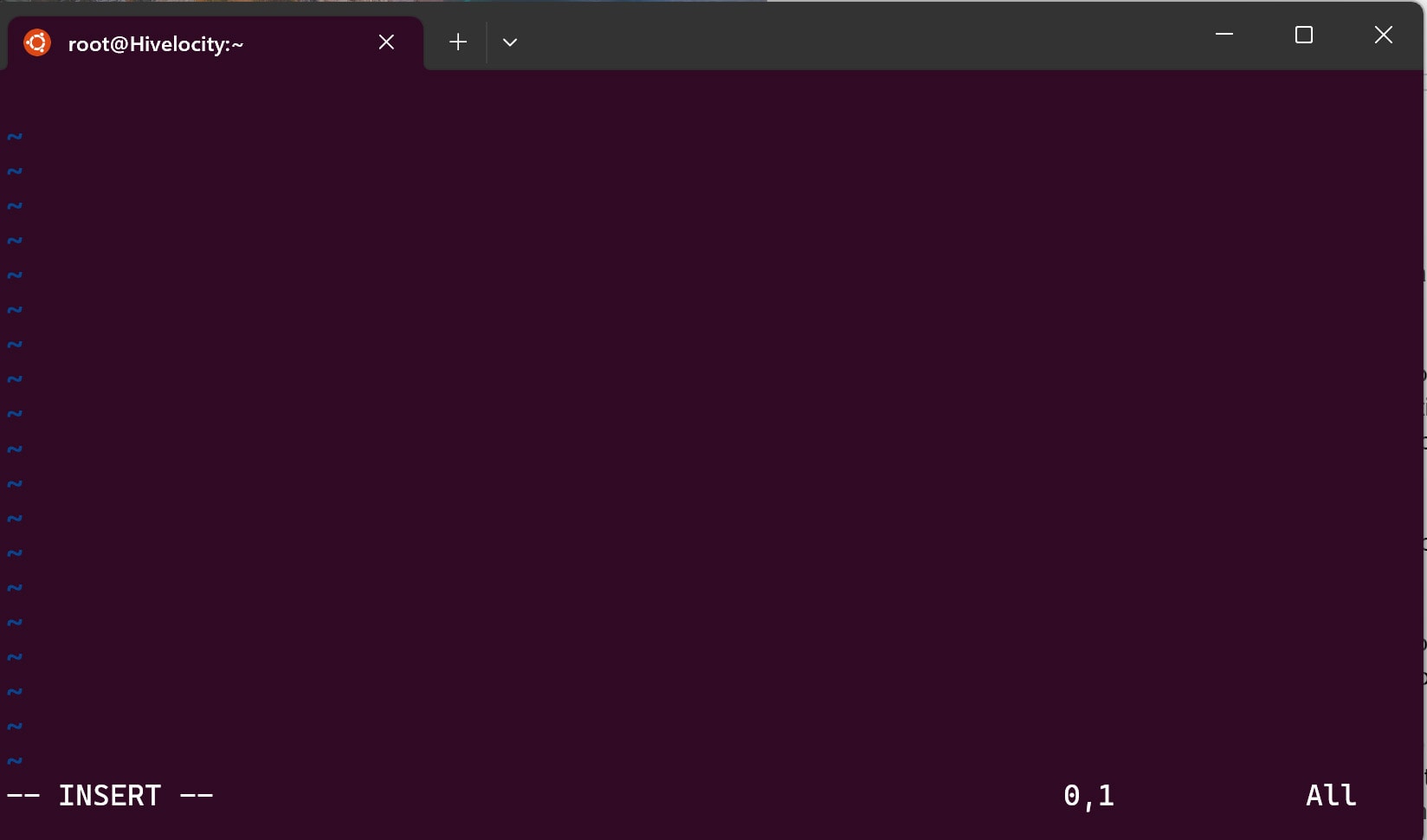
Now, any text you enter will be treated as a string of text being added to the document. To return to Command mode, press the **Esc** key. You’ll know you’ve exited Insert mode when the “INSERT” phrase disappears from the bottom corner.
Unlike *Nano*, to delete a character in *Vi*, you must use the **x** key while in Command mode or using the **backspace** key while in Insert mode. This will delete whichever character is currently highlighted by the cursor.
*Vi* also allows you to enter commands, with each command starting with a colon “**:**“. For example:
- To save (or write to) a file that you’ve made edits to, use the **:w** command.
- To quit *Vi*, use the **:q** command.
- To save and quit all at once, combine both commands into **:wq**.
- **\*NOTE:** You can add an exclamation point “**\!**” to any command to force it. For example, **:q\!** would force *Vi* to quit, overriding any confirmation screens that may otherwise be triggered.
For a list of available navigation shortcuts, check out this post on [Editing Files with Vi](https://www.control-escape.com/linux/editing-vim.html). Scroll to the bottom for a full list of additional movement and editing options or reference the table below.
| | |
|---|---|
| **Command** | **Description** |
| *i* | Insert Mode |
| *x* | Delete character |
| *:wq* | Save and exit |
| *:q\!* | Quit without saving |
| */pattern* | Search for pattern |
| *n* | Repeat search forward |
| *N* | Repeat search backward |
## **How to Move a File in Linux**
First, it is important to understand that moving a file in Linux and renaming it are the same action. This is because when you are moving a file to a new location within a Linux system, you are really renaming its file path to include new information.
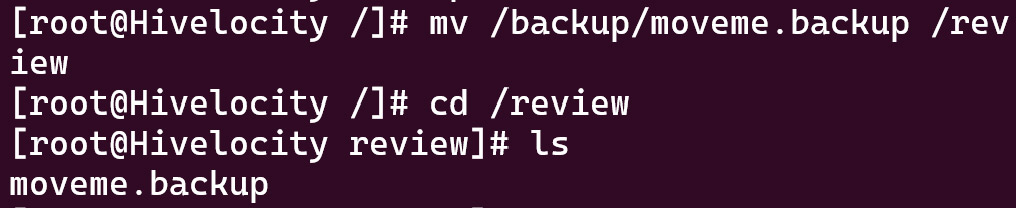
To move a file in Linux, use the **mv** command followed by the source path and then the destination path. For example, if you wanted to move the file *moveme.backup* from its current location in the */backup* directory to a new location in the */review* directory, you would do so with the following command:
**mv /backup/moveme.backup /review**
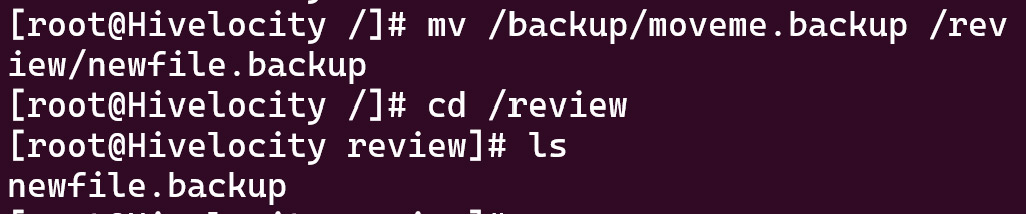
You can even rename the file as it’s being moved. Doing so would look similar to this:
**mv /backup/moveme.backup /review/newfile.backup**
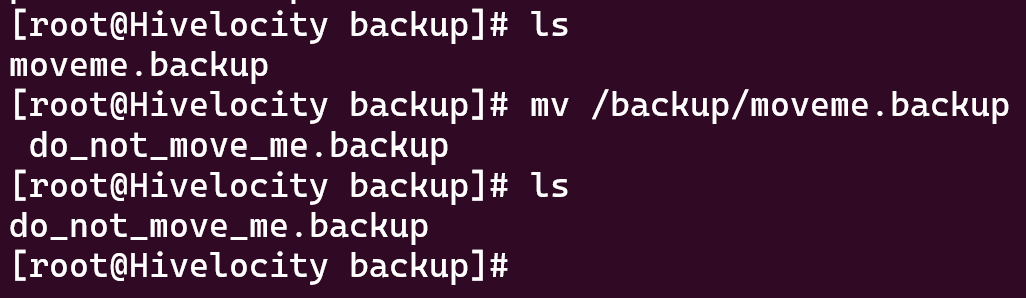
Or, if you wanted to rename the file without moving it to a new location, you could simply repeat the above command while omitting the “/review”.
## **How to Copy a File in Linux**
To copy a file in Linux, use the **cp** command followed by the path and name of the source file and then the new file’s path and name. For example:
**cp sample.txt sample2.txt**
The above command would generate a new file, named s*ample2.txt*, which contains all the contents of the previous file. By default, this new file will be created in the same directory as your current file, unless otherwise specified.
If you’d like to copy the file to a new directory, you can use the desired file path instead of the second file name, or include both to copy the file to a new location under a new name. An example is shown below.
**Popular Links**
Looking for more information on [Linux](https://www.hivelocity.net/kb/tag/linux/)? Search our [Knowledge Base](https://www.hivelocity.net/kb/)\!
Interested in more articles about [Operating Systems](https://www.hivelocity.net/kb/category/operating-system/)? Navigate to our [Categories](https://www.hivelocity.net/kb/category/operating-system/) page using the bar on the left or check out these popular articles:
- [How to Check the Apache Version on a Linux Dedicated cPanel Server](https://www.hivelocity.net/kb/how-to-check-apache-version-on-a-linux-dedicated-cpanel-server/)
- [How to Change a Password in Linux](https://www.hivelocity.net/kb/how-to-change-password-linux/)
- [How to Check if Your Linux Server is Under DDoS Attack](https://www.hivelocity.net/kb/how-to-check-if-your-linux-server-is-under-ddos-attack-2/)
Popular tags within this category include: [Linux](https://www.hivelocity.net/kb/tag/linux/), [Windows](https://www.hivelocity.net/kb/tag/windows/), [Apache](https://www.hivelocity.net/kb/tag/apache/), [CentOS](https://www.hivelocity.net/kb/tag/centos/), [Debian](https://www.hivelocity.net/kb/tag/debian/), [Fedora](https://www.hivelocity.net/kb/tag/fedora/), [RedHat](https://www.hivelocity.net/kb/tag/redhat/), and more.
Don’t see what you’re looking for? Use the search bar at the top to search our entire Knowledge Base.
**The Hivelocity Difference**
Seeking a better [Dedicated Server](https://www.hivelocity.net/dedicated-servers/) solution? In the market for [Private Cloud](https://www.hivelocity.net/products/private-cloud/) or [Colocation](https://www.hivelocity.net/products/colocation/) services? Check out [Hivelocity’s](https://www.hivelocity.net/) extensive list of products for great deals and offers.
With best-in-class customer service, affordable pricing, a wide-range of fully-customizable options, and a network like no other, [Hivelocity](https://www.hivelocity.net/) is the hosting solution you’ve been waiting for.
Unsure which of our services is best for your particular needs? [Call](https://www.hivelocity.net/about/contact-us/) or [live chat](https://www.hivelocity.net/#chat) with one of our sales agents today and see the difference Hivelocity can make for you.
## Need More Personalized Help?
If you have any further issues, questions, or would like some assistance checking on this or anything else, please reach out to us from your [my.hivelocity.net](https://my.hivelocity.net/) account and provide your server credentials within the encrypted field for the best possible security and support.
If you are unable to reach your [my.hivelocity.net](https://my.hivelocity.net/) account or if you are on the go, please reach out from your valid my.hivelocity.net account email to us here at: support@hivelocity.net. We are also available to you through our [phone](https://www.hivelocity.net/about/contact-us/) and [live chat](https://www.hivelocity.net/kb/how-to-open-edit-move-and-copy-a-file-in-linux/#chat-now) system 24/7/365.
What type of server do you need?
see all
### Virtual Private Servers
Enjoy scalable resources and affordability - ideal for growing projects that don’t need fully dedicated resources.
see all
### Dedicated Servers
Full control, high performance, and maximum security with servers that are 100% yours
see all
### Colocation Services
House your own hardware in our secure, carrier-neutral data centers with redundant power, cooling, and connectivity built in.
- [Products & Solutions]()
- [Dedicated Servers](https://www.hivelocity.net/dedicated-servers/)
- [VPS and VDS](https://www.hivelocity.net/vps-and-vds/)
- [Colocation](https://www.hivelocity.net/products/colocation/)
- [Massive Storage](https://www.hivelocity.net/dedicated-servers/massive-storage/)
- [Game Server Solutions](https://www.hivelocity.net/game-server-solutions/)
- [Crypto Validators](https://www.hivelocity.net/crypto-validator-hosting/)
- [AI Inference](https://www.hivelocity.net/ai-inference-hosting/)
- [Solana Validator](https://www.hivelocity.net/solana-servers/)
- [Ollama Hosting](https://www.hivelocity.net/ollama-hosting/)
- [Custom Bare Metal Quote](https://www.hivelocity.net/bare-metal/custom-quote/)
- [Services]()
- [Disaster Recovery](https://www.hivelocity.net/zerto-disaster-recovery-services/)
- [Cloud Connect Backup & Replication](https://www.hivelocity.net/veeam-cloud-connect-backup-replication/)
- [Colo-Cloud Backup & Recovery](https://www.hivelocity.net/enhancements/colo-cloud-backup-recovery/)
- [Server Management](https://www.hivelocity.net/services/server-management/)
- [DDoS Protection](https://www.hivelocity.net/enhancements/ddos-protection/)
- [Firewall](https://www.hivelocity.net/enhancements/firewall/)
- [Cloud Object Storage](https://www.hivelocity.net/enhancements/storage/)
- [Rapid Restore](https://www.hivelocity.net/enhancements/rapid-restore/)
- [cPanel Flat Rate Pricing](https://www.hivelocity.net/cpanel-flat-rate-pricing/)
- [Unmetered Ports](https://www.hivelocity.net/enhancements/unmetered-ports/)
- [Portability Program](https://www.hivelocity.net/solution-portability-program/)
- [Resources]()
- [myVelocity Portal](https://www.hivelocity.net/about/myvelocity/)
- [API Documentation](https://developers.hivelocity.net/reference/introduction)
- [Knowledge Base](https://www.hivelocity.net/kb/)
- [Looking Glass Network](https://www.hivelocity.net/about/network/)
- [Case Studies](https://www.hivelocity.net/case-study/)
- [Blog & News](https://www.hivelocity.net/blog/)
- [Competitor Comparison](https://www.hivelocity.net/competitor-comparison/)
- [Hivelocity Reviews](https://www.hivelocity.net/about/reviews/)
- [Company]()
- [About Us](https://www.hivelocity.net/about/our-company/)
- [Events](https://www.hivelocity.net/events/)
- [Data Center Locations](https://www.hivelocity.net/data-centers/)
- [Our Team](https://www.hivelocity.net/about/our-team/)
- [Careers](https://www.hivelocity.net/about/careers/)
- [Partner Program](https://www.hivelocity.net/about/partners/)
- [Customer Referral](https://www.hivelocity.net/referral/)
- [Bug Bounty Program](https://developers.hivelocity.net/docs/bug-bounty-program)
- [Contact Us](https://www.hivelocity.net/about/contact-us/)
Deploy in minutes.
Create a free account to get started.
[Get Started](https://my.hivelocity.net/sign-up)
Follow us:

© Hivelocity, Inc 2026. All rights reserved.
- [Legal Information](https://www.hivelocity.net/legal/)
- [Privacy Notice](https://www.hivelocity.net/legal/)
- [Terms of Service](https://www.hivelocity.net/legal/#tos)
- [Billing Agreement](https://www.hivelocity.net/legal/#billing)
- [Abuse](mailto:abuse@hivelocity.net)
Chat | |||||||||
| Readable Markdown | In this tutorial we’ll cover how to open, edit, move, and copy a file within Linux using the terminal window and a few basic commands.
Use the the table of contents below to jump to a specific section or read on to learn more\!
## **Absolute and Relative Paths**
When using commands for moving, reading, copying, and deleting files in Linux, there are two ways to type a file path, an *absolute path* and *relative path*.
An **absolute path** is the specific location of the file you are editing irrespective of your current working directory or combined paths. An absolute path must be written with reference to the root directory, starting with a forward slash /. An example of using an absolute path would look like: **cd /usr/bin**

A **relative path** on the other hand is the path relative to your current working directory using period and double periods to indicate the current and parent directories. An example of using a relative path when the current working directory is */usr/* would look like: **cd bin**

Both types of path will take you to the same place but require different steps and criteria to do so.
## **How to Open a File in Linux**
While there are multiple ways to open a file in Linux, the easiest way to display the contents of a file is using the **cat** command. For example, let’s say you have a text file named *lorem.txt*, which contains a paragraph of text. Use the *cat* command followed by the name of the file you want to open, like this:
**cat lorem.txt**

While the example used above contains only one paragraph of text, for large or multipage documents, it may be cumbersome to attempt to open their entire contents in the terminal at once. The **less** command comes in handy in situations where large text is present. By using the *less* command, you can have Linux display the contents of your file one page at a time. Use it the same way you would use the *cat* command:
**less longlorem.txt**

This command would then output the contents of the *longlorem.txt* file, one page at a time, allowing you to scroll to view more. Note that the colon highlighted at the bottom of the screenshot above is the indication that you can scroll up and down the file.
## **How to Edit a File in Linux**
There are several different tools within Linux that can be used to edit files. The two most popular are **Vi** (or **Vim**) and **Nano**. While each has its advantages, the biggest differences between the two are ease-of-use and functionality. *Vi* is a more powerful and complicated tool, and *Nano* is simpler but can do less. We’ll start with *Nano*.
### **Nano Editor**
To open a file in *Nano*, you must enter the **nano** command followed by the path of the file you are attempting to open. You may also first navigate to the proper directory using the **cd** command, then open the file for editing just using *nano* followed by the filename. For example:
**nano sample.txt**

If the file specified already exists, it will be opened for editing. If no file exists with this name at this location, a new file will be created.
One of the advantages of *Nano* is, it features a list of shortcuts at the bottom of its interface. These shortcuts allow users to use the tool without having to memorize every command, making it ideal for those who are newer to Linux. Arrow keys can be used for navigation, and the backspace key is used to delete. All-in-all, *Nano* works like a simplified but familiar text editor.
Common nano commands can be found in the table below.
| | |
|---|---|
| **Command** | **Description** |
| *Ctrl + G* | Display help |
| *Ctrl + X* | Close the current file |
| *Ctrl + O* | Save the current file |
| *Ctrl + W* | Search for a string or a regular expression |
| *Ctrl + K* | Cut the current line |
| *Ctrl + U* | Uncut from the cut buffer |
| *Ctrl + J* | Justify the current paragraph |
| *Ctrl + T* | Check the spelling of the current file |
| *Alt + U* | Undo the last operation |
| *Alt + E* | Redo the last operation |
### **Vi Editor**
The other popular option for editing a file in Linux is to use the **vi** command. Like *nano*, *vi* must be followed either by a specific file path, or if you’re already within the desired directory, just the file name can be used.
For example:
**vi sample.txt**

The primary difference between *Vi* and *Nano* is that *Vi* features different modes, allowing users to interact with the document in different ways. While this feature gives a greater degree of control over the document, it can also be very confusing and somewhat counter-intuitive for those new to the tool.
The default mode that you enter *Vi* in is the **Command mode**, used for navigation and entering commands. Like *Nano*, *Vi* uses the arrow keys for navigation. However unlike *Nano*, any text entered into *Vi* won’t be treated as a string of text being added to the document, but rather a command being relayed directly to *Vi.*
To add text to the document, you must first enter **Insert mode**. To enter Insert mode, press the **i** key. You’ll see the phrase “INSERT” appear in the bottom left corner of your screen, as shown below.

Now, any text you enter will be treated as a string of text being added to the document. To return to Command mode, press the **Esc** key. You’ll know you’ve exited Insert mode when the “INSERT” phrase disappears from the bottom corner.
Unlike *Nano*, to delete a character in *Vi*, you must use the **x** key while in Command mode or using the **backspace** key while in Insert mode. This will delete whichever character is currently highlighted by the cursor.
*Vi* also allows you to enter commands, with each command starting with a colon “**:**“. For example:
- To save (or write to) a file that you’ve made edits to, use the **:w** command.
- To quit *Vi*, use the **:q** command.
- To save and quit all at once, combine both commands into **:wq**.
- **\*NOTE:** You can add an exclamation point “**\!**” to any command to force it. For example, **:q\!** would force *Vi* to quit, overriding any confirmation screens that may otherwise be triggered.
For a list of available navigation shortcuts, check out this post on [Editing Files with Vi](https://www.control-escape.com/linux/editing-vim.html). Scroll to the bottom for a full list of additional movement and editing options or reference the table below.
| | |
|---|---|
| **Command** | **Description** |
| *i* | Insert Mode |
| *x* | Delete character |
| *:wq* | Save and exit |
| *:q\!* | Quit without saving |
| */pattern* | Search for pattern |
| *n* | Repeat search forward |
| *N* | Repeat search backward |
## **How to Move a File in Linux**
First, it is important to understand that moving a file in Linux and renaming it are the same action. This is because when you are moving a file to a new location within a Linux system, you are really renaming its file path to include new information.
To move a file in Linux, use the **mv** command followed by the source path and then the destination path. For example, if you wanted to move the file *moveme.backup* from its current location in the */backup* directory to a new location in the */review* directory, you would do so with the following command:
**mv /backup/moveme.backup /review**

You can even rename the file as it’s being moved. Doing so would look similar to this:
**mv /backup/moveme.backup /review/newfile.backup**

Or, if you wanted to rename the file without moving it to a new location, you could simply repeat the above command while omitting the “/review”.

## **How to Copy a File in Linux**
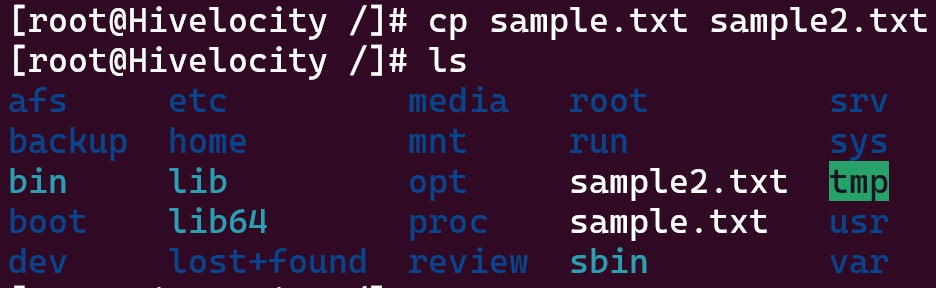
To copy a file in Linux, use the **cp** command followed by the path and name of the source file and then the new file’s path and name. For example:
**cp sample.txt sample2.txt**

The above command would generate a new file, named s*ample2.txt*, which contains all the contents of the previous file. By default, this new file will be created in the same directory as your current file, unless otherwise specified.
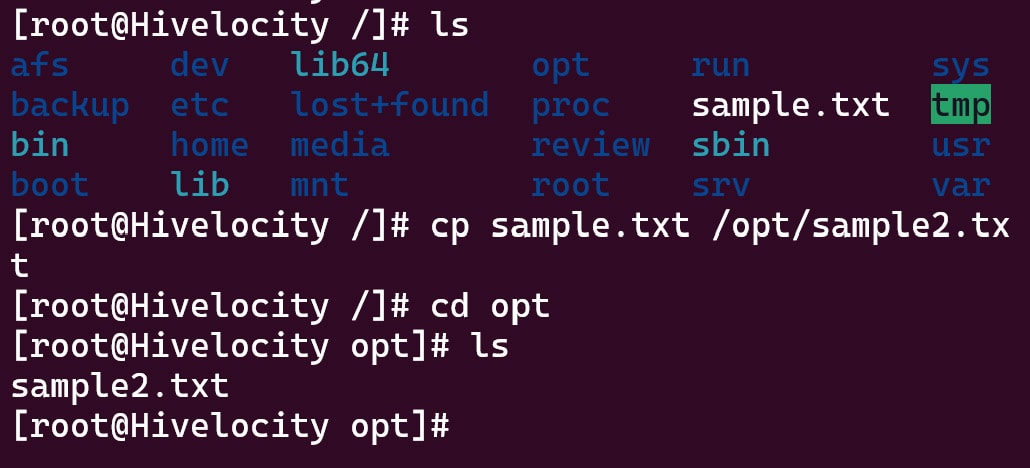
If you’d like to copy the file to a new directory, you can use the desired file path instead of the second file name, or include both to copy the file to a new location under a new name. An example is shown below.

**Popular Links**
Looking for more information on [Linux](https://www.hivelocity.net/kb/tag/linux/)? Search our [Knowledge Base](https://www.hivelocity.net/kb/)\!
Interested in more articles about [Operating Systems](https://www.hivelocity.net/kb/category/operating-system/)? Navigate to our [Categories](https://www.hivelocity.net/kb/category/operating-system/) page using the bar on the left or check out these popular articles:
- [How to Check the Apache Version on a Linux Dedicated cPanel Server](https://www.hivelocity.net/kb/how-to-check-apache-version-on-a-linux-dedicated-cpanel-server/)
- [How to Change a Password in Linux](https://www.hivelocity.net/kb/how-to-change-password-linux/)
- [How to Check if Your Linux Server is Under DDoS Attack](https://www.hivelocity.net/kb/how-to-check-if-your-linux-server-is-under-ddos-attack-2/)
Popular tags within this category include: [Linux](https://www.hivelocity.net/kb/tag/linux/), [Windows](https://www.hivelocity.net/kb/tag/windows/), [Apache](https://www.hivelocity.net/kb/tag/apache/), [CentOS](https://www.hivelocity.net/kb/tag/centos/), [Debian](https://www.hivelocity.net/kb/tag/debian/), [Fedora](https://www.hivelocity.net/kb/tag/fedora/), [RedHat](https://www.hivelocity.net/kb/tag/redhat/), and more.
Don’t see what you’re looking for? Use the search bar at the top to search our entire Knowledge Base.
**The Hivelocity Difference**
Seeking a better [Dedicated Server](https://www.hivelocity.net/dedicated-servers/) solution? In the market for [Private Cloud](https://www.hivelocity.net/products/private-cloud/) or [Colocation](https://www.hivelocity.net/products/colocation/) services? Check out [Hivelocity’s](https://www.hivelocity.net/) extensive list of products for great deals and offers.
With best-in-class customer service, affordable pricing, a wide-range of fully-customizable options, and a network like no other, [Hivelocity](https://www.hivelocity.net/) is the hosting solution you’ve been waiting for.
Unsure which of our services is best for your particular needs? [Call](https://www.hivelocity.net/about/contact-us/) or [live chat](https://www.hivelocity.net/#chat) with one of our sales agents today and see the difference Hivelocity can make for you. | |||||||||
| ML Classification | ||||||||||
| ML Categories |
Raw JSON{
"/Computers_and_Electronics": 992,
"/Computers_and_Electronics/Software": 937,
"/Computers_and_Electronics/Software/Operating_Systems": 800
} | |||||||||
| ML Page Types |
Raw JSON{
"/Article": 997,
"/Article/How_to": 810
} | |||||||||
| ML Intent Types |
Raw JSON{
"Informational": 999
} | |||||||||
| Content Metadata | ||||||||||
| Language | en-us | |||||||||
| Author | null | |||||||||
| Publish Time | 2025-03-27 19:00:22 (1 year ago) | |||||||||
| Original Publish Time | 2020-10-29 05:26:02 (5 years ago) | |||||||||
| Republished | Yes | |||||||||
| Word Count (Total) | 2,139 | |||||||||
| Word Count (Content) | 1,611 | |||||||||
| Links | ||||||||||
| External Links | 12 | |||||||||
| Internal Links | 79 | |||||||||
| Technical SEO | ||||||||||
| Meta Nofollow | No | |||||||||
| Meta Noarchive | No | |||||||||
| JS Rendered | Yes | |||||||||
| Redirect Target | null | |||||||||
| Performance | ||||||||||
| Download Time (ms) | 206 | |||||||||
| TTFB (ms) | 195 | |||||||||
| Download Size (bytes) | 45,955 | |||||||||
| Shard | 59 (laksa) | |||||||||
| Root Hash | 7989013924947683459 | |||||||||
| Unparsed URL | net,hivelocity!www,/kb/how-to-open-edit-move-and-copy-a-file-in-linux/ s443 | |||||||||