ℹ️ Skipped - page is already crawled
| Filter | Status | Condition | Details |
|---|---|---|---|
| HTTP status | PASS | download_http_code = 200 | HTTP 200 |
| Age cutoff | PASS | download_stamp > now() - 6 MONTH | 0.1 months ago |
| History drop | PASS | isNull(history_drop_reason) | No drop reason |
| Spam/ban | PASS | fh_dont_index != 1 AND ml_spam_score = 0 | ml_spam_score=0 |
| Canonical | PASS | meta_canonical IS NULL OR = '' OR = src_unparsed | Not set |
| Property | Value |
|---|---|
| URL | https://www.drbuho.com/how-to/how-to-screenshot-on-mac |
| Last Crawled | 2026-04-15 04:48:00 (2 days ago) |
| First Indexed | 2023-05-05 20:37:48 (2 years ago) |
| HTTP Status Code | 200 |
| Meta Title | How to Screenshot on Mac (Tahoe/Sequoia) - 4 Ways |
| Meta Description | Learn how to screenshot on Mac to capture a window, full screen, or any area with Mac built-in Screenshot app, keyboard shortcuts, Preview, third-party tools.. |
| Meta Canonical | null |
| Boilerpipe Text | Home
How-To
How to Screenshot on Mac (Tahoe/Sequoia) - 4 Ways
Summary:
This post provides 4 ways to easily take screenshots on Mac/MacBook. Learn how to capture your screen using the built-in Screenshot app, keyboard shortcuts, Preview, or third-party screenshot tools.
Sometimes you may want to capture a window, a portion of the screen, or the full screen on your Mac. Check the 4 methods below to easily take a screenshot on your Mac or MacBook. Step-by-step instructions are provided.
1. Screenshot on Mac/MacBook with the Built-in Screenshot Tool
Mac has a built-in screenshot tool called
Screenshot
, which you can use to capture your screen or record it. Follow the steps below:
Open Screenshot by pressing
Shift + Command + 5
. You will see several options:
Capture Entire Screen
Capture Selected Window
Capture Selected Portion
Record Entire Screen
Record Selected Portion
Select your preferred option:
Capture Entire Screen:
Click anywhere to capture the full screen.
Capture Selected Window:
Your pointer turns into a camera icon. Move it over the target window and click to capture.
Capture Selected Portion:
Drag the frame to the area you want to capture. Adjust the frame size, then click to take the screenshot.
tip
BuhoCleaner
– An easy-to-use Mac cleaner program to help free up more space on your Mac.
2. Screenshot on Mac with Keyboard Shortcuts
You can also use keyboard shortcuts for quick screenshots:
Shift + Command + 3:
Capture the full screen.
Shift + Command + 4:
Drag the crosshair to select an area, then release to capture.
Shift + Command + 4 + Space Bar:
After pressing Shift + Command + 4, press Space Bar. Move the camera pointer to a window and click it to capture. This also works for menus.
Shift + Command + 5:
Open the Screenshot tool.
Shift + Command + 6:
Capture the Touch Bar (if available).
Tips
To copy a screenshot to the clipboard instead of saving it, hold
Control
with the other keys (e.g., Shift + Command + Control + 3).
After capturing, a thumbnail appears at the bottom-right corner. Click it to edit, share, or save. Otherwise, screenshots are saved to the Desktop by default.
3. Take a Screenshot on Mac with Preview
You can also use the
Preview
app to capture your screen:
Open an image or PDF in Preview.
Click
File > Take Screenshot
and choose
From Selection
,
From Window
, or
From Entire Screen
.
Position the camera or drag the crosshair over the area to capture.
Edit and save the screenshot.
4. Capture a Screenshot on Mac with Third-Party Tools
Several third-party snipping tools make capturing screenshots easy, such as
Greenshot
,
Lightshot
,
Monosnap
,
Snagit
,
ScreenRec
, and
Flameshot
. Check the
best free snipping tools for Mac
for options.
Verdict
This post introduces 4 ways to take screenshots on your Mac. You can use the built-in Screenshot app, keyboard shortcuts, Preview, or third-party tools to capture anything on your Mac quickly and efficiently. |
| Markdown | [**Dr.Buho**](https://www.drbuho.com/)


- [Home](https://www.drbuho.com/)
- Products
- [ BuhoCleaner](https://www.drbuho.com/buhocleaner)
- [ BuhoUnlocker](https://www.drbuho.com/buhounlocker)
- [ BuhoRepair](https://www.drbuho.com/buhorepair)
- [ BuhoNTFS](https://www.drbuho.com/buhontfs)
- [ BuhoBarX](https://www.drbuho.com/buhobarx)
- [ BuhoLaunchpad](https://www.drbuho.com/buholaunchpad)
- [Store](https://www.drbuho.com/spring-sale)
- [Blog](https://www.drbuho.com/blog)
- Company
- [About](https://www.drbuho.com/about)
- [Support](https://www.drbuho.com/support)
- [Privacy](https://www.drbuho.com/privacy)
- [Terms](https://www.drbuho.com/terms)
- [Refund](https://www.drbuho.com/refund-policy)
[Home](https://www.drbuho.com/)
Products
- [BuhoCleaner](https://www.drbuho.com/buhocleaner)
- [BuhoUnlocker](https://www.drbuho.com/buhounlocker)
- [BuhoRepair](https://www.drbuho.com/buhorepair)
- [BuhoNTFS](https://www.drbuho.com/buhontfs)
- [BuhoBarX](https://www.drbuho.com/buhobarx)
- [BuhoLaunchpad](https://www.drbuho.com/buholaunchpad)
[Store](https://www.drbuho.com/spring-sale)
[Blog](https://www.drbuho.com/blog)
Company
- [About](https://www.drbuho.com/about)
- [Support](https://www.drbuho.com/support)
- [Privacy](https://www.drbuho.com/privacy)
- [Terms](https://www.drbuho.com/terms)
- [Refund](https://www.drbuho.com/refund-policy)
[Home](https://www.drbuho.com/)
[How-To](https://www.drbuho.com/how-to)
How to Screenshot on Mac (Tahoe/Sequoia) - 4 Ways
# How to Screenshot on Mac (Tahoe/Sequoia) - 4 Ways


[Cassie](https://www.drbuho.com/author/cassie)
Last updated: Sep 5, 2025
SHARE THIS POST
**Summary:** This post provides 4 ways to easily take screenshots on Mac/MacBook. Learn how to capture your screen using the built-in Screenshot app, keyboard shortcuts, Preview, or third-party screenshot tools.
Sometimes you may want to capture a window, a portion of the screen, or the full screen on your Mac. Check the 4 methods below to easily take a screenshot on your Mac or MacBook. Step-by-step instructions are provided.
Table Of Contents
1. [1\. Screenshot on Mac/MacBook with the Built-in Screenshot Tool](https://www.drbuho.com/how-to/how-to-screenshot-on-mac#1-screenshot-on-macmacbook-with-the-built-in-screenshot-tool)
2. [2\. Screenshot on Mac with Keyboard Shortcuts](https://www.drbuho.com/how-to/how-to-screenshot-on-mac#2-screenshot-on-mac-with-keyboard-shortcuts)
3. [3\. Take a Screenshot on Mac with Preview](https://www.drbuho.com/how-to/how-to-screenshot-on-mac#3-take-a-screenshot-on-mac-with-preview)
4. [4\. Capture a Screenshot on Mac with Third-Party Tools](https://www.drbuho.com/how-to/how-to-screenshot-on-mac#4-capture-a-screenshot-on-mac-with-third-party-tools)
Also Read: [How to Go Full Screen or Exit Full Screen on Mac](https://www.drbuho.com/how-to/go-or-exit-full-screen-on-mac)
## 1\. Screenshot on Mac/MacBook with the Built-in Screenshot Tool
Mac has a built-in screenshot tool called **Screenshot**, which you can use to capture your screen or record it. Follow the steps below:
1. Open Screenshot by pressing **Shift + Command + 5**. You will see several options:
- Capture Entire Screen
- Capture Selected Window
- Capture Selected Portion
- Record Entire Screen
- Record Selected Portion
2. Select your preferred option:
- **Capture Entire Screen:** Click anywhere to capture the full screen.
- **Capture Selected Window:** Your pointer turns into a camera icon. Move it over the target window and click to capture.
- **Capture Selected Portion:** Drag the frame to the area you want to capture. Adjust the frame size, then click to take the screenshot.
tip
[BuhoCleaner](https://www.drbuho.com/buhocleaner) – An easy-to-use Mac cleaner program to help free up more space on your Mac.
[DownloadFor macOS 10.10 and above](https://www.drbuho.com/buhocleaner/download-mobile)
100,000+ Satisfied Users Worldwide
## 2\. Screenshot on Mac with Keyboard Shortcuts
You can also use keyboard shortcuts for quick screenshots:
- **Shift + Command + 3:** Capture the full screen.
- **Shift + Command + 4:** Drag the crosshair to select an area, then release to capture.
- **Shift + Command + 4 + Space Bar:** After pressing Shift + Command + 4, press Space Bar. Move the camera pointer to a window and click it to capture. This also works for menus.
- **Shift + Command + 5:** Open the Screenshot tool.
- **Shift + Command + 6:** Capture the Touch Bar (if available).
Tips
1. To copy a screenshot to the clipboard instead of saving it, hold **Control** with the other keys (e.g., Shift + Command + Control + 3).
2. After capturing, a thumbnail appears at the bottom-right corner. Click it to edit, share, or save. Otherwise, screenshots are saved to the Desktop by default.
## 3\. Take a Screenshot on Mac with Preview
You can also use the **Preview** app to capture your screen:
1. Open an image or PDF in Preview.
2. Click **File \> Take Screenshot** and choose **From Selection**, **From Window**, or **From Entire Screen**.
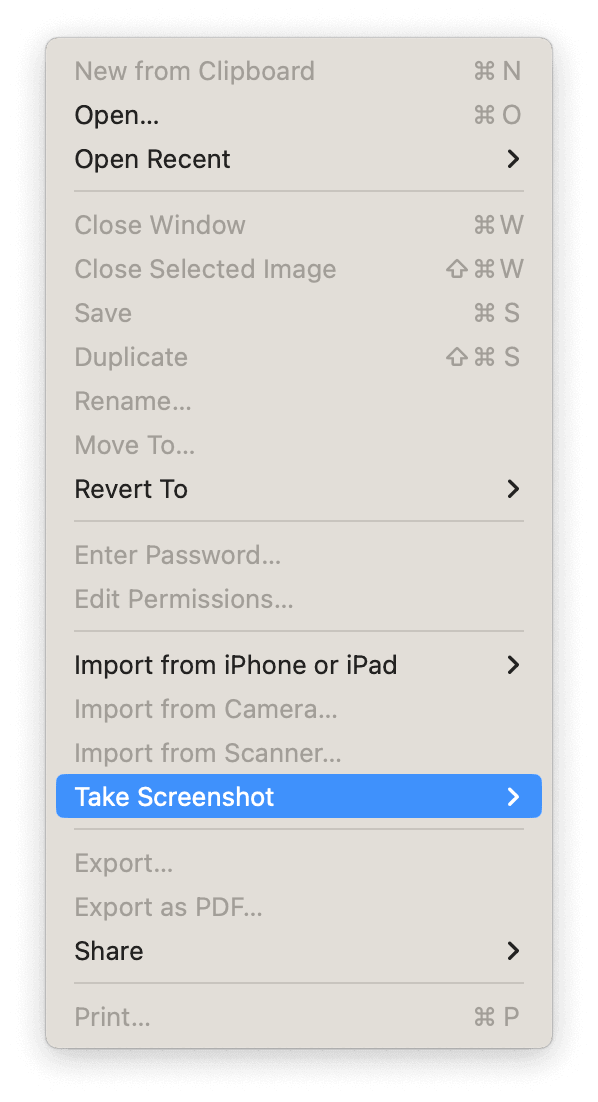

3. Position the camera or drag the crosshair over the area to capture.
4. Edit and save the screenshot.
## 4\. Capture a Screenshot on Mac with Third-Party Tools
Several third-party snipping tools make capturing screenshots easy, such as **Greenshot**, **Lightshot**, **Monosnap**, **Snagit**, **ScreenRec**, and **Flameshot**. Check the [best free snipping tools for Mac](https://www.drbuho.com/how-to/free-snipping-tool-for-mac) for options.
Verdict
This post introduces 4 ways to take screenshots on your Mac. You can use the built-in Screenshot app, keyboard shortcuts, Preview, or third-party tools to capture anything on your Mac quickly and efficiently.


[Cassie](https://www.drbuho.com/author/cassie)
Cassie has been writing about technology for her entire career life - over 5 years. She enjoys diving into how Apple products work and then breaking it down in a way anyone can understand.


BuhoCleaner
Clean and Speed Up Your Mac Like a Pro
[DownloadFor macOS 10.10 and above](https://www.drbuho.com/buhocleaner/download-mobile)
100,000+ Satisfied Users Worldwide


[**Dr.Buho**](https://www.drbuho.com/)
We build simple, easy-to-use apps to elevate your Mac and iPhone experience.
40F Building 2, No. 530, Tianfu Avenue Middle, Hi-Tech Zone
[](https://www.dmca.com/Protection/Status.aspx?ID=25cd8415-d788-4850-82b3-a447fcdd509a&refurl=https://www.drbuho.com/ "DMCA.com Protection Status")
Hot Articles
- [Clear System Data on Mac](https://www.drbuho.com/how-to/clear-system-storage-mac)
- [Uninstall App on Mac](https://www.drbuho.com/how-to/uninstall-apps-mac)
- [iOS 26 Tips](https://www.drbuho.com/how-to/ios-26)
- [macOS Tahoe Tips](https://www.drbuho.com/how-to/macos-tahoe)
- [Best Mac Cleaner](https://www.drbuho.com/how-to/best-mac-cleaner-software)
Products
- [BuhoCleaner](https://www.drbuho.com/buhocleaner)
- [BuhoUnlocker](https://www.drbuho.com/buhounlocker)
- [BuhoRepair](https://www.drbuho.com/buhorepair)
- [BuhoNTFS](https://www.drbuho.com/buhontfs)
- [BuhoBarX](https://www.drbuho.com/buhobarx)
- [BuhoLaunchpad](https://www.drbuho.com/buholaunchpad)
Policy
- [Terms](https://www.drbuho.com/terms)
- [Privacy](https://www.drbuho.com/privacy)
- [Refund](https://www.drbuho.com/refund-policy)
Company
- [About](https://www.drbuho.com/about)
- [Contact](https://www.drbuho.com/support)
- [Store](https://www.drbuho.com/spring-sale)
- **Follow us**
Copyright © 2026 [Dr.Buho Inc.](https://www.drbuho.com/) All Rights Reserved.
English
English
繁體中文
日本語
Deutsch
Français
한국어
Nederlands
Polski

[NewYear promotion](https://www.drbuho.com/spring-sale)
This website uses cookies to ensure you get the best experience on our website. By continuing to use this site, you agree to our cookie policy. [Learn more](https://www.drbuho.com/privacy)
Got It\! |
| Readable Markdown | [Home](https://www.drbuho.com/)
[How-To](https://www.drbuho.com/how-to)
How to Screenshot on Mac (Tahoe/Sequoia) - 4 Ways
**Summary:** This post provides 4 ways to easily take screenshots on Mac/MacBook. Learn how to capture your screen using the built-in Screenshot app, keyboard shortcuts, Preview, or third-party screenshot tools.
Sometimes you may want to capture a window, a portion of the screen, or the full screen on your Mac. Check the 4 methods below to easily take a screenshot on your Mac or MacBook. Step-by-step instructions are provided.

## 1\. Screenshot on Mac/MacBook with the Built-in Screenshot Tool
Mac has a built-in screenshot tool called **Screenshot**, which you can use to capture your screen or record it. Follow the steps below:
1. Open Screenshot by pressing **Shift + Command + 5**. You will see several options:
- Capture Entire Screen
- Capture Selected Window
- Capture Selected Portion
- Record Entire Screen
- Record Selected Portion
2. Select your preferred option:
- **Capture Entire Screen:** Click anywhere to capture the full screen.
- **Capture Selected Window:** Your pointer turns into a camera icon. Move it over the target window and click to capture.
- **Capture Selected Portion:** Drag the frame to the area you want to capture. Adjust the frame size, then click to take the screenshot.
tip
[BuhoCleaner](https://www.drbuho.com/buhocleaner) – An easy-to-use Mac cleaner program to help free up more space on your Mac.
## 2\. Screenshot on Mac with Keyboard Shortcuts
You can also use keyboard shortcuts for quick screenshots:
- **Shift + Command + 3:** Capture the full screen.
- **Shift + Command + 4:** Drag the crosshair to select an area, then release to capture.
- **Shift + Command + 4 + Space Bar:** After pressing Shift + Command + 4, press Space Bar. Move the camera pointer to a window and click it to capture. This also works for menus.
- **Shift + Command + 5:** Open the Screenshot tool.
- **Shift + Command + 6:** Capture the Touch Bar (if available).
Tips
1. To copy a screenshot to the clipboard instead of saving it, hold **Control** with the other keys (e.g., Shift + Command + Control + 3).
2. After capturing, a thumbnail appears at the bottom-right corner. Click it to edit, share, or save. Otherwise, screenshots are saved to the Desktop by default.
## 3\. Take a Screenshot on Mac with Preview
You can also use the **Preview** app to capture your screen:
1. Open an image or PDF in Preview.
2. Click **File \> Take Screenshot** and choose **From Selection**, **From Window**, or **From Entire Screen**.

3. Position the camera or drag the crosshair over the area to capture.
4. Edit and save the screenshot.
## 4\. Capture a Screenshot on Mac with Third-Party Tools
Several third-party snipping tools make capturing screenshots easy, such as **Greenshot**, **Lightshot**, **Monosnap**, **Snagit**, **ScreenRec**, and **Flameshot**. Check the [best free snipping tools for Mac](https://www.drbuho.com/how-to/free-snipping-tool-for-mac) for options.
Verdict
This post introduces 4 ways to take screenshots on your Mac. You can use the built-in Screenshot app, keyboard shortcuts, Preview, or third-party tools to capture anything on your Mac quickly and efficiently. |
| Shard | 81 (laksa) |
| Root Hash | 17335259240685603081 |
| Unparsed URL | com,drbuho!www,/how-to/how-to-screenshot-on-mac s443 |