ℹ️ Skipped - page is already crawled
| Filter | Status | Condition | Details |
|---|---|---|---|
| HTTP status | PASS | download_http_code = 200 | HTTP 200 |
| Age cutoff | PASS | download_stamp > now() - 6 MONTH | 0.1 months ago |
| History drop | PASS | isNull(history_drop_reason) | No drop reason |
| Spam/ban | PASS | fh_dont_index != 1 AND ml_spam_score = 0 | ml_spam_score=0 |
| Canonical | PASS | meta_canonical IS NULL OR = '' OR = src_unparsed | Not set |
| Property | Value |
|---|---|
| URL | https://www.cultofmac.com/reviews/rcmd-mac-app-switcher-review |
| Last Crawled | 2026-04-09 04:12:46 (3 days ago) |
| First Indexed | 2026-02-21 14:15:07 (1 month ago) |
| HTTP Status Code | 200 |
| Meta Title | rcmd review: A better app switcher for Mac | Cult of Mac |
| Meta Description | I didn’t realize how much time I was wasting switching apps on my Mac. This tiny utility fixed that instantly. |
| Meta Canonical | null |
| Boilerpipe Text | Reviews
Top Stories
A quick tap of a letter is all it takes to bring any app to the front with rcmd.
Photo: ChatGPT/Rajesh Pandey/Cult of Mac
I switch between apps on my Mac dozens of times every hour. For years, Command-Tab seemed good enough, but then I started using rcmd, a fantastic alternative app switcher for Mac.
This nifty piece of software completely changed how I move between apps on my Mac. It made the process faster, more precise, and far less disruptive to my workflow.
rcmd: A better app switcher for Mac
For years, I didn’t really think anything was wrong with Command-Tab for app switching on my
Mac
. I could see all the open apps and cycle through them by rapidly pressing Tab. It worked — until it didn’t. The more apps I opened, the more I realized I was not switching efficiently through them; I was essentially cycling through a list.
That’s when I discovered rcmd, which forever changed how I switch between apps on my Mac.
The limits of Command-Tab
The Mac’s default method for switching between windows just didn’t cut it for me.
Photo: Rajesh Pandey/Cult of Mac
Command-Tab, the
macOS
key command for switching between apps, works fine for light multitasking. As long as I only had four or five apps running, it always felt like the fastest and most predictable way to cycle through them.
I even installed a popular free Mac utility, AltTab, to improve the experience. It brought a more Windows-like app switcher to macOS, letting me see separate windows of the same app instead of grouping them. This made app switching faster. (AltTab also made my list of
12 must-have free Mac apps I always install first
.)
However, even with AltTab installed, I was fundamentally cycling through open apps rather than jumping directly to one. I could see more open windows. But I still had to scan them and keep pressing Tab until I finally reached the app I wanted.
How rcmd transforms app switching
rcmd will change how you switch apps on your Mac.
Screenshot: Rajesh Pandey/Cult of Mac
This is where rcmd comes in and changes the game. Instead of cycling through apps, rcmd lets me jump straight to the one I want. I hold the right Command key and press the first letter of the app’s name. So, if I’m working in Chrome and get a Telegram notification, I just press Command + T to open Telegram instantly. Likewise, I can directly jump to Slack with Command + S or to WhatsApp with Command + W.
This proves far quicker than pressing Command-Tab and stepping through a row of open apps until I land on the one I want. I avoid unnecessary keystrokes. More importantly, I don’t need to scan through a visual list to find what I’m looking for.
To cycle through apps with the same name, you press the same key twice. So, if I need to jump from Slack to ChatGPT, with Chrome being the last active app, I need to press C twice.
By default, rcmd works by mapping the first letter of an app’s name to a shortcut. But you can override this behavior and manually assign any letter to any app.
rcmd’s Assign Letter feature lets me create shortcuts on the fly. I can focus on any app, trigger the assign hotkey, press a letter, and instantly map that key to it. I don’t need to dive into a settings menu — I build my shortcut system as I work. By default, the Assign Letter shortcut is assigned to Command + Option.
Something that sets rcmd apart from other app switchers is that it doesn’t treat minimized apps differently. Even if Telegram is hidden or minimized, pressing Command + T brings it to the front instantly.
A slight learning curve
rcmd offers plenty of customization options.
Screenshot: Rajesh Pandey/Cult of Mac
Admittedly, there’s a slight learning curve with rcmd. Not with the app itself, because it’s deceptively simple to use. But I needed to unlearn years of muscle memory. Plus, remembering to press Command + S to jump to Slack, or pressing Command + C for Chrome, took a while to get used to.
To help with this, rcmd can display a small, list-style app switcher after a brief delay. I set mine to appear instantly, which gives me a quick visual reference for the available shortcuts whenever I need it.
But it didn’t take long to get used to this improved Mac app switcher. After a few weeks of using rcmd, there’s no going back. I have almost completely stopped using Command-Tab to switch between apps, relying on rcmd instead.
As its name indicates, rcmd triggers by default using the right Command key. This ensures it does not clash with other shortcuts. However, I switched it to use the left Command key instead. This does lead to conflicts with a few shortcuts, but in daily use, it has not made any difference.
The rcmd app switcher appears discreetly in the bottom-right corner of my Mac’s screen. It stays out of the way and doesn’t interfere with other shortcuts. As my muscle memory kicks in, I’ve found myself relying less on it over time. Still, it’s always useful as a quick visual reference.
It’s also possible to exclude certain apps from rcmd entirely. After all, I don’t need a shortcut for every app running in the background on my Mac. rcmd lets me hide them, ensuring the app switcher does not get cluttered.
rcmd is also an app launcher
You can quickly launch your favorite Mac apps with rcmd.
Photo: Rajesh Pandey/Cult of Mac
rcmd is not just a better app switcher for Mac; it is also an improved app launcher. By default, if an app isn’t already open, pressing its assigned letter does nothing. So, if I don’t have Chrome open, pressing Command + C will not do anything. But I can assign this as a shortcut key to Chrome in rcmd. And that will launch the app instantly.
I’ve set up shortcuts for Chrome, Slack, Telegram, WhatsApp, ChatGPT and a few other apps I use constantly. For example, left Command + C always takes me to Chrome — whether it’s already open or needs to launch. The same goes for Slack with S or Telegram with T.
I previously relied on
Raycast
to launch apps quickly, but this setup feels even faster because it removes the extra step of triggering a search bar and typing the app’s name.
On a typical writing day, I jump between Chrome, Slack, Telegram, Finder, Notes and ChatGPT constantly. Earlier, each switch required a quick mental scan — Command-Tab, glance at the icons, tap again, release.
With rcmd, I don’t think about what’s open anymore. I think in letters. S for Slack. C for Chrome. T for Telegram. It feels closer to issuing commands than navigating a user interface.
One thing I didn’t expect to appreciate as much as I do is how invisible rcmd feels. Unlike Mission Control, Stage Manager or even Command-Tab’s horizontal app strip, rcmd doesn’t rearrange my screen or trigger big animations. There’s no zooming out or sliding panels. The app I want simply comes to the front. And this is what makes rcmd click for me.
It’s not perfect
Despite all its benefits, rcmd isn’t magic. If you run dozens of apps that start with the same letter, you’ll either need to assign custom keys or rely on cycling. (I have yet to run into this problem, but this will depend on your workflow.) And for casual users who only switch between two or three apps, the benefit might not feel dramatic.
The biggest hurdle with rcmd is the initial adjustment period. You need to give it a week or two to build new muscle memory. It might slow you down briefly at first, but over time, it more than makes up for that lost time by speeding things up.
rcmd is the Mac app switcher you didn’t know you needed
After a few weeks with rcmd, going back to Command-Tab feels clumsy. The app fundamentally changed how I switch apps on my Mac. I don’t need to mindlessly cycle through the list of open apps after a quick visual scan. I just press a letter and move on.
Despite offering so much utility, rcmd is free to download and use. It was previously a paid app, but the developers made it free while they work on rcmd v3, which is still a few months away from release.
Download:
rcmd
Rajesh
has been writing about consumer technology for over a decade, with a strong focus on iPhones, Macs and Apple’s ecosystem. He enjoys digging into Apple software updates, hardware changes, and discovering new Mac apps that make work faster and more enjoyable. |
| Markdown | [Cult of Mac](https://www.cultofmac.com/)
[Subscribe](https://www.cultofmac.com/reviews/rcmd-mac-app-switcher-review)
- [News](https://www.cultofmac.com/news)
- [Apple rumors and leaks](https://www.cultofmac.com/apple-rumors)
- [Apple Intelligence](https://www.cultofmac.com/apple-intelligence)
- [Apple silicon](https://www.cultofmac.com/apple-silicon)
- [Apple patents](https://www.cultofmac.com/patents)
- [AAPL](https://www.cultofmac.com/aapl)
- [Apple events](https://www.cultofmac.com/apple-events)
- [WWDC](https://www.cultofmac.com/wwdc)
- [Editor's picks](https://www.cultofmac.com/category/top-stories/)
- [More news ...](https://www.cultofmac.com/news)
- [ReviewsHere at Cult of Mac, we regularly review Apple products and other tech gear and accessories. We also frequently write about Apple TV+ offerings. If we receive a review unit, we disclose it. (Read our reviews policy.) We frequently employ affiliate links. If you purchase a product after clicking a link from our website, we might earn a commission.](https://www.cultofmac.com/reviews)
- [iPhone reviews](https://www.cultofmac.com/iphone-reviews)
- [iPad reviews](https://www.cultofmac.com/ipad-reviews)
- [Mac reviews](https://www.cultofmac.com/mac-reviews)
- [Apple Watch reviews](https://www.cultofmac.com/apple-watch-reviews)
- [Vision Pro reviews](https://www.cultofmac.com/vision-pro-reviews)
- [AirPods reviews](https://www.cultofmac.com/airpods-reviews)
- [Apple TV reviews](https://www.cultofmac.com/apple-tv-reviews)
- [How-To](https://www.cultofmac.com/how-to)
- [Setups](https://www.cultofmac.com/setups)
- [iPhone how-tos](https://www.cultofmac.com/iphone-how-to)
- [iPad how-tos](https://www.cultofmac.com/ipad-how-to)
- [Mac how-tos](https://www.cultofmac.com/mac-how-to)
- [Apple Watch how-tos](https://www.cultofmac.com/apple-watch-how-to)
- [Vision Pro how-tos](https://www.cultofmac.com/vision-pro-how-to)
- [AirPods how-tos](https://www.cultofmac.com/airpods-how-to)
- [Apple TV how-tos](https://www.cultofmac.com/apple-tv-how-to)
- [Deals](https://www.cultofmac.com/deals)
- [Daily deals](https://deals.cultofmac.com/)
- [Apple deals](https://www.cultofmac.com/apple-deals)
- [Black Friday / Cyber Monday](https://www.cultofmac.com/black-friday)
- [Amazon Prime Day](https://www.cultofmac.com/prime-day)
- [More deals ...](https://www.cultofmac.com/deals)
- [Buying guides](https://www.cultofmac.com/buying-guides)
- [M4 vs. M5 iPad Pro](https://www.cultofmac.com/buying-guides/m4-vs-m5-ipad-pro-comparisonhttps://www.cultofmac.com/buying-guides/m4-vs-m5-ipad-pro-comparison)
- [M3 vs. M3 Pro MacBook Pro](https://www.cultofmac.com/news/m3-vs-m3-pro-macbook-pro-comparison)
- [Best Apple Watch bands](https://www.cultofmac.com/reviews/best-apple-watch-bands)
- [Best iPhone 15 cases](https://www.cultofmac.com/reviews/best-cases-iphone-15)
- [Best MagSafe wallets](https://www.cultofmac.com/reviews/best-magsafe-wallets-iphone)
- [Best USB-C hubs](https://www.cultofmac.com/reviews/best-usb-c-hubs-for-iphone-15)
- [More buying guides ...](https://www.cultofmac.com/buying-guides)
- [GuidesCult of Mac’s guides to everything in the Apple universe. Here you’ll find guides to all the important products, people and events in the Apple world, from iPhone to Jony Ive.](https://www.cultofmac.com/guide)
- [iPhone](https://www.cultofmac.com/iphone)
- [iPhone 17](https://www.cultofmac.com/iphone-17)
- [iPhone 16](https://www.cultofmac.com/iphone-16)
- [iPhone 15](https://www.cultofmac.com/iphone-15)
- [iPhone 14](https://www.cultofmac.com/iphone-14)
- [iPhone SE](https://www.cultofmac.com/iphone-se)
- [iOS](https://www.cultofmac.com/ios)
- [iPhone accessories](https://www.cultofmac.com/iphone-accessories)
- [Awesome Apps](https://www.cultofmac.com/awesome-apps)
- [iPad](https://www.cultofmac.com/ipad)
- [iPad](https://www.cultofmac.com/ipad)
- [iPad Air](https://www.cultofmac.com/ipad-air)
- [iPad Pro](https://www.cultofmac.com/ipad-pro)
- [iPad mini](https://www.cultofmac.com/ipad-mini)
- [Apple Pencil](https://www.cultofmac.com/apple-pencil)
- [iPad apps](https://www.cultofmac.com/ipad-apps)
- [iPadOS](https://www.cultofmac.com/ipados)
- [iPad accessories](https://www.cultofmac.com/ipad-accessories)
- [Apple Watch](https://www.cultofmac.com/apple-watch)
- [Apple Watch Series 11](https://www.cultofmac.com/apple-watch-series-11)
- [Apple Watch Ultra](https://www.cultofmac.com/apple-watch-ultra)
- [Apple Watch SE](https://www.cultofmac.com/apple-watch-se)
- [watchOS](https://www.cultofmac.com/watchos)
- [Mac](https://www.cultofmac.com/mac)
- [MacBook Pro](https://www.cultofmac.com/macbook-pro)
- [MacBook Air](https://www.cultofmac.com/macbook-air)
- [iMac](https://www.cultofmac.com/imac)
- [Mac mini](https://www.cultofmac.com/mac-mini)
- [Mac Pro](https://www.cultofmac.com/mac-pro)
- [Mac Studio](https://www.cultofmac.com/mac-studio)
- [Mac accessories](https://www.cultofmac.com/mac-accessories)
- [Mac apps](https://www.cultofmac.com/mac-apps)
- [macOS](https://www.cultofmac.com/macos)
- [Vision Pro](https://www.cultofmac.com/vision-pro)
- [Vision Pro](https://www.cultofmac.com/vision-pro)
- [visionOS](https://www.cultofmac.com/visionos)
- [Vision Pro accessories](https://www.cultofmac.com/vision-pro-accessories)
- [AirPods](https://www.cultofmac.com/airpods)
- [AirPods Pro](https://www.cultofmac.com/airpods-pro)
- [AirPods 4](https://www.cultofmac.com/airpods-4)
- [AirPods Max](https://www.cultofmac.com/airpods-max)
- [Beats by Dre](https://www.cultofmac.com/beats)
- [AirPods accessories](https://www.cultofmac.com/airpods-accessories)
- [TV and home](https://www.cultofmac.com/appletv)
- [Apple TV](https://www.cultofmac.com/apple-tv)
- [Apple TV+](https://www.cultofmac.com/apple-tv-plus)
- [HomePod](https://www.cultofmac.com/homepod)
- [HomePod mini](https://www.cultofmac.com/homepod-mini)
- [AirTags](https://www.cultofmac.com/airtags)
- [Smart home](https://www.cultofmac.com/smart-home)
- [Apple One](https://www.cultofmac.com/apple-one)
- [Apple Music](https://www.cultofmac.com/apple-music)
- [Apple Arcade](https://www.cultofmac.com/apple-arcade)
- [Apple Fitness+](https://www.cultofmac.com/apple-fitness)
- [App Store](https://www.cultofmac.com/app-store)
- [Accessories](https://www.cultofmac.com/accessories)
- [iPhone accessories](https://www.cultofmac.com/iphone-accessories)
- [Apple Watch accessories](https://www.cultofmac.com/apple-watch-accessories)
- [iPad accessories](https://www.cultofmac.com/ipad-accessories)
- [Mac accessories](https://www.cultofmac.com/mac-accessories)
- [Vision Pro accessories](https://www.cultofmac.com/vision-pro-accessories)
- [AirPods accessories](https://www.cultofmac.com/airpods-accessories)
- [AirTag accessories](https://www.cultofmac.com/airtag-accessories)
- [Apple services](https://www.cultofmac.com/apple-services)
- [Apple One](https://www.cultofmac.com/apple-one)
- [Apple Arcade](https://www.cultofmac.com/apple-arcade)
- [Apple podcasts](https://www.cultofmac.com/apple-podcasts)
- [iCloud](https://www.cultofmac.com/icloud)
- [AppleCare](https://www.cultofmac.com/applecare)
- [Apple Pay](https://www.cultofmac.com/apple-pay)
- [Apple Card](https://www.cultofmac.com/apple-card)
- [Apple Cash](https://www.cultofmac.com/apple-cash)
- [Siri](https://www.cultofmac.com/siri)
- [Apple Fitness+](https://www.cultofmac.com/apple-fitness-plus)
- [Apple Maps](https://www.cultofmac.com/apple-maps)
- [Messages / iMessage](https://www.cultofmac.com/imessage)
- [CarPlay](https://www.cultofmac.com/carplay)
- [Apple Account](https://www.cultofmac.com/apple-id)
- [Find My](https://www.cultofmac.com/find-my)
- [Touch ID](https://www.cultofmac.com/touch-id)
- [Face ID](https://www.cultofmac.com/face-id)
- [MagSafe](https://www.cultofmac.com/magsafe)
- [FaceTime](https://www.cultofmac.com/facetime)
- [Continuity](https://www.cultofmac.com/continuity)
- [Smart home / HomeKit / Home app](https://www.cultofmac.com/homekit)
- [Apple Music](https://www.cultofmac.com/apple-music)
[Cult of Mac](https://www.cultofmac.com/)
[Subscribe](https://www.cultofmac.com/reviews/rcmd-mac-app-switcher-review)
[Mobile menu toggle](https://www.cultofmac.com/reviews/rcmd-mac-app-switcher-review)
- [News](https://www.cultofmac.com/news)
- [Apple rumors and leaks](https://www.cultofmac.com/apple-rumors)
- [Apple Intelligence](https://www.cultofmac.com/apple-intelligence)
- [Apple silicon](https://www.cultofmac.com/apple-silicon)
- [Apple patents](https://www.cultofmac.com/patents)
- [AAPL](https://www.cultofmac.com/aapl)
- [Apple events](https://www.cultofmac.com/apple-events)
- [WWDC](https://www.cultofmac.com/wwdc)
- [Editor's picks](https://www.cultofmac.com/category/top-stories/)
- [More news ...](https://www.cultofmac.com/news)
- [ReviewsHere at Cult of Mac, we regularly review Apple products and other tech gear and accessories. We also frequently write about Apple TV+ offerings. If we receive a review unit, we disclose it. (Read our reviews policy.) We frequently employ affiliate links. If you purchase a product after clicking a link from our website, we might earn a commission.](https://www.cultofmac.com/reviews)
- [iPhone reviews](https://www.cultofmac.com/iphone-reviews)
- [iPad reviews](https://www.cultofmac.com/ipad-reviews)
- [Mac reviews](https://www.cultofmac.com/mac-reviews)
- [Apple Watch reviews](https://www.cultofmac.com/apple-watch-reviews)
- [Vision Pro reviews](https://www.cultofmac.com/vision-pro-reviews)
- [AirPods reviews](https://www.cultofmac.com/airpods-reviews)
- [Apple TV reviews](https://www.cultofmac.com/apple-tv-reviews)
- [How-To](https://www.cultofmac.com/how-to)
- [Setups](https://www.cultofmac.com/setups)
- [iPhone how-tos](https://www.cultofmac.com/iphone-how-to)
- [iPad how-tos](https://www.cultofmac.com/ipad-how-to)
- [Mac how-tos](https://www.cultofmac.com/mac-how-to)
- [Apple Watch how-tos](https://www.cultofmac.com/apple-watch-how-to)
- [Vision Pro how-tos](https://www.cultofmac.com/vision-pro-how-to)
- [AirPods how-tos](https://www.cultofmac.com/airpods-how-to)
- [Apple TV how-tos](https://www.cultofmac.com/apple-tv-how-to)
- [Deals](https://www.cultofmac.com/deals)
- [Daily deals](https://deals.cultofmac.com/)
- [Apple deals](https://www.cultofmac.com/apple-deals)
- [Black Friday / Cyber Monday](https://www.cultofmac.com/black-friday)
- [Amazon Prime Day](https://www.cultofmac.com/prime-day)
- [More deals ...](https://www.cultofmac.com/deals)
- [Buying guides](https://www.cultofmac.com/buying-guides)
- [M4 vs. M5 iPad Pro](https://www.cultofmac.com/buying-guides/m4-vs-m5-ipad-pro-comparisonhttps://www.cultofmac.com/buying-guides/m4-vs-m5-ipad-pro-comparison)
- [M3 vs. M3 Pro MacBook Pro](https://www.cultofmac.com/news/m3-vs-m3-pro-macbook-pro-comparison)
- [Best Apple Watch bands](https://www.cultofmac.com/reviews/best-apple-watch-bands)
- [Best iPhone 15 cases](https://www.cultofmac.com/reviews/best-cases-iphone-15)
- [Best MagSafe wallets](https://www.cultofmac.com/reviews/best-magsafe-wallets-iphone)
- [Best USB-C hubs](https://www.cultofmac.com/reviews/best-usb-c-hubs-for-iphone-15)
- [More buying guides ...](https://www.cultofmac.com/buying-guides)
- [GuidesCult of Mac’s guides to everything in the Apple universe. Here you’ll find guides to all the important products, people and events in the Apple world, from iPhone to Jony Ive.](https://www.cultofmac.com/guide)
- [iPhone](https://www.cultofmac.com/iphone)
- [iPhone 17](https://www.cultofmac.com/iphone-17)
- [iPhone 16](https://www.cultofmac.com/iphone-16)
- [iPhone 15](https://www.cultofmac.com/iphone-15)
- [iPhone 14](https://www.cultofmac.com/iphone-14)
- [iPhone SE](https://www.cultofmac.com/iphone-se)
- [iOS](https://www.cultofmac.com/ios)
- [iPhone accessories](https://www.cultofmac.com/iphone-accessories)
- [Awesome Apps](https://www.cultofmac.com/awesome-apps)
- [iPad](https://www.cultofmac.com/ipad)
- [iPad](https://www.cultofmac.com/ipad)
- [iPad Air](https://www.cultofmac.com/ipad-air)
- [iPad Pro](https://www.cultofmac.com/ipad-pro)
- [iPad mini](https://www.cultofmac.com/ipad-mini)
- [Apple Pencil](https://www.cultofmac.com/apple-pencil)
- [iPad apps](https://www.cultofmac.com/ipad-apps)
- [iPadOS](https://www.cultofmac.com/ipados)
- [iPad accessories](https://www.cultofmac.com/ipad-accessories)
- [Apple Watch](https://www.cultofmac.com/apple-watch)
- [Apple Watch Series 11](https://www.cultofmac.com/apple-watch-series-11)
- [Apple Watch Ultra](https://www.cultofmac.com/apple-watch-ultra)
- [Apple Watch SE](https://www.cultofmac.com/apple-watch-se)
- [watchOS](https://www.cultofmac.com/watchos)
- [Mac](https://www.cultofmac.com/mac)
- [MacBook Pro](https://www.cultofmac.com/macbook-pro)
- [MacBook Air](https://www.cultofmac.com/macbook-air)
- [iMac](https://www.cultofmac.com/imac)
- [Mac mini](https://www.cultofmac.com/mac-mini)
- [Mac Pro](https://www.cultofmac.com/mac-pro)
- [Mac Studio](https://www.cultofmac.com/mac-studio)
- [Mac accessories](https://www.cultofmac.com/mac-accessories)
- [Mac apps](https://www.cultofmac.com/mac-apps)
- [macOS](https://www.cultofmac.com/macos)
- [Vision Pro](https://www.cultofmac.com/vision-pro)
- [Vision Pro](https://www.cultofmac.com/vision-pro)
- [visionOS](https://www.cultofmac.com/visionos)
- [Vision Pro accessories](https://www.cultofmac.com/vision-pro-accessories)
- [AirPods](https://www.cultofmac.com/airpods)
- [AirPods Pro](https://www.cultofmac.com/airpods-pro)
- [AirPods 4](https://www.cultofmac.com/airpods-4)
- [AirPods Max](https://www.cultofmac.com/airpods-max)
- [Beats by Dre](https://www.cultofmac.com/beats)
- [AirPods accessories](https://www.cultofmac.com/airpods-accessories)
- [TV and home](https://www.cultofmac.com/appletv)
- [Apple TV](https://www.cultofmac.com/apple-tv)
- [Apple TV+](https://www.cultofmac.com/apple-tv-plus)
- [HomePod](https://www.cultofmac.com/homepod)
- [HomePod mini](https://www.cultofmac.com/homepod-mini)
- [AirTags](https://www.cultofmac.com/airtags)
- [Smart home](https://www.cultofmac.com/smart-home)
- [Apple One](https://www.cultofmac.com/apple-one)
- [Apple Music](https://www.cultofmac.com/apple-music)
- [Apple Arcade](https://www.cultofmac.com/apple-arcade)
- [Apple Fitness+](https://www.cultofmac.com/apple-fitness)
- [App Store](https://www.cultofmac.com/app-store)
- [Accessories](https://www.cultofmac.com/accessories)
- [iPhone accessories](https://www.cultofmac.com/iphone-accessories)
- [Apple Watch accessories](https://www.cultofmac.com/apple-watch-accessories)
- [iPad accessories](https://www.cultofmac.com/ipad-accessories)
- [Mac accessories](https://www.cultofmac.com/mac-accessories)
- [Vision Pro accessories](https://www.cultofmac.com/vision-pro-accessories)
- [AirPods accessories](https://www.cultofmac.com/airpods-accessories)
- [AirTag accessories](https://www.cultofmac.com/airtag-accessories)
- [Apple services](https://www.cultofmac.com/apple-services)
- [Apple One](https://www.cultofmac.com/apple-one)
- [Apple Arcade](https://www.cultofmac.com/apple-arcade)
- [Apple podcasts](https://www.cultofmac.com/apple-podcasts)
- [iCloud](https://www.cultofmac.com/icloud)
- [AppleCare](https://www.cultofmac.com/applecare)
- [Apple Pay](https://www.cultofmac.com/apple-pay)
- [Apple Card](https://www.cultofmac.com/apple-card)
- [Apple Cash](https://www.cultofmac.com/apple-cash)
- [Siri](https://www.cultofmac.com/siri)
- [Apple Fitness+](https://www.cultofmac.com/apple-fitness-plus)
- [Apple Maps](https://www.cultofmac.com/apple-maps)
- [Messages / iMessage](https://www.cultofmac.com/imessage)
- [CarPlay](https://www.cultofmac.com/carplay)
- [Apple Account](https://www.cultofmac.com/apple-id)
- [Find My](https://www.cultofmac.com/find-my)
- [Touch ID](https://www.cultofmac.com/touch-id)
- [Face ID](https://www.cultofmac.com/face-id)
- [MagSafe](https://www.cultofmac.com/magsafe)
- [FaceTime](https://www.cultofmac.com/facetime)
- [Continuity](https://www.cultofmac.com/continuity)
- [Smart home / HomeKit / Home app](https://www.cultofmac.com/homekit)
- [Apple Music](https://www.cultofmac.com/apple-music)
- [Apple's 50th anniversary](https://www.cultofmac.com/apple-50th-anniversary?utm_campaign=tagmenu "Apple’s 50th anniversary")
- [MacBook Neo](https://www.cultofmac.com/macbook-neo?utm_campaign=tagmenu "MacBook Neo")
- [Apple rumors](https://www.cultofmac.com/apple-rumors/?utm_campaign=tagmenu)
- [Siri](https://www.cultofmac.com/siri/?utm_campaign=tagmenu "Siri")
- [Editor’s picks](https://www.cultofmac.com/top-stories/?utm_campaign=tagmenu)
- [Apple history](https://www.cultofmac.com/apple-history)
- [Today in Apple history](https://www.cultofmac.com/today-in-apple-history)
- [Steve Jobs](https://www.cultofmac.com/steve-jobs)
- [Tim Cook](https://www.cultofmac.com/tim-cook)
- [Jony Ive](https://www.cultofmac.com/jony-ive)
- [Videos](https://www.cultofmac.com/openvideo/)
- [Podcast](https://www.cultofmac.com/podcast "Cult of Mac podcast")
- [Newsletters](https://newsletters.cultofmac.com/)
[Mobile menu toggle](https://www.cultofmac.com/reviews/rcmd-mac-app-switcher-review)
- [News](https://www.cultofmac.com/news)
- [Apple rumors and leaks](https://www.cultofmac.com/apple-rumors)
- [Apple Intelligence](https://www.cultofmac.com/apple-intelligence)
- [Apple silicon](https://www.cultofmac.com/apple-silicon)
- [Apple patents](https://www.cultofmac.com/patents)
- [AAPL](https://www.cultofmac.com/aapl)
- [Apple events](https://www.cultofmac.com/apple-events)
- [WWDC](https://www.cultofmac.com/wwdc)
- [Editor's picks](https://www.cultofmac.com/category/top-stories/)
- [More news ...](https://www.cultofmac.com/news)
- [ReviewsHere at Cult of Mac, we regularly review Apple products and other tech gear and accessories. We also frequently write about Apple TV+ offerings. If we receive a review unit, we disclose it. (Read our reviews policy.) We frequently employ affiliate links. If you purchase a product after clicking a link from our website, we might earn a commission.](https://www.cultofmac.com/reviews)
- [iPhone reviews](https://www.cultofmac.com/iphone-reviews)
- [iPad reviews](https://www.cultofmac.com/ipad-reviews)
- [Mac reviews](https://www.cultofmac.com/mac-reviews)
- [Apple Watch reviews](https://www.cultofmac.com/apple-watch-reviews)
- [Vision Pro reviews](https://www.cultofmac.com/vision-pro-reviews)
- [AirPods reviews](https://www.cultofmac.com/airpods-reviews)
- [Apple TV reviews](https://www.cultofmac.com/apple-tv-reviews)
- [How-To](https://www.cultofmac.com/how-to)
- [Setups](https://www.cultofmac.com/setups)
- [iPhone how-tos](https://www.cultofmac.com/iphone-how-to)
- [iPad how-tos](https://www.cultofmac.com/ipad-how-to)
- [Mac how-tos](https://www.cultofmac.com/mac-how-to)
- [Apple Watch how-tos](https://www.cultofmac.com/apple-watch-how-to)
- [Vision Pro how-tos](https://www.cultofmac.com/vision-pro-how-to)
- [AirPods how-tos](https://www.cultofmac.com/airpods-how-to)
- [Apple TV how-tos](https://www.cultofmac.com/apple-tv-how-to)
- [Deals](https://www.cultofmac.com/deals)
- [Daily deals](https://deals.cultofmac.com/)
- [Apple deals](https://www.cultofmac.com/apple-deals)
- [Black Friday / Cyber Monday](https://www.cultofmac.com/black-friday)
- [Amazon Prime Day](https://www.cultofmac.com/prime-day)
- [More deals ...](https://www.cultofmac.com/deals)
- [Buying guides](https://www.cultofmac.com/buying-guides)
- [M4 vs. M5 iPad Pro](https://www.cultofmac.com/buying-guides/m4-vs-m5-ipad-pro-comparisonhttps://www.cultofmac.com/buying-guides/m4-vs-m5-ipad-pro-comparison)
- [M3 vs. M3 Pro MacBook Pro](https://www.cultofmac.com/news/m3-vs-m3-pro-macbook-pro-comparison)
- [Best Apple Watch bands](https://www.cultofmac.com/reviews/best-apple-watch-bands)
- [Best iPhone 15 cases](https://www.cultofmac.com/reviews/best-cases-iphone-15)
- [Best MagSafe wallets](https://www.cultofmac.com/reviews/best-magsafe-wallets-iphone)
- [Best USB-C hubs](https://www.cultofmac.com/reviews/best-usb-c-hubs-for-iphone-15)
- [More buying guides ...](https://www.cultofmac.com/buying-guides)
- [GuidesCult of Mac’s guides to everything in the Apple universe. Here you’ll find guides to all the important products, people and events in the Apple world, from iPhone to Jony Ive.](https://www.cultofmac.com/guide)
- [iPhone](https://www.cultofmac.com/iphone)
- [iPhone 17](https://www.cultofmac.com/iphone-17)
- [iPhone 16](https://www.cultofmac.com/iphone-16)
- [iPhone 15](https://www.cultofmac.com/iphone-15)
- [iPhone 14](https://www.cultofmac.com/iphone-14)
- [iPhone SE](https://www.cultofmac.com/iphone-se)
- [iOS](https://www.cultofmac.com/ios)
- [iPhone accessories](https://www.cultofmac.com/iphone-accessories)
- [Awesome Apps](https://www.cultofmac.com/awesome-apps)
- [iPad](https://www.cultofmac.com/ipad)
- [iPad](https://www.cultofmac.com/ipad)
- [iPad Air](https://www.cultofmac.com/ipad-air)
- [iPad Pro](https://www.cultofmac.com/ipad-pro)
- [iPad mini](https://www.cultofmac.com/ipad-mini)
- [Apple Pencil](https://www.cultofmac.com/apple-pencil)
- [iPad apps](https://www.cultofmac.com/ipad-apps)
- [iPadOS](https://www.cultofmac.com/ipados)
- [iPad accessories](https://www.cultofmac.com/ipad-accessories)
- [Apple Watch](https://www.cultofmac.com/apple-watch)
- [Apple Watch Series 11](https://www.cultofmac.com/apple-watch-series-11)
- [Apple Watch Ultra](https://www.cultofmac.com/apple-watch-ultra)
- [Apple Watch SE](https://www.cultofmac.com/apple-watch-se)
- [watchOS](https://www.cultofmac.com/watchos)
- [Mac](https://www.cultofmac.com/mac)
- [MacBook Pro](https://www.cultofmac.com/macbook-pro)
- [MacBook Air](https://www.cultofmac.com/macbook-air)
- [iMac](https://www.cultofmac.com/imac)
- [Mac mini](https://www.cultofmac.com/mac-mini)
- [Mac Pro](https://www.cultofmac.com/mac-pro)
- [Mac Studio](https://www.cultofmac.com/mac-studio)
- [Mac accessories](https://www.cultofmac.com/mac-accessories)
- [Mac apps](https://www.cultofmac.com/mac-apps)
- [macOS](https://www.cultofmac.com/macos)
- [Vision Pro](https://www.cultofmac.com/vision-pro)
- [Vision Pro](https://www.cultofmac.com/vision-pro)
- [visionOS](https://www.cultofmac.com/visionos)
- [Vision Pro accessories](https://www.cultofmac.com/vision-pro-accessories)
- [AirPods](https://www.cultofmac.com/airpods)
- [AirPods Pro](https://www.cultofmac.com/airpods-pro)
- [AirPods 4](https://www.cultofmac.com/airpods-4)
- [AirPods Max](https://www.cultofmac.com/airpods-max)
- [Beats by Dre](https://www.cultofmac.com/beats)
- [AirPods accessories](https://www.cultofmac.com/airpods-accessories)
- [TV and home](https://www.cultofmac.com/appletv)
- [Apple TV](https://www.cultofmac.com/apple-tv)
- [Apple TV+](https://www.cultofmac.com/apple-tv-plus)
- [HomePod](https://www.cultofmac.com/homepod)
- [HomePod mini](https://www.cultofmac.com/homepod-mini)
- [AirTags](https://www.cultofmac.com/airtags)
- [Smart home](https://www.cultofmac.com/smart-home)
- [Apple One](https://www.cultofmac.com/apple-one)
- [Apple Music](https://www.cultofmac.com/apple-music)
- [Apple Arcade](https://www.cultofmac.com/apple-arcade)
- [Apple Fitness+](https://www.cultofmac.com/apple-fitness)
- [App Store](https://www.cultofmac.com/app-store)
- [Accessories](https://www.cultofmac.com/accessories)
- [iPhone accessories](https://www.cultofmac.com/iphone-accessories)
- [Apple Watch accessories](https://www.cultofmac.com/apple-watch-accessories)
- [iPad accessories](https://www.cultofmac.com/ipad-accessories)
- [Mac accessories](https://www.cultofmac.com/mac-accessories)
- [Vision Pro accessories](https://www.cultofmac.com/vision-pro-accessories)
- [AirPods accessories](https://www.cultofmac.com/airpods-accessories)
- [AirTag accessories](https://www.cultofmac.com/airtag-accessories)
- [Apple services](https://www.cultofmac.com/apple-services)
- [Apple One](https://www.cultofmac.com/apple-one)
- [Apple Arcade](https://www.cultofmac.com/apple-arcade)
- [Apple podcasts](https://www.cultofmac.com/apple-podcasts)
- [iCloud](https://www.cultofmac.com/icloud)
- [AppleCare](https://www.cultofmac.com/applecare)
- [Apple Pay](https://www.cultofmac.com/apple-pay)
- [Apple Card](https://www.cultofmac.com/apple-card)
- [Apple Cash](https://www.cultofmac.com/apple-cash)
- [Siri](https://www.cultofmac.com/siri)
- [Apple Fitness+](https://www.cultofmac.com/apple-fitness-plus)
- [Apple Maps](https://www.cultofmac.com/apple-maps)
- [Messages / iMessage](https://www.cultofmac.com/imessage)
- [CarPlay](https://www.cultofmac.com/carplay)
- [Apple Account](https://www.cultofmac.com/apple-id)
- [Find My](https://www.cultofmac.com/find-my)
- [Touch ID](https://www.cultofmac.com/touch-id)
- [Face ID](https://www.cultofmac.com/face-id)
- [MagSafe](https://www.cultofmac.com/magsafe)
- [FaceTime](https://www.cultofmac.com/facetime)
- [Continuity](https://www.cultofmac.com/continuity)
- [Smart home / HomeKit / Home app](https://www.cultofmac.com/homekit)
- [Apple Music](https://www.cultofmac.com/apple-music)
- [Apple's 50th anniversary](https://www.cultofmac.com/apple-50th-anniversary?utm_campaign=tagmenu "Apple’s 50th anniversary")
- [MacBook Neo](https://www.cultofmac.com/macbook-neo?utm_campaign=tagmenu "MacBook Neo")
- [Apple rumors](https://www.cultofmac.com/apple-rumors/?utm_campaign=tagmenu)
- [Siri](https://www.cultofmac.com/siri/?utm_campaign=tagmenu "Siri")
- [Editor’s picks](https://www.cultofmac.com/top-stories/?utm_campaign=tagmenu)
- [Apple history](https://www.cultofmac.com/apple-history)
- [Today in Apple history](https://www.cultofmac.com/today-in-apple-history)
- [Steve Jobs](https://www.cultofmac.com/steve-jobs)
- [Tim Cook](https://www.cultofmac.com/tim-cook)
- [Jony Ive](https://www.cultofmac.com/jony-ive)
- [Videos](https://www.cultofmac.com/openvideo/)
- [Podcast](https://www.cultofmac.com/podcast "Cult of Mac podcast")
- [Newsletters](https://newsletters.cultofmac.com/)
- [iOS 26](https://www.cultofmac.com/tag/ios-26/?utm_campaign=tagmenu)
- [AirPods Pro 3](https://www.cultofmac.com/tag/airpods-pro-3/?utm_campaign=tagmenu)
- [iPhone Air](https://www.cultofmac.com/tag/iphone-air/?utm_campaign=tagmenu)
- [Apple rumors](https://www.cultofmac.com/tag/apple-rumors/?utm_campaign=tagmenu "Apple legal battles")
- [Editor’s picks](https://www.cultofmac.com/category/top-stories/?utm_campaign=tagmenu "Editor’s picks")
- [Videos](https://www.cultofmac.com/humix/)
# This app makes switching apps on my Mac ridiculously fast \[Awesome Apps\]
By [Rajesh Pandey](https://www.cultofmac.com/author/rajesh-pandey "Posts by Rajesh Pandey") • 5:45 am, February 21, 2026
- [Reviews](https://www.cultofmac.com/reviews "Reviews")
- [Top Stories](https://www.cultofmac.com/top-stories "Top Stories")
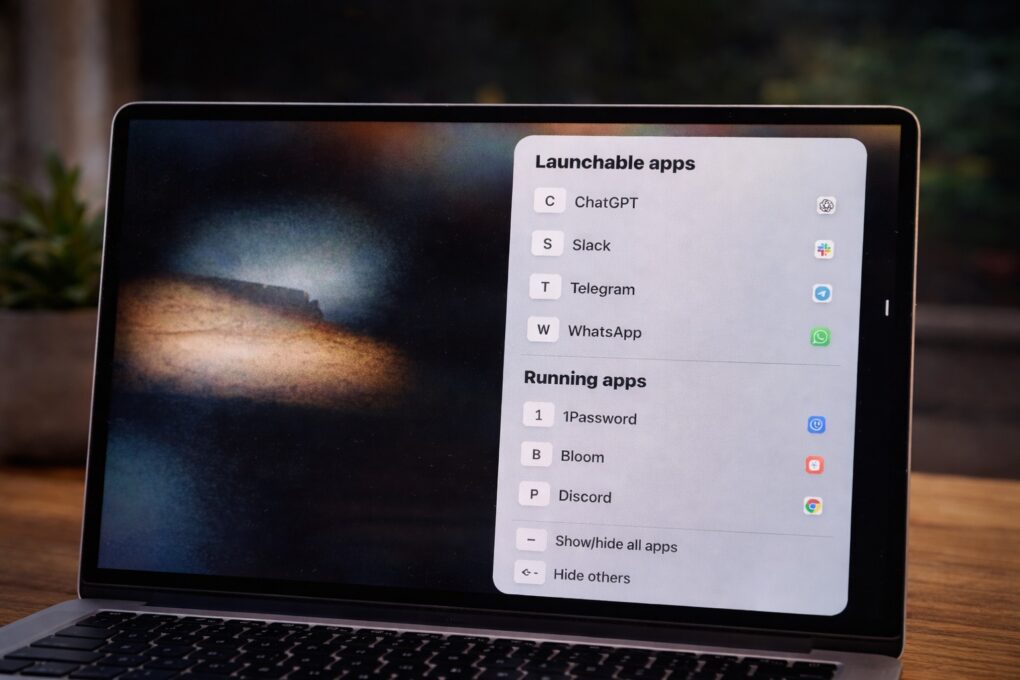
A quick tap of a letter is all it takes to bring any app to the front with rcmd.
*Photo: ChatGPT/Rajesh Pandey/Cult of Mac*
[](https://www.cultofmac.com/tag/awesome-apps/)
I switch between apps on my Mac dozens of times every hour. For years, Command-Tab seemed good enough, but then I started using rcmd, a fantastic alternative app switcher for Mac.
This nifty piece of software completely changed how I move between apps on my Mac. It made the process faster, more precise, and far less disruptive to my workflow.
Advertisements
## rcmd: A better app switcher for Mac
For years, I didn’t really think anything was wrong with Command-Tab for app switching on my [Mac](https://www.cultofmac.com/mac). I could see all the open apps and cycle through them by rapidly pressing Tab. It worked — until it didn’t. The more apps I opened, the more I realized I was not switching efficiently through them; I was essentially cycling through a list.
That’s when I discovered rcmd, which forever changed how I switch between apps on my Mac.
Advertisements
### The limits of Command-Tab
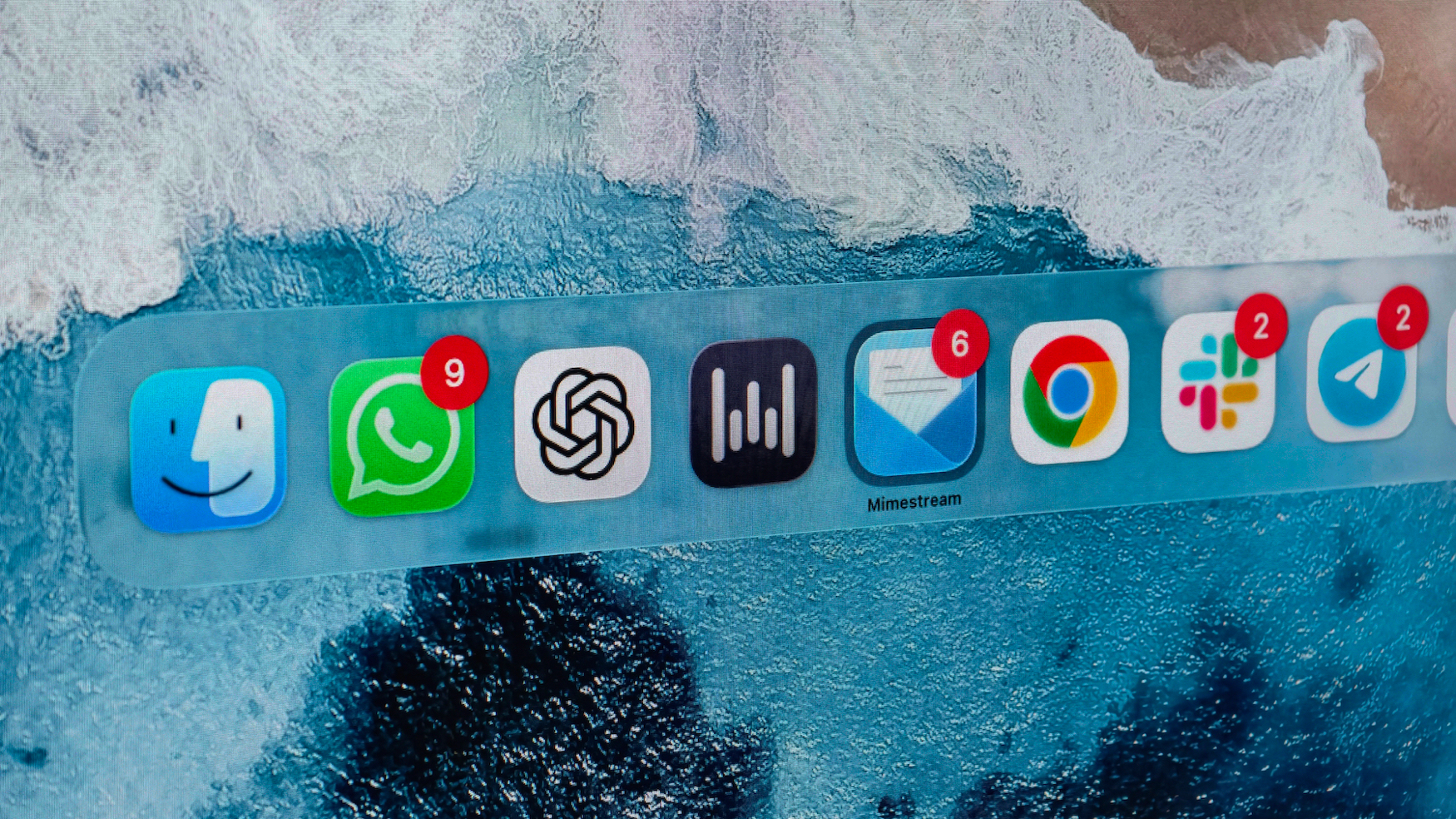
The Mac’s default method for switching between windows just didn’t cut it for me.
Photo: Rajesh Pandey/Cult of Mac
Command-Tab, the [macOS](https://www.cultofmac.com/macos) key command for switching between apps, works fine for light multitasking. As long as I only had four or five apps running, it always felt like the fastest and most predictable way to cycle through them.
I even installed a popular free Mac utility, AltTab, to improve the experience. It brought a more Windows-like app switcher to macOS, letting me see separate windows of the same app instead of grouping them. This made app switching faster. (AltTab also made my list of [12 must-have free Mac apps I always install first](https://www.cultofmac.com/reviews/free-mac-apps).)
Advertisements
However, even with AltTab installed, I was fundamentally cycling through open apps rather than jumping directly to one. I could see more open windows. But I still had to scan them and keep pressing Tab until I finally reached the app I wanted.
### How rcmd transforms app switching
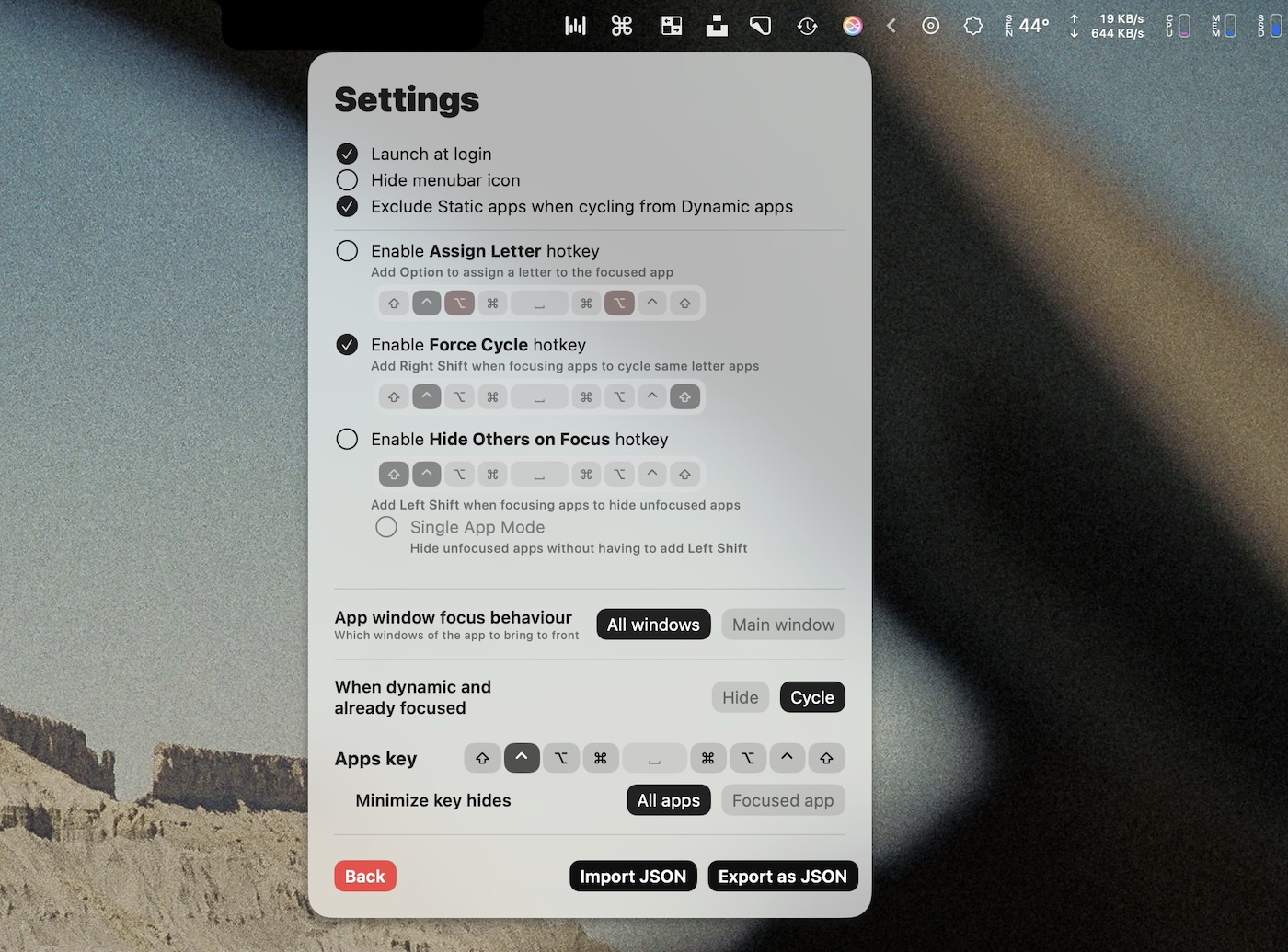
rcmd will change how you switch apps on your Mac.
Screenshot: Rajesh Pandey/Cult of Mac
This is where rcmd comes in and changes the game. Instead of cycling through apps, rcmd lets me jump straight to the one I want. I hold the right Command key and press the first letter of the app’s name. So, if I’m working in Chrome and get a Telegram notification, I just press Command + T to open Telegram instantly. Likewise, I can directly jump to Slack with Command + S or to WhatsApp with Command + W.
Advertisements
This proves far quicker than pressing Command-Tab and stepping through a row of open apps until I land on the one I want. I avoid unnecessary keystrokes. More importantly, I don’t need to scan through a visual list to find what I’m looking for.
To cycle through apps with the same name, you press the same key twice. So, if I need to jump from Slack to ChatGPT, with Chrome being the last active app, I need to press C twice.
Advertisements
By default, rcmd works by mapping the first letter of an app’s name to a shortcut. But you can override this behavior and manually assign any letter to any app.
rcmd’s Assign Letter feature lets me create shortcuts on the fly. I can focus on any app, trigger the assign hotkey, press a letter, and instantly map that key to it. I don’t need to dive into a settings menu — I build my shortcut system as I work. By default, the Assign Letter shortcut is assigned to Command + Option.
Something that sets rcmd apart from other app switchers is that it doesn’t treat minimized apps differently. Even if Telegram is hidden or minimized, pressing Command + T brings it to the front instantly.
Advertisements
### A slight learning curve
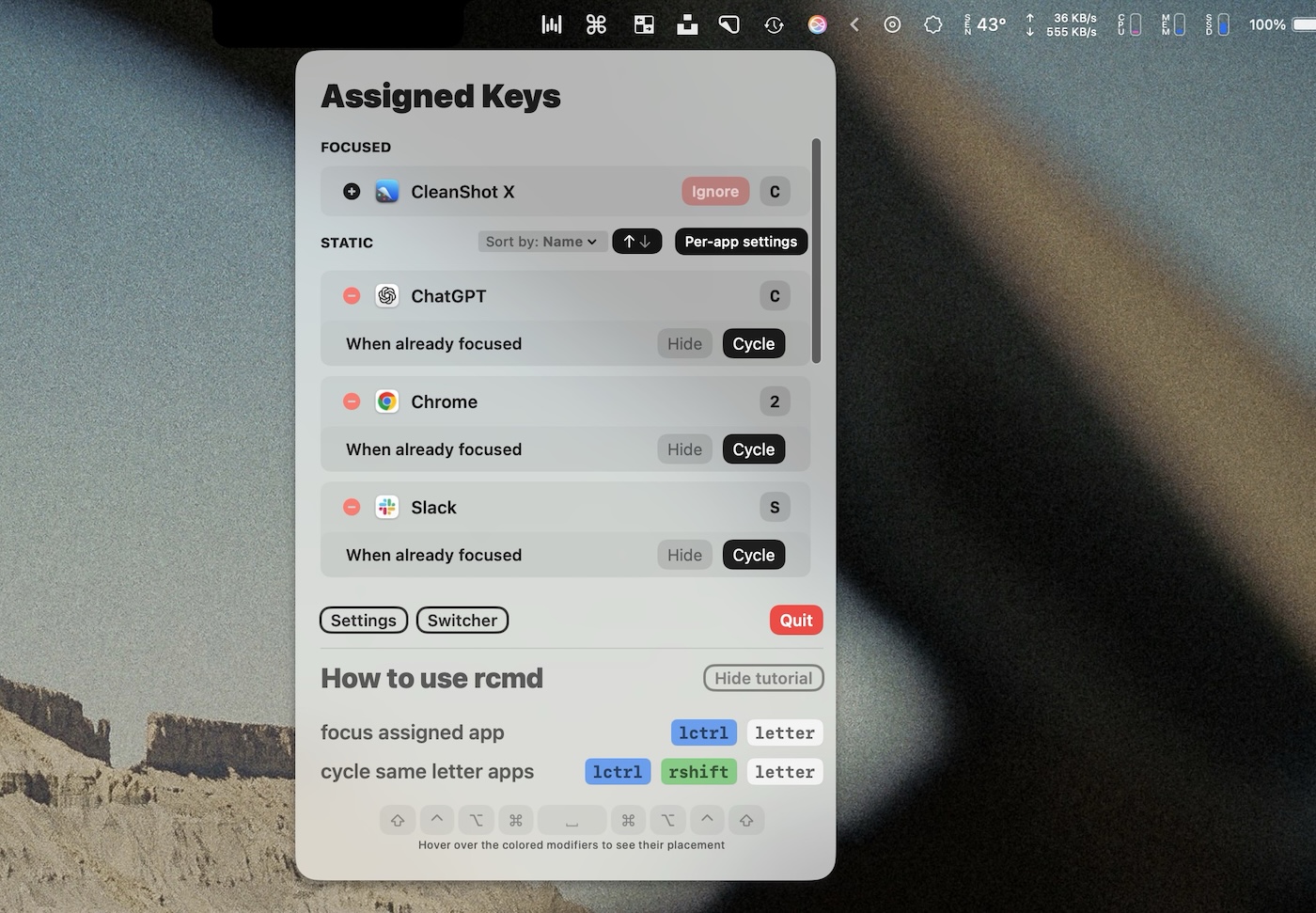
rcmd offers plenty of customization options.
Screenshot: Rajesh Pandey/Cult of Mac
Admittedly, there’s a slight learning curve with rcmd. Not with the app itself, because it’s deceptively simple to use. But I needed to unlearn years of muscle memory. Plus, remembering to press Command + S to jump to Slack, or pressing Command + C for Chrome, took a while to get used to.
To help with this, rcmd can display a small, list-style app switcher after a brief delay. I set mine to appear instantly, which gives me a quick visual reference for the available shortcuts whenever I need it.
But it didn’t take long to get used to this improved Mac app switcher. After a few weeks of using rcmd, there’s no going back. I have almost completely stopped using Command-Tab to switch between apps, relying on rcmd instead.
Advertisements
As its name indicates, rcmd triggers by default using the right Command key. This ensures it does not clash with other shortcuts. However, I switched it to use the left Command key instead. This does lead to conflicts with a few shortcuts, but in daily use, it has not made any difference.
The rcmd app switcher appears discreetly in the bottom-right corner of my Mac’s screen. It stays out of the way and doesn’t interfere with other shortcuts. As my muscle memory kicks in, I’ve found myself relying less on it over time. Still, it’s always useful as a quick visual reference.
It’s also possible to exclude certain apps from rcmd entirely. After all, I don’t need a shortcut for every app running in the background on my Mac. rcmd lets me hide them, ensuring the app switcher does not get cluttered.
Advertisements
### rcmd is also an app launcher
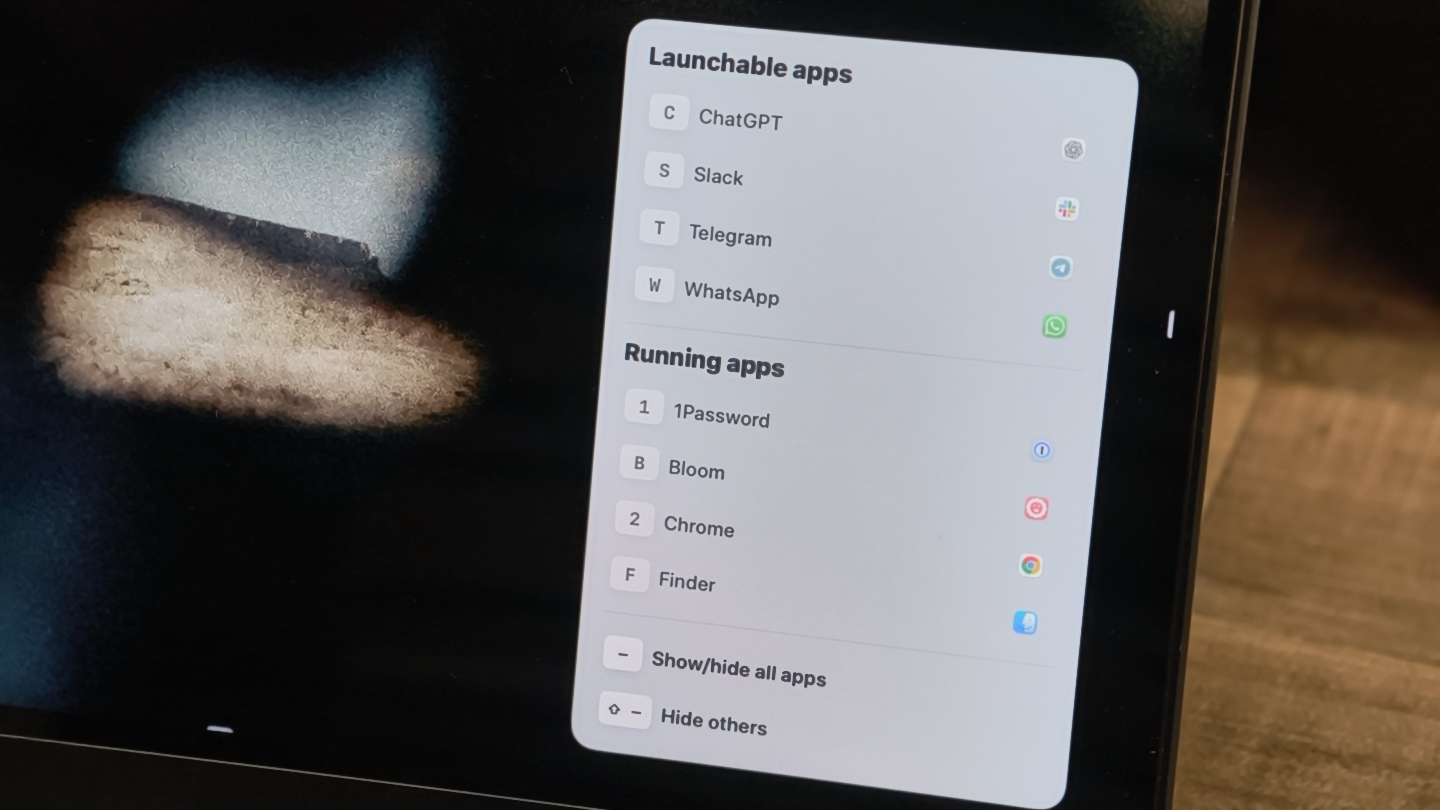
You can quickly launch your favorite Mac apps with rcmd.
Photo: Rajesh Pandey/Cult of Mac
rcmd is not just a better app switcher for Mac; it is also an improved app launcher. By default, if an app isn’t already open, pressing its assigned letter does nothing. So, if I don’t have Chrome open, pressing Command + C will not do anything. But I can assign this as a shortcut key to Chrome in rcmd. And that will launch the app instantly.
I’ve set up shortcuts for Chrome, Slack, Telegram, WhatsApp, ChatGPT and a few other apps I use constantly. For example, left Command + C always takes me to Chrome — whether it’s already open or needs to launch. The same goes for Slack with S or Telegram with T.
I previously relied on [Raycast](https://www.cultofmac.com/reviews/raycast-mac) to launch apps quickly, but this setup feels even faster because it removes the extra step of triggering a search bar and typing the app’s name.
Advertisements
On a typical writing day, I jump between Chrome, Slack, Telegram, Finder, Notes and ChatGPT constantly. Earlier, each switch required a quick mental scan — Command-Tab, glance at the icons, tap again, release.
With rcmd, I don’t think about what’s open anymore. I think in letters. S for Slack. C for Chrome. T for Telegram. It feels closer to issuing commands than navigating a user interface.
One thing I didn’t expect to appreciate as much as I do is how invisible rcmd feels. Unlike Mission Control, Stage Manager or even Command-Tab’s horizontal app strip, rcmd doesn’t rearrange my screen or trigger big animations. There’s no zooming out or sliding panels. The app I want simply comes to the front. And this is what makes rcmd click for me.
Advertisements
### It’s not perfect
Despite all its benefits, rcmd isn’t magic. If you run dozens of apps that start with the same letter, you’ll either need to assign custom keys or rely on cycling. (I have yet to run into this problem, but this will depend on your workflow.) And for casual users who only switch between two or three apps, the benefit might not feel dramatic.
The biggest hurdle with rcmd is the initial adjustment period. You need to give it a week or two to build new muscle memory. It might slow you down briefly at first, but over time, it more than makes up for that lost time by speeding things up.
### rcmd is the Mac app switcher you didn’t know you needed
After a few weeks with rcmd, going back to Command-Tab feels clumsy. The app fundamentally changed how I switch apps on my Mac. I don’t need to mindlessly cycle through the list of open apps after a quick visual scan. I just press a letter and move on.
Advertisements
Despite offering so much utility, rcmd is free to download and use. It was previously a paid app, but the developers made it free while they work on rcmd v3, which is still a few months away from release.
**Download:** [rcmd](https://apps.apple.com/us/app/rcmd-app-switcher/id1596283165?mt=12)

[Rajesh Pandey](https://www.cultofmac.com/author/rajesh-pandey)
**Rajesh** has been writing about consumer technology for over a decade, with a strong focus on iPhones, Macs and Apple’s ecosystem. He enjoys digging into Apple software updates, hardware changes, and discovering new Mac apps that make work faster and more enjoyable.
[](https://www.google.com/preferences/source?q=https://www.cultofmac.com)
### Comments [Cancel reply](https://www.cultofmac.com/reviews/rcmd-mac-app-switcher-review#respond)
- 
#### *Subscribe to the Newsletter*
Our daily roundup of Apple news, reviews and how-tos. Plus the best Apple tweets, fun polls and inspiring Steve Jobs bons mots. *Our readers say: "Love what you do" -- Christi Cardenas. "Absolutely love the content!" -- Harshita Arora. "Genuinely one of the highlights of my inbox" -- Lee Barnett.*
[Newsletter archive](https://newsletters.cultofmac.com/)
## Popular This Week
- [Apple’s folding iPhone redesign looks stunning in new images](https://www.cultofmac.com/news/folding-iphone-rumors-new-images?utm_campaign=popp_post1)
### [Apple’s folding iPhone redesign looks stunning in new images](https://www.cultofmac.com/news/folding-iphone-rumors-new-images?utm_campaign=popp_post1)
- [Mac mini and Mac Studio face long shipping delays](https://www.cultofmac.com/news/mac-mini-mac-studio-face-long-shipping-delays?utm_campaign=popp_post2)
### [Mac mini and Mac Studio face long shipping delays](https://www.cultofmac.com/news/mac-mini-mac-studio-face-long-shipping-delays?utm_campaign=popp_post2)
- [Apple cheaped out on the iPad charger: Best options for upgrading](https://www.cultofmac.com/buying-guides/ipad-charger-best?utm_campaign=popp_post3)
### [Apple cheaped out on the iPad charger: Best options for upgrading](https://www.cultofmac.com/buying-guides/ipad-charger-best?utm_campaign=popp_post3)
- [AirPods Max 2 are gorgeous, dreamy headphones — for now \[Review\]](https://www.cultofmac.com/reviews/airpods-max-2-review?utm_campaign=popp_post4)
### [AirPods Max 2 are gorgeous, dreamy headphones — for now \[Review\]](https://www.cultofmac.com/reviews/airpods-max-2-review?utm_campaign=popp_post4)
- [Viewer beware: Worst-rated Apple TV shows and movies](https://www.cultofmac.com/reviews/worst-rated-apple-tv-shows-and-movies?utm_campaign=popp_post5)
### [Viewer beware: Worst-rated Apple TV shows and movies](https://www.cultofmac.com/reviews/worst-rated-apple-tv-shows-and-movies?utm_campaign=popp_post5)
- [Get organized with advanced features in Notes and Reminders](https://www.cultofmac.com/how-to/organize-notes-reminders-iphone?utm_campaign=popp_post6)
### [Get organized with advanced features in Notes and Reminders](https://www.cultofmac.com/how-to/organize-notes-reminders-iphone?utm_campaign=popp_post6)
- [Update your iPhone today to avoid a nasty online hack](https://www.cultofmac.com/news/iphone-darksword-hack-ios-update?utm_campaign=popp_post7)
### [Update your iPhone today to avoid a nasty online hack](https://www.cultofmac.com/news/iphone-darksword-hack-ios-update?utm_campaign=popp_post7)
- [Apple’s folding iPhone might ditch expected branding](https://www.cultofmac.com/news/iphone-ultra-rumors-name-foldable?utm_campaign=popp_post8)
### [Apple’s folding iPhone might ditch expected branding](https://www.cultofmac.com/news/iphone-ultra-rumors-name-foldable?utm_campaign=popp_post8)
- [Top 8 clean setups: Great cable management pays off](https://www.cultofmac.com/setups/best-cable-management-in-setups?utm_campaign=popp_post9)
### [Top 8 clean setups: Great cable management pays off](https://www.cultofmac.com/setups/best-cable-management-in-setups?utm_campaign=popp_post9)
- [Apple iPhone USB security: What that ‘Allow Accessory’ alert really means](https://www.cultofmac.com/news/what-iphone-allow-accessory-alert-really-means?utm_campaign=popp_post10)
### [Apple iPhone USB security: What that ‘Allow Accessory’ alert really means](https://www.cultofmac.com/news/what-iphone-allow-accessory-alert-really-means?utm_campaign=popp_post10)
**Posted in:** [Reviews](https://www.cultofmac.com/reviews), [Top Stories](https://www.cultofmac.com/top-stories) **Tagged:** [Awesome Apps](https://www.cultofmac.com/awesome-apps), [Mac apps](https://www.cultofmac.com/mac-apps)
[Next Page »](https://www.cultofmac.com/)
- [About](https://www.cultofmac.com/about)
- [Advertise](https://www.cultofmac.com/advertising-with-cultofmac-com)
- [Privacy](https://www.cultofmac.com/news/apple-google-invited-to-senate-hearing-on-mobile-phone-privacy/attachment/privacy)
#### Latest Posts
1. [ Upgrade to Windows 11 Pro for less than \$13](https://www.cultofmac.com/deals/microsoft-windows-11-pro-discount)
2. [ How to put stunning Artemis II moon wallpapers on your iPhone, iPad or Mac](https://www.cultofmac.com/how-to/artemis-ii-moon-wallpapers)
3. [ Major sale drops M5 MacBook Air to lowest price yet](https://www.cultofmac.com/deals/macbook-air-deal)
4. [ Because dogs and cats can't wear Apple Watches: New pet trackers trounce AirTag](https://www.cultofmac.com/news/tractive-pet-trackers)
5. [ Today in Apple history: John Sculley takes over as Apple CEO](https://www.cultofmac.com/apple-history/apple-ceo-john-sculley)

- [Advertising with Cult of Mac](https://www.cultofmac.com/advertising-with-cultofmac-com)
- [Our privacy policy](https://www.cultofmac.com/privacy-policy)
- [About Cult of Mac](https://www.cultofmac.com/about)
- [Our comment moderation policy](https://www.cultofmac.com/cult-of-macs-commenting-moderation-policy)
Copyright © 2026 - Cult of Mac. All rights reserved.

×
## Subscribe to the Cult of Mac newsletter
A daily blast of Apple news, reviews, how-tos and deals, delivered straight to your inbox.
Thank you! You’ll be hearing from us soon.
 |
| Readable Markdown | - [Reviews](https://www.cultofmac.com/reviews "Reviews")
- [Top Stories](https://www.cultofmac.com/top-stories "Top Stories")

A quick tap of a letter is all it takes to bring any app to the front with rcmd.
*Photo: ChatGPT/Rajesh Pandey/Cult of Mac*
[](https://www.cultofmac.com/tag/awesome-apps/)
I switch between apps on my Mac dozens of times every hour. For years, Command-Tab seemed good enough, but then I started using rcmd, a fantastic alternative app switcher for Mac.
This nifty piece of software completely changed how I move between apps on my Mac. It made the process faster, more precise, and far less disruptive to my workflow.
## rcmd: A better app switcher for Mac
For years, I didn’t really think anything was wrong with Command-Tab for app switching on my [Mac](https://www.cultofmac.com/mac). I could see all the open apps and cycle through them by rapidly pressing Tab. It worked — until it didn’t. The more apps I opened, the more I realized I was not switching efficiently through them; I was essentially cycling through a list.
That’s when I discovered rcmd, which forever changed how I switch between apps on my Mac.
### The limits of Command-Tab

The Mac’s default method for switching between windows just didn’t cut it for me.
Photo: Rajesh Pandey/Cult of Mac
Command-Tab, the [macOS](https://www.cultofmac.com/macos) key command for switching between apps, works fine for light multitasking. As long as I only had four or five apps running, it always felt like the fastest and most predictable way to cycle through them.
I even installed a popular free Mac utility, AltTab, to improve the experience. It brought a more Windows-like app switcher to macOS, letting me see separate windows of the same app instead of grouping them. This made app switching faster. (AltTab also made my list of [12 must-have free Mac apps I always install first](https://www.cultofmac.com/reviews/free-mac-apps).)
However, even with AltTab installed, I was fundamentally cycling through open apps rather than jumping directly to one. I could see more open windows. But I still had to scan them and keep pressing Tab until I finally reached the app I wanted.
### How rcmd transforms app switching

rcmd will change how you switch apps on your Mac.
Screenshot: Rajesh Pandey/Cult of Mac
This is where rcmd comes in and changes the game. Instead of cycling through apps, rcmd lets me jump straight to the one I want. I hold the right Command key and press the first letter of the app’s name. So, if I’m working in Chrome and get a Telegram notification, I just press Command + T to open Telegram instantly. Likewise, I can directly jump to Slack with Command + S or to WhatsApp with Command + W.
This proves far quicker than pressing Command-Tab and stepping through a row of open apps until I land on the one I want. I avoid unnecessary keystrokes. More importantly, I don’t need to scan through a visual list to find what I’m looking for.
To cycle through apps with the same name, you press the same key twice. So, if I need to jump from Slack to ChatGPT, with Chrome being the last active app, I need to press C twice.
By default, rcmd works by mapping the first letter of an app’s name to a shortcut. But you can override this behavior and manually assign any letter to any app.
rcmd’s Assign Letter feature lets me create shortcuts on the fly. I can focus on any app, trigger the assign hotkey, press a letter, and instantly map that key to it. I don’t need to dive into a settings menu — I build my shortcut system as I work. By default, the Assign Letter shortcut is assigned to Command + Option.
Something that sets rcmd apart from other app switchers is that it doesn’t treat minimized apps differently. Even if Telegram is hidden or minimized, pressing Command + T brings it to the front instantly.
### A slight learning curve

rcmd offers plenty of customization options.
Screenshot: Rajesh Pandey/Cult of Mac
Admittedly, there’s a slight learning curve with rcmd. Not with the app itself, because it’s deceptively simple to use. But I needed to unlearn years of muscle memory. Plus, remembering to press Command + S to jump to Slack, or pressing Command + C for Chrome, took a while to get used to.
To help with this, rcmd can display a small, list-style app switcher after a brief delay. I set mine to appear instantly, which gives me a quick visual reference for the available shortcuts whenever I need it.
But it didn’t take long to get used to this improved Mac app switcher. After a few weeks of using rcmd, there’s no going back. I have almost completely stopped using Command-Tab to switch between apps, relying on rcmd instead.
As its name indicates, rcmd triggers by default using the right Command key. This ensures it does not clash with other shortcuts. However, I switched it to use the left Command key instead. This does lead to conflicts with a few shortcuts, but in daily use, it has not made any difference.
The rcmd app switcher appears discreetly in the bottom-right corner of my Mac’s screen. It stays out of the way and doesn’t interfere with other shortcuts. As my muscle memory kicks in, I’ve found myself relying less on it over time. Still, it’s always useful as a quick visual reference.
It’s also possible to exclude certain apps from rcmd entirely. After all, I don’t need a shortcut for every app running in the background on my Mac. rcmd lets me hide them, ensuring the app switcher does not get cluttered.
### rcmd is also an app launcher

You can quickly launch your favorite Mac apps with rcmd.
Photo: Rajesh Pandey/Cult of Mac
rcmd is not just a better app switcher for Mac; it is also an improved app launcher. By default, if an app isn’t already open, pressing its assigned letter does nothing. So, if I don’t have Chrome open, pressing Command + C will not do anything. But I can assign this as a shortcut key to Chrome in rcmd. And that will launch the app instantly.
I’ve set up shortcuts for Chrome, Slack, Telegram, WhatsApp, ChatGPT and a few other apps I use constantly. For example, left Command + C always takes me to Chrome — whether it’s already open or needs to launch. The same goes for Slack with S or Telegram with T.
I previously relied on [Raycast](https://www.cultofmac.com/reviews/raycast-mac) to launch apps quickly, but this setup feels even faster because it removes the extra step of triggering a search bar and typing the app’s name.
On a typical writing day, I jump between Chrome, Slack, Telegram, Finder, Notes and ChatGPT constantly. Earlier, each switch required a quick mental scan — Command-Tab, glance at the icons, tap again, release.
With rcmd, I don’t think about what’s open anymore. I think in letters. S for Slack. C for Chrome. T for Telegram. It feels closer to issuing commands than navigating a user interface.
One thing I didn’t expect to appreciate as much as I do is how invisible rcmd feels. Unlike Mission Control, Stage Manager or even Command-Tab’s horizontal app strip, rcmd doesn’t rearrange my screen or trigger big animations. There’s no zooming out or sliding panels. The app I want simply comes to the front. And this is what makes rcmd click for me.
### It’s not perfect
Despite all its benefits, rcmd isn’t magic. If you run dozens of apps that start with the same letter, you’ll either need to assign custom keys or rely on cycling. (I have yet to run into this problem, but this will depend on your workflow.) And for casual users who only switch between two or three apps, the benefit might not feel dramatic.
The biggest hurdle with rcmd is the initial adjustment period. You need to give it a week or two to build new muscle memory. It might slow you down briefly at first, but over time, it more than makes up for that lost time by speeding things up.
### rcmd is the Mac app switcher you didn’t know you needed
After a few weeks with rcmd, going back to Command-Tab feels clumsy. The app fundamentally changed how I switch apps on my Mac. I don’t need to mindlessly cycle through the list of open apps after a quick visual scan. I just press a letter and move on.
Despite offering so much utility, rcmd is free to download and use. It was previously a paid app, but the developers made it free while they work on rcmd v3, which is still a few months away from release.
**Download:** [rcmd](https://apps.apple.com/us/app/rcmd-app-switcher/id1596283165?mt=12)

**Rajesh** has been writing about consumer technology for over a decade, with a strong focus on iPhones, Macs and Apple’s ecosystem. He enjoys digging into Apple software updates, hardware changes, and discovering new Mac apps that make work faster and more enjoyable.
[](https://www.google.com/preferences/source?q=https://www.cultofmac.com) |
| Shard | 130 (laksa) |
| Root Hash | 16068540578668373130 |
| Unparsed URL | com,cultofmac!www,/reviews/rcmd-mac-app-switcher-review s443 |