ℹ️ Skipped - page is already crawled
| Filter | Status | Condition | Details |
|---|---|---|---|
| HTTP status | PASS | download_http_code = 200 | HTTP 200 |
| Age cutoff | PASS | download_stamp > now() - 6 MONTH | 0.4 months ago |
| History drop | PASS | isNull(history_drop_reason) | No drop reason |
| Spam/ban | PASS | fh_dont_index != 1 AND ml_spam_score = 0 | ml_spam_score=0 |
| Canonical | PASS | meta_canonical IS NULL OR = '' OR = src_unparsed | Not set |
| Property | Value | |||||||||
|---|---|---|---|---|---|---|---|---|---|---|
| URL | https://www.avg.com/en/signal/find-ip-address | |||||||||
| Last Crawled | 2026-04-16 12:47:56 (11 days ago) | |||||||||
| First Indexed | 2019-11-15 22:51:28 (6 years ago) | |||||||||
| HTTP Status Code | 200 | |||||||||
| Content | ||||||||||
| Meta Title | How to Find Your IP Address on Windows, Mac and Phones | |||||||||
| Meta Description | Learn how to find your public IP address using your router, command prompt, or other method on a phone, Windows PC, or Mac. | |||||||||
| Meta Canonical | null | |||||||||
| Boilerpipe Text | This article contains
Find your public IP address
Your public IP address identifies your network on the internet and can
reveal your general location
. You can find it using a search engine, a free IP checker website, a voice assistant, or your computer’s command-line interface — all of which quickly display the
IP address (Internet Protocol address)
your network uses to connect online.
Here are the best ways to find your IP address on most common devices.
Ask a search engine
When you visit a search engine, your device sends it a request with your IP address, meaning you can just ask your search engine to show that public IP address back to you.
Here is how to find your public IP address using a search engine:
Open a
web browser
(e.g., Chrome, Safari, Edge).
Go to a
search engine
like Google or Bing.
Type
“What is my IP address”
into the search bar and hit
Enter
.
Your public IP address will appear at the top of the results page.
If you use a VPN, proxy, mobile network, or shared Wi-Fi, the search engine displays the network’s public IP address, not your device’s exact internal (also referred to as “private”) IP address.
Check with your voice search assistant
If you want a quick, hands-free way to check your IP address, you can ask your voice assistant, for example Google Assistant, Siri, or Alexa — here’s how:
Make sure your device is connected to the internet.
Activate your voice assistant
by using the pre-set command, for instance, “Hey, Google?”
Ask,
“What is my IP address?”
The assistant will respond with your public IP address, based on the network your device is using to connect to the internet.
Keep in mind that IP addresses can be quite long, so seeing it written on a screen may be easier to copy than having it spoken aloud if you actually need to use it for something. If you’re just curious what your IP is or if your VPN is working, this method is probably enough.
Use your computer’s command-line interface
You can find your public IP address using Command Prompt on a Windows PC or Terminal on a Mac. Your computer’s command-line interface offers a quick, precise IP check and doesn’t rely on third-party websites. It’s also useful for troubleshooting network issues or verifying IPs when using VPNs or proxies.
Via Windows Command Prompt
Press
Windows key
+
R
.
Type
“cmd”
and hit
Enter
.
In the Command Prompt window, type,
“nslookup myip.opendns.com resolver1.opendns.com
” and hit
Enter
.
Your public IP address will be listed next to
Address
.
Via Mac Terminal
Press
Ctrl
+
Space
to open Spotlight Search.
Type, “
Terminal
” and hit
Enter
.
Type,
“curl ifconfig.me”
then hit
Enter
.
Your public IP will be displayed.
Log in to your router
You can view your public IP address directly in your
router’s
settings. This shows the IP assigned to your entire network, which is helpful for network management, port forwarding, remote access, or troubleshooting.
You’ll need to know your router’s IP address (commonly
192.168.0.1
or
192.168.1.1
) to log in to your router’s settings. You can usually find this information, plus your default admin username and password, printed on a label on your router.
Here’s how to use your router’s settings to check your IP address:
Make sure your device is connected to your home or office network.
Open a
web browser
, type your
router’s IP address
into the web address bar, then hit
Enter
.
Log in using your router’s
admin username
and
password
.
Go to the
Status
,
Internet
, or
WAN
section (the exact section depends on the router manufacturer). From there, look for
Public IP
,
WAN IP
, or
Internet IP address
.
Find your local IP address
The process for checking your local IP address varies
depending on your specific device and network settings
. Finding it takes a bit more detective work than finding your public IP, as
your local IP address isn’t visible to the wider internet
.
Regardless of method or device, your local IP usually appears as
IPv4 or IPv6
. IPv4 addresses are 32-bit, meaning there are a limited number of unique addresses available, most of which have been used already. IPv6 is the newer standard and uses 128-bit, providing an exponentially larger number of unique combinations. You may have one or both addresses.
Get your IP address on Windows
On Windows, you can find your local IP via Command Prompt (which shows all active network adapters at once), Network Settings (for more detailed information), or the taskbar (for quick access).
Via Command Prompt
Press
Windows key
+
R
.
Type,
“cmd”
and hit
Enter
.
Type, “
ipconfig”
then hit
Enter
.
Look for the
IPv4 Address
and/or
IPv6 Address
under your active network connections.
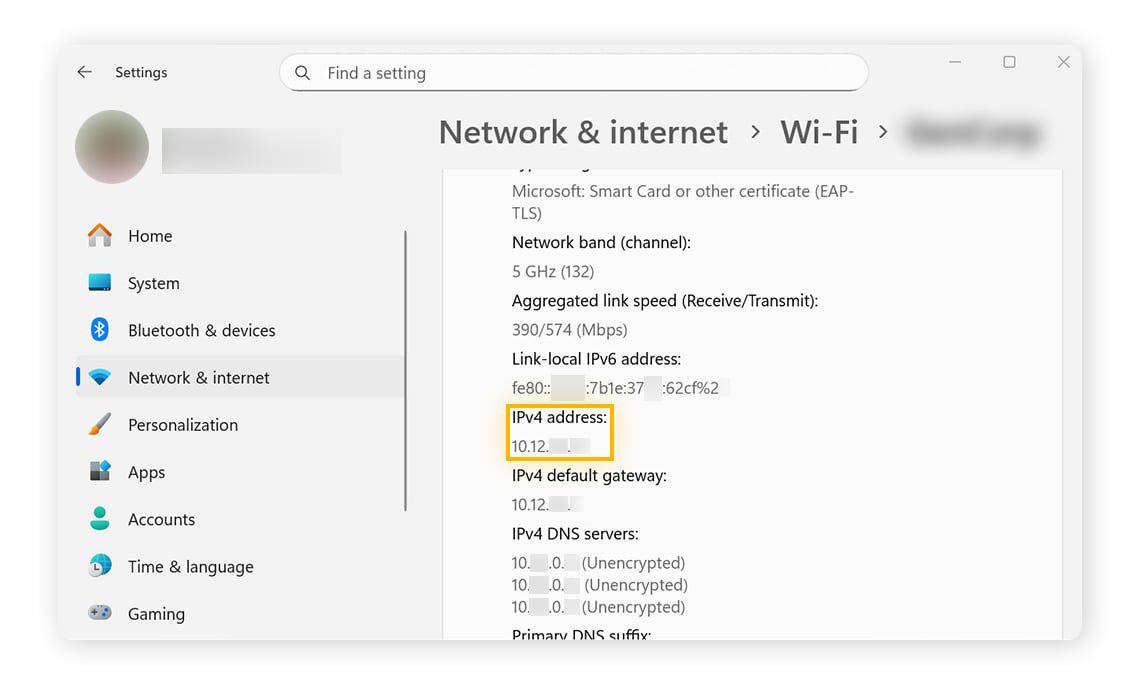
Via Network Settings
Go to
Windows Start
>
Settings
>
Network & internet
.
Select
Properties
next to your active connection (Wi-Fi or Ethernet).
Look for the
IPv4 Address
and/or
IPv6 Address
.
Using Windows taskbar
You can also open the Network Settings information above through the taskbar. Here’s how:
Click the
network icon
in the taskbar.
Select the
right arrow
next to your active internet connection.
Click the
Properties icon (i)
. The Network Settings screen will open and you can check your IPv4 or IPv6 address.
Find your local IP address on a Mac
You can find your local IP on a Mac in two main ways: through
System Settings
for a simple, visual approach or using
Terminal
for a quick command-line method.
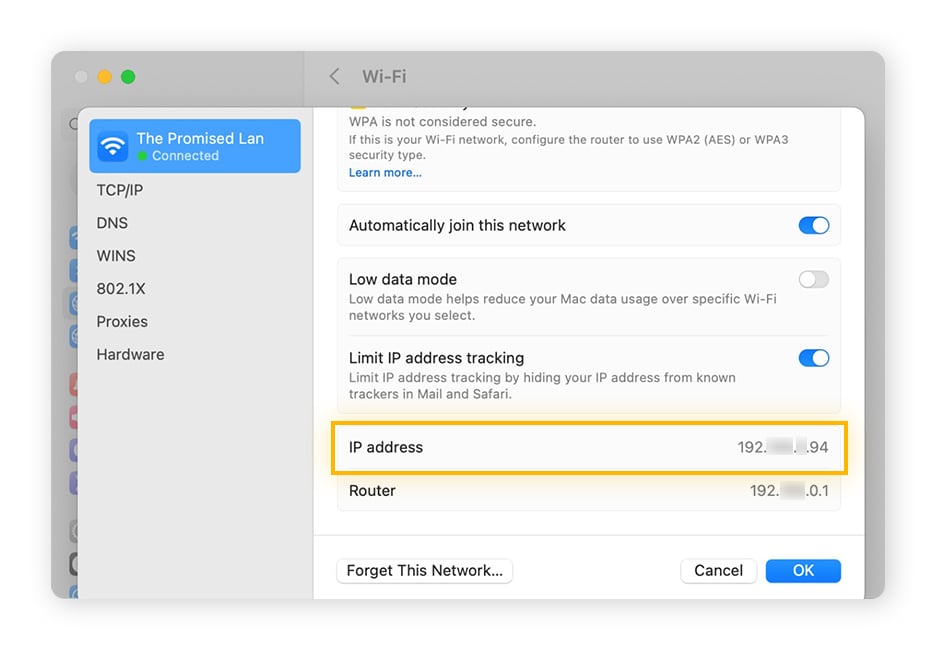
Using System Settings
Open the
Apple menu
>
System Settings
>
Network
(in the left panel) >
Wi-Fi
(or
Ethernet
for wired connections) >
Details
Scroll down to
IP address
to find your local IP address.
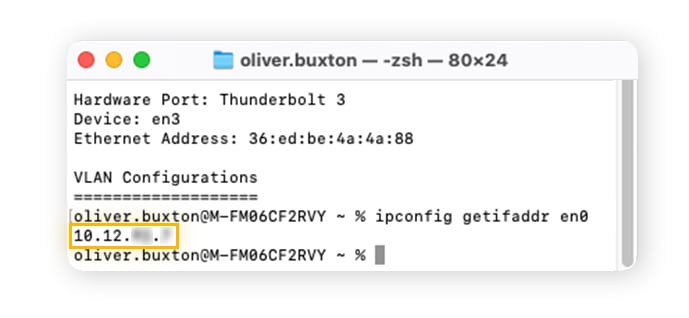
Using the Mac Terminal
On a Mac, your Wi-Fi or Ethernet connection is assigned a device code (en0, en1, etc.). You need to identify the code related to your connection first, then you can find your local IP address.
Press
Ctrl
+
Space
to open Spotlight Search.
Type,
“Terminal”
and hit
Enter
.
Type,
“networksetup -listallhardwareports”
and hit
Enter
.
Find
Wi-Fi
or
Ethernet
under Hardware Port and note the
Device
code e.g., en0 or en1.
Type, “
ipconfig getifaddr en0”
(replace en0 with the correct device code, as required). Press
Enter
to see your local IP.
Locate your IP address on your phone
You can find your IP address on an iOS or Android device via your phone’s network settings. The exact labels vary by device, but the steps are broadly the same — open the details of your connected Wi-Fi network and look for IPv4 or IPv6.
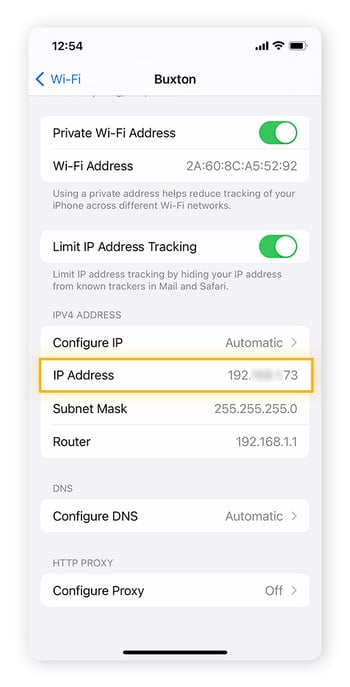
Via iPhone settings
The iPhone IP address lookup should work the same way for most iPhone and iPad models and iOS versions.
Go to
Settings
>
Wi-Fi
.
Tap the
information icon (i)
next to the connected network.
Scroll to
IP Address
to see your IPv4 or IPv6.
Via Android settings
The steps for checking a local IP address on Android differ based on the phone manufacturer and Android version. We’ll show you where to find your IP address on a Samsung Galaxy S24. If you can’t follow these steps on your device, try opening your
Android settings
and typing
“IP address”
into the settings search bar.
Go to
Settings
>
Connections
>
Wi-Fi
.
Tap
Settings
(the gear icon) next to your connected Wi-Fi network.
Tap
View more
, then scroll to
IP address
, where you’ll see your IPv4 and/or IPv6.
Check your router’s IP address
Knowing your router’s local IP is useful for accessing its settings to manage your network, set up port forwarding,
troubleshoot internet connectivity
, or change Wi-Fi settings. You can access your router’s IP address in two ways, through
your PC's command-line interface
or via
network settings
on a device connected to your router. Your method of choice depends on whether you’re connected via Ethernet or Wi-Fi.
Ethernet connection
On Windows:
Open
Command Prompt
, type “ipconfig” then hit
Enter
. Look for
Default Gateway
— this is your router’s local IP.
On Mac:
Open
Terminal
, type “route -n get default” then hit
Enter
. The IP address will be listed as
Gateway
.
Wi-Fi connection
Go to your device’s
Network Settings
>
Wi-Fi settings
. Select your active Wi-Fi network, then click the
settings cog
,
properties symbol
, or
information (i) symbol
.
Look for
Router
or
Gateway
— this shows your router’s local IP.
Public vs local IP address: which is which?
An IP address is a series of numbers that computers use to identify a device or server to help send data. The “IP” in IP address is short for “Internet Protocol,” which is the set of rules networks use to send that data.
IP addresses can be public (also called external) or local (also called internal or private).
Public IP address:
This is how websites identify you and know where to send information.
Local IP address:
This is how different devices on the same local network identify one another.
What’s my public IP address?
Your
public IP address
is assigned to your home network by your Internet Service Provider (ISP). It’s how they determine which customer is requesting which website and connect them accordingly. The easiest way to
find your public IP
address is to Google, “What’s my IP?”
When you enter the address of a website, for example,
google.com
, a Domain Name System (DNS) looks up the site’s
IP address
. Your request is then sent to that IP address, and it
typically includes your IP address
so the website knows where to send the response back.
What’s my local IP address?
Your
local IP address
is
defined by your router
, which assigns a unique local IP address to each device on your home network, such as your computers, phones, tablets, and smart devices. Your local IP is more private — because it can’t be seen outside of your network. The easiest way to find your local IP address on most devices is to search for “IP address” in your Network settings search bar.
Is my public or local IP more secure?
Your
local IP address is more secure than your public IP
, because it’s invisible to anyone outside your home network. In contrast,
your public IP is visible to a website whenever you visit it
.
You generally need to know only your local IP if you’re tinkering on your home network, like when you’re setting up a local server or troubleshooting printing problems.
However, your public IP is associated with
your online activity
, and advertisers,
hackers
, or cybercriminals may be able to
track your browsing
, purchases, messages, and even show
location-based ads
if they can see it. Using a
VPN (Virtual Private Network)
can
mask your public IP
, helping you stay more private online.
Prevent snoops from finding your IP address
Without any protection, it’s relatively simple for advertisers, hackers, and your ISP to identify your public IP and associated data, like your location, browsing history, and other digital breadcrumbs you leave behind as you use the internet. Masking your IP address with a VPN helps keep your location and personal information more private.
If you’d like to take back your online privacy, install
AVG Secure VPN
. With server locations worldwide and military-grade 256-bit AES encryption, AVG Secure VPN offers an unparalleled level of online privacy. Encrypt your connection, hide your IP, and ensure that online trackers stay off your digital scent. Install AVG Secure VPN today and enjoy private, secure browsing. | |||||||||
| Markdown | 27657733613
[](https://www.avg.com/en-ww/homepage "Home")
[Signal](https://www.avg.com/en/signal)
- Security
- [Malware](https://www.avg.com/en/signal/topic/malware)
- [Viruses](https://www.avg.com/en/signal/topic/viruses)
- [Ransomware](https://www.avg.com/en/signal/topic/ransomware)
- [Threats](https://www.avg.com/en/signal/topic/threats)
- [Security Tips](https://www.avg.com/en/signal/topic/security-tips)
- [Internet](https://www.avg.com/en/signal/topic/internet)
- [Scams](https://www.avg.com/en/signal/topic/scams)
- [Phishing](https://www.avg.com/en/signal/topic/phishing)
- [IoT](https://www.avg.com/en/signal/topic/internet-of-things)
- [AVG News](https://www.avg.com/en/signal/topic/avg-news)
- [Business](https://www.avg.com/en/signal/topic/business)
[See all Security articles](https://www.avg.com/en/signal/topic/signal-security)
- Privacy
- [Browser](https://www.avg.com/en/signal/topic/browser)
- [VPN](https://www.avg.com/en/signal/topic/vpn)
- [IP Address](https://www.avg.com/en/signal/topic/ip-address)
- [Hackers](https://www.avg.com/en/signal/topic/hackers)
- [Passwords](https://www.avg.com/en/signal/topic/passwords)
- [Social Media](https://www.avg.com/en/signal/topic/social-media)
- [Privacy Tips](https://www.avg.com/en/signal/topic/privacy-tips)
[See all Privacy articles](https://www.avg.com/en/signal/topic/signal-privacy)
- Performance
- [Cleaning](https://www.avg.com/en/signal/topic/cleaning)
- [Speed](https://www.avg.com/en/signal/topic/speed)
- [Gaming](https://www.avg.com/en/signal/topic/gaming)
- [Hardware](https://www.avg.com/en/signal/topic/hardware)
- [Performance Tips](https://www.avg.com/en/signal/topic/performance-tips)
[See all Performance articles](https://www.avg.com/en/signal/topic/signal-performance)
- - [English](https://www.avg.com/en/signal/find-ip-address?redirect=1)
- [Español](https://www.avg.com/es/signal/find-ip-address?redirect=1)
- [Deutsch](https://www.avg.com/de/signal/find-ip-address?redirect=1)
- [Français](https://www.avg.com/fr/signal/find-ip-address?redirect=1)
- [Nederlands](https://www.avg.com/nl/signal/find-ip-address?redirect=1)
- [Italiano](https://www.avg.com/it/signal/find-ip-address?redirect=1)
- [Português](https://www.avg.com/pt/signal/find-ip-address?redirect=1)
[](https://www.avg.com/en-ww/homepage "Home")
[Signal](https://www.avg.com/en/signal)
- Security
- [Malware](https://www.avg.com/en/signal/topic/malware)
- [Viruses](https://www.avg.com/en/signal/topic/viruses)
- [Ransomware](https://www.avg.com/en/signal/topic/ransomware)
- [Threats](https://www.avg.com/en/signal/topic/threats)
- [Security Tips](https://www.avg.com/en/signal/topic/security-tips)
- [Internet](https://www.avg.com/en/signal/topic/internet)
- [Scams](https://www.avg.com/en/signal/topic/scams)
- [Phishing](https://www.avg.com/en/signal/topic/phishing)
- [IoT](https://www.avg.com/en/signal/topic/internet-of-things)
- [AVG News](https://www.avg.com/en/signal/topic/avg-news)
- [Business](https://www.avg.com/en/signal/topic/business)
[View all topics](https://www.avg.com/en/signal/topic/signal-security)
- Privacy
- [Browser](https://www.avg.com/en/signal/topic/browser)
- [VPN](https://www.avg.com/en/signal/topic/vpn)
- [IP Address](https://www.avg.com/en/signal/topic/ip-address)
- [Hackers](https://www.avg.com/en/signal/topic/hackers)
- [Passwords](https://www.avg.com/en/signal/topic/passwords)
- [Social Media](https://www.avg.com/en/signal/topic/social-media)
- [Privacy Tips](https://www.avg.com/en/signal/topic/privacy-tips)
[View all topics](https://www.avg.com/en/signal/topic/signal-privacy)
- Performance
- [Cleaning](https://www.avg.com/en/signal/topic/cleaning)
- [Speed](https://www.avg.com/en/signal/topic/speed)
- [Gaming](https://www.avg.com/en/signal/topic/gaming)
- [Hardware](https://www.avg.com/en/signal/topic/hardware)
- [Performance Tips](https://www.avg.com/en/signal/topic/performance-tips)
[View all topics](https://www.avg.com/en/signal/topic/signal-performance)
- English
- [English](https://www.avg.com/en/signal/find-ip-address?redirect=1)
- [Español](https://www.avg.com/es/signal/find-ip-address?redirect=1)
- [Deutsch](https://www.avg.com/de/signal/find-ip-address?redirect=1)
- [Français](https://www.avg.com/fr/signal/find-ip-address?redirect=1)
- [Nederlands](https://www.avg.com/nl/signal/find-ip-address?redirect=1)
- [Italiano](https://www.avg.com/it/signal/find-ip-address?redirect=1)
- [Português](https://www.avg.com/pt/signal/find-ip-address?redirect=1)
[Security](https://www.avg.com/en/signal/find-ip-address)
[Malware](https://www.avg.com/en/signal/topic/malware)
[Viruses](https://www.avg.com/en/signal/topic/viruses)
[Ransomware](https://www.avg.com/en/signal/topic/ransomware)
[Threats](https://www.avg.com/en/signal/topic/threats)
[Security Tips](https://www.avg.com/en/signal/topic/security-tips)
[Internet](https://www.avg.com/en/signal/topic/internet)
[Scams](https://www.avg.com/en/signal/topic/scams)
[Phishing](https://www.avg.com/en/signal/topic/phishing)
[IoT](https://www.avg.com/en/signal/topic/internet-of-things)
[AVG News](https://www.avg.com/en/signal/topic/avg-news)
[Business](https://www.avg.com/en/signal/topic/business)
[See all Security articles](https://www.avg.com/en/signal/topic/signal-security)
[Privacy](https://www.avg.com/en/signal/find-ip-address)
[Browser](https://www.avg.com/en/signal/topic/browser)
[VPN](https://www.avg.com/en/signal/topic/vpn)
[IP Address](https://www.avg.com/en/signal/topic/ip-address)
[Hackers](https://www.avg.com/en/signal/topic/hackers)
[Passwords](https://www.avg.com/en/signal/topic/passwords)
[Social Media](https://www.avg.com/en/signal/topic/social-media)
[Privacy Tips](https://www.avg.com/en/signal/topic/privacy-tips)
[See all Privacy articles](https://www.avg.com/en/signal/topic/signal-privacy)
[Performance](https://www.avg.com/en/signal/find-ip-address)
[Cleaning](https://www.avg.com/en/signal/topic/cleaning)
[Speed](https://www.avg.com/en/signal/topic/speed)
[Gaming](https://www.avg.com/en/signal/topic/gaming)
[Hardware](https://www.avg.com/en/signal/topic/hardware)
[Performance Tips](https://www.avg.com/en/signal/topic/performance-tips)
[See all Performance articles](https://www.avg.com/en/signal/topic/signal-performance)
[English](https://www.avg.com/en/signal/find-ip-address)
[English](https://www.avg.com/en/signal/find-ip-address?redirect=1)
[Español](https://www.avg.com/es/signal/find-ip-address?redirect=1)
[Deutsch](https://www.avg.com/de/signal/find-ip-address?redirect=1)
[Français](https://www.avg.com/fr/signal/find-ip-address?redirect=1)
[Nederlands](https://www.avg.com/nl/signal/find-ip-address?redirect=1)
[Italiano](https://www.avg.com/it/signal/find-ip-address?redirect=1)
[Português](https://www.avg.com/pt/signal/find-ip-address?redirect=1)
[AVG Signal Blog](https://www.avg.com/en/signal)
[Privacy](https://www.avg.com/en/signal/topic/signal-privacy)
[IP Address](https://www.avg.com/en/signal/topic/ip-address)
How to Find My IP Address on Any Device
[IP Address](https://www.avg.com/en/signal/topic/ip-address)
# How to Find My IP Address on Any Device
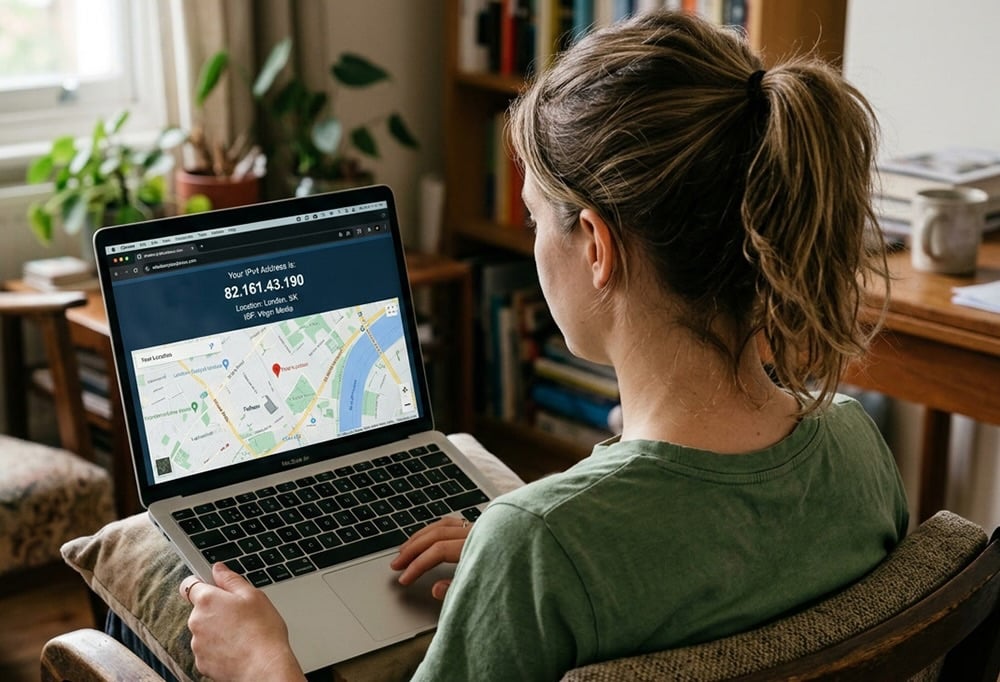
The easiest way to check your public IP address is to Google, “What is my IP?” Our detailed guide also explains how to find your public and private IP addresses on your Windows PC, Mac, and phone. But first, get a trusted VPN to mask your IP address from prying eyes, encrypt your communications, and access content on the go.
[Free trial Install AVG Secure VPN](https://play.google.com/store/apps/details?id=com.avg.android.vpn&referrer=utm_source%3Davg_com%26utm_medium%3Dsignal)
Get it for [PC](https://www.avg.com/secure-vpn), [Mac](https://www.avg.com/download-secure-vpn-mac), [iOS](https://apps.apple.com/app/apple-store/id1223470521?pt=9601800&ct=avg.com_signal&mt=8)
[Free trial Download AVG Secure VPN](https://www.avg.com/download-thank-you.php?product=GSV)
Get it for [Android](https://play.google.com/store/apps/details?id=com.avg.android.vpn&referrer=utm_source%3Davg_com%26utm_medium%3Dsignal), [iOS](https://apps.apple.com/app/apple-store/id1223470521?pt=9601800&ct=avg.com_signal&mt=8), [Mac](https://www.avg.com/download-secure-vpn-mac)
[Free trial Download AVG Secure VPN](https://www.avg.com/download-thank-you.php?product=VPM)
Get it for [iOS](https://apps.apple.com/app/apple-store/id1223470521?pt=9601800&ct=avg.com_signal&mt=8), [Android](https://play.google.com/store/apps/details?id=com.avg.android.vpn&referrer=utm_source%3Davg_com%26utm_medium%3Dsignal), [PC](https://www.avg.com/secure-vpn)
[Free trial Install AVG Secure VPN](https://apps.apple.com/app/apple-store/id1223470521?pt=9601800&ct=avg.com_signal&mt=8)
Get it for [Mac](https://www.avg.com/download-secure-vpn-mac), [PC](https://www.avg.com/secure-vpn) , [Android](https://play.google.com/store/apps/details?id=com.avg.android.vpn&referrer=utm_source%3Davg_com%26utm_medium%3Dsignal)

***
Copy article link
Link copied 
Written by
Ellie Farrier
Reviewed by
Mark Birchall
Published on February 24, 2023
Updated on March 20, 2026
This article contains
This article contains
- [Find your public IP address](https://www.avg.com/en/signal/find-ip-address#topic-1)
- [Find your local IP address](https://www.avg.com/en/signal/find-ip-address#topic-2)
- [Public vs local IP address: which is which?](https://www.avg.com/en/signal/find-ip-address#topic-3)
- [Prevent snoops from finding your IP address](https://www.avg.com/en/signal/find-ip-address#topic-4)
## Find your public IP address
Your public IP address identifies your network on the internet and can **reveal your general location**. You can find it using a search engine, a free IP checker website, a voice assistant, or your computer’s command-line interface — all of which quickly display the [IP address (Internet Protocol address)](https://www.avg.com/en/signal/what-is-an-ip-address) your network uses to connect online.
Here are the best ways to find your IP address on most common devices.
### Ask a search engine
When you visit a search engine, your device sends it a request with your IP address, meaning you can just ask your search engine to show that public IP address back to you.
Here is how to find your public IP address using a search engine:
1. Open a **web browser** (e.g., Chrome, Safari, Edge).
2. Go to a **search engine** like Google or Bing.
3. Type **“What is my IP address”** into the search bar and hit **Enter**.
4. Your public IP address will appear at the top of the results page.
If you use a VPN, proxy, mobile network, or shared Wi-Fi, the search engine displays the network’s public IP address, not your device’s exact internal (also referred to as “private”) IP address.
### Check with your voice search assistant
If you want a quick, hands-free way to check your IP address, you can ask your voice assistant, for example Google Assistant, Siri, or Alexa — here’s how:
1. Make sure your device is connected to the internet.
2. **Activate your voice assistant** by using the pre-set command, for instance, “Hey, Google?”
3. Ask, **“What is my IP address?”**
The assistant will respond with your public IP address, based on the network your device is using to connect to the internet.
Keep in mind that IP addresses can be quite long, so seeing it written on a screen may be easier to copy than having it spoken aloud if you actually need to use it for something. If you’re just curious what your IP is or if your VPN is working, this method is probably enough.
### Use your computer’s command-line interface
You can find your public IP address using Command Prompt on a Windows PC or Terminal on a Mac. Your computer’s command-line interface offers a quick, precise IP check and doesn’t rely on third-party websites. It’s also useful for troubleshooting network issues or verifying IPs when using VPNs or proxies.
#### Via Windows Command Prompt
1. Press **Windows key** + **R**.
2. Type **“cmd”** and hit **Enter**.
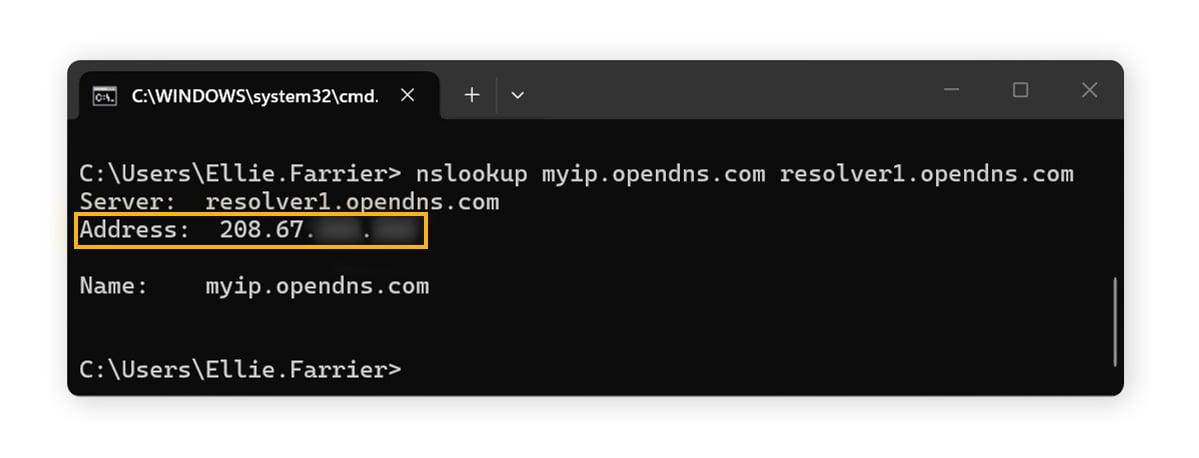
3. In the Command Prompt window, type, **“nslookup myip.opendns.com resolver1.opendns.com**” and hit **Enter**.
4. Your public IP address will be listed next to **Address**.
#### Via Mac Terminal
1. Press **Ctrl** + **Space** to open Spotlight Search.
2. Type, “**Terminal**” and hit **Enter**.
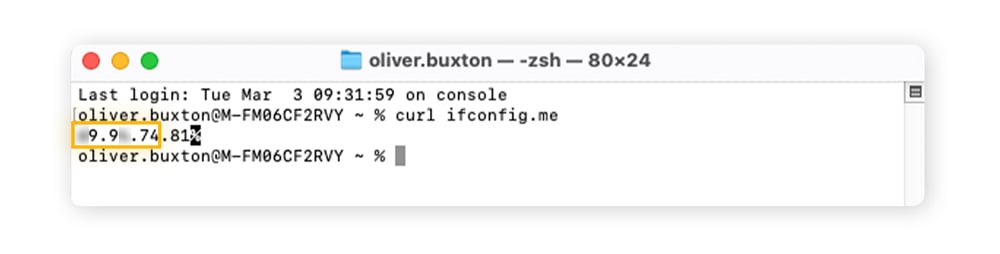
3. Type, **“curl ifconfig.me”** then hit **Enter**.
4. Your public IP will be displayed.
### Log in to your router
You can view your public IP address directly in your [router’s](https://www.avg.com/en/signal/what-is-a-router) settings. This shows the IP assigned to your entire network, which is helpful for network management, port forwarding, remote access, or troubleshooting.
You’ll need to know your router’s IP address (commonly **192\.168.0.1** or **192\.168.1.1**) to log in to your router’s settings. You can usually find this information, plus your default admin username and password, printed on a label on your router.
Here’s how to use your router’s settings to check your IP address:
1. Make sure your device is connected to your home or office network.
2. Open a **web browser**, type your **router’s IP address** into the web address bar, then hit **Enter**.
3. Log in using your router’s **admin username** and **password**.
4. Go to the **Status**, **Internet**, or **WAN** section (the exact section depends on the router manufacturer). From there, look for **Public IP**, **WAN IP**, or **Internet IP address**.
## Find your local IP address
The process for checking your local IP address varies **depending on your specific device and network settings**. Finding it takes a bit more detective work than finding your public IP, as **your local IP address isn’t visible to the wider internet**.
Regardless of method or device, your local IP usually appears as [IPv4 or IPv6](https://www.avg.com/en/signal/ipv4-vs-ipv6). IPv4 addresses are 32-bit, meaning there are a limited number of unique addresses available, most of which have been used already. IPv6 is the newer standard and uses 128-bit, providing an exponentially larger number of unique combinations. You may have one or both addresses.
### Get your IP address on Windows
On Windows, you can find your local IP via Command Prompt (which shows all active network adapters at once), Network Settings (for more detailed information), or the taskbar (for quick access).
#### Via Command Prompt
1. Press **Windows key** + **R**.
2. Type, **“cmd”** and hit **Enter**.
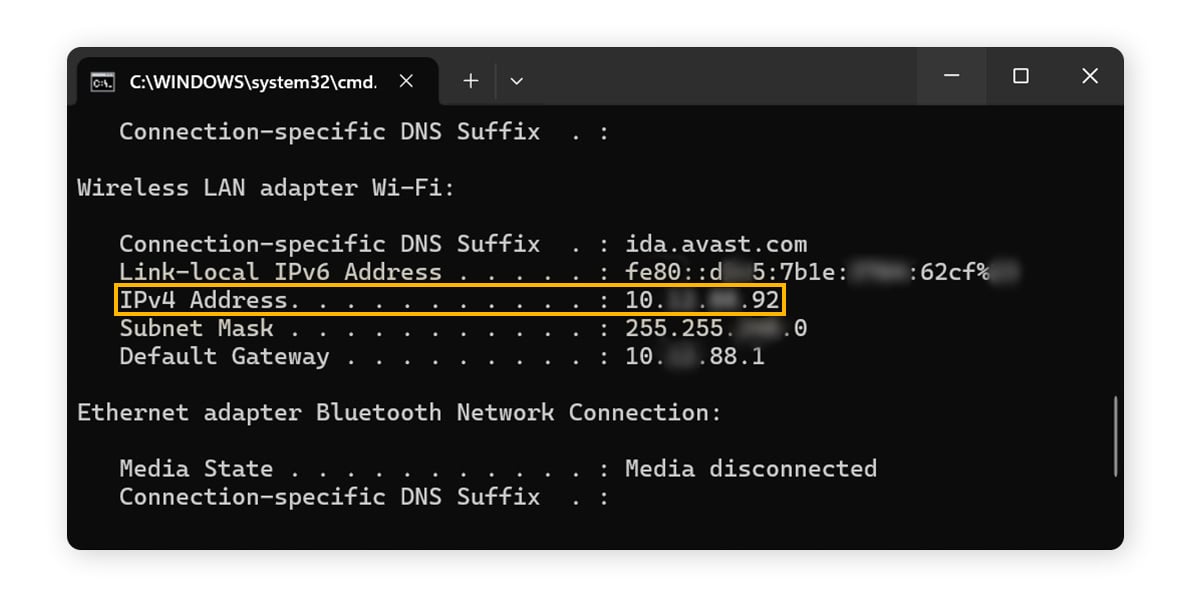
3. Type, “**ipconfig”** then hit **Enter**.
4. Look for the **IPv4 Address** and/or **IPv6 Address** under your active network connections.
#### Via Network Settings
1. Go to **Windows Start** \> **Settings** \> **Network & internet**.
2. Select **Properties** next to your active connection (Wi-Fi or Ethernet).
3. Look for the **IPv4 Address** and/or **IPv6 Address**.
#### Using Windows taskbar
You can also open the Network Settings information above through the taskbar. Here’s how:
1. Click the **network icon** in the taskbar.
2. Select the **right arrow** next to your active internet connection.
3. Click the **Properties icon (i)**. The Network Settings screen will open and you can check your IPv4 or IPv6 address.
### Find your local IP address on a Mac
You can find your local IP on a Mac in two main ways: through **System Settings** for a simple, visual approach or using **Terminal** for a quick command-line method.
#### Using System Settings
1. Open the **Apple menu** \> **System Settings** \> **Network** (in the left panel) \> **Wi-Fi** (or **Ethernet** for wired connections) \> **Details**
2. Scroll down to **IP address** to find your local IP address.
#### Using the Mac Terminal
On a Mac, your Wi-Fi or Ethernet connection is assigned a device code (en0, en1, etc.). You need to identify the code related to your connection first, then you can find your local IP address.
1. Press **Ctrl** \+ **Space** to open Spotlight Search.
2. Type, **“Terminal”** and hit **Enter**.
3. Type, **“networksetup -listallhardwareports”** and hit **Enter**.
4. Find **Wi-Fi** or **Ethernet** under Hardware Port and note the **Device** code e.g., en0 or en1.
5. Type, “**ipconfig getifaddr en0”** (replace en0 with the correct device code, as required). Press **Enter** to see your local IP.
### Locate your IP address on your phone
You can find your IP address on an iOS or Android device via your phone’s network settings. The exact labels vary by device, but the steps are broadly the same — open the details of your connected Wi-Fi network and look for IPv4 or IPv6.
#### Via iPhone settings
The iPhone IP address lookup should work the same way for most iPhone and iPad models and iOS versions.
1. Go to **Settings** \> **Wi-Fi**.
2. Tap the **information icon (i)** next to the connected network.
3. Scroll to **IP Address** to see your IPv4 or IPv6.
#### Via Android settings
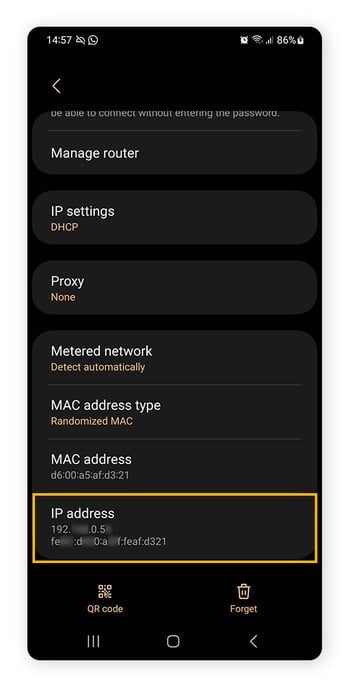
The steps for checking a local IP address on Android differ based on the phone manufacturer and Android version. We’ll show you where to find your IP address on a Samsung Galaxy S24. If you can’t follow these steps on your device, try opening your **Android settings** and typing **“IP address”** into the settings search bar.
1. Go to **Settings** \> **Connections** \> **Wi-Fi**.
2. Tap **Settings** (the gear icon) next to your connected Wi-Fi network.
3. Tap **View more**, then scroll to **IP address**, where you’ll see your IPv4 and/or IPv6.
### Check your router’s IP address
Knowing your router’s local IP is useful for accessing its settings to manage your network, set up port forwarding, [troubleshoot internet connectivity](https://www.avg.com/en/signal/no-internet-connection), or change Wi-Fi settings. You can access your router’s IP address in two ways, through **your PC's command-line interface** or via **network settings** on a device connected to your router. Your method of choice depends on whether you’re connected via Ethernet or Wi-Fi.
#### Ethernet connection
- **On Windows:** Open **Command Prompt**, type “ipconfig” then hit **Enter**. Look for **Default Gateway** — this is your router’s local IP.
- **On Mac:** Open **Terminal**, type “route -n get default” then hit **Enter**. The IP address will be listed as **Gateway**.
#### Wi-Fi connection
1. Go to your device’s **Network Settings** \> **Wi-Fi settings**. Select your active Wi-Fi network, then click the **settings cog**, **properties symbol**, or **information (i) symbol**.
2. Look for **Router** or **Gateway** — this shows your router’s local IP.
## Public vs local IP address: which is which?
An IP address is a series of numbers that computers use to identify a device or server to help send data. The “IP” in IP address is short for “Internet Protocol,” which is the set of rules networks use to send that data.
IP addresses can be public (also called external) or local (also called internal or private).
- **Public IP address:** This is how websites identify you and know where to send information.
- **Local IP address:** This is how different devices on the same local network identify one another.
### What’s my public IP address?
Your **public IP address** is assigned to your home network by your Internet Service Provider (ISP). It’s how they determine which customer is requesting which website and connect them accordingly. The easiest way to **find your public IP** address is to Google, “What’s my IP?”
When you enter the address of a website, for example, *google.com*, a Domain Name System (DNS) looks up the site’s **IP address**. Your request is then sent to that IP address, and it **typically includes your IP address** so the website knows where to send the response back.
### What’s my local IP address?
Your **local IP address** is **defined by your router**, which assigns a unique local IP address to each device on your home network, such as your computers, phones, tablets, and smart devices. Your local IP is more private — because it can’t be seen outside of your network. The easiest way to find your local IP address on most devices is to search for “IP address” in your Network settings search bar.
### Is my public or local IP more secure?
Your **local IP address is more secure than your public IP**, because it’s invisible to anyone outside your home network. In contrast, **your public IP is visible to a website whenever you visit it**.
You generally need to know only your local IP if you’re tinkering on your home network, like when you’re setting up a local server or troubleshooting printing problems.
However, your public IP is associated with [your online activity](https://www.avg.com/en/signal/digital-day-in-the-life), and advertisers, [hackers](https://www.avg.com/en/signal/what-is-hacking), or cybercriminals may be able to [track your browsing](https://www.avg.com/en/signal/online-tracking), purchases, messages, and even show [location-based ads](https://www.avg.com/en/signal/5-reasons-you-should-use-an-adblocker) if they can see it. Using a [VPN (Virtual Private Network)](https://www.avg.com/en/signal/what-is-a-vpn-and-why-should-you-use-one) can [mask your public IP](https://www.avg.com/en/signal/hide-your-ip-address), helping you stay more private online.
## Prevent snoops from finding your IP address
Without any protection, it’s relatively simple for advertisers, hackers, and your ISP to identify your public IP and associated data, like your location, browsing history, and other digital breadcrumbs you leave behind as you use the internet. Masking your IP address with a VPN helps keep your location and personal information more private.
If you’d like to take back your online privacy, install [AVG Secure VPN](https://www.avg.com/secure-vpn). With server locations worldwide and military-grade 256-bit AES encryption, AVG Secure VPN offers an unparalleled level of online privacy. Encrypt your connection, hide your IP, and ensure that online trackers stay off your digital scent. Install AVG Secure VPN today and enjoy private, secure browsing.
[Free trial Install AVG Secure VPN](https://play.google.com/store/apps/details?id=com.avg.android.vpn&referrer=utm_source%3Davg_com%26utm_medium%3Dsignal)
Get it for [PC](https://www.avg.com/secure-vpn), [Mac](https://www.avg.com/download-secure-vpn-mac), [iOS](https://apps.apple.com/app/apple-store/id1223470521?pt=9601800&ct=avg.com_signal&mt=8)
[Free trial Download AVG Secure VPN](https://www.avg.com/download-thank-you.php?product=GSV)
Get it for [Android](https://play.google.com/store/apps/details?id=com.avg.android.vpn&referrer=utm_source%3Davg_com%26utm_medium%3Dsignal), [iOS](https://apps.apple.com/app/apple-store/id1223470521?pt=9601800&ct=avg.com_signal&mt=8), [Mac](https://www.avg.com/download-secure-vpn-mac)
[Free trial Download AVG Secure VPN](https://www.avg.com/download-thank-you.php?product=VPM)
Get it for [iOS](https://apps.apple.com/app/apple-store/id1223470521?pt=9601800&ct=avg.com_signal&mt=8), [Android](https://play.google.com/store/apps/details?id=com.avg.android.vpn&referrer=utm_source%3Davg_com%26utm_medium%3Dsignal), [PC](https://www.avg.com/secure-vpn)
[Free trial Install AVG Secure VPN](https://apps.apple.com/app/apple-store/id1223470521?pt=9601800&ct=avg.com_signal&mt=8)
Get it for [Mac](https://www.avg.com/download-secure-vpn-mac), [PC](https://www.avg.com/secure-vpn) , [Android](https://play.google.com/store/apps/details?id=com.avg.android.vpn&referrer=utm_source%3Davg_com%26utm_medium%3Dsignal)
[DESKTOP](https://www.avg.com/en/signal/tag-desktop) [IOS](https://www.avg.com/en/signal/tag-ios) [ANDROID](https://www.avg.com/en/signal/tag-android) [MAC](https://www.avg.com/en/signal/tag-mac) [WINDOWS](https://www.avg.com/en/signal/tag-windows)
Copy article link
Link copied 
## What customers say

#### Encrypt Your Connection Automatically
Install [AVG Secure VPN](https://www.avg.com/download-secure-vpn-ios) to encrypt your internet connection and protect your privacy wherever you go on the web.
[Install free trial](https://apps.apple.com/app/apple-store/id1223470521?pt=9601800&ct=avg.com_signal&mt=8)
Get it for [Mac](https://www.avg.com/download-secure-vpn-mac), [PC](https://www.avg.com/secure-vpn) , [Android](https://play.google.com/store/apps/details?id=com.avg.android.vpn&referrer=utm_source%3Davg_com%26utm_medium%3Dsignal)

#### Encrypt Your Connection Automatically
Download [AVG Secure VPN](https://www.avg.com/secure-vpn) to encrypt your internet connection and protect your privacy wherever you go on the web.
[Download free trial](https://www.avg.com/download-thank-you.php?product=GSV)
Get it for [Android](https://play.google.com/store/apps/details?id=com.avg.android.vpn&referrer=utm_source%3Davg_com%26utm_medium%3Dsignal), [iOS](https://apps.apple.com/app/apple-store/id1223470521?pt=9601800&ct=avg.com_signal&mt=8), [Mac](https://www.avg.com/download-secure-vpn-mac)

#### Encrypt Your Connection Automatically
Download [AVG Secure VPN](https://www.avg.com/download-secure-vpn-mac) to encrypt your internet connection and protect your privacy wherever you go on the web.
[Download free trial](https://www.avg.com/download-thank-you.php?product=VPM)
Get it for [iOS](https://apps.apple.com/app/apple-store/id1223470521?pt=9601800&ct=avg.com_signal&mt=8), [Android](https://play.google.com/store/apps/details?id=com.avg.android.vpn&referrer=utm_source%3Davg_com%26utm_medium%3Dsignal), [PC](https://www.avg.com/secure-vpn)

#### Encrypt Your Connection Automatically
Install [AVG Secure VPN](https://www.avg.com/download-secure-vpn-android) to encrypt your internet connection and protect your privacy wherever you go on the web.
[Install free trial](https://play.google.com/store/apps/details?id=com.avg.android.vpn&referrer=utm_source%3Davg_com%26utm_medium%3Dsignal)
Get it for [PC](https://www.avg.com/secure-vpn), [Mac](https://www.avg.com/download-secure-vpn-mac), [iOS](https://apps.apple.com/app/apple-store/id1223470521?pt=9601800&ct=avg.com_signal&mt=8)
This article contains:
- [Find your public IP address](https://www.avg.com/en/signal/find-ip-address#topic-1)
- [Find your local IP address](https://www.avg.com/en/signal/find-ip-address#topic-2)
- [Public vs local IP address: which is which?](https://www.avg.com/en/signal/find-ip-address#topic-3)
- [Prevent snoops from finding your IP address](https://www.avg.com/en/signal/find-ip-address#topic-4)
![]()
## More Privacy Articles
1/10
[ How to Change Your Location on an iPhone Using VPNs, Apps, and More](https://www.avg.com/en/signal/change-iphone-location)
[ How to Change Your IP Address on an iPhone: a Step-by-Step Guide](https://www.avg.com/en/signal/change-ip-address-iphone)
[ How to Find My IP Address on Any Device](https://www.avg.com/en/signal/find-ip-address)
[ Easy Ways to Change Your IP Address](https://www.avg.com/en/signal/change-ip-address)
[ Static vs. dynamic IP addresses](https://www.avg.com/en/signal/static-vs-dynamic-ip-addresses)
[ What Is an IP Address and How Does It Work?](https://www.avg.com/en/signal/what-is-an-ip-address)
[/Signal-What-is-TCP-IP-Thumb.jpg) What Is TCP/IP?](https://www.avg.com/en/signal/what-is-tcp-ip)
[/Signal-Public-vs-local-IP-addresses-Thumb.jpg) Private IP vs Public IP: What’s the Difference?](https://www.avg.com/en/signal/public-vs-private-ip-address)
[/IPv4-vs-IPv6--Thumb.jpg) What Is the Difference Between IPv4 and IPv6?](https://www.avg.com/en/signal/ipv4-vs-ipv6)
[ Three Ways to Hide Your IP Address](https://www.avg.com/en/signal/hide-your-ip-address)
Encrypt your connection and protect your data with AVG Secure VPN

AVG
Secure VPN
[Free trial](https://play.google.com/store/apps/details?id=com.avg.android.vpn&referrer=utm_source%3Davg_com%26utm_medium%3Dsignal)
Encrypt your connection and protect your data with AVG Secure VPN

AVG
Secure VPN
[Free trial](https://apps.apple.com/app/apple-store/id1223470521?pt=9601800&ct=avg.com_signal&mt=8)
IP Address
Privacy
Ellie Farrier
24-02-2023
#### About AVG
- [Profile](https://www.avg.com/en-ww/profile)
- [Media Center](https://press.avg.com/)
- [Policies](https://www.avg.com/en-ww/policies)
- [Contact Us](https://www.avg.com/en-ww/contacts)
#### Home Products
- [Free Antivirus Download](https://www.avg.com/en-ww/free-antivirus-download)
- [Internet Security](https://www.avg.com/en-ww/internet-security)
- [Android Antivirus](https://www.avg.com/en-ww/antivirus-for-android)
- [Free Mac Antivirus](https://www.avg.com/en-ww/avg-antivirus-for-mac)
- [Secure VPN](https://www.avg.com/en-ww/secure-vpn)
- [Tune Up](https://www.avg.com/en-ww/avg-pctuneup)
- [Virus Scanner & Removal](https://www.avg.com/en/signal/virus-removal-tool)
- [Installation Files](https://www.avg.com/en-ww/installation-files)
- [Beta Downloads](https://www.avg.com/en-ww/beta)
- [Driver Updater](https://www.avg.com/en-ww/avg-driver-updater)
#### Customer Area
- [Register Your License](https://www.avg.com/en-ww/activation)
- [Anti-Theft Login](https://id.avg.com/)
- [Home Product Support](https://support.avg.com/?l=en)
- [Security & Performance Tips](https://www.avg.com/en/signal)
- [Online Research](https://www.avg.com/en-ww/online-research-main)
#### Partners & Business
- [Business Antivirus Software](https://www.avg.com/en-ww/business-security)
- [Partner Support](https://support.avg.com/partners?l=en)
- [Business Support](https://support.avg.com/business?l=en)
- [Affiliates](https://www.avg.com/en-ww/affiliate/become-an-avg-affiliate)

- [X](https://twitter.com/avgfree)
- [Facebook](https://www.facebook.com/AVG/)
- [YouTube](https://www.youtube.com/AVG)
- [LinkedIn](https://www.linkedin.com/company/avg/)
[English ]()
[Log in to AVG MyAccount](https://myaccount.avg.com/my-account-login)
[Privacy](https://www.avg.com/en-ww/privacy) \| [Report vulnerability](https://www.avast.com/coordinated-vulnerability-disclosure) \| [Contact security](https://www.avast.com/bug-bounty) \| [License agreements](https://www.avg.com/en-ww/eula) \| [Modern Slavery Statement](https://static2.avg.com/10002092/web/o/legal/2020-2021-ModernSlaveryStatement.pdf) \| [Cookies](https://www.avg.com/en-ww/cookies) \| [Accessibility Statement](https://www.avg.com/en-ww/accessibility-statement) \| [Do not sell my info](https://www.avg.com/en-ww/do-not-sell) \| [Cookie Settings](https://www.avg.com/en/signal/find-ip-address) \| [All third party trademarks are the property of their respective owners.](https://www.avg.com/en-ww/trademarks)
© 2026 Gen Digital Inc. All rights reserved.
We use cookies and similar technologies to recognize your repeat visits and preferences, to measure the effectiveness of campaigns, and improve our websites. For settings and more information about cookies, view our [Cookie Policy](https://www.avg.com/privacy-policy#cookies). By clicking “I accept” on this banner or using our site, you consent to the use of cookies.
I ACCEPT | |||||||||
| Readable Markdown | This article contains
Find your public IP address Your public IP address identifies your network on the internet and can **reveal your general location**. You can find it using a search engine, a free IP checker website, a voice assistant, or your computer’s command-line interface — all of which quickly display the [IP address (Internet Protocol address)](https://www.avg.com/en/signal/what-is-an-ip-address) your network uses to connect online. Here are the best ways to find your IP address on most common devices. Ask a search engine When you visit a search engine, your device sends it a request with your IP address, meaning you can just ask your search engine to show that public IP address back to you. Here is how to find your public IP address using a search engine: Open a **web browser** (e.g., Chrome, Safari, Edge). Go to a **search engine** like Google or Bing. Type **“What is my IP address”** into the search bar and hit **Enter**. Your public IP address will appear at the top of the results page. If you use a VPN, proxy, mobile network, or shared Wi-Fi, the search engine displays the network’s public IP address, not your device’s exact internal (also referred to as “private”) IP address. Check with your voice search assistant If you want a quick, hands-free way to check your IP address, you can ask your voice assistant, for example Google Assistant, Siri, or Alexa — here’s how: Make sure your device is connected to the internet. **Activate your voice assistant** by using the pre-set command, for instance, “Hey, Google?” Ask, **“What is my IP address?”** The assistant will respond with your public IP address, based on the network your device is using to connect to the internet. Keep in mind that IP addresses can be quite long, so seeing it written on a screen may be easier to copy than having it spoken aloud if you actually need to use it for something. If you’re just curious what your IP is or if your VPN is working, this method is probably enough. Use your computer’s command-line interface You can find your public IP address using Command Prompt on a Windows PC or Terminal on a Mac. Your computer’s command-line interface offers a quick, precise IP check and doesn’t rely on third-party websites. It’s also useful for troubleshooting network issues or verifying IPs when using VPNs or proxies. Via Windows Command Prompt Press **Windows key** + **R**. Type **“cmd”** and hit **Enter**. In the Command Prompt window, type, **“nslookup myip.opendns.com resolver1.opendns.com**” and hit **Enter**. Your public IP address will be listed next to **Address**.  Via Mac Terminal Press **Ctrl** + **Space** to open Spotlight Search. Type, “**Terminal**” and hit **Enter**. Type, **“curl ifconfig.me”** then hit **Enter**. Your public IP will be displayed.  Log in to your router You can view your public IP address directly in your [router’s](https://www.avg.com/en/signal/what-is-a-router) settings. This shows the IP assigned to your entire network, which is helpful for network management, port forwarding, remote access, or troubleshooting. You’ll need to know your router’s IP address (commonly **192\.168.0.1** or **192\.168.1.1**) to log in to your router’s settings. You can usually find this information, plus your default admin username and password, printed on a label on your router. Here’s how to use your router’s settings to check your IP address: Make sure your device is connected to your home or office network. Open a **web browser**, type your **router’s IP address** into the web address bar, then hit **Enter**. Log in using your router’s **admin username** and **password**. Go to the **Status**, **Internet**, or **WAN** section (the exact section depends on the router manufacturer). From there, look for **Public IP**, **WAN IP**, or **Internet IP address**. Find your local IP address The process for checking your local IP address varies **depending on your specific device and network settings**. Finding it takes a bit more detective work than finding your public IP, as **your local IP address isn’t visible to the wider internet**. Regardless of method or device, your local IP usually appears as [IPv4 or IPv6](https://www.avg.com/en/signal/ipv4-vs-ipv6). IPv4 addresses are 32-bit, meaning there are a limited number of unique addresses available, most of which have been used already. IPv6 is the newer standard and uses 128-bit, providing an exponentially larger number of unique combinations. You may have one or both addresses. Get your IP address on Windows On Windows, you can find your local IP via Command Prompt (which shows all active network adapters at once), Network Settings (for more detailed information), or the taskbar (for quick access). Via Command Prompt Press **Windows key** + **R**. Type, **“cmd”** and hit **Enter**. Type, “**ipconfig”** then hit **Enter**. Look for the **IPv4 Address** and/or **IPv6 Address** under your active network connections.  Via Network Settings Go to **Windows Start** \> **Settings** \> **Network & internet**. Select **Properties** next to your active connection (Wi-Fi or Ethernet). Look for the **IPv4 Address** and/or **IPv6 Address**.  Using Windows taskbar You can also open the Network Settings information above through the taskbar. Here’s how: Click the **network icon** in the taskbar. Select the **right arrow** next to your active internet connection. Click the **Properties icon (i)**. The Network Settings screen will open and you can check your IPv4 or IPv6 address. Find your local IP address on a Mac You can find your local IP on a Mac in two main ways: through **System Settings** for a simple, visual approach or using **Terminal** for a quick command-line method. Using System Settings Open the **Apple menu** \> **System Settings** \> **Network** (in the left panel) \> **Wi-Fi** (or **Ethernet** for wired connections) \> **Details** Scroll down to **IP address** to find your local IP address.  Using the Mac Terminal On a Mac, your Wi-Fi or Ethernet connection is assigned a device code (en0, en1, etc.). You need to identify the code related to your connection first, then you can find your local IP address. Press **Ctrl** \+ **Space** to open Spotlight Search. Type, **“Terminal”** and hit **Enter**. Type, **“networksetup -listallhardwareports”** and hit **Enter**. Find **Wi-Fi** or **Ethernet** under Hardware Port and note the **Device** code e.g., en0 or en1. Type, “**ipconfig getifaddr en0”** (replace en0 with the correct device code, as required). Press **Enter** to see your local IP.  Locate your IP address on your phone You can find your IP address on an iOS or Android device via your phone’s network settings. The exact labels vary by device, but the steps are broadly the same — open the details of your connected Wi-Fi network and look for IPv4 or IPv6. Via iPhone settings The iPhone IP address lookup should work the same way for most iPhone and iPad models and iOS versions. Go to **Settings** \> **Wi-Fi**. Tap the **information icon (i)** next to the connected network. Scroll to **IP Address** to see your IPv4 or IPv6.  Via Android settings The steps for checking a local IP address on Android differ based on the phone manufacturer and Android version. We’ll show you where to find your IP address on a Samsung Galaxy S24. If you can’t follow these steps on your device, try opening your **Android settings** and typing **“IP address”** into the settings search bar. Go to **Settings** \> **Connections** \> **Wi-Fi**. Tap **Settings** (the gear icon) next to your connected Wi-Fi network. Tap **View more**, then scroll to **IP address**, where you’ll see your IPv4 and/or IPv6.  Check your router’s IP address Knowing your router’s local IP is useful for accessing its settings to manage your network, set up port forwarding, [troubleshoot internet connectivity](https://www.avg.com/en/signal/no-internet-connection), or change Wi-Fi settings. You can access your router’s IP address in two ways, through **your PC's command-line interface** or via **network settings** on a device connected to your router. Your method of choice depends on whether you’re connected via Ethernet or Wi-Fi. Ethernet connection **On Windows:** Open **Command Prompt**, type “ipconfig” then hit **Enter**. Look for **Default Gateway** — this is your router’s local IP. **On Mac:** Open **Terminal**, type “route -n get default” then hit **Enter**. The IP address will be listed as **Gateway**. Wi-Fi connection Go to your device’s **Network Settings** \> **Wi-Fi settings**. Select your active Wi-Fi network, then click the **settings cog**, **properties symbol**, or **information (i) symbol**. Look for **Router** or **Gateway** — this shows your router’s local IP. Public vs local IP address: which is which? An IP address is a series of numbers that computers use to identify a device or server to help send data. The “IP” in IP address is short for “Internet Protocol,” which is the set of rules networks use to send that data. IP addresses can be public (also called external) or local (also called internal or private). **Public IP address:** This is how websites identify you and know where to send information. **Local IP address:** This is how different devices on the same local network identify one another. What’s my public IP address? Your **public IP address** is assigned to your home network by your Internet Service Provider (ISP). It’s how they determine which customer is requesting which website and connect them accordingly. The easiest way to **find your public IP** address is to Google, “What’s my IP?” When you enter the address of a website, for example, *google.com*, a Domain Name System (DNS) looks up the site’s **IP address**. Your request is then sent to that IP address, and it **typically includes your IP address** so the website knows where to send the response back. What’s my local IP address? Your **local IP address** is **defined by your router**, which assigns a unique local IP address to each device on your home network, such as your computers, phones, tablets, and smart devices. Your local IP is more private — because it can’t be seen outside of your network. The easiest way to find your local IP address on most devices is to search for “IP address” in your Network settings search bar. Is my public or local IP more secure? Your **local IP address is more secure than your public IP**, because it’s invisible to anyone outside your home network. In contrast, **your public IP is visible to a website whenever you visit it**. You generally need to know only your local IP if you’re tinkering on your home network, like when you’re setting up a local server or troubleshooting printing problems. However, your public IP is associated with [your online activity](https://www.avg.com/en/signal/digital-day-in-the-life), and advertisers, [hackers](https://www.avg.com/en/signal/what-is-hacking), or cybercriminals may be able to [track your browsing](https://www.avg.com/en/signal/online-tracking), purchases, messages, and even show [location-based ads](https://www.avg.com/en/signal/5-reasons-you-should-use-an-adblocker) if they can see it. Using a [VPN (Virtual Private Network)](https://www.avg.com/en/signal/what-is-a-vpn-and-why-should-you-use-one) can [mask your public IP](https://www.avg.com/en/signal/hide-your-ip-address), helping you stay more private online. Prevent snoops from finding your IP address Without any protection, it’s relatively simple for advertisers, hackers, and your ISP to identify your public IP and associated data, like your location, browsing history, and other digital breadcrumbs you leave behind as you use the internet. Masking your IP address with a VPN helps keep your location and personal information more private. If you’d like to take back your online privacy, install [AVG Secure VPN](https://www.avg.com/secure-vpn). With server locations worldwide and military-grade 256-bit AES encryption, AVG Secure VPN offers an unparalleled level of online privacy. Encrypt your connection, hide your IP, and ensure that online trackers stay off your digital scent. Install AVG Secure VPN today and enjoy private, secure browsing. | |||||||||
| ML Classification | ||||||||||
| ML Categories |
Raw JSON{
"/Internet_and_Telecom": 969,
"/Internet_and_Telecom/Communications_Equipment": 336,
"/Internet_and_Telecom/Communications_Equipment/Other": 270
} | |||||||||
| ML Page Types |
Raw JSON{
"/Article": 995,
"/Article/How_to": 970
} | |||||||||
| ML Intent Types |
Raw JSON{
"Informational": 998
} | |||||||||
| Content Metadata | ||||||||||
| Language | en | |||||||||
| Author | null | |||||||||
| Publish Time | not set | |||||||||
| Original Publish Time | 2019-11-15 22:51:28 (6 years ago) | |||||||||
| Republished | No | |||||||||
| Word Count (Total) | 2,840 | |||||||||
| Word Count (Content) | 1,950 | |||||||||
| Links | ||||||||||
| External Links | 20 | |||||||||
| Internal Links | 114 | |||||||||
| Technical SEO | ||||||||||
| Meta Nofollow | No | |||||||||
| Meta Noarchive | No | |||||||||
| JS Rendered | Yes | |||||||||
| Redirect Target | null | |||||||||
| Performance | ||||||||||
| Download Time (ms) | 197 | |||||||||
| TTFB (ms) | 165 | |||||||||
| Download Size (bytes) | 169,661 | |||||||||
| Shard | 42 (laksa) | |||||||||
| Root Hash | 11530679701213506442 | |||||||||
| Unparsed URL | com,avg!www,/en/signal/find-ip-address s443 | |||||||||