ℹ️ Skipped - page is already crawled
| Filter | Status | Condition | Details |
|---|---|---|---|
| HTTP status | PASS | download_http_code = 200 | HTTP 200 |
| Age cutoff | PASS | download_stamp > now() - 6 MONTH | 1.2 months ago |
| History drop | PASS | isNull(history_drop_reason) | No drop reason |
| Spam/ban | PASS | fh_dont_index != 1 AND ml_spam_score = 0 | ml_spam_score=0 |
| Canonical | PASS | meta_canonical IS NULL OR = '' OR = src_unparsed | Not set |
| Property | Value |
|---|---|
| URL | https://www.auslogics.com/en/articles/caps-lock-indicator-not-working-on-windows/ |
| Last Crawled | 2026-03-08 02:28:37 (1 month ago) |
| First Indexed | 2018-05-08 16:51:44 (7 years ago) |
| HTTP Status Code | 200 |
| Meta Title | How to Fix Caps Lock Indicator Not Working on Windows 10/11? — Auslogics Blog | Tips to Diagnose & Resolve Computer Issues |
| Meta Description | Caps Lock indicator not working properly? Here's how to fix this in just a few quick steps. Plus, some useful workarounds. |
| Meta Canonical | null |
| Boilerpipe Text | null |
| Markdown | [ ](https://www.auslogics.com/en/)
[](https://www.auslogics.com/en/articles/)
- [About Us](https://www.auslogics.com/en/articles/about-us/)
- [Contacts](https://www.auslogics.com/contact/?department=article)
- [Subscribe]()
- All Categories
- [Optimization](https://www.auslogics.com/en/articles/category/optimization/)
- [Internet](https://www.auslogics.com/en/articles/category/optimization/internet/)
- [PC Performance](https://www.auslogics.com/en/articles/category/optimization/pc-performance/)
- [Hardware](https://www.auslogics.com/en/articles/category/optimization/hardware/)
- [Software](https://www.auslogics.com/en/articles/category/optimization/software/)
- [Go to category](https://www.auslogics.com/en/articles/category/optimization/)
- [Security](https://www.auslogics.com/en/articles/category/security/)
- [Privacy Protection](https://www.auslogics.com/en/articles/category/security/privacy-protection/)
- [Online Security](https://www.auslogics.com/en/articles/category/security/online-security/)
- [Security Threats](https://www.auslogics.com/en/articles/category/security/threats/)
- [Device Security](https://www.auslogics.com/en/articles/category/security/device-security/)
- [Go to category](https://www.auslogics.com/en/articles/category/security/)
- [Maintenance](https://www.auslogics.com/en/articles/category/maintenance/)
- [System Cleanup](https://www.auslogics.com/en/articles/category/maintenance/system-cleanup/)
- [Windows Registry](https://www.auslogics.com/en/articles/category/maintenance/windows-registry/)
- [Drivers](https://www.auslogics.com/en/articles/category/maintenance/drivers/)
- [Storage & Memory](https://www.auslogics.com/en/articles/category/maintenance/storage-and-memory/)
- [Go to category](https://www.auslogics.com/en/articles/category/maintenance/)
- [Productivity](https://www.auslogics.com/en/articles/category/productivity/)
- [Video](https://www.auslogics.com/en/articles/category/productivity/video/)
- [Multimedia](https://www.auslogics.com/en/articles/category/productivity/multimedia/)
- [Files](https://www.auslogics.com/en/articles/category/productivity/files/)
- [Go to category](https://www.auslogics.com/en/articles/category/productivity/)
- [How To\`s](https://www.auslogics.com/en/articles/category/how-tos/)
- [Windows System](https://www.auslogics.com/en/articles/category/how-tos/windows-system/)
- [Browser](https://www.auslogics.com/en/articles/category/how-tos/browser-how-tos/)
- [Device Issues](https://www.auslogics.com/en/articles/category/how-tos/device-issues/)
- [Windows Update Errors](https://www.auslogics.com/en/articles/category/how-tos/windows-update-errors/)
- [Network Errors](https://www.auslogics.com/en/articles/category/how-tos/network-errors/)
- [Go to category](https://www.auslogics.com/en/articles/category/how-tos/)
- [Tech News](https://www.auslogics.com/en/articles/category/tech-news/)
- [Microsoft Products](https://www.auslogics.com/en/articles/category/tech-news/microsoft-products/)
- [Software](https://www.auslogics.com/en/articles/category/tech-news/software-reviews/)
- [Top Lists](https://www.auslogics.com/en/articles/category/tech-news/top-lists/)
- [Tech Gear](https://www.auslogics.com/en/articles/category/tech-news/tech-gear/)
- [Go to category](https://www.auslogics.com/en/articles/category/tech-news/)
- [Gaming](https://www.auslogics.com/en/articles/category/gaming/)
- [Game Fixes](https://www.auslogics.com/en/articles/category/gaming/game-fixes/)
- [Game Boost](https://www.auslogics.com/en/articles/category/gaming/game-boost/)
- [Game Graphics](https://www.auslogics.com/en/articles/category/gaming/game-graphics/)
- [Go to category](https://www.auslogics.com/en/articles/category/gaming/)
- [Archives](https://www.auslogics.com/en/articles/category/archives/)
- [Optimization](https://www.auslogics.com/en/articles/category/optimization/)
- [Internet](https://www.auslogics.com/en/articles/category/optimization/internet/)
- [PC Performance](https://www.auslogics.com/en/articles/category/optimization/pc-performance/)
- [Hardware](https://www.auslogics.com/en/articles/category/optimization/hardware/)
- [Software](https://www.auslogics.com/en/articles/category/optimization/software/)
- [Go to category](https://www.auslogics.com/en/articles/category/optimization/)
- [Security](https://www.auslogics.com/en/articles/category/security/)
- [Privacy Protection](https://www.auslogics.com/en/articles/category/security/privacy-protection/)
- [Online Security](https://www.auslogics.com/en/articles/category/security/online-security/)
- [Security Threats](https://www.auslogics.com/en/articles/category/security/threats/)
- [Device Security](https://www.auslogics.com/en/articles/category/security/device-security/)
- [Go to category](https://www.auslogics.com/en/articles/category/security/)
- [Maintenance](https://www.auslogics.com/en/articles/category/maintenance/)
- [System Cleanup](https://www.auslogics.com/en/articles/category/maintenance/system-cleanup/)
- [Windows Registry](https://www.auslogics.com/en/articles/category/maintenance/windows-registry/)
- [Drivers](https://www.auslogics.com/en/articles/category/maintenance/drivers/)
- [Storage & Memory](https://www.auslogics.com/en/articles/category/maintenance/storage-and-memory/)
- [Go to category](https://www.auslogics.com/en/articles/category/maintenance/)
- [Productivity](https://www.auslogics.com/en/articles/category/productivity/)
- [Video](https://www.auslogics.com/en/articles/category/productivity/video/)
- [Multimedia](https://www.auslogics.com/en/articles/category/productivity/multimedia/)
- [Files](https://www.auslogics.com/en/articles/category/productivity/files/)
- [Go to category](https://www.auslogics.com/en/articles/category/productivity/)
- [How To\`s](https://www.auslogics.com/en/articles/category/how-tos/)
- [Windows System](https://www.auslogics.com/en/articles/category/how-tos/windows-system/)
- [Browser](https://www.auslogics.com/en/articles/category/how-tos/browser-how-tos/)
- [Device Issues](https://www.auslogics.com/en/articles/category/how-tos/device-issues/)
- [Windows Update Errors](https://www.auslogics.com/en/articles/category/how-tos/windows-update-errors/)
- [Network Errors](https://www.auslogics.com/en/articles/category/how-tos/network-errors/)
- [Go to category](https://www.auslogics.com/en/articles/category/how-tos/)
- [Tech News](https://www.auslogics.com/en/articles/category/tech-news/)
- [Microsoft Products](https://www.auslogics.com/en/articles/category/tech-news/microsoft-products/)
- [Software](https://www.auslogics.com/en/articles/category/tech-news/software-reviews/)
- [Top Lists](https://www.auslogics.com/en/articles/category/tech-news/top-lists/)
- [Tech Gear](https://www.auslogics.com/en/articles/category/tech-news/tech-gear/)
- [Go to category](https://www.auslogics.com/en/articles/category/tech-news/)
- [Gaming](https://www.auslogics.com/en/articles/category/gaming/)
- [Game Fixes](https://www.auslogics.com/en/articles/category/gaming/game-fixes/)
- [Game Boost](https://www.auslogics.com/en/articles/category/gaming/game-boost/)
- [Game Graphics](https://www.auslogics.com/en/articles/category/gaming/game-graphics/)
- [Go to category](https://www.auslogics.com/en/articles/category/gaming/)
- [Archives](https://www.auslogics.com/en/articles/category/archives/)
[Tech Wisdom Blog](https://www.auslogics.com/en/articles/) [How To\`s](https://www.auslogics.com/en/articles/category/how-tos/) [Device Issues](https://www.auslogics.com/en/articles/category/how-tos/device-issues/) How to Fix Caps Lock Indicator Not Working on Windows 10/11?
[Device Issues](https://www.auslogics.com/en/articles/category/how-tos/device-issues/)
# How to Fix Caps Lock Indicator Not Working on Windows 10/11?
if you want to fix Caps Lock indicator not working, follow this simple guide. It could be that there's a problem with the keyboard driver, an issue with the operating system, or a problem with the Caps Lock indicator itself. Learn how to fix the issues in this guide!…
[Valeria Burmatskaya](https://www.auslogics.com/en/articles/author/valeria-burmatskaya/)
11 Sep 2023
9 min to read


- [47]()
- [0](https://www.facebook.com/sharer/sharer?u=https://www.auslogics.com/en/articles/caps-lock-indicator-not-working-on-windows/)
- [0](https://twitter.com/intent/tweet?text=How+to+Fix+Caps+Lock+Indicator+Not+Working+on+Windows+10%2F11%3F&url=https://www.auslogics.com/en/articles/caps-lock-indicator-not-working-on-windows/)
- [0](http://www.linkedin.com/shareArticle?mini=true&url=https://www.auslogics.com/en/articles/caps-lock-indicator-not-working-on-windows/&title=How+to+Fix+Caps+Lock+Indicator+Not+Working+on+Windows+10%2F11%3F)
- [47]()
- [0](https://www.facebook.com/sharer/sharer?u=https://www.auslogics.com/en/articles/caps-lock-indicator-not-working-on-windows/)
- [0](https://twitter.com/intent/tweet?text=How+to+Fix+Caps+Lock+Indicator+Not+Working+on+Windows+10%2F11%3F&url=https://www.auslogics.com/en/articles/caps-lock-indicator-not-working-on-windows/)
- [0](http://www.linkedin.com/shareArticle?mini=true&url=https://www.auslogics.com/en/articles/caps-lock-indicator-not-working-on-windows/&title=How+to+Fix+Caps+Lock+Indicator+Not+Working+on+Windows+10%2F11%3F)
Table of contents
- [How to Fix the Caps Lock Indicator on Windows 10 and 11](https://www.auslogics.com/en/articles/caps-lock-indicator-not-working-on-windows/#how-to-fix-the-caps-lock-indicator-on-windows-10-and-11 "How to Fix the Caps Lock Indicator on Windows 10 and 11")
- [Fix 1: Make sure it’s not a keyboard issue](https://www.auslogics.com/en/articles/caps-lock-indicator-not-working-on-windows/#fix-1-make-sure-its-not-a-keyboard-issue "Fix 1: Make sure it’s not a keyboard issue")
- [Fix 2: Update keyboard drivers](https://www.auslogics.com/en/articles/caps-lock-indicator-not-working-on-windows/#fix-2-update-keyboard-drivers "Fix 2: Update keyboard drivers")
- [Fix 3: Undo problematic Updates](https://www.auslogics.com/en/articles/caps-lock-indicator-not-working-on-windows/#fix-3-undo-problematic-updates "Fix 3: Undo problematic Updates")
- [Fix 4: Update your OS](https://www.auslogics.com/en/articles/caps-lock-indicator-not-working-on-windows/#fix-4-update-your-os "Fix 4: Update your OS")
- [Fix 5: Use third-party software to enable the Laps Lock indicator](https://www.auslogics.com/en/articles/caps-lock-indicator-not-working-on-windows/#fix-5-use-third-party-software-to-enable-the-laps-lock-indicator "Fix 5: Use third-party software to enable the Laps Lock indicator")
- [Fix 6: Enable Caps Lock sound via accessibility settings](https://www.auslogics.com/en/articles/caps-lock-indicator-not-working-on-windows/#fix-6-enable-caps-lock-sound-via-accessibility-settings "Fix 6: Enable Caps Lock sound via accessibility settings")
- [Fix 7: Open the on-screen keyboard](https://www.auslogics.com/en/articles/caps-lock-indicator-not-working-on-windows/#fix-7-open-the-on-screen-keyboard "Fix 7: Open the on-screen keyboard")
- [Fix 8: Use an external keyboard](https://www.auslogics.com/en/articles/caps-lock-indicator-not-working-on-windows/#fix-8-use-an-external-keyboard "Fix 8: Use an external keyboard")
- [Fix 9: Extra tip: configure your Lenovo keyboard settings](https://www.auslogics.com/en/articles/caps-lock-indicator-not-working-on-windows/#fix-9-extra-tip-configure-your-lenovo-keyboard-settings "Fix 9: Extra tip: configure your Lenovo keyboard settings")
- [Conclusion](https://www.auslogics.com/en/articles/caps-lock-indicator-not-working-on-windows/#conclusion "Conclusion")
- [FAQ](https://www.auslogics.com/en/articles/caps-lock-indicator-not-working-on-windows/#faq "FAQ")
Caps Lock is a pretty useful feature: when on, it capitalizes the letters you input and, therefore, saves you a lot of time. At first glance, a missing Caps Lock indicator might seem like a minor issue.
However, it is a real problem for those who type a lot. The thing is, not knowing whether your Caps Lock is on or off puts you in some kind of a predicament – you might activate Caps Lock by accidentally pressing its key on your keyboard and be unaware of that.
The good news is you have come to the right place. Here you will find an exhaustive list of proven tips on how to fix the Caps Lock indicator on Windows 10:
## How to Fix the Caps Lock Indicator on Windows 10 and 11
Follow the steps below to fix the Caps Lock indicator not working problem:
### Fix 1: Make sure it’s not a keyboard issue
Your first troubleshooting step is to check your keyboard: the point is that this piece of hardware might be faulty and, therefore, unable to show the Caps Lock indicator light. With this in mind, connect your keyboard to another laptop and see if the issue persists.
You can also try connecting an external keyboard to check if its Caps Lock key works fine.
Alternatively, you can enter your [BIOS settings](https://www.auslogics.com/en/articles/check-bios-manage-fixed/) (the exact combination of keys needed for this depends on your manufacturer, so check your laptop manual) and check the LED light.
If your keyboard’s LED issues are behind your Caps Lock problem, there is no need to invest in a new device.
***
**📌 Also read:** [Expert Tips: How to Clean Laptop Mouse and Keyboard](https://www.auslogics.com/en/articles/disinfect-a-pc-mouse-and-keyboard-stay-safe/)
***
### Fix 2: Update keyboard drivers
If the ‘Caps Lock indicator not working on Windows’ issue keeps bothering you, the chances are your keyboard drivers are out of date. In a situation like this, we recommend you update your drivers right away:
For this purpose, you can use the built-in Device Manager tool:
- Press the `Windows key + X` shortcut on your keyboard.
- Then, select *Device Manager* from the list of search results.
- Locate your keyboard and right-click on it.
- Click on *Update Driver*. Let your system search automatically for updated driver software.
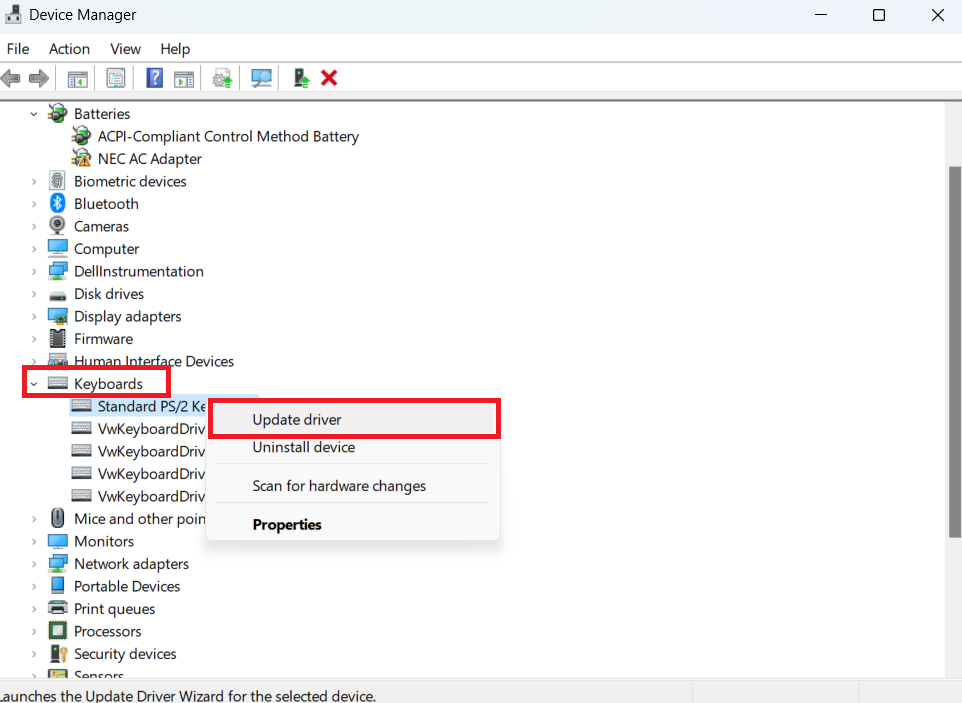
The catch is that Device Manager may fail to find the needed driver version. In this case, you will have to search for the necessary software manually.
Make sure you know the exact details of your device and know what to look for since downloading and installing the wrong keyboard driver can cause your device to malfunction.
Things to note:
- You should only use the official website of the keyboard’s manufacturer or your PC’s manufacturer.
- Search for the latest driver for your keyboard’s make and model.
- Use the right operating system and architecture [(32-bit or 64-bit)](https://www.digitaltrends.com/computing/32-bit-vs-64-bit-operating-systems/).
***
**📌 Also read:** [\[EASY GUIDE\] How to Update Device Drivers on a Windows 10 PC?](https://www.auslogics.com/en/articles/how-to-update-drivers/)
***
PRO TIP
Manually searching for drivers can be daunting and lead to further complications, especially if you don’t know your device’s exact details. That’s why we recommend Auslogics Driver Updater.
This software automatically updates your drivers to the latest manufacturer-recommended versions.
***
**📌 Learn more:** [Auslogics Driver Updater: Update Your Drivers in One Click\!](https://www.auslogics.com/en/articles/auslogics-driver-updater-update-your-drivers/)
***
### Fix 3: Undo problematic Updates
Regrettably, not all updates fit your Windows 10 perfectly – some can trigger Caps Lock indicator problems on your PC. That said, there is no need to worry, since you can remove the problematic updates quite effortlessly. Just follow these instructions to do so:
**Windows 10:**
- Press the `Windows logo + I` keys simultaneously.
- The *Settings* app will show up.
- Select *Update & Security*.
- Click the *Update History* option.
- You can locate the last update you installed before the issue showed up and take note of its name and KB number.
- Select the *Uninstall Updates* option.
- Locate the update you wish to remove and double-click it.
**Windows 11:**
- Launch the Settings app using the `Windows + I` keyboard hotkey.
- Click on the *Windows Update* option in the top-right area of the *Settings* page.
- After the Windows Update page opens, click on the *Update History* page.
- Now, take note of the last update the client installed.
- Under the Update History page, scroll to *Related Settings* and select *Uninstall Updates*.
- Once the Installed Updates page opens, locate the update you want to get rid of and double-click it.
- Click on *Yes* to confirm.
***
**📌 Also read:** [Windows Update Cleanup: A Comprehensive Guide to Free Up Disk Space](https://www.auslogics.com/en/articles/windows-update-cleanup-a-comprehensive-guide-to-free-up-disk-space/)
***
### Fix 4: Update your OS
Persistent Caps Lock issues might be a sign that [your OS needs updating](https://support.microsoft.com/en-us/windows/get-the-latest-windows-update-7d20e88c-0568-483a-37bc-c3885390d212). In such a case, you should do the following:
- Open the Settings app by pressing the `Windows logo + I` shortcut on your keyboard.
- Navigate to the *Update & Security* section and click on it.
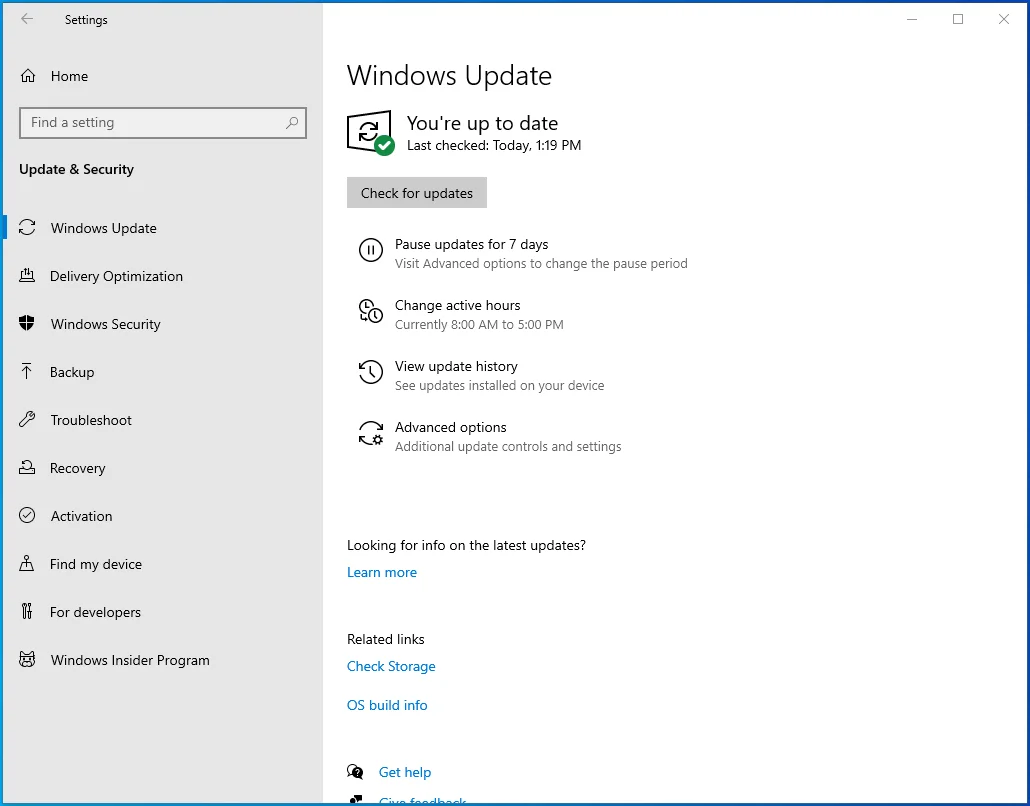
- Once in the *Windows Update* center, locate the *Check for Updates* button and click on it.
Your Windows 10 will automatically search online for available updates and download them in the background. Restart your computer and have it installed. This trick has reportedly helped a lot of users resolve their Caps Lock issues.
Hopefully, it has worked for you as well. You can also use the [Windows Update Agent](https://learn.microsoft.com/en-us/troubleshoot/windows-client/deployment/update-windows-update-agent) to download and install drivers.
To do that on Windows 10, head to the Windows Update page in the Settings app and click on View Optional Updates. Then, expand the Drivers section under the View Optional Updates page.
Check the driver you want to download and click on the Download and Install button. Follow these steps to download and install updates on Windows 11:
- Go to the *Start* menu and click on the *Settings* app, or tap the *Windows + I* keys together.
- Click on *Windows Update* in the top-right corner or at the bottom of the left pane of the *Settings* application.
- Click on the *Check for Updates* button in the top-right corner once the Windows Update page shows up.
Windows will check for updates and begin to download them. If the client asks for permission due to the download size, click on the *Download Now* option. Windows will install the updates once the downloads are complete. You may be required to restart your computer. To download and install updates on Windows 11, follow these steps:
- Click on *Advanced Options* under the *More Options* section on the *Windows Update* page.
- Go to the *Additional Options* section once the Advanced Options page opens, and click on *Optional Updates*.
- Next, expand the *Driver Updates* menu and select the appropriate driver by clicking on its checkbox.
- Click on the *Download* and *Install* button.
Fix this issue quickly
You can try using a safe and totally free tool developed by the Auslogics team of experts.
A few simple steps to troubleshoot the issue:
Download the tiny Auslogics TroubleShooter tool.
Run the application (no installation is needed).
The app will check for the issue mentioned in the article. When the scan is done, check that this is the issue you were looking to solve and click ‘Apply now’ to apply the recommended fix.
You can use the app to troubleshoot other malfunctions for free by simply typing in a brief description of the issue your PC is experiencing. Or you can scan your PC for performance issues using the My Scanner tab.
[Download for Free](https://www.auslogics.com/en/software/article-tools/downloads/?keyword=capslockindicator&m=blog_tsh_cta_middle_dl_btn&utm_source=auslogics&utm_medium=blog&utm_campaign=tsh_cta_block&utm_term=Download%20for%20Free&utm_content=caps-lock-indicator-not-working-on-windows)
Developed for
Windows 10/11 (8, 7, Vista, XP)
Please review [EULA](https://www.auslogics.com/en/eula/) and [Privacy Policy](https://www.auslogics.com/en/legal/)
***
**📌 Also read:** [How to Get And Use Windows 10 Media Creation Tool](https://www.auslogics.com/en/articles/how-to-use-windows-10-media-creation-tool/)
***
### Fix 5: Use third-party software to enable the Laps Lock indicator
You are free to make use of third-party apps to get Caps Lock notifications on your PC. There are plenty of such tools on the market such as [TrayStatus](https://alternativeto.net/software/traystatus/about/), [Keyboard LEDs](https://alternativeto.net/software/keyboard-leds/about/), and others—so choose the one that suits you most.
For instance, these programs allow you to see the Caps Lock icon on your taskbar, send you visual and audio notifications, and offer other handy options to make sure you are aware of everything that is happening to your keyboard.
***
**📌Also read**: [Ultimate Guide: How to Manually Check and Install Windows Updates](https://www.auslogics.com/en/articles/do-i-need-manually-check-for-win10-updates/)
***
### Fix 6: Enable Caps Lock sound via accessibility settings
If you can’t find a way to enable the indicator light on your Caps Lock key, a quick workaround could be to enable sound notifications instead.
Here’s how to do it:
- Open the Accessibility settings by pressing the `Windows key + U`.
- Scroll down and select *Keyboard* from the *Interaction* section.
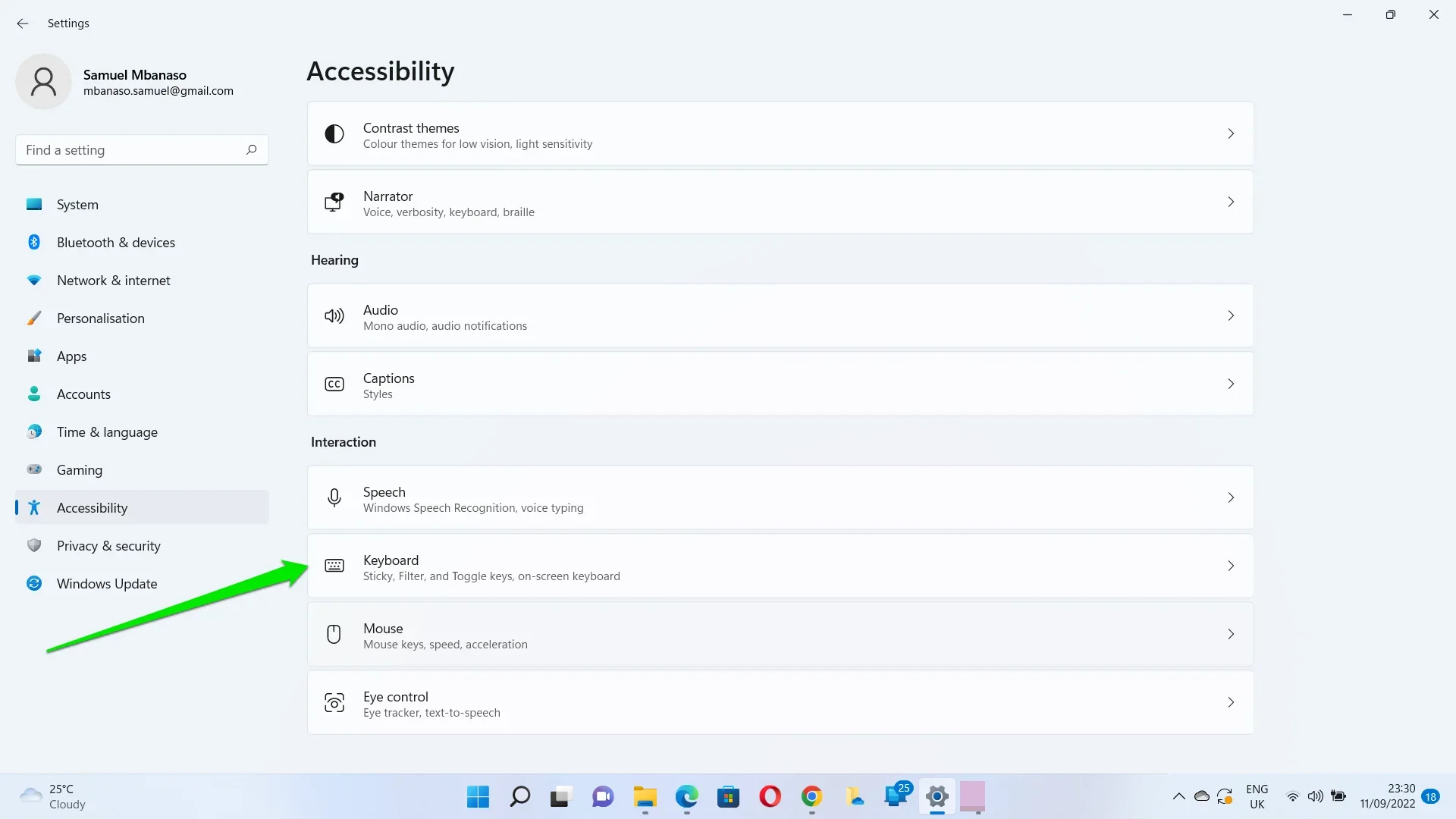
- Click or tap the toggle switch for Toggle keys to turn it on.
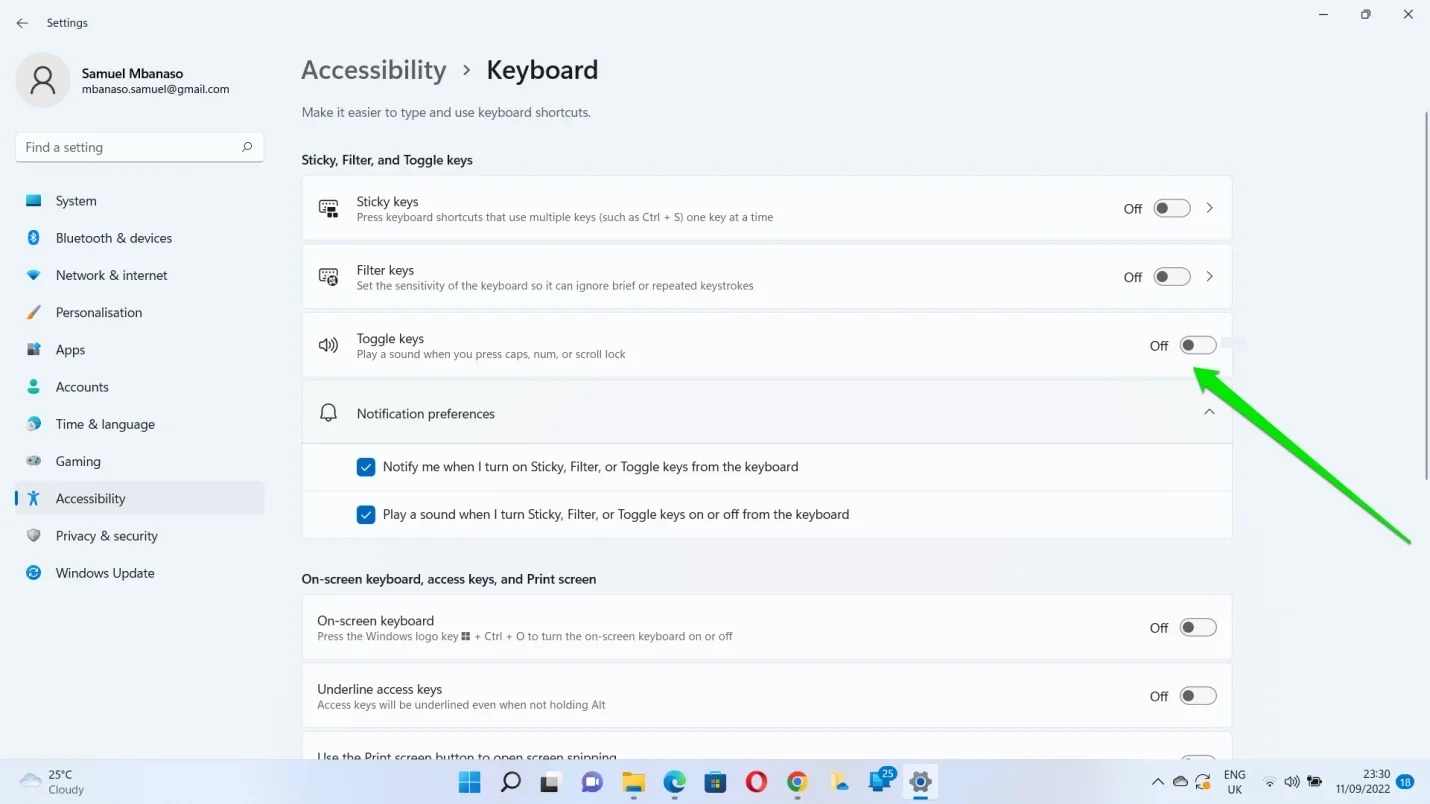
That’s it. You’re all set.
You can also enable on-screen notifications for when Caps Lock is on.
- Press the *Windows key* to open *Settings*.
- Select *System* and go to *Advanced Display Settings*.
- Click on *Display Adapter Properties* and navigate to the *Screen Configuration* tab.
- Go on to check the “Enable On-Screen Display” and apply your changes.
### Fix 7: Open the on-screen keyboard
If all the tricks above have proved to no avail in fixing your Caps Lock issues, you might wish to give this workaround a try. To open the on-screen keyboard on a Windows 10 computer, take the following steps:
- Open the Settings app by pressing `Windows logo + I`.
- Go to the Ease of Access section and select Keyboard.
- Toggle the *On-Screen Keyboard* on.
To open the on-screen keyboard on a Windows 11 computer, take the following steps:
- Launch the Settings application using the `Win + I` shortcut or by right-clicking the Start button and selecting Settings.
- Next, click on *Accessibility* in the left pane of the *Settings* interface.
- After the Accessibility page shows up, scroll down to *Interaction* and click on *Keyboard*.
- On the Keyboard page, go to the *On-screen keyboard, access keys, and Print screen* section and turn on the On-Screen keyboard option.
- The on-screen keyboard will now show up.
Note
You can use the Ctrl + Win + O keyboard shortcut to launch the on-screen keyboard.
A keyboard will show up on your screen. You can use it to enter text (especially passwords) without worrying about the Caps Lock indicator not working on your computer.
### Fix 8: Use an external keyboard
You can also use an external keyboard to get on with work if you can’t get a fix on the issue.
The problem could be related to your keyboard, and replacing it may be the answer. That said, you could continue using an external keyboard if you don’t want to open up your computer and change your internal keyboard.
Most external keyboards are [plug and play](https://learn.microsoft.com/en-us/windows-hardware/drivers/kernel/introduction-to-plug-and-play). However, some keyboards are advanced and may come with specialized programs that you may have to tweak to get your desired functions.
### Fix 9: Extra tip: configure your Lenovo keyboard settings
If you own a Lenovo device, we have good news for you: you can tweak your keyboard settings to see the Caps Lock status on your screen. Here is what you should do:
- Open your Start menu, search for *Control Panel* and open it from the search results.
- Select *View Device and Printers* under *Hardware and Sound*.
- Locate your PC in the list and right-click on it.
- Select *Keyboard Settings* from the list of available options.
- The Mouse and Keyboard center will now open.
- Click here to change the Microsoft keyboard settings option.
- Work your way down to the Caps Lock.
- Turn on the option *Display Caps Lock* status on the screen.
Now, you can press Caps Lock and see a Caps Lock indicator on your screen.
## Conclusion
Resolving the Caps Lock indicator not working issue on Windows 10/11 is relatively straightforward. By following the troubleshooting steps outlined in the guide, you can quickly identify and address the root cause of the problem.
Whether it’s updating your keyboard drivers, enabling the toggle keys feature, or using third-party software, there are multiple solutions available to ensure that your Caps Lock indicator functions as intended.
## FAQ
How to turn off Caps Lock?
Turning off Caps Lock is simple on most keyboards. Just press the Caps Lock key again, and it will deactivate. The Caps Lock key usually has an indicator light that shows whether it’s on or off. Make sure the light is off to confirm that Caps Lock is disabled.
Why is my shift key not working?
If your Shift key isn’t working, try the following troubleshooting steps:
Check for physical damage: Ensure there’s no debris or physical damage around the Shift key.
Restart your computer: Sometimes, a simple reboot can resolve software-related issues.
Update keyboard drivers: Outdated or corrupted drivers can cause problems. Update them through Device Manager.
Test with another keyboard: If possible, connect another keyboard to see if the issue persists.
This helps determine if it’s a hardware or software problem.
How to turn off Caps Lock notification?
To disable Caps Lock notifications on Windows:
- Open the *Settings* app.
- Go to *Ease of Access.*
- Select the *Keyboard* on the left sidebar.
- Under *Toggle keys*, turn off *Hear a tone when you press Caps Lock, Num Lock, and Scroll Lock.*
What to do when caps lock is not working?
If your Caps Lock key isn’t functioning correctly:
- **Check for physical issues:** Make sure the key isn’t stuck or physically damaged.
- **Restart your computer**: A reboot can sometimes resolve software glitches.
- **Update keyboard drivers:** Outdated or corrupt drivers can cause problems. Update them through Device Manager.
- **Try another keyboard**: If available, test with a different keyboard to see if the issue persists. This helps determine if it’s a hardware or software problem.
- **Use a third-party remapping tool:** Consider using third-party software to remap the Caps Lock key or create custom shortcuts.
If the problem persists despite these efforts, it may require further diagnosis or professional assistance to resolve.
Did you like this article?


Thanks for vote\!
![vote]()
![vote]()
11 Sep 2023
by
[Valeria Burmatskaya](https://www.auslogics.com/en/articles/author/valeria-burmatskaya/)
## One reply on “How to Fix Caps Lock Indicator Not Working on Windows 10/11?”
Ivo
says:
[November 5, 2018 at 8:00 am](https://www.auslogics.com/en/articles/caps-lock-indicator-not-working-on-windows/#comment-3059)
Thank you very much\!
[Reply](https://www.auslogics.com/en/articles/caps-lock-indicator-not-working-on-windows/#comment-3059)
***
## Leave a Reply [Cancel reply](https://www.auslogics.com/en/articles/caps-lock-indicator-not-working-on-windows/#respond)
- [47]()
- [0](https://www.facebook.com/sharer/sharer?u=https://www.auslogics.com/en/articles/caps-lock-indicator-not-working-on-windows/)
- [0](https://twitter.com/intent/tweet?text=How+to+Fix+Caps+Lock+Indicator+Not+Working+on+Windows+10%2F11%3F&url=https://www.auslogics.com/en/articles/caps-lock-indicator-not-working-on-windows/)
- [0](http://www.linkedin.com/shareArticle?mini=true&url=https://www.auslogics.com/en/articles/caps-lock-indicator-not-working-on-windows/&title=How+to+Fix+Caps+Lock+Indicator+Not+Working+on+Windows+10%2F11%3F)
Tags
[Keyboards](https://www.auslogics.com/en/articles/tag/keyboards/)[PC Performance](https://www.auslogics.com/en/articles/tag/pc-performance/)[Windows Updates](https://www.auslogics.com/en/articles/tag/windows-updates/)
Useful tools
[BoostSpeed 14](https://www.auslogics.com/software/boost-speed/?m=blog_ut_pp_btn&utm_source=auslogics&utm_medium=blog&utm_campaign=ut_block&utm_term=BoostSpeed%2014&utm_content=caps-lock-indicator-not-working-on-windows)
Your one-stop PC maintenance and optimization tool, this program will clean, speed up, repair and tweak your system to ensure maximum speed and efficiency.
[Download](https://www.auslogics.com/software/boost-speed/after-download/?m=blog_ut_dl_btn&utm_source=auslogics&utm_medium=blog&utm_campaign=ut_block&utm_term=Download&utm_content=caps-lock-indicator-not-working-on-windows)
[Driver Updater](https://www.auslogics.com/software/driver-updater/?m=blog_ut_pp_btn&utm_source=auslogics&utm_medium=blog&utm_campaign=ut_block&utm_term=Driver%20Updater&utm_content=caps-lock-indicator-not-working-on-windows)
Prevent hardware errors and ensure problem-free device operation with this advanced tool that detects outdated drivers and safely gets them updated.
[Download](https://www.auslogics.com/software/driver-updater/after-download/?m=blog_ut_dl_btn&utm_source=auslogics&utm_medium=blog&utm_campaign=ut_block&utm_term=Download&utm_content=caps-lock-indicator-not-working-on-windows)
[Disk Defrag](https://www.auslogics.com/software/disk-defrag/?m=blog_ut_pp_btn&utm_source=auslogics&utm_medium=blog&utm_campaign=ut_block&utm_term=Disk%20Defrag&utm_content=caps-lock-indicator-not-working-on-windows)
Recommended by experts as one of the fastest and most efficient defraggers, this tool defragments and rearranges files on your hard drive to restore efficiency.
[Download](https://www.auslogics.com/software/disk-defrag/after-download/?m=blog_ut_dl_btn&utm_source=auslogics&utm_medium=blog&utm_campaign=ut_block&utm_term=Download&utm_content=caps-lock-indicator-not-working-on-windows)
## You may also like
![Rating-Up]()
43
[How To\`s](https://www.auslogics.com/en/articles/category/how-tos/)
[\[FIXED\] Windows 10/11 PC Is Stuttering Every Few Seconds](https://www.auslogics.com/en/articles/windows-10-pc-is-stuttering-every-few-seconds/)
8 Aug 2025
![Rating-Up]()
38
[Maintenance](https://www.auslogics.com/en/articles/category/maintenance/)
[\[FIXED\] Error 1068: The Dependency Service or Group Failed](https://www.auslogics.com/en/articles/how-to-fix-error-1068-the-dependency-service-or-group-failed-to-start/)
18 Jan 2024
![Rating-Up]()
13
[How To\`s](https://www.auslogics.com/en/articles/category/how-tos/)
[Optimization](https://www.auslogics.com/en/articles/category/optimization/)
[\[FIXED\] ‘The PC Must Support TPM 2.0’ Error While Upgrading to Windows 11](https://www.auslogics.com/en/articles/fix-pc-must-support-tpm-2-0-error-windows-11/)
5 Jun 2023
![Rating-Up]()
15
[How To\`s](https://www.auslogics.com/en/articles/category/how-tos/)
[Optimization](https://www.auslogics.com/en/articles/category/optimization/)
[\[FIXED\] Server DNS Address Could Not Be Found on Windows 10/11](https://www.auslogics.com/en/articles/server-dns-address-could-not-be-found/)
8 Nov 2023
## Subscribe to Our Newsletter
Get exclusive deal alerts, helpful tips and software release news
Subscribe
Email address is invalid
**Done\!** Great to see you among our subscribers\!
All personal data you provide to us is handled in accordance with applicable laws, including the European GDPR. Please see our [Privacy Policy](https://www.auslogics.com/en/legal/) for more details.
[![logo]()](https://www.auslogics.com/en/)
Founded in 2008 in Sydney, Australia, Auslogics has grown into an industry leader in the production of computer maintenance and optimization software for Microsoft Windows.
- Premium products
- [BoostSpeed 13 Pro](https://www.auslogics.com/en/software/boost-speed/)
- [Disk Defrag Pro](https://www.auslogics.com/en/software/disk-defrag/)
- [Registry Cleaner Pro](https://www.auslogics.com/en/software/registry-cleaner/)
- [Windows Slimmer Pro](https://www.auslogics.com/en/software/windows-slimmer/)
- [BitReplica Pro](http://www.bitreplica.com/download/)
- [Driver Updater](https://www.auslogics.com/en/software/driver-updater/)
- [Disk Defrag Ultimate](https://www.auslogics.com/en/software/disk-defrag-ultimate/)
- [Anti-Malware](https://www.auslogics.com/en/software/anti-malware/)
- [File Recovery](https://www.auslogics.com/en/software/file-recovery/)
- [Video Grabber](https://www.auslogics.com/en/software/video-grabber/)
- [Essential Tools](https://www.auslogics.com/en/software/essential-tools/)
- Free products
- [BoostSpeed 13 Free](https://www.auslogics.com/en/software/boost-speed/)
- [Disk Defrag Free](https://www.auslogics.com/en/software/disk-defrag/)
- [Registry Cleaner Free](https://www.auslogics.com/en/software/registry-cleaner/)
- [Windows Slimmer Free](https://www.auslogics.com/en/software/windows-slimmer/)
- [BitReplica](http://www.bitreplica.com/)
- [Registry Defrag](https://www.auslogics.com/en/software/registry-defrag/)
- [Duplicate File Finder](https://www.auslogics.com/en/software/duplicate-file-finder/)
- Resources
- [Support](https://www.auslogics.com/en/support/)
- [Articles](https://www.auslogics.com/en/articles/)
- [Ask a Question](https://qa.auslogics.com/)
- [Newsletter](https://www.auslogics.com/en/newsletter)
- [Join us on Facebook](https://www.facebook.com/auslogics)
- [Follow us on X](https://www.twitter.com/auslogics)
- Company
- [About Us](https://www.auslogics.com/en/about/)
- [Contact Us](https://www.auslogics.com/contact/?department=article)
- [Jobs](https://www.auslogics.com/en/jobs/)
- [Press Center](https://www.auslogics.com/en/press/)
- [Partners](https://www.auslogics.com/en/partners/)
Microsoft and Windows are trademarks of the Microsoft group of companies. © 2008-2026 Auslogics Labs Pty Ltd
- [EULA](https://www.auslogics.com/en/eula/)
- [Privacy Policy](https://www.auslogics.com/en/legal/)
- [Subscription and Refunds](https://www.auslogics.com/en/refunds/)
- [How to uninstall](https://www.auslogics.com/en/cpages/how-to-uninstall/)
- [Contact Us](https://www.auslogics.com/en/contact/?department=tech)
UP

Link copied
Subscribe
to Our Newsletter
Get exclusive deal alerts, helpful tips and software release news 💪
Subscribe
**Done\!** Great to see you among our subscribers\!
Email address is invalid
All personal data you provide to us is handled in accordance with applicable laws, including the European GDPR. Please see our [Privacy Policy](https://www.auslogics.com/en/legal/) for more details. |
| Readable Markdown | null |
| Shard | 28 (laksa) |
| Root Hash | 256708116419658428 |
| Unparsed URL | com,auslogics!www,/en/articles/caps-lock-indicator-not-working-on-windows/ s443 |