ℹ️ Skipped - page is already crawled
| Filter | Status | Condition | Details |
|---|---|---|---|
| HTTP status | PASS | download_http_code = 200 | HTTP 200 |
| Age cutoff | PASS | download_stamp > now() - 6 MONTH | 0 months ago |
| History drop | PASS | isNull(history_drop_reason) | No drop reason |
| Spam/ban | PASS | fh_dont_index != 1 AND ml_spam_score = 0 | ml_spam_score=0 |
| Canonical | PASS | meta_canonical IS NULL OR = '' OR = src_unparsed | Not set |
| Property | Value |
|---|---|
| URL | https://webuybackelectronics.com/blog/screenshot-on-a-mac-how-to-take-a-screenshot-on-macbook/ |
| Last Crawled | 2026-04-13 11:24:16 (17 hours ago) |
| First Indexed | 2025-10-09 03:00:50 (6 months ago) |
| HTTP Status Code | 200 |
| Meta Title | Screenshot on a Mac: How to Take a Screenshot on MacBook |
| Meta Description | Learn the shortcut to take screenshots on your MacBook! This easy guide shows every way to take a screenshot on a mac, including the entire screen capture. |
| Meta Canonical | null |
| Boilerpipe Text | Discover the various ways to take a screenshot on your Mac. Whether you want to capture the entire screen, a specific window or a portion of the screen, this guide provides you with all the necessary keyboard shortcuts and methods to
take screenshots on MacOS
.
How to Take Screenshots on Mac
Knowing how to take a screenshot on your MacBook can be incredibly useful. There are several ways to screenshot, whether you want a screenshot of the entire screen or a specific area of the screen.
What is a Screenshot?
A screenshot, also known as a screen capture or screen shot, is a digital image of what’s displayed on your screen. The screenshot tool can capture your whole screen to assist with sharing or documenting information, making it easy to save an exact representation of your desktop.
Importance of Taking Screenshots
Taking screenshots on a Mac can be incredibly useful for many reasons. In particular, screenshots offer several advantages:
They are a quick way to document information.
They are useful to share visuals with others.
They can be used to create tutorials.
Being able to quickly take screenshots ensures that you don’t miss important information displayed on your screen.
Different Types of Screenshots
MacOS offers several ways to take screenshots. You can capture the entire screen, a specific window, or select a portion of the screen. The keyboard shortcuts and screenshot app provide different screenshot options, allowing you to capture exactly what you need and save your screenshot.
How to Take a Screenshot on Mac
BY Using Keyboard Shortcuts
Keyboard shortcuts are the quickest way to take screenshots on a Mac. Press specific keyboard shortcut combinations will allow you to take the screenshot. See the table below for some common shortcuts:
Action
Capture the entire screen
Command-Shift-3
Capture a portion of the screen
Command-Shift-4
Using the Screenshot App
The Screenshot app, introduced in
MacOS Mojave
, provides a versatile screenshot tool. You can access it by pressing Command-Shift-5. The app offers options to capture the entire screen, a window, or a selected portion of the screen, as well as screen recording functionalities.
Taking Screenshots with Touch Bar on MacBook Pro
If you have a MacBook Pro with a Touch Bar, you can use it to take screenshots. The Touch Bar offers quick access to screenshot options, allowing you to capture a screenshot with a single tap. Use the Touch Bar to easily take screenshots on your MacBook Pro.
Get the Best Value for Your Device
Compare buyback offers and get paid fast.
🚚 Free Shipping
💰 Paid in 24 Hours
⭐ 4.9 Rating
Get Instant Quote
Mac Screenshot Shortcuts
Capture the Entire Screen
To capture the entire screen on your Mac, use the keyboard shortcut Command-Shift-3. This shortcut will instantly take the screenshot of your entire screen and save the screenshot to your desktop. A thumbnail will briefly appear in the corner of your screen, allowing you to quickly edit the screenshot or share it.
Capture a Portion of the Screen
If you only want to capture a portion of the screen on a Mac, press Command-Shift-4. Your cursor will transform into a crosshair. Click and drag to select the area you want to capture. Once you release the mouse button, it will take the screenshot and save it. Using the shortcut allows you to take screenshots quickly.
Capture a Window or Menu
To capture a specific window or menu on your Mac, use the keyboard shortcut Command-Shift-4, then press the space bar. The cursor changes to a camera icon; hover over the window you want to capture and click. The screenshot of that specific window will be saved to your desktop for further use or sharing.
Using Preview for Screenshots
Opening and Using Preview
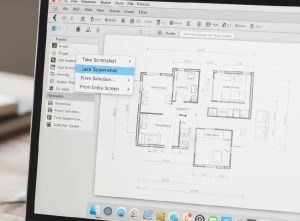
Preview is the default application to open screenshots on your Mac. After you take the screenshot, a thumbnail appears in the corner of the screen. Click this thumbnail to open the screenshot in Preview. Preview provides a simple interface to view and make basic edits to your screenshots on a Macbook.
Editing Screenshots in Preview
Preview offers several tools to edit screenshots on your Mac, such as cropping, annotating, and adding shapes or text. To edit the screenshot, open the screenshot using the Preview app. Editing the screenshot will help highlight key details or censor sensitive information on your Macbook or Macbook Pro.
Saving and Sharing Screenshots
After editing the screenshot using the Preview app, you can save the changes by pressing Command-S. You can also share the screenshot directly from Preview by clicking the share button. This allows you to easily send the screenshot through email, messages, or other sharing platforms on your Mac.
Common Issues and Troubleshooting
Screenshot Not Saving
If screenshots are not being saved to your desktop on a Mac, check your save location settings in the Screenshot app. You can also change the default save location back to your desktop. Confirm you have sufficient storage space available on your drive to take screenshots using the keyboard shortcut on your Macbook Air.
Keyboard Shortcuts Not Working
If keyboard shortcuts for taking screenshots are not working on your Mac, ensure that there are no conflicting keyboard shortcut assignments in System Preferences. You can also try restarting your Mac. Check for any software that might be interfering with the standard keyboard shortcut functionality in macOS Mojave or the newest version of macOS.
Screen Recording Tips
Besides taking screenshots, macOS also allows you to record your screen using the same Command-Shift-5 shortcut. The screen recording feature is useful for creating tutorials or capturing video content. The screenshot tool is one way to take a screenshot on Mac and the other is taking a screen recording on your Mac. Consider trading in your old Macbook and buying a new device or sell your Macbook for cash if having issues.
Upgrade Your MacBook with Latest Model
Trade-In Options for Your Old Device
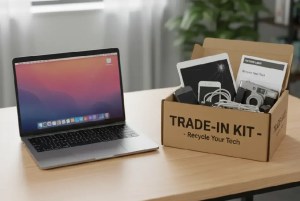
If you’re thinking about upgrading, consider trade-in options for your old MacBook. Many programs allow you to trade in your used MacBook for credit towards a new one. This is a fantastic way to offset the cost of a new MacBook or even a MacBook Pro while responsibly disposing of your old device. Consider this when you take screenshots and realize your device is outdated.
Cash for Your MacBook
Another option is to
sell MacBook for cash
. Several online platforms and local stores offer to buy used MacBooks. Before you sell, be sure to back up your data and wipe the drive clean. If you plan to
sell Macbook air for cash
, be sure to take screenshots of it working before selling it for cash or trading it.
Benefits of Trading in for a New Device
Trade in old MacBook Pro
for a new MacBook has several benefits. It’s convenient, can save you money, and ensures your old device is recycled responsibly. New MacBooks offer improved performance, better battery life, and the latest features like better screen capture functionality. Taking screenshots is much easier on a new device.
Frequently Asked Questions
How do you crop a screenshot on a MacBook Air?
To crop a screenshot on your MacBook Air, first open the screenshot on your Mac using the Preview application. Then, click the “
Show Markup Toolbar
” button, usually located at the top of the Preview window. Select the rectangular selection tool and click and drag to select the portion of your screen you want to keep. Finally, choose “Crop” from the “Tools” menu or press Command-K. This will crop the screenshot on your Mac.
What are the three ways to take a screenshot?
There are multiple ways to take screenshots on a Mac, but here are three common methods:
Use the keyboard shortcut Command-Shift-3 to capture the entire screen and save the screenshot to your desktop.
Use Command-Shift-4 to select a portion of your screen by clicking and dragging with the crosshair cursor.
Use Command-Shift-5 to access the screenshot app, which offers various options, including capturing a window or screen recording functionality.
Taking screenshots is much easier than you think.
How to screenshot on macbook air m3
To take a screenshot on Macbook Air M3, the process is similar to other MacBooks. You can capture the entire screen by pressing Command-Shift-3, which will save the screenshot to your desktop. Alternatively, press Command-Shift-4 to select a specific portion of your screen using the crosshair cursor. For more advanced options, you can use Command-Shift-5 to open the screenshot app and take screenshots of specific windows or use the screen recording feature. These keyboard shortcuts are available for all MacBook Air models.
What’s the command to screenshot on macbook
The primary commands to take a screenshot on a Mac are simple keyboard shortcuts. To capture the entire screen, use Command-Shift-3. If you need to capture a portion of the screen, use Command-Shift-4, which turns your cursor into a crosshair allowing you to click and drag to select the portion of the screen you want to capture. Command-Shift-5 will open the screenshot app with advanced screenshot options. These keyboard shortcuts make it easy to take screenshots on Macs |
| Markdown | [Skip to content](https://webuybackelectronics.com/blog/screenshot-on-a-mac-how-to-take-a-screenshot-on-macbook/#content)
- Trusted by 5,000+ sellers nationwide
- Free Prepaid Shipping
- [5/5 Rating](https://www.trustindex.io/reviews/webuybackelectronics.com)
- We Buy Used IT Equipment\!
- [321-800-9288](tel:%20+1%20321-800-9288)
[](https://webuybackelectronics.com/)
- [Home](https://webuybackelectronics.com/)
- [Sell Products](https://webuybackelectronics.com/blog/screenshot-on-a-mac-how-to-take-a-screenshot-on-macbook/)
- [Laptop Accessories & Peripherals](https://webuybackelectronics.com/sell-laptop-accessories/)
- [AC Adapters](https://webuybackelectronics.com/sell-ac-adapters/)
- [Docking Stations](https://webuybackelectronics.com/sell-docking-stations/)
- [Monitors](https://webuybackelectronics.com/sell-monitors/)
- [POS Equipments](https://webuybackelectronics.com/sell-pos-equipments/)
- [Barcode Scanners](https://webuybackelectronics.com/sell-barcode-scanners/)
- [Desktop Label Printers](https://webuybackelectronics.com/sell-desktop-printers/)
- [Mobile printers](https://webuybackelectronics.com/sell-mobile-printers/)
- [Document Scanners](https://webuybackelectronics.com/sell-document-scanners/)
- [Receipt Printers](https://webuybackelectronics.com/sell-receipt-printers/)
- [Mobile scanners](https://webuybackelectronics.com/sell-mobile-scanners/)
- [PCs & Tablets](https://webuybackelectronics.com/sell-pcs-tablets/)
- [Sell Used Laptops Online](https://webuybackelectronics.com/sell-laptops/)
- [Desktops](https://webuybackelectronics.com/sell-desktop-computers/)
- [Tablets](https://webuybackelectronics.com/sell-tablets/)
- [Servers, Storage, Networking & Computer Components](https://webuybackelectronics.com/sell-servers-storage-networking-computer-components/)
- [Computer Parts](https://webuybackelectronics.com/sell-computer-parts/)
- [CPU Processors](https://webuybackelectronics.com/sell-cpu-processors/)
- [GPU Graphic Cards](https://webuybackelectronics.com/sell-graphics-card/)
- [Hard Drives](https://webuybackelectronics.com/sell-hard-drives/)
- [Memory (RAM)](https://webuybackelectronics.com/sell-ram-memory/)
- [Network Equipments](https://webuybackelectronics.com/sell-network-equipments/)
- [Power Supplies](https://webuybackelectronics.com/sell-power-supplies/)
- [Servers](https://webuybackelectronics.com/sell-servers/)
- [Solid State Drives](https://webuybackelectronics.com/sell-solid-state-drives/)
- [Telecommunications](https://webuybackelectronics.com/sell-telecom-equipments/)
- [Headsets](https://webuybackelectronics.com/sell-headsets/)
- [VOIP Phones](https://webuybackelectronics.com/sell-voip-phones/)
- [Watches](https://webuybackelectronics.com/sell-watches/)
- [Apple Products](https://webuybackelectronics.com/sell-apple-products/)
- [Mac Desktops](https://webuybackelectronics.com/blog/screenshot-on-a-mac-how-to-take-a-screenshot-on-macbook/)
- [Mac Mini](https://webuybackelectronics.com/sell-mac-mini/)
- [Studio Display](https://webuybackelectronics.com/sell-studio-display/)
- [Sell Mac Studio](https://webuybackelectronics.com/sell-mac-studio/)
- [Mac Pro](https://webuybackelectronics.com/sell-mac-pro/)
- [Mac Pro 2006](https://webuybackelectronics.com/sell-mac-pro/mac-pro-2006/)
- [Mac Pro 2007](https://webuybackelectronics.com/sell-mac-pro/mac-pro-2007/)
- [Mac Pro 2008](https://webuybackelectronics.com/sell-mac-pro/mac-pro-2008/)
- [Mac Pro 2009](https://webuybackelectronics.com/sell-mac-pro/mac-pro-2009/)
- [Mac Pro 2010](https://webuybackelectronics.com/sell-mac-pro/mac-pro-2010/)
- [Mac Pro 2012](https://webuybackelectronics.com/sell-mac-pro/mac-pro-2012/)
- [Mac Pro 2013](https://webuybackelectronics.com/sell-mac-pro/mac-pro-2013/)
- [Mac Pro 2019](https://webuybackelectronics.com/sell-mac-pro/mac-pro-2019/)
- [Mac Pro 2023](https://webuybackelectronics.com/sell-mac-pro/mac-pro-2023/)
- [iMacs](https://webuybackelectronics.com/sell-imac/)
- [iPhones](https://webuybackelectronics.com/sell-iphones/)
- [iPhone 15](https://webuybackelectronics.com/sell-iphone-15/)
- [iPhone 15 Pro](https://webuybackelectronics.com/sell-iphone-15-pro/)
- [iPhone 15 Plus](https://webuybackelectronics.com/sell-iphone-15-plus/)
- [iPhone 15 Pro Max](https://webuybackelectronics.com/sell-iphone-15-pro-max/)
- [iPhone 14](https://webuybackelectronics.com/sell-iphone-14/)
- [iPhone 14 Pro](https://webuybackelectronics.com/sell-iphone-14-pro/)
- [iPhone 14 Plus](https://webuybackelectronics.com/sell-iphone-14-plus/)
- [iPhone 14 Pro Max](https://webuybackelectronics.com/sell-iphone-14-pro-max/)
- [IPhone 13](https://webuybackelectronics.com/sell-iphone-13/)
- [iPhone 13 Pro](https://webuybackelectronics.com/sell-iphone-13-pro/)
- [iPhone 13 Mini](https://webuybackelectronics.com/sell-iphone-13-mini/)
- [iPhone 13 Pro Max](https://webuybackelectronics.com/?page_id=6648)
- [iPhone 12](https://webuybackelectronics.com/sell-iphone-12/)
- [iPhone 12 Mini](https://webuybackelectronics.com/sell-iphone-12-mini/)
- [iPhone 12 Pro](https://webuybackelectronics.com/sell-iphone-12-pro/)
- [iPhone 12 Pro Max](https://webuybackelectronics.com/sell-iphone-12-pro-max/)
- [iPhone 11](https://webuybackelectronics.com/sell-iphone-11/)
- [iPhone 11 Pro Max](https://webuybackelectronics.com/sell-iphone-11-pro-max/)
- [iPhone 11 Pro](https://webuybackelectronics.com/sell-iphone-11-pro/)
- [iPhone X](https://webuybackelectronics.com/sell-iphone-x/)
- [iPhone XS](https://webuybackelectronics.com/sell-iphone-xs/)
- [iPhone XS Max](https://webuybackelectronics.com/sell-iphone-xs-max/)
- [iPhone XR](https://webuybackelectronics.com/sell-iphone-xr/)
- [iPhone SE](https://webuybackelectronics.com/sell-iphone-se/)
- [iPhone 8](https://webuybackelectronics.com/sell-iphone-8/)
- [iPhone 8 Plus](https://webuybackelectronics.com/sell-iphone-8-plus/)
- [Apple Watch](https://webuybackelectronics.com/sell-apple-watch/)
- [Apple Watch Ultra](https://webuybackelectronics.com/sell-apple-watch-ultra/)
- [Apple Watch SE](https://webuybackelectronics.com/sell-apple-watch-se/)
- [Macbook](https://webuybackelectronics.com/sell-macbook/)
- [MacBook Air](https://webuybackelectronics.com/sell-macbook-air/)
- [MacBook Pro](https://webuybackelectronics.com/sell-macbook-pro/)
- [iPad](https://webuybackelectronics.com/sell-ipad/)
- [iPads Pro](https://webuybackelectronics.com/sell-ipad/ipad-pro/)
- [iPad Air](https://webuybackelectronics.com/sell-ipad/ipad-air/)
- [iPad Mini](https://webuybackelectronics.com/sell-ipad/ipad-mini/)
- [iPad Mini 1](https://webuybackelectronics.com/sell-ipad/ipad-mini/ipad-mini-1st-generation/)
- [iPad Mini 2](https://webuybackelectronics.com/sell-ipad/ipad-mini/ipad-mini-2/)
- [iPad Mini 3](https://webuybackelectronics.com/sell-ipad/ipad-mini/ipad-mini-3/)
- [iPad Mini 4](https://webuybackelectronics.com/sell-ipad/ipad-mini/ipad-mini-4th-gen/)
- [iPad Mini 5](https://webuybackelectronics.com/sell-ipad/ipad-mini/ipad-mini-5/)
- [iPad Mini 6](https://webuybackelectronics.com/sell-ipad/ipad-mini/ipad-mini-6/)
- [AirPods](https://webuybackelectronics.com/sell-airpods/)
- [AirPods Pro](https://webuybackelectronics.com/sell-airpods/airpods-pro/)
- [AirPods Pro 1st Generation](https://webuybackelectronics.com/sell-airpods/airpods-pro/airpods-pro-1st-generation/)
- [AirPods Pro 2nd Generation](https://webuybackelectronics.com/sell-airpods/airpods-pro/airpods-pro-2nd-generation/)
- [AirPods Max](https://webuybackelectronics.com/sell-airpods/airpods-max/)
- [AirPods 1st Generation](https://webuybackelectronics.com/sell-airpods/airpods-1st-generation/)
- [AirPods Pro 2nd Generation](https://webuybackelectronics.com/sell-airpods/airpods-pro/airpods-pro-2nd-generation/)
- [AirPods 3rd Gen](https://webuybackelectronics.com/sell-airpods/airpods-3rd-gen/)
- [Apple TV](https://webuybackelectronics.com/sell-apple-tv/)
- [Magic Trackpad](https://webuybackelectronics.com/sell-magic-trackpad/)
- [AirTag](https://webuybackelectronics.com/sell-airtag/)
- [Magic Mouse](https://webuybackelectronics.com/sell-magic-mouse/)
- [Magic Keyboard](https://webuybackelectronics.com/sell-magic-keyboard/)
- [HomePod](https://webuybackelectronics.com/sell-homepod/)
- [Apple Pencil](https://webuybackelectronics.com/sell-apple-pencil/)
- [About](https://webuybackelectronics.com/about/)
- [Get a Quote](https://webuybackelectronics.com/get-a-quote/)
- [Home](https://webuybackelectronics.com/)
- [Sell Products](https://webuybackelectronics.com/blog/screenshot-on-a-mac-how-to-take-a-screenshot-on-macbook/)
- [Laptop Accessories & Peripherals](https://webuybackelectronics.com/sell-laptop-accessories/)
- [AC Adapters](https://webuybackelectronics.com/sell-ac-adapters/)
- [Docking Stations](https://webuybackelectronics.com/sell-docking-stations/)
- [Monitors](https://webuybackelectronics.com/sell-monitors/)
- [POS Equipments](https://webuybackelectronics.com/sell-pos-equipments/)
- [Barcode Scanners](https://webuybackelectronics.com/sell-barcode-scanners/)
- [Desktop Label Printers](https://webuybackelectronics.com/sell-desktop-printers/)
- [Mobile printers](https://webuybackelectronics.com/sell-mobile-printers/)
- [Document Scanners](https://webuybackelectronics.com/sell-document-scanners/)
- [Receipt Printers](https://webuybackelectronics.com/sell-receipt-printers/)
- [Mobile scanners](https://webuybackelectronics.com/sell-mobile-scanners/)
- [PCs & Tablets](https://webuybackelectronics.com/sell-pcs-tablets/)
- [Sell Used Laptops Online](https://webuybackelectronics.com/sell-laptops/)
- [Desktops](https://webuybackelectronics.com/sell-desktop-computers/)
- [Tablets](https://webuybackelectronics.com/sell-tablets/)
- [Servers, Storage, Networking & Computer Components](https://webuybackelectronics.com/sell-servers-storage-networking-computer-components/)
- [Computer Parts](https://webuybackelectronics.com/sell-computer-parts/)
- [CPU Processors](https://webuybackelectronics.com/sell-cpu-processors/)
- [GPU Graphic Cards](https://webuybackelectronics.com/sell-graphics-card/)
- [Hard Drives](https://webuybackelectronics.com/sell-hard-drives/)
- [Memory (RAM)](https://webuybackelectronics.com/sell-ram-memory/)
- [Network Equipments](https://webuybackelectronics.com/sell-network-equipments/)
- [Power Supplies](https://webuybackelectronics.com/sell-power-supplies/)
- [Servers](https://webuybackelectronics.com/sell-servers/)
- [Solid State Drives](https://webuybackelectronics.com/sell-solid-state-drives/)
- [Telecommunications](https://webuybackelectronics.com/sell-telecom-equipments/)
- [Headsets](https://webuybackelectronics.com/sell-headsets/)
- [VOIP Phones](https://webuybackelectronics.com/sell-voip-phones/)
- [Watches](https://webuybackelectronics.com/sell-watches/)
- [Apple Products](https://webuybackelectronics.com/sell-apple-products/)
- [Mac Desktops](https://webuybackelectronics.com/blog/screenshot-on-a-mac-how-to-take-a-screenshot-on-macbook/)
- [Mac Mini](https://webuybackelectronics.com/sell-mac-mini/)
- [Studio Display](https://webuybackelectronics.com/sell-studio-display/)
- [Sell Mac Studio](https://webuybackelectronics.com/sell-mac-studio/)
- [Mac Pro](https://webuybackelectronics.com/sell-mac-pro/)
- [Mac Pro 2006](https://webuybackelectronics.com/sell-mac-pro/mac-pro-2006/)
- [Mac Pro 2007](https://webuybackelectronics.com/sell-mac-pro/mac-pro-2007/)
- [Mac Pro 2008](https://webuybackelectronics.com/sell-mac-pro/mac-pro-2008/)
- [Mac Pro 2009](https://webuybackelectronics.com/sell-mac-pro/mac-pro-2009/)
- [Mac Pro 2010](https://webuybackelectronics.com/sell-mac-pro/mac-pro-2010/)
- [Mac Pro 2012](https://webuybackelectronics.com/sell-mac-pro/mac-pro-2012/)
- [Mac Pro 2013](https://webuybackelectronics.com/sell-mac-pro/mac-pro-2013/)
- [Mac Pro 2019](https://webuybackelectronics.com/sell-mac-pro/mac-pro-2019/)
- [Mac Pro 2023](https://webuybackelectronics.com/sell-mac-pro/mac-pro-2023/)
- [iMacs](https://webuybackelectronics.com/sell-imac/)
- [iPhones](https://webuybackelectronics.com/sell-iphones/)
- [iPhone 15](https://webuybackelectronics.com/sell-iphone-15/)
- [iPhone 15 Pro](https://webuybackelectronics.com/sell-iphone-15-pro/)
- [iPhone 15 Plus](https://webuybackelectronics.com/sell-iphone-15-plus/)
- [iPhone 15 Pro Max](https://webuybackelectronics.com/sell-iphone-15-pro-max/)
- [iPhone 14](https://webuybackelectronics.com/sell-iphone-14/)
- [iPhone 14 Pro](https://webuybackelectronics.com/sell-iphone-14-pro/)
- [iPhone 14 Plus](https://webuybackelectronics.com/sell-iphone-14-plus/)
- [iPhone 14 Pro Max](https://webuybackelectronics.com/sell-iphone-14-pro-max/)
- [IPhone 13](https://webuybackelectronics.com/sell-iphone-13/)
- [iPhone 13 Pro](https://webuybackelectronics.com/sell-iphone-13-pro/)
- [iPhone 13 Mini](https://webuybackelectronics.com/sell-iphone-13-mini/)
- [iPhone 13 Pro Max](https://webuybackelectronics.com/?page_id=6648)
- [iPhone 12](https://webuybackelectronics.com/sell-iphone-12/)
- [iPhone 12 Mini](https://webuybackelectronics.com/sell-iphone-12-mini/)
- [iPhone 12 Pro](https://webuybackelectronics.com/sell-iphone-12-pro/)
- [iPhone 12 Pro Max](https://webuybackelectronics.com/sell-iphone-12-pro-max/)
- [iPhone 11](https://webuybackelectronics.com/sell-iphone-11/)
- [iPhone 11 Pro Max](https://webuybackelectronics.com/sell-iphone-11-pro-max/)
- [iPhone 11 Pro](https://webuybackelectronics.com/sell-iphone-11-pro/)
- [iPhone X](https://webuybackelectronics.com/sell-iphone-x/)
- [iPhone XS](https://webuybackelectronics.com/sell-iphone-xs/)
- [iPhone XS Max](https://webuybackelectronics.com/sell-iphone-xs-max/)
- [iPhone XR](https://webuybackelectronics.com/sell-iphone-xr/)
- [iPhone SE](https://webuybackelectronics.com/sell-iphone-se/)
- [iPhone 8](https://webuybackelectronics.com/sell-iphone-8/)
- [iPhone 8 Plus](https://webuybackelectronics.com/sell-iphone-8-plus/)
- [Apple Watch](https://webuybackelectronics.com/sell-apple-watch/)
- [Apple Watch Ultra](https://webuybackelectronics.com/sell-apple-watch-ultra/)
- [Apple Watch SE](https://webuybackelectronics.com/sell-apple-watch-se/)
- [Macbook](https://webuybackelectronics.com/sell-macbook/)
- [MacBook Air](https://webuybackelectronics.com/sell-macbook-air/)
- [MacBook Pro](https://webuybackelectronics.com/sell-macbook-pro/)
- [iPad](https://webuybackelectronics.com/sell-ipad/)
- [iPads Pro](https://webuybackelectronics.com/sell-ipad/ipad-pro/)
- [iPad Air](https://webuybackelectronics.com/sell-ipad/ipad-air/)
- [iPad Mini](https://webuybackelectronics.com/sell-ipad/ipad-mini/)
- [iPad Mini 1](https://webuybackelectronics.com/sell-ipad/ipad-mini/ipad-mini-1st-generation/)
- [iPad Mini 2](https://webuybackelectronics.com/sell-ipad/ipad-mini/ipad-mini-2/)
- [iPad Mini 3](https://webuybackelectronics.com/sell-ipad/ipad-mini/ipad-mini-3/)
- [iPad Mini 4](https://webuybackelectronics.com/sell-ipad/ipad-mini/ipad-mini-4th-gen/)
- [iPad Mini 5](https://webuybackelectronics.com/sell-ipad/ipad-mini/ipad-mini-5/)
- [iPad Mini 6](https://webuybackelectronics.com/sell-ipad/ipad-mini/ipad-mini-6/)
- [AirPods](https://webuybackelectronics.com/sell-airpods/)
- [AirPods Pro](https://webuybackelectronics.com/sell-airpods/airpods-pro/)
- [AirPods Pro 1st Generation](https://webuybackelectronics.com/sell-airpods/airpods-pro/airpods-pro-1st-generation/)
- [AirPods Pro 2nd Generation](https://webuybackelectronics.com/sell-airpods/airpods-pro/airpods-pro-2nd-generation/)
- [AirPods Max](https://webuybackelectronics.com/sell-airpods/airpods-max/)
- [AirPods 1st Generation](https://webuybackelectronics.com/sell-airpods/airpods-1st-generation/)
- [AirPods Pro 2nd Generation](https://webuybackelectronics.com/sell-airpods/airpods-pro/airpods-pro-2nd-generation/)
- [AirPods 3rd Gen](https://webuybackelectronics.com/sell-airpods/airpods-3rd-gen/)
- [Apple TV](https://webuybackelectronics.com/sell-apple-tv/)
- [Magic Trackpad](https://webuybackelectronics.com/sell-magic-trackpad/)
- [AirTag](https://webuybackelectronics.com/sell-airtag/)
- [Magic Mouse](https://webuybackelectronics.com/sell-magic-mouse/)
- [Magic Keyboard](https://webuybackelectronics.com/sell-magic-keyboard/)
- [HomePod](https://webuybackelectronics.com/sell-homepod/)
- [Apple Pencil](https://webuybackelectronics.com/sell-apple-pencil/)
- [About](https://webuybackelectronics.com/about/)
- [Get a Quote](https://webuybackelectronics.com/get-a-quote/)
[Contact Us](https://webuybackelectronics.com/contact/)
# Screenshot on a Mac: How to Take a Screenshot on MacBook
- By Aamir
- October 8, 2025
- at
9:06 pm

#### Table of Contents
#### Table of Contents
Discover the various ways to take a screenshot on your Mac. Whether you want to capture the entire screen, a specific window or a portion of the screen, this guide provides you with all the necessary keyboard shortcuts and methods to **[take screenshots on MacOS](https://support.apple.com/en-us/102646)**.
## **How to Take Screenshots on Mac**
Knowing how to take a screenshot on your MacBook can be incredibly useful. There are several ways to screenshot, whether you want a screenshot of the entire screen or a specific area of the screen.
### What is a Screenshot?
A screenshot, also known as a screen capture or screen shot, is a digital image of what’s displayed on your screen. The screenshot tool can capture your whole screen to assist with sharing or documenting information, making it easy to save an exact representation of your desktop.
### Importance of Taking Screenshots
Taking screenshots on a Mac can be incredibly useful for many reasons. In particular, screenshots offer several advantages:
- They are a quick way to document information.
- They are useful to share visuals with others.
- They can be used to create tutorials.
Being able to quickly take screenshots ensures that you don’t miss important information displayed on your screen.
### Different Types of Screenshots
MacOS offers several ways to take screenshots. You can capture the entire screen, a specific window, or select a portion of the screen. The keyboard shortcuts and screenshot app provide different screenshot options, allowing you to capture exactly what you need and save your screenshot.
## **How to Take a Screenshot on Mac**

### BY Using Keyboard Shortcuts
Keyboard shortcuts are the quickest way to take screenshots on a Mac. Press specific keyboard shortcut combinations will allow you to take the screenshot. See the table below for some common shortcuts:
| | |
|---|---|
| **Action** | |
| Capture the entire screen | Command-Shift-3 |
| Capture a portion of the screen | Command-Shift-4 |
### Using the Screenshot App
The Screenshot app, introduced in **[MacOS Mojave](https://apps.apple.com/us/app/macos-mojave/id1398502828)**, provides a versatile screenshot tool. You can access it by pressing Command-Shift-5. The app offers options to capture the entire screen, a window, or a selected portion of the screen, as well as screen recording functionalities.
### Taking Screenshots with Touch Bar on MacBook Pro
If you have a MacBook Pro with a Touch Bar, you can use it to take screenshots. The Touch Bar offers quick access to screenshot options, allowing you to capture a screenshot with a single tap. Use the Touch Bar to easily take screenshots on your MacBook Pro.
### Get the Best Value for Your Device
Compare buyback offers and get paid fast.
🚚 Free Shipping 💰 Paid in 24 Hours ⭐ 4.9 Rating
[Get Instant Quote](https://webuybackelectronics.com/get-a-quote/)
## **Mac Screenshot Shortcuts**

### Capture the Entire Screen
To capture the entire screen on your Mac, use the keyboard shortcut Command-Shift-3. This shortcut will instantly take the screenshot of your entire screen and save the screenshot to your desktop. A thumbnail will briefly appear in the corner of your screen, allowing you to quickly edit the screenshot or share it.
### Capture a Portion of the Screen
If you only want to capture a portion of the screen on a Mac, press Command-Shift-4. Your cursor will transform into a crosshair. Click and drag to select the area you want to capture. Once you release the mouse button, it will take the screenshot and save it. Using the shortcut allows you to take screenshots quickly.
### Capture a Window or Menu
To capture a specific window or menu on your Mac, use the keyboard shortcut Command-Shift-4, then press the space bar. The cursor changes to a camera icon; hover over the window you want to capture and click. The screenshot of that specific window will be saved to your desktop for further use or sharing.
## **Using Preview for Screenshots**
### Opening and Using Preview
Preview is the default application to open screenshots on your Mac. After you take the screenshot, a thumbnail appears in the corner of the screen. Click this thumbnail to open the screenshot in Preview. Preview provides a simple interface to view and make basic edits to your screenshots on a Macbook.
### Editing Screenshots in Preview
Preview offers several tools to edit screenshots on your Mac, such as cropping, annotating, and adding shapes or text. To edit the screenshot, open the screenshot using the Preview app. Editing the screenshot will help highlight key details or censor sensitive information on your Macbook or Macbook Pro.
### Saving and Sharing Screenshots
After editing the screenshot using the Preview app, you can save the changes by pressing Command-S. You can also share the screenshot directly from Preview by clicking the share button. This allows you to easily send the screenshot through email, messages, or other sharing platforms on your Mac.
## **Common Issues and Troubleshooting**

### Screenshot Not Saving
If screenshots are not being saved to your desktop on a Mac, check your save location settings in the Screenshot app. You can also change the default save location back to your desktop. Confirm you have sufficient storage space available on your drive to take screenshots using the keyboard shortcut on your Macbook Air.
### Keyboard Shortcuts Not Working
If keyboard shortcuts for taking screenshots are not working on your Mac, ensure that there are no conflicting keyboard shortcut assignments in System Preferences. You can also try restarting your Mac. Check for any software that might be interfering with the standard keyboard shortcut functionality in macOS Mojave or the newest version of macOS.
### Screen Recording Tips
Besides taking screenshots, macOS also allows you to record your screen using the same Command-Shift-5 shortcut. The screen recording feature is useful for creating tutorials or capturing video content. The screenshot tool is one way to take a screenshot on Mac and the other is taking a screen recording on your Mac. Consider trading in your old Macbook and buying a new device or sell your Macbook for cash if having issues.
## **Upgrade Your MacBook with Latest Model**
### Trade-In Options for Your Old Device
If you’re thinking about upgrading, consider trade-in options for your old MacBook. Many programs allow you to trade in your used MacBook for credit towards a new one. This is a fantastic way to offset the cost of a new MacBook or even a MacBook Pro while responsibly disposing of your old device. Consider this when you take screenshots and realize your device is outdated.
### Cash for Your MacBook
Another option is to **[sell MacBook for cash](https://webuybackelectronics.com/sell-macbook/)**. Several online platforms and local stores offer to buy used MacBooks. Before you sell, be sure to back up your data and wipe the drive clean. If you plan to **[sell Macbook air for cash](https://webuybackelectronics.com/sell-macbook-air/)**, be sure to take screenshots of it working before selling it for cash or trading it.
### Benefits of Trading in for a New Device
**[Trade in old MacBook Pro](https://webuybackelectronics.com/sell-macbook-pro/)** for a new MacBook has several benefits. It’s convenient, can save you money, and ensures your old device is recycled responsibly. New MacBooks offer improved performance, better battery life, and the latest features like better screen capture functionality. Taking screenshots is much easier on a new device.
## **Frequently Asked Questions**
### How do you crop a screenshot on a MacBook Air?
To crop a screenshot on your MacBook Air, first open the screenshot on your Mac using the Preview application. Then, click the “**[Show Markup Toolbar](https://www.mac-forums.com/threads/preview-markup-function.379271/)**” button, usually located at the top of the Preview window. Select the rectangular selection tool and click and drag to select the portion of your screen you want to keep. Finally, choose “Crop” from the “Tools” menu or press Command-K. This will crop the screenshot on your Mac.
### What are the three ways to take a screenshot?
There are multiple ways to take screenshots on a Mac, but here are three common methods:
1. Use the keyboard shortcut Command-Shift-3 to capture the entire screen and save the screenshot to your desktop.
2. Use Command-Shift-4 to select a portion of your screen by clicking and dragging with the crosshair cursor.
3. Use Command-Shift-5 to access the screenshot app, which offers various options, including capturing a window or screen recording functionality.
Taking screenshots is much easier than you think.
### How to screenshot on macbook air m3
To take a screenshot on Macbook Air M3, the process is similar to other MacBooks. You can capture the entire screen by pressing Command-Shift-3, which will save the screenshot to your desktop. Alternatively, press Command-Shift-4 to select a specific portion of your screen using the crosshair cursor. For more advanced options, you can use Command-Shift-5 to open the screenshot app and take screenshots of specific windows or use the screen recording feature. These keyboard shortcuts are available for all MacBook Air models.
### What’s the command to screenshot on macbook
The primary commands to take a screenshot on a Mac are simple keyboard shortcuts. To capture the entire screen, use Command-Shift-3. If you need to capture a portion of the screen, use Command-Shift-4, which turns your cursor into a crosshair allowing you to click and drag to select the portion of the screen you want to capture. Command-Shift-5 will open the screenshot app with advanced screenshot options. These keyboard shortcuts make it easy to take screenshots on Macs
### *Related*
[PrevPreviousWhere Can I Sell My Used MacBook? Explore Trade in Options](https://webuybackelectronics.com/blog/where-can-i-sell-my-used-macbook-explore-trade-in-options/)
[NextHow Much Can I Sell My Broken MacBook Pro For? WBBENext](https://webuybackelectronics.com/blog/how-much-can-i-sell-my-broken-macbook-pro-for/)
## Latest Related Blogs
[ ](https://webuybackelectronics.com/blog/what-is-a-server-everything-you-must-need-to-know/)
[What Is a Server? Everything You Must Need to Know](https://webuybackelectronics.com/blog/what-is-a-server-everything-you-must-need-to-know/)
March 6, 2026 5:16 pm
[Read Full Article](https://webuybackelectronics.com/blog/what-is-a-server-everything-you-must-need-to-know/)
[ ](https://webuybackelectronics.com/blog/how-to-sell-iphone-12-pro-max/)
[How to Sell iPhone 12 Pro Max to Get Maximum Value 2026](https://webuybackelectronics.com/blog/how-to-sell-iphone-12-pro-max/)
January 22, 2026 9:23 pm
[Read Full Article](https://webuybackelectronics.com/blog/how-to-sell-iphone-12-pro-max/)
[ ](https://webuybackelectronics.com/blog/sell-blacklisted-iphone-for-cash-complete-guide/)
[Sell Blacklisted iPhone for Cash: Complete Guide 2026](https://webuybackelectronics.com/blog/sell-blacklisted-iphone-for-cash-complete-guide/)
January 21, 2026 8:53 pm
[Read Full Article](https://webuybackelectronics.com/blog/sell-blacklisted-iphone-for-cash-complete-guide/)
[Sell iPad](https://webuybackelectronics.com/sell-ipad/)
[Sell AirPods](https://webuybackelectronics.com/sell-airpods/)
[Sell iPad Pro](https://webuybackelectronics.com/sell-ipad/ipad-pro/)
[Sell iPad Mini](https://webuybackelectronics.com/sell-ipad/ipad-mini/)
[Sell MacBook](https://webuybackelectronics.com/sell-macbook/)
[Sell MacBook Air](https://webuybackelectronics.com/sell-macbook-air/)
[Sell MacBook Pro](https://webuybackelectronics.com/sell-macbook-pro/)
[Sell iPhone 13 Pro](https://webuybackelectronics.com/sell-iphone-13-pro/)
[Sell Studio Display](https://webuybackelectronics.com/sell-studio-display/)
[Sell iPhone 15 Pro Max](https://webuybackelectronics.com/sell-iphone-15-pro-max/)
[Sell iPhone](https://webuybackelectronics.com/sell-iphones/)
[Sell iPhone 8](https://webuybackelectronics.com/sell-iphone-8/)
[Sell iPhone X](https://webuybackelectronics.com/sell-iphone-x/)
[Sell iPhone 11](https://webuybackelectronics.com/sell-iphone-11/)
[Sell iPhone 12](https://webuybackelectronics.com/sell-iphone-12/)
[Sell iPhone 13](https://webuybackelectronics.com/sell-iphone-13/)
[Sell iPhone 14](https://webuybackelectronics.com/sell-iphone-14/)
[Sell iPhone 15](https://webuybackelectronics.com/sell-iphone-15/)
[Sell iPhone 15 Pro](https://webuybackelectronics.com/sell-iphone-15-pro/)
[Sell iPhone 13 Pro Max](https://webuybackelectronics.com/sell-iphone-13-pro-max/)
[Sell iMac](https://webuybackelectronics.com/sell-imac/)
[Sell Mac Pro](https://webuybackelectronics.com/sell-mac-pro/)
[Sell Apple TV](https://webuybackelectronics.com/sell-apple-tv/)
[Sell Mac Mini](https://webuybackelectronics.com/sell-mac-mini/)
[Sell Mac Studio](https://webuybackelectronics.com/sell-mac-studio/)
[Sell Apple Watch](https://webuybackelectronics.com/sell-apple-watch/)
[Sell iPhone 14 Pro](https://webuybackelectronics.com/sell-iphone-14-pro/)
[Sell Studio Display](https://webuybackelectronics.com/sell-studio-display/)
[Sell Desktop Computer](https://webuybackelectronics.com/sell-desktop-computers/)
[Sell iPhone 14 Pro Max](https://webuybackelectronics.com/sell-iphone-14-pro-max/)
[Sitemap](https://webuybackelectronics.com/site-map/)
[About Us](https://webuybackelectronics.com/about/)
[Contact Us](https://webuybackelectronics.com/contact/)
[Get a Quote](https://webuybackelectronics.com/get-a-quote/)
[Send us an email](https://webuybackelectronics.com/contact/)
[WeBuyBackElectronics](https://webuybackelectronics.com/)
[](https://webuybackelectronics.com/)
© 2026 WeBuyBackElectronics. All rights reserved
[Linkedin](https://www.linkedin.com/in/webuybackelectronics/)
[Pinterest](https://www.pinterest.com/webuybackelectronics/)
## Discover more from WeBuyBackElectronics
Subscribe now to keep reading and get access to the full archive.
[Continue reading](https://webuybackelectronics.com/blog/screenshot-on-a-mac-how-to-take-a-screenshot-on-macbook/)
##
##
Loading Comments...
### |
| Readable Markdown | Discover the various ways to take a screenshot on your Mac. Whether you want to capture the entire screen, a specific window or a portion of the screen, this guide provides you with all the necessary keyboard shortcuts and methods to **[take screenshots on MacOS](https://support.apple.com/en-us/102646)**.
## **How to Take Screenshots on Mac**
Knowing how to take a screenshot on your MacBook can be incredibly useful. There are several ways to screenshot, whether you want a screenshot of the entire screen or a specific area of the screen.
### What is a Screenshot?
A screenshot, also known as a screen capture or screen shot, is a digital image of what’s displayed on your screen. The screenshot tool can capture your whole screen to assist with sharing or documenting information, making it easy to save an exact representation of your desktop.
### Importance of Taking Screenshots
Taking screenshots on a Mac can be incredibly useful for many reasons. In particular, screenshots offer several advantages:
- They are a quick way to document information.
- They are useful to share visuals with others.
- They can be used to create tutorials.
Being able to quickly take screenshots ensures that you don’t miss important information displayed on your screen.
### Different Types of Screenshots
MacOS offers several ways to take screenshots. You can capture the entire screen, a specific window, or select a portion of the screen. The keyboard shortcuts and screenshot app provide different screenshot options, allowing you to capture exactly what you need and save your screenshot.
## **How to Take a Screenshot on Mac**

### BY Using Keyboard Shortcuts
Keyboard shortcuts are the quickest way to take screenshots on a Mac. Press specific keyboard shortcut combinations will allow you to take the screenshot. See the table below for some common shortcuts:
| | |
|---|---|
| **Action** | |
| Capture the entire screen | Command-Shift-3 |
| Capture a portion of the screen | Command-Shift-4 |
### Using the Screenshot App
The Screenshot app, introduced in **[MacOS Mojave](https://apps.apple.com/us/app/macos-mojave/id1398502828)**, provides a versatile screenshot tool. You can access it by pressing Command-Shift-5. The app offers options to capture the entire screen, a window, or a selected portion of the screen, as well as screen recording functionalities.
### Taking Screenshots with Touch Bar on MacBook Pro
If you have a MacBook Pro with a Touch Bar, you can use it to take screenshots. The Touch Bar offers quick access to screenshot options, allowing you to capture a screenshot with a single tap. Use the Touch Bar to easily take screenshots on your MacBook Pro.
### Get the Best Value for Your Device
Compare buyback offers and get paid fast.
🚚 Free Shipping 💰 Paid in 24 Hours ⭐ 4.9 Rating
[Get Instant Quote](https://webuybackelectronics.com/get-a-quote/)
## **Mac Screenshot Shortcuts**

### Capture the Entire Screen
To capture the entire screen on your Mac, use the keyboard shortcut Command-Shift-3. This shortcut will instantly take the screenshot of your entire screen and save the screenshot to your desktop. A thumbnail will briefly appear in the corner of your screen, allowing you to quickly edit the screenshot or share it.
### Capture a Portion of the Screen
If you only want to capture a portion of the screen on a Mac, press Command-Shift-4. Your cursor will transform into a crosshair. Click and drag to select the area you want to capture. Once you release the mouse button, it will take the screenshot and save it. Using the shortcut allows you to take screenshots quickly.
### Capture a Window or Menu
To capture a specific window or menu on your Mac, use the keyboard shortcut Command-Shift-4, then press the space bar. The cursor changes to a camera icon; hover over the window you want to capture and click. The screenshot of that specific window will be saved to your desktop for further use or sharing.
## **Using Preview for Screenshots**

### Opening and Using Preview
Preview is the default application to open screenshots on your Mac. After you take the screenshot, a thumbnail appears in the corner of the screen. Click this thumbnail to open the screenshot in Preview. Preview provides a simple interface to view and make basic edits to your screenshots on a Macbook.
### Editing Screenshots in Preview
Preview offers several tools to edit screenshots on your Mac, such as cropping, annotating, and adding shapes or text. To edit the screenshot, open the screenshot using the Preview app. Editing the screenshot will help highlight key details or censor sensitive information on your Macbook or Macbook Pro.
### Saving and Sharing Screenshots
After editing the screenshot using the Preview app, you can save the changes by pressing Command-S. You can also share the screenshot directly from Preview by clicking the share button. This allows you to easily send the screenshot through email, messages, or other sharing platforms on your Mac.
## **Common Issues and Troubleshooting**

### Screenshot Not Saving
If screenshots are not being saved to your desktop on a Mac, check your save location settings in the Screenshot app. You can also change the default save location back to your desktop. Confirm you have sufficient storage space available on your drive to take screenshots using the keyboard shortcut on your Macbook Air.
### Keyboard Shortcuts Not Working
If keyboard shortcuts for taking screenshots are not working on your Mac, ensure that there are no conflicting keyboard shortcut assignments in System Preferences. You can also try restarting your Mac. Check for any software that might be interfering with the standard keyboard shortcut functionality in macOS Mojave or the newest version of macOS.
### Screen Recording Tips
Besides taking screenshots, macOS also allows you to record your screen using the same Command-Shift-5 shortcut. The screen recording feature is useful for creating tutorials or capturing video content. The screenshot tool is one way to take a screenshot on Mac and the other is taking a screen recording on your Mac. Consider trading in your old Macbook and buying a new device or sell your Macbook for cash if having issues.
## **Upgrade Your MacBook with Latest Model**

### Trade-In Options for Your Old Device
If you’re thinking about upgrading, consider trade-in options for your old MacBook. Many programs allow you to trade in your used MacBook for credit towards a new one. This is a fantastic way to offset the cost of a new MacBook or even a MacBook Pro while responsibly disposing of your old device. Consider this when you take screenshots and realize your device is outdated.
### Cash for Your MacBook
Another option is to **[sell MacBook for cash](https://webuybackelectronics.com/sell-macbook/)**. Several online platforms and local stores offer to buy used MacBooks. Before you sell, be sure to back up your data and wipe the drive clean. If you plan to **[sell Macbook air for cash](https://webuybackelectronics.com/sell-macbook-air/)**, be sure to take screenshots of it working before selling it for cash or trading it.
### Benefits of Trading in for a New Device
**[Trade in old MacBook Pro](https://webuybackelectronics.com/sell-macbook-pro/)** for a new MacBook has several benefits. It’s convenient, can save you money, and ensures your old device is recycled responsibly. New MacBooks offer improved performance, better battery life, and the latest features like better screen capture functionality. Taking screenshots is much easier on a new device.
## **Frequently Asked Questions**
### How do you crop a screenshot on a MacBook Air?
To crop a screenshot on your MacBook Air, first open the screenshot on your Mac using the Preview application. Then, click the “**[Show Markup Toolbar](https://www.mac-forums.com/threads/preview-markup-function.379271/)**” button, usually located at the top of the Preview window. Select the rectangular selection tool and click and drag to select the portion of your screen you want to keep. Finally, choose “Crop” from the “Tools” menu or press Command-K. This will crop the screenshot on your Mac.
### What are the three ways to take a screenshot?
There are multiple ways to take screenshots on a Mac, but here are three common methods:
1. Use the keyboard shortcut Command-Shift-3 to capture the entire screen and save the screenshot to your desktop.
2. Use Command-Shift-4 to select a portion of your screen by clicking and dragging with the crosshair cursor.
3. Use Command-Shift-5 to access the screenshot app, which offers various options, including capturing a window or screen recording functionality.
Taking screenshots is much easier than you think.
### How to screenshot on macbook air m3
To take a screenshot on Macbook Air M3, the process is similar to other MacBooks. You can capture the entire screen by pressing Command-Shift-3, which will save the screenshot to your desktop. Alternatively, press Command-Shift-4 to select a specific portion of your screen using the crosshair cursor. For more advanced options, you can use Command-Shift-5 to open the screenshot app and take screenshots of specific windows or use the screen recording feature. These keyboard shortcuts are available for all MacBook Air models.
### What’s the command to screenshot on macbook
The primary commands to take a screenshot on a Mac are simple keyboard shortcuts. To capture the entire screen, use Command-Shift-3. If you need to capture a portion of the screen, use Command-Shift-4, which turns your cursor into a crosshair allowing you to click and drag to select the portion of the screen you want to capture. Command-Shift-5 will open the screenshot app with advanced screenshot options. These keyboard shortcuts make it easy to take screenshots on Macs |
| Shard | 46 (laksa) |
| Root Hash | 4339459827861584846 |
| Unparsed URL | com,webuybackelectronics!/blog/screenshot-on-a-mac-how-to-take-a-screenshot-on-macbook/ s443 |