ℹ️ Skipped - page is already crawled
| Filter | Status | Condition | Details |
|---|---|---|---|
| HTTP status | PASS | download_http_code = 200 | HTTP 200 |
| Age cutoff | PASS | download_stamp > now() - 6 MONTH | 0.2 months ago |
| History drop | PASS | isNull(history_drop_reason) | No drop reason |
| Spam/ban | PASS | fh_dont_index != 1 AND ml_spam_score = 0 | ml_spam_score=0 |
| Canonical | PASS | meta_canonical IS NULL OR = '' OR = src_unparsed | Not set |
| Property | Value | |||||||||
|---|---|---|---|---|---|---|---|---|---|---|
| URL | https://refine.dev/blog/git-switch-and-git-checkout/ | |||||||||
| Last Crawled | 2026-04-16 11:00:34 (6 days ago) | |||||||||
| First Indexed | 2022-12-20 11:50:00 (3 years ago) | |||||||||
| HTTP Status Code | 200 | |||||||||
| Content | ||||||||||
| Meta Title | git switch and git checkout – How to switch branches in git | Refine | |||||||||
| Meta Description | We will go through different use cases and examples for using git checkout and git switch. | |||||||||
| Meta Canonical | null | |||||||||
| Boilerpipe Text | This article was last updated on July 2, 2025, to improve the explanations of 'git switch' and align with current best practices.
Introduction
When working on a project, you usually work on more than one branch at a time. You also switch branches frequently based on priorities. Efficient branch switching is important to safely switch from one branch and commit your changes to the desired branch. The most famous command for switching branches has always been
git checkout
however the newer versions of Git divided its features into specific commands. Today, we will go through different use cases and examples for using
git checkout
and
git switch
. We will also go through some of the similar commands of Git. After reading this article, you will have strong knowledge of how to switch branches in Git and what are its companion commands.
Note that the command
git checkout
is a multi-feature command which performs multiple functions like:
• If it is a local branch or an explicit remote branch, it will switch to it
• If it is a tracked path, reset it
• If it is a remote branch, it will create a tracking branch and will switch to it
Let's go through some examples of switching branches through
git checkout
, and then we will touch upon the use of
git switch
.
Switching between branches is one of the basic Git operations when one needs to work with multiple features. To switch to an already existing branch, use
git checkout branch_name
. To create and switch to a new branch in one command, use
git checkout -b new_branch
. For remote branches, first fetch the branch using
git fetch --all
, then switch using
git checkout remote_branch_name
. With newer versions of Git,
git switch branch_name
is an easier way to switch to another branch.
Using git checkout to switch branches
The
git checkout
command allows you to navigate between different branches created through the command
git branch
. When you checkout a branch, it updates all the files in your working directory to match the version stored in that branch. It also informs Git to preserve all the new commits on that branch.
Let's try different versions of
git checkout
command.
Switch to an existing branch
First, get the list of the branches through
git branch
git switch
The "*" shows your currently selected branch, which is "test_branch". Now let's switch to BranchB.
git switch
To confirm the successful branch switch, execute
git branch
and you will see that your current branch is now BranchB
git switch
Switch to a new branch
The
git checkout
command also comes with a "-b" argument which creates a new branch and automatically switches to it. Let's try it.
git switch
The above example shows that the new branch created is the currently selected branch as well.
When switching branch using
git checkout
you might see an error as below.
git switch
The above error appears when you have changed a file, and the branch that you are switching to also has changes for the same file too (from the latest merge point). Git will not allow switching branch until you do one of the following:
• Use stash to locally stash your changes temporarily without commit
• Force checkout, which will discard your local changes
• Commit your changes, and then update this commit with extra changes (you can modify commits in Git until they are pushed)
Troubleshooting Branch Issues
Allow me to share some tips on branch troubleshooting that will really help solve the common problems in a timely manner.
Rescue the Detached HEAD State
You will have a detached HEAD state when you checkout a commit that is not a branch. Here is how you solve this:
Create a new branch from the detached HEAD state:
git switch -c <new-branch>
Or maybe you just want to switch back to an old branch:
git switch main
Undoing a Commit
If you need to reset an unpublished commit, you can do:
To prepare changes in your working directory:
git reset --soft HEAD~1
To discard changes:
git reset --hard HEAD~1
Recover a Deleted Branch
If you delete a branch by mistake, let's restore it with the reflog:
Find the commit hash where the branch that was deleted was pointing:
git reflog
For the restoration of the branch:
git checkout -b <branch-name> <commit-hash>
Handling Unmerged Changes
If you have any unmerged files and you wish to change branches:
Stash your changes:
git stash
Switch branches:
git switch <branch-name>
Apply the stashed changes:
git stash apply
Check Branch Tracking Information:**
Use this to see which remote branch your local branch is tracking:
git branch -vv
This command gives you information about branches and their tracking status.
Switching to a remote branch
Switching between branches is one of the basic Git operations when one needs to work with multiple features. To switch to an already existing branch, use git checkout branch_name. To create and switch to a new branch in one command, use git checkout -b new_branch. For remote branches, first fetch the branch using git fetch --all, then switch using git checkout remote_branch_name. With newer versions of Git, git switch branch_name is an easier way to switch to another branch.
To checkout a remote branch, you will need to fetch the contents of the branch using
git fetch –all
first. Then use the same command
git checkout RemoteBranchName
to switch to remote branch. You might have noticed that it is the same command used to switch to a local branch.
If you want to switch to a remote branch that does not exist as local branch in your local working directory, you can simply execute
git switch remoteBranch
. When Git is unable to find this branch in your local repository, it will assume that you want to checkout the respective remote branch with the same name. It will then create a local branch with the same name. It will also set up a tracking relationship between your remote and local branch so that
git pull
and
git push
will work as intended.
Using git switch vs git checkout
The
git switch
command replaced
git checkout
in 2020, although
git checkout
is still a supported command. The
git checkout
command performs two functionalities; "switch branch" and "restore working tree files". To separate these two functionalities, Git introduced the
git switch
command, which replaces the "switch branch" feature of "git checkout".
Why git switch was needed?
Let's assume you have a file named "test.txt" and at the same time, you have a branch named "test". If you are on main branch and you want to checkout to branch "test", you would use the command "git checkout test" but this would checkout the file "test", this is where
git switch
comes in.
•
git switch test
will switch to branch "test" even if you have a file "test"
•
git restore
will discard uncommitted local changes in the file "test" even if you have a branch "test".
In modern Git practices, git switch is now favored for its improved clarity and safety. It handles only branch operations, which prevents the common mistake of accidentally overwriting files that can happen with the multi-purpose git checkout command. For example, creating a branch from a specific commit is much more intuitive using git switch -c
}<new-branch />{
}<start-point />{
. This focused design makes your workflow more predictable and is the recommended approach in today's development environments.
Let's try this command.
git switch
The above command works just the same way
git checkout
switched branches.
Switching to a branch that does not exist will throw an error:
git switch
To create a new branch and switch to it in one go, try the following example:
git switch
To verify, just run the
git branch
command to see if your current branch has been successfully switched to the newly created branch.
git switch
Another interesting argument of this command is
git switch -
. If you have to frequently switch between two branches and typing the branch name every time is cumbersome, you can use the
git switch -
version, which switches to the previously checked out branch. Let's try.
git switch
Difference between git checkout and git reset
git reset
moves the current branch reference, whereas
git checkout
just moves the head instead of the current branch reference.
reset
resets the index without changing the working tree. The below example will reset the index to match HEAD, without touching the working tree:
git switch
Note that you will use reset to undo the staging of a modified file.
checkout
is mostly used with a branch, tag, or commit. It will reset HEAD and index to a specified commit, as well as perform the checkout of the index into the working tree at the same time. It is mostly used to discard the changes to your unstaged file(s).
git switch
If your HEAD is currently set to the main branch, running
git reset 8e3f6r5
will point the main to "9e5e6a4".
Checkout
on the other hand, changes the head itself.
Difference between git checkout and git restore
git restore
was introduced when the functionality of
git checkout
was broken into two separate commands
git switch
and
git restore
. Apart from switching branches,
git checkout
can also restore files to a specific commit state. This latter functionality has been extracted into
git restore
.
git restore
restores the files in the working tree from index or any other commit you specify. You can also use it to restore files in index from some other commit. Note that it does not update your branch. You would use
git restore
to revert non-committed changes. These changes can be in the form of the update in your working copy or the content in your index (i.e. staging area).
The below command will restore "test.txt" in the index so that it matches the version in HEAD. Basically, you are telling Git to copy from HEAD to staging area / index, which is how Git reset works.
git restore --staged test.txt
If you want to restore both index and the working tree, then you would use the following version:
git restore --source=HEAD --staged --worktree test.txt
Difference between git checkout and git Clone
git clone
is used to fetch repositories you do not have. It will fetch your repositories from the remote git server.
git checkout
is a powerful command with different uses, like switching branches in your current repository and restoring files file from a particular revision.
Branch Management Techniques
I thought I would share some advanced techniques on how to manage branches, which will streamline our workflow and keep the project organized.
Branch Naming Conventions:
Branch naming convention that is clear and consistent is important in projects with multiple contributors. So as to help us comprehend the meaning of each branch, and manage more effectively the project's process of development. Here are some common naming strategies:
Feature Branches:
feature/<feature-name>
- New features, e.g.,
feature/user-authentication
.
Bug Fix Branches:
bugfix/<issue-number>
- Used for fixing bugs, e.g.,
bugfix/123-fix-login-error
.
Release Branches:
release/<version>
- Used for preparing a release, e.g.,
release/1.0.0
.
Hotfix Branches:
hotfix/<issue-number>
- For urgent fixes in production, e.g.,
hotfix/456-patch-security-issue
.
Using Pull Requests Effectively:
Pull requests are one of the best ways to go over code changes and discuss them prior to merging with the main branch. Here are some tips:
Attempt to create a PR even for insignificant change.
Add a clear description and link to relevant issues.
Request reviews from the team members who are code-savvy.
Address the review comments quickly and update the PR.
Performance Optimization in Branch Management
I would like to share some insights into performance optimization in branch management with an attempt to streamline the workflow and improve efficiency.
Regular Branch Cleanup
The performance could be improved by cleaning the repository at regular intervals, deleting old or merged branches. It will prevent clutter, and it will be easy to spot the relevant branches.
List merged branches:
git branch --merged
Delete merged branches:
git branch -d <branch_name>
Create Lightweight Branches
Git branches are lightweight, so do keep them lean for better performance. Do not add large files directly to the branches.
Branch Change Success
Switching branches frequently can sometimes lead to performance issues, especially if there are uncommitted changes. To mitigate this:
Stash changes before switching branches:
git stash
git checkout <branch-name>
git stash apply
Rebase Instead of Merge
Rebase can clean up the project history with moving or combining commits to make it easier for users to trace and can save performance of branch operations.
Rebase the branch on top of the main branch:
git checkout <feature-branch>
git rebase main
Lower Large File Changes:
Large files or binary files can slow down branch operations. Use Git LFS (Large File Storage) to efficiently handle large files.
Track a large file with Git LFS:
git lfs track <file>
Repository Performance Monitoring
Monitor the performance of your repository on a regular basis to find possible bottlenecks.
Determine repository size:
du -sh .git
Reduce unnecessary items and optimize repository:
git gc --aggressive --prune=now
Using Shallow Clones
Use shallow clones for large repositories to save network data and speed up the fetching.
Shallow clone with depth:
git clone --depth 1 <repository-url>
These performance improvement techniques would help us hold an efficient and non-overburdened process of branch management. | |||||||||
| Markdown | [Skip to main content](https://refine.dev/blog/git-switch-and-git-checkout/#docusaurus_skipToContent_fallback)
[Refine/Blog](https://refine.dev/blog/)
Search blog
[All posts](https://refine.dev/blog/)
NOV 27, 2024
13 min read
# git switch and git checkout – How to switch branches in git
[Alternatives](https://refine.dev/blog/categories/alternatives/)[Muhammad Khabbab](https://refine.dev/blog/author/muhammad_khabbab/)
Share on:
Last updated at
jul 4, 2025
**This article was last updated on July 2, 2025, to improve the explanations of 'git switch' and align with current best practices.**
[](https://refine.dev/?ref=refine-banner "Refine")
## Introduction[](https://refine.dev/blog/git-switch-and-git-checkout/#introduction "Direct link to Introduction")
When working on a project, you usually work on more than one branch at a time. You also switch branches frequently based on priorities. Efficient branch switching is important to safely switch from one branch and commit your changes to the desired branch. The most famous command for switching branches has always been `git checkout` however the newer versions of Git divided its features into specific commands. Today, we will go through different use cases and examples for using `git checkout` and `git switch`. We will also go through some of the similar commands of Git. After reading this article, you will have strong knowledge of how to switch branches in Git and what are its companion commands.
Note that the command `git checkout` is a multi-feature command which performs multiple functions like:
• If it is a local branch or an explicit remote branch, it will switch to it • If it is a tracked path, reset it • If it is a remote branch, it will create a tracking branch and will switch to it Let's go through some examples of switching branches through `git checkout`, and then we will touch upon the use of `git switch`.
Switching between branches is one of the basic Git operations when one needs to work with multiple features. To switch to an already existing branch, use `git checkout branch_name`. To create and switch to a new branch in one command, use `git checkout -b new_branch`. For remote branches, first fetch the branch using `git fetch --all`, then switch using `git checkout remote_branch_name`. With newer versions of Git, `git switch branch_name` is an easier way to switch to another branch.
## Using git checkout to switch branches[](https://refine.dev/blog/git-switch-and-git-checkout/#using-git-checkout-to-switch-branches "Direct link to Using git checkout to switch branches")
The `git checkout` command allows you to navigate between different branches created through the command `git branch`. When you checkout a branch, it updates all the files in your working directory to match the version stored in that branch. It also informs Git to preserve all the new commits on that branch.
Let's try different versions of `git checkout` command.
### Switch to an existing branch[](https://refine.dev/blog/git-switch-and-git-checkout/#switch-to-an-existing-branch "Direct link to Switch to an existing branch")
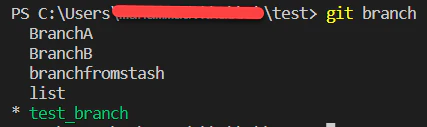
First, get the list of the branches through `git branch`
git switch
The "\*" shows your currently selected branch, which is "test\_branch". Now let's switch to BranchB.
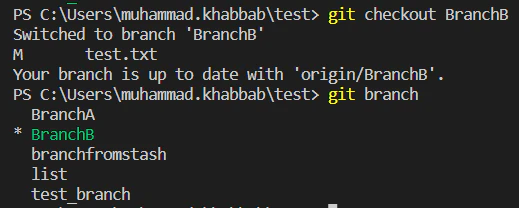git switch
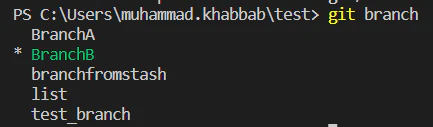
To confirm the successful branch switch, execute `git branch` and you will see that your current branch is now BranchB
git switch
### Switch to a new branch[](https://refine.dev/blog/git-switch-and-git-checkout/#switch-to-a-new-branch "Direct link to Switch to a new branch")
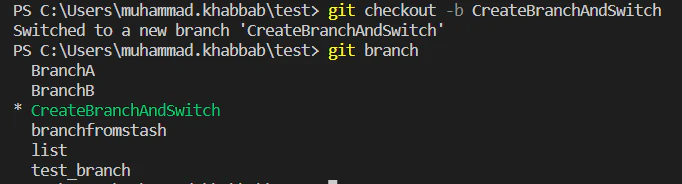
The `git checkout` command also comes with a "-b" argument which creates a new branch and automatically switches to it. Let's try it.
git switch
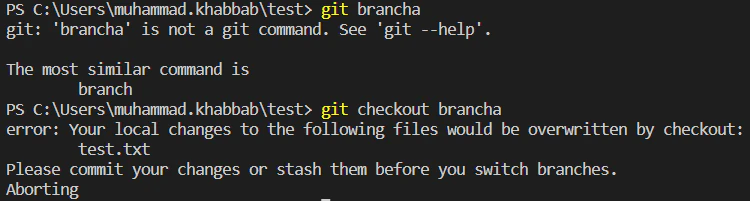
The above example shows that the new branch created is the currently selected branch as well. When switching branch using `git checkout` you might see an error as below.
git switch
The above error appears when you have changed a file, and the branch that you are switching to also has changes for the same file too (from the latest merge point). Git will not allow switching branch until you do one of the following:
• Use stash to locally stash your changes temporarily without commit • Force checkout, which will discard your local changes • Commit your changes, and then update this commit with extra changes (you can modify commits in Git until they are pushed)
## Troubleshooting Branch Issues[](https://refine.dev/blog/git-switch-and-git-checkout/#troubleshooting-branch-issues "Direct link to Troubleshooting Branch Issues")
Allow me to share some tips on branch troubleshooting that will really help solve the common problems in a timely manner.
### Rescue the Detached HEAD State[](https://refine.dev/blog/git-switch-and-git-checkout/#rescue-the-detached-head-state "Direct link to Rescue the Detached HEAD State")
You will have a detached HEAD state when you checkout a commit that is not a branch. Here is how you solve this:
- Create a new branch from the detached HEAD state:
```
git switch -c <new-branch>
```
- Or maybe you just want to switch back to an old branch:
```
git switch main
```
### Undoing a Commit[](https://refine.dev/blog/git-switch-and-git-checkout/#undoing-a-commit "Direct link to Undoing a Commit")
If you need to reset an unpublished commit, you can do:
- To prepare changes in your working directory:
```
git reset --soft HEAD~1
```
- To discard changes:
```
git reset --hard HEAD~1
```
### Recover a Deleted Branch[](https://refine.dev/blog/git-switch-and-git-checkout/#recover-a-deleted-branch "Direct link to Recover a Deleted Branch")
If you delete a branch by mistake, let's restore it with the reflog:
- Find the commit hash where the branch that was deleted was pointing:
```
git reflog
```
- For the restoration of the branch:
```
git checkout -b <branch-name> <commit-hash>
```
### Handling Unmerged Changes[](https://refine.dev/blog/git-switch-and-git-checkout/#handling-unmerged-changes "Direct link to Handling Unmerged Changes")
If you have any unmerged files and you wish to change branches:
- Stash your changes:
```
git stash
```
- Switch branches:
```
git switch <branch-name>
```
- Apply the stashed changes:
```
git stash apply
```
### Check Branch Tracking Information:\*\*[](https://refine.dev/blog/git-switch-and-git-checkout/#check-branch-tracking-information "Direct link to check-branch-tracking-information")
Use this to see which remote branch your local branch is tracking:
```
git branch -vv
```
This command gives you information about branches and their tracking status.
### Switching to a remote branch[](https://refine.dev/blog/git-switch-and-git-checkout/#switching-to-a-remote-branch "Direct link to Switching to a remote branch")
Switching between branches is one of the basic Git operations when one needs to work with multiple features. To switch to an already existing branch, use git checkout branch\_name. To create and switch to a new branch in one command, use git checkout -b new\_branch. For remote branches, first fetch the branch using git fetch --all, then switch using git checkout remote\_branch\_name. With newer versions of Git, git switch branch\_name is an easier way to switch to another branch.
To checkout a remote branch, you will need to fetch the contents of the branch using `git fetch –all` first. Then use the same command `git checkout RemoteBranchName` to switch to remote branch. You might have noticed that it is the same command used to switch to a local branch.
If you want to switch to a remote branch that does not exist as local branch in your local working directory, you can simply execute `git switch remoteBranch`. When Git is unable to find this branch in your local repository, it will assume that you want to checkout the respective remote branch with the same name. It will then create a local branch with the same name. It will also set up a tracking relationship between your remote and local branch so that `git pull` and `git push` will work as intended.
## Using git switch vs git checkout[](https://refine.dev/blog/git-switch-and-git-checkout/#using-git-switch-vs-git-checkout "Direct link to Using git switch vs git checkout")
The `git switch` command replaced `git checkout` in 2020, although `git checkout` is still a supported command. The `git checkout` command performs two functionalities; "switch branch" and "restore working tree files". To separate these two functionalities, Git introduced the `git switch` command, which replaces the "switch branch" feature of "git checkout".
### Why git switch was needed?[](https://refine.dev/blog/git-switch-and-git-checkout/#why-git-switch-was-needed "Direct link to Why git switch was needed?")
Let's assume you have a file named "test.txt" and at the same time, you have a branch named "test". If you are on main branch and you want to checkout to branch "test", you would use the command "git checkout test" but this would checkout the file "test", this is where `git switch` comes in.
• `git switch test` will switch to branch "test" even if you have a file "test" • `git restore` will discard uncommitted local changes in the file "test" even if you have a branch "test".
In modern Git practices, git switch is now favored for its improved clarity and safety. It handles only branch operations, which prevents the common mistake of accidentally overwriting files that can happen with the multi-purpose git checkout command. For example, creating a branch from a specific commit is much more intuitive using git switch -c `}<new-branch />{` `}<start-point />{`. This focused design makes your workflow more predictable and is the recommended approach in today's development environments.
Let's try this command.
git switch
The above command works just the same way `git checkout` switched branches. Switching to a branch that does not exist will throw an error:
git switch
To create a new branch and switch to it in one go, try the following example:
git switch
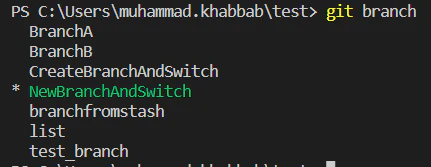
To verify, just run the `git branch` command to see if your current branch has been successfully switched to the newly created branch.
git switch
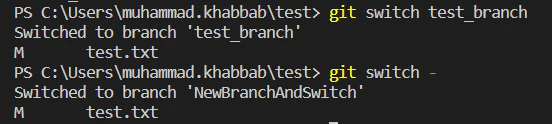
Another interesting argument of this command is `git switch -`. If you have to frequently switch between two branches and typing the branch name every time is cumbersome, you can use the `git switch -` version, which switches to the previously checked out branch. Let's try.
git switch
## Difference between git checkout and git reset[](https://refine.dev/blog/git-switch-and-git-checkout/#difference-between-git-checkout-and-git-reset "Direct link to Difference between git checkout and git reset")
`git reset` moves the current branch reference, whereas `git checkout` just moves the head instead of the current branch reference. `reset` resets the index without changing the working tree. The below example will reset the index to match HEAD, without touching the working tree:
git switch
Note that you will use reset to undo the staging of a modified file. `checkout` is mostly used with a branch, tag, or commit. It will reset HEAD and index to a specified commit, as well as perform the checkout of the index into the working tree at the same time. It is mostly used to discard the changes to your unstaged file(s).
git switch
If your HEAD is currently set to the main branch, running `git reset 8e3f6r5` will point the main to "9e5e6a4". `Checkout` on the other hand, changes the head itself.
## Difference between git checkout and git restore[](https://refine.dev/blog/git-switch-and-git-checkout/#difference-between-git-checkout-and-git-restore "Direct link to Difference between git checkout and git restore")
`git restore` was introduced when the functionality of `git checkout` was broken into two separate commands `git switch` and `git restore`. Apart from switching branches, `git checkout` can also restore files to a specific commit state. This latter functionality has been extracted into `git restore`.
`git restore` restores the files in the working tree from index or any other commit you specify. You can also use it to restore files in index from some other commit. Note that it does not update your branch. You would use `git restore` to revert non-committed changes. These changes can be in the form of the update in your working copy or the content in your index (i.e. staging area).
The below command will restore "test.txt" in the index so that it matches the version in HEAD. Basically, you are telling Git to copy from HEAD to staging area / index, which is how Git reset works. `git restore --staged test.txt`
If you want to restore both index and the working tree, then you would use the following version: `git restore --source=HEAD --staged --worktree test.txt`
[Join Refine on Discord banner](https://discord.gg/refine)
## Difference between git checkout and git Clone[](https://refine.dev/blog/git-switch-and-git-checkout/#difference-between-git-checkout-and-git-clone "Direct link to Difference between git checkout and git Clone")
`git clone` is used to fetch repositories you do not have. It will fetch your repositories from the remote git server. `git checkout` is a powerful command with different uses, like switching branches in your current repository and restoring files file from a particular revision.
## Branch Management Techniques[](https://refine.dev/blog/git-switch-and-git-checkout/#branch-management-techniques "Direct link to Branch Management Techniques")
I thought I would share some advanced techniques on how to manage branches, which will streamline our workflow and keep the project organized.
**Branch Naming Conventions:** Branch naming convention that is clear and consistent is important in projects with multiple contributors. So as to help us comprehend the meaning of each branch, and manage more effectively the project's process of development. Here are some common naming strategies:
- **Feature Branches:** `feature/<feature-name>` - New features, e.g., `feature/user-authentication`.
- **Bug Fix Branches:** `bugfix/<issue-number>` - Used for fixing bugs, e.g., `bugfix/123-fix-login-error`.
- **Release Branches:** `release/<version>` - Used for preparing a release, e.g., `release/1.0.0`.
- **Hotfix Branches:** `hotfix/<issue-number>` - For urgent fixes in production, e.g., `hotfix/456-patch-security-issue`.
**Using Pull Requests Effectively:** Pull requests are one of the best ways to go over code changes and discuss them prior to merging with the main branch. Here are some tips:
- Attempt to create a PR even for insignificant change.
- Add a clear description and link to relevant issues.
- Request reviews from the team members who are code-savvy.
- Address the review comments quickly and update the PR.
## Performance Optimization in Branch Management[](https://refine.dev/blog/git-switch-and-git-checkout/#performance-optimization-in-branch-management "Direct link to Performance Optimization in Branch Management")
I would like to share some insights into performance optimization in branch management with an attempt to streamline the workflow and improve efficiency.
### Regular Branch Cleanup[](https://refine.dev/blog/git-switch-and-git-checkout/#regular-branch-cleanup "Direct link to Regular Branch Cleanup")
The performance could be improved by cleaning the repository at regular intervals, deleting old or merged branches. It will prevent clutter, and it will be easy to spot the relevant branches.
- List merged branches:
```
git branch --merged
```
- Delete merged branches:
```
git branch -d <branch_name>
```
### Create Lightweight Branches[](https://refine.dev/blog/git-switch-and-git-checkout/#create-lightweight-branches "Direct link to Create Lightweight Branches")
Git branches are lightweight, so do keep them lean for better performance. Do not add large files directly to the branches.
### Branch Change Success[](https://refine.dev/blog/git-switch-and-git-checkout/#branch-change-success "Direct link to Branch Change Success")
Switching branches frequently can sometimes lead to performance issues, especially if there are uncommitted changes. To mitigate this:
- Stash changes before switching branches:
```
git stash
git checkout <branch-name>
git stash apply
```
### Rebase Instead of Merge[](https://refine.dev/blog/git-switch-and-git-checkout/#rebase-instead-of-merge "Direct link to Rebase Instead of Merge")
Rebase can clean up the project history with moving or combining commits to make it easier for users to trace and can save performance of branch operations.
- Rebase the branch on top of the main branch:
```
git checkout <feature-branch>
git rebase main
```
1. Lower Large File Changes: Large files or binary files can slow down branch operations. Use Git LFS (Large File Storage) to efficiently handle large files.
- Track a large file with Git LFS:
```
git lfs track <file>
```
### Repository Performance Monitoring[](https://refine.dev/blog/git-switch-and-git-checkout/#repository-performance-monitoring "Direct link to Repository Performance Monitoring")
Monitor the performance of your repository on a regular basis to find possible bottlenecks.
- Determine repository size:
```
du -sh .git
```
- Reduce unnecessary items and optimize repository:
```
git gc --aggressive --prune=now
```
### Using Shallow Clones[](https://refine.dev/blog/git-switch-and-git-checkout/#using-shallow-clones "Direct link to Using Shallow Clones")
Use shallow clones for large repositories to save network data and speed up the fetching.
- Shallow clone with depth:
```
git clone --depth 1 <repository-url>
```
These performance improvement techniques would help us hold an efficient and non-overburdened process of branch management.
## Related Articles
[Git Merge vs. Git Rebase, The Ultimate Guide to Combining BranchesJUL 9, 2025](https://refine.dev/blog/git-merge-vs-rebase/)
[GitHub Alternatives Worth Trying in 2026OCT 1, 2025](https://refine.dev/blog/github-alternatives/)
[What is Version Control and Benefits of Using It?FEB 26, 2024](https://refine.dev/blog/version-control/)
1. [Blog](https://refine.dev/blog/)/
2. /[Alternatives](https://refine.dev/blog/categories/alternatives/)/
3. /git switch and git checkout – How to switch branches in git/
## On this page
/[Refine Home](https://refine.dev/)/[Refine CORE](https://refine.dev/core/)
Join us on | |||||||||
| Readable Markdown | **This article was last updated on July 2, 2025, to improve the explanations of 'git switch' and align with current best practices.**
[](https://refine.dev/?ref=refine-banner "Refine")
## Introduction[](https://refine.dev/blog/git-switch-and-git-checkout/#introduction "Direct link to Introduction")
When working on a project, you usually work on more than one branch at a time. You also switch branches frequently based on priorities. Efficient branch switching is important to safely switch from one branch and commit your changes to the desired branch. The most famous command for switching branches has always been `git checkout` however the newer versions of Git divided its features into specific commands. Today, we will go through different use cases and examples for using `git checkout` and `git switch`. We will also go through some of the similar commands of Git. After reading this article, you will have strong knowledge of how to switch branches in Git and what are its companion commands.
Note that the command `git checkout` is a multi-feature command which performs multiple functions like:
• If it is a local branch or an explicit remote branch, it will switch to it • If it is a tracked path, reset it • If it is a remote branch, it will create a tracking branch and will switch to it Let's go through some examples of switching branches through `git checkout`, and then we will touch upon the use of `git switch`.
Switching between branches is one of the basic Git operations when one needs to work with multiple features. To switch to an already existing branch, use `git checkout branch_name`. To create and switch to a new branch in one command, use `git checkout -b new_branch`. For remote branches, first fetch the branch using `git fetch --all`, then switch using `git checkout remote_branch_name`. With newer versions of Git, `git switch branch_name` is an easier way to switch to another branch.
## Using git checkout to switch branches[](https://refine.dev/blog/git-switch-and-git-checkout/#using-git-checkout-to-switch-branches "Direct link to Using git checkout to switch branches")
The `git checkout` command allows you to navigate between different branches created through the command `git branch`. When you checkout a branch, it updates all the files in your working directory to match the version stored in that branch. It also informs Git to preserve all the new commits on that branch.
Let's try different versions of `git checkout` command.
### Switch to an existing branch[](https://refine.dev/blog/git-switch-and-git-checkout/#switch-to-an-existing-branch "Direct link to Switch to an existing branch")
First, get the list of the branches through `git branch`
git switch
The "\*" shows your currently selected branch, which is "test\_branch". Now let's switch to BranchB.
git switch
To confirm the successful branch switch, execute `git branch` and you will see that your current branch is now BranchB
git switch
### Switch to a new branch[](https://refine.dev/blog/git-switch-and-git-checkout/#switch-to-a-new-branch "Direct link to Switch to a new branch")
The `git checkout` command also comes with a "-b" argument which creates a new branch and automatically switches to it. Let's try it.
git switch
The above example shows that the new branch created is the currently selected branch as well. When switching branch using `git checkout` you might see an error as below.
git switch
The above error appears when you have changed a file, and the branch that you are switching to also has changes for the same file too (from the latest merge point). Git will not allow switching branch until you do one of the following:
• Use stash to locally stash your changes temporarily without commit • Force checkout, which will discard your local changes • Commit your changes, and then update this commit with extra changes (you can modify commits in Git until they are pushed)
## Troubleshooting Branch Issues[](https://refine.dev/blog/git-switch-and-git-checkout/#troubleshooting-branch-issues "Direct link to Troubleshooting Branch Issues")
Allow me to share some tips on branch troubleshooting that will really help solve the common problems in a timely manner.
### Rescue the Detached HEAD State[](https://refine.dev/blog/git-switch-and-git-checkout/#rescue-the-detached-head-state "Direct link to Rescue the Detached HEAD State")
You will have a detached HEAD state when you checkout a commit that is not a branch. Here is how you solve this:
- Create a new branch from the detached HEAD state:
```
git switch -c <new-branch>
```
- Or maybe you just want to switch back to an old branch:
```
git switch main
```
### Undoing a Commit[](https://refine.dev/blog/git-switch-and-git-checkout/#undoing-a-commit "Direct link to Undoing a Commit")
If you need to reset an unpublished commit, you can do:
- To prepare changes in your working directory:
```
git reset --soft HEAD~1
```
- To discard changes:
```
git reset --hard HEAD~1
```
### Recover a Deleted Branch[](https://refine.dev/blog/git-switch-and-git-checkout/#recover-a-deleted-branch "Direct link to Recover a Deleted Branch")
If you delete a branch by mistake, let's restore it with the reflog:
- Find the commit hash where the branch that was deleted was pointing:
```
git reflog
```
- For the restoration of the branch:
```
git checkout -b <branch-name> <commit-hash>
```
### Handling Unmerged Changes[](https://refine.dev/blog/git-switch-and-git-checkout/#handling-unmerged-changes "Direct link to Handling Unmerged Changes")
If you have any unmerged files and you wish to change branches:
- Stash your changes:
```
git stash
```
- Switch branches:
```
git switch <branch-name>
```
- Apply the stashed changes:
```
git stash apply
```
### Check Branch Tracking Information:\*\*[](https://refine.dev/blog/git-switch-and-git-checkout/#check-branch-tracking-information "Direct link to check-branch-tracking-information")
Use this to see which remote branch your local branch is tracking:
```
git branch -vv
```
This command gives you information about branches and their tracking status.
### Switching to a remote branch[](https://refine.dev/blog/git-switch-and-git-checkout/#switching-to-a-remote-branch "Direct link to Switching to a remote branch")
Switching between branches is one of the basic Git operations when one needs to work with multiple features. To switch to an already existing branch, use git checkout branch\_name. To create and switch to a new branch in one command, use git checkout -b new\_branch. For remote branches, first fetch the branch using git fetch --all, then switch using git checkout remote\_branch\_name. With newer versions of Git, git switch branch\_name is an easier way to switch to another branch.
To checkout a remote branch, you will need to fetch the contents of the branch using `git fetch –all` first. Then use the same command `git checkout RemoteBranchName` to switch to remote branch. You might have noticed that it is the same command used to switch to a local branch.
If you want to switch to a remote branch that does not exist as local branch in your local working directory, you can simply execute `git switch remoteBranch`. When Git is unable to find this branch in your local repository, it will assume that you want to checkout the respective remote branch with the same name. It will then create a local branch with the same name. It will also set up a tracking relationship between your remote and local branch so that `git pull` and `git push` will work as intended.
## Using git switch vs git checkout[](https://refine.dev/blog/git-switch-and-git-checkout/#using-git-switch-vs-git-checkout "Direct link to Using git switch vs git checkout")
The `git switch` command replaced `git checkout` in 2020, although `git checkout` is still a supported command. The `git checkout` command performs two functionalities; "switch branch" and "restore working tree files". To separate these two functionalities, Git introduced the `git switch` command, which replaces the "switch branch" feature of "git checkout".
### Why git switch was needed?[](https://refine.dev/blog/git-switch-and-git-checkout/#why-git-switch-was-needed "Direct link to Why git switch was needed?")
Let's assume you have a file named "test.txt" and at the same time, you have a branch named "test". If you are on main branch and you want to checkout to branch "test", you would use the command "git checkout test" but this would checkout the file "test", this is where `git switch` comes in.
• `git switch test` will switch to branch "test" even if you have a file "test" • `git restore` will discard uncommitted local changes in the file "test" even if you have a branch "test".
In modern Git practices, git switch is now favored for its improved clarity and safety. It handles only branch operations, which prevents the common mistake of accidentally overwriting files that can happen with the multi-purpose git checkout command. For example, creating a branch from a specific commit is much more intuitive using git switch -c `}<new-branch />{` `}<start-point />{`. This focused design makes your workflow more predictable and is the recommended approach in today's development environments.
Let's try this command.
git switch
The above command works just the same way `git checkout` switched branches. Switching to a branch that does not exist will throw an error:
git switch
To create a new branch and switch to it in one go, try the following example:
git switch
To verify, just run the `git branch` command to see if your current branch has been successfully switched to the newly created branch.
git switch
Another interesting argument of this command is `git switch -`. If you have to frequently switch between two branches and typing the branch name every time is cumbersome, you can use the `git switch -` version, which switches to the previously checked out branch. Let's try.
git switch
## Difference between git checkout and git reset[](https://refine.dev/blog/git-switch-and-git-checkout/#difference-between-git-checkout-and-git-reset "Direct link to Difference between git checkout and git reset")
`git reset` moves the current branch reference, whereas `git checkout` just moves the head instead of the current branch reference. `reset` resets the index without changing the working tree. The below example will reset the index to match HEAD, without touching the working tree:
git switch
Note that you will use reset to undo the staging of a modified file. `checkout` is mostly used with a branch, tag, or commit. It will reset HEAD and index to a specified commit, as well as perform the checkout of the index into the working tree at the same time. It is mostly used to discard the changes to your unstaged file(s).
git switch
If your HEAD is currently set to the main branch, running `git reset 8e3f6r5` will point the main to "9e5e6a4". `Checkout` on the other hand, changes the head itself.
## Difference between git checkout and git restore[](https://refine.dev/blog/git-switch-and-git-checkout/#difference-between-git-checkout-and-git-restore "Direct link to Difference between git checkout and git restore")
`git restore` was introduced when the functionality of `git checkout` was broken into two separate commands `git switch` and `git restore`. Apart from switching branches, `git checkout` can also restore files to a specific commit state. This latter functionality has been extracted into `git restore`.
`git restore` restores the files in the working tree from index or any other commit you specify. You can also use it to restore files in index from some other commit. Note that it does not update your branch. You would use `git restore` to revert non-committed changes. These changes can be in the form of the update in your working copy or the content in your index (i.e. staging area).
The below command will restore "test.txt" in the index so that it matches the version in HEAD. Basically, you are telling Git to copy from HEAD to staging area / index, which is how Git reset works. `git restore --staged test.txt`
If you want to restore both index and the working tree, then you would use the following version: `git restore --source=HEAD --staged --worktree test.txt`
## Difference between git checkout and git Clone[](https://refine.dev/blog/git-switch-and-git-checkout/#difference-between-git-checkout-and-git-clone "Direct link to Difference between git checkout and git Clone")
`git clone` is used to fetch repositories you do not have. It will fetch your repositories from the remote git server. `git checkout` is a powerful command with different uses, like switching branches in your current repository and restoring files file from a particular revision.
## Branch Management Techniques[](https://refine.dev/blog/git-switch-and-git-checkout/#branch-management-techniques "Direct link to Branch Management Techniques")
I thought I would share some advanced techniques on how to manage branches, which will streamline our workflow and keep the project organized.
**Branch Naming Conventions:** Branch naming convention that is clear and consistent is important in projects with multiple contributors. So as to help us comprehend the meaning of each branch, and manage more effectively the project's process of development. Here are some common naming strategies:
- **Feature Branches:** `feature/<feature-name>` - New features, e.g., `feature/user-authentication`.
- **Bug Fix Branches:** `bugfix/<issue-number>` - Used for fixing bugs, e.g., `bugfix/123-fix-login-error`.
- **Release Branches:** `release/<version>` - Used for preparing a release, e.g., `release/1.0.0`.
- **Hotfix Branches:** `hotfix/<issue-number>` - For urgent fixes in production, e.g., `hotfix/456-patch-security-issue`.
**Using Pull Requests Effectively:** Pull requests are one of the best ways to go over code changes and discuss them prior to merging with the main branch. Here are some tips:
- Attempt to create a PR even for insignificant change.
- Add a clear description and link to relevant issues.
- Request reviews from the team members who are code-savvy.
- Address the review comments quickly and update the PR.
## Performance Optimization in Branch Management[](https://refine.dev/blog/git-switch-and-git-checkout/#performance-optimization-in-branch-management "Direct link to Performance Optimization in Branch Management")
I would like to share some insights into performance optimization in branch management with an attempt to streamline the workflow and improve efficiency.
### Regular Branch Cleanup[](https://refine.dev/blog/git-switch-and-git-checkout/#regular-branch-cleanup "Direct link to Regular Branch Cleanup")
The performance could be improved by cleaning the repository at regular intervals, deleting old or merged branches. It will prevent clutter, and it will be easy to spot the relevant branches.
- List merged branches:
```
git branch --merged
```
- Delete merged branches:
```
git branch -d <branch_name>
```
### Create Lightweight Branches[](https://refine.dev/blog/git-switch-and-git-checkout/#create-lightweight-branches "Direct link to Create Lightweight Branches")
Git branches are lightweight, so do keep them lean for better performance. Do not add large files directly to the branches.
### Branch Change Success[](https://refine.dev/blog/git-switch-and-git-checkout/#branch-change-success "Direct link to Branch Change Success")
Switching branches frequently can sometimes lead to performance issues, especially if there are uncommitted changes. To mitigate this:
- Stash changes before switching branches:
```
git stash
git checkout <branch-name>
git stash apply
```
### Rebase Instead of Merge[](https://refine.dev/blog/git-switch-and-git-checkout/#rebase-instead-of-merge "Direct link to Rebase Instead of Merge")
Rebase can clean up the project history with moving or combining commits to make it easier for users to trace and can save performance of branch operations.
- Rebase the branch on top of the main branch:
```
git checkout <feature-branch>
git rebase main
```
1. Lower Large File Changes: Large files or binary files can slow down branch operations. Use Git LFS (Large File Storage) to efficiently handle large files.
- Track a large file with Git LFS:
```
git lfs track <file>
```
### Repository Performance Monitoring[](https://refine.dev/blog/git-switch-and-git-checkout/#repository-performance-monitoring "Direct link to Repository Performance Monitoring")
Monitor the performance of your repository on a regular basis to find possible bottlenecks.
- Determine repository size:
```
du -sh .git
```
- Reduce unnecessary items and optimize repository:
```
git gc --aggressive --prune=now
```
### Using Shallow Clones[](https://refine.dev/blog/git-switch-and-git-checkout/#using-shallow-clones "Direct link to Using Shallow Clones")
Use shallow clones for large repositories to save network data and speed up the fetching.
- Shallow clone with depth:
```
git clone --depth 1 <repository-url>
```
These performance improvement techniques would help us hold an efficient and non-overburdened process of branch management. | |||||||||
| ML Classification | ||||||||||
| ML Categories |
Raw JSON{
"/Computers_and_Electronics": 979,
"/Computers_and_Electronics/Software": 917,
"/Computers_and_Electronics/Software/Software_Utilities": 660
} | |||||||||
| ML Page Types |
Raw JSON{
"/Article": 999,
"/Article/Tutorial_or_Guide": 633
} | |||||||||
| ML Intent Types |
Raw JSON{
"Informational": 999
} | |||||||||
| Content Metadata | ||||||||||
| Language | en | |||||||||
| Author | Muhammad Khabbab | |||||||||
| Publish Time | 2024-11-27 00:00:00 (1 year ago) | |||||||||
| Original Publish Time | 2022-12-20 11:50:00 (3 years ago) | |||||||||
| Republished | Yes | |||||||||
| Word Count (Total) | 2,494 | |||||||||
| Word Count (Content) | 2,260 | |||||||||
| Links | ||||||||||
| External Links | 7 | |||||||||
| Internal Links | 11 | |||||||||
| Technical SEO | ||||||||||
| Meta Nofollow | No | |||||||||
| Meta Noarchive | No | |||||||||
| JS Rendered | No | |||||||||
| Redirect Target | null | |||||||||
| Performance | ||||||||||
| Download Time (ms) | 272 | |||||||||
| TTFB (ms) | 253 | |||||||||
| Download Size (bytes) | 16,620 | |||||||||
| Shard | 21 (laksa) | |||||||||
| Root Hash | 2611251880010532221 | |||||||||
| Unparsed URL | dev,refine!/blog/git-switch-and-git-checkout/ s443 | |||||||||