ℹ️ Skipped - page is already crawled
| Filter | Status | Condition | Details |
|---|---|---|---|
| HTTP status | PASS | download_http_code = 200 | HTTP 200 |
| Age cutoff | PASS | download_stamp > now() - 6 MONTH | 0 months ago |
| History drop | PASS | isNull(history_drop_reason) | No drop reason |
| Spam/ban | PASS | fh_dont_index != 1 AND ml_spam_score = 0 | ml_spam_score=0 |
| Canonical | PASS | meta_canonical IS NULL OR = '' OR = src_unparsed | Not set |
| Property | Value |
|---|---|
| URL | https://protonvpn.com/support/port-forwarding |
| Last Crawled | 2026-04-22 03:19:48 (4 hours ago) |
| First Indexed | 2022-04-04 14:30:14 (4 years ago) |
| HTTP Status Code | 200 |
| Meta Title | Port forwarding | Proton VPN |
| Meta Description | Port forwarding setup guide for ProtonVPN, plus how to configure popular torrent clients for port forwarding |
| Meta Canonical | null |
| Boilerpipe Text | Port forwarding routes connections through the firewall that Proton VPN uses to protect our customers. It’s a feature that is mainly useful to people who download and share files using P2P protocols such as BitTorrent, although it can also improve performance for online gamers.
Learn more about how port forwarding works
Port forwarding is currently available in our Windows, Mac, and Linux apps for everyone with a paid Proton VPN plan. If you have a free plan, you can upgrade to access it.
You can also manually configure port forwarding.
Learn how to manually set up port forwarding
Note that port forwarding is only permitted on our special P2P servers. These are marked with a
double-arrow icon
. Note also that you can’t use port forwarding and
moderate (Type 2) NAT
at the same time.
In this support article, we’ll look at:
How to enable port forwarding on the Windows app
How to enable port forwarding on the macOS app
How to enable port forwarding using the Linux (GUI) app
How to enable port forwarding using the Linux CLI
How to configure port forwarding on qBittorrent
How to configure port forwarding on Vuze
How to configure port forwarding on uTorrent (Classic)
How to enable port forwarding
Windows
Port forwarding is only permitted on our special P2P servers. To find these, go to
Home
→
Countries
→
P2P
tab.
1. Select the
Port forwarding
shortcut on the home screen (you can also access the port forwarding settings via the
⚙
Settings
menu).
2. Toggle the
Port forwarding
switch
on
. By default, you’ll now get notified when the active port number changes, but, if you prefer, you can turn this off.
3. When you activate port forwarding, the VPN app sends a request to the VPN server to open a random port. This will forward traffic from the internet to the app. To see the
active port number
, hover your mouse cursor over the
Port forwarding
shortcut on the
Home
screen.
You’ll also receive a Windows notification displaying the port number when port forwarding is first turned on, and when the
active port number
changes.
You’ll need this number to configure port forwarding on third-party software such as your BitTorrent client. Please note that when you disconnect and reconnect the VPN, the
active port number
will usually change.
This means you may need to update the port forwarding settings on your BitTorrent client for each VPN session, but doing so is very quick and easy (see
below
), and the active port is available to use immediately.
macOS
Currently, port forwarding on macOS is an
early-access feature
.
Port forwarding is only permitted on our special
P2P
servers. On our Mac app, these are marked with a
double-arrow icon
.
1. Select the
Port forwarding
shortcut on the home screen.
2. Select the
Port forwarding
On
button. When you activate port forwarding, the VPN app sends a request to the VPN server to open a random port. This will forward traffic from the internet to the app. The
active port number
is shown underneath the
Port forwarding On
button.
You’ll need this number to configure port forwarding on third-party software like your torrenting client. Please note that, in most cases, the
active port number
will change when you disconnect and reconnect the VPN.
This means you will probably need to reconfigure your P2P client for each VPN session. However, doing this is very quick and easy (see
below
), and the active port is available to use immediately.
Linux (GUI) app
Port forwarding is only permitted on our special
P2P
servers. On our Linux app, these are marked with a
double-arrow icon
.
1. Open the app, go to
Settings
→
Features
, and toggle the
Port forwarding
switch
on
.
2. When port forwarding is activated, the VPN app sends a request to the VPN server to open a random port that will forward traffic from the internet to the app. The
active port number
used for this is shown in the information panel at the top of the main app window when you connect to one of our P2P VPN servers.
You’ll need this number to configure port forwarding on third-party software like your torrenting client. Please note that, in most cases, the
active port number
will change when you disconnect and reconnect the VPN.
This means you will probably need to reconfigure your P2P client for each VPN session. However, doing this is very quick and easy (see below), and the active port is available to use immediately.
The active port is also written to the file:
/run/user/$UID/Proton/VPN/forwarded_port
. This can be useful for triggering automating tasks like updating your torrent client configuration every time the port number changes.
Linux CLI
Enabling port forwarding for the Linux CLI is a two-stage process:
1.
Enable port forwarding in the CLI
Open a terminal window and run:
protonvpn config set port-forwarding on
Copied
If you’re connected to the VPN, you’ll need to reconnect for the new setting to take effect.
2.
Configure port forwarding
Follow the instructions in our
How to manually set up port forwarding
guide. Start from
Step 2: Linux
.
How to configure port forwarding in your BitTorrent client
Port forwarding will work in any BitTorrent app. We provide instructions for a few popular Windows torrent apps below, but the steps are similar for all such software. Just remember to disable any UPnP and NAT-PMP settings in your client.
The reason for this is that UPnP and NAT-PMP settings can conflict with settings in the Proton VPN app.
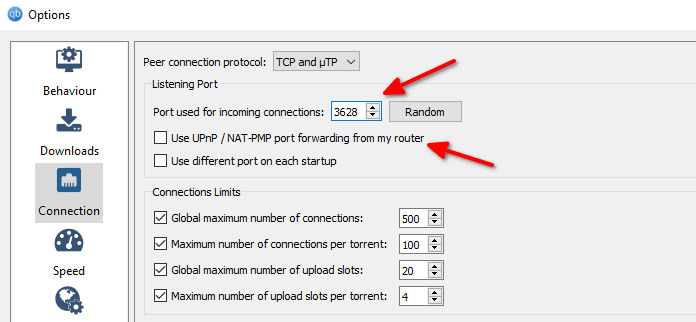
qBittorrent
1. Enable port forwarding in the Proton VPN app (see above) and launch qBittorrent.
2. Go to
Tools
→
Options
→
Connection
and disable
Use UPnP / NAT-PMP port forwarding from my router
(it is enabled by default)
3. In the
Port used for incoming connections
field, enter the
active port number
shown in the Proton VPN app.
Click
OK
when you’re done.
To prevent IP leaks while you’re torrenting, you should take additional steps to ensure that qBitTorrent is bound to the correct interface. You can do so by following our guide on
how to bind your BitTorrent client to the VPN interface
.
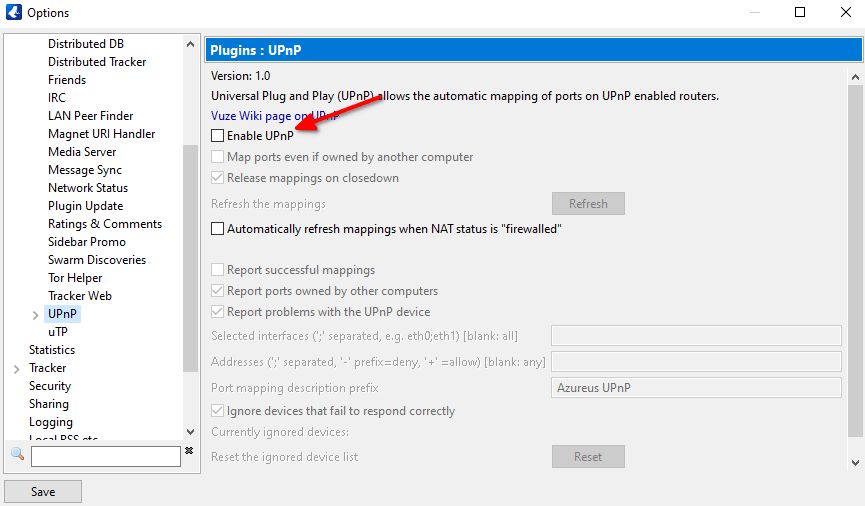
Vuze
The screenshots below show Vuze in
Beginner
Mode
(new window)
, but the steps are identical for all modes.
1. Enable port forwarding in the Proton VPN app (see above) and launch Vuze.
2. Go to
Tools
→
Options
→
Plugins
→
UPnP
and uncheck (disable)
Enable UPnP
.
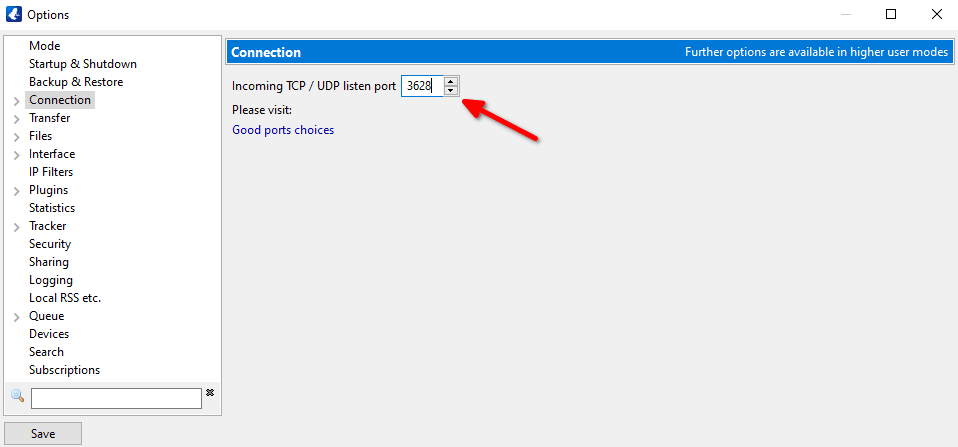
3. While still on the Options page, go to
Connection
and enter the
active port number
shown in the Proton VPN app.
Click
Save
when you’re done.
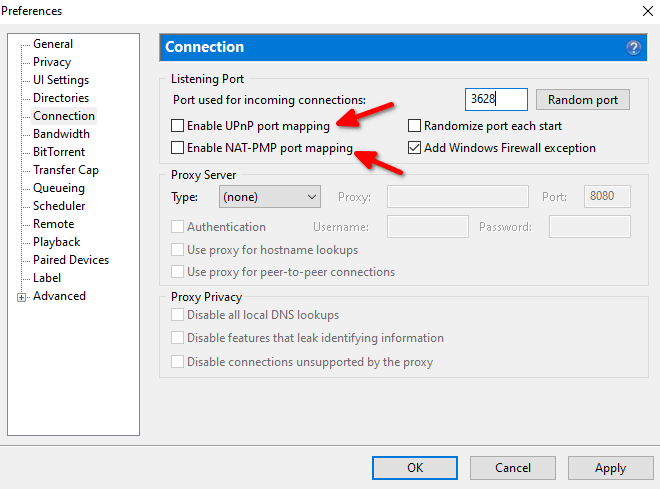
uTorrent (Classic)
1. Enable port forwarding in the Proton VPN app (see above) and launch uTorrent.
2. Go to
Options
→
Preferences
→
Connection
and
uncheck (
disable) both
Enable UPnP port mapping
and
Enable NAT-PMP port mapping
.
3. In the
Port used for incoming connections
field, enter the
active port number
shown in the Proton VPN app.
Click
Apply
when you’re done.
Opening a port carries a small risk. See
Port forwarding security considerations
for more details.
A word about online port checkers
Online port checker tools allow you to check for open ports on your device and verify that port forwarding is working correctly. However,
open ports can only be detected if an application is actively listening on that port
.
How port checker tools work
Port checker tools work in the following way:
1.
Connection Attempt
: The tool sends a request to establish a connection to the specified port on your public I
P address
. When using a VPN, this will be the IP address of the
VPN server
.
2.
Response Analysis
: It will then wait for a response:
Open
: If an application is actively listening on that port and port forwarding is working correctly, the port checker will successfully establish a connection and mark the port as
open
.
Closed
or
Filtered
: If no application is listening on the port, or if our firewall is blocking the connection (for example, if port forwarding is not working correctly), the port checker will either receive a “connection refused” message or the connection will time out. In these cases, the port will be reported as
closed
or
filtered
.
Example
Using the Proton VPN port forwarding feature, you have opened port 44375 in our NAT firewall. However, until you configure an app to listen on that port, an online port checker tool will return a
closed
or
filtered
result.
If you configure an app to listen on port 44375 (such as one of the torrent clients described above) and check again, the port checker tool will be able to connect to the app through our firewall and return an
open
result. |
| Markdown | [ ](https://protonvpn.com/)
- Why Proton VPN
[What is a VPN?Find out what a VPN is, how it works, and when to use one.](https://protonvpn.com/what-is-a-vpn)
[Why Proton VPN?No logs, no ads, open-source and independently audited.](https://protonvpn.com/why-proton-vpn)
[All featuresLearn how our advanced security and privacy features allow you to browse the web with peace of mind.](https://protonvpn.com/features)
[VPN serversServers in 120+ countries for truly global connectivity.](https://protonvpn.com/vpn-servers)
***
[VPN for StreamingWatch what you want, when you want, from wherever you want with Proton VPN.](https://protonvpn.com/streaming)
***
Countries
[United States](https://protonvpn.com/vpn-servers/usa)
[United Kingdom](https://protonvpn.com/vpn-servers/uk)
[France](https://protonvpn.com/vpn-servers/france)
[All countries](https://protonvpn.com/vpn-servers)
Services
[Netflix](https://protonvpn.com/streaming/netflix)
[Amazon Prime Video](https://protonvpn.com/support/watch-amazon-prime-with-vpn)
[Disney+](https://protonvpn.com/streaming/disney-plus)
[All services](https://protonvpn.com/streaming/services)
Devices
[Android TV](https://protonvpn.com/download-androidtv)
[Fire Stick](https://protonvpn.com/support/firestick)
[Apple TV](https://protonvpn.com/download-appletv)
[All devices](https://protonvpn.com/streaming/devices)
- [Pricing](https://protonvpn.com/pricing)
- Download
Devices
[Windows](https://protonvpn.com/download-windows)
[macOS](https://protonvpn.com/download-macos)
[Linux](https://protonvpn.com/download-linux)
[Chromebook](https://protonvpn.com/download-chromebook)
[Android](https://protonvpn.com/download-android)
[iPhone / iPad](https://protonvpn.com/download-ios)
VPN extensions
[Chrome](https://protonvpn.com/download-chrome-extension)
[Firefox](https://protonvpn.com/download-firefox-extension)
Smart TV
[Android TV](https://protonvpn.com/download-androidtv)
[Apple TV](https://protonvpn.com/download-appletv)
[Firestick](https://protonvpn.com/support/firestick)
***
[Auto-detect the right version for your device](https://protonvpn.com/download)
- Resources
Resources
[What is my IP address?Find your public IP address using our safe, free IP scanner.](https://protonvpn.com/what-is-my-ip-address)
[Proton VPN ObservatoryDocumenting spikes in Proton VPN use as people fight for online freedom.](https://protonvpn.com/internet-censorship-observatory)
Help and support
[Proton VPN support](https://protonvpn.com/support)
Blog
[Proton VPN blog](https://protonvpn.com/blog)
[Proton news(new window)](https://proton.me/blog/news?ref=pvpn_support_b2c_vpn_submenu)
[Privacy guides(new window)](https://proton.me/blog/privacy-guides?ref=pvpn_support_b2c_vpn_submenu)
- [Business VPN(new window)](https://proton.me/business/vpn?ref=pvpn_support_b2c_vpn_menu)
Discover Proton
Proton ecosystem
[ Proton MailSecure your communications with encrypted email.(new window)](https://proton.me/mail?ref=pvpn_support_b2c_vpn_submenu)
[ Proton CalendarOrganize your schedule privately.(new window)](https://proton.me/calendar?ref=pvpn_support_b2c_vpn_submenu)
[ Proton Meet NewTalk in private with confidential video conferencing.(new window)](https://proton.me/meet?ref=pvpn_support_b2c_vpn_submenu)
[ Proton VPNKeep your online activity secure and private.](https://protonvpn.com/)
[ Proton PassProtect your online identity with an encrypted password manager.(new window)](https://proton.me/pass?ref=pvpn_support_b2c_vpn_submenu)
[ Proton AuthenticatorSecure your online accounts with 2FA across devices.(new window)](https://proton.me/authenticator?ref=pvpn_support_b2c_vpn_submenu)
[ Proton DriveOrganize your photos and files with secure cloud storage.(new window)](https://proton.me/drive?ref=pvpn_support_b2c_vpn_submenu)
[ Proton DocsDraft and edit secure online documents.(new window)](https://proton.me/drive/docs?ref=pvpn_support_b2c_vpn_submenu)
[ Proton Sheets NewCollaborate on sensitive spreadsheets in real time.(new window)](https://proton.me/drive/sheets?ref=pvpn_support_b2c_vpn_submenu)
***
More from Proton
[ Lumo AIAsk and ideate with a privacy-first AI assistant.(new window)](https://lumo.proton.me/?ref=pvpn_support_b2c_vpn_submenu)
[ Simple LoginShield your inbox from spam and phishing with an email alias service.(new window)](https://simplelogin.io/)
[ Standard NotesWrite and store private notes across your devices.(new window)](https://standardnotes.com/)
***
[ Proton for BusinessProtect your business with end-to-end encryption and compliance-ready security.(new window)](https://proton.me/business?ref=pvpn_support_b2c_vpn_submenu)
***
[ProtonA better internet starts with privacy and freedom.(new window)](https://proton.me/?ref=pvpn_support_b2c_vpn_submenu)
[About us(new window)](https://proton.me/about?ref=pvpn_support_b2c_vpn_submenu)
[Impact(new window)](https://proton.me/about/impact?ref=pvpn_support_b2c_vpn_submenu)
[Community(new window)](https://proton.me/community?ref=pvpn_support_b2c_vpn_submenu)
[Open source(new window)](https://proton.me/community/open-source?ref=pvpn_support_b2c_vpn_submenu)
[Team(new window)](https://proton.me/about/team?ref=pvpn_support_b2c_vpn_submenu)
[Careers We’re hiring(new window)](https://proton.me/careers?ref=pvpn_support_b2c_vpn_submenu)
[Proton Foundation(new window)](https://proton.me/foundation?ref=pvpn_support_b2c_vpn_submenu)
[Get Proton VPN](https://protonvpn.com/pricing)
[Sign in](https://account.protonvpn.com/login)
Open menu
1. [Support](https://protonvpn.com/support)
2. [Proton VPN Features](https://protonvpn.com/support/protonvpn-features)
3. [Port forwarding](https://protonvpn.com/support/protonvpn-features/port-forwarding)
Support search
# Port forwarding
Reading
10 mins
Category
Port forwarding
Port forwarding routes connections through the firewall that Proton VPN uses to protect our customers. It’s a feature that is mainly useful to people who download and share files using P2P protocols such as BitTorrent, although it can also improve performance for online gamers.
[**Learn more about how port forwarding works**](https://protonvpn.com/blog/port-forwarding/)
Port forwarding is currently available in our Windows, Mac, and Linux apps for everyone with a paid Proton VPN plan. If you have a free plan, you can upgrade to access it.
[Get Proton VPN Plus](https://protonvpn.com/pricing/)
You can also manually configure port forwarding.
[**Learn how to manually set up port forwarding**](https://protonvpn.com/support/port-forwarding-manual-setup)
Note that port forwarding is only permitted on our special P2P servers. These are marked with a **double-arrow icon**. Note also that you can’t use port forwarding and [moderate (Type 2) NAT](https://protonvpn.com/support/moderate-nat) at the same time.
In this support article, we’ll look at:
- [How to enable port forwarding on the Windows app](https://protonvpn.com/support/port-forwarding#windows)
- [How to enable port forwarding on the macOS app](https://protonvpn.com/support/port-forwarding#mac)
- [How to enable port forwarding using the Linux (GUI) app](https://protonvpn.com/support/port-forwarding#linux)
- [How to enable port forwarding using the Linux CLI](https://protonvpn.com/support/port-forwarding#linux)
- [How to configure port forwarding on qBittorrent](https://protonvpn.com/support/port-forwarding#qbittorrent)
- [How to configure port forwarding on Vuze](https://protonvpn.com/support/port-forwarding#vuze)
- [How to configure port forwarding on uTorrent (Classic)](https://protonvpn.com/support/port-forwarding#utorrent)
## How to enable port forwarding
### Windows
Port forwarding is only permitted on our special P2P servers. To find these, go to **Home** → **Countries** → **P2P** tab.
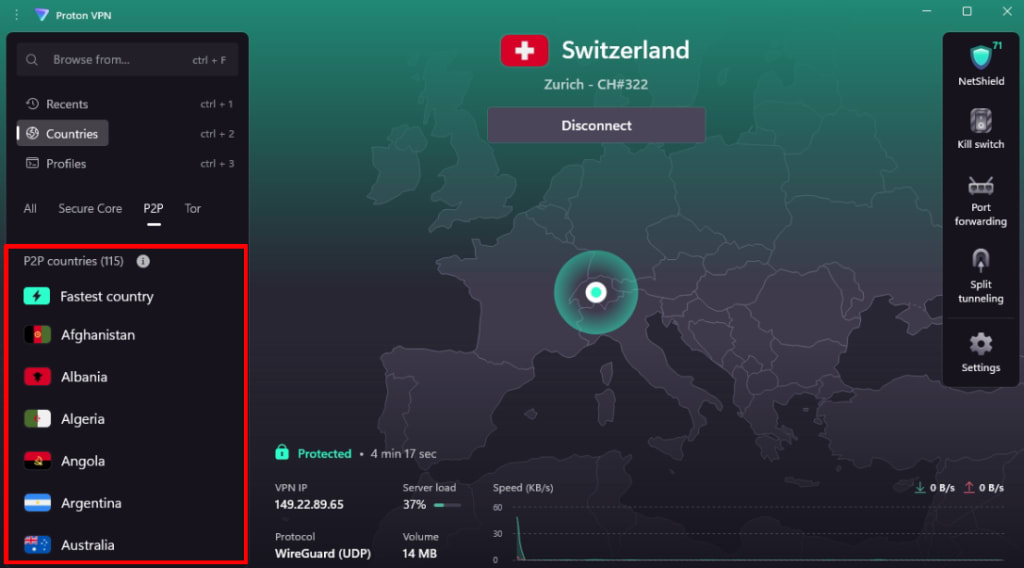
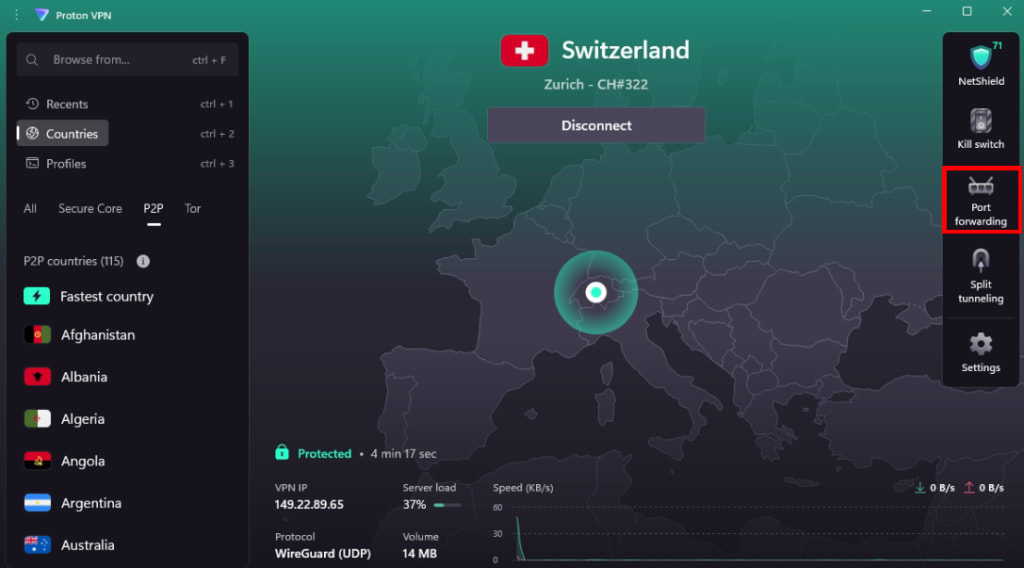
1\. Select the **Port forwarding** shortcut on the home screen (you can also access the port forwarding settings via the **⚙** **Settings** menu).
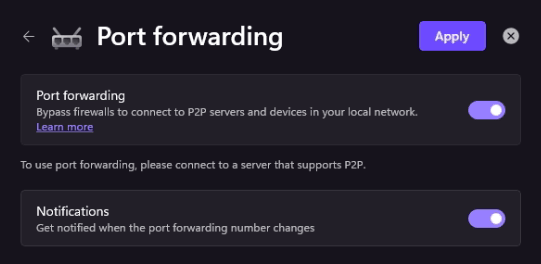
2\. Toggle the **Port forwarding** switch **on**. By default, you’ll now get notified when the active port number changes, but, if you prefer, you can turn this off.
3\. When you activate port forwarding, the VPN app sends a request to the VPN server to open a random port. This will forward traffic from the internet to the app. To see the **active port number**, hover your mouse cursor over the **Port forwarding** shortcut on the **Home** screen.

You’ll also receive a Windows notification displaying the port number when port forwarding is first turned on, and when the **active port number** changes.
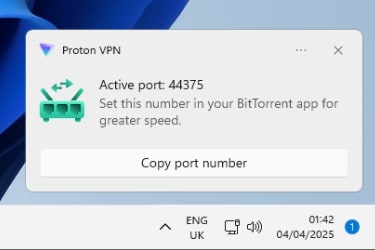
You’ll need this number to configure port forwarding on third-party software such as your BitTorrent client. Please note that when you disconnect and reconnect the VPN, the **active port number** will usually change.
This means you may need to update the port forwarding settings on your BitTorrent client for each VPN session, but doing so is very quick and easy (see [below](https://protonvpn.com/support/port-forwarding#bittorrent)), and the active port is available to use immediately.
### macOS
Currently, port forwarding on macOS is an [early-access feature](https://protonvpn.com/support/enable-early-access-windows-mac/).
Port forwarding is only permitted on our special **P2P** servers. On our Mac app, these are marked with a **double-arrow icon**.
1\. Select the **Port forwarding** shortcut on the home screen.

2\. Select the **Port forwarding** **On** button. When you activate port forwarding, the VPN app sends a request to the VPN server to open a random port. This will forward traffic from the internet to the app. The **active port number** is shown underneath the **Port forwarding On** button.
You’ll need this number to configure port forwarding on third-party software like your torrenting client. Please note that, in most cases, the **active port number** will change when you disconnect and reconnect the VPN.
This means you will probably need to reconfigure your P2P client for each VPN session. However, doing this is very quick and easy (see [below](https://protonvpn.com/support/port-forwarding#bittorrent)), and the active port is available to use immediately.
### Linux (GUI) app
Port forwarding is only permitted on our special **P2P** servers. On our Linux app, these are marked with a **double-arrow icon**.
1\. Open the app, go to **Settings** → **Features**, and toggle the **Port forwarding** switch **on**.

2\. When port forwarding is activated, the VPN app sends a request to the VPN server to open a random port that will forward traffic from the internet to the app. The **active port number** used for this is shown in the information panel at the top of the main app window when you connect to one of our P2P VPN servers.
You’ll need this number to configure port forwarding on third-party software like your torrenting client. Please note that, in most cases, the **active port number** will change when you disconnect and reconnect the VPN.
This means you will probably need to reconfigure your P2P client for each VPN session. However, doing this is very quick and easy (see below), and the active port is available to use immediately.
The active port is also written to the file: **/run/user/\$UID/Proton/VPN/forwarded\_port**. This can be useful for triggering automating tasks like updating your torrent client configuration every time the port number changes.
### Linux CLI
Enabling port forwarding for the Linux CLI is a two-stage process:
1\. **Enable port forwarding in the CLI**
Open a terminal window and run:
```
protonvpn config set port-forwarding on
```
Copy
Copied
If you’re connected to the VPN, you’ll need to reconnect for the new setting to take effect.
2\. **Configure port forwarding**
Follow the instructions in our [How to manually set up port forwarding](https://protonvpn.com/support/port-forwarding-manual-setup#linux) guide. Start from **Step 2: Linux**.
## How to configure port forwarding in your BitTorrent client
Port forwarding will work in any BitTorrent app. We provide instructions for a few popular Windows torrent apps below, but the steps are similar for all such software. Just remember to disable any UPnP and NAT-PMP settings in your client.
The reason for this is that UPnP and NAT-PMP settings can conflict with settings in the Proton VPN app.
### qBittorrent
1\. Enable port forwarding in the Proton VPN app (see above) and launch qBittorrent.
2\. Go to **Tools** → **Options** → **Connection** and disable **Use UPnP / NAT-PMP port forwarding from my router** (it is enabled by default)
3\. In the **Port used for incoming connections** field, enter the **active port number** shown in the Proton VPN app.
Click **OK** when you’re done.
To prevent IP leaks while you’re torrenting, you should take additional steps to ensure that qBitTorrent is bound to the correct interface. You can do so by following our guide on [how to bind your BitTorrent client to the VPN interface](https://protonvpn.com/support/bittorrent-vpn#binding-your-bittorrent-client-to-the-vpn-interface).
### Vuze
The screenshots below show Vuze in **Beginner** [Mode(new window)](https://wiki.vuze.com/w/Mode), but the steps are identical for all modes.
1\. Enable port forwarding in the Proton VPN app (see above) and launch Vuze.
2\. Go to **Tools** → **Options** → **Plugins** → **UPnP** and uncheck (disable) **Enable UPnP**.
3\. While still on the Options page, go to **Connection** and enter the **active port number** shown in the Proton VPN app.
Click **Save** when you’re done.
### uTorrent (Classic)
1\. Enable port forwarding in the Proton VPN app (see above) and launch uTorrent.
2\. Go to **Options** → **Preferences** → **Connection** and **uncheck (**disable) both **Enable UPnP port mapping** and **Enable NAT-PMP port mapping**.
3\. In the **Port used for incoming connections** field, enter the **active port number** shown in the Proton VPN app.
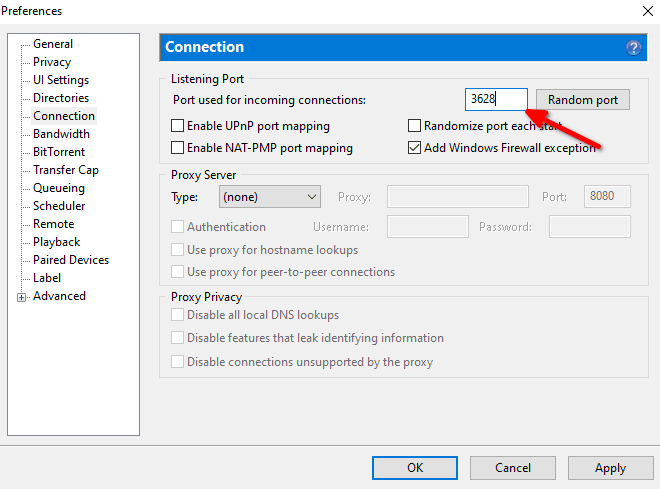
Click **Apply** when you’re done.
Opening a port carries a small risk. See [Port forwarding security considerations](https://protonvpn.com/support/port-forwarding-risks) for more details.
## A word about online port checkers
Online port checker tools allow you to check for open ports on your device and verify that port forwarding is working correctly. However, **open ports can only be detected if an application is actively listening on that port**.
### How port checker tools work
Port checker tools work in the following way:
1\. **Connection Attempt**: The tool sends a request to establish a connection to the specified port on your public I[P address](https://protonvpn.com/blog/what-is-an-ip-address/). When using a VPN, this will be the IP address of the [VPN server](https://protonvpn.com/vpn-servers).
2\. **Response Analysis**: It will then wait for a response:
- **Open**: If an application is actively listening on that port and port forwarding is working correctly, the port checker will successfully establish a connection and mark the port as **open**.
- **Closed** or **Filtered**: If no application is listening on the port, or if our firewall is blocking the connection (for example, if port forwarding is not working correctly), the port checker will either receive a “connection refused” message or the connection will time out. In these cases, the port will be reported as **closed** or **filtered**.
### Example
Using the Proton VPN port forwarding feature, you have opened port 44375 in our NAT firewall. However, until you configure an app to listen on that port, an online port checker tool will return a **closed** or **filtered** result.
If you configure an app to listen on port 44375 (such as one of the torrent clients described above) and check again, the port checker tool will be able to connect to the app through our firewall and return an **open** result.
On this page
- [How to enable port forwarding](https://protonvpn.com/support/port-forwarding#how-to-enable-port-forwarding)
- [How to configure port forwarding in your BitTorrent client](https://protonvpn.com/support/port-forwarding#bittorrent)
- [A word about online port checkers](https://protonvpn.com/support/port-forwarding#port-checkers)
Port forwarding
- [How to manually set up port forwarding](https://protonvpn.com/support/port-forwarding-manual-setup)
- [Port forwarding security considerations](https://protonvpn.com/support/port-forwarding-risks)
## Didn’t find what you were looking for?
[Get help](https://protonvpn.com/support/troubleshooter)
General contact[contact@proton.me](mailto:contact@proton.me)
Media contact[media@proton.me](mailto:media@proton.me)
Legal contact[legal@proton.me](mailto:legal@proton.me)
Partnerships contact[partners@proton.me](mailto:partners@proton.me)

- [(new window)](https://x.com/intent/user?screen_name=ProtonVPN)
- [(new window)](https://www.reddit.com/r/ProtonVPN/)
- [(new window)](https://www.instagram.com/protonprivacy/)
- [(new window)](https://www.facebook.com/Proton)
- [(new window)](https://www.linkedin.com/company/protonprivacy/)
- [(new window)](https://proton.me/blog/feed)
- [(new window)](https://www.threads.net/@protonprivacy)
- [(new window)](https://t.me/proton_privacy)
- [(new window)](https://protonmail.uservoice.com/)
- [(new window)](https://www.youtube.com/@ProtonAG?sub_confirmation=1)
- [(new window)](https://www.youtube.com/@ProtonPrivacy?sub_confirmation=1)
- [(new window)](https://www.tiktok.com/@privacytok)
- [(new window)](https://bsky.app/profile/proton.me)
- [(new window)](https://discord.gg/proton)
Proton AG
Route de la Galaise 32
1228 Plan-les-Ouates
Geneva, Switzerland
- Features
- [Free VPN](https://protonvpn.com/free-vpn)
- [VPN servers](https://protonvpn.com/vpn-servers)
- [VPN for streaming](https://protonvpn.com/streaming)
- [Netflix VPN](https://protonvpn.com/streaming/netflix)
- [Secure Core VPN](https://protonvpn.com/support/secure-core-vpn/)
- [VPN for Business(new window)](https://proton.me/business/vpn?ref=pvpn_support_b2c_vpn_footer)
- [Getting started](https://protonvpn.com/support/protonvpn-setup-guide/)
- ### Features
- [Free VPN](https://protonvpn.com/free-vpn)
- [VPN servers](https://protonvpn.com/vpn-servers)
- [VPN for streaming](https://protonvpn.com/streaming)
- [Netflix VPN](https://protonvpn.com/streaming/netflix)
- [Secure Core VPN](https://protonvpn.com/support/secure-core-vpn/)
- [VPN for Business(new window)](https://proton.me/business/vpn?ref=pvpn_support_b2c_vpn_footer)
- [Getting started](https://protonvpn.com/support/protonvpn-setup-guide/)
- Platforms
- [Download VPN](https://protonvpn.com/download)
- [VPN for Windows](https://protonvpn.com/download-windows)
- [VPN for macOS](https://protonvpn.com/download-macos)
- [VPN for Android](https://protonvpn.com/download-android)
- [VPN for iOS](https://protonvpn.com/download-ios)
- [VPN for Linux](https://protonvpn.com/download-linux)
- [VPN for Chrome](https://protonvpn.com/download-chrome-extension)
- [VPN for Firefox](https://protonvpn.com/download-firefox-extension)
- [VPN for Chromebook](https://protonvpn.com/download-chromebook)
- [VPN for Android TV](https://protonvpn.com/download-androidtv)
- [VPN for Apple TV](https://protonvpn.com/download-appletv)
- ### Platforms
- [Download VPN](https://protonvpn.com/download)
- [VPN for Windows](https://protonvpn.com/download-windows)
- [VPN for macOS](https://protonvpn.com/download-macos)
- [VPN for Android](https://protonvpn.com/download-android)
- [VPN for iOS](https://protonvpn.com/download-ios)
- [VPN for Linux](https://protonvpn.com/download-linux)
- [VPN for Chrome](https://protonvpn.com/download-chrome-extension)
- [VPN for Firefox](https://protonvpn.com/download-firefox-extension)
- [VPN for Chromebook](https://protonvpn.com/download-chromebook)
- [VPN for Android TV](https://protonvpn.com/download-androidtv)
- [VPN for Apple TV](https://protonvpn.com/download-appletv)
- Company
- [About us](https://protonvpn.com/about)
- [Proton Foundation(new window)](https://proton.me/foundation?ref=pvpn_support_b2c_vpn_footer)
- [Blog](https://protonvpn.com/blog/)
- [Careers(new window)](https://proton.me/careers?ref=pvpn_support_b2c_vpn_footer)
We’re hiring
- [Threat model](https://protonvpn.com/blog/threat-model)
- [Open source](https://protonvpn.com/blog/open-source/)
- ### Company
- [About us](https://protonvpn.com/about)
- [Proton Foundation(new window)](https://proton.me/foundation?ref=pvpn_support_b2c_vpn_footer)
- [Blog](https://protonvpn.com/blog/)
- [Careers(new window)](https://proton.me/careers?ref=pvpn_support_b2c_vpn_footer)
We’re hiring
- [Threat model](https://protonvpn.com/blog/threat-model)
- [Open source](https://protonvpn.com/blog/open-source/)
- Connect
- [Help and support](https://protonvpn.com/support)
- [Business sales(new window)](https://proton.me/business/contact?pd=vpn)
- [Partners and affiliates(new window)](https://proton.me/partners?ref=pvpn_support_b2c_vpn_footer)
- [Press and media(new window)](https://proton.me/media?ref=pvpn_support_b2c_vpn_footer)
- [Contact us](https://protonvpn.com/support/troubleshooter)
- [Donate(new window)](https://proton.me/foundation?ref=pvpn_support_b2c_vpn_footer#donate)
- [Live chat](https://account.protonvpn.com/dashboard?chat=true)
For customers
- [Student discount(new window)](https://proton.me/student?ref=pvpn_support_b2c_vpn_footer)
- ### Connect
- [Help and support](https://protonvpn.com/support)
- [Business sales(new window)](https://proton.me/business/contact?pd=vpn)
- [Partners and affiliates(new window)](https://proton.me/partners?ref=pvpn_support_b2c_vpn_footer)
- [Press and media(new window)](https://proton.me/media?ref=pvpn_support_b2c_vpn_footer)
- [Contact us](https://protonvpn.com/support/troubleshooter)
- [Donate(new window)](https://proton.me/foundation?ref=pvpn_support_b2c_vpn_footer#donate)
- [Live chat](https://account.protonvpn.com/dashboard?chat=true)
For customers
- [Student discount(new window)](https://proton.me/student?ref=pvpn_support_b2c_vpn_footer)
***
- [System status(new window)](https://status.proton.me/)
- [Report abuse](mailto:abuse@protonvpn.com)
- [Report a problem](https://protonvpn.com/support/report-a-bug/)
- [Report a security issue(new window)](https://proton.me/security/response-center?ref=pvpn_support_b2c_vpn_footer)
- [Request a feature(new window)](https://protonmail.uservoice.com/)
- [Privacy Policy](https://protonvpn.com/privacy-policy)
- [Terms & conditions(new window)](https://proton.me/legal/terms?ref=pvpn_support_b2c_vpn_footer)
- [Transparency report](https://protonvpn.com/blog/transparency-report)
- © 2026 Proton AG. All rights reserved. |
| Readable Markdown | Port forwarding routes connections through the firewall that Proton VPN uses to protect our customers. It’s a feature that is mainly useful to people who download and share files using P2P protocols such as BitTorrent, although it can also improve performance for online gamers.
[**Learn more about how port forwarding works**](https://protonvpn.com/blog/port-forwarding/)
Port forwarding is currently available in our Windows, Mac, and Linux apps for everyone with a paid Proton VPN plan. If you have a free plan, you can upgrade to access it.
You can also manually configure port forwarding.
[**Learn how to manually set up port forwarding**](https://protonvpn.com/support/port-forwarding-manual-setup)
Note that port forwarding is only permitted on our special P2P servers. These are marked with a **double-arrow icon**. Note also that you can’t use port forwarding and [moderate (Type 2) NAT](https://protonvpn.com/support/moderate-nat) at the same time.
In this support article, we’ll look at:
- [How to enable port forwarding on the Windows app](https://protonvpn.com/support/port-forwarding#windows)
- [How to enable port forwarding on the macOS app](https://protonvpn.com/support/port-forwarding#mac)
- [How to enable port forwarding using the Linux (GUI) app](https://protonvpn.com/support/port-forwarding#linux)
- [How to enable port forwarding using the Linux CLI](https://protonvpn.com/support/port-forwarding#linux)
- [How to configure port forwarding on qBittorrent](https://protonvpn.com/support/port-forwarding#qbittorrent)
- [How to configure port forwarding on Vuze](https://protonvpn.com/support/port-forwarding#vuze)
- [How to configure port forwarding on uTorrent (Classic)](https://protonvpn.com/support/port-forwarding#utorrent)
## How to enable port forwarding
### Windows
Port forwarding is only permitted on our special P2P servers. To find these, go to **Home** → **Countries** → **P2P** tab.

1\. Select the **Port forwarding** shortcut on the home screen (you can also access the port forwarding settings via the **⚙** **Settings** menu).

2\. Toggle the **Port forwarding** switch **on**. By default, you’ll now get notified when the active port number changes, but, if you prefer, you can turn this off.

3\. When you activate port forwarding, the VPN app sends a request to the VPN server to open a random port. This will forward traffic from the internet to the app. To see the **active port number**, hover your mouse cursor over the **Port forwarding** shortcut on the **Home** screen.

You’ll also receive a Windows notification displaying the port number when port forwarding is first turned on, and when the **active port number** changes.

You’ll need this number to configure port forwarding on third-party software such as your BitTorrent client. Please note that when you disconnect and reconnect the VPN, the **active port number** will usually change.
This means you may need to update the port forwarding settings on your BitTorrent client for each VPN session, but doing so is very quick and easy (see [below](https://protonvpn.com/support/port-forwarding#bittorrent)), and the active port is available to use immediately.
### macOS
Currently, port forwarding on macOS is an [early-access feature](https://protonvpn.com/support/enable-early-access-windows-mac/).
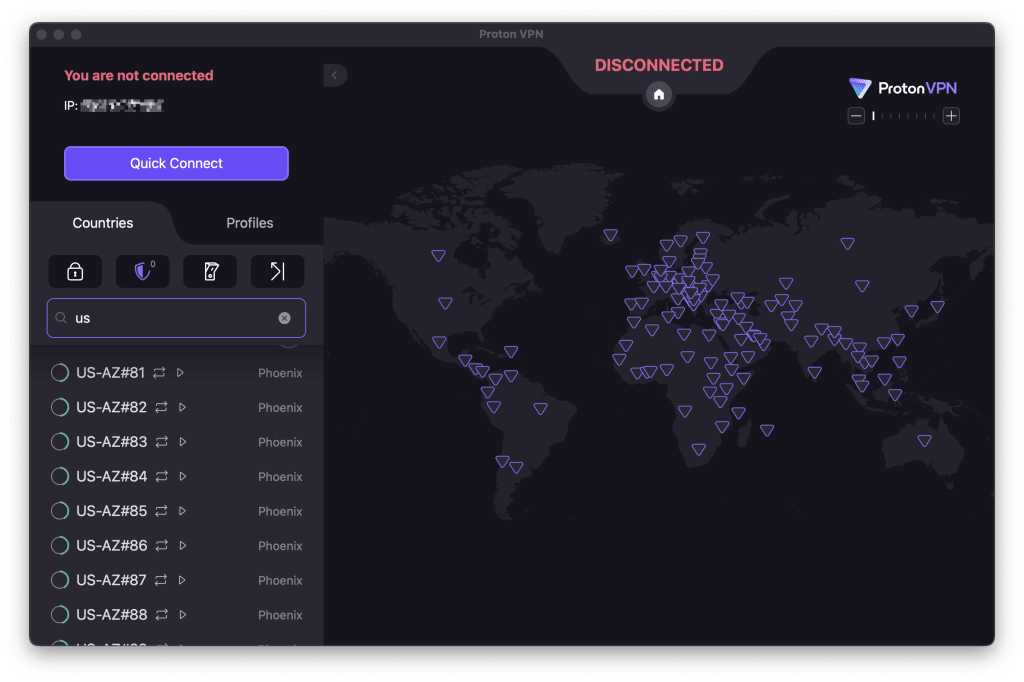
Port forwarding is only permitted on our special **P2P** servers. On our Mac app, these are marked with a **double-arrow icon**.

1\. Select the **Port forwarding** shortcut on the home screen.

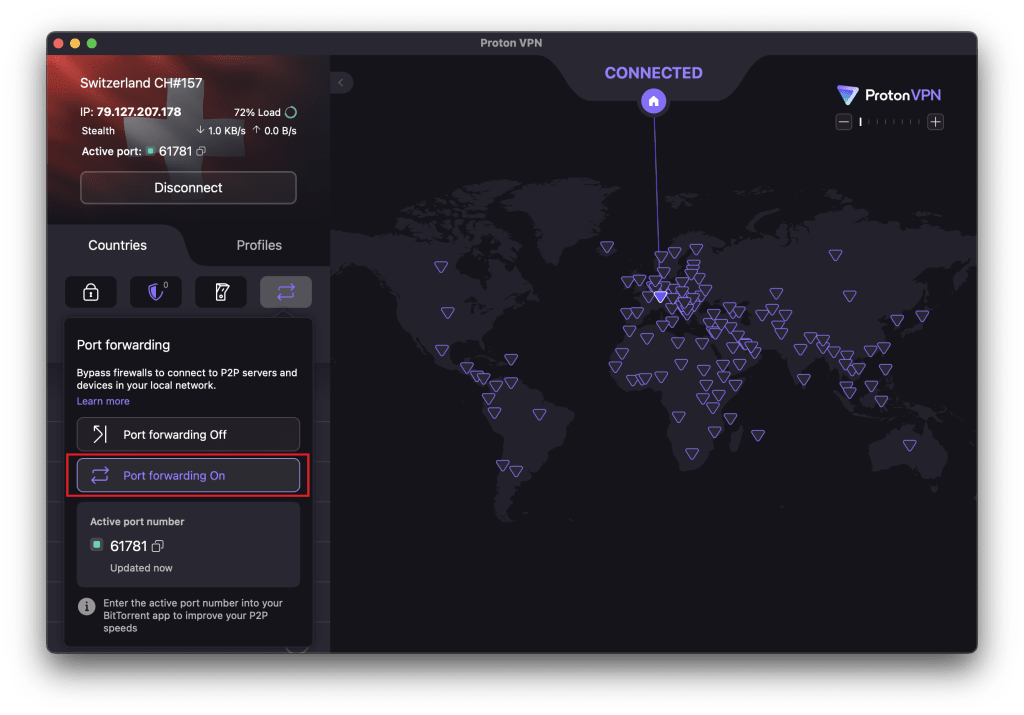
2\. Select the **Port forwarding** **On** button. When you activate port forwarding, the VPN app sends a request to the VPN server to open a random port. This will forward traffic from the internet to the app. The **active port number** is shown underneath the **Port forwarding On** button.

You’ll need this number to configure port forwarding on third-party software like your torrenting client. Please note that, in most cases, the **active port number** will change when you disconnect and reconnect the VPN.
This means you will probably need to reconfigure your P2P client for each VPN session. However, doing this is very quick and easy (see [below](https://protonvpn.com/support/port-forwarding#bittorrent)), and the active port is available to use immediately.
### Linux (GUI) app
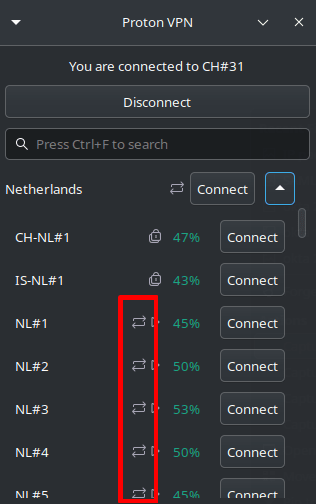
Port forwarding is only permitted on our special **P2P** servers. On our Linux app, these are marked with a **double-arrow icon**.

1\. Open the app, go to **Settings** → **Features**, and toggle the **Port forwarding** switch **on**.

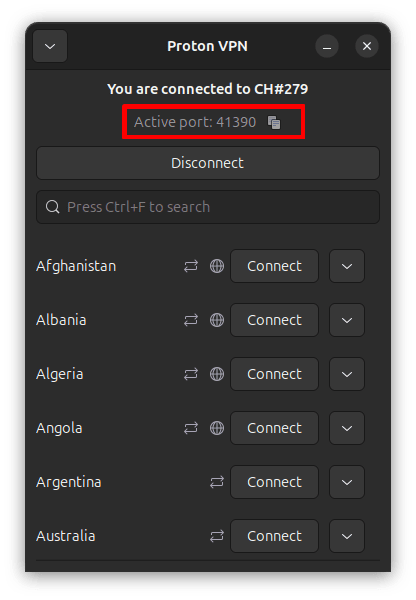
2\. When port forwarding is activated, the VPN app sends a request to the VPN server to open a random port that will forward traffic from the internet to the app. The **active port number** used for this is shown in the information panel at the top of the main app window when you connect to one of our P2P VPN servers.
You’ll need this number to configure port forwarding on third-party software like your torrenting client. Please note that, in most cases, the **active port number** will change when you disconnect and reconnect the VPN.
This means you will probably need to reconfigure your P2P client for each VPN session. However, doing this is very quick and easy (see below), and the active port is available to use immediately.

The active port is also written to the file: **/run/user/\$UID/Proton/VPN/forwarded\_port**. This can be useful for triggering automating tasks like updating your torrent client configuration every time the port number changes.
### Linux CLI
Enabling port forwarding for the Linux CLI is a two-stage process:
1\. **Enable port forwarding in the CLI**
Open a terminal window and run:
```
protonvpn config set port-forwarding on
```
Copied
If you’re connected to the VPN, you’ll need to reconnect for the new setting to take effect.
2\. **Configure port forwarding**
Follow the instructions in our [How to manually set up port forwarding](https://protonvpn.com/support/port-forwarding-manual-setup#linux) guide. Start from **Step 2: Linux**.
## How to configure port forwarding in your BitTorrent client
Port forwarding will work in any BitTorrent app. We provide instructions for a few popular Windows torrent apps below, but the steps are similar for all such software. Just remember to disable any UPnP and NAT-PMP settings in your client.
The reason for this is that UPnP and NAT-PMP settings can conflict with settings in the Proton VPN app.
### qBittorrent
1\. Enable port forwarding in the Proton VPN app (see above) and launch qBittorrent.
2\. Go to **Tools** → **Options** → **Connection** and disable **Use UPnP / NAT-PMP port forwarding from my router** (it is enabled by default)
3\. In the **Port used for incoming connections** field, enter the **active port number** shown in the Proton VPN app.

Click **OK** when you’re done.
To prevent IP leaks while you’re torrenting, you should take additional steps to ensure that qBitTorrent is bound to the correct interface. You can do so by following our guide on [how to bind your BitTorrent client to the VPN interface](https://protonvpn.com/support/bittorrent-vpn#binding-your-bittorrent-client-to-the-vpn-interface).
### Vuze
The screenshots below show Vuze in **Beginner** [Mode(new window)](https://wiki.vuze.com/w/Mode), but the steps are identical for all modes.
1\. Enable port forwarding in the Proton VPN app (see above) and launch Vuze.
2\. Go to **Tools** → **Options** → **Plugins** → **UPnP** and uncheck (disable) **Enable UPnP**.

3\. While still on the Options page, go to **Connection** and enter the **active port number** shown in the Proton VPN app.

Click **Save** when you’re done.
### uTorrent (Classic)
1\. Enable port forwarding in the Proton VPN app (see above) and launch uTorrent.
2\. Go to **Options** → **Preferences** → **Connection** and **uncheck (**disable) both **Enable UPnP port mapping** and **Enable NAT-PMP port mapping**.

3\. In the **Port used for incoming connections** field, enter the **active port number** shown in the Proton VPN app.

Click **Apply** when you’re done.
Opening a port carries a small risk. See [Port forwarding security considerations](https://protonvpn.com/support/port-forwarding-risks) for more details.
## A word about online port checkers
Online port checker tools allow you to check for open ports on your device and verify that port forwarding is working correctly. However, **open ports can only be detected if an application is actively listening on that port**.
### How port checker tools work
Port checker tools work in the following way:
1\. **Connection Attempt**: The tool sends a request to establish a connection to the specified port on your public I[P address](https://protonvpn.com/blog/what-is-an-ip-address/). When using a VPN, this will be the IP address of the [VPN server](https://protonvpn.com/vpn-servers).
2\. **Response Analysis**: It will then wait for a response:
- **Open**: If an application is actively listening on that port and port forwarding is working correctly, the port checker will successfully establish a connection and mark the port as **open**.
- **Closed** or **Filtered**: If no application is listening on the port, or if our firewall is blocking the connection (for example, if port forwarding is not working correctly), the port checker will either receive a “connection refused” message or the connection will time out. In these cases, the port will be reported as **closed** or **filtered**.
### Example
Using the Proton VPN port forwarding feature, you have opened port 44375 in our NAT firewall. However, until you configure an app to listen on that port, an online port checker tool will return a **closed** or **filtered** result.
If you configure an app to listen on port 44375 (such as one of the torrent clients described above) and check again, the port checker tool will be able to connect to the app through our firewall and return an **open** result. |
| Shard | 162 (laksa) |
| Root Hash | 12885006805053501762 |
| Unparsed URL | com,protonvpn!/support/port-forwarding s443 |