ℹ️ Skipped - page is already crawled
| Filter | Status | Condition | Details |
|---|---|---|---|
| HTTP status | PASS | download_http_code = 200 | HTTP 200 |
| Age cutoff | PASS | download_stamp > now() - 6 MONTH | 0 months ago |
| History drop | PASS | isNull(history_drop_reason) | No drop reason |
| Spam/ban | PASS | fh_dont_index != 1 AND ml_spam_score = 0 | ml_spam_score=0 |
| Canonical | PASS | meta_canonical IS NULL OR = '' OR = src_unparsed | Not set |
| Property | Value |
|---|---|
| URL | https://osxdaily.com/how-take-screenshot-mac/ |
| Last Crawled | 2026-04-05 15:54:28 (1 day ago) |
| First Indexed | 2019-08-21 18:16:49 (6 years ago) |
| HTTP Status Code | 200 |
| Meta Title | How to Take a Screenshot on Mac |
| Meta Description | How to Take a Screenshot on Mac |
| Meta Canonical | null |
| Boilerpipe Text | Do you need to take a screenshot of the Mac screen? Snapping screenshots on the Mac is very easy, achieved through the usage of keyboard shortcuts. Basically this means that you will press a combination of keystrokes on the Mac keyboard to capture the screenshot.
Mac OS has powerful screenshot tools that go beyond the simple print screen methods that some computer users are accustomed to from the Windows world. Read on to learn at least seven different methods to take a screenshot on any Mac computer. We’ll also have a short screenshot FAQ section about adjusting screenshot file types, screenshot saved file location, and capturing screen recordings too.
How to Take a Screen Shot on Mac: 7 Ways to Snap Screenshots
You can use any of the following keyboard shortcuts to capture and take screenshots directly in Mac OS, you can snap screenshots of the desktop, Finder, or any running and open applications. Whatever is on the screen of the Mac will be captured as an image file. If you have audio turned up on the Mac, you will hear an audible snapshot sound effect when the screenshot has bene successfully taken. The keyboard shortcuts to take screenshots on Mac are the same with all versions of Mac OS, including macOS Sonoma, macOS Big Sur, MacOS Monterey, MacOS Catalina, MacOS Mojave, High Sierra, macOS Sierra, OS X El Capitan, Yosemite, Mac OS X Mavericks, Mountain Lion, Lion, Snow Leopard, and basically any other version of Mac OS or Mac OS X that you’ll possibly come across.
Command + Shift + 3
takes a screenshot of the entire Mac screen. This is the most commonly used screen shot method for most Mac users
Command + Shift + 4
brings up a selection box so you can draw a region of the screen to take a screenshot of
Command + Shift + 4, then hit Spacebar, then click on a window
to take a screenshot of a the selected window only
Command + Shift + 5
for MacOS Mojave or later: enters a Screen Shot tool in MacOS to take various types of screen captures and recordings as desired
Command + Control + Shift + 3
take a screenshot of the entire screen and saves it directly to the clipboard for using with Paste rather than to a file – this is basically the Mac equivalent to Print Screen for the Windows world
Command + Control + Shift + 4
brings up the selection box to draw a region of the screen to take a screenshot of, and then saves that screenshot to the clipboard for pasting elsewhere
Command + Control + Shift + 4, then hit the Spacebar, then click a window
takes the screenshot of the selected window and and saves that to the clipboard for pasting
The screenshot methods where you use the Control key in addition to the other key sequences requires the use of the paste function, which means you can paste the screenshot captured into any existing document, or into a new file from Preview or any other app. Using Paste is typically achieved with Command + V or the ‘Edit’ menu > Paste, these approaches will
use the copy and paste functions on the Mac
.
For Mac users who have switched to the Mac from the Windows world, the Command + Control + Shift + 3 approach can be thought of as
the Mac equivalent to Print Screen
in that it copies the screen capture directly to the clipboard of the computer.
Where do screenshots save on a Mac?
By default the screenshot file will save on the desktop of the Mac.
The Mac screenshot location can be changed by using a defaults command as covered here
.
If you use one of the screenshot keyboard shortcuts that copies the screenshot to the clipboard, the screenshot will save to the clipboard to be pasted elsewhere. The screenshot will remain in the Mac clipboard until it is overwritten by something else copied to the clipboard.
How can I change image format of screenshots on Mac?
By default the screenshot image file type on Mac will be PNG.
If you want to
learn how to change the screenshot image file type on a Mac you can do so with these instructions
. You can choose from various image file types for the screenshot including JPEG, TIFF, PNG, PDF, or GIF.
Can you change the name of screenshot files generated?
Yes,
follow these instructions to change the screen shot file name
as needed.
Can I take screenshots from the command line?
Yes, it is possible to initiate screenshots from the command line on a Mac.
Read more about the screencapture command line tool here
.
Can you record videos of the Mac screen?
Yes you can
record a video of the Mac screen using the built-in Screen Recorder function as discussed here
.
What do screenshots on a Mac look like?
Whatever is on the screen of the Mac will be captured in the screenshot. Thus screenshots look like whatever was on the display when the screenshot was initiated. That can be Mac desktop, open apps, windows, games, or anything else on the screen.
Here are some example screenshots from Macs, taken with the keyboard shortcuts to capture screenshots discussed above.
A sample screenshot of a Mac desktop:
An example screenshot of an application open on a Mac:
An example screenshot showing a game running on Mac:
An example of a screenshot showing an application running a virtual machine on a Mac:
As you can see, whatever is on the screen will be captured in the screenshot.
What about taking screenshots of iPhone or iPad?
You can also take screenshots of any iPhone or iPad, though how it is achieved differs per iOS device. You can
learn how to take a screenshot on iPhone X, XS Max, XS, XR and other newer modern iPhone models without a Home button
which is similar to
taking screenshots of iPad Pro
, though that is different from
taking a screenshot on iPhone models with a Home button
like the 8 Plus, 8, 7 Plus, 7, SE, etc and iPad models with a Home button.
iOS users can also record the screen as video with these instructions
if desired too. |
| Markdown | [](https://osxdaily.com/)
- [Home](https://osxdaily.com/)
- [Mac OS](https://osxdaily.com/category/mac-os-x/)
- [iPhone](https://osxdaily.com/category/iphone/)
- [iPad](https://osxdaily.com/category/ipad/)
- [Tips & Tricks](https://osxdaily.com/category/tips-tricks/)
- [News](https://osxdaily.com/category/news/)
- [iOS](https://osxdaily.com/tag/ios/)
- [Troubleshooting](https://osxdaily.com/category/troubleshooting/)
# How to Take a Screenshot on Mac
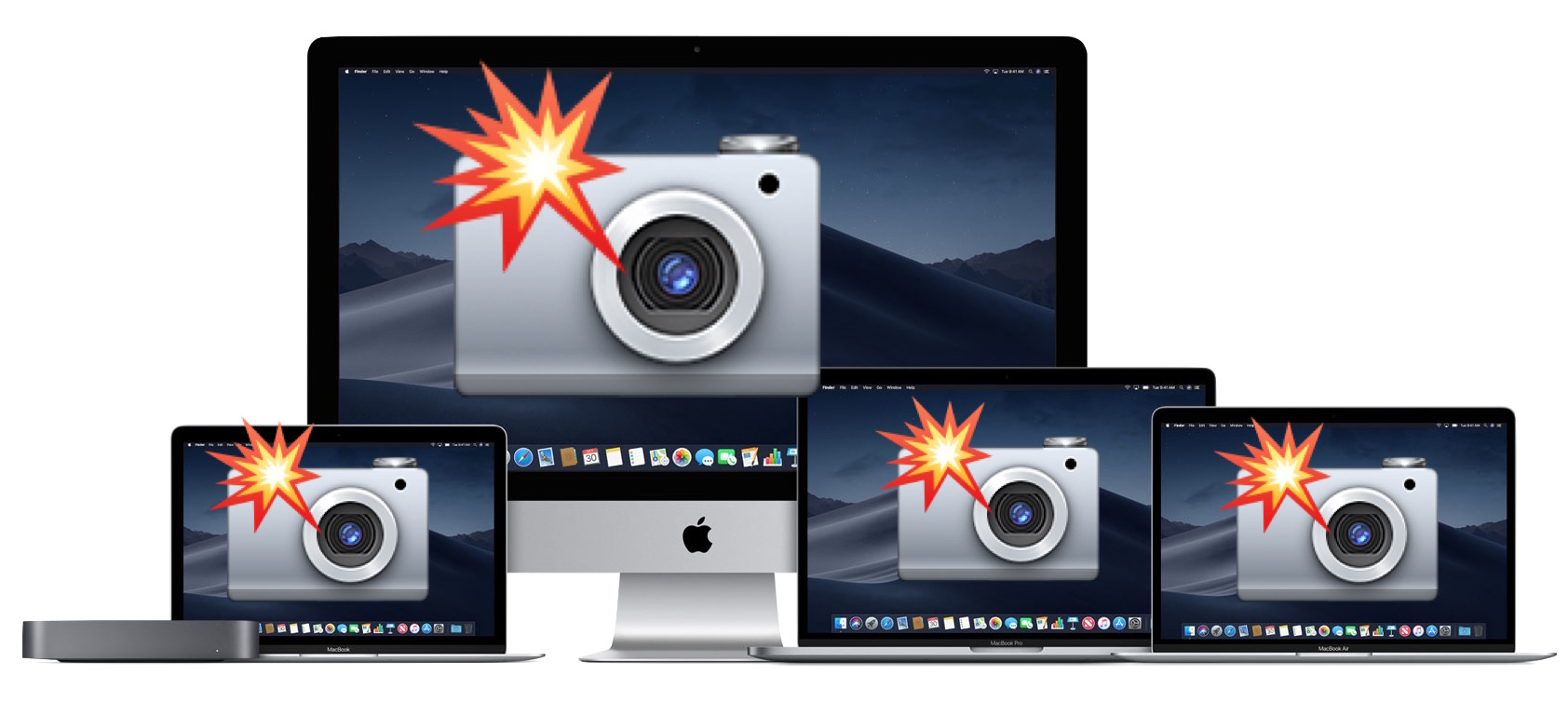
Do you need to take a screenshot of the Mac screen? Snapping screenshots on the Mac is very easy, achieved through the usage of keyboard shortcuts. Basically this means that you will press a combination of keystrokes on the Mac keyboard to capture the screenshot.
Mac OS has powerful screenshot tools that go beyond the simple print screen methods that some computer users are accustomed to from the Windows world. Read on to learn at least seven different methods to take a screenshot on any Mac computer. We’ll also have a short screenshot FAQ section about adjusting screenshot file types, screenshot saved file location, and capturing screen recordings too.
## How to Take a Screen Shot on Mac: 7 Ways to Snap Screenshots
You can use any of the following keyboard shortcuts to capture and take screenshots directly in Mac OS, you can snap screenshots of the desktop, Finder, or any running and open applications. Whatever is on the screen of the Mac will be captured as an image file. If you have audio turned up on the Mac, you will hear an audible snapshot sound effect when the screenshot has bene successfully taken. The keyboard shortcuts to take screenshots on Mac are the same with all versions of Mac OS, including macOS Sonoma, macOS Big Sur, MacOS Monterey, MacOS Catalina, MacOS Mojave, High Sierra, macOS Sierra, OS X El Capitan, Yosemite, Mac OS X Mavericks, Mountain Lion, Lion, Snow Leopard, and basically any other version of Mac OS or Mac OS X that you’ll possibly come across.
- **Command + Shift + 3** takes a screenshot of the entire Mac screen. This is the most commonly used screen shot method for most Mac users
- **Command + Shift + 4** brings up a selection box so you can draw a region of the screen to take a screenshot of
- **Command + Shift + 4, then hit Spacebar, then click on a window** to take a screenshot of a the selected window only
- **Command + Shift + 5** for MacOS Mojave or later: enters a Screen Shot tool in MacOS to take various types of screen captures and recordings as desired
- **Command + Control + Shift + 3** take a screenshot of the entire screen and saves it directly to the clipboard for using with Paste rather than to a file – this is basically the Mac equivalent to Print Screen for the Windows world
- **Command + Control + Shift + 4** brings up the selection box to draw a region of the screen to take a screenshot of, and then saves that screenshot to the clipboard for pasting elsewhere
- **Command + Control + Shift + 4, then hit the Spacebar, then click a window** takes the screenshot of the selected window and and saves that to the clipboard for pasting
The screenshot methods where you use the Control key in addition to the other key sequences requires the use of the paste function, which means you can paste the screenshot captured into any existing document, or into a new file from Preview or any other app. Using Paste is typically achieved with Command + V or the ‘Edit’ menu \> Paste, these approaches will [use the copy and paste functions on the Mac](https://osxdaily.com/how-copy-paste-mac/).
For Mac users who have switched to the Mac from the Windows world, the Command + Control + Shift + 3 approach can be thought of as [the Mac equivalent to Print Screen](https://osxdaily.com/2010/05/13/print-screen-mac/) in that it copies the screen capture directly to the clipboard of the computer.
#### Where do screenshots save on a Mac?
By default the screenshot file will save on the desktop of the Mac.
[The Mac screenshot location can be changed by using a defaults command as covered here](https://osxdaily.com/2011/01/26/change-the-screenshot-save-file-location-in-mac-os-x/).
If you use one of the screenshot keyboard shortcuts that copies the screenshot to the clipboard, the screenshot will save to the clipboard to be pasted elsewhere. The screenshot will remain in the Mac clipboard until it is overwritten by something else copied to the clipboard.
#### How can I change image format of screenshots on Mac?
By default the screenshot image file type on Mac will be PNG.
If you want to [learn how to change the screenshot image file type on a Mac you can do so with these instructions](https://osxdaily.com/2010/08/16/change-the-screenshot-capture-file-format/). You can choose from various image file types for the screenshot including JPEG, TIFF, PNG, PDF, or GIF.
#### Can you change the name of screenshot files generated?
Yes, [follow these instructions to change the screen shot file name](https://osxdaily.com/2012/02/16/change-screen-shot-file-name-mac-os-x/) as needed.
#### Can I take screenshots from the command line?
Yes, it is possible to initiate screenshots from the command line on a Mac. [Read more about the screencapture command line tool here](https://osxdaily.com/2011/08/11/take-screen-shots-terminal-mac-os-x/).
#### Can you record videos of the Mac screen?
Yes you can [record a video of the Mac screen using the built-in Screen Recorder function as discussed here](https://osxdaily.com/2010/11/16/screen-recorder-mac/).
#### What do screenshots on a Mac look like?
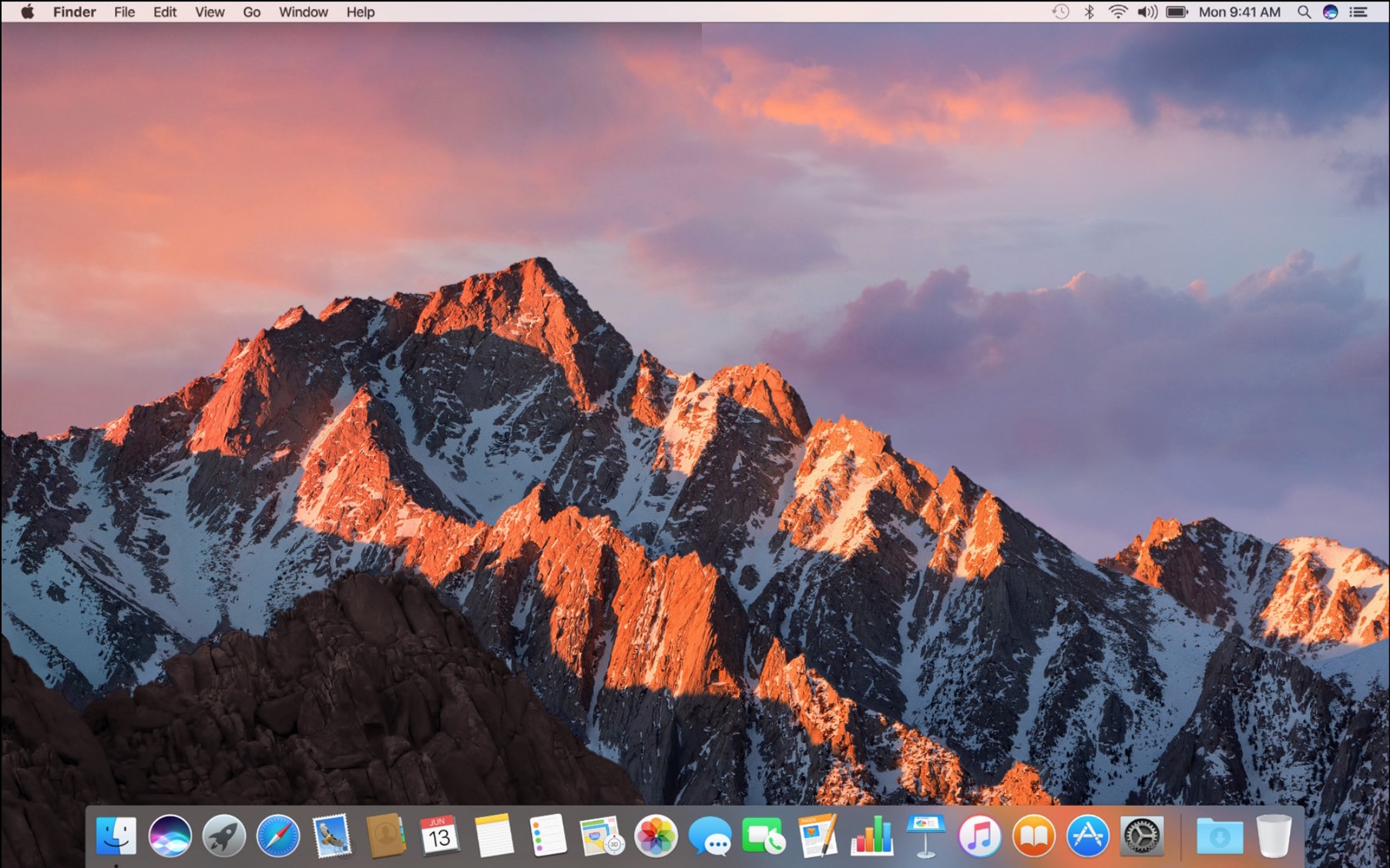
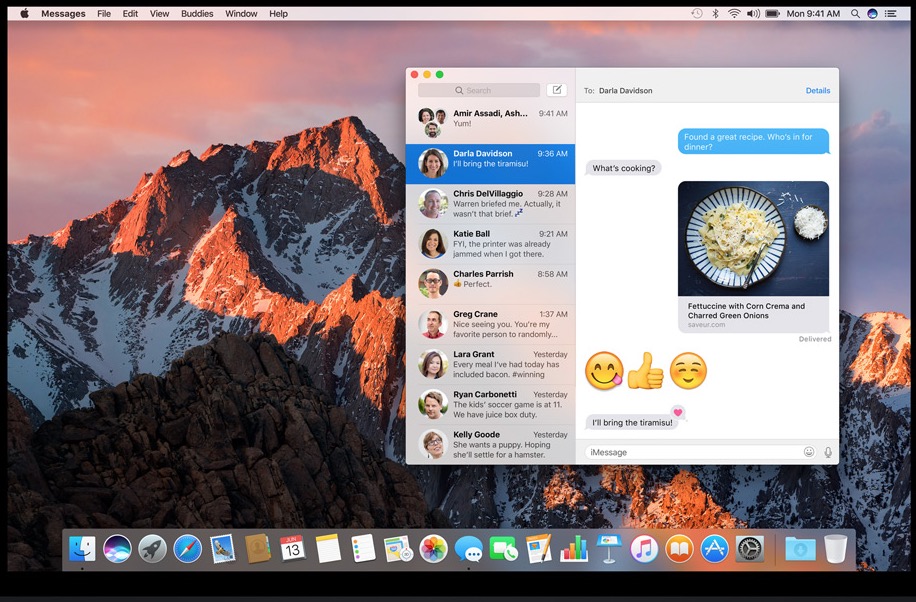
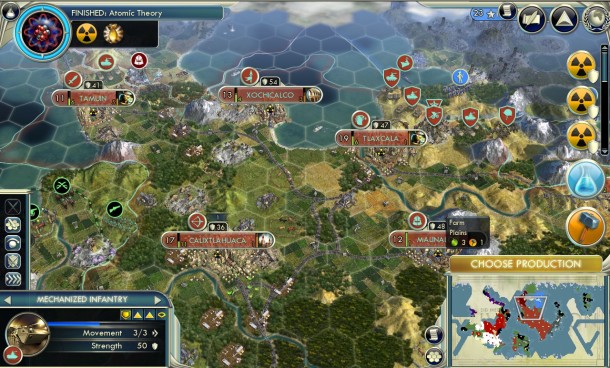
Whatever is on the screen of the Mac will be captured in the screenshot. Thus screenshots look like whatever was on the display when the screenshot was initiated. That can be Mac desktop, open apps, windows, games, or anything else on the screen.
Here are some example screenshots from Macs, taken with the keyboard shortcuts to capture screenshots discussed above.
A sample screenshot of a Mac desktop:
An example screenshot of an application open on a Mac:
An example screenshot showing a game running on Mac:
An example of a screenshot showing an application running a virtual machine on a Mac:
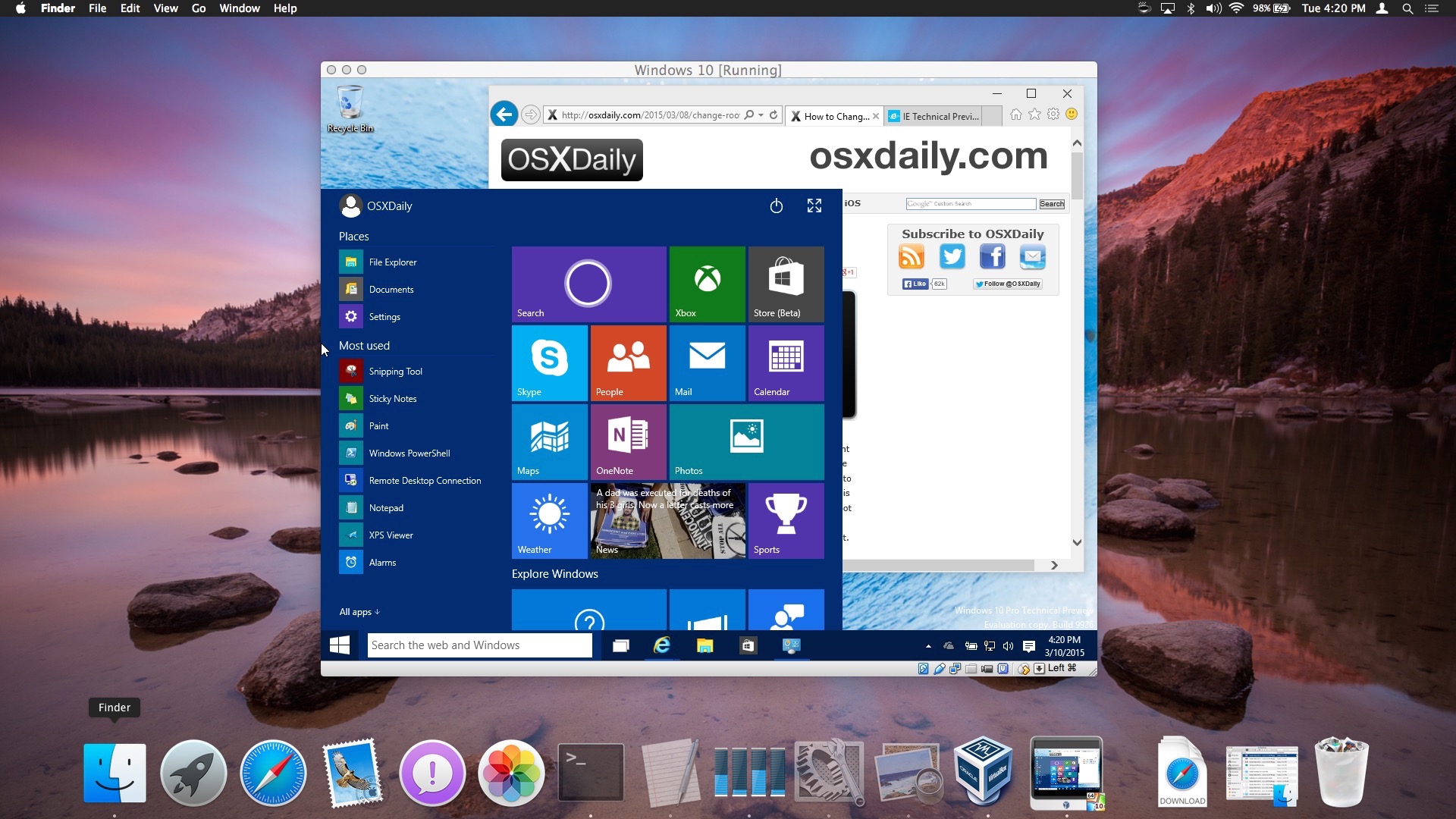
As you can see, whatever is on the screen will be captured in the screenshot.
#### What about taking screenshots of iPhone or iPad?
You can also take screenshots of any iPhone or iPad, though how it is achieved differs per iOS device. You can [learn how to take a screenshot on iPhone X, XS Max, XS, XR and other newer modern iPhone models without a Home button](https://osxdaily.com/2017/11/04/how-take-screenshot-iphone-x/) which is similar to [taking screenshots of iPad Pro](https://osxdaily.com/2018/11/18/take-screenshot-ipad-pro/), though that is different from [taking a screenshot on iPhone models with a Home button](https://osxdaily.com/2010/12/16/take-screenshot-iphone/) like the 8 Plus, 8, 7 Plus, 7, SE, etc and iPad models with a Home button.
[iOS users can also record the screen as video with these instructions](https://osxdaily.com/2018/11/06/how-enable-screen-recording-ios/) if desired too.
- [Click to share on Facebook (Opens in new window) Facebook](https://osxdaily.com/how-take-screenshot-mac/?share=facebook&nb=1)
- [Click to share on X (Opens in new window) X](https://osxdaily.com/how-take-screenshot-mac/?share=twitter&nb=1)
- [Click to share on Reddit (Opens in new window) Reddit](https://osxdaily.com/how-take-screenshot-mac/?share=reddit&nb=1)
- [More](https://osxdaily.com/how-take-screenshot-mac/)
- [Click to share on LinkedIn (Opens in new window) LinkedIn](https://osxdaily.com/how-take-screenshot-mac/?share=linkedin&nb=1)
- [Click to print (Opens in new window) Print](https://osxdaily.com/how-take-screenshot-mac/#print?share=print&nb=1)
- [Click to share on Tumblr (Opens in new window) Tumblr](https://osxdaily.com/how-take-screenshot-mac/?share=tumblr&nb=1)
- [Click to share on Pinterest (Opens in new window) Pinterest](https://osxdaily.com/how-take-screenshot-mac/?share=pinterest&nb=1)
- [Click to share on Pocket (Opens in new window) Pocket](https://osxdaily.com/how-take-screenshot-mac/?share=pocket&nb=1)
- [Click to share on Telegram (Opens in new window) Telegram](https://osxdaily.com/how-take-screenshot-mac/?share=telegram&nb=1)
- [Click to share on WhatsApp (Opens in new window) WhatsApp](https://osxdaily.com/how-take-screenshot-mac/?share=jetpack-whatsapp&nb=1)
### Subscribe to OSXDaily
[](https://osxdaily.com/feed/) [](https://twitter.com/osxdaily) [](https://www.facebook.com/osxdaily) [](https://landing.mailerlite.com/webforms/landing/y5p1r1)
[Follow @OSXDaily](https://twitter.com/OSXDaily)
### Tips & Tricks
- \- [How to Downgrade from MacOS Tahoe to MacOS Sequoia](https://osxdaily.com/2026/03/30/how-to-downgrade-from-macos-tahoe-to-macos-sequoia/)
- \- [PSA: Automatic Software Update Enables Itself with MacOS Tahoe 26.4 & iOS 26.4](https://osxdaily.com/2026/03/25/psa-automatic-software-update-enables-itself-with-macos-tahoe-26-4-ios-26-4/)
- \- [How to Access Portrait Camera Mode in iOS 26 on iPhone](https://osxdaily.com/2026/03/21/how-to-access-portrait-camera-mode-in-ios-26-on-iphone/)
- \- [How to Set the Primary Display on macOS Tahoe, Sequoia, or Sonoma](https://osxdaily.com/2026/03/17/how-to-set-the-primary-display-on-macos-tahoe-sequoia-or-sonoma/)
- \- [How to Clean Install MacOS Sequoia](https://osxdaily.com/2026/03/16/how-to-clean-install-macos-sequoia/)
### News
- \- [iOS 18.7.7 Update Released for iPhone & iPad Holdouts Not Running iOS 26+](https://osxdaily.com/2026/04/01/ios-18-7-7-update-released-for-iphone-ipad-holdouts-not-running-ios-26/)
- \- [Celebrate Apple’s 50th Anniversary with a Nifty Scribble Apple Logo Wallpaper](https://osxdaily.com/2026/03/31/celebrate-apples-50th-anniversary-with-a-nifty-scribble-%EF%A3%BF-apple-logo-wallpaper/)
- \- [1st Beta of macOS Tahoe 26.5 & iOS 26.5 Released for Testing](https://osxdaily.com/2026/03/30/1st-beta-of-macos-tahoe-26-5-ios-26-5-released-for-testing/)
- \- [PSA: iOS 26.4 Age Verification in UK Fails for Some, Leading to Device Restrictions](https://osxdaily.com/2026/03/26/psa-ios-26-4-age-verification-in-uk-fails-for-some/)
- \- [Older Apple Watch, iPhone, iPad Models Get Updates: iOS 18.7.7, watchOS 8.8.2, watchOS 5.3.10](https://osxdaily.com/2026/03/26/older-apple-watch-iphone-ipad-models-get-updates-ios-18-7-7-watchos-8-8-2-watchos-5-3-10/)
### iPhone / iPad
- \- [iOS 18.7.7 Update Released for iPhone & iPad Holdouts Not Running iOS 26+](https://osxdaily.com/2026/04/01/ios-18-7-7-update-released-for-iphone-ipad-holdouts-not-running-ios-26/)
- \- [PSA: iOS 26.4 Age Verification in UK Fails for Some, Leading to Device Restrictions](https://osxdaily.com/2026/03/26/psa-ios-26-4-age-verification-in-uk-fails-for-some/)
- \- [PSA: Automatic Software Update Enables Itself with MacOS Tahoe 26.4 & iOS 26.4](https://osxdaily.com/2026/03/25/psa-automatic-software-update-enables-itself-with-macos-tahoe-26-4-ios-26-4/)
- \- [iOS 26.4 & iPadOS 26.4 Update Released with New Emoji, Keyboard Accuracy Fix, & More](https://osxdaily.com/2026/03/24/ios-26-4-ipados-26-4-update-released-with-new-emoji-keyboard-accuracy-fix-more/)
- \- [How to Access Portrait Camera Mode in iOS 26 on iPhone](https://osxdaily.com/2026/03/21/how-to-access-portrait-camera-mode-in-ios-26-on-iphone/)
### Mac
- \- [How to Downgrade from MacOS Tahoe to MacOS Sequoia](https://osxdaily.com/2026/03/30/how-to-downgrade-from-macos-tahoe-to-macos-sequoia/)
- \- [PSA: Automatic Software Update Enables Itself with MacOS Tahoe 26.4 & iOS 26.4](https://osxdaily.com/2026/03/25/psa-automatic-software-update-enables-itself-with-macos-tahoe-26-4-ios-26-4/)
- \- [MacOS Sequoia 15.7.5 & MacOS Sonoma 14.8.5 Released](https://osxdaily.com/2026/03/25/macos-sequoia-15-7-5-macos-sonoma-14-8-5-released/)
- \- [MacOS Tahoe 26.4 Update Released with New Emoji, Bug Fixes, Security Patches](https://osxdaily.com/2026/03/24/macos-tahoe-26-4-update-released-with-new-emoji-bug-fixes-security-patches/)
- \- [Security Improvement Update for macOS Tahoe 26.3.1(a) & iOS 26.3.1(a) Released](https://osxdaily.com/2026/03/17/security-improvement-update-for-macos-tahoe-26-3-1-ios-26-3-1-released/)
### Troubleshooting
- \- [How to Downgrade from MacOS Tahoe to MacOS Sequoia](https://osxdaily.com/2026/03/30/how-to-downgrade-from-macos-tahoe-to-macos-sequoia/)
- \- [How to Access Portrait Camera Mode in iOS 26 on iPhone](https://osxdaily.com/2026/03/21/how-to-access-portrait-camera-mode-in-ios-26-on-iphone/)
- \- [How to Clean Install MacOS Sequoia](https://osxdaily.com/2026/03/16/how-to-clean-install-macos-sequoia/)
- \- [Fix Bluetooth Mouse or Keyboard Disconnecting in MacOS Tahoe](https://osxdaily.com/2026/03/12/fix-bluetooth-mouse-or-keyboard-disconnecting-in-macos-tahoe/)
- \- [“Device Added to Your Account” Message on iPhone, iPad, or Mac? Here’s What To Do](https://osxdaily.com/2026/03/06/device-added-to-your-account-message-on-iphone-ipad-or-mac-heres-what-to-do/)
[](https://www.amazon.com/ref=as_li_ss_tl?ie=UTF8&linkCode=ll2&tag=oxd-20&linkId=64d3941a2a40f30b13accdf967a25940&language=en_US)
#### OSXDaily
[About OSXDaily](https://osxdaily.com/about/) \| [Contact Us](https://osxdaily.com/contact-os-x-daily/) \| [Privacy Policy](https://osxdaily.com/osxdailycom-privacy-policy/) \| [Sitemap](https://osxdaily.com/sitemap-all/)
This website is unrelated to Apple Inc
All trademarks and copyrights on this website are property of their respective owners.
© 2026 OS X Daily. All Rights Reserved. Reproduction without explicit permission is prohibited. |
| Readable Markdown | 
Do you need to take a screenshot of the Mac screen? Snapping screenshots on the Mac is very easy, achieved through the usage of keyboard shortcuts. Basically this means that you will press a combination of keystrokes on the Mac keyboard to capture the screenshot.
Mac OS has powerful screenshot tools that go beyond the simple print screen methods that some computer users are accustomed to from the Windows world. Read on to learn at least seven different methods to take a screenshot on any Mac computer. We’ll also have a short screenshot FAQ section about adjusting screenshot file types, screenshot saved file location, and capturing screen recordings too.
## How to Take a Screen Shot on Mac: 7 Ways to Snap Screenshots
You can use any of the following keyboard shortcuts to capture and take screenshots directly in Mac OS, you can snap screenshots of the desktop, Finder, or any running and open applications. Whatever is on the screen of the Mac will be captured as an image file. If you have audio turned up on the Mac, you will hear an audible snapshot sound effect when the screenshot has bene successfully taken. The keyboard shortcuts to take screenshots on Mac are the same with all versions of Mac OS, including macOS Sonoma, macOS Big Sur, MacOS Monterey, MacOS Catalina, MacOS Mojave, High Sierra, macOS Sierra, OS X El Capitan, Yosemite, Mac OS X Mavericks, Mountain Lion, Lion, Snow Leopard, and basically any other version of Mac OS or Mac OS X that you’ll possibly come across.
- **Command + Shift + 3** takes a screenshot of the entire Mac screen. This is the most commonly used screen shot method for most Mac users
- **Command + Shift + 4** brings up a selection box so you can draw a region of the screen to take a screenshot of
- **Command + Shift + 4, then hit Spacebar, then click on a window** to take a screenshot of a the selected window only
- **Command + Shift + 5** for MacOS Mojave or later: enters a Screen Shot tool in MacOS to take various types of screen captures and recordings as desired
- **Command + Control + Shift + 3** take a screenshot of the entire screen and saves it directly to the clipboard for using with Paste rather than to a file – this is basically the Mac equivalent to Print Screen for the Windows world
- **Command + Control + Shift + 4** brings up the selection box to draw a region of the screen to take a screenshot of, and then saves that screenshot to the clipboard for pasting elsewhere
- **Command + Control + Shift + 4, then hit the Spacebar, then click a window** takes the screenshot of the selected window and and saves that to the clipboard for pasting
The screenshot methods where you use the Control key in addition to the other key sequences requires the use of the paste function, which means you can paste the screenshot captured into any existing document, or into a new file from Preview or any other app. Using Paste is typically achieved with Command + V or the ‘Edit’ menu \> Paste, these approaches will [use the copy and paste functions on the Mac](https://osxdaily.com/how-copy-paste-mac/).
For Mac users who have switched to the Mac from the Windows world, the Command + Control + Shift + 3 approach can be thought of as [the Mac equivalent to Print Screen](https://osxdaily.com/2010/05/13/print-screen-mac/) in that it copies the screen capture directly to the clipboard of the computer.
#### Where do screenshots save on a Mac?
By default the screenshot file will save on the desktop of the Mac.
[The Mac screenshot location can be changed by using a defaults command as covered here](https://osxdaily.com/2011/01/26/change-the-screenshot-save-file-location-in-mac-os-x/).
If you use one of the screenshot keyboard shortcuts that copies the screenshot to the clipboard, the screenshot will save to the clipboard to be pasted elsewhere. The screenshot will remain in the Mac clipboard until it is overwritten by something else copied to the clipboard.
#### How can I change image format of screenshots on Mac?
By default the screenshot image file type on Mac will be PNG.
If you want to [learn how to change the screenshot image file type on a Mac you can do so with these instructions](https://osxdaily.com/2010/08/16/change-the-screenshot-capture-file-format/). You can choose from various image file types for the screenshot including JPEG, TIFF, PNG, PDF, or GIF.
#### Can you change the name of screenshot files generated?
Yes, [follow these instructions to change the screen shot file name](https://osxdaily.com/2012/02/16/change-screen-shot-file-name-mac-os-x/) as needed.
#### Can I take screenshots from the command line?
Yes, it is possible to initiate screenshots from the command line on a Mac. [Read more about the screencapture command line tool here](https://osxdaily.com/2011/08/11/take-screen-shots-terminal-mac-os-x/).
#### Can you record videos of the Mac screen?
Yes you can [record a video of the Mac screen using the built-in Screen Recorder function as discussed here](https://osxdaily.com/2010/11/16/screen-recorder-mac/).
#### What do screenshots on a Mac look like?
Whatever is on the screen of the Mac will be captured in the screenshot. Thus screenshots look like whatever was on the display when the screenshot was initiated. That can be Mac desktop, open apps, windows, games, or anything else on the screen.
Here are some example screenshots from Macs, taken with the keyboard shortcuts to capture screenshots discussed above.
A sample screenshot of a Mac desktop:

An example screenshot of an application open on a Mac:

An example screenshot showing a game running on Mac:

An example of a screenshot showing an application running a virtual machine on a Mac:

As you can see, whatever is on the screen will be captured in the screenshot.
#### What about taking screenshots of iPhone or iPad?
You can also take screenshots of any iPhone or iPad, though how it is achieved differs per iOS device. You can [learn how to take a screenshot on iPhone X, XS Max, XS, XR and other newer modern iPhone models without a Home button](https://osxdaily.com/2017/11/04/how-take-screenshot-iphone-x/) which is similar to [taking screenshots of iPad Pro](https://osxdaily.com/2018/11/18/take-screenshot-ipad-pro/), though that is different from [taking a screenshot on iPhone models with a Home button](https://osxdaily.com/2010/12/16/take-screenshot-iphone/) like the 8 Plus, 8, 7 Plus, 7, SE, etc and iPad models with a Home button.
[iOS users can also record the screen as video with these instructions](https://osxdaily.com/2018/11/06/how-enable-screen-recording-ios/) if desired too. |
| Shard | 155 (laksa) |
| Root Hash | 5510881953311266755 |
| Unparsed URL | com,osxdaily!/how-take-screenshot-mac/ s443 |