ℹ️ Skipped - page is already crawled
| Filter | Status | Condition | Details |
|---|---|---|---|
| HTTP status | PASS | download_http_code = 200 | HTTP 200 |
| Age cutoff | PASS | download_stamp > now() - 6 MONTH | 0.2 months ago |
| History drop | PASS | isNull(history_drop_reason) | No drop reason |
| Spam/ban | PASS | fh_dont_index != 1 AND ml_spam_score = 0 | ml_spam_score=0 |
| Canonical | PASS | meta_canonical IS NULL OR = '' OR = src_unparsed | Not set |
| Property | Value | |||||||||
|---|---|---|---|---|---|---|---|---|---|---|
| URL | https://k0nze.dev/posts/python-relative-imports-vscode/ | |||||||||
| Last Crawled | 2026-04-16 13:05:29 (7 days ago) | |||||||||
| First Indexed | 2021-11-14 07:02:52 (4 years ago) | |||||||||
| HTTP Status Code | 200 | |||||||||
| Content | ||||||||||
| Meta Title | Python Relative Imports in VSCode (Fix ModuleNotFoundError and Auto-completion) | k0nze | |||||||||
| Meta Description | Progamming, Computer Science, and Everything in Between | |||||||||
| Meta Canonical | null | |||||||||
| Boilerpipe Text | When you work on semi-complex Python projects, they are sometimes composed out of several smaller projects. For example, you or your colleagues developed a library or package of classes and functions you now want to use in your current project. One way of including a package (here
my_package
) into your current project is to copy it into your project folder (or have it as a git submodule). A project structure could look like this, where the package(s) are all included inside the
libs
folder:
1
2
3
4
5
6
7
$workspaceFolder
└── my_code
├── libs
│ └── my_package
│ ├── __init__.py
│ └── classes.py
└── main.py
The
classes.py
may contain the following code (
__init__.py
is empty):
1
2
3
4
5
6
class
MyClass
:
def
__init__
(
self
,
name
):
self
.
name
=
name
def
__repr__
(
self
):
return
self
.
name
and
main.py
can access
MyClass
by importing it with its absolute path:
1
2
3
4
5
from
libs.my_package.classes
import
MyClass
if
__name__
==
"
__main__
"
:
a
=
MyClass
(
"
a
"
)
print
(
a
)
However, sometimes your projects require that a
libs
directory is on the same folder level as the folder where your project can be found, or several projects share the same packages and they are stored outside of your workspace. Then the project structure could look like this:
1
2
3
4
5
6
7
$workspaceFolder
├── libs
│ └── my_package
│ ├── __init__.py
│ └── classes.py
└── my_code
└── main.py
Now
main.py
can’t access
MyClass
using the import statement from above because
libs/my_package
is not in the folder that
main.py
is in, and when running
main.py
, the following
ModuleNotFoundError
is raised:
1
2
3
4
Traceback (most recent call last):
File "$workspaceFolder\my_code\main.py", line 1, in <module>
from libs.my_package.classes import MyClass
ModuleNotFoundError: No module named 'libs.my_package'
There is a dirty fix to remove the
ModuleNotFoundError
by extending the
PYTHONPATH
inside of
main.py
.
PYTHONPATH
is an environment variable that holds paths to additional directories in which the Python interpreter will look into to find packages and modules.
PYTHONPATH
can be manually extended within a Python file using
sys
:
1
2
3
4
5
6
7
8
import
sys
sys
.
path
.
append
(
"
../libs
"
)
from
my_package.classes
import
MyClass
if
__name__
==
"
__main__
"
:
a
=
MyClass
(
"
a
"
)
print
(
a
)
However, this solution not only looks terrible, but it also has a lousy code design. Imagine you got several Python files that want to access
MyClass
. In each of these files, you have to add the first two lines. When you now move
libs
somewhere else. Every file that imports
MyClass
has to be changed, which is tedious and error-prone. A better solution would be to have a single file to extend the
PYTHONPATH
. You can either extend
PYTHONPATH
systemwide by appending the full path to
libs
to it, whereas several paths are separated using a colon
:
. But then you have to tell everyone who uses your code to do this for their system. So the preferred solution is to ask VSCode to extend the
PYTHONPATH
only for your project which you can also add to your git repository such that others don’t have to extend their
PYTHONPATH
manually.
First, you need to add a
launch.json
to your workspace that tells VSCode what and how to run your code. To create a
launch.json
, go to
Run and Debug
in the VSCode sidebar by clicking on the bug and run icon or pressing
Ctrl+Shift+D
.
Then click on
create launch.json file
and choose
Module
, press
Enter
, and enter the path to the Python file you would like to run while folders a separated with a dot
.
. For the workspace in this example, you would enter
my_code.main
because
main.py
is inside
my_code
, which is the workspace’s root. Now VSCode added a
.vscode
directory to your workspace, and inside it, you can find a
launch.json
file. A
launch.json
allows you to run your code regardless of which files are currently opened or in focus. You can now run your code by pressing
Ctrl+F5
or
Cmd+F5
.
Inside the
launch.json
you have to add a new
env
segment that will tell VSCode to extend the
PYTHONPATH
before running your program:
1
2
3
4
5
6
7
8
9
10
11
12
{
"version"
:
"0.2.0"
,
"configurations"
:
[
{
"name"
:
"Python: Module"
,
"type"
:
"python"
,
"request"
:
"launch"
,
"module"
:
"my_code.main"
,
"env"
:
{
"PYTHONPATH"
:
"${workspaceFolder}/libs/"
}
}
]
}
For this example,
PYTHONPATH
will be extended with
${workspaceFolder}/libs/
.
${workspaceFolder}
is the variable that contains the path to the root folder of your current VSCode workspace, and as
libs
is a folder inside the root
/libs/
is added. You can also use relative paths, including
..
when
libs
is outside your workspace.
Now the
sys.path.append
can be removed from
main.py
and you can run
main.py
by pressing
Ctrl+F5
/
Cmd+F5
. But now VSCode complains that it can’t find
my_package.classes
and it won’t give you auto-completion for any of the classes and functions from
my_package
, and having not auto-completion almost defeats the whole purpose of having an editor or IDE.
However, you can get auto-completion back by adding a
.vscode/settings.json
to your workspace. To do so, open the command palette by pressing
Ctrl+Shift+P
on Windows and Linux or
Cmd+Shift+P
on macOS and enter
settings.json
and press
Enter
when
Preferences: Open Workspace Settings (JSON)
is selected.
This will create a
settings.json
within
.vscode,
and in it, you have to tell VScode where to look for additional packages by adding a
python.analysis.extraPaths
segment containing the path to
libs
:
1
2
3
{
"python.analysis.extraPaths"
:
[
"${workspaceFolder}/libs/"
]
}
This will extend the
PYTHONPATH
for the VSCode code analysis and auto-completion, and VSCode won’t complain about an import error anymore:
I hope this article was helpful for you, and you don’t have to work with messy relative imports in Python anymore. If you have any questions about this article, feel free to join our
Discord community
to ask them over there. And if you want to know how to install and run multiple Python versions under Windows 10/11 check out this
article
and
video
: | |||||||||
| Markdown | [](https://k0nze.dev/)
[k0nze](https://k0nze.dev/)
Progamming, Computer Science, and Everything in Between
- [HOME](https://k0nze.dev/)
- [CATEGORIES](https://k0nze.dev/categories/)
- [TAGS](https://k0nze.dev/tags/)
- [ARCHIVES](https://k0nze.dev/archives/)
- [ABOUT](https://k0nze.dev/about/)
[Home](https://k0nze.dev/) Python Relative Imports in VSCode (Fix ModuleNotFoundError and Auto-completion)
Post
Cancel
# Python Relative Imports in VSCode (Fix ModuleNotFoundError and Auto-completion)
k0nze on Nov 13, 2021 *2021-11-13T18:00:00+01:00*
Updated Jan 30, 2024 *2024-01-30T06:53:13+01:00* 5 min read
When you work on semi-complex Python projects, they are sometimes composed out of several smaller projects. For example, you or your colleagues developed a library or package of classes and functions you now want to use in your current project. One way of including a package (here `my_package`) into your current project is to copy it into your project folder (or have it as a git submodule). A project structure could look like this, where the package(s) are all included inside the `libs` folder:
``
The `classes.py` may contain the following code (`__init__.py` is empty):
``
and `main.py` can access `MyClass` by importing it with its absolute path:
``
However, sometimes your projects require that a `libs` directory is on the same folder level as the folder where your project can be found, or several projects share the same packages and they are stored outside of your workspace. Then the project structure could look like this:
``
Now `main.py` can’t access `MyClass` using the import statement from above because `libs/my_package` is not in the folder that `main.py` is in, and when running `main.py`, the following `ModuleNotFoundError` is raised:
``
There is a dirty fix to remove the `ModuleNotFoundError` by extending the `PYTHONPATH` inside of `main.py`. `PYTHONPATH` is an environment variable that holds paths to additional directories in which the Python interpreter will look into to find packages and modules. `PYTHONPATH` can be manually extended within a Python file using `sys`:
``
However, this solution not only looks terrible, but it also has a lousy code design. Imagine you got several Python files that want to access `MyClass`. In each of these files, you have to add the first two lines. When you now move `libs` somewhere else. Every file that imports `MyClass` has to be changed, which is tedious and error-prone. A better solution would be to have a single file to extend the `PYTHONPATH`. You can either extend `PYTHONPATH` systemwide by appending the full path to `libs` to it, whereas several paths are separated using a colon `:`. But then you have to tell everyone who uses your code to do this for their system. So the preferred solution is to ask VSCode to extend the `PYTHONPATH` only for your project which you can also add to your git repository such that others don’t have to extend their `PYTHONPATH` manually.
First, you need to add a `launch.json` to your workspace that tells VSCode what and how to run your code. To create a `launch.json`, go to **Run and Debug** in the VSCode sidebar by clicking on the bug and run icon or pressing **Ctrl+Shift+D**.
[](https://k0nze.dev/assets/posts/python-relative-imports-vscode/vscode_run_and_debug_icon.PNG)
Then click on *create launch.json file* and choose *Module*, press **Enter**, and enter the path to the Python file you would like to run while folders a separated with a dot `.`. For the workspace in this example, you would enter `my_code.main` because `main.py` is inside `my_code`, which is the workspace’s root. Now VSCode added a `.vscode` directory to your workspace, and inside it, you can find a `launch.json` file. A `launch.json` allows you to run your code regardless of which files are currently opened or in focus. You can now run your code by pressing **Ctrl+F5** or **Cmd+F5**.
Inside the `launch.json` you have to add a new `env` segment that will tell VSCode to extend the `PYTHONPATH` before running your program:
``
For this example, `PYTHONPATH` will be extended with `${workspaceFolder}/libs/`. `${workspaceFolder}` is the variable that contains the path to the root folder of your current VSCode workspace, and as `libs` is a folder inside the root `/libs/` is added. You can also use relative paths, including `..` when `libs` is outside your workspace.
Now the `sys.path.append` can be removed from `main.py` and you can run `main.py` by pressing **Ctrl+F5**/**Cmd+F5**. But now VSCode complains that it can’t find `my_package.classes` and it won’t give you auto-completion for any of the classes and functions from `my_package`, and having not auto-completion almost defeats the whole purpose of having an editor or IDE.
[](https://k0nze.dev/assets/posts/python-relative-imports-vscode/main_py_import_error.PNG)
However, you can get auto-completion back by adding a `.vscode/settings.json` to your workspace. To do so, open the command palette by pressing **Ctrl+Shift+P** on Windows and Linux or **Cmd+Shift+P** on macOS and enter **settings.json** and press **Enter** when *Preferences: Open Workspace Settings (JSON)* is selected.
[](https://k0nze.dev/assets/posts/python-relative-imports-vscode/vscode_settings_json.PNG)
This will create a `settings.json` within `.vscode,` and in it, you have to tell VScode where to look for additional packages by adding a `python.analysis.extraPaths` segment containing the path to `libs`:
``
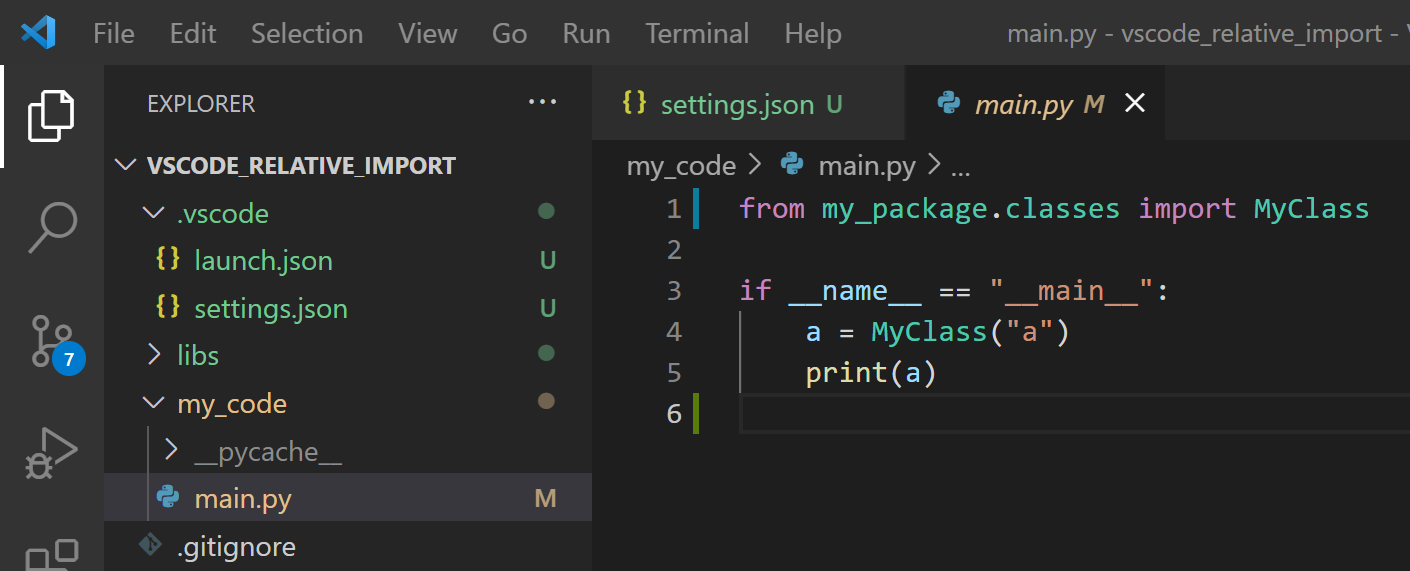
This will extend the `PYTHONPATH` for the VSCode code analysis and auto-completion, and VSCode won’t complain about an import error anymore:
[](https://k0nze.dev/assets/posts/python-relative-imports-vscode/vscode_fixed_import_error.PNG)
I hope this article was helpful for you, and you don’t have to work with messy relative imports in Python anymore. If you have any questions about this article, feel free to join our [Discord community](https://discord.k0nze.dev/) to ask them over there. And if you want to know how to install and run multiple Python versions under Windows 10/11 check out this [article](https://k0nze.dev/posts/install-pyenv-venv-vscode/) and [video](https://youtu.be/HTx18uyyHw8):
[Tutorial](https://k0nze.dev/categories/tutorial/), [Python](https://k0nze.dev/categories/python/)
[python](https://k0nze.dev/tags/python/) [programming](https://k0nze.dev/tags/programming/) [vscode](https://k0nze.dev/tags/vscode/)
This post is licensed under [CC BY 4.0](https://creativecommons.org/licenses/by/4.0/) by the author.
Recent Update
- [How to Install Multiple Python Versions on your Computer and use them with VSCode](https://k0nze.dev/posts/install-pyenv-venv-vscode/)
- [How to Setup a Zynq UltraScale+ Vivado Project and Run a C-Code Example Accessing an AXI Slave on the FPGA](https://k0nze.dev/posts/zynq-baremetal-project-setup/)
- [Python Decorators, A Beginners Guide (With Code Examples)](https://k0nze.dev/posts/python-decorators/)
- [Python := / Walrus Operator Explained in Simple Terms (With Code Snippets)](https://k0nze.dev/posts/python-walrus-operator/)
- [How to install an Alternative C/C++ Compiler (GCC/Clang) on macOS (Apple Silicon Mac M1/M2/M3)](https://k0nze.dev/posts/use-alternative-c-cpp-compiler-on-apple-silicon/)
Trending Tags
[programming](https://k0nze.dev/tags/programming/) [python](https://k0nze.dev/tags/python/) [vscode](https://k0nze.dev/tags/vscode/) [blockchain](https://k0nze.dev/tags/blockchain/) [ethereum](https://k0nze.dev/tags/ethereum/) [web3](https://k0nze.dev/tags/web3/) [macos](https://k0nze.dev/tags/macos/) [windows 11](https://k0nze.dev/tags/windows-11/) [c++](https://k0nze.dev/tags/c/) [verilog](https://k0nze.dev/tags/verilog/)
### Further Reading
[Aug 27, 2021 *2021-08-27T19:32:00+02:00* How to Install Multiple Python Versions on your Computer and use them with VSCode Why should you use pyenv and Virtual Python Environments? As a programmer, either employed at a company, freelancer or even as a hobbyist, you usually work on multiple programming projects simulta...](https://k0nze.dev/posts/install-pyenv-venv-vscode/)
[Oct 15, 2021 *2021-10-15T12:30:00+02:00* Python Course \#1: Python for Absolute Beginners You made the decision to start learning Python? Congratulations! In this article, you will learn how to write your first Python code and how to set up the code editor Visual Studio Code without any...](https://k0nze.dev/posts/your-first-python-program/)
[Feb 23, 2022 *2022-02-23T18:45:00+01:00* Big O Notation Explained Why is Big O Notation Used? When you got different algorithms to solve the same problem, you need to compare those to each other to pick the best (meaning fastest) for your program. Looking at eac...](https://k0nze.dev/posts/big-o-notation/)
[Python Course \#5: Adding and Subtracting Binary Numbers](https://k0nze.dev/posts/adding-and-subtracting-binary-numbers/)
[Python Course \#6: Multiplying and Dividing Binary Numbers](https://k0nze.dev/posts/multiplying-and-dividing-binary-numbers/)
© 2025 [k0nze / Konstantin Lübeck](https://www.youtube.com/channel/UC3_SywgWxpEBIoKawK2E3MA). Some rights reserved. [Imprint](https://k0nze.dev/imprint.html).
Powered by [Jekyll](https://jekyllrb.com/) with [Chirpy](https://github.com/cotes2020/jekyll-theme-chirpy) theme.
#### Trending Tags
[programming](https://k0nze.dev/tags/programming/) [python](https://k0nze.dev/tags/python/) [vscode](https://k0nze.dev/tags/vscode/) [blockchain](https://k0nze.dev/tags/blockchain/) [ethereum](https://k0nze.dev/tags/ethereum/) [web3](https://k0nze.dev/tags/web3/) [macos](https://k0nze.dev/tags/macos/) [windows 11](https://k0nze.dev/tags/windows-11/) [c++](https://k0nze.dev/tags/c/) [verilog](https://k0nze.dev/tags/verilog/)
We would like to use third party cookies and scripts to improve the functionality of this website. [Approve]() [More info](https://k0nze.dev/imprint.html) | |||||||||
| Readable Markdown | When you work on semi-complex Python projects, they are sometimes composed out of several smaller projects. For example, you or your colleagues developed a library or package of classes and functions you now want to use in your current project. One way of including a package (here `my_package`) into your current project is to copy it into your project folder (or have it as a git submodule). A project structure could look like this, where the package(s) are all included inside the `libs` folder:
``
The `classes.py` may contain the following code (`__init__.py` is empty):
``
and `main.py` can access `MyClass` by importing it with its absolute path:
``
However, sometimes your projects require that a `libs` directory is on the same folder level as the folder where your project can be found, or several projects share the same packages and they are stored outside of your workspace. Then the project structure could look like this:
``
Now `main.py` can’t access `MyClass` using the import statement from above because `libs/my_package` is not in the folder that `main.py` is in, and when running `main.py`, the following `ModuleNotFoundError` is raised:
``
There is a dirty fix to remove the `ModuleNotFoundError` by extending the `PYTHONPATH` inside of `main.py`. `PYTHONPATH` is an environment variable that holds paths to additional directories in which the Python interpreter will look into to find packages and modules. `PYTHONPATH` can be manually extended within a Python file using `sys`:
``
However, this solution not only looks terrible, but it also has a lousy code design. Imagine you got several Python files that want to access `MyClass`. In each of these files, you have to add the first two lines. When you now move `libs` somewhere else. Every file that imports `MyClass` has to be changed, which is tedious and error-prone. A better solution would be to have a single file to extend the `PYTHONPATH`. You can either extend `PYTHONPATH` systemwide by appending the full path to `libs` to it, whereas several paths are separated using a colon `:`. But then you have to tell everyone who uses your code to do this for their system. So the preferred solution is to ask VSCode to extend the `PYTHONPATH` only for your project which you can also add to your git repository such that others don’t have to extend their `PYTHONPATH` manually.
First, you need to add a `launch.json` to your workspace that tells VSCode what and how to run your code. To create a `launch.json`, go to **Run and Debug** in the VSCode sidebar by clicking on the bug and run icon or pressing **Ctrl+Shift+D**.
[](https://k0nze.dev/assets/posts/python-relative-imports-vscode/vscode_run_and_debug_icon.PNG)
Then click on *create launch.json file* and choose *Module*, press **Enter**, and enter the path to the Python file you would like to run while folders a separated with a dot `.`. For the workspace in this example, you would enter `my_code.main` because `main.py` is inside `my_code`, which is the workspace’s root. Now VSCode added a `.vscode` directory to your workspace, and inside it, you can find a `launch.json` file. A `launch.json` allows you to run your code regardless of which files are currently opened or in focus. You can now run your code by pressing **Ctrl+F5** or **Cmd+F5**.
Inside the `launch.json` you have to add a new `env` segment that will tell VSCode to extend the `PYTHONPATH` before running your program:
``
For this example, `PYTHONPATH` will be extended with `${workspaceFolder}/libs/`. `${workspaceFolder}` is the variable that contains the path to the root folder of your current VSCode workspace, and as `libs` is a folder inside the root `/libs/` is added. You can also use relative paths, including `..` when `libs` is outside your workspace.
Now the `sys.path.append` can be removed from `main.py` and you can run `main.py` by pressing **Ctrl+F5**/**Cmd+F5**. But now VSCode complains that it can’t find `my_package.classes` and it won’t give you auto-completion for any of the classes and functions from `my_package`, and having not auto-completion almost defeats the whole purpose of having an editor or IDE.
[](https://k0nze.dev/assets/posts/python-relative-imports-vscode/main_py_import_error.PNG)
However, you can get auto-completion back by adding a `.vscode/settings.json` to your workspace. To do so, open the command palette by pressing **Ctrl+Shift+P** on Windows and Linux or **Cmd+Shift+P** on macOS and enter **settings.json** and press **Enter** when *Preferences: Open Workspace Settings (JSON)* is selected.
[](https://k0nze.dev/assets/posts/python-relative-imports-vscode/vscode_settings_json.PNG)
This will create a `settings.json` within `.vscode,` and in it, you have to tell VScode where to look for additional packages by adding a `python.analysis.extraPaths` segment containing the path to `libs`:
``
This will extend the `PYTHONPATH` for the VSCode code analysis and auto-completion, and VSCode won’t complain about an import error anymore:
[](https://k0nze.dev/assets/posts/python-relative-imports-vscode/vscode_fixed_import_error.PNG)
I hope this article was helpful for you, and you don’t have to work with messy relative imports in Python anymore. If you have any questions about this article, feel free to join our [Discord community](https://discord.k0nze.dev/) to ask them over there. And if you want to know how to install and run multiple Python versions under Windows 10/11 check out this [article](https://k0nze.dev/posts/install-pyenv-venv-vscode/) and [video](https://youtu.be/HTx18uyyHw8): | |||||||||
| ML Classification | ||||||||||
| ML Categories |
Raw JSON{
"/Computers_and_Electronics": 991,
"/Computers_and_Electronics/Programming": 843,
"/Computers_and_Electronics/Programming/Scripting_Languages": 782
} | |||||||||
| ML Page Types |
Raw JSON{
"/Article": 997,
"/Article/Tutorial_or_Guide": 979
} | |||||||||
| ML Intent Types |
Raw JSON{
"Informational": 999
} | |||||||||
| Content Metadata | ||||||||||
| Language | en | |||||||||
| Author | null | |||||||||
| Publish Time | 2021-11-13 17:00:00 (4 years ago) | |||||||||
| Original Publish Time | 2021-11-13 17:00:00 (4 years ago) | |||||||||
| Republished | No | |||||||||
| Word Count (Total) | 1,437 | |||||||||
| Word Count (Content) | 1,070 | |||||||||
| Links | ||||||||||
| External Links | 14 | |||||||||
| Internal Links | 33 | |||||||||
| Technical SEO | ||||||||||
| Meta Nofollow | No | |||||||||
| Meta Noarchive | No | |||||||||
| JS Rendered | Yes | |||||||||
| Redirect Target | null | |||||||||
| Performance | ||||||||||
| Download Time (ms) | 67 | |||||||||
| TTFB (ms) | 66 | |||||||||
| Download Size (bytes) | 8,803 | |||||||||
| Shard | 28 (laksa) | |||||||||
| Root Hash | 13683449216808620828 | |||||||||
| Unparsed URL | dev,k0nze!/posts/python-relative-imports-vscode/ s443 | |||||||||