ℹ️ Skipped - page is already crawled
| Filter | Status | Condition | Details |
|---|---|---|---|
| HTTP status | PASS | download_http_code = 200 | HTTP 200 |
| Age cutoff | PASS | download_stamp > now() - 6 MONTH | 0.6 months ago |
| History drop | PASS | isNull(history_drop_reason) | No drop reason |
| Spam/ban | PASS | fh_dont_index != 1 AND ml_spam_score = 0 | ml_spam_score=0 |
| Canonical | PASS | meta_canonical IS NULL OR = '' OR = src_unparsed | Not set |
| Property | Value |
|---|---|
| URL | https://itechify.com/2018/10/16/install-core-gsm-packages-huawei-chinese-phones/ |
| Last Crawled | 2026-04-10 06:47:28 (17 days ago) |
| First Indexed | 2018-10-16 20:30:27 (7 years ago) |
| HTTP Status Code | 200 |
| Content | |
| Meta Title | Install Core GMS Packages on Huawei Phone to Run Google Apps - |
| Meta Description | If you come across Install core GMS packages to use Google Play Store error on Huawei phone. Use this guide to install Google play store and make it work. |
| Meta Canonical | null |
| Boilerpipe Text | I can feel your pain, considering you are here because you’re unable to run Google Apps and services on your Huawei phone. China has stringent policies regarding data sharing, which is why Google Apps and services are banned in China. Significant social networking apps like Facebook, X formerly Twitter, and Instagram are also blocked in China. Some people use them anyway. Well, coming back to the point. If your phone is from China or you are in China. You will probably be unable to access the Google Play Store and services because of censorship. Additionally, you won’t be able to use any social media apps. You can use this guide to install Core GMS packages on Huawei Chinese phones, run Google Apps, and install the Google Play Store.
The problem with Chinese smartphones is that they don’t work even if you leave the country. If you have a smartphone from China or bought a Chinese phone, like a Huawei or Xiaomi phone, someone got you one. In most cases, the firmware is designed so that the phone doesn’t run any Google Services or Apps. Google apps are dependent on each other. Many apps won’t run without Google Play Services, and Google Play Services won’t run without the Google Play Store.
Install Core GMS Package on Chinese Phones to Run Google Apps:
Internet censorship has proven to be a significant issue for internet consumers. I have dealt with many people who cannot run Google apps on their phones or don’t have the Google Play Store. Usually, even if you install the Google Play Store and services APK from the web on your phone, it won’t work. The reason is that the Chinese firmware is designed to prevent Google services and apps from functioning.
Several solutions exist for installing the Google Apps and Play Store on Chinese apps. Some devices work for a few months, but after a new firmware update is released, they stop working. However, Google apps and the Play Store are running fine on the Huawei P30 with the July 2020 update of EMUI.
Even if you somehow get the Google Apps. From time to time, you will come across different issues. For instance, if you have successfully installed the Google Play Store on your Huawei Chinese phone, opening the app store will prompt an error message: “
Install core GMS packages to use Google Play Store
.” Other apps will require Google Play services to work. Even apps like Snapchat need Google Play services to work on your Android phone.
Prerequisites:
Since you are here to install Core GMS Packages on a Huawei phone, I presume you already have installed the Google Play Store and Google Play Services on your phone. These are prerequisites.
Suppose you don’t have the Google Play Store on your phone. Then, you can see this detailed guide on installing the
Google Play Store on Chinese phones.
You will need
this guide
to identify and install the correct Google Play Services.
Once you have Google Play Store and Google Play services on your phone, for them to work, you will have to install core GMS packages on a Huawei Chinese phone:
Installing the Core GMS (Google Mobile Services) packages on a Huawei phone is not an official process as it violates Huawei’s agreement with Google. However, some users may still want to install these packages to access Google apps and services on their Huawei devices. Here are the steps to install the Core GMS packages on a Huawei phone:
Download the GMS packages for Huawei phones
from here
. You can find these packages online through various websites. Make sure to download the latest version and check its authenticity to avoid installing malware or harmful files.
After downloading the Google Installer, you need to make some settings changes to complete the installation.
You have to go to
Settings -> Security & Privacy.
Then, enable”Download Apps from Unknown Sources.”
Disable
“Check Apps from External Sources.”
This option is only present in EMUI 9 and EMUI 10. It is okay if you can’t find this option in your settings menu. Proceed further.
Now
unzip it
and
install it
on your phone.
Restart your phone: After the installation, restart your phone to apply the changes.
Check for Google apps: You should now see Google apps and services on your Huawei phone. If you still can’t see them, try clearing the cache and data of the Google Play Store app or installing the Google Services Framework.
Once installed, it might ask you to
update your Google Play Store
. Or your phone will do that automatically. Let it install the updates for Google Phones. If you live in China, you
will need a VPN to update your Google Apps even
after you install core GMS packages on a Huawei phone. You will receive some warnings while using apps like YouTube and Snapchat. You should regularly update your Google Play Store and Services. Read about how to use VPN and update Google apps from
this guide.
Note:
Installing the Core GMS packages on a Huawei phone is not an official process and may void your warranty or cause other issues. Additionally, these packages may not work optimally on Huawei devices and may not receive updates or support from Google. Proceed at your own risk.
I hope this guide helped you install core GMS Packages on your Chinese Huawei phone. However, suppose you are still having issues. Then, you can review the updates below, which are updated regularly whenever a new update is released.
Other updates that might help you install core GMS packages on Huawei Chinese phones: (As we discover new methods, we will add them to this list.)
Update: 01.04.2024
: Although Huawei smartphones running on HarmonyOS support Google Apps, if your Huawei Phone is from China and has HarmonyOS, it won’t. You can
use this guide
to install Google Apps and GMS using Googlefier.
Update: 16.01.2024:
You can now run Google Apps on Huawei Phones, such as the P60, running on EMUI 13.1 via MicroG. You can
use this guide
to install Google services and apps on your Huawei devices.
Update: 15.02.2021:
An app called Gspace; you can find it on the Huawei App Gallery. Now, you can download and install Google Apps and the Play Store on Huawei Phones.
This guide works
on each Huawei Device.
Update: 28.10.2020:
Now, you can install a virtual environment on your Android phone to install Google Apps and the Play Store. You can find the step-by-step guide on how to do it
here.
Update 31.10.2020:
The Huawei P40 Pro is shipped without Google apps or Google Play services. Even apps that depend on Google Services, such as the Maps API and location services, rely on these services. You can
use this guide
to install GMS on Huawei P40 Pro. It will allow you to use Google Apps on P40 Pro or P40 Lite.
Update 09.10.2019:
If you are running Huawei’s latest operating system, EMUI 10, you will have to install Google Installer version 3. That works on Huawei P30, P30 Pro, Mate 30, and Honor 9X. You can
use this guide
to install them on your Huawei Phone running EMUI 10.
Update: 02.10.2019:
A new version of the GMS installer has been released and is said to work on Chinese devices running on EMUI 9. You can
use this guide
to install the Google Play Store on your phone.
Update 11.02.2019:
If you are using new Huawei phone models, such as the Honor 10 and Honor 8X, you will have to install
GMSanzhuangqi.
The process is the same as above; install the APK
from here.
Hopefully, the guide above or any of the methods helped you install Google Play Store and Google Apps on your Chinese Huawei phone.
Furthermore, you can use most of the Google Apps on your phone. There might be some limitations, but you can use the Google Play Store and download any app you want from the app store.
That is all. Once you finish the above process, you can run the Google Play Store, Play Services, and apps on your Huawei phone. If you have any questions or queries regarding how to install core GMS Packages on Huawei, Xiaomi, or any other Chinese phone, feel free to ask me in the comments. You can also contact me on Facebook. |
| Markdown | [Facebook](https://www.facebook.com/itechifyBlog/ "Facebook") [Twitter](https://twitter.com/itechifyy "Twitter")
- [News](https://itechify.com/news/)
- [About Us](https://itechify.com/about-us/)
- [Contact Us](https://itechify.com/contact-us/)
- [Privacy Policy](https://itechify.com/privacy-policy/)
[ iTechify](https://itechify.com/)
- [News](https://itechify.com/news/)
- [About Us](https://itechify.com/about-us/)
- [Contact Us](https://itechify.com/contact-us/)
- [Privacy Policy](https://itechify.com/privacy-policy/)
[Facebook](https://www.facebook.com/itechifyBlog/ "Facebook") [Twitter](https://twitter.com/itechifyy "Twitter")
Sign in
Welcome! Log into your account
[Forgot your password? Get help](https://itechify.com/2018/10/16/install-core-gsm-packages-huawei-chinese-phones/)
[Privacy Policy](https://itechify.com/privacy-policy/)
Password recovery
Recover your password
A password will be e-mailed to you.
[](https://itechify.com/)
- [News](https://itechify.com/news/)
- [About Us](https://itechify.com/about-us/)
- [Contact Us](https://itechify.com/contact-us/)
- [Privacy Policy](https://itechify.com/privacy-policy/)
- [Huawei](https://itechify.com/huawei/)
# Install Core GMS Packages on Huawei Phone to Run Google Apps
October 16, 2018
[Facebook](https://www.facebook.com/sharer.php?u=https%3A%2F%2Fitechify.com%2F2018%2F10%2F16%2Finstall-core-gsm-packages-huawei-chinese-phones%2F "Facebook")
[Twitter](https://twitter.com/intent/tweet?text=Install+Core+GMS+Packages+on+Huawei+Phone+to+Run+Google+Apps&url=https%3A%2F%2Fitechify.com%2F2018%2F10%2F16%2Finstall-core-gsm-packages-huawei-chinese-phones%2F&via=iTechifyy "Twitter")
[Pinterest](https://pinterest.com/pin/create/button/?url=https://itechify.com/2018/10/16/install-core-gsm-packages-huawei-chinese-phones/&media=https://itechify.com/wp-content/uploads/2018/10/install-Core-GSM-Packages-installer-Huawei.jpg&description=If%20you%20come%20across%20Install%20core%20GMS%20packages%20to%20use%20Google%20Play%20Store%20error%20on%20Huawei%20phone.%20Use%20this%20guide%20to%20install%20Google%20play%20store%20and%20make%20it%20work. "Pinterest")
[WhatsApp](https://api.whatsapp.com/send?text=Install+Core+GMS+Packages+on+Huawei+Phone+to+Run+Google+Apps%20%0A%0A%20https://itechify.com/2018/10/16/install-core-gsm-packages-huawei-chinese-phones/ "WhatsApp")
[ReddIt](https://reddit.com/submit?url=https://itechify.com/2018/10/16/install-core-gsm-packages-huawei-chinese-phones/&title=Install+Core+GMS+Packages+on+Huawei+Phone+to+Run+Google+Apps "ReddIt")
[Email](<mailto:?subject=Install Core GMS Packages on Huawei Phone to Run Google Apps&body=https://itechify.com/2018/10/16/install-core-gsm-packages-huawei-chinese-phones/> "Email")
[Telegram](https://telegram.me/share/url?url=https://itechify.com/2018/10/16/install-core-gsm-packages-huawei-chinese-phones/&text=Install+Core+GMS+Packages+on+Huawei+Phone+to+Run+Google+Apps "Telegram")
[VK](https://vk.com/share.php?url=https://itechify.com/2018/10/16/install-core-gsm-packages-huawei-chinese-phones/ "VK")
[](https://itechify.com/wp-content/uploads/2018/10/install-Core-GSM-Packages-installer-Huawei.jpg)
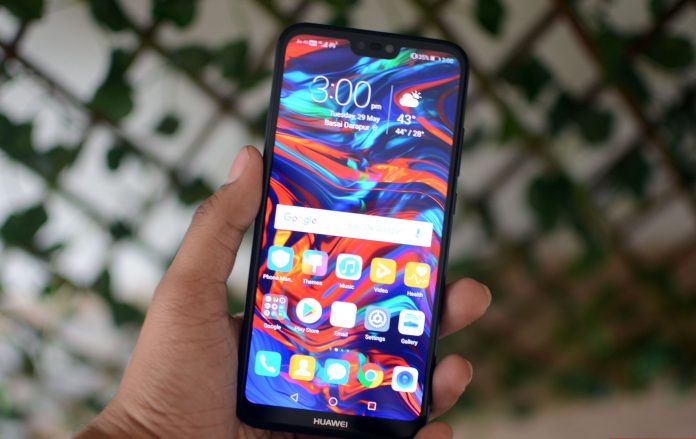
I can feel your pain, considering you are here because you’re unable to run Google Apps and services on your Huawei phone. China has stringent policies regarding data sharing, which is why Google Apps and services are banned in China. Significant social networking apps like Facebook, X formerly Twitter, and Instagram are also blocked in China. Some people use them anyway. Well, coming back to the point. If your phone is from China or you are in China. You will probably be unable to access the Google Play Store and services because of censorship. Additionally, you won’t be able to use any social media apps. You can use this guide to install Core GMS packages on Huawei Chinese phones, run Google Apps, and install the Google Play Store.
The problem with Chinese smartphones is that they don’t work even if you leave the country. If you have a smartphone from China or bought a Chinese phone, like a Huawei or Xiaomi phone, someone got you one. In most cases, the firmware is designed so that the phone doesn’t run any Google Services or Apps. Google apps are dependent on each other. Many apps won’t run without Google Play Services, and Google Play Services won’t run without the Google Play Store.
## Install Core GMS Package on Chinese Phones to Run Google Apps:
Internet censorship has proven to be a significant issue for internet consumers. I have dealt with many people who cannot run Google apps on their phones or don’t have the Google Play Store. Usually, even if you install the Google Play Store and services APK from the web on your phone, it won’t work. The reason is that the Chinese firmware is designed to prevent Google services and apps from functioning.
Several solutions exist for installing the Google Apps and Play Store on Chinese apps. Some devices work for a few months, but after a new firmware update is released, they stop working. However, Google apps and the Play Store are running fine on the Huawei P30 with the July 2020 update of EMUI.
Even if you somehow get the Google Apps. From time to time, you will come across different issues. For instance, if you have successfully installed the Google Play Store on your Huawei Chinese phone, opening the app store will prompt an error message: “**Install core GMS packages to use Google Play Store**.” Other apps will require Google Play services to work. Even apps like Snapchat need Google Play services to work on your Android phone.
### Prerequisites:
Since you are here to install Core GMS Packages on a Huawei phone, I presume you already have installed the Google Play Store and Google Play Services on your phone. These are prerequisites.
- Suppose you don’t have the Google Play Store on your phone. Then, you can see this detailed guide on installing theGoogle Play Store on Chinese phones.
- You will need [this guide](https://itechify.com/2018/01/12/install-right-google-play-services-android-device/) to identify and install the correct Google Play Services.
##### Once you have Google Play Store and Google Play services on your phone, for them to work, you will have to install core GMS packages on a Huawei Chinese phone:
Installing the Core GMS (Google Mobile Services) packages on a Huawei phone is not an official process as it violates Huawei’s agreement with Google. However, some users may still want to install these packages to access Google apps and services on their Huawei devices. Here are the steps to install the Core GMS packages on a Huawei phone:
1. **Download the GMS packages for Huawei phones** [from here](https://mega.nz/#!UhRDiaSS!u-faBDDO4t_SpXQ6uanl74YH4U2ChAGc7dtzn6rcLBI). You can find these packages online through various websites. Make sure to download the latest version and check its authenticity to avoid installing malware or harmful files.
2. After downloading the Google Installer, you need to make some settings changes to complete the installation.
3. You have to go to **Settings -\> Security & Privacy.**
4. **Then, enable”Download Apps from Unknown Sources.”**
5. Disable **“Check Apps from External Sources.”** This option is only present in EMUI 9 and EMUI 10. It is okay if you can’t find this option in your settings menu. Proceed further.[](https://itechify.com/wp-content/uploads/2019/04/58057664_437712493698236_2682825208045240320_n.jpg)
6. Now **unzip it** and **install it** on your phone.
7. Restart your phone: After the installation, restart your phone to apply the changes.
8. Check for Google apps: You should now see Google apps and services on your Huawei phone. If you still can’t see them, try clearing the cache and data of the Google Play Store app or installing the Google Services Framework.
9. Once installed, it might ask you to **update your Google Play Store**. Or your phone will do that automatically. Let it install the updates for Google Phones. If you live in China, you **will need a VPN to update your Google Apps even** after you install core GMS packages on a Huawei phone. You will receive some warnings while using apps like YouTube and Snapchat. You should regularly update your Google Play Store and Services. Read about how to use VPN and update Google apps from [this guide.](https://itechify.com/2017/08/29/download-google-play-store-huawei-nova-2-china/)
**Note:** Installing the Core GMS packages on a Huawei phone is not an official process and may void your warranty or cause other issues. Additionally, these packages may not work optimally on Huawei devices and may not receive updates or support from Google. Proceed at your own risk.
I hope this guide helped you install core GMS Packages on your Chinese Huawei phone. However, suppose you are still having issues. Then, you can review the updates below, which are updated regularly whenever a new update is released.
##### Other updates that might help you install core GMS packages on Huawei Chinese phones: (As we discover new methods, we will add them to this list.)
**Update: 01.04.2024**: Although Huawei smartphones running on HarmonyOS support Google Apps, if your Huawei Phone is from China and has HarmonyOS, it won’t. You can [use this guide](https://itechify.com/2024/03/29/chinese-huawei-phone-install-google-apps-on-harmonyos-4/) to install Google Apps and GMS using Googlefier.
**Update: 16.01.2024:** You can now run Google Apps on Huawei Phones, such as the P60, running on EMUI 13.1 via MicroG. You can [use this guide](https://itechify.com/2024/01/16/install-google-apps-huawei-devices-emui-13-1-microg/) to install Google services and apps on your Huawei devices.
**Update: 15.02.2021:** An app called Gspace; you can find it on the Huawei App Gallery. Now, you can download and install Google Apps and the Play Store on Huawei Phones. [This guide works](https://itechify.com/2021/03/15/download-play-store-and-install-google-apps-on-huawei-with-gspace/) on each Huawei Device.
**Update: 28.10.2020:** Now, you can install a virtual environment on your Android phone to install Google Apps and the Play Store. You can find the step-by-step guide on how to do it [here.](https://itechify.com/2020/12/26/gms-huawei-with-vmos-virtual-machine/)
**Update 31.10.2020:** The Huawei P40 Pro is shipped without Google apps or Google Play services. Even apps that depend on Google Services, such as the Maps API and location services, rely on these services. You can [use this guide](https://itechify.com/2020/10/31/install-google-apps-on-huawei-or-honor-running-on-emui-10/) to install GMS on Huawei P40 Pro. It will allow you to use Google Apps on P40 Pro or P40 Lite.
**Update 09.10.2019:** If you are running Huawei’s latest operating system, EMUI 10, you will have to install Google Installer version 3. That works on Huawei P30, P30 Pro, Mate 30, and Honor 9X. You can [use this guide](https://itechify.com/2019/10/08/install-google-play-store-on-emui-10-running-chinese-huawei-devices/) to install them on your Huawei Phone running EMUI 10.
**Update: 02.10.2019:** A new version of the GMS installer has been released and is said to work on Chinese devices running on EMUI 9. You can [use this guide](https://itechify.com/2019/04/26/fix-google-apps-on-huawei-after-emui-9-update/) to install the Google Play Store on your phone.
**Update 11.02.2019:** If you are using new Huawei phone models, such as the Honor 10 and Honor 8X, you will have to install **GMSanzhuangqi.** The process is the same as above; install the APK [from here.](https://mega.nz/#!x1AGgSxC!pj4K9KUdFCYmcOTELiPiKG4Y2Al-FoVepegQTrPmMWQ)
Hopefully, the guide above or any of the methods helped you install Google Play Store and Google Apps on your Chinese Huawei phone.
Furthermore, you can use most of the Google Apps on your phone. There might be some limitations, but you can use the Google Play Store and download any app you want from the app store.
That is all. Once you finish the above process, you can run the Google Play Store, Play Services, and apps on your Huawei phone. If you have any questions or queries regarding how to install core GMS Packages on Huawei, Xiaomi, or any other Chinese phone, feel free to ask me in the comments. You can also contact me on Facebook.
[](https://itechify.com/author/ayybeeshafi/)
[Ayybee](https://itechify.com/author/ayybeeshafi/)
Data and AI Consultant at one of the Big 4 firms. Outside of work, I enjoy writing about IT trends, emerging technologies, and the latest in smartphones. Feel free to reach out if you have any questions or just want to connect\!
[Facebook](https://www.facebook.com/abdullahakbarshafi "Facebook") [Instagram](http://instagram.com/ayybeeshafii "Instagram") [Linkedin](http://linkedin.com/in/ayybeeshafi/ "Linkedin")
#### [RELATED ARTICLES](https://itechify.com/2018/10/16/install-core-gsm-packages-huawei-chinese-phones/)[MORE FROM AUTHOR](https://itechify.com/2018/10/16/install-core-gsm-packages-huawei-chinese-phones/)
[](https://itechify.com/2024/04/07/install-gms-and-google-apps-on-harmony-os-3-huawei/ "Guide to Install Google Apps and GMS on Harmony OS 3")
[How To](https://itechify.com/how-to/)
### [Guide to Install Google Apps and GMS on Harmony OS 3](https://itechify.com/2024/04/07/install-gms-and-google-apps-on-harmony-os-3-huawei/ "Guide to Install Google Apps and GMS on Harmony OS 3")
[](https://itechify.com/2024/03/29/chinese-huawei-phone-install-google-apps-on-harmonyos-4/ "Chinese Huawei Phone? Install Google Apps on HarmonyOS 4")
[How To](https://itechify.com/how-to/)
### [Chinese Huawei Phone? Install Google Apps on HarmonyOS 4](https://itechify.com/2024/03/29/chinese-huawei-phone-install-google-apps-on-harmonyos-4/ "Chinese Huawei Phone? Install Google Apps on HarmonyOS 4")
[](https://itechify.com/2024/03/27/install-google-apps-on-mate-50-pro/ "Install Google Apps on Mate 50 Pro")
[Android](https://itechify.com/android/)
### [Install Google Apps on Mate 50 Pro](https://itechify.com/2024/03/27/install-google-apps-on-mate-50-pro/ "Install Google Apps on Mate 50 Pro")
[](https://itechify.com/2024/02/22/how-to-enter-recovery-menu-on-huawei-p60/ "How to Enter Recovery Menu on Huawei P60")
[Android](https://itechify.com/android/)
### [How to Enter Recovery Menu on Huawei P60](https://itechify.com/2024/02/22/how-to-enter-recovery-menu-on-huawei-p60/ "How to Enter Recovery Menu on Huawei P60")
[](https://itechify.com/2024/01/26/download-instagram-on-huawei-devices-running-with-emui-13/ "Download Instagram on Huawei Devices with EMUI 13")
[How To](https://itechify.com/how-to/)
### [Download Instagram on Huawei Devices with EMUI 13](https://itechify.com/2024/01/26/download-instagram-on-huawei-devices-running-with-emui-13/ "Download Instagram on Huawei Devices with EMUI 13")
[](https://itechify.com/2024/01/18/install-google-services-apps-huawei-p60-pro/ "Install Google Services and Google Apps on Huawei P60 and P60 Pro")
[Huawei](https://itechify.com/huawei/)
### [Install Google Services and Google Apps on Huawei P60 and P60 Pro](https://itechify.com/2024/01/18/install-google-services-apps-huawei-p60-pro/ "Install Google Services and Google Apps on Huawei P60 and P60 Pro")
Subscribe
19 Comments
Oldest
Newest
Inline Feedbacks
View all comments
Load More Comments
[](https://itechify.com/2026/02/15/download-upscrolled-app-apk-android-phone/ "How to Download Upscrolled App APK on Android Phone")
[Android APK](https://itechify.com/android/android-apk/)
### [How to Download Upscrolled App APK on Android Phone](https://itechify.com/2026/02/15/download-upscrolled-app-apk-android-phone/ "How to Download Upscrolled App APK on Android Phone")
[Ayybee](https://itechify.com/author/ayybeeshafi/) \-
February 15, 2026
[0](https://itechify.com/2026/02/15/download-upscrolled-app-apk-android-phone/#respond)
As interest in alternative social platforms continues to grow, many Android users searching for a way to download the Upscrolled app have encountered an...
[](https://itechify.com/2024/05/01/best-cheap-flight-apps-for-iphone-and-android-in-2024/ "Best Cheap Flight Apps for iPhone and Android in 2025")
### [Best Cheap Flight Apps for iPhone and Android in 2025](https://itechify.com/2024/05/01/best-cheap-flight-apps-for-iphone-and-android-in-2024/ "Best Cheap Flight Apps for iPhone and Android in 2025")
May 1, 2024
[](https://itechify.com/2023/10/08/features-galaxy-s8-absent-iphone-7/ "7 Features Present in Galaxy S24 but Absent in iPhone 15")
### [7 Features Present in Galaxy S24 but Absent in iPhone 15](https://itechify.com/2023/10/08/features-galaxy-s8-absent-iphone-7/ "7 Features Present in Galaxy S24 but Absent in iPhone 15")
October 8, 2023
[](https://itechify.com/2023/06/12/best-mobile-video-editing-apps/ "7 Best Video Editing Apps on iOS and Android Phone")
### [7 Best Video Editing Apps on iOS and Android Phone](https://itechify.com/2023/06/12/best-mobile-video-editing-apps/ "7 Best Video Editing Apps on iOS and Android Phone")
June 12, 2023
[](https://itechify.com/2022/04/04/essential-apps-for-travelers/ "Top 5 Essential Apps for Travelers")
### [Top 5 Essential Apps for Travelers](https://itechify.com/2022/04/04/essential-apps-for-travelers/ "Top 5 Essential Apps for Travelers")
April 4, 2022
[](https://itechify.com/2022/02/06/top-vr-headsets-of-2022-virtual-reality/ "Top VR Headsets of 2024 (Virtual Reality)")
### [Top VR Headsets of 2024 (Virtual Reality)](https://itechify.com/2022/02/06/top-vr-headsets-of-2022-virtual-reality/ "Top VR Headsets of 2024 (Virtual Reality)")
February 6, 2022
[](https://itechify.com/2021/04/06/best-free-vpns-2021-and-2020/ "List of Best free VPN in 2024")
### [List of Best free VPN in 2024](https://itechify.com/2021/04/06/best-free-vpns-2021-and-2020/ "List of Best free VPN in 2024")
April 6, 2021
[](https://itechify.com/2021/03/26/top-5-best-streaming-softwares-for-youtube-or-twitch/ "Top 5 best streaming softwares for Youtube or Twitch")
### [Top 5 best streaming softwares for Youtube or Twitch](https://itechify.com/2021/03/26/top-5-best-streaming-softwares-for-youtube-or-twitch/ "Top 5 best streaming softwares for Youtube or Twitch")
March 26, 2021
[](https://itechify.com/2021/03/13/best-free-pc-editing-software-davinci-resolve/ "The Best, yet Free Video Editing Software for PC Windows and Mac")
### [The Best, yet Free Video Editing Software for PC Windows and...](https://itechify.com/2021/03/13/best-free-pc-editing-software-davinci-resolve/ "The Best, yet Free Video Editing Software for PC Windows and Mac")
March 13, 2021
[](https://itechify.com/2020/11/10/best-apps-lockdown-iphone-android/ "Best Apps for Lockdown Entertainment on iPhone and Android")
### [Best Apps for Lockdown Entertainment on iPhone and Android](https://itechify.com/2020/11/10/best-apps-lockdown-iphone-android/ "Best Apps for Lockdown Entertainment on iPhone and Android")
November 10, 2020
#### CATEGORIES
- [How To440](https://itechify.com/how-to/)
- [Samsung233](https://itechify.com/samsung/)
- [Android209](https://itechify.com/android/)
- [News89](https://itechify.com/news/)
- [Apple80](https://itechify.com/apple/)
- [Nexus65](https://itechify.com/nexus/)
- [Huawei61](https://itechify.com/huawei/)
- [Google58](https://itechify.com/google/)
- [Android APK46](https://itechify.com/android/android-apk/)
[](https://itechify.com/)
ABOUT US
iTechify is all about Android operating system, its news and guides. We provide you with the latest news and guides regarding Samsung, Apple, Huawei, Nexus, LG and Huawei devices.
Contact us: [support@itechify\[dot\]com](mailto:support@itechify[dot]com)
wpDiscuz
Insert
[Go to mobile version](https://itechify.com/2018/10/16/install-core-gsm-packages-huawei-chinese-phones/?amp) |
| Readable Markdown | [](https://itechify.com/wp-content/uploads/2018/10/install-Core-GSM-Packages-installer-Huawei.jpg)
I can feel your pain, considering you are here because you’re unable to run Google Apps and services on your Huawei phone. China has stringent policies regarding data sharing, which is why Google Apps and services are banned in China. Significant social networking apps like Facebook, X formerly Twitter, and Instagram are also blocked in China. Some people use them anyway. Well, coming back to the point. If your phone is from China or you are in China. You will probably be unable to access the Google Play Store and services because of censorship. Additionally, you won’t be able to use any social media apps. You can use this guide to install Core GMS packages on Huawei Chinese phones, run Google Apps, and install the Google Play Store.
The problem with Chinese smartphones is that they don’t work even if you leave the country. If you have a smartphone from China or bought a Chinese phone, like a Huawei or Xiaomi phone, someone got you one. In most cases, the firmware is designed so that the phone doesn’t run any Google Services or Apps. Google apps are dependent on each other. Many apps won’t run without Google Play Services, and Google Play Services won’t run without the Google Play Store.
## Install Core GMS Package on Chinese Phones to Run Google Apps:
Internet censorship has proven to be a significant issue for internet consumers. I have dealt with many people who cannot run Google apps on their phones or don’t have the Google Play Store. Usually, even if you install the Google Play Store and services APK from the web on your phone, it won’t work. The reason is that the Chinese firmware is designed to prevent Google services and apps from functioning.
Several solutions exist for installing the Google Apps and Play Store on Chinese apps. Some devices work for a few months, but after a new firmware update is released, they stop working. However, Google apps and the Play Store are running fine on the Huawei P30 with the July 2020 update of EMUI.
Even if you somehow get the Google Apps. From time to time, you will come across different issues. For instance, if you have successfully installed the Google Play Store on your Huawei Chinese phone, opening the app store will prompt an error message: “**Install core GMS packages to use Google Play Store**.” Other apps will require Google Play services to work. Even apps like Snapchat need Google Play services to work on your Android phone.
### Prerequisites:
Since you are here to install Core GMS Packages on a Huawei phone, I presume you already have installed the Google Play Store and Google Play Services on your phone. These are prerequisites.
- Suppose you don’t have the Google Play Store on your phone. Then, you can see this detailed guide on installing theGoogle Play Store on Chinese phones.
- You will need [this guide](https://itechify.com/2018/01/12/install-right-google-play-services-android-device/) to identify and install the correct Google Play Services.
##### Once you have Google Play Store and Google Play services on your phone, for them to work, you will have to install core GMS packages on a Huawei Chinese phone:
Installing the Core GMS (Google Mobile Services) packages on a Huawei phone is not an official process as it violates Huawei’s agreement with Google. However, some users may still want to install these packages to access Google apps and services on their Huawei devices. Here are the steps to install the Core GMS packages on a Huawei phone:
1. **Download the GMS packages for Huawei phones** [from here](https://mega.nz/#!UhRDiaSS!u-faBDDO4t_SpXQ6uanl74YH4U2ChAGc7dtzn6rcLBI). You can find these packages online through various websites. Make sure to download the latest version and check its authenticity to avoid installing malware or harmful files.
2. After downloading the Google Installer, you need to make some settings changes to complete the installation.
3. You have to go to **Settings -\> Security & Privacy.**
4. **Then, enable”Download Apps from Unknown Sources.”**
5. Disable **“Check Apps from External Sources.”** This option is only present in EMUI 9 and EMUI 10. It is okay if you can’t find this option in your settings menu. Proceed further.[](https://itechify.com/wp-content/uploads/2019/04/58057664_437712493698236_2682825208045240320_n.jpg)
6. Now **unzip it** and **install it** on your phone.
7. Restart your phone: After the installation, restart your phone to apply the changes.
8. Check for Google apps: You should now see Google apps and services on your Huawei phone. If you still can’t see them, try clearing the cache and data of the Google Play Store app or installing the Google Services Framework.
9. Once installed, it might ask you to **update your Google Play Store**. Or your phone will do that automatically. Let it install the updates for Google Phones. If you live in China, you **will need a VPN to update your Google Apps even** after you install core GMS packages on a Huawei phone. You will receive some warnings while using apps like YouTube and Snapchat. You should regularly update your Google Play Store and Services. Read about how to use VPN and update Google apps from [this guide.](https://itechify.com/2017/08/29/download-google-play-store-huawei-nova-2-china/)
**Note:** Installing the Core GMS packages on a Huawei phone is not an official process and may void your warranty or cause other issues. Additionally, these packages may not work optimally on Huawei devices and may not receive updates or support from Google. Proceed at your own risk.
I hope this guide helped you install core GMS Packages on your Chinese Huawei phone. However, suppose you are still having issues. Then, you can review the updates below, which are updated regularly whenever a new update is released.
##### Other updates that might help you install core GMS packages on Huawei Chinese phones: (As we discover new methods, we will add them to this list.)
**Update: 01.04.2024**: Although Huawei smartphones running on HarmonyOS support Google Apps, if your Huawei Phone is from China and has HarmonyOS, it won’t. You can [use this guide](https://itechify.com/2024/03/29/chinese-huawei-phone-install-google-apps-on-harmonyos-4/) to install Google Apps and GMS using Googlefier.
**Update: 16.01.2024:** You can now run Google Apps on Huawei Phones, such as the P60, running on EMUI 13.1 via MicroG. You can [use this guide](https://itechify.com/2024/01/16/install-google-apps-huawei-devices-emui-13-1-microg/) to install Google services and apps on your Huawei devices.
**Update: 15.02.2021:** An app called Gspace; you can find it on the Huawei App Gallery. Now, you can download and install Google Apps and the Play Store on Huawei Phones. [This guide works](https://itechify.com/2021/03/15/download-play-store-and-install-google-apps-on-huawei-with-gspace/) on each Huawei Device.
**Update: 28.10.2020:** Now, you can install a virtual environment on your Android phone to install Google Apps and the Play Store. You can find the step-by-step guide on how to do it [here.](https://itechify.com/2020/12/26/gms-huawei-with-vmos-virtual-machine/)
**Update 31.10.2020:** The Huawei P40 Pro is shipped without Google apps or Google Play services. Even apps that depend on Google Services, such as the Maps API and location services, rely on these services. You can [use this guide](https://itechify.com/2020/10/31/install-google-apps-on-huawei-or-honor-running-on-emui-10/) to install GMS on Huawei P40 Pro. It will allow you to use Google Apps on P40 Pro or P40 Lite.
**Update 09.10.2019:** If you are running Huawei’s latest operating system, EMUI 10, you will have to install Google Installer version 3. That works on Huawei P30, P30 Pro, Mate 30, and Honor 9X. You can [use this guide](https://itechify.com/2019/10/08/install-google-play-store-on-emui-10-running-chinese-huawei-devices/) to install them on your Huawei Phone running EMUI 10.
**Update: 02.10.2019:** A new version of the GMS installer has been released and is said to work on Chinese devices running on EMUI 9. You can [use this guide](https://itechify.com/2019/04/26/fix-google-apps-on-huawei-after-emui-9-update/) to install the Google Play Store on your phone.
**Update 11.02.2019:** If you are using new Huawei phone models, such as the Honor 10 and Honor 8X, you will have to install **GMSanzhuangqi.** The process is the same as above; install the APK [from here.](https://mega.nz/#!x1AGgSxC!pj4K9KUdFCYmcOTELiPiKG4Y2Al-FoVepegQTrPmMWQ)
Hopefully, the guide above or any of the methods helped you install Google Play Store and Google Apps on your Chinese Huawei phone.
Furthermore, you can use most of the Google Apps on your phone. There might be some limitations, but you can use the Google Play Store and download any app you want from the app store.
That is all. Once you finish the above process, you can run the Google Play Store, Play Services, and apps on your Huawei phone. If you have any questions or queries regarding how to install core GMS Packages on Huawei, Xiaomi, or any other Chinese phone, feel free to ask me in the comments. You can also contact me on Facebook. |
| ML Classification | |
| ML Categories | null |
| ML Page Types | null |
| ML Intent Types | null |
| Content Metadata | |
| Language | en-us |
| Author | null |
| Publish Time | 2018-10-16 19:44:58 (7 years ago) |
| Original Publish Time | 2018-10-16 19:44:58 (7 years ago) |
| Republished | No |
| Word Count (Total) | 1,849 |
| Word Count (Content) | 1,394 |
| Links | |
| External Links | 9 |
| Internal Links | 47 |
| Technical SEO | |
| Meta Nofollow | No |
| Meta Noarchive | No |
| JS Rendered | No |
| Redirect Target | null |
| Performance | |
| Download Time (ms) | 322 |
| TTFB (ms) | 321 |
| Download Size (bytes) | 35,745 |
| Shard | 21 (laksa) |
| Root Hash | 4053899033076788821 |
| Unparsed URL | com,itechify!/2018/10/16/install-core-gsm-packages-huawei-chinese-phones/ s443 |