ℹ️ Skipped - page is already crawled
| Filter | Status | Condition | Details |
|---|---|---|---|
| HTTP status | PASS | download_http_code = 200 | HTTP 200 |
| Age cutoff | PASS | download_stamp > now() - 6 MONTH | 0 months ago |
| History drop | PASS | isNull(history_drop_reason) | No drop reason |
| Spam/ban | PASS | fh_dont_index != 1 AND ml_spam_score = 0 | ml_spam_score=0 |
| Canonical | PASS | meta_canonical IS NULL OR = '' OR = src_unparsed | Not set |
| Property | Value |
|---|---|
| URL | https://itechfever.com/openvideo/v/how-to-screenshot-macbook-screen-mac-basics |
| Last Crawled | 2026-04-10 11:05:51 (1 day ago) |
| First Indexed | 2025-11-13 15:12:05 (4 months ago) |
| HTTP Status Code | 200 |
| Meta Title | How to Screenshot Macbook Screen | Mac Basics |
| Meta Description | How to take a screenshot on Macbook Air, Pro, or any Mac OS easily? Taking screenshots on mac is easy but people find it confusing and can’t remember the key combinations. There are different types of screenshots you can take on your Macbook Air, Pro, or Mac Os on iMac, Mac Pro. In this video, I have explained all types of screenshots and how you can capture them. So here is all the Key combination which does you can use to take a screenshot on your Mac whether you have Mac OS Big Sur, Cata... |
| Meta Canonical | null |
| Boilerpipe Text | Please enable JavaScript
Mar 24, 2024
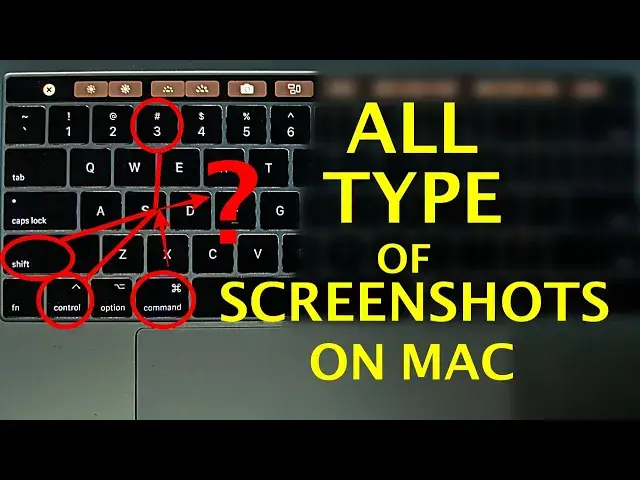
How to take a screenshot on Macbook Air, Pro, or any Mac OS easily? Taking screenshots on mac is easy but people find it confusing and can't remember the key combinations. There are different types of screenshots you can take on your Macbook Air, Pro, or Mac Os on iMac, Mac Pro.
In this video, I have explained all types of screenshots and how you can capture them.
So here is all the Key combination which does you can use to take a screenshot on your Mac whether you have Mac OS Big Sur, Catalina, Sierra, Mojave, High Sierra, Yosemite, or any other mac OS.
This works on Mac computers, even if you have Macbook Air, Macbook Pro, or iMac it works on all devices.
1. Take a full Screenshot - To capture the entire screen on your Mac, press *Command + Shif + 3* keys together and it will capture a screenshot and save it on the desktop by default.
2. Capture Selected Regions - Press Command + Shift + 4 to enable the crosshair tool and select the area you want to capture.
3. Capture Selected Window- Press *Command + Shift + 4* to enable crosshair tool and then release those keys and not press the Space bar to enable camera icon, highlight the window you want to capture and click to take a screenshot.
4. Capture Menu items - Open the menu you want to capture and use the 3rd Method to take a screenshot of the Menu.
5. Screenshot of Touch bar - If you are using Macbook Pro with a touch bar then you can capture the touch bar screen by pressing *Command +Shift + 6* keys together.
6. If you are on macOS Mojave then you can get screenshot tools on your screen by pressing *Command + Shift + 5* keys together.
Show More
#Computer Hardware
#Consumer Electronics
#Networking
#Software |
| Markdown | menu
[](https://itechfever.com/openvideo)
[](https://open.video/)
search
Log in
[Join Open.Video](https://open.video/join?redirect_url=https%3A%2F%2Fitechfever.com%2Fopenvideo%2Fv%2Fhow-to-screenshot-macbook-screen-mac-basics)
Log out
- [Open.Video](https://open.video/)
- [Browse Videos](https://open.video/browse)
- My Channel
- Studio
- [About](https://open.video/about)
- [Terms](https://open.video/terms)
- [Privacy](https://open.video/privacy)
- [Open.Video](https://open.video/)
- [Browse Videos](https://open.video/browse)
- My Channel
- Studio
- [About](https://open.video/about)
- [Terms](https://open.video/terms)
- [Privacy](https://open.video/privacy)
Toggle dark & light mode
###### Up next in 10
[![place]() ]()
CANCEL
PLAY NOW
![]()
Please enable JavaScript
# How to Screenshot Macbook Screen \| Mac Basics
Mar 24, 2024
[Share]() [0]() [0]()
[Visit Site](https://www.itechfever.com/)
[Share]() [0]() [0]()
[itechfever.com](https://itechfever.com/openvideo)
Subscribe
How to take a screenshot on Macbook Air, Pro, or any Mac OS easily? Taking screenshots on mac is easy but people find it confusing and can't remember the key combinations. There are different types of screenshots you can take on your Macbook Air, Pro, or Mac Os on iMac, Mac Pro. In this video, I have explained all types of screenshots and how you can capture them. So here is all the Key combination which does you can use to take a screenshot on your Mac whether you have Mac OS Big Sur, Catalina, Sierra, Mojave, High Sierra, Yosemite, or any other mac OS. This works on Mac computers, even if you have Macbook Air, Macbook Pro, or iMac it works on all devices. 1. Take a full Screenshot - To capture the entire screen on your Mac, press \*Command + Shif + 3\* keys together and it will capture a screenshot and save it on the desktop by default. 2. Capture Selected Regions - Press Command + Shift + 4 to enable the crosshair tool and select the area you want to capture. 3. Capture Selected Window- Press \*Command + Shift + 4\* to enable crosshair tool and then release those keys and not press the Space bar to enable camera icon, highlight the window you want to capture and click to take a screenshot. 4. Capture Menu items - Open the menu you want to capture and use the 3rd Method to take a screenshot of the Menu. 5. Screenshot of Touch bar - If you are using Macbook Pro with a touch bar then you can capture the touch bar screen by pressing \*Command +Shift + 6\* keys together. 6. If you are on macOS Mojave then you can get screenshot tools on your screen by pressing \*Command + Shift + 5\* keys together.
[Show More]() [Show Less]()
\#Computer Hardware \#Consumer Electronics \#Networking \#Software
Recommended Videos

play\_arrow
0:55

##### [Como Converter VOB para MP4 Online (Guia Simples)](https://videos.ezyzip.com/v/como-converter-vob-para-mp4-online-guia-simples)
May 10, 2025
[ezyZip Video Guides](https://videos.ezyzip.com/)
play\_arrow
5:41
##### [iOS 14.0 - 17.0.3: How To Easily Backup And Transfer All Your Photos, Notes and Messages to PC](https://open.video/@idevicecentral/v/ios-140-1703-how-to-easily-backup-and-transfer-all-your-photos-notes-and-messages-to-pc)
Mar 27, 2025
[idevicecentral.com](https://open.video/@idevicecentral)
play\_arrow
1:27

##### [How to Capture & Find a Screenshot on GOOGLE Pixel Tablet](https://hardreset.open.video/v/how-to-capture-find-a-screenshot-on-google-pixel-tablet)
Aug 3, 2024
[hardreset.info](https://hardreset.open.video/)
play\_arrow
1:19

##### [iPad Air SCREENSHOT TUTORIAL \| Capture Screen Trick](https://hardreset.open.video/v/ipad-air-screenshot-tutorial-capture-screen-trick)
Jul 4, 2024
[hardreset.info](https://hardreset.open.video/)
play\_arrow
11:08

##### [Bitdefender Total Security Review \| How to Get Bitdefender Total Security for Free \| Best Antivirus](https://tech-sonar.com/openvideo/v/bitdefender-total-security-review-how-to-get-bitdefender-total-security-for-free-best-antivirus)
Feb 13, 2026
[Tech-Sonar](https://tech-sonar.com/openvideo)

play\_arrow
10:26

##### [McAfee Antivirus \| McAfee Total Protection \| McAfee Antivirus Review \| Internet Security, McAfee VPN](https://tech-sonar.com/openvideo/v/mcafee-antivirus-mcafee-total-protection-mcafee-antivirus-review-internet-security-mcafee-vpn)
Jan 2, 2026
[Tech-Sonar](https://tech-sonar.com/openvideo)
play\_arrow
7:20

##### [How to use COPILOT in Windows 11](https://open.video/@thewindowsclub/v/how-to-use-copilot-in-windows-11)
Dec 9, 2023
[thewindowsclub.com](https://open.video/@thewindowsclub)

play\_arrow
7:39

##### [Microsoft Copilot Tips and Tricks you should know](https://open.video/@thewindowsclub/v/microsoft-copilot-tips-and-tricks-you-should-know)
Jan 15, 2024
[thewindowsclub.com](https://open.video/@thewindowsclub)

play\_arrow
7:54

##### [How to Use Python's memoryview to Manage Data Directly with Examples](https://open.video/@dev2qacom/v/how-to-use-pythons-memoryview-to-manage-data-directly-with-examples)
Jun 30, 2024
[dev2qa.com](https://open.video/@dev2qacom)

play\_arrow
10:31

##### [Working From Home Office Setup Ideas](https://open.video/@living-in-arizona-now/v/working-from-home-office-setup-ideas)
Apr 2, 2026
[Living in Arizona Now ](https://open.video/@living-in-arizona-now)
The share link has been copied to clipboard
Embed Video [close]()
\<script\>(window.openVideoPlayers = window.openVideoPlayers \|\| \[\]).push({ allowPlaylistAds: false, target: document.currentScript, videoID: "qSJ8-BZ6R72"});\</script\>\<script async data-cfasync="false" src="https://open.video/video.js"\>\</script\>
Start at
Please enter a valid time (e.g. 1:00)
Autoplay
Float
Player Size
X
Please enter a valid size format (e.g. 560 X 315)
Share
code
Embed
Facebook
X
LinkedIn
Copy
Start at
Please enter a valid time (e.g. 1:00)
×
2026-04-08 18:33:20 |
| Readable Markdown | 
Please enable JavaScript
Mar 24, 2024
[](https://itechfever.com/openvideo)
How to take a screenshot on Macbook Air, Pro, or any Mac OS easily? Taking screenshots on mac is easy but people find it confusing and can't remember the key combinations. There are different types of screenshots you can take on your Macbook Air, Pro, or Mac Os on iMac, Mac Pro. In this video, I have explained all types of screenshots and how you can capture them. So here is all the Key combination which does you can use to take a screenshot on your Mac whether you have Mac OS Big Sur, Catalina, Sierra, Mojave, High Sierra, Yosemite, or any other mac OS. This works on Mac computers, even if you have Macbook Air, Macbook Pro, or iMac it works on all devices. 1. Take a full Screenshot - To capture the entire screen on your Mac, press \*Command + Shif + 3\* keys together and it will capture a screenshot and save it on the desktop by default. 2. Capture Selected Regions - Press Command + Shift + 4 to enable the crosshair tool and select the area you want to capture. 3. Capture Selected Window- Press \*Command + Shift + 4\* to enable crosshair tool and then release those keys and not press the Space bar to enable camera icon, highlight the window you want to capture and click to take a screenshot. 4. Capture Menu items - Open the menu you want to capture and use the 3rd Method to take a screenshot of the Menu. 5. Screenshot of Touch bar - If you are using Macbook Pro with a touch bar then you can capture the touch bar screen by pressing \*Command +Shift + 6\* keys together. 6. If you are on macOS Mojave then you can get screenshot tools on your screen by pressing \*Command + Shift + 5\* keys together.
Show More
\#Computer Hardware \#Consumer Electronics \#Networking \#Software |
| Shard | 164 (laksa) |
| Root Hash | 6917893208242519764 |
| Unparsed URL | com,itechfever!/openvideo/v/how-to-screenshot-macbook-screen-mac-basics s443 |