ℹ️ Skipped - page is already crawled
| Filter | Status | Condition | Details |
|---|---|---|---|
| HTTP status | PASS | download_http_code = 200 | HTTP 200 |
| Age cutoff | PASS | download_stamp > now() - 6 MONTH | 0 months ago |
| History drop | PASS | isNull(history_drop_reason) | No drop reason |
| Spam/ban | PASS | fh_dont_index != 1 AND ml_spam_score = 0 | ml_spam_score=0 |
| Canonical | PASS | meta_canonical IS NULL OR = '' OR = src_unparsed | Not set |
| Property | Value |
|---|---|
| URL | https://helpdesk.tcsedsystem.edu/hc/en-us/articles/4416675393431-What-is-Zoom-and-how-do-I-use-it |
| Last Crawled | 2026-04-13 15:51:33 (1 day ago) |
| First Indexed | 2024-01-17 09:47:11 (2 years ago) |
| HTTP Status Code | 200 |
| Meta Title | What is Zoom and how do I use it? – The Community Solution Help Desk |
| Meta Description | What is Zoom? Zoom is a communications software used for virtual video and audio conferencing, but also allows live chats,... |
| Meta Canonical | null |
| Boilerpipe Text | Not yet followed by anyone
In this article
What is Zoom?
How do I activate my Zoom License?
How do I login to Zoom?
On the Web
On the Zoom App
How do I use Zoom?
What are some basics I need to know to get acquainted with and start using Zoom?
Where can I find additional training for Zoom?
What is Zoom?
Zoom is a communications software used for virtual video and audio conferencing, but also allows live chats, screen-sharing, and other collaborative options.
Zoom allows users to create and join virtual meeting rooms where they can communicate with each other using video, and audio. Zoom gives participants the ability to share their screen, share files, and use text chat within the meeting group or privately with others in the meeting.
How do I activate my Zoom License?
Go to
https://tcsedsystem.zoom.us
or
https://kansashsc.zoom.us
for KHSU/KansasCOM and click Sign In.
You will get redirected to the single sign-on page. Enter your credentials.
Once your login is successful, you will be redirected to your Zoom profile.
Congratulations you have activated your Zoom license!
How do I login to Zoom?
On the Web
Go to
https://tcsedsystem.zoom.us
or
https://kansashsc.zoom.us
for KHSU/KansasCOM and click Sign In.
You will get redirected to the single sign-on page. Enter your credentials.
Once your login is successful, you will be redirected to your Zoom profile.
On the Zoom App
Launch the Zoom app on your computer
Select the
SSO
login option
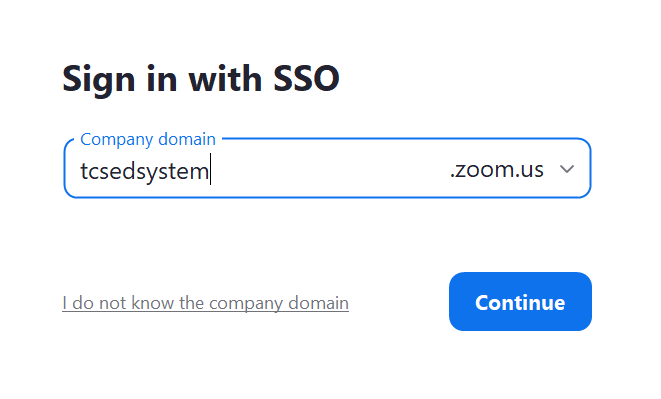
Enter
tcsedsystem
or
kansashsc
for KHSU/KansasCOM for the
Company domain
text box that appears and click
Continue
.
Enter your email username and password.
Note: You will prompted to verify your identity through MFA if you have not done so on your device.
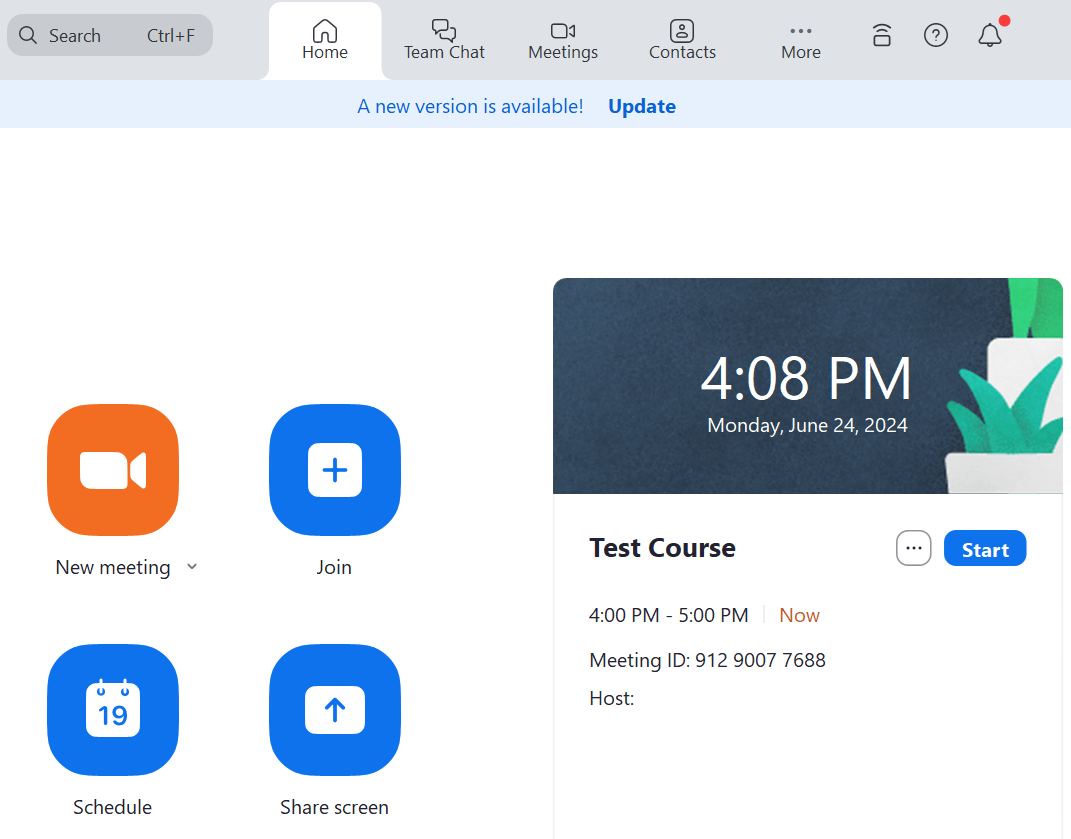
Once your login is successful, you will be redirected to your Zoom profile.
How do I use Zoom?
Zoom maintains a robust knowledge base which will help get you up and running with the Zoom application. For instructions and a video walkthrough on how to use Zoom click
here
for a QuickStart guide.
For a full walkthrough of Zoom and all it's features please see our Zoom Canvas course located here:
https://tcsedsystem.instructure.com/courses/93559/modules
You can also leverage the Zoom Learning Center, an online platform available to all users with a Zoom account. It is accessible here:
Zoom Learning Center
What are some basics I need to know to get acquainted with and start using Zoom?
The following links assist with learning some of the basics of Zoom:
Getting started guide for new users
Starting or joining a meeting as the host
Scheduling meetings
Changing your Virtual Background image
Where can I find additional training for Zoom?
The Zoom Learning Center is a free, online platform available to all users with a Zoom account. It is accessible here:
Zoom Learning Center
Other Helpful resources include:
Course Catalog
- A selection of courses and quizzes that go cover a wide range of Zoom topics.
'Show Me' Videos
- Short videos that cover specific topics. |
| Markdown | [Skip to main content](https://helpdesk.tcsedsystem.edu/hc/en-us/articles/4416675393431-What-is-Zoom-and-how-do-I-use-it#main-content)
[ Help Desk](https://helpdesk.tcsedsystem.edu/hc/en-us "Home")
[Submit a request](https://helpdesk.tcsedsystem.edu/hc/en-us/p/sign-in-or-guest-request)
[Sign in](https://helpdesk.tcsedsystem.edu/hc/en-us/signin?return_to=https%3A%2F%2Fhelpdesk.tcsedsystem.edu%2Fhc%2Fen-us%2Farticles%2F4416675393431-What-is-Zoom-and-how-do-I-use-it "Opens a dialog")
1. [The Community Solution Help Desk](https://helpdesk.tcsedsystem.edu/hc/en-us)
2. [Applications & Websites](https://helpdesk.tcsedsystem.edu/hc/en-us/categories/4413435994647-Applications-Websites)
3. [Zoom](https://helpdesk.tcsedsystem.edu/hc/en-us/sections/4414480026775-Zoom)
Articles in this section
- [When should I use Zoom vs. Microsoft Teams for a video meeting?](https://helpdesk.tcsedsystem.edu/hc/en-us/articles/39336347003543-When-should-I-use-Zoom-vs-Microsoft-Teams-for-a-video-meeting)
- [How do I share content from my device in a Zoom Room?](https://helpdesk.tcsedsystem.edu/hc/en-us/articles/32400419121175-How-do-I-share-content-from-my-device-in-a-Zoom-Room)
- [What is Zoom and how do I use it?](https://helpdesk.tcsedsystem.edu/hc/en-us/articles/4416675393431-What-is-Zoom-and-how-do-I-use-it)
- [What has changed in Zoom 6.0?](https://helpdesk.tcsedsystem.edu/hc/en-us/articles/23058378394391-What-has-changed-in-Zoom-6-0)
- [How do I update my Zoom desktop client?](https://helpdesk.tcsedsystem.edu/hc/en-us/articles/10086798116759-How-do-I-update-my-Zoom-desktop-client)
- [How do I check my Zoom account for cloud recordings?](https://helpdesk.tcsedsystem.edu/hc/en-us/articles/4502957885975-How-do-I-check-my-Zoom-account-for-cloud-recordings)
- [How do I clear Zoom cache to free up space on my phone?](https://helpdesk.tcsedsystem.edu/hc/en-us/articles/4418951608471-How-do-I-clear-Zoom-cache-to-free-up-space-on-my-phone)
- [How do I download my Zoom cloud recordings and upload them to OneDrive or Canvas?](https://helpdesk.tcsedsystem.edu/hc/en-us/articles/4421545539351-How-do-I-download-my-Zoom-cloud-recordings-and-upload-them-to-OneDrive-or-Canvas)
# What is Zoom and how do I use it?
- 1 year ago
- Updated
Follow
Not yet followed by anyone
In this article
- [What is Zoom?](https://helpdesk.tcsedsystem.edu/hc/en-us/articles/4416675393431-What-is-Zoom-and-how-do-I-use-it#h_01HGGXTCKQD6Y1E343BVB9RCPR)
- [How do I activate my Zoom License?](https://helpdesk.tcsedsystem.edu/hc/en-us/articles/4416675393431-What-is-Zoom-and-how-do-I-use-it#h_01HGGXTCKQNEZ4Z013C73MABRP)
- [How do I login to Zoom?](https://helpdesk.tcsedsystem.edu/hc/en-us/articles/4416675393431-What-is-Zoom-and-how-do-I-use-it#h_01J160VSY1JKEAF93X5Y4KFXBV)
- [On the Web](https://helpdesk.tcsedsystem.edu/hc/en-us/articles/4416675393431-What-is-Zoom-and-how-do-I-use-it#h_01J160VSY15VSNJC6AR5CB53T0)
- [On the Zoom App](https://helpdesk.tcsedsystem.edu/hc/en-us/articles/4416675393431-What-is-Zoom-and-how-do-I-use-it#h_01J160W9RS1AC0YR9DWAZA08XC)
- [How do I use Zoom?](https://helpdesk.tcsedsystem.edu/hc/en-us/articles/4416675393431-What-is-Zoom-and-how-do-I-use-it#h_01HGGXTCKQZ5T674PG7C0PE4WN)
- [What are some basics I need to know to get acquainted with and start using Zoom?](https://helpdesk.tcsedsystem.edu/hc/en-us/articles/4416675393431-What-is-Zoom-and-how-do-I-use-it#h_01HGGXTCKQHR7FC815FSKVE8VB)
- [Where can I find additional training for Zoom?](https://helpdesk.tcsedsystem.edu/hc/en-us/articles/4416675393431-What-is-Zoom-and-how-do-I-use-it#h_01HGGXTCKQBHNQG46YF6KE6D1W)
# What is Zoom?
Zoom is a communications software used for virtual video and audio conferencing, but also allows live chats, screen-sharing, and other collaborative options.
Zoom allows users to create and join virtual meeting rooms where they can communicate with each other using video, and audio. Zoom gives participants the ability to share their screen, share files, and use text chat within the meeting group or privately with others in the meeting.
# How do I activate my Zoom License?
1. Go to [https://tcsedsystem.zoom.us](https://tcsedsystem.zoom.us/) or <https://kansashsc.zoom.us> for KHSU/KansasCOM and click Sign In.
2. You will get redirected to the single sign-on page. Enter your credentials.
3. Once your login is successful, you will be redirected to your Zoom profile.
4. Congratulations you have activated your Zoom license\!
# How do I login to Zoom?
## On the Web
1. Go to [https://tcsedsystem.zoom.us](https://tcsedsystem.zoom.us/) or <https://kansashsc.zoom.us> for KHSU/KansasCOM and click Sign In.
2. You will get redirected to the single sign-on page. Enter your credentials.
3. Once your login is successful, you will be redirected to your Zoom profile.
## On the Zoom App
1. Launch the Zoom app on your computer
2. Select the **SSO** login option **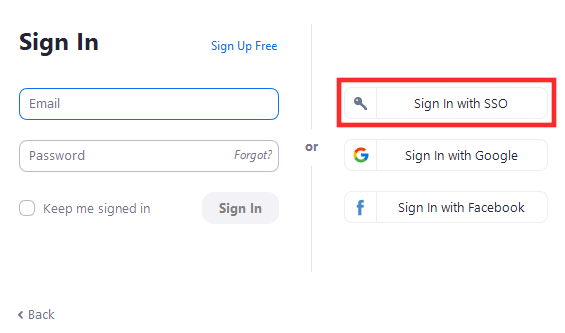**
3. Enter **tcsedsystem** or **kansashsc** for KHSU/KansasCOM for the **Company domain** text box that appears and click **Continue**.
4. Enter your email username and password.
Note: You will prompted to verify your identity through MFA if you have not done so on your device.
5. Once your login is successful, you will be redirected to your Zoom profile.
# How do I use Zoom?
Zoom maintains a robust knowledge base which will help get you up and running with the Zoom application. For instructions and a video walkthrough on how to use Zoom click [here](https://support.zoom.us/hc/en-us/articles/360034967471-Getting-started-guide-for-new-users) for a QuickStart guide.
For a full walkthrough of Zoom and all it's features please see our Zoom Canvas course located here: <https://tcsedsystem.instructure.com/courses/93559/modules>
You can also leverage the Zoom Learning Center, an online platform available to all users with a Zoom account. It is accessible here: [Zoom Learning Center](https://learning.zoom.us/pages/27/home)
# What are some basics I need to know to get acquainted with and start using Zoom?
The following links assist with learning some of the basics of Zoom:
- [Getting started guide for new users](https://support.zoom.us/hc/en-us/articles/360034967471-Getting-started-guide-for-new-users)
- [Starting or joining a meeting as the host](https://support.zoom.us/hc/en-us/articles/201362423-Starting-or-joining-a-meeting-as-the-host)
- [Scheduling meetings](https://support.zoom.us/hc/en-us/articles/201362413-Scheduling-meetings)
- [Changing your Virtual Background image](https://support.zoom.us/hc/en-us/articles/210707503-Changing-your-Virtual-Background-image)
# Where can I find additional training for Zoom?
The Zoom Learning Center is a free, online platform available to all users with a Zoom account. It is accessible here: [Zoom Learning Center](https://learning.zoom.us/pages/27/home)
Other Helpful resources include:
- [Course Catalog](https://learning.zoom.us/pages/16/course-catalog) - A selection of courses and quizzes that go cover a wide range of Zoom topics.
- ['Show Me' Videos](https://learning.zoom.us/pages/29/show-me-videos) - Short videos that cover specific topics.
Was this article helpful?
Yes
No
0 out of 0 found this helpful
Have more questions? [Submit a request](https://helpdesk.tcsedsystem.edu/hc/en-us/p/sign-in-or-guest-request)
## Related articles
- [How should I get started with my account and technology as a new employee?](https://helpdesk.tcsedsystem.edu/hc/en-us/related/click?data=BAh7CjobZGVzdGluYXRpb25fYXJ0aWNsZV9pZGwrCJeMnO34CDoYcmVmZXJyZXJfYXJ0aWNsZV9pZGwrCJcvXlYEBDoLbG9jYWxlSSIKZW4tdXMGOgZFVDoIdXJsSSJvL2hjL2VuLXVzL2FydGljbGVzLzk4NjUyMzEzNzE0MTUtSG93LXNob3VsZC1JLWdldC1zdGFydGVkLXdpdGgtbXktYWNjb3VudC1hbmQtdGVjaG5vbG9neS1hcy1hLW5ldy1lbXBsb3llZQY7CFQ6CXJhbmtpBg%3D%3D--00a968814cac710825e16e9a2e14b5c6ca160982)
- [How do I open an incognito/private browser in Chrome, Edge, Firefox, and Safari?](https://helpdesk.tcsedsystem.edu/hc/en-us/related/click?data=BAh7CjobZGVzdGluYXRpb25fYXJ0aWNsZV9pZGwrCJcxusssBzoYcmVmZXJyZXJfYXJ0aWNsZV9pZGwrCJcvXlYEBDoLbG9jYWxlSSIKZW4tdXMGOgZFVDoIdXJsSSJyL2hjL2VuLXVzL2FydGljbGVzLzc4ODg5Nzc5MzI2OTUtSG93LWRvLUktb3Blbi1hbi1pbmNvZ25pdG8tcHJpdmF0ZS1icm93c2VyLWluLUNocm9tZS1FZGdlLUZpcmVmb3gtYW5kLVNhZmFyaQY7CFQ6CXJhbmtpBw%3D%3D--31783b2f19f068beb00b019051e474fa10c7a350)
- [How Do I Clear My Internet Browser Cache?](https://helpdesk.tcsedsystem.edu/hc/en-us/related/click?data=BAh7CjobZGVzdGluYXRpb25fYXJ0aWNsZV9pZGwrCBd19yhzCzoYcmVmZXJyZXJfYXJ0aWNsZV9pZGwrCJcvXlYEBDoLbG9jYWxlSSIKZW4tdXMGOgZFVDoIdXJsSSJPL2hjL2VuLXVzL2FydGljbGVzLzEyNTg5MjM2NDUwNTgzLUhvdy1Eby1JLUNsZWFyLU15LUludGVybmV0LUJyb3dzZXItQ2FjaGUGOwhUOglyYW5raQg%3D--cfbc42e4d8eda5e66f91f3673f9ac016c7bbb9c8)
- [What should I expect after I reset/update my password?](https://helpdesk.tcsedsystem.edu/hc/en-us/related/click?data=BAh7CjobZGVzdGluYXRpb25fYXJ0aWNsZV9pZGwrCJc3ViiwCDoYcmVmZXJyZXJfYXJ0aWNsZV9pZGwrCJcvXlYEBDoLbG9jYWxlSSIKZW4tdXMGOgZFVDoIdXJsSSJbL2hjL2VuLXVzL2FydGljbGVzLzk1NTI2ODQwMDUyNzEtV2hhdC1zaG91bGQtSS1leHBlY3QtYWZ0ZXItSS1yZXNldC11cGRhdGUtbXktcGFzc3dvcmQGOwhUOglyYW5raQk%3D--367bde0bab099828ab99c1da869a9990fd9b9114)
### Didn’t find what you’re looking for?
[Submit a request](https://helpdesk.tcsedsystem.edu/hc/en-us/p/sign-in-or-guest-request)
***
[Have an urgent issue?  Call us at 800-747-8367](tel:800-747-8367)
We’re available to help you at these times:
\*Other than **[holidays.](https://helpdesk.tcsedsystem.edu/hc/en-us/articles/4414429871895-What-is-the-Holiday-schedule-for-the-help-desk-)**
PST: 5am-7pm M-F \| 7am-3pm Sat/Sun CST: 7am-9pm M-F \| 9am-5pm Sat/Sun EST: 8am-10pm M-F \| 10am-6pm Sat/Sun
[© 2026 The Community Solution Education System \| 203 N LaSalle St., Suite \#1900, Chicago, IL 60601](https://www.tcsedsystem.edu/)
[Contact Us](https://www.tcsedsystem.edu/contact-us/) [Privacy Notice](https://www.tcsedsystem.edu/privacy-notice/) |
| Readable Markdown | Not yet followed by anyone
In this article
- [What is Zoom?](https://helpdesk.tcsedsystem.edu/hc/en-us/articles/4416675393431-What-is-Zoom-and-how-do-I-use-it#h_01HGGXTCKQD6Y1E343BVB9RCPR)
- [How do I activate my Zoom License?](https://helpdesk.tcsedsystem.edu/hc/en-us/articles/4416675393431-What-is-Zoom-and-how-do-I-use-it#h_01HGGXTCKQNEZ4Z013C73MABRP)
- [How do I login to Zoom?](https://helpdesk.tcsedsystem.edu/hc/en-us/articles/4416675393431-What-is-Zoom-and-how-do-I-use-it#h_01J160VSY1JKEAF93X5Y4KFXBV)
- [On the Web](https://helpdesk.tcsedsystem.edu/hc/en-us/articles/4416675393431-What-is-Zoom-and-how-do-I-use-it#h_01J160VSY15VSNJC6AR5CB53T0)
- [On the Zoom App](https://helpdesk.tcsedsystem.edu/hc/en-us/articles/4416675393431-What-is-Zoom-and-how-do-I-use-it#h_01J160W9RS1AC0YR9DWAZA08XC)
- [How do I use Zoom?](https://helpdesk.tcsedsystem.edu/hc/en-us/articles/4416675393431-What-is-Zoom-and-how-do-I-use-it#h_01HGGXTCKQZ5T674PG7C0PE4WN)
- [What are some basics I need to know to get acquainted with and start using Zoom?](https://helpdesk.tcsedsystem.edu/hc/en-us/articles/4416675393431-What-is-Zoom-and-how-do-I-use-it#h_01HGGXTCKQHR7FC815FSKVE8VB)
- [Where can I find additional training for Zoom?](https://helpdesk.tcsedsystem.edu/hc/en-us/articles/4416675393431-What-is-Zoom-and-how-do-I-use-it#h_01HGGXTCKQBHNQG46YF6KE6D1W)
## What is Zoom?
Zoom is a communications software used for virtual video and audio conferencing, but also allows live chats, screen-sharing, and other collaborative options.
Zoom allows users to create and join virtual meeting rooms where they can communicate with each other using video, and audio. Zoom gives participants the ability to share their screen, share files, and use text chat within the meeting group or privately with others in the meeting.
## How do I activate my Zoom License?
1. Go to [https://tcsedsystem.zoom.us](https://tcsedsystem.zoom.us/) or [https://kansashsc.zoom.us](https://kansashsc.zoom.us/) for KHSU/KansasCOM and click Sign In.
2. You will get redirected to the single sign-on page. Enter your credentials.
3. Once your login is successful, you will be redirected to your Zoom profile.
4. Congratulations you have activated your Zoom license\!
## How do I login to Zoom?
## On the Web
1. Go to [https://tcsedsystem.zoom.us](https://tcsedsystem.zoom.us/) or [https://kansashsc.zoom.us](https://kansashsc.zoom.us/) for KHSU/KansasCOM and click Sign In.
2. You will get redirected to the single sign-on page. Enter your credentials.
3. Once your login is successful, you will be redirected to your Zoom profile.
## On the Zoom App
1. Launch the Zoom app on your computer
2. Select the **SSO** login option ****
3. Enter **tcsedsystem** or **kansashsc** for KHSU/KansasCOM for the **Company domain** text box that appears and click **Continue**.

4. Enter your email username and password.
Note: You will prompted to verify your identity through MFA if you have not done so on your device.
5. Once your login is successful, you will be redirected to your Zoom profile.

## How do I use Zoom?
Zoom maintains a robust knowledge base which will help get you up and running with the Zoom application. For instructions and a video walkthrough on how to use Zoom click [here](https://support.zoom.us/hc/en-us/articles/360034967471-Getting-started-guide-for-new-users) for a QuickStart guide.
For a full walkthrough of Zoom and all it's features please see our Zoom Canvas course located here: <https://tcsedsystem.instructure.com/courses/93559/modules>
You can also leverage the Zoom Learning Center, an online platform available to all users with a Zoom account. It is accessible here: [Zoom Learning Center](https://learning.zoom.us/pages/27/home)
## What are some basics I need to know to get acquainted with and start using Zoom?
The following links assist with learning some of the basics of Zoom:
- [Getting started guide for new users](https://support.zoom.us/hc/en-us/articles/360034967471-Getting-started-guide-for-new-users)
- [Starting or joining a meeting as the host](https://support.zoom.us/hc/en-us/articles/201362423-Starting-or-joining-a-meeting-as-the-host)
- [Scheduling meetings](https://support.zoom.us/hc/en-us/articles/201362413-Scheduling-meetings)
- [Changing your Virtual Background image](https://support.zoom.us/hc/en-us/articles/210707503-Changing-your-Virtual-Background-image)
## Where can I find additional training for Zoom?
The Zoom Learning Center is a free, online platform available to all users with a Zoom account. It is accessible here: [Zoom Learning Center](https://learning.zoom.us/pages/27/home)
Other Helpful resources include:
- [Course Catalog](https://learning.zoom.us/pages/16/course-catalog) - A selection of courses and quizzes that go cover a wide range of Zoom topics.
- ['Show Me' Videos](https://learning.zoom.us/pages/29/show-me-videos) - Short videos that cover specific topics. |
| Shard | 56 (laksa) |
| Root Hash | 7837042454812499056 |
| Unparsed URL | edu,tcsedsystem!helpdesk,/hc/en-us/articles/4416675393431-What-is-Zoom-and-how-do-I-use-it s443 |