ℹ️ Skipped - page is already crawled
| Filter | Status | Condition | Details |
|---|---|---|---|
| HTTP status | PASS | download_http_code = 200 | HTTP 200 |
| Age cutoff | PASS | download_stamp > now() - 6 MONTH | 0.5 months ago |
| History drop | PASS | isNull(history_drop_reason) | No drop reason |
| Spam/ban | PASS | fh_dont_index != 1 AND ml_spam_score = 0 | ml_spam_score=0 |
| Canonical | PASS | meta_canonical IS NULL OR = '' OR = src_unparsed | Not set |
| Property | Value | ||||||||||||||||||
|---|---|---|---|---|---|---|---|---|---|---|---|---|---|---|---|---|---|---|---|
| URL | https://help.zedge.net/hc/en-us/articles/360043449071-Setting-ringtones-on-your-iPhone | ||||||||||||||||||
| Last Crawled | 2026-04-13 12:06:10 (14 days ago) | ||||||||||||||||||
| First Indexed | 2020-05-19 23:37:16 (5 years ago) | ||||||||||||||||||
| HTTP Status Code | 200 | ||||||||||||||||||
| Content | |||||||||||||||||||
| Meta Title | Setting ringtones on your iPhone – Zedge Help Center | ||||||||||||||||||
| Meta Description | Once you have found and downloaded a ringtone you would like to use on your iPhone, you can follow these steps: Open the GarageBand... | ||||||||||||||||||
| Meta Canonical | null | ||||||||||||||||||
| Boilerpipe Text | Once you have found and downloaded a ringtone you would like to use on your iPhone, you can follow these steps:
Open the GarageBand app on your phone and select the
default Keyboard mode
to start a new project.
If you don’t have the app on your phone you can get it for free from the App Store
here
.
Tap the
lines button in the top left corner
to get the Tracks view.
Tap the
loop icon
in the top right corner.
Tap Files to get to the file browser.
Choose “
Browse items from the Files app
” at the bottom of the screen.
On the next screen Choose “Browse” at the bottom and then “On My Phone”.
You may have to tap "Browse" twice to see the "On my phone" option.
You may also be able to find your ringtone file in the Recent tab.
Choose/Tap the Zedge folder.
Then select the ringtone file you want.
Tap the ringtone you want to set.
Drag and drop the ringtone file into your track timeline.
Then tap My Songs in the dropdown.
On this screen tap Select in the top right corner.
Long press "My song" to open the actions menu and select share.
On the share options screen choose Ringtone.
On this screen you can name your ringtone and then tap Export.
Voilá! You have a new ringtone on your phone. In this final dialog you can choose to set it right away as your ringtone or message tone. You can also go through sound settings and find your new ringtone there. It's a wrap! | ||||||||||||||||||
| Markdown | [Skip to main content](https://help.zedge.net/hc/en-us/articles/360043449071-Setting-ringtones-on-your-iPhone#main-content)
[](https://help.zedge.net/hc/en-us "Home")
- [Submit a request](https://help.zedge.net/hc/en-us/requests/new)
- [Sign in](https://help.zedge.net/hc/en-us/signin?return_to=https%3A%2F%2Fhelp.zedge.net%2Fhc%2Fen-us%2Farticles%2F360043449071-Setting-ringtones-on-your-iPhone "Opens a dialog")
- [Sign in](https://help.zedge.net/hc/en-us/signin?return_to=https%3A%2F%2Fhelp.zedge.net%2Fhc%2Fen-us%2Farticles%2F360043449071-Setting-ringtones-on-your-iPhone "Opens a dialog")
- [Submit a request](https://help.zedge.net/hc/en-us/requests/new)
1. [Zedge Help Center](https://help.zedge.net/hc/en-us)
2. [Zedge Apps for Android & iOS](https://help.zedge.net/hc/en-us/categories/360001447151-Zedge-Apps-for-Android-iOS)
3. [Using Zedge for iOS](https://help.zedge.net/hc/en-us/sections/360003734772-Using-Zedge-for-iOS)
Articles in this section
- [How to Delete Wallpaper on Your iOS Device](https://help.zedge.net/hc/en-us/articles/37740152083220-How-to-Delete-Wallpaper-on-Your-iOS-Device)
- [How To Cancel Your iOS Subscription](https://help.zedge.net/hc/en-us/articles/37442437264404-How-To-Cancel-Your-iOS-Subscription)
- [Setting Icons on IOS](https://help.zedge.net/hc/en-us/articles/360053041632-Setting-Icons-on-IOS)
- [Setting ringtones on your iPhone](https://help.zedge.net/hc/en-us/articles/360043449071-Setting-ringtones-on-your-iPhone)
- [Enable photo access](https://help.zedge.net/hc/en-us/articles/360028775111-Enable-photo-access)
- [Finding and Downloading Wallpapers](https://help.zedge.net/hc/en-us/articles/360024596211-Finding-and-Downloading-Wallpapers)
- [How do I set a wallpaper on my iPhone?](https://help.zedge.net/hc/en-us/articles/360024595991-How-do-I-set-a-wallpaper-on-my-iPhone)
- [Frequently asked iOS questions](https://help.zedge.net/hc/en-us/articles/360024309431-Frequently-asked-iOS-questions)
# Setting ringtones on your iPhone
August 19, 2022 13:55
Updated
Once you have found and downloaded a ringtone you would like to use on your iPhone, you can follow these steps:
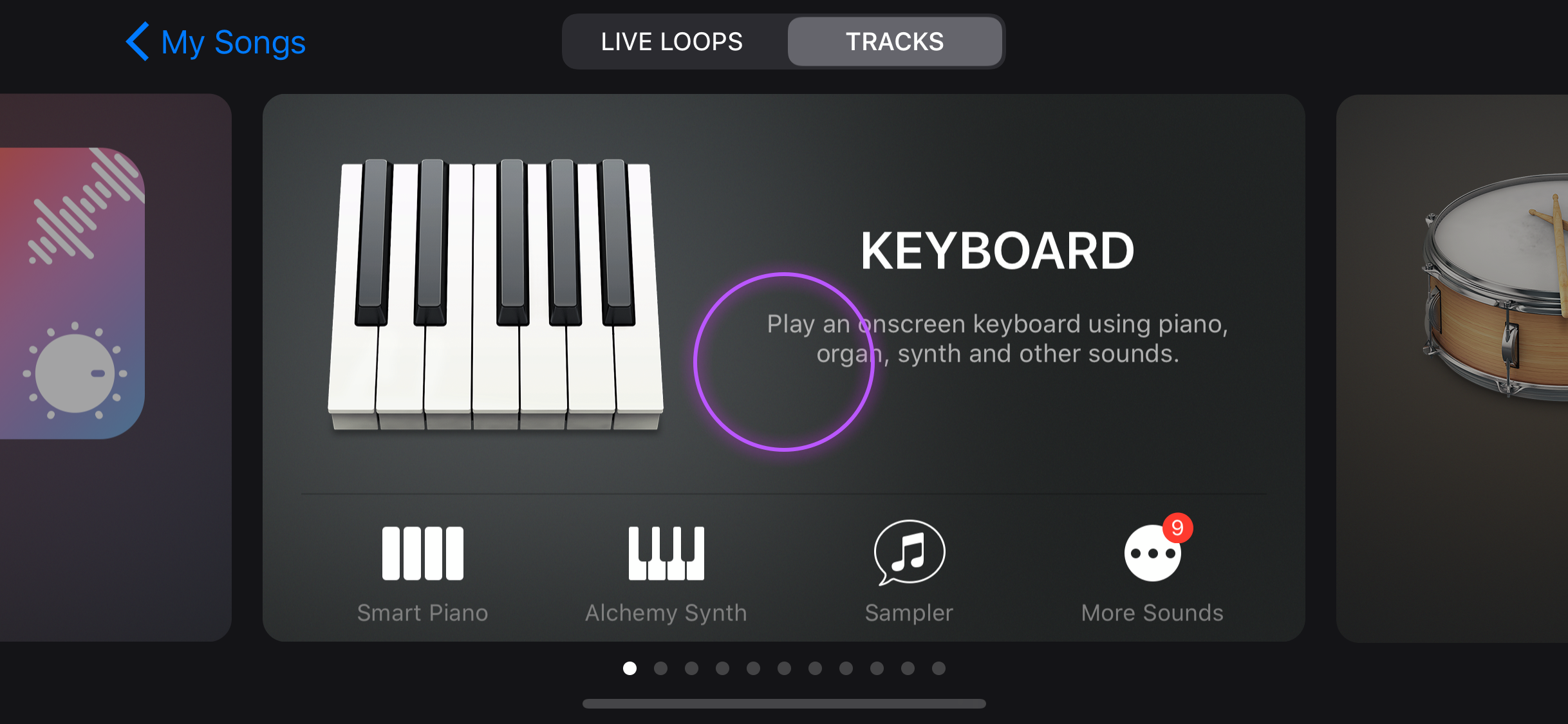
1. Open the GarageBand app on your phone and select the **default Keyboard mode** to start a new project.
If you don’t have the app on your phone you can get it for free from the App Store [here](https://apps.apple.com/us/app/garageband/id408709785).
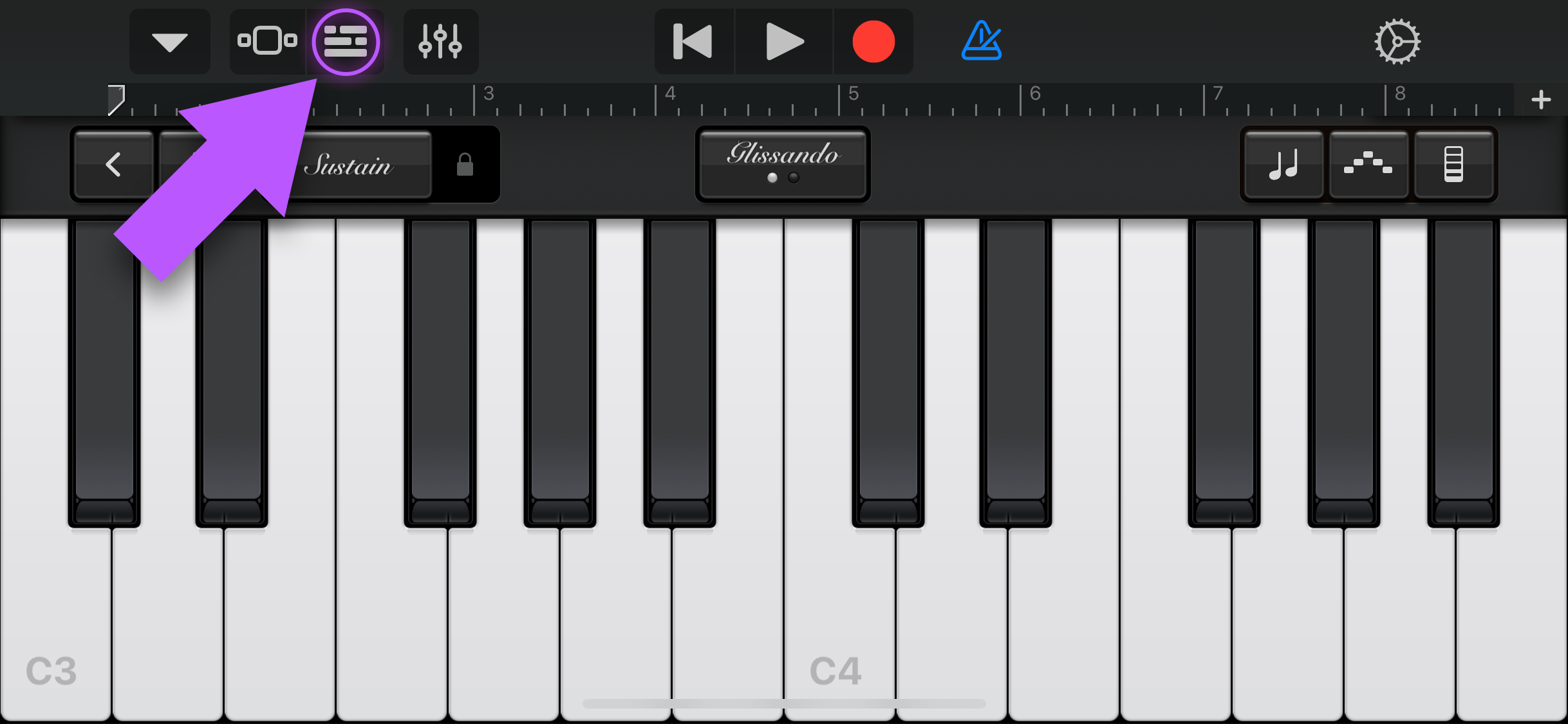
2. Tap the **lines button in the top left corner** to get the Tracks view.
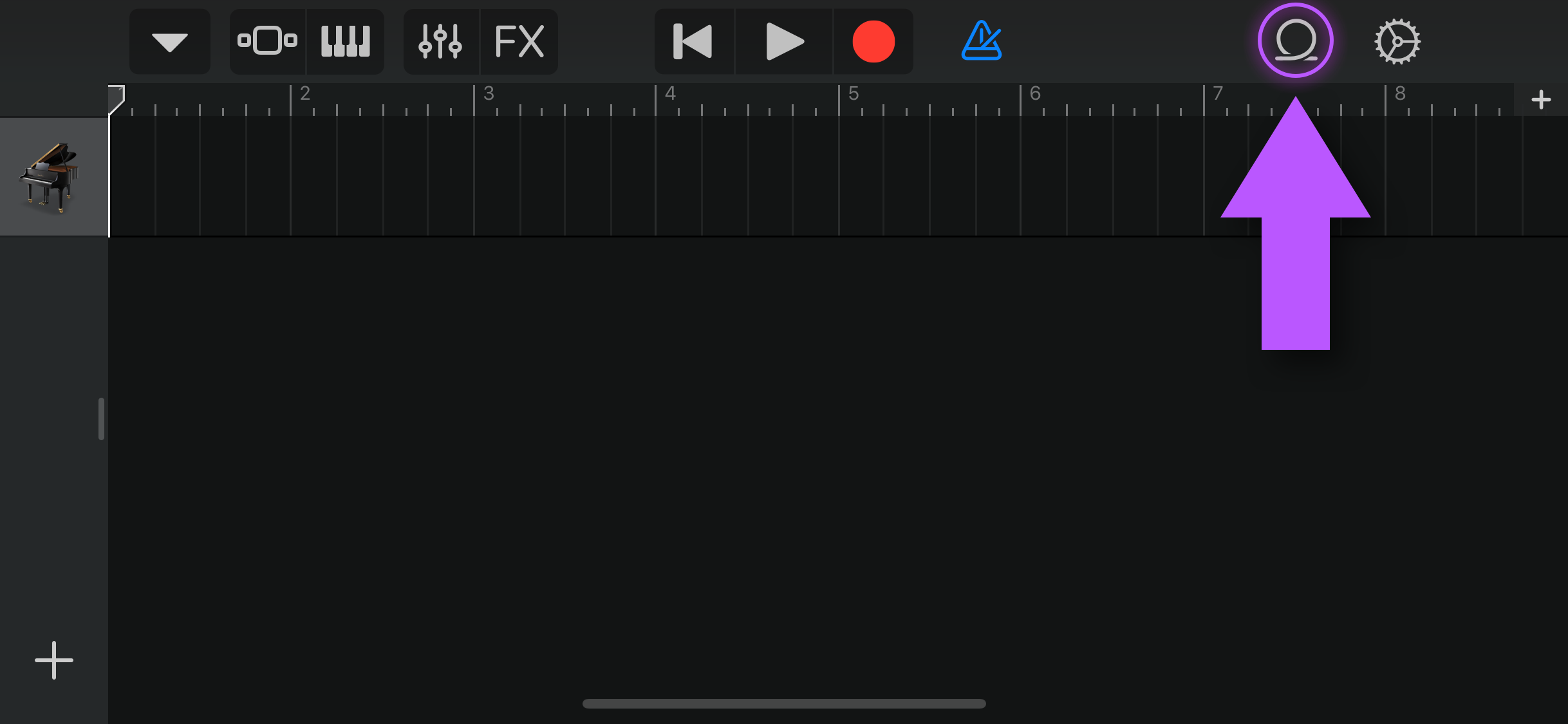
3. Tap the **loop icon** in the top right corner.
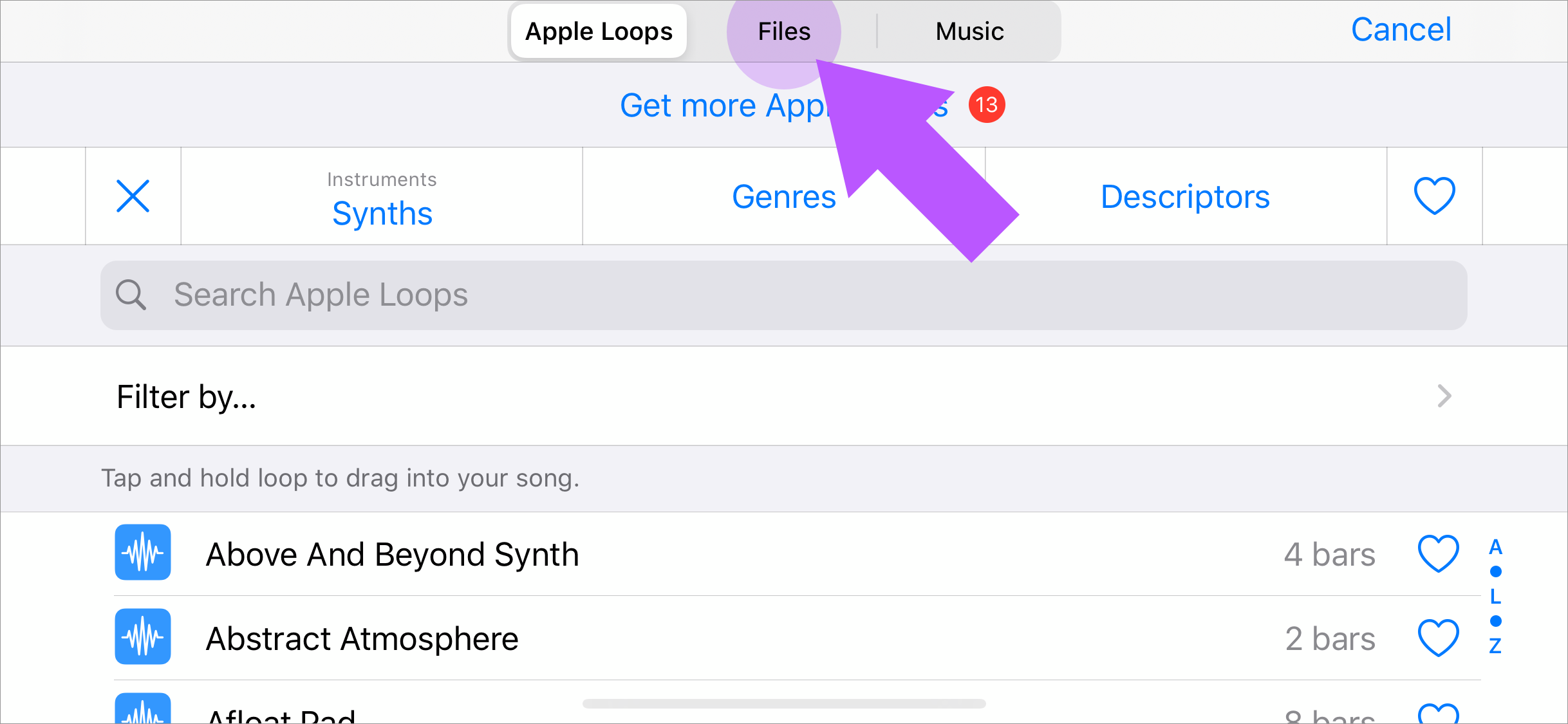
4. Tap Files to get to the file browser.
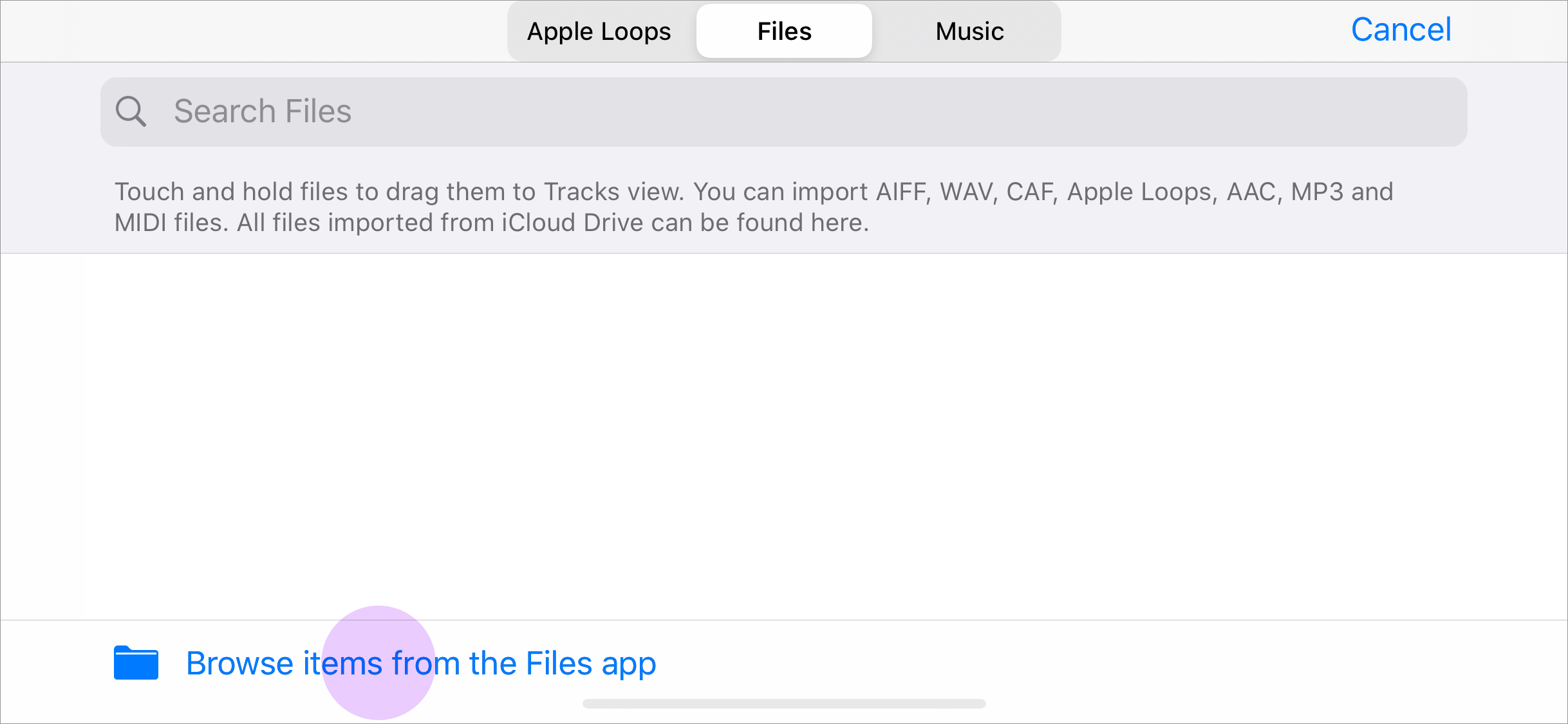
5. Choose “**Browse items from the Files app**” at the bottom of the screen.
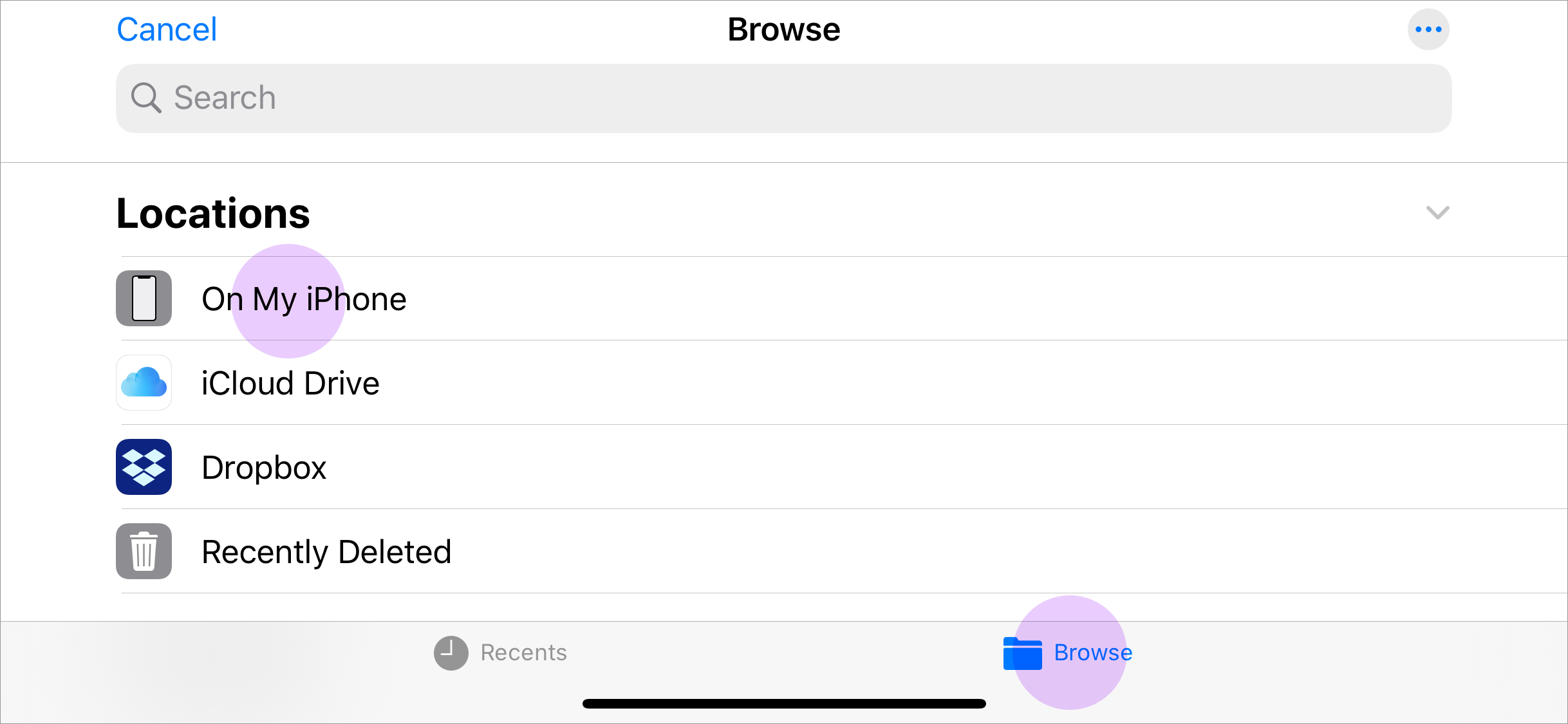
6. On the next screen Choose “Browse” at the bottom and then “On My Phone”. You may have to tap "Browse" twice to see the "On my phone" option.
**You may also be able to find your ringtone file in the Recent tab.**
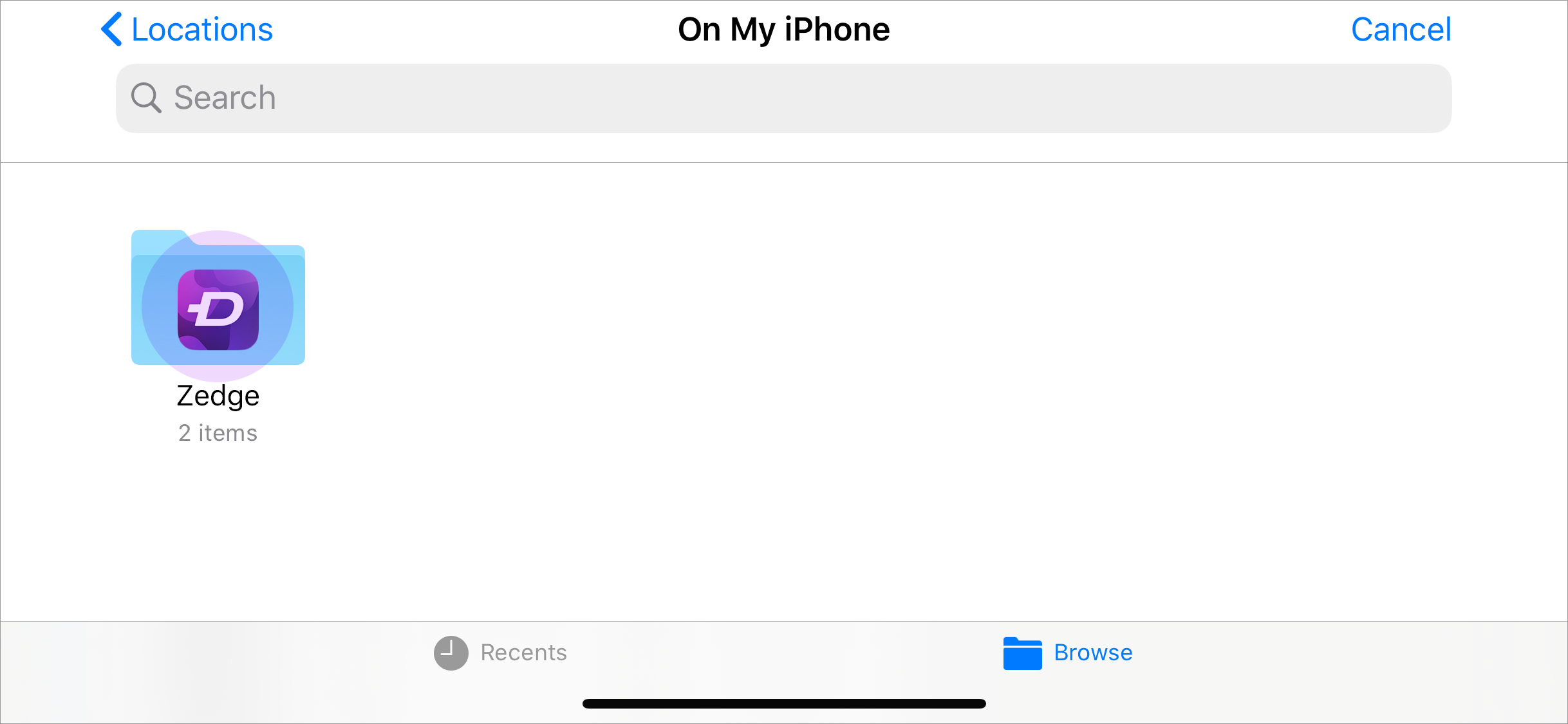
7. Choose/Tap the Zedge folder.
Then select the ringtone file you want.
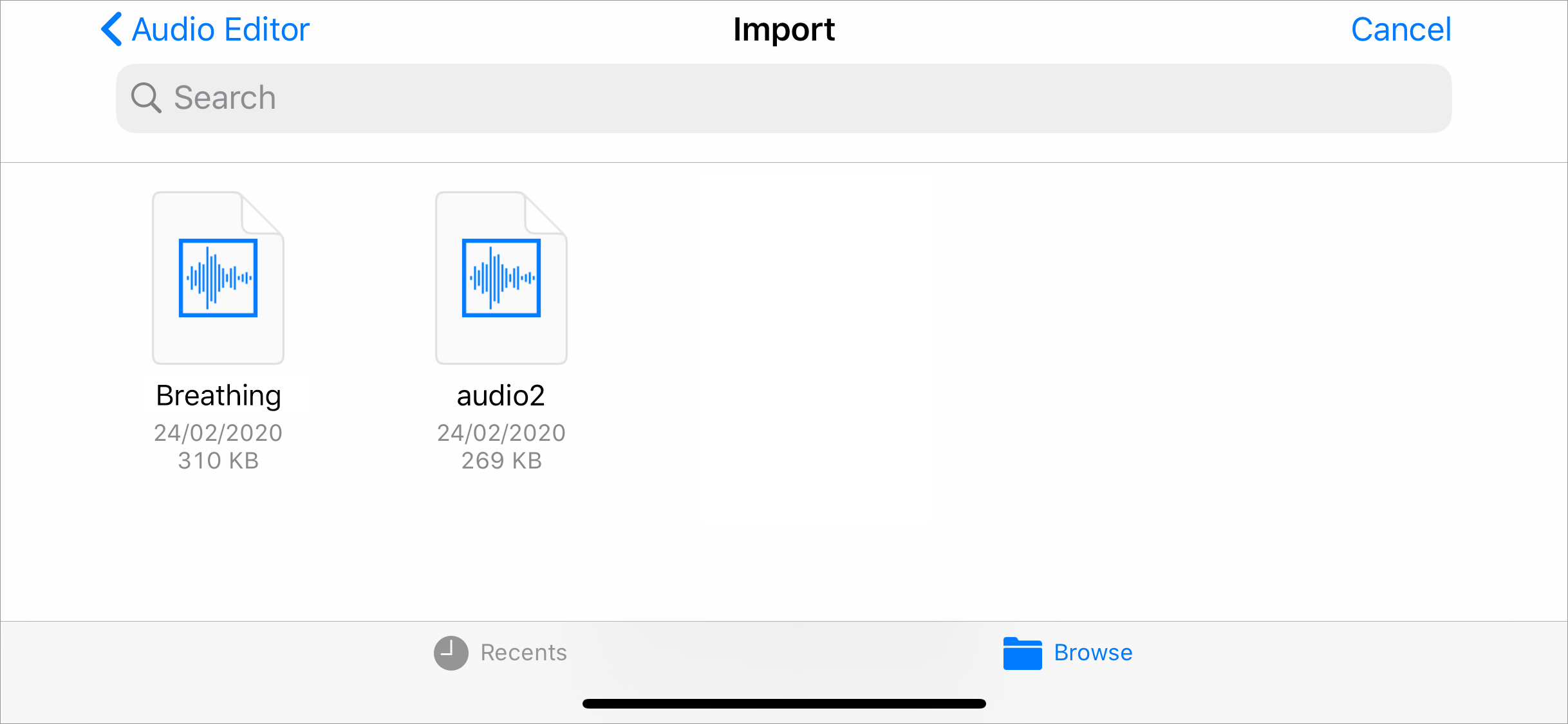
8. Tap the ringtone you want to set.
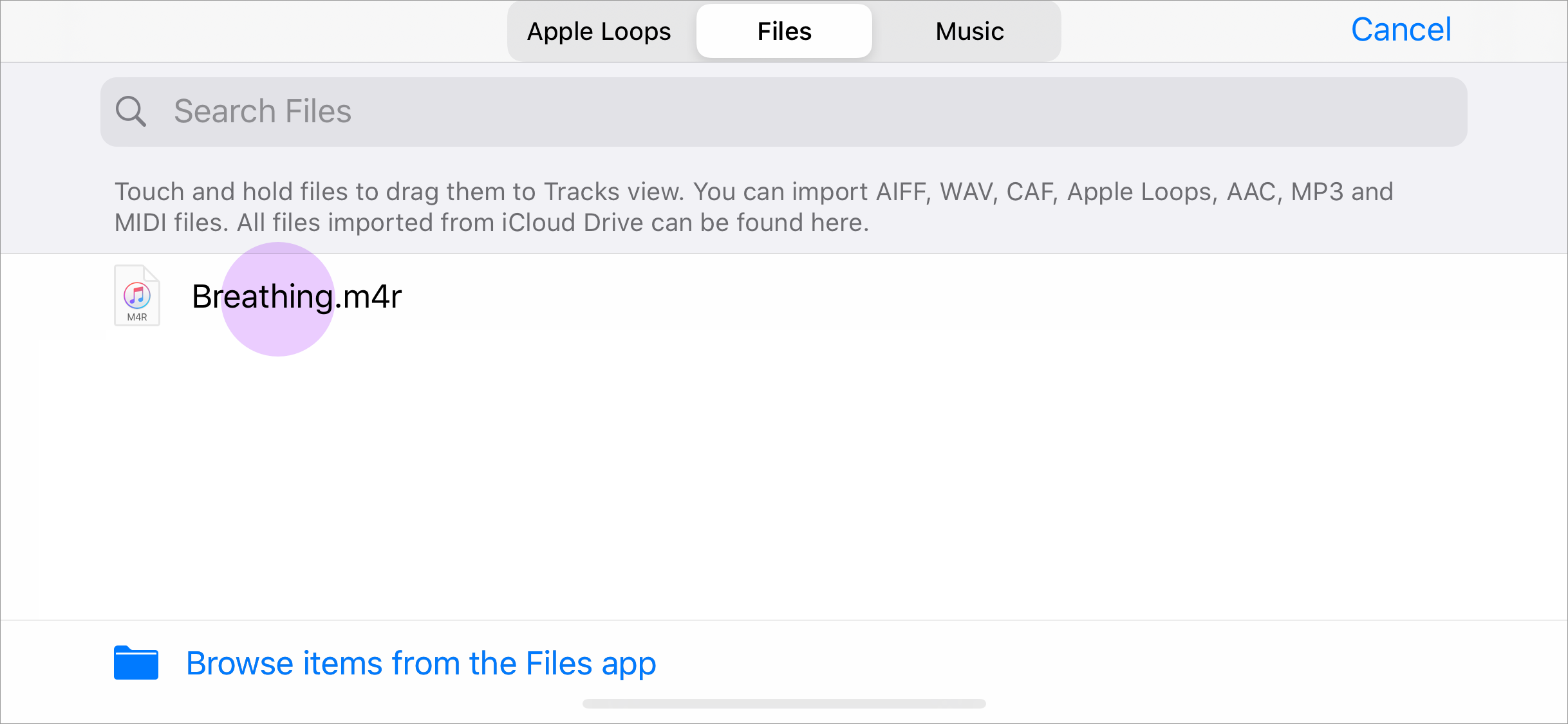
9. Drag and drop the ringtone file into your track timeline.
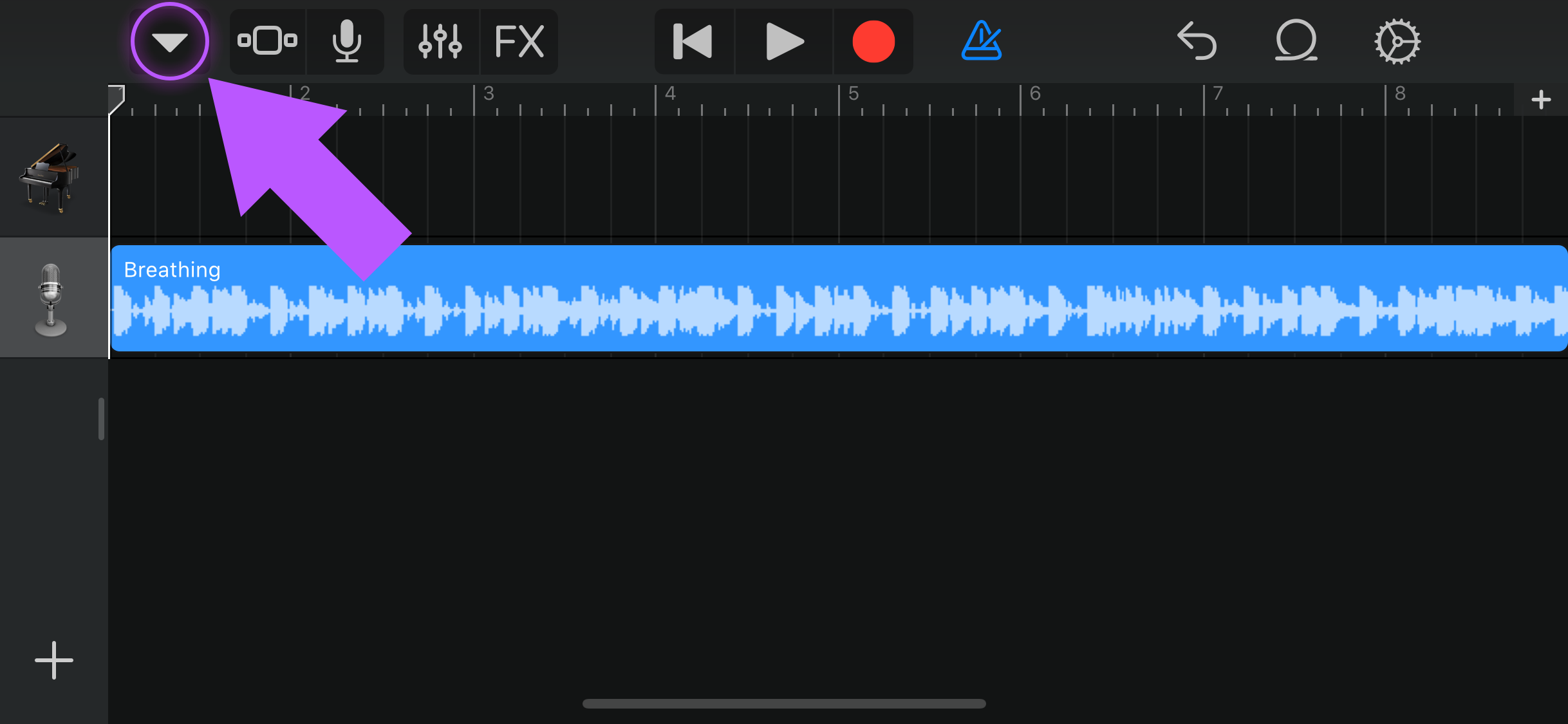
Then tap My Songs in the dropdown.
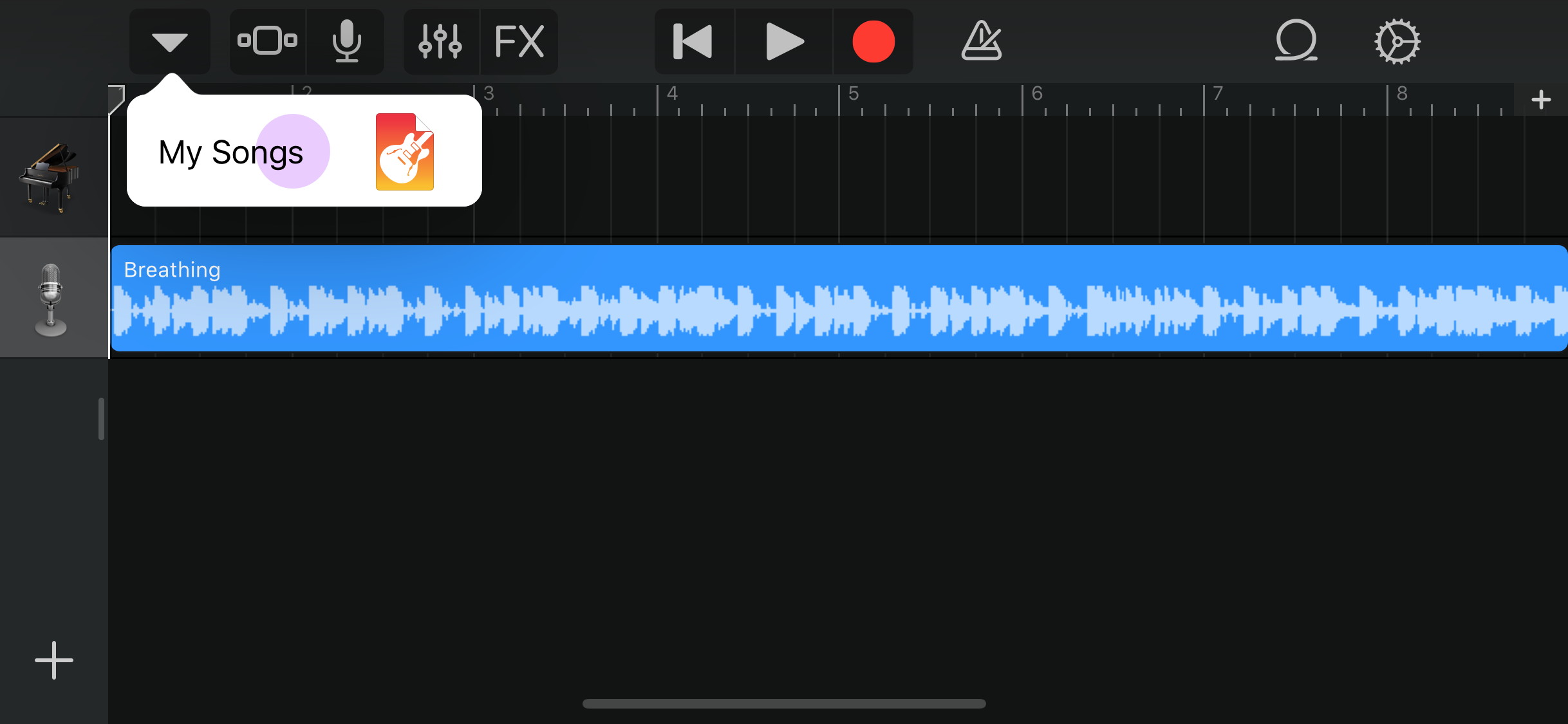
10. On this screen tap Select in the top right corner.
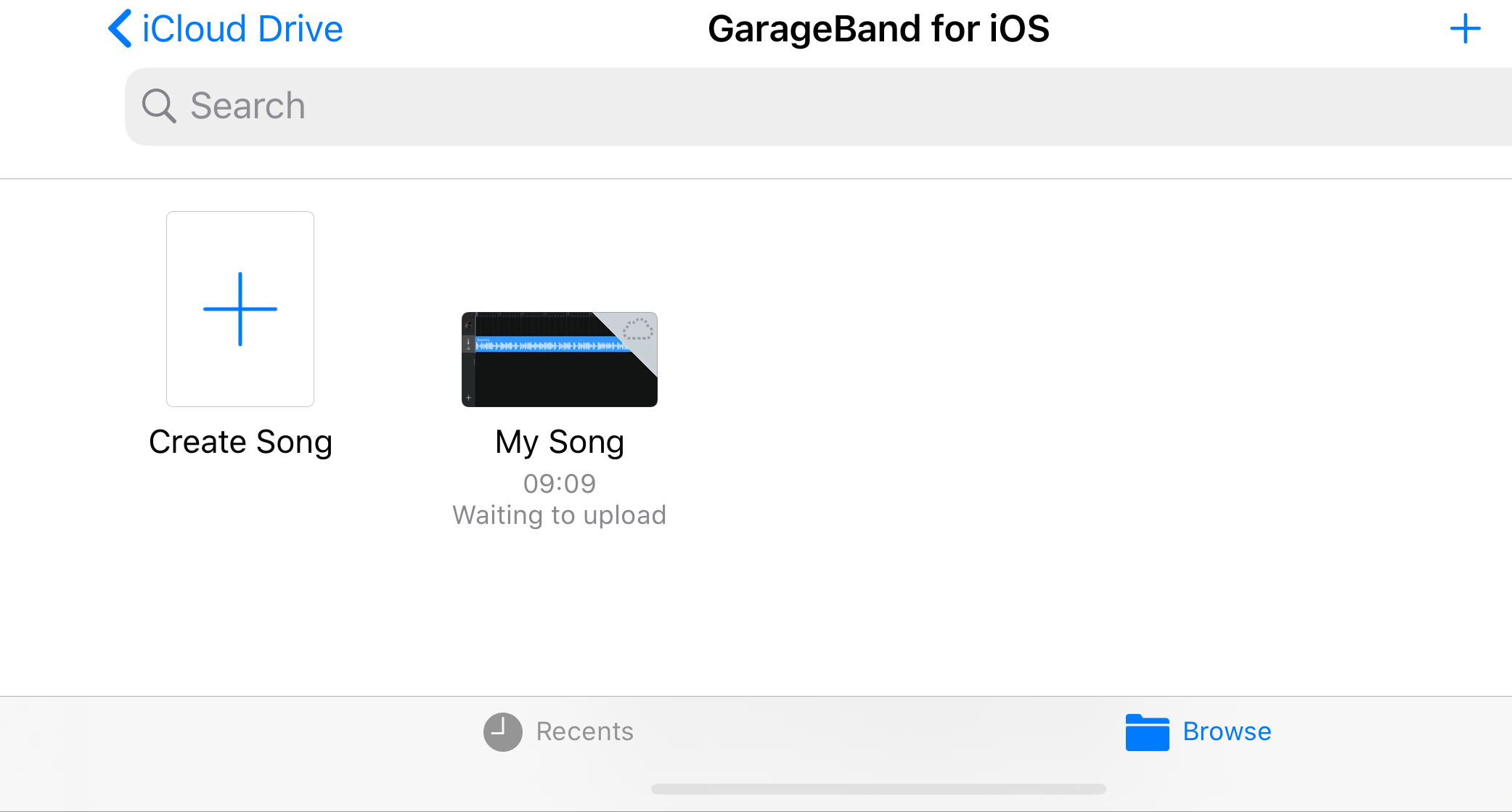
11. **Long press "My song" to open the actions menu and select share.**
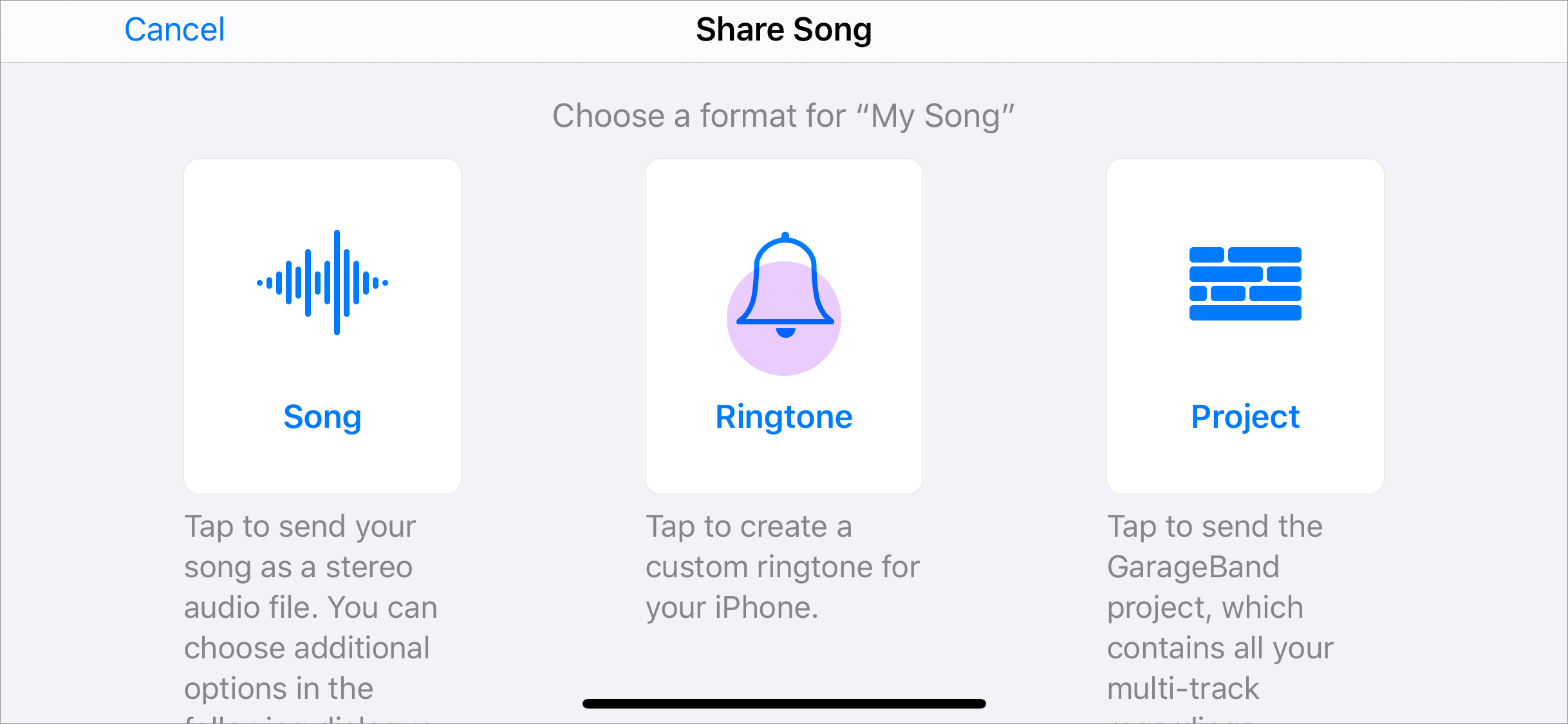
12. On the share options screen choose Ringtone.
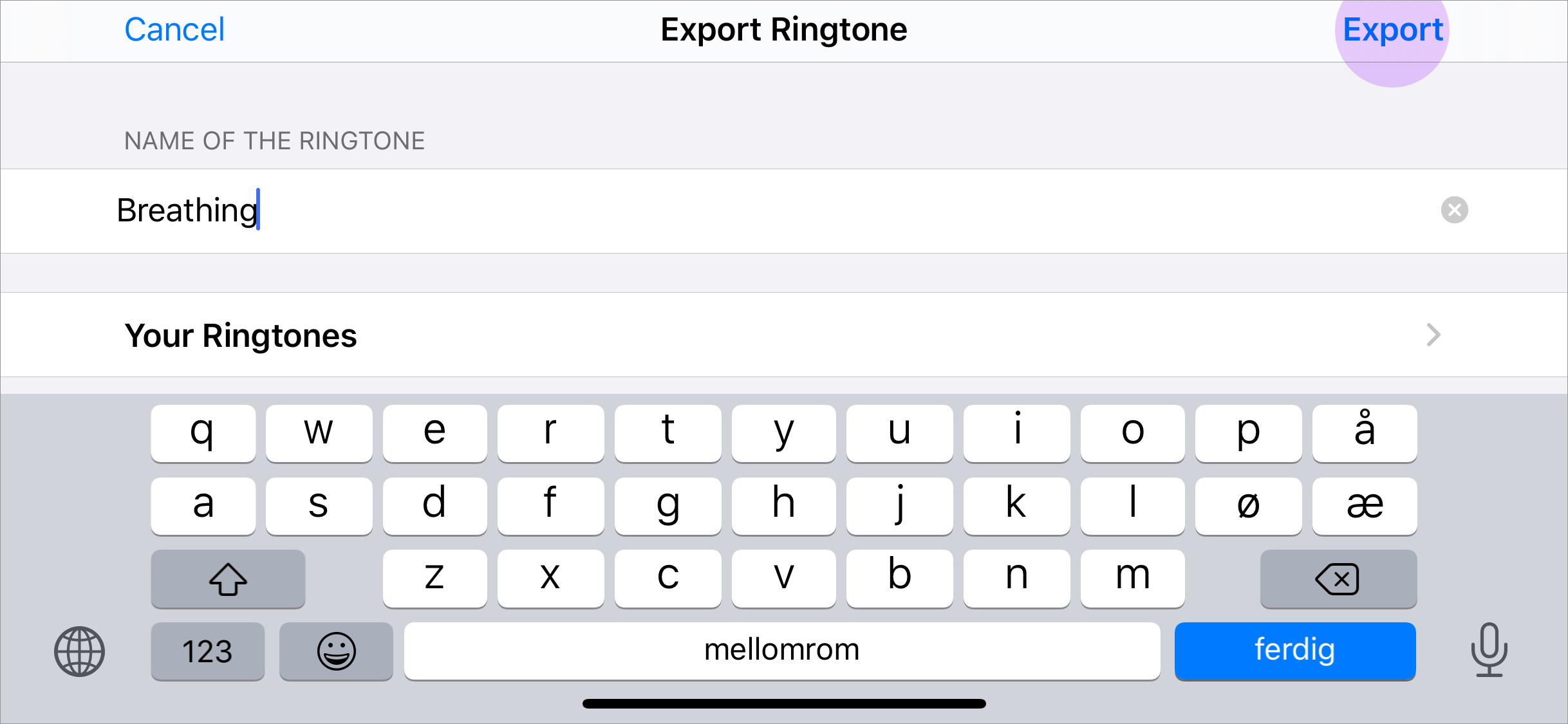
13. On this screen you can name your ringtone and then tap Export.
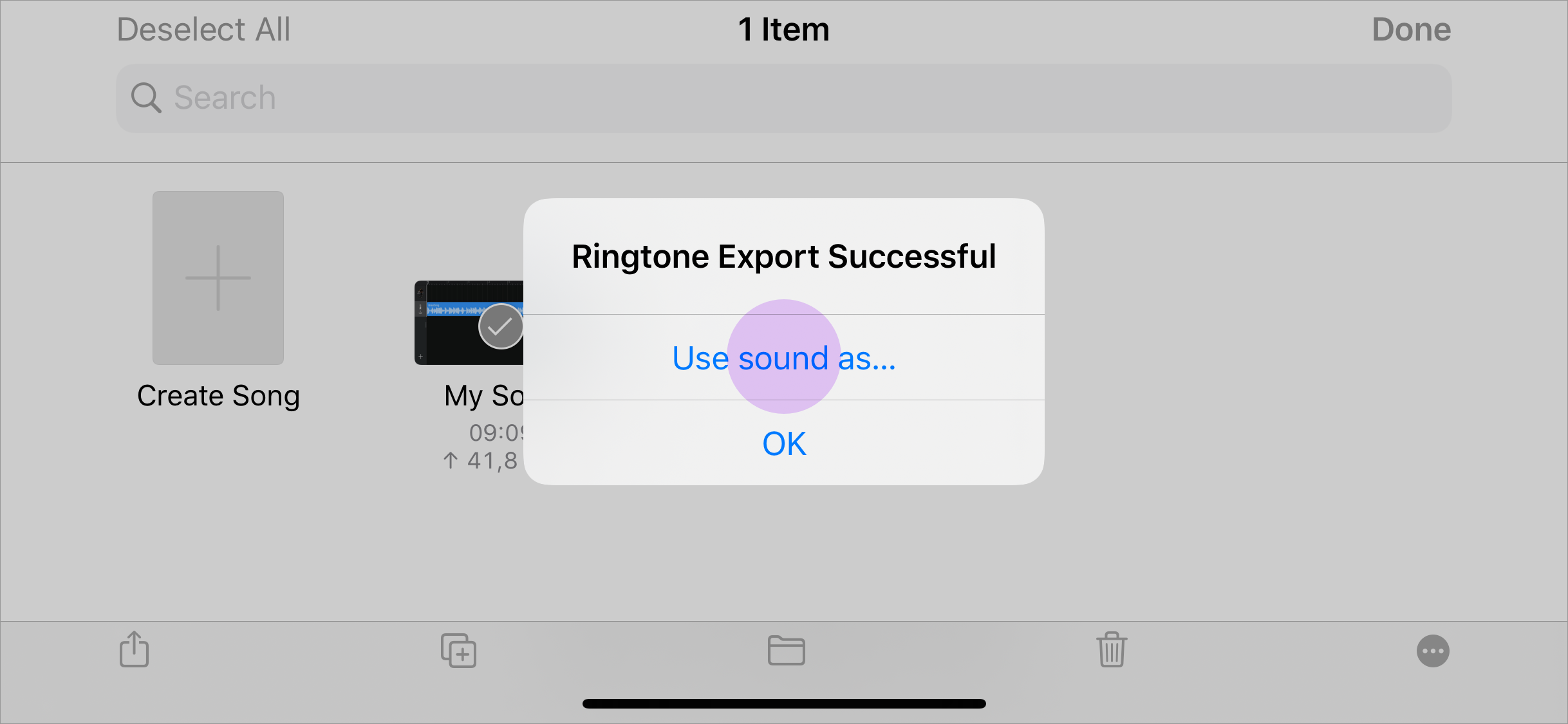
Voilá! You have a new ringtone on your phone. In this final dialog you can choose to set it right away as your ringtone or message tone. You can also go through sound settings and find your new ringtone there. It's a wrap\!
## Was this article helpful?
Yes
No
1458 out of 2235 found this helpful
Have more questions? [Submit a request](https://help.zedge.net/hc/en-us/requests/new)
[Return to top](https://help.zedge.net/hc/en-us/articles/360043449071-Setting-ringtones-on-your-iPhone#article-container)
## Related articles
- [About Zedge](https://help.zedge.net/hc/en-us/related/click?data=BAh7CjobZGVzdGluYXRpb25fYXJ0aWNsZV9pZGwrCGzeXdNTADoYcmVmZXJyZXJfYXJ0aWNsZV9pZGwrCO8KQ9RTADoLbG9jYWxlSSIKZW4tdXMGOgZFVDoIdXJsSSIwL2hjL2VuLXVzL2FydGljbGVzLzM2MDAyODQyOTkzMi1BYm91dC1aZWRnZQY7CFQ6CXJhbmtpBg%3D%3D--1836593db0edfe9102e1871a3d9dd06a7e1920c7)
- [Zedge Terms of Service](https://help.zedge.net/hc/en-us/related/click?data=BAh7CjobZGVzdGluYXRpb25fYXJ0aWNsZV9pZGwrCGAlX9NTADoYcmVmZXJyZXJfYXJ0aWNsZV9pZGwrCO8KQ9RTADoLbG9jYWxlSSIKZW4tdXMGOgZFVDoIdXJsSSI7L2hjL2VuLXVzL2FydGljbGVzLzM2MDAyODUxMzYzMi1aZWRnZS1UZXJtcy1vZi1TZXJ2aWNlBjsIVDoJcmFua2kH--96ef982a5a0d9e1c1d0d67a668fc10505e338905)
- [Procedure for Making Claims of Copyright Infringement](https://help.zedge.net/hc/en-us/related/click?data=BAh7CjobZGVzdGluYXRpb25fYXJ0aWNsZV9pZGwrCMe3LdNTADoYcmVmZXJyZXJfYXJ0aWNsZV9pZGwrCO8KQ9RTADoLbG9jYWxlSSIKZW4tdXMGOgZFVDoIdXJsSSJaL2hjL2VuLXVzL2FydGljbGVzLzM2MDAyNTI3NDMxMS1Qcm9jZWR1cmUtZm9yLU1ha2luZy1DbGFpbXMtb2YtQ29weXJpZ2h0LUluZnJpbmdlbWVudAY7CFQ6CXJhbmtpCA%3D%3D--21404b7067426c6de4ca09aba4e1fd9f66eaaf04)
- [Privacy Policy](https://help.zedge.net/hc/en-us/related/click?data=BAh7CjobZGVzdGluYXRpb25fYXJ0aWNsZV9pZGwrCDvWY9NTADoYcmVmZXJyZXJfYXJ0aWNsZV9pZGwrCO8KQ9RTADoLbG9jYWxlSSIKZW4tdXMGOgZFVDoIdXJsSSIzL2hjL2VuLXVzL2FydGljbGVzLzM2MDAyODgyMTA1MS1Qcml2YWN5LVBvbGljeQY7CFQ6CXJhbmtpCQ%3D%3D--a87d7193d171d17f15a5b800a612c6188431b26c)
- [Setting Icons on IOS](https://help.zedge.net/hc/en-us/related/click?data=BAh7CjobZGVzdGluYXRpb25fYXJ0aWNsZV9pZGwrCOBp1dRTADoYcmVmZXJyZXJfYXJ0aWNsZV9pZGwrCO8KQ9RTADoLbG9jYWxlSSIKZW4tdXMGOgZFVDoIdXJsSSI5L2hjL2VuLXVzL2FydGljbGVzLzM2MDA1MzA0MTYzMi1TZXR0aW5nLUljb25zLW9uLUlPUwY7CFQ6CXJhbmtpCg%3D%3D--f9e2cee46be22d9accfbbae1d30a56229530c6f2)
[Zedge Help Center](https://help.zedge.net/hc/en-us "Home")
[Powered by Zendesk](https://www.zendesk.com/service/help-center/?utm_source=helpcenter&utm_medium=poweredbyzendesk&utm_campaign=text&utm_content=Zedge) | ||||||||||||||||||
| Readable Markdown | Once you have found and downloaded a ringtone you would like to use on your iPhone, you can follow these steps:
1. Open the GarageBand app on your phone and select the **default Keyboard mode** to start a new project.
If you don’t have the app on your phone you can get it for free from the App Store [here](https://apps.apple.com/us/app/garageband/id408709785).

2. Tap the **lines button in the top left corner** to get the Tracks view.

3. Tap the **loop icon** in the top right corner.

4. Tap Files to get to the file browser. 
5. Choose “**Browse items from the Files app**” at the bottom of the screen.

6. On the next screen Choose “Browse” at the bottom and then “On My Phone”. You may have to tap "Browse" twice to see the "On my phone" option.
**You may also be able to find your ringtone file in the Recent tab.**

7. Choose/Tap the Zedge folder. 
Then select the ringtone file you want. 
8. Tap the ringtone you want to set.

9. Drag and drop the ringtone file into your track timeline.

Then tap My Songs in the dropdown.

10. On this screen tap Select in the top right corner.
11. **Long press "My song" to open the actions menu and select share.**
12. On the share options screen choose Ringtone. 
13. On this screen you can name your ringtone and then tap Export. 
Voilá! You have a new ringtone on your phone. In this final dialog you can choose to set it right away as your ringtone or message tone. You can also go through sound settings and find your new ringtone there. It's a wrap\!  | ||||||||||||||||||
| ML Classification | |||||||||||||||||||
| ML Categories |
Raw JSON{
"/Computers_and_Electronics": 810,
"/Computers_and_Electronics/Consumer_Electronics": 784,
"/Computers_and_Electronics/Consumer_Electronics/Audio_Equipment": 634,
"/Internet_and_Telecom": 450,
"/Internet_and_Telecom/Mobile_and_Wireless": 426,
"/Internet_and_Telecom/Mobile_and_Wireless/Mobile_Phones": 337
} | ||||||||||||||||||
| ML Page Types |
Raw JSON{
"/Article": 868,
"/Article/How_to": 699
} | ||||||||||||||||||
| ML Intent Types |
Raw JSON{
"Informational": 829,
"Navigational": 156
} | ||||||||||||||||||
| Content Metadata | |||||||||||||||||||
| Language | en-us | ||||||||||||||||||
| Author | null | ||||||||||||||||||
| Publish Time | 2022-08-19 13:55:37 (3 years ago) | ||||||||||||||||||
| Original Publish Time | 2020-05-19 23:37:16 (5 years ago) | ||||||||||||||||||
| Republished | Yes | ||||||||||||||||||
| Word Count (Total) | 414 | ||||||||||||||||||
| Word Count (Content) | 267 | ||||||||||||||||||
| Links | |||||||||||||||||||
| External Links | 3 | ||||||||||||||||||
| Internal Links | 20 | ||||||||||||||||||
| Technical SEO | |||||||||||||||||||
| Meta Nofollow | No | ||||||||||||||||||
| Meta Noarchive | No | ||||||||||||||||||
| JS Rendered | No | ||||||||||||||||||
| Redirect Target | null | ||||||||||||||||||
| Performance | |||||||||||||||||||
| Download Time (ms) | 209 | ||||||||||||||||||
| TTFB (ms) | 208 | ||||||||||||||||||
| Download Size (bytes) | 8,279 | ||||||||||||||||||
| Shard | 65 (laksa) | ||||||||||||||||||
| Root Hash | 8336061047643266665 | ||||||||||||||||||
| Unparsed URL | net,zedge!help,/hc/en-us/articles/360043449071-Setting-ringtones-on-your-iPhone s443 | ||||||||||||||||||