ℹ️ Skipped - page is already crawled
| Filter | Status | Condition | Details |
|---|---|---|---|
| HTTP status | PASS | download_http_code = 200 | HTTP 200 |
| Age cutoff | PASS | download_stamp > now() - 6 MONTH | 0.1 months ago |
| History drop | PASS | isNull(history_drop_reason) | No drop reason |
| Spam/ban | PASS | fh_dont_index != 1 AND ml_spam_score = 0 | ml_spam_score=0 |
| Canonical | PASS | meta_canonical IS NULL OR = '' OR = src_unparsed | Not set |
| Property | Value |
|---|---|
| URL | https://gfiber.com/support/en/answer/1841/ |
| Last Crawled | 2026-04-04 10:55:02 (2 days ago) |
| First Indexed | 2025-01-23 02:21:58 (1 year ago) |
| HTTP Status Code | 200 |
| Meta Title | Find Your IP Address |
| Meta Description | Easily find your public and internal IP addresses with our guide on gfiber.com. Enhance your network management and connectivity effortlessly. |
| Meta Canonical | null |
| Boilerpipe Text | Look up your public IP address online and identify a GFiber device's internal IP address within your GFiber account.
Differences between a public and internal IP address
The public IP address of your network is a unique number assigned by GFiber. All incoming and outgoing traffic (such as email, texts, web searches, and so on) uses that externally facing public IP address.
The internal (private) IP address of a device on your network is a unique number that is assigned by your router when that device connects to your GFiber home network. All devices on your network — including those wired to the router and those connected wirelessly — are assigned a local IP address by the router.
The router assigns IP addresses in numerical order (for example, 192.168.1.2, 192.168.1.3, and so on) and reassigns IP addresses after they are released by devices that are turned off or leave the area covered by the network. (So the IP address of a particular device is not necessarily the same every time it connects.)
Generally, you do not need to know the IP address of a device. However, you can determine the IP address of any device on your network or your public IP address, if you’d like to do so. You might need your device’s internal IP address if you’re applying advanced settings for a particular device. And you might need your network’s public IP address if you’re troubleshooting or accessing your home network while you’re away.
How to check the public IP address of your network with a web browser
Open a web browser (such as Chrome, Firefox, or any browser of your choice).
Visit one of the following websites:
whatsmyip.org
whatismyip.com
Either of these web pages will detect and display the public IP address of your network.
How to look up the internal IP address of a device on your network
Open a web browser (such as Chrome, Firefox, or any browser of your choice).
Sign into your
GFiber account
with your email and password. Please note that the email addresses you use to sign in to your Google account and your GFiber account may be different.
Select the
Network
tab, then click
Devices
to view devices that are or have been on your network.
Select the device for which you wish to find the local IP address.
The details about the selected device are shown.
Please note that these are advanced settings – you won't need to view or change these settings for typical use of your network.
You can view your router’s local DHCP IP range by clicking the
Network
section >
Edit network
>
Advanced network settings
, then selecting the
Addresses
tab. Your router’s local IPv4 address, subnet mask, and DHCP start and end addresses are shown.
You can also
use the Google Fiber app
to look up a GFiber device’s internal IP address |
| Markdown | menu
[](https://fiber.google.com/)
Fiber Citieskeyboard\_arrow\_down
Productskeyboard\_arrow\_down
[Business](https://fiber.google.com/business/)
[Get support](https://gfiber.com/support/en/)
[Account](https://gfiber.com/account/api/auth/login/)
[Help Center](https://gfiber.com/support/en/)
*search*
[*support\_agent\_icon*](https://fiber.google.com/support/)
[Contact Us](https://gfiber.com/support/en/)
1. [Help Center](https://gfiber.com/support/en/topic/11)
2. [Fiber user guide](https://gfiber.com/support/en/topic/971)
3. [Manage your network](https://gfiber.com/support/en/topic/985)
4. [Network management basics](https://gfiber.com/support/en/topic/986)
5. ...
6. Find Your IP Address
1. [Network management basics](https://gfiber.com/support/en/topic/986)
# Find Your IP Address
Look up your public IP address online and identify a GFiber device's internal IP address within your GFiber account.
***

If you have a Google Wifi or Nest Wifi Pro router, you can [find your IP address in the Google Home app](https://support.google.com/googlenest/answer/6274694).
Differences between a public and internal IP address

The public IP address of your network is a unique number assigned by GFiber. All incoming and outgoing traffic (such as email, texts, web searches, and so on) uses that externally facing public IP address.
The internal (private) IP address of a device on your network is a unique number that is assigned by your router when that device connects to your GFiber home network. All devices on your network — including those wired to the router and those connected wirelessly — are assigned a local IP address by the router.
The router assigns IP addresses in numerical order (for example, 192.168.1.2, 192.168.1.3, and so on) and reassigns IP addresses after they are released by devices that are turned off or leave the area covered by the network. (So the IP address of a particular device is not necessarily the same every time it connects.)
Generally, you do not need to know the IP address of a device. However, you can determine the IP address of any device on your network or your public IP address, if you’d like to do so. You might need your device’s internal IP address if you’re applying advanced settings for a particular device. And you might need your network’s public IP address if you’re troubleshooting or accessing your home network while you’re away.
How to check the public IP address of your network with a web browser

1. Open a web browser (such as Chrome, Firefox, or any browser of your choice).
2. Visit one of the following websites:
- [whatsmyip.org](http://www.whatsmyip.org/)
- [whatismyip.com](http://www.whatismyip.com/)
3. Either of these web pages will detect and display the public IP address of your network.

You can also [use the Google Fiber app](https://gfiber.com/support/en/answer/1945) to look up your public IP address.
How to look up the internal IP address of a device on your network

1. Open a web browser (such as Chrome, Firefox, or any browser of your choice).
2. Sign into your [GFiber account](https://fiber.google.com/account/)with your email and password. Please note that the email addresses you use to sign in to your Google account and your GFiber account may be different.
3. Select the **Network** tab, then click **Devices** to view devices that are or have been on your network.
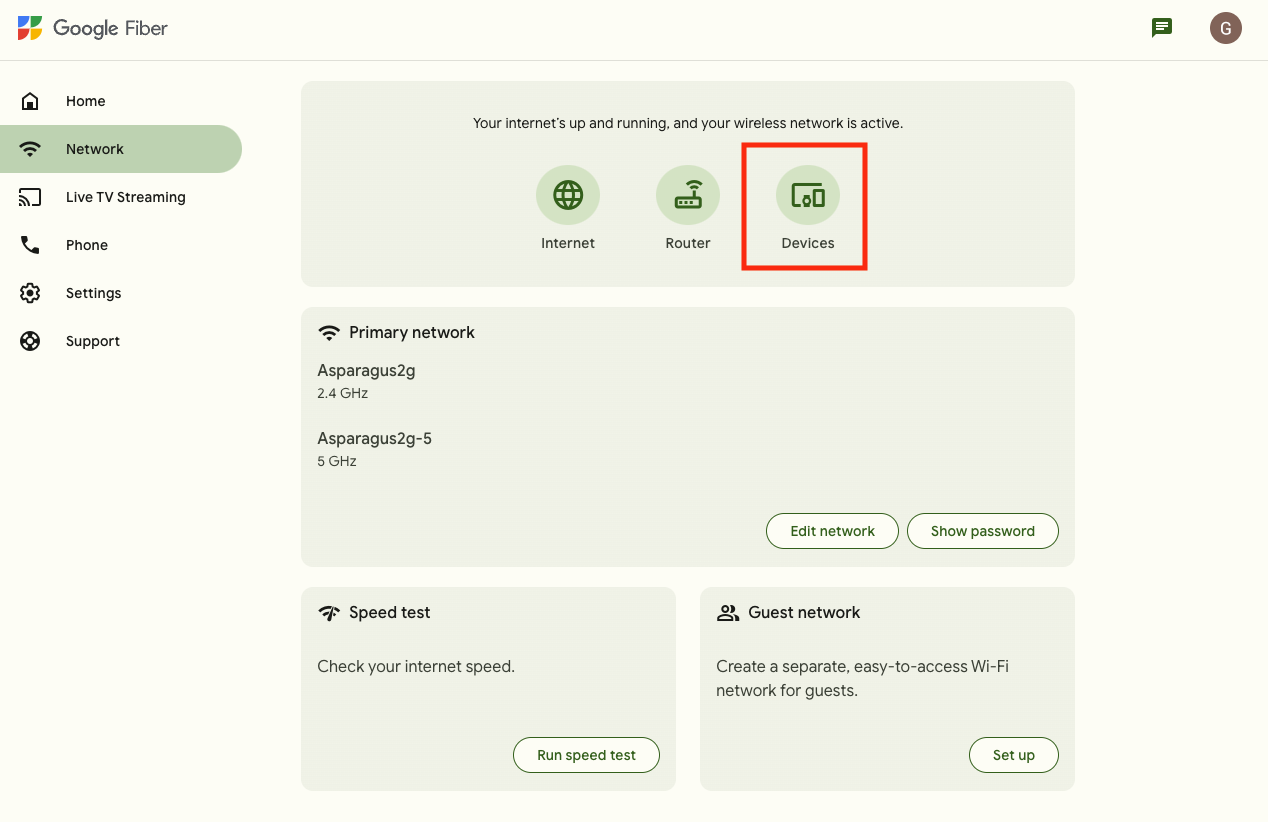
4. Select the device for which you wish to find the local IP address.
5. The details about the selected device are shown.
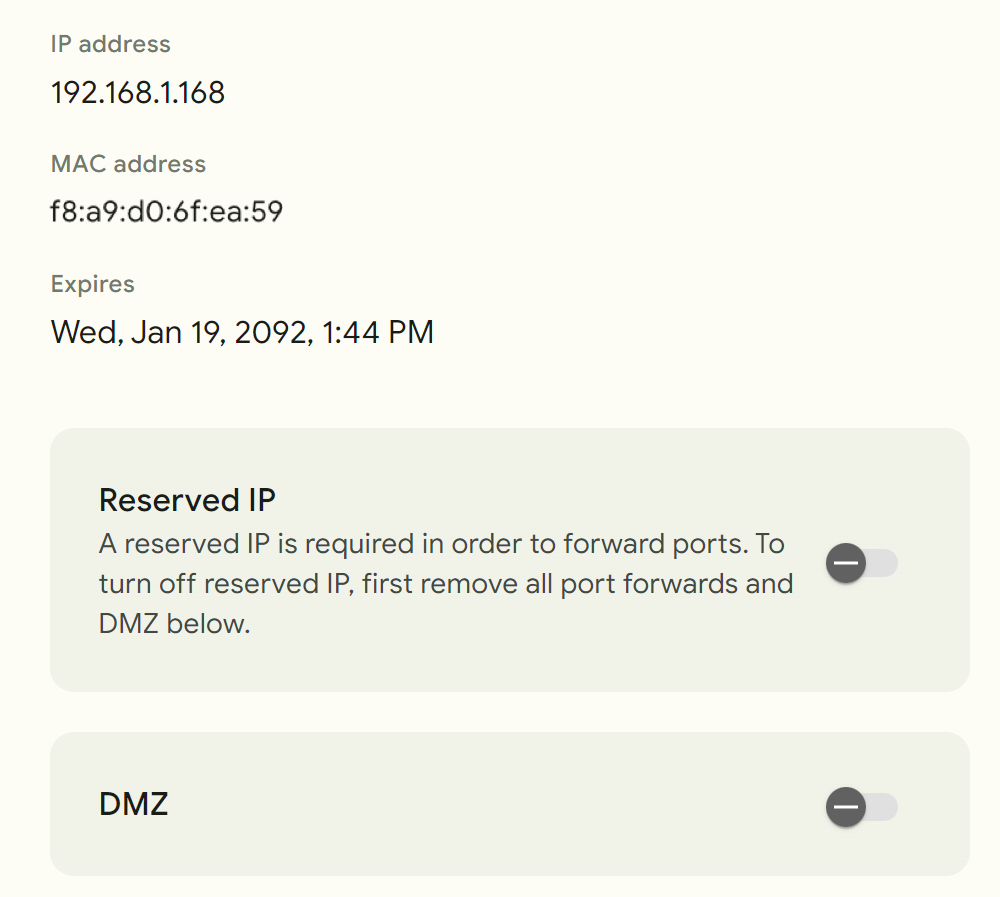
Please note that these are advanced settings – you won't need to view or change these settings for typical use of your network.

You can view your router’s local DHCP IP range by clicking the **Network** section \> **Edit network** \> [**Advanced network settings**](https://gfiber.com/support/en/answer/1858), then selecting the **Addresses** tab. Your router’s local IPv4 address, subnet mask, and DHCP start and end addresses are shown.
You can also [use the Google Fiber app](https://gfiber.com/support/en/answer/1945) to look up a GFiber device’s internal IP address
[Read more](https://gfiber.com/)
#### Related Articles

[Connect devices to your network](https://gfiber.com/support/en/answer/1870)

[Change your Wi-Fi password](https://gfiber.com/support/en/answer/1931)

[Configure your Wifi Network](https://gfiber.com/support/en/answer/1852)

[Overview of the network tab](https://gfiber.com/support/en/answer/1853)

[Find your IP address in the Google Fiber app](https://gfiber.com/support/en/answer/1945)

[Find your Wi-Fi Password](https://gfiber.com/support/en/answer/1855)

[Change your Wi-Fi Network Name](https://gfiber.com/support/en/answer/1854)
Follow us
[Español]()
Check availability
- [Residential service](https://fiber.google.com/)
- [Small business](https://fiber.google.com/business/)
- [Property managers](https://fiber.google.com/properties/)
- [Google Fiber cities](https://fiber.google.com/#cities)
- [City officials](https://fiber.google.com/cityofficials/)
Learn More
- [Internet](https://fiber.google.com/internet/)
- [Wi-Fi tech](https://fiber.google.com/wifi/)
- [Streaming TV](https://fiber.google.com/tv/)
- [GFiber Phone](https://fiber.google.com/phone/)
- [Gaming](https://fiber.google.com/internet/gaming/)
- [Work from home](https://fiber.google.com/internet/workfromhome/)
- [Distance learning](https://fiber.google.com/internet/learning/)
- [Broadband Labels*launch*](https://fiber.google.com/broadband-labels/)
Support
- [Contact us](https://gfiber.com/support/en/)
- [FAQ](https://fiber.google.com/faq/)
- [Help Center*launch*](https://gfiber.com/support/en/)
- [Privacy & Terms](https://gfiber.com/legal/)
- [Speed Test](https://fiber.google.com/speedtest/)
About Us
- [Blog](https://fiber.google.com/blog/)
- [Careers](https://fiber.google.com/careers/)
- [Community Impact](https://fiber.google.com/community/)
- [Belonging](https://gfiber.com/belonging/)
- [About GFiber](https://fiber.google.com/google-fiber-facts/)
- [GFiber Labs](https://fiber.google.com/gfiber-labs/)
Check availability
*expand\_more*
[Residential service](https://fiber.google.com/)
[Small business](https://fiber.google.com/business/)
[Property managers](https://fiber.google.com/properties/)
[Google Fiber cities](https://fiber.google.com/#cities)
[City officials](https://fiber.google.com/cityofficials/)
Learn More
*expand\_more*
[Internet](https://fiber.google.com/internet/)
[Wi-Fi tech](https://fiber.google.com/wifi/)
[Streaming TV](https://fiber.google.com/tv/)
[GFiber Phone](https://fiber.google.com/phone/)
[Gaming](https://fiber.google.com/internet/gaming/)
[Work from home](https://fiber.google.com/internet/workfromhome/)
[Distance learning](https://fiber.google.com/internet/learning/)
[Broadband Labels*launch*](https://fiber.google.com/broadband-labels/)
Support
*expand\_more*
[Contact us](https://gfiber.com/support/en/)
[FAQ](https://fiber.google.com/faq/)
[Help Center*launch*](https://gfiber.com/support/en/)
[Privacy & Terms](https://gfiber.com/legal/)
[Speed Test](https://fiber.google.com/speedtest/)
About Us
*expand\_more*
[Blog](https://fiber.google.com/blog/)
[Careers](https://fiber.google.com/careers/)
[Community Impact](https://fiber.google.com/community/)
[Belonging](https://gfiber.com/belonging/)
[About GFiber](https://fiber.google.com/google-fiber-facts/)
[GFiber Labs](https://fiber.google.com/gfiber-labs/)
© 2026 Google Fiber Inc. \| 1600 Amphitheatre Pkwy, Mountain View, CA 94043 |
| Readable Markdown | Look up your public IP address online and identify a GFiber device's internal IP address within your GFiber account.
***

Differences between a public and internal IP address

The public IP address of your network is a unique number assigned by GFiber. All incoming and outgoing traffic (such as email, texts, web searches, and so on) uses that externally facing public IP address.
The internal (private) IP address of a device on your network is a unique number that is assigned by your router when that device connects to your GFiber home network. All devices on your network — including those wired to the router and those connected wirelessly — are assigned a local IP address by the router.
The router assigns IP addresses in numerical order (for example, 192.168.1.2, 192.168.1.3, and so on) and reassigns IP addresses after they are released by devices that are turned off or leave the area covered by the network. (So the IP address of a particular device is not necessarily the same every time it connects.)
Generally, you do not need to know the IP address of a device. However, you can determine the IP address of any device on your network or your public IP address, if you’d like to do so. You might need your device’s internal IP address if you’re applying advanced settings for a particular device. And you might need your network’s public IP address if you’re troubleshooting or accessing your home network while you’re away.
How to check the public IP address of your network with a web browser

1. Open a web browser (such as Chrome, Firefox, or any browser of your choice).
2. Visit one of the following websites:
- [whatsmyip.org](http://www.whatsmyip.org/)
- [whatismyip.com](http://www.whatismyip.com/)
3. Either of these web pages will detect and display the public IP address of your network.

How to look up the internal IP address of a device on your network

1. Open a web browser (such as Chrome, Firefox, or any browser of your choice).
2. Sign into your [GFiber account](https://fiber.google.com/account/)with your email and password. Please note that the email addresses you use to sign in to your Google account and your GFiber account may be different.
3. Select the **Network** tab, then click **Devices** to view devices that are or have been on your network.

4. Select the device for which you wish to find the local IP address.
5. The details about the selected device are shown.

Please note that these are advanced settings – you won't need to view or change these settings for typical use of your network.

You can view your router’s local DHCP IP range by clicking the **Network** section \> **Edit network** \> [**Advanced network settings**](https://gfiber.com/support/en/answer/1858), then selecting the **Addresses** tab. Your router’s local IPv4 address, subnet mask, and DHCP start and end addresses are shown.
You can also [use the Google Fiber app](https://gfiber.com/support/en/answer/1945) to look up a GFiber device’s internal IP address |
| Shard | 188 (laksa) |
| Root Hash | 11041027892120608788 |
| Unparsed URL | com,gfiber!/support/en/answer/1841/ s443 |