ℹ️ Skipped - page is already crawled
| Filter | Status | Condition | Details |
|---|---|---|---|
| HTTP status | PASS | download_http_code = 200 | HTTP 200 |
| Age cutoff | PASS | download_stamp > now() - 6 MONTH | 0.1 months ago |
| History drop | PASS | isNull(history_drop_reason) | No drop reason |
| Spam/ban | PASS | fh_dont_index != 1 AND ml_spam_score = 0 | ml_spam_score=0 |
| Canonical | PASS | meta_canonical IS NULL OR = '' OR = src_unparsed | Not set |
| Property | Value | |||||||||
|---|---|---|---|---|---|---|---|---|---|---|
| URL | https://extremevpn.com/what-is-my-ip/ | |||||||||
| Last Crawled | 2026-04-19 21:14:27 (4 days ago) | |||||||||
| First Indexed | 2023-08-03 05:35:12 (2 years ago) | |||||||||
| HTTP Status Code | 200 | |||||||||
| Content | ||||||||||
| Meta Title | What is My IP Address? Check Your Public IP Location - ExtremeVPN | |||||||||
| Meta Description | Know your actual IP address. Learn the difference between public IPv4 and IPv6 and check details about your ISP, city, country, region, etc. | |||||||||
| Meta Canonical | null | |||||||||
| Boilerpipe Text | What is an
IP Address?
The term IP address stands for Internet Protocol address. An Internet Protocol address is a unique set of numbers, such as 202.69.35, assigned to devices when connected to the Internet. These devices use this IP location to communicate over Internet networks, either internally or externally. The IP address has two main functions: location addressing and network interface identification.
IP addresses are the internet’s anchors, connecting you to the World Wide Web and underpinning your digital life. Getting online without a secure IP address is risky because it allows websites to track you down.
Why You Must
Change
Your IP Address
Have peace of mind no matter what you do online. Whether browsing, streaming, or playing games, just establish a VPN connection to get a virtual IP and keep yourself hidden.
Advanced Protection
ExtremeVPN’s military-grade encryption protects you against internet threats and provides secure access to business servers and payments. Our fast servers offer anonymity and security so that you can enjoy a threat-free online experience.
Secure Your Location
Connect to a secure, private VPN server to hide your location. This will prevent third parties like your ISP and government from tracking your online activities.
An IP Only for You
Get a new IP address. Change your location to any country you want, say the US, France, Germany, the Netherlands, or anywhere else.
Privacy Online
ExtremeVPN keeps you secure even on public Wi-Fi. Connect your device to a server, and stay protected at home and open networks.
What is a
Public IP Address?
A Public IP address, also known as an external IP, is assigned by your Internet Service Provider to your device to access the Internet. It allows you to organize your server (FTP, VPN, WEB, etc.) to remotely access your computer and get access to it from anywhere on the global network.
Just like every home has a unique address, the IP address is the digital home address of your device connected to a computer network, which allows you to differentiate it among billions of devices on the Internet.
What is a
Private IP Address?
A Private IP address is an IP that devices have over private networks. This IP, also referred to as local IP or internal IP address, remains hidden on the internet and is provided by network devices, such as your routers.
How to
Find
My IP Address
It’s pretty easy to find your IP address. Here is how you can do it.
How Can I Find My Public IP Address
To see your public IP, just scroll to the top of this page. From there you can check your IP, the operating system and device type you’re using, your internet service provider, and the location you’re connected to.
How Can I Find My IP on Windows 10
Here’s how to check your IP address in Windows 10 if you’re connected to your Wi-fi network:
Tap on “Wifi Network” from the taskbar.
Choose the network that you’re currently connected to.
Select “Properties.”
Move to the bottom of the window. Your IP address is next to the “IPv4 address.”
Do the following to look at your IP if you’re from your Ethernet network:
From the taskbar, select the “Ethernet Network” tab.
Find and tap on the network you’re connected to.
Select “Properties.”
Scroll to the bottom of the page; your IP will be visible before the “IPv4 address.”
How Can I Find My IP Address on Windows 11
Follow these steps to see your IP when connected to the Wifi network:
Go to “Start”, then choose “Settings,” “Network & internet,” and then “Wi-Fi.”
Choose the network that you’re connected to.
Tap on “Properties.”
Scroll down to the bottom of the window. Your IP will be visible next to the “IPv4 address.”
In case you’re connected to the Ethernet network, do the following to see your IP:
Click on the “Ethernet Network” icon from the taskbar.
Find and select the network you’ve established a connection with.
Press on “Properties.”
Move to the bottom of the page, and you can see your IP in front of the “IPv4 address.”
How to Find the IP Address of My Phone
Follow these simple steps to see your IP address on your Android:
Move to your Phone’s “Settings.”
Press on “About device.”
Click on “Status.”
From here, you can see your IP address (both public IPv4 and IPv6) along with other information about the device.
Here’s how to find your IP address on iPhone:
Go to the “Settings.”
Locate and tap on “Wi-Fi.”
Select the network that you’re connected to.
From here, you can find your IP under the “IPv4 address.”
How to Find My IP Address on Mac
Follow these steps to see your IP address on Mac when connected to a Wi-Fi network:
Go to “System Settings” from the Apple menu.
Select the “Network” icon.
Choose “Wi-Fi,” then tap on “Details.”
This will display your IP address right in the middle of the screen.
To see your IP address while being connected to the Ethernet network, just follow these steps:
Click on “System Settings” on the Apple menu.
Select the “Network” icon.
Choose “Ethernet,” then tap on “Details.” It will show your IP in the middle of the window.
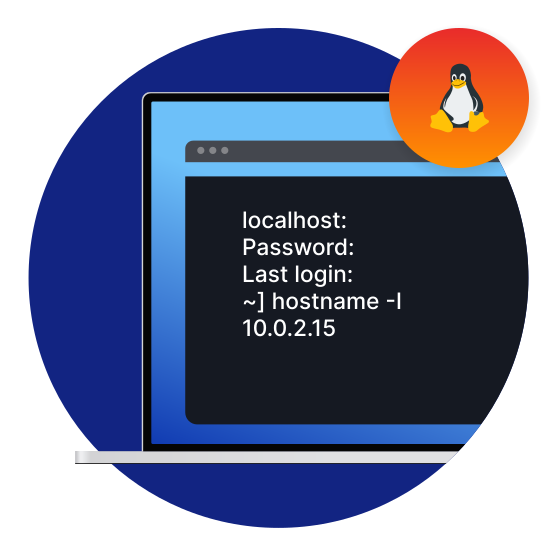
How to Find the IP Address on a Linux System
Here are some ways you can see the IP address on most Linux systems:
First, ensure you have a stable internet connection.
Then, go to the terminal.
Type “hostname -I” (don’t use the quotations) to find your local IP address.
How to Find Your IP Address on a PlayStation
Here’s how to locate the IP address on PlayStation 3:
Go to “Settings.”
Then press on “Network Settings.”
Choose “Settings and Connection List.”
Here you can see your IP address, subnet mask, and default router.
Follow these steps to find your current IP address on PlayStations 4:
Open the home screen tab and go to “Settings.”
Choose “Network.”
Tap on “View connection status” and you can find your IP address under the tab “IP address.”
Here’s how to find the IP address on your PlayStation 5:
Launch your PlayStation 5 and go to the main menu.
Move to the “Settings” tab.
Select “Network,” “Connection Status,” then “View Connection Status.”
Move to the bottom to see the IP address assigned to your PlayStation and other details about your network.
How to Find the IP Address on Your Xbox
Here’s how to see the IP address on your Xbox One:
From the Xbox controller, click on the “Menu” button to go to the console’s menu interface.
Once the menu opens, click on “Settings,” then “Network,” “Network Settings,” and then “Advanced Settings.”
Click on “IP settings” to find the IP address of your Xbox One.
To find the IP address on your Xbox Series X and S, follow these steps below:
Press the Xbox button on your controller. It will open up the menu.
Go to “Settings,” then “General,” “Network Settings,” and “Advanced Settings.”
Press on “IP settings” to see the IP address.
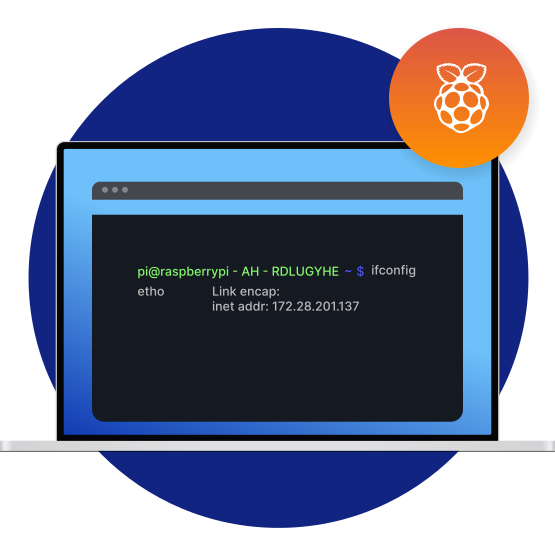
How to See the IP Address on a Raspberry PI
Follow these steps to find the IP address of your Raspberry PI:
Connect your Raspberry to the Internet.
Go to the terminal.
Type in “hostname -I” (don’t use the quotations) for your local IP or enter “ifconfig” to have a detailed list of the addresses on your network, including your external IP.
IPv4
vs.
IPv6 Addresses
The format of an IP address depends on the protocol it uses – IPv4 and IPv6.
IPv4
An IPv4 address is a string of 32-bit binary integers that uniquely identifies a network interface on a machine.
It is typically written in decimal digits formatted as four 8-bit fields separated by dots, containing any number between 0 and 255. For example, 192.0.2.146.
Many Internet Service Providers still use the IPv4. However, it can only generate
4.3 billion
unique IP addresses, much less than what is needed in this digital world. That being said, the protocol is expected to run out soon.
The IPv4 addresses contain two major parts: the network prefix and the host number.
IPv6
An IPv6 address comprises of 8 different groups of numbers. Each group contains 4 hexadecimal digits and is divided by colons.
An example includes 2001:0db8:85a3:0000:0000:8a2e:0370:7334.
Groups containing the digit 0 are often omitted and replaced by a single colon to save space. In this scenario, the above example would be 2001:0db8:85a3:8a2e:0370:7334.
Unlike IPv4, IPv6 have the potential to generate about
340 undecillion
(10^27 billions) unique IP address.
Why Hasn’t the IPv6
Fully Adopted
Yet?
IPv6 has much more potential than IPv4. It provides enough IP addresses that they won’t run out. Some people even see IPv6 as a more secure and efficient technology offering much better quality and functionality.
However, the technology isn’t yet fully deployed for the following reasons:
Compatibility issues
: IPv6 isn’t compatible with IPv4 systems. Which means you can’t access IPv4 websites with devices running IPv6.
Adaptation Issues
: Since IPv4 still meets our needs, switching immediately to IPv6 will not offer enough benefits. The global transition can only occur once the IPv4 reaches its limit.
What Does Your IP Address Tell
About You?
Your IP address reveals a lot more than you can ever imagine!
IP Address Location
It can reveal your exact street address, putting your privacy at risk and giving cybercriminals easy access to your device.
Internet Activities
Everything from browser history to online searches is stored on your IP address and can easily be tracked by cybercriminals.
Buying Behavior
Your searches on the internet can allow ISPs and third parties to determine your buying behavior, allowing third parties to influence your interests and opinions.
Browsing History
The public IP address provided by your ISP can be used to track all your online activities, including your browsing history.
Difference Between IPv4 and IPv6 Address
IPv6 and IPv4 are the most common two types of IP addresses. IPv4 offered approximately 4.3 billion unique addresses, which was enough in the early days. However, as the number of internet users continue to grow, these addresses become scarce. To address the limitations of IPv4, IPv6 was introduced in June 2016 that had the ability to provide endless addresses, ensuring future growth of the internet.
IPv4 Address
IPv4 is the first iteration of IP to be used.
IPv4 uses a 32-bit address.
IPv4 can generate around 4.29×10⁹ address space.
It supports manual and DHCP address configuration.
IPv4’s header is 20-60 bytes long.
IPv4 IP addresses are divided into five different classes. (Class A, Class B, Class C, Class D, and Class E)
Example of IPv4:
12.44.69.63
IPv6 Address
It is a newer version of the IP address.
IPv6 uses a 128-bit address.
IPv6 address space is large, producing 3.4×1038 address space.
It supports auto and renumbering address configuration.
IPv6’s header is 40 bytes fixed.
IPv6 addresses do not have any classes of IP addresses.
Example of IPv6:
2001:0000:3238:DFE1:0063:0000:0000:FEFB
Frequently Asked
Questions
We use cookies for providing you with the best-possible user experience. By using ExtremeVPN, you accept
our privacy policy
. | |||||||||
| Markdown | [ ](https://extremevpn.com/)
- [Pricing](https://extremevpn.com/pricing/)
- [Features](https://extremevpn.com/features/)
- [Split Tunneling VPN](https://extremevpn.com/features/split-tunneling/)
- [Kill Switch](https://extremevpn.com/features/kill-switch/)
- [IPv6 Leak Protection](https://extremevpn.com/features/ipv6-leak-protection/)
- [DNS Leaks Protection](https://extremevpn.com/features/dns-leak-protection/)
- [VPN for Multiple Devices](https://extremevpn.com/features/vpn-for-multiple-devices/)
- [256-Bit Encryption](https://extremevpn.com/features/256-bit-encryption/)
- [Resilience](https://extremevpn.com/features/resilience/)
- [Unblock the Internet](https://extremevpn.com/unblock/)
- [Servers](https://extremevpn.com/servers/)
- [US VPN](https://extremevpn.com/servers/us-vpn/)
- [UK VPN](https://extremevpn.com/servers/uk-vpn/)
- [Download](https://extremevpn.com/download/)
- [Windows VPN](https://extremevpn.com/download/windows-vpn/)
- [MacOS VPN](https://extremevpn.com/download/mac-vpn/)
- [Android VPN](https://extremevpn.com/download/android-vpn/)
- [iOS VPN](https://extremevpn.com/download/ios-vpn/)
- [Chrome VPN](https://extremevpn.com/download/chrome-vpn/)
- [Resources](https://extremevpn.com/what-is-my-ip/#megamenu)
- [About Us](https://extremevpn.com/about-us/)
- [Why ExtremeVPN](https://extremevpn.com/why-extremevpn/ "Why ExtremeVPN")
- [ExtremeVPN Review](https://extremevpn.com/es/review/ "ExtremeVPN Review")
- [Trust Center](https://extremevpn.com/trust-center/ "Trust Center")
- [Press Area](https://extremevpn.com/press-area/ "Press Area")
- [Careers at ExtremeVPN](https://extremevpn.com/careers/ "Careers at ExtremeVPN")
- [What is a VPN?](https://extremevpn.com/what-is-vpn/)
- [Protocols](https://extremevpn.com/what-is-vpn/protocols/ "Protocols")
- [Policy Towards Logs](https://extremevpn.com/what-is-vpn/policy-towards-logs/ "Policy Towards Logs")
- [Browse Privately](https://extremevpn.com/what-is-vpn/browse-privately/ "Browse Privately")
- [VPN Encryption](https://extremevpn.com/what-is-vpn/vpn-encryption/ "VPN Encryption")
- [VPN Speed Test](https://extremevpn.com/what-is-vpn/vpn-speed-test/ "VPN Speed Test")
- [WiFi VPN](https://extremevpn.com/what-is-vpn/wifi-vpn/ "WiFi VPN")
- [ExtremeVPN Cybersecurity Blog](https://extremevpn.com/blog/)
- [Digital Security](https://extremevpn.com/blog/security/ "Digital Security")
- [Internet Censorship](https://extremevpn.com/blog/internet-censorship/ "Internet Censorship")
- [Law and Regulations](https://extremevpn.com/blog/law-and-regulations/ "Law and Regulations")
- [Streaming and Entertainment](https://extremevpn.com/blog/streaming-entertainment/ "Streaming and Entertainment")
- [All Things VPN](https://extremevpn.com/blog/vpn/ "All Things VPN")
- [News](https://extremevpn.com/blog/news/ "News")
- [Help](https://extremevpn.com/support/)
- [Troubleshoot](https://extremevpn.com/support/troubleshoot/ "Troubleshoot")
- [Setup Guides](https://extremevpn.com/support/setup-guides/ "Setup Guides")
- [Contact](https://extremevpn.com/contact-us/ "Contact")
- [Free Security Tools](https://extremevpn.com/what-is-my-ip/)
- [Free Proxy](https://extremevpn.com/proxy/ "Free Proxy")
- [What is My IP](https://extremevpn.com/what-is-my-ip/ "What is My IP")
- [Free Password Generator](https://extremevpn.com/password-generator-strength-checker/ "Free Password Generator")
- [English](https://extremevpn.com/what-is-my-ip/)
- [English](https://extremevpn.com/what-is-my-ip/)
- [Español](https://extremevpn.com/es/what-is-my-ip/)
- [Français](https://extremevpn.com/fr/what-is-my-ip/)
- [Deutsch](https://extremevpn.com/de/what-is-my-ip/)
- [Português](https://extremevpn.com/pt/what-is-my-ip/)
- [Pricing](https://extremevpn.com/pricing/)
- [Features](https://extremevpn.com/features/)
- [Split Tunneling VPN](https://extremevpn.com/features/split-tunneling/)
- [Kill Switch](https://extremevpn.com/features/kill-switch/)
- [IPv6 Leak Protection](https://extremevpn.com/features/ipv6-leak-protection/)
- [DNS Leaks Protection](https://extremevpn.com/features/dns-leak-protection/)
- [VPN for Multiple Devices](https://extremevpn.com/features/vpn-for-multiple-devices/)
- [256-Bit Encryption](https://extremevpn.com/features/256-bit-encryption/)
- [Resilience](https://extremevpn.com/features/resilience/)
- [Unblock the Internet](https://extremevpn.com/unblock/)
- [Servers](https://extremevpn.com/servers/)
- [US VPN](https://extremevpn.com/servers/us-vpn/)
- [UK VPN](https://extremevpn.com/servers/uk-vpn/)
- [Download](https://extremevpn.com/download/)
- [Windows VPN](https://extremevpn.com/download/windows-vpn/)
- [MacOS VPN](https://extremevpn.com/download/mac-vpn/)
- [Android VPN](https://extremevpn.com/download/android-vpn/)
- [iOS VPN](https://extremevpn.com/download/ios-vpn/)
- [Chrome VPN](https://extremevpn.com/download/chrome-vpn/)
- [Resources](https://extremevpn.com/what-is-my-ip/#megamenu)
- [About Us](https://extremevpn.com/about-us/)
- [Why ExtremeVPN](https://extremevpn.com/why-extremevpn/)
- [ExtremeVPN Review](https://extremevpn.com/es/review/)
- [Trust Center](https://extremevpn.com/trust-center/)
- [Press Area](https://extremevpn.com/press-area/)
- [Careers at ExtremeVPN](https://extremevpn.com/careers/)
- [What is a VPN?](https://extremevpn.com/what-is-vpn/)
- [Protocols](https://extremevpn.com/what-is-vpn/protocols/)
- [Policy Towards Logs](https://extremevpn.com/what-is-vpn/policy-towards-logs/)
- [Browse Privately](https://extremevpn.com/what-is-vpn/browse-privately/)
- [VPN Encryption](https://extremevpn.com/what-is-vpn/vpn-encryption/)
- [VPN Speed Test](https://extremevpn.com/what-is-vpn/vpn-speed-test/)
- [WiFi VPN](https://extremevpn.com/what-is-vpn/wifi-vpn/)
- [ExtremeVPN Cybersecurity Blog](https://extremevpn.com/blog/)
- [Digital Security](https://extremevpn.com/blog/security/)
- [Internet Censorship](https://extremevpn.com/blog/internet-censorship/)
- [Law and Regulations](https://extremevpn.com/blog/law-and-regulations/)
- [Streaming and Entertainment](https://extremevpn.com/blog/streaming-entertainment/)
- [All Things VPN](https://extremevpn.com/blog/vpn/)
- [News](https://extremevpn.com/blog/news/)
- [Help](https://extremevpn.com/support/)
- [Troubleshoot](https://extremevpn.com/support/troubleshoot/)
- [Setup Guides](https://extremevpn.com/support/setup-guides/)
- [Contact](https://extremevpn.com/contact-us/)
- [Free Security Tools](https://extremevpn.com/what-is-my-ip/)
- [Free Proxy](https://extremevpn.com/proxy/)
- [What is My IP](https://extremevpn.com/what-is-my-ip/)
- [Free Password Generator](https://extremevpn.com/password-generator-strength-checker/)
- [English](https://extremevpn.com/what-is-my-ip/)
- [English](https://extremevpn.com/what-is-my-ip/)
- [Español](https://extremevpn.com/es/what-is-my-ip/)
- [Français](https://extremevpn.com/fr/what-is-my-ip/)
- [Deutsch](https://extremevpn.com/de/what-is-my-ip/)
- [Português](https://extremevpn.com/pt/what-is-my-ip/)
[Login](https://my.extremevpn.com/login/) [Get Started](https://extremevpn.com/pricing/)
[Login](https://my.extremevpn.com/login/)
[Get ExtremeVPN](https://extremevpn.com/pricing/)
[Home](https://extremevpn.com/) » What is my IP
# What is My IP Address?
Your IP Address:
134\.209.210.10
Your IP Physical Location:
North Bergen
Your Browser:
Google Chrome
Your Internet Service Provider:
DigitalOcean, LLC
Your OS:
MacOS
Your Device Type:
Desktop
[Hide Your IP Address](https://extremevpn.com/pricing/)

## What is an IP Address?
The term IP address stands for Internet Protocol address. An Internet Protocol address is a unique set of numbers, such as 202.69.35, assigned to devices when connected to the Internet. These devices use this IP location to communicate over Internet networks, either internally or externally. The IP address has two main functions: location addressing and network interface identification.
IP addresses are the internet’s anchors, connecting you to the World Wide Web and underpinning your digital life. Getting online without a secure IP address is risky because it allows websites to track you down.

## Why You Must Change Your IP Address
Have peace of mind no matter what you do online. Whether browsing, streaming, or playing games, just establish a VPN connection to get a virtual IP and keep yourself hidden.
 Advanced Protection
ExtremeVPN’s military-grade encryption protects you against internet threats and provides secure access to business servers and payments. Our fast servers offer anonymity and security so that you can enjoy a threat-free online experience.
 Secure Your Location
Connect to a secure, private VPN server to hide your location. This will prevent third parties like your ISP and government from tracking your online activities.
 An IP Only for You
Get a new IP address. Change your location to any country you want, say the US, France, Germany, the Netherlands, or anywhere else.
 Privacy Online
ExtremeVPN keeps you secure even on public Wi-Fi. Connect your device to a server, and stay protected at home and open networks.
## What is a Public IP Address?
A Public IP address, also known as an external IP, is assigned by your Internet Service Provider to your device to access the Internet. It allows you to organize your server (FTP, VPN, WEB, etc.) to remotely access your computer and get access to it from anywhere on the global network.
Just like every home has a unique address, the IP address is the digital home address of your device connected to a computer network, which allows you to differentiate it among billions of devices on the Internet.
[HIDE IT NOW](https://extremevpn.com/pricing/)
30 days money back guarantee

## What is a Private IP Address?
A Private IP address is an IP that devices have over private networks. This IP, also referred to as local IP or internal IP address, remains hidden on the internet and is provided by network devices, such as your routers.
[GET EXTREME RISK-FREE](https://extremevpn.com/pricing/)
30 days money back guarantee
## How to Find My IP Address
It’s pretty easy to find your IP address. Here is how you can do it.
[Public IP]()
[Windows 10]()
[Windows 11]()
[Phone]()
[Mac]()
[Linux]()
[Playstation]()
[Xbox]()
[Raspberry PI]()
### How Can I Find My Public IP Address
To see your public IP, just scroll to the top of this page. From there you can check your IP, the operating system and device type you’re using, your internet service provider, and the location you’re connected to.

### How Can I Find My IP on Windows 10
Here’s how to check your IP address in Windows 10 if you’re connected to your Wi-fi network:
1. Tap on “Wifi Network” from the taskbar.
2. Choose the network that you’re currently connected to.
3. Select “Properties.”
4. Move to the bottom of the window. Your IP address is next to the “IPv4 address.”
Do the following to look at your IP if you’re from your Ethernet network:
1. From the taskbar, select the “Ethernet Network” tab.
2. Find and tap on the network you’re connected to.
3. Select “Properties.”
4. Scroll to the bottom of the page; your IP will be visible before the “IPv4 address.”
### How Can I Find My IP Address on Windows 11
Follow these steps to see your IP when connected to the Wifi network:
1. Go to “Start”, then choose “Settings,” “Network & internet,” and then “Wi-Fi.”
2. Choose the network that you’re connected to.
3. Tap on “Properties.”
4. Scroll down to the bottom of the window. Your IP will be visible next to the “IPv4 address.”
In case you’re connected to the Ethernet network, do the following to see your IP:
1. Click on the “Ethernet Network” icon from the taskbar.
2. Find and select the network you’ve established a connection with.
3. Press on “Properties.”
4. Move to the bottom of the page, and you can see your IP in front of the “IPv4 address.”
### How to Find the IP Address of My Phone
Follow these simple steps to see your IP address on your Android:
1. Move to your Phone’s “Settings.”
2. Press on “About device.”
3. Click on “Status.”
4. From here, you can see your IP address (both public IPv4 and IPv6) along with other information about the device.
Here’s how to find your IP address on iPhone:
1. Go to the “Settings.”
2. Locate and tap on “Wi-Fi.”
3. Select the network that you’re connected to.
4. From here, you can find your IP under the “IPv4 address.”

### How to Find My IP Address on Mac
Follow these steps to see your IP address on Mac when connected to a Wi-Fi network:
1. Go to “System Settings” from the Apple menu.
2. Select the “Network” icon.
3. Choose “Wi-Fi,” then tap on “Details.”
4. This will display your IP address right in the middle of the screen.
To see your IP address while being connected to the Ethernet network, just follow these steps:
1. Click on “System Settings” on the Apple menu.
2. Select the “Network” icon.
3. Choose “Ethernet,” then tap on “Details.” It will show your IP in the middle of the window.
### How to Find the IP Address on a Linux System
Here are some ways you can see the IP address on most Linux systems:
1. First, ensure you have a stable internet connection.
2. Then, go to the terminal.
3. Type “hostname -I” (don’t use the quotations) to find your local IP address.
### How to Find Your IP Address on a PlayStation
Here’s how to locate the IP address on PlayStation 3:
1. Go to “Settings.”
2. Then press on “Network Settings.”
3. Choose “Settings and Connection List.”
4. Here you can see your IP address, subnet mask, and default router.
Follow these steps to find your current IP address on PlayStations 4:
1. Open the home screen tab and go to “Settings.”
2. Choose “Network.”
3. Tap on “View connection status” and you can find your IP address under the tab “IP address.”
Here’s how to find the IP address on your PlayStation 5:
1. Launch your PlayStation 5 and go to the main menu.
2. Move to the “Settings” tab.
3. Select “Network,” “Connection Status,” then “View Connection Status.”
4. Move to the bottom to see the IP address assigned to your PlayStation and other details about your network.
### How to Find the IP Address on Your Xbox
Here’s how to see the IP address on your Xbox One:
1. From the Xbox controller, click on the “Menu” button to go to the console’s menu interface.
2. Once the menu opens, click on “Settings,” then “Network,” “Network Settings,” and then “Advanced Settings.”
3. Click on “IP settings” to find the IP address of your Xbox One.
To find the IP address on your Xbox Series X and S, follow these steps below:
1. Press the Xbox button on your controller. It will open up the menu.
2. Go to “Settings,” then “General,” “Network Settings,” and “Advanced Settings.”
3. Press on “IP settings” to see the IP address.

### How to See the IP Address on a Raspberry PI
Follow these steps to find the IP address of your Raspberry PI:
1. Connect your Raspberry to the Internet.
2. Go to the terminal.
3. Type in “hostname -I” (don’t use the quotations) for your local IP or enter “ifconfig” to have a detailed list of the addresses on your network, including your external IP.
## IPv4 vs. IPv6 Addresses
The format of an IP address depends on the protocol it uses – IPv4 and IPv6.
 IPv4
An IPv4 address is a string of 32-bit binary integers that uniquely identifies a network interface on a machine.
It is typically written in decimal digits formatted as four 8-bit fields separated by dots, containing any number between 0 and 255. For example, 192.0.2.146.
Many Internet Service Providers still use the IPv4. However, it can only generate [4\.3 billion](https://en.wikipedia.org/wiki/IPv4_address_exhaustion) unique IP addresses, much less than what is needed in this digital world. That being said, the protocol is expected to run out soon.
The IPv4 addresses contain two major parts: the network prefix and the host number.
 IPv6
An IPv6 address comprises of 8 different groups of numbers. Each group contains 4 hexadecimal digits and is divided by colons.
An example includes 2001:0db8:85a3:0000:0000:8a2e:0370:7334.
Groups containing the digit 0 are often omitted and replaced by a single colon to save space. In this scenario, the above example would be 2001:0db8:85a3:8a2e:0370:7334.
Unlike IPv4, IPv6 have the potential to generate about [340 undecillion](https://en.wikipedia.org/wiki/IPv6) (10^27 billions) unique IP address.
## Why Hasn’t the IPv6 Fully Adopted Yet?
IPv6 has much more potential than IPv4. It provides enough IP addresses that they won’t run out. Some people even see IPv6 as a more secure and efficient technology offering much better quality and functionality.
However, the technology isn’t yet fully deployed for the following reasons:
1. **Compatibility issues**: IPv6 isn’t compatible with IPv4 systems. Which means you can’t access IPv4 websites with devices running IPv6.
2. **Adaptation Issues**: Since IPv4 still meets our needs, switching immediately to IPv6 will not offer enough benefits. The global transition can only occur once the IPv4 reaches its limit.
## What Does Your IP Address Tell About You?
Your IP address reveals a lot more than you can ever imagine\!
 IP Address Location
It can reveal your exact street address, putting your privacy at risk and giving cybercriminals easy access to your device.
 Internet Activities
Everything from browser history to online searches is stored on your IP address and can easily be tracked by cybercriminals.
 Buying Behavior
Your searches on the internet can allow ISPs and third parties to determine your buying behavior, allowing third parties to influence your interests and opinions.
 Browsing History
The public IP address provided by your ISP can be used to track all your online activities, including your browsing history.
## Difference Between IPv4 and IPv6 Address
IPv6 and IPv4 are the most common two types of IP addresses. IPv4 offered approximately 4.3 billion unique addresses, which was enough in the early days. However, as the number of internet users continue to grow, these addresses become scarce. To address the limitations of IPv4, IPv6 was introduced in June 2016 that had the ability to provide endless addresses, ensuring future growth of the internet.
IPv4 Address
- IPv4 is the first iteration of IP to be used.
- IPv4 uses a 32-bit address.
- IPv4 can generate around 4.29×10⁹ address space.
- It supports manual and DHCP address configuration.
- IPv4’s header is 20-60 bytes long.
- IPv4 IP addresses are divided into five different classes. (Class A, Class B, Class C, Class D, and Class E)
Example of IPv4:
12.44.69.63
IPv6 Address
- It is a newer version of the IP address.
- IPv6 uses a 128-bit address.
- IPv6 address space is large, producing 3.4×1038 address space.
- It supports auto and renumbering address configuration.
- IPv6’s header is 40 bytes fixed.
- IPv6 addresses do not have any classes of IP addresses.
Example of IPv6:
2001:0000:3238:DFE1:0063:0000:0000:FEFB
## Frequently Asked Questions
What information can your IP address reveal about you? 
Your IP address is a unique numerical identity that tells a lot about you, such as your activities, passcode, where you are, city, region, etc. Some websites use these details, along with other information they get from metadata and cookies, to determine your identity. However, it’s impossible to tell the exact location of someone by knowing their IP address.
Can someone use your IP address? 
No one can steal your IP address and use it as their own. Yet, some organizations have access to your IP address and collect data from it. Your ISP, for instance, knows everything you do on the web, including your IP address and the websites you visit.
What does an IP address do? 
The primary purpose of an IP address is device identification and location addressing. It’s like a postal address, that helps to transfer data packets between the devices and the internet.
How do you change your IP address and hide your location? 
It’s simple. You only need to use a VPN service (Virtual Private Network). A VPN changes or hides your IP address by replacing it with a new one. Generally, your IP exposes information about your general location, such as the location of the host. ExtremeVPN routes your traffic through a VPN tunnel and masks your IP address, thus giving you a different IP according to your selected server location. Hence, you get more privacy and security as your connection is encrypted, and nobody can trace your location.
Download the ExtremeVPN mobile app for iOS or Android.
[](https://apps.apple.com/us/app/extremevpn-fast-secure-vpn/id6449742374) [](https://play.google.com/store/apps/details?id=com.extremevpn.vpnclient.android)
- [About Us](https://extremevpn.com/about-us/)
- [Risk-free VPN Trial for 30 Days](https://extremevpn.com/features/risk-free-vpn/)
- [Reviews](https://extremevpn.com/review/)
- [Trust Center](https://extremevpn.com/trust-center/)
- [ExtremeVPN Cybersecurity Blog](https://extremevpn.com/blog/)
- [Careers at ExtremeVPN](https://extremevpn.com/careers/)
- [ExtremeVPN Free Proxy](https://extremevpn.com/proxy/)
- [Become ExtremeVPN Affiliate](https://extremevpn.com/affiliates/)
- [Windows VPN](https://extremevpn.com/download/windows-vpn/)
- [Mac VPN](https://extremevpn.com/download/mac-vpn/)
- [Android VPN](https://extremevpn.com/download/android-vpn/)
- [iOS (iPhone/iPad) VPN](https://extremevpn.com/download/ios-vpn/)
- [Chrome VPN](https://extremevpn.com/download/chrome-vpn/)
- [Router VPN](https://extremevpn.com/download/router-vpn/)
- [Linux (Soon)](https://extremevpn.com/what-is-my-ip/)
- [Firefox VPN (Soon)](https://extremevpn.com/what-is-my-ip/)
- [Characteristics](https://extremevpn.com/features/)
- [VPN for Unrestricted Access](https://extremevpn.com/vpn-service/)
- [US VPN](https://extremevpn.com/servers/us-vpn/)
- [UK VPN](https://extremevpn.com/servers/uk-vpn/)
- [Netflix VPN](https://extremevpn.com/vpn-service/streaming-vpn/netflix/)
- [WiFi VPN](https://extremevpn.com/what-is-vpn/wifi-vpn/)
- [Pokémon Go VPN](https://extremevpn.com/vpn-service/gaming/pokemon-go/)
- [Torrenting VPN](https://extremevpn.com/features/torrenting-vpn/)
- [What is My IP](https://extremevpn.com/what-is-my-ip/)
- [What is a VPN](https://extremevpn.com/what-is-vpn/)
- [Why ExtremeVPN](https://extremevpn.com/why-extremevpn/)
- [Customer Stories](https://extremevpn.com/real-users-feedback/)
- [Press Area](https://extremevpn.com/press-area/)
- [Influencers Program](https://extremevpn.com/influencers-program/)
- [\$5,000 Scholarship](https://extremevpn.com/extremevpn-scholarship/)
- [Cybersecurity Glossary](https://extremevpn.com/cybersecurity/glossary/)
- [Support](https://extremevpn.com/support/)
- [Guides](https://extremevpn.com/support/setup-guides/)
- [FAQs](https://extremevpn.com/support/faqs/)
- [Privacy Policy](https://extremevpn.com/privacy-policy/)
- [Terms of Service](https://extremevpn.com/tos/)
- [Sitemap](https://extremevpn.com/human-sitemap/)
- [Contact](https://extremevpn.com/contact-us/)

[English](https://extremevpn.com/what-is-my-ip/)
- [English](https://extremevpn.com/what-is-my-ip/)
- [Español](https://extremevpn.com/es/what-is-my-ip/)
- [Français](https://extremevpn.com/fr/what-is-my-ip/)
- [Deutsch](https://extremevpn.com/de/what-is-my-ip/)
- [Português](https://extremevpn.com/pt/what-is-my-ip/)
© 2025 EXTREME VPN LIMITED. All Rights Reserved.
UK Headquarters: 401 34-37 Liverpool Street, London, United Kingdom, EC2M 7PP.
Registered in England and Wales, Company Number: 14904059.
Global Office: Intershore Chambers, Road Town, Tortola, British Virgin Islands. BVI Company Number: 2098349.
We use cookies for providing you with the best-possible user experience. By using ExtremeVPN, you accept [our privacy policy](https://extremevpn.com/privacy-policy/).
X | |||||||||
| Readable Markdown | null | |||||||||
| ML Classification | ||||||||||
| ML Categories |
Raw JSON{
"/Internet_and_Telecom": 993,
"/Internet_and_Telecom/Service_Providers": 713,
"/Internet_and_Telecom/Service_Providers/ISPs": 697
} | |||||||||
| ML Page Types |
Raw JSON{
"/Article": 972,
"/Article/FAQ": 403
} | |||||||||
| ML Intent Types |
Raw JSON{
"Informational": 999
} | |||||||||
| Content Metadata | ||||||||||
| Language | en-us | |||||||||
| Author | null | |||||||||
| Publish Time | 2025-01-15 14:47:50 (1 year ago) | |||||||||
| Original Publish Time | 2023-08-03 05:35:12 (2 years ago) | |||||||||
| Republished | Yes | |||||||||
| Word Count (Total) | 2,566 | |||||||||
| Word Count (Content) | 1,847 | |||||||||
| Links | ||||||||||
| External Links | 10 | |||||||||
| Internal Links | 70 | |||||||||
| Technical SEO | ||||||||||
| Meta Nofollow | No | |||||||||
| Meta Noarchive | No | |||||||||
| JS Rendered | No | |||||||||
| Redirect Target | null | |||||||||
| Performance | ||||||||||
| Download Time (ms) | 77 | |||||||||
| TTFB (ms) | 75 | |||||||||
| Download Size (bytes) | 37,927 | |||||||||
| Shard | 169 (laksa) | |||||||||
| Root Hash | 7656146208837264769 | |||||||||
| Unparsed URL | com,extremevpn!/what-is-my-ip/ s443 | |||||||||