ℹ️ Skipped - page is already crawled
| Filter | Status | Condition | Details |
|---|---|---|---|
| HTTP status | PASS | download_http_code = 200 | HTTP 200 |
| Age cutoff | PASS | download_stamp > now() - 6 MONTH | 0.1 months ago |
| History drop | PASS | isNull(history_drop_reason) | No drop reason |
| Spam/ban | PASS | fh_dont_index != 1 AND ml_spam_score = 0 | ml_spam_score=0 |
| Canonical | PASS | meta_canonical IS NULL OR = '' OR = src_unparsed | Not set |
| Property | Value |
|---|---|
| URL | https://dnsmadeeasy.com/resources/what-is-my-ip-address-windows-and-mac |
| Last Crawled | 2026-04-08 00:53:18 (3 days ago) |
| First Indexed | 2025-05-13 11:06:15 (11 months ago) |
| HTTP Status Code | 200 |
| Meta Title | What is My IP Address (Windows and Mac)? |
| Meta Description | Learn how to quickly find your public and private IP addresses on any device—plus tips to protect your privacy and stay secure online. |
| Meta Canonical | null |
| Boilerpipe Text | While using the internet is pretty much “plug and play,” there are times when you need to find your IP address. In this resource, you’ll learn how to find your public and private IP.
Let’s get started!
IP address: What is it?
IP addresses (short for internet protocol addresses) are unique numerical addresses assigned to internet-capable machines. There is typically a public and private IP for each device. An IP’s main purpose is to identify devices that are connecting to a network or resource and to define an endpoint’s location. IP addresses are either in IPv4 or IPv6 format and stored in DNS records (A or AAAA).
Tip
: To learn more about IP addresses, visit our What Is an IP Address blog.
My IP Location
While IP addresses run in the background and aren’t something most people even need to think about, there are times when you might need to know yours. For example, you may need to know your IP address for voice over IP (VoIP) calls or if you need to provide your IP to your employer for remote server access.
Whatever the reason, here’s how you find it:
How to Find Your Public IP Address
Finding your public IP address is super easy. All you have to do is google “what is my IP” or “what is my IP address” and voilà.
Can’t get any easier than that.
IP Address Lookup
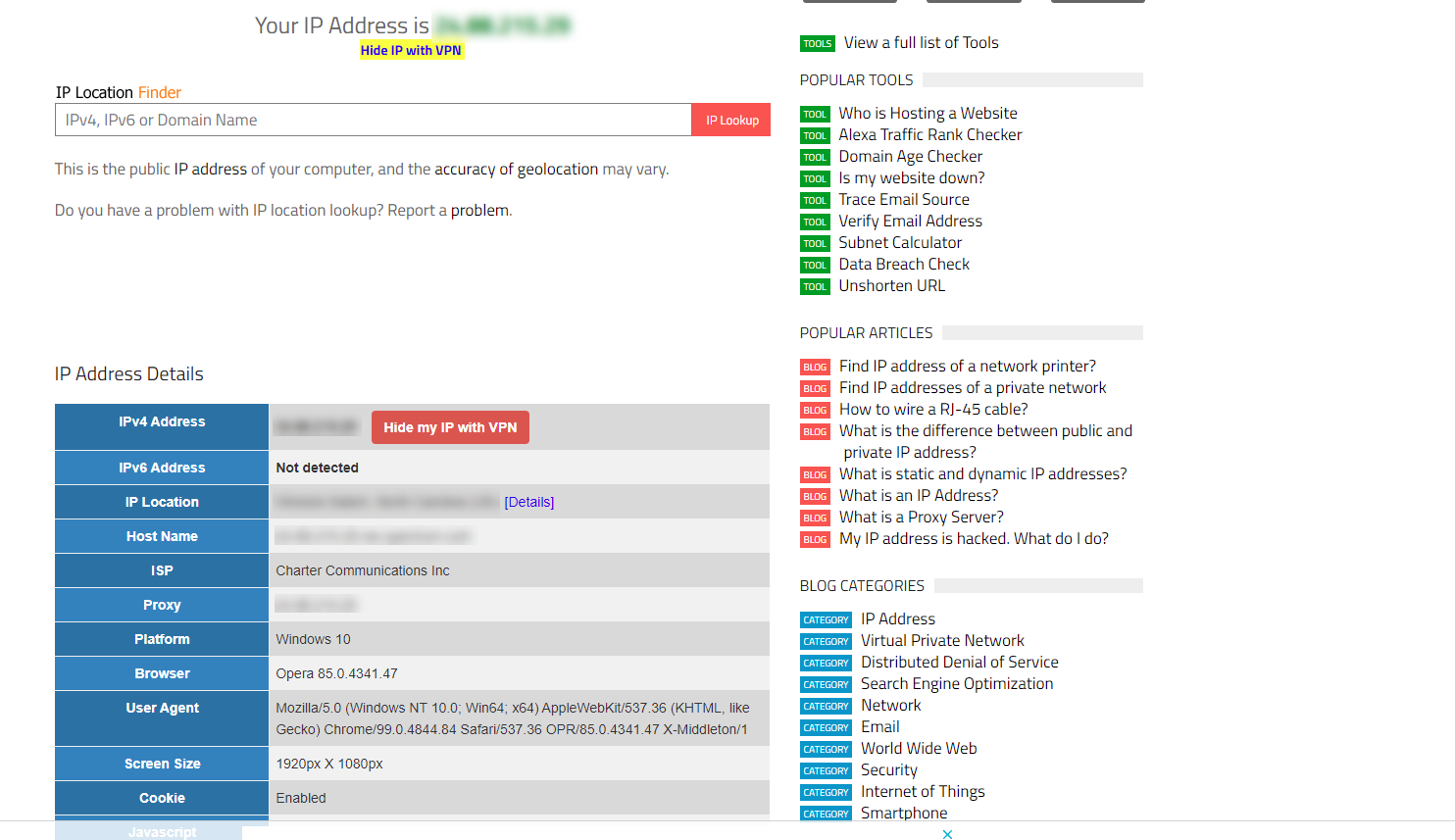
Another way to identify your public IP address is to perform an online IP Address Lookup. There are several free tools that provide you with your public IP address, as well as other information such as city, state, country, and internet service provider (ISP).
Here are a few examples:
WhatIsMyIPAddress
iplocation.io
Neustar IP Lookup
iplocation.net
How to Find Your Private IP Address (Windows 10)
Finding the actual IP address of your device requires a tad more effort, but the steps are simple.
Press the
Windows key + R
to pull up Run
Type
cmd
and click okay
At the command line prompt, type
ipconfig/all
and then press enter. Your IPv4 and IPv6 (if available) will be listed in the command window.
Alternatively, you can click on the internet icon from the taskbar and then click
Network & Internet Settings
.
In the Network & Internet window, click the
Properties
button.
Scroll down to the properties section to view/copy your IPv4/IPv6 addresses.
How to Find Your Private IP Address (Mac)
To find your device’s IP address on a Mac do the following:
Navigate to
System Preferences
, then choose
Network
.
Choose your connection type from the sidebar on the left.
Click
Advanced
, then select
TCP/IP
.
You will now see your IP and router addresses.
Finding Your IP Address Is Easy
As you can see, finding your public and private IP address is quite simple. It’s best practice to avoid sharing this information unless it’s with a trusted source—even your public IP—to err on the side of caution. That said, your public IP can and does change periodically. Examples of when it may change is if you reboot your router or if your ISP refreshes it on their end. If you want to hide your public IP, you should use a
virtual private network
(VPN). |
| Markdown | [Skip to content](https://dnsmadeeasy.com/resources/what-is-my-ip-address-windows-and-mac#content)
[](https://dnsmadeeasy.com/)
- [Product](https://dnsmadeeasy.com/resources/what-is-my-ip-address-windows-and-mac)
- [DNS Failover](https://dnsmadeeasy.com/dns-failover)
- [ANAME Records](https://dnsmadeeasy.com/aname-records)
- [Global Traffic Director](https://dnsmadeeasy.com/global-traffic-director)
- [DNS Failover](https://dnsmadeeasy.com/dns-failover)
- [ANAME Records](https://dnsmadeeasy.com/aname-records)
- [Global Traffic Director](https://dnsmadeeasy.com/global-traffic-director)
- [Secondary DNS](https://dnsmadeeasy.com/secondary-dns)
- [DNS Analytics](https://dnsmadeeasy.com/dns-analytics)
- [Real-Time Traffic Anomaly Detection](https://dnsmadeeasy.com/real-time-traffic-anomaly-detection)
- [Secondary DNS](https://dnsmadeeasy.com/secondary-dns)
- [DNS Analytics](https://dnsmadeeasy.com/dns-analytics)
- [Real-Time Traffic Anomaly Detection](https://dnsmadeeasy.com/real-time-traffic-anomaly-detection)
- [Integrations](https://dnsmadeeasy.com/integrations)
- [Pricing](https://dnsmadeeasy.com/pricing)
- [Resources](https://dnsmadeeasy.com/resources/what-is-my-ip-address-windows-and-mac)
- [Blog](https://dnsmadeeasy.com/blog)
- [Tutorials](https://support.dnsmadeeasy.com/)
- [FAQ](https://dnsmadeeasy.com/faq)
- [Blog](https://dnsmadeeasy.com/blog)
- [Tutorials](https://support.dnsmadeeasy.com/)
- [FAQ](https://dnsmadeeasy.com/faq)
[Tools](https://dnsmadeeasy.com/resources/category/dns-tools)
- [Register Domain](https://domainsmadeeasy.com/)
- [DNS Toolbox](https://dnstoolbox.io/)
- [BIMI Validator](https://bimivalidator.com/)
- [Register Domain](https://domainsmadeeasy.com/)
- [DNS Toolbox](https://dnstoolbox.io/)
- [BIMI Validator](https://bimivalidator.com/)
- [Check DNS Status](https://www.dnsstatus.com/)
- [Subnet Mask Cheat Sheet](https://dnsmadeeasy.com/resources/subnet-mask-cheat-sheet)
- [Check DNS Status](https://www.dnsstatus.com/)
- [Subnet Mask Cheat Sheet](https://dnsmadeeasy.com/resources/subnet-mask-cheat-sheet)
- [Company](https://dnsmadeeasy.com/resources/what-is-my-ip-address-windows-and-mac)
- [About Us](https://www.digicert.com/about)
- [Careers](https://www.digicert.com/careers)
- [Policies](https://dnsmadeeasy.com/about/policiesandtos)
- [Contact](https://dnsmadeeasy.com/speak-to-sales)
- [About Us](https://www.digicert.com/about)
- [Careers](https://www.digicert.com/careers)
- [Policies](https://dnsmadeeasy.com/about/policiesandtos)
- [Contact](https://dnsmadeeasy.com/speak-to-sales)
[](https://dnsmadeeasy.com/)
X
[FREE TRIAL](https://dnsmadeeasy.com/free-trial)
[Book Demo](https://dnsmadeeasy.com/demo)
[Support](https://support.dnsmadeeasy.com/hc/en-us)
- [Login](https://dnsmadeeasy.com/resources/what-is-my-ip-address-windows-and-mac)
- [Control Panel](https://cp.dnsmadeeasy.com/)
- [Analytics](https://analytics.dnsmadeeasy.com/)
- [Login](https://dnsmadeeasy.com/resources/what-is-my-ip-address-windows-and-mac)
- [Control Panel](https://cp.dnsmadeeasy.com/)
- [Analytics](https://analytics.dnsmadeeasy.com/)
[](https://dnsmadeeasy.com/)
- [Product](https://dnsmadeeasy.com/resources/what-is-my-ip-address-windows-and-mac)
- [DNS Failover](https://dnsmadeeasy.com/dns-failover)
- [ANAME Records](https://dnsmadeeasy.com/aname-records)
- [Global Traffic Director](https://dnsmadeeasy.com/global-traffic-director)
- [DNS Failover](https://dnsmadeeasy.com/dns-failover)
- [ANAME Records](https://dnsmadeeasy.com/aname-records)
- [Global Traffic Director](https://dnsmadeeasy.com/global-traffic-director)
- [Secondary DNS](https://dnsmadeeasy.com/secondary-dns)
- [DNS Analytics](https://dnsmadeeasy.com/dns-analytics)
- [Real-Time Traffic Anomaly Detection](https://dnsmadeeasy.com/real-time-traffic-anomaly-detection)
- [Secondary DNS](https://dnsmadeeasy.com/secondary-dns)
- [DNS Analytics](https://dnsmadeeasy.com/dns-analytics)
- [Real-Time Traffic Anomaly Detection](https://dnsmadeeasy.com/real-time-traffic-anomaly-detection)
- [Integrations](https://dnsmadeeasy.com/integrations)
- [Pricing](https://dnsmadeeasy.com/pricing)
- [Resources](https://dnsmadeeasy.com/resources/what-is-my-ip-address-windows-and-mac)
- [Blog](https://dnsmadeeasy.com/blog)
- [Tutorials](https://support.dnsmadeeasy.com/)
- [FAQ](https://dnsmadeeasy.com/faq)
- [Blog](https://dnsmadeeasy.com/blog)
- [Tutorials](https://support.dnsmadeeasy.com/)
- [FAQ](https://dnsmadeeasy.com/faq)
[Tools](https://dnsmadeeasy.com/resources/category/dns-tools)
- [Register Domain](https://domainsmadeeasy.com/)
- [DNS Toolbox](https://dnstoolbox.io/)
- [BIMI Validator](https://bimivalidator.com/)
- [Register Domain](https://domainsmadeeasy.com/)
- [DNS Toolbox](https://dnstoolbox.io/)
- [BIMI Validator](https://bimivalidator.com/)
- [Check DNS Status](https://www.dnsstatus.com/)
- [Subnet Mask Cheat Sheet](https://dnsmadeeasy.com/resources/subnet-mask-cheat-sheet)
- [Check DNS Status](https://www.dnsstatus.com/)
- [Subnet Mask Cheat Sheet](https://dnsmadeeasy.com/resources/subnet-mask-cheat-sheet)
- [Company](https://dnsmadeeasy.com/resources/what-is-my-ip-address-windows-and-mac)
- [About Us](https://www.digicert.com/about)
- [Careers](https://www.digicert.com/careers)
- [Policies](https://dnsmadeeasy.com/about/policiesandtos)
- [Contact](https://dnsmadeeasy.com/speak-to-sales)
- [About Us](https://www.digicert.com/about)
- [Careers](https://www.digicert.com/careers)
- [Policies](https://dnsmadeeasy.com/about/policiesandtos)
- [Contact](https://dnsmadeeasy.com/speak-to-sales)
[](https://dnsmadeeasy.com/)
X
[FREE TRIAL](https://dnsmadeeasy.com/free-trial)
[Book Demo](https://dnsmadeeasy.com/demo)
[Support](https://support.dnsmadeeasy.com/hc/en-us)
- [Login](https://dnsmadeeasy.com/resources/what-is-my-ip-address-windows-and-mac)
- [Control Panel](https://cp.dnsmadeeasy.com/)
- [Analytics](https://analytics.dnsmadeeasy.com/)
- [Login](https://dnsmadeeasy.com/resources/what-is-my-ip-address-windows-and-mac)
- [Control Panel](https://cp.dnsmadeeasy.com/)
- [Analytics](https://analytics.dnsmadeeasy.com/)
[BLOG](https://dnsmadeeasy.com/blog)
# What is My IP Address (Windows and Mac)?
August 15, 2024
Share on LinkedIn
[DNS Made Easy \>](https://dnsmadeeasy.com/)
[Blog \>](https://dnsmadeeasy.com/blog)
What is My IP Address (Windows and Mac)?
Table of Contents
- [Ready to Get Started?](https://dnsmadeeasy.com/resources/what-is-my-ip-address-windows-and-mac#elementor-toc__heading-anchor-0)
- [IP address: What is it?](https://dnsmadeeasy.com/resources/what-is-my-ip-address-windows-and-mac#elementor-toc__heading-anchor-1)
- [My IP Location](https://dnsmadeeasy.com/resources/what-is-my-ip-address-windows-and-mac#elementor-toc__heading-anchor-2)
- [How to Find Your Public IP Address](https://dnsmadeeasy.com/resources/what-is-my-ip-address-windows-and-mac#elementor-toc__heading-anchor-3)
- [IP Address Lookup](https://dnsmadeeasy.com/resources/what-is-my-ip-address-windows-and-mac#elementor-toc__heading-anchor-4)
## Ready to Get Started?
Open a new account at no obligation and receive a month of free managed services. Enjoy your unparalleled DNS analytics platform and 100% uptime.
[Start Free Trial](https://cp.dnsmadeeasy.com/account/new?cta)
While using the internet is pretty much “plug and play,” there are times when you need to find your IP address. In this resource, you’ll learn how to find your public and private IP.
Let’s get started\!
## **IP address: What is it?**
IP addresses (short for internet protocol addresses) are unique numerical addresses assigned to internet-capable machines. There is typically a public and private IP for each device. An IP’s main purpose is to identify devices that are connecting to a network or resource and to define an endpoint’s location. IP addresses are either in IPv4 or IPv6 format and stored in DNS records (A or AAAA).
**Tip**: To learn more about IP addresses, visit our What Is an IP Address blog.
## **My IP Location**
While IP addresses run in the background and aren’t something most people even need to think about, there are times when you might need to know yours. For example, you may need to know your IP address for voice over IP (VoIP) calls or if you need to provide your IP to your employer for remote server access.
Whatever the reason, here’s how you find it:
## **How to Find Your Public IP Address**
Finding your public IP address is super easy. All you have to do is google “what is my IP” or “what is my IP address” and voilà.
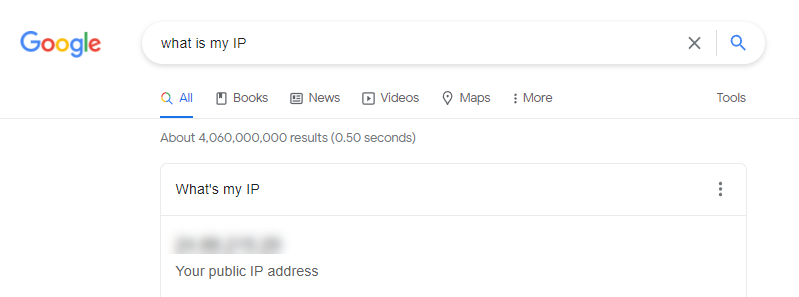
Can’t get any easier than that.
## **IP Address Lookup**
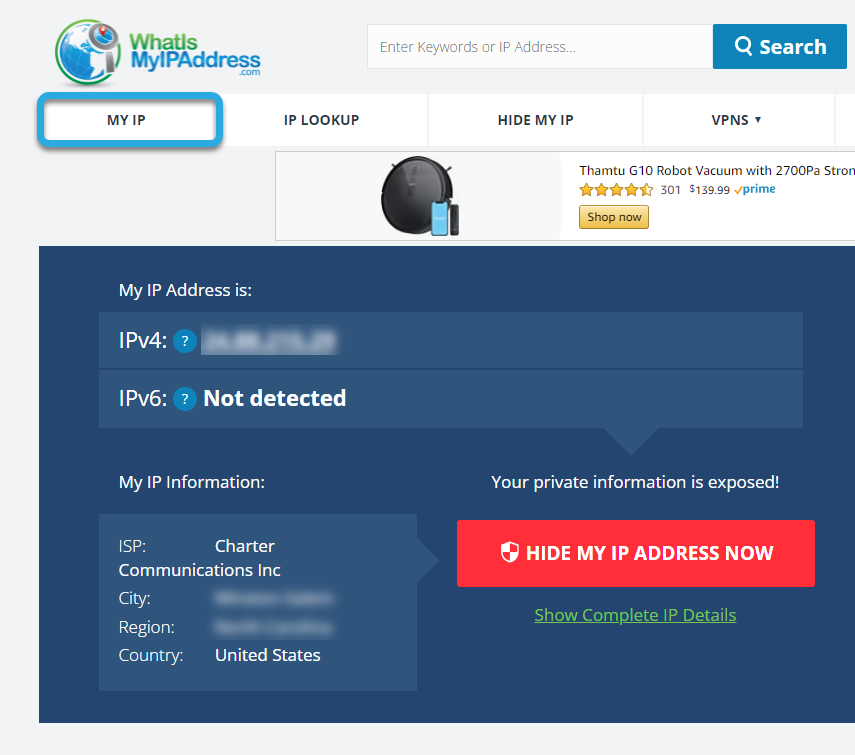
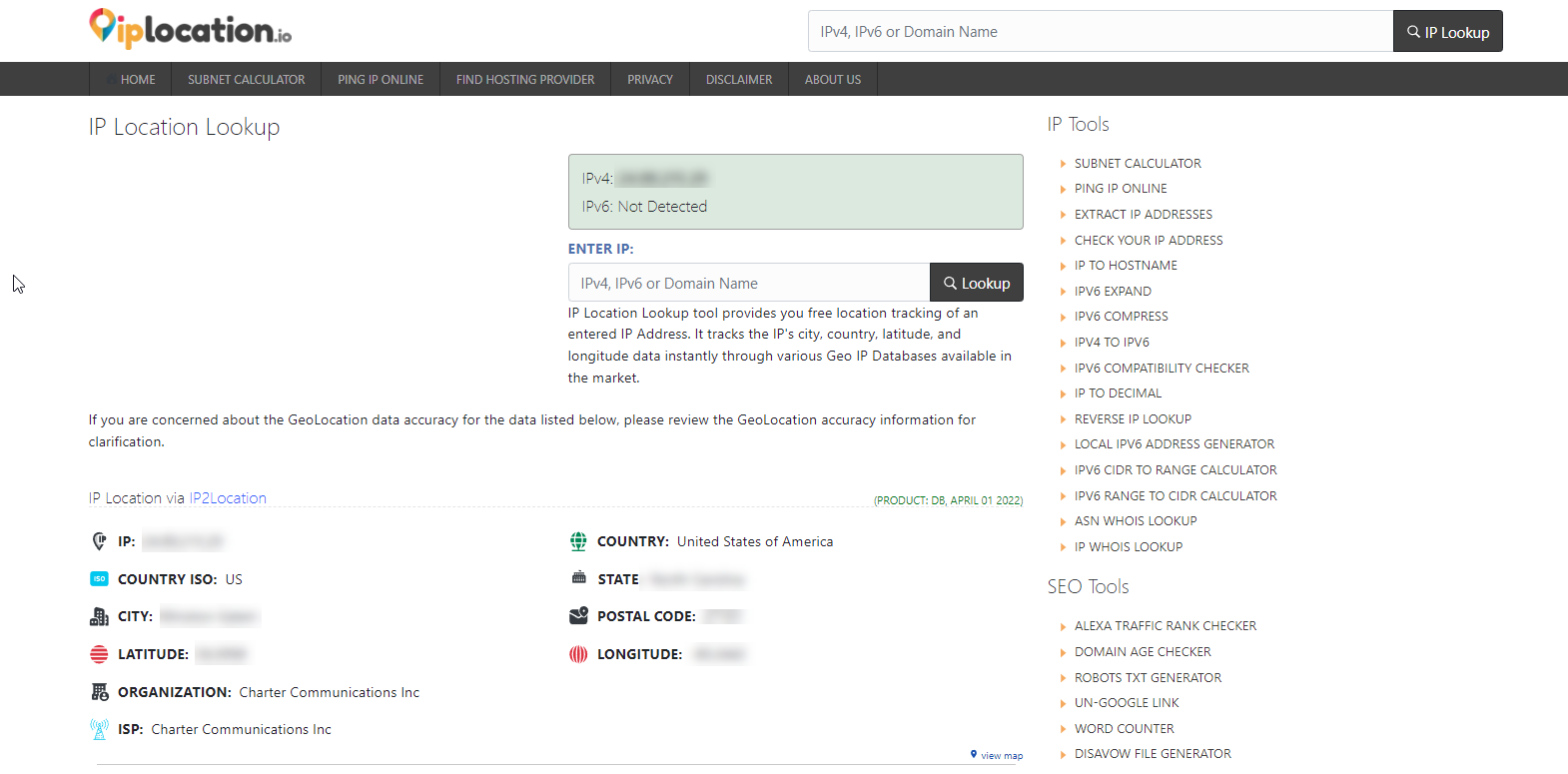
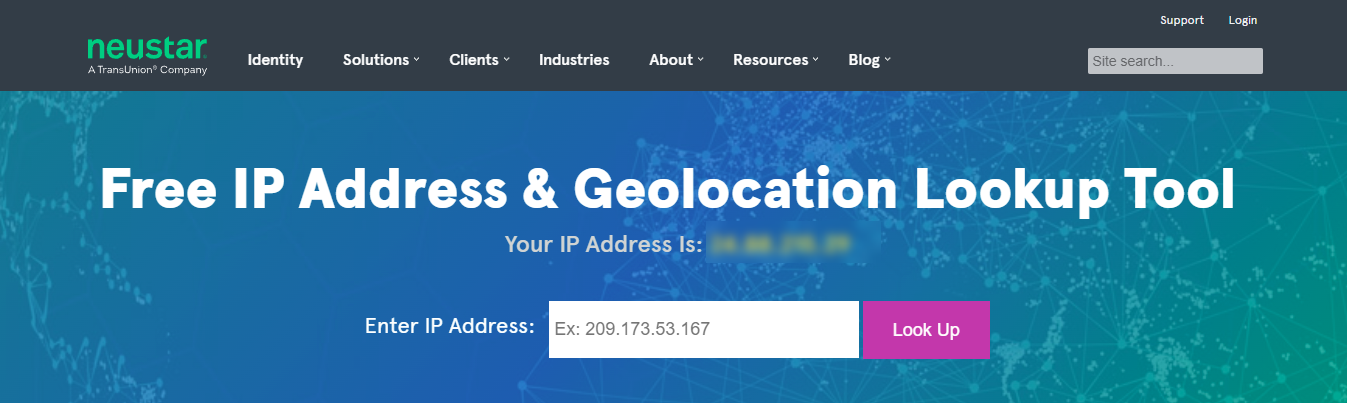
Another way to identify your public IP address is to perform an online IP Address Lookup. There are several free tools that provide you with your public IP address, as well as other information such as city, state, country, and internet service provider (ISP).
Here are a few examples:
[WhatIsMyIPAddress](https://whatismyipaddress.com/)
[iplocation.io](https://iplocation.io/)
[Neustar IP Lookup](https://www.home.neustar/resources/tools/ip-geolocation-lookup-tool)
[iplocation.net](https://www.iplocation.net/)
### **How to Find Your Private IP Address (Windows 10)**
Finding the actual IP address of your device requires a tad more effort, but the steps are simple.
1. Press the **Windows key + R** to pull up Run
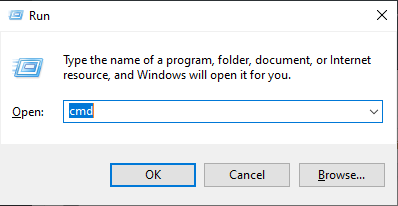
2. Type **cmd** and click okay
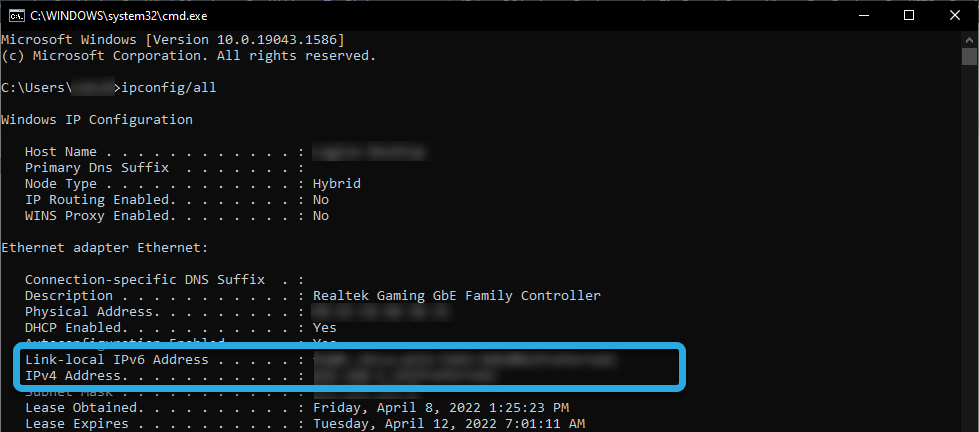
1. At the command line prompt, type **ipconfig/all** and then press enter. Your IPv4 and IPv6 (if available) will be listed in the command window.
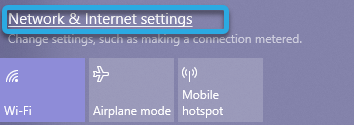
Alternatively, you can click on the internet icon from the taskbar and then click **Network & Internet Settings**.
In the Network & Internet window, click the **Properties** button.
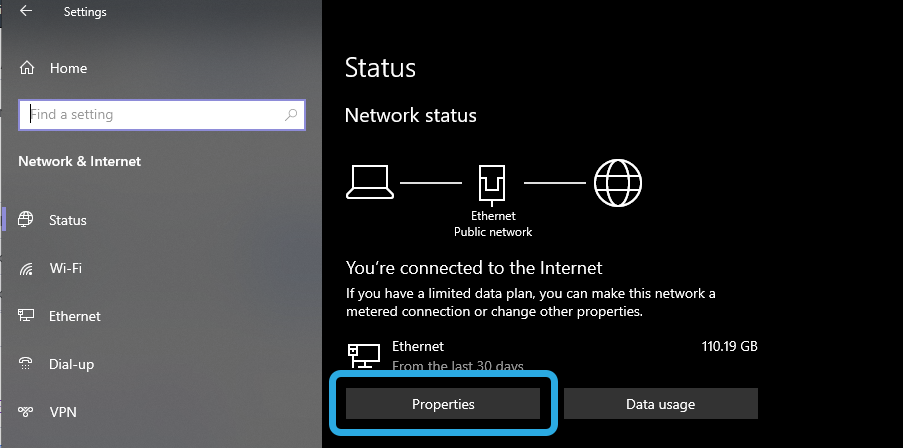
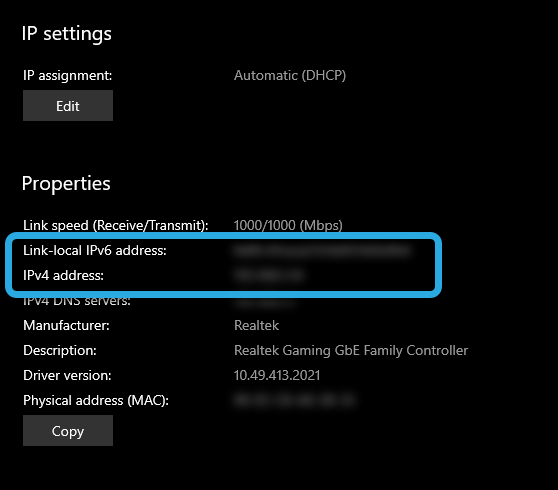
Scroll down to the properties section to view/copy your IPv4/IPv6 addresses.
**How to Find Your Private IP Address (Mac)**
To find your device’s IP address on a Mac do the following:
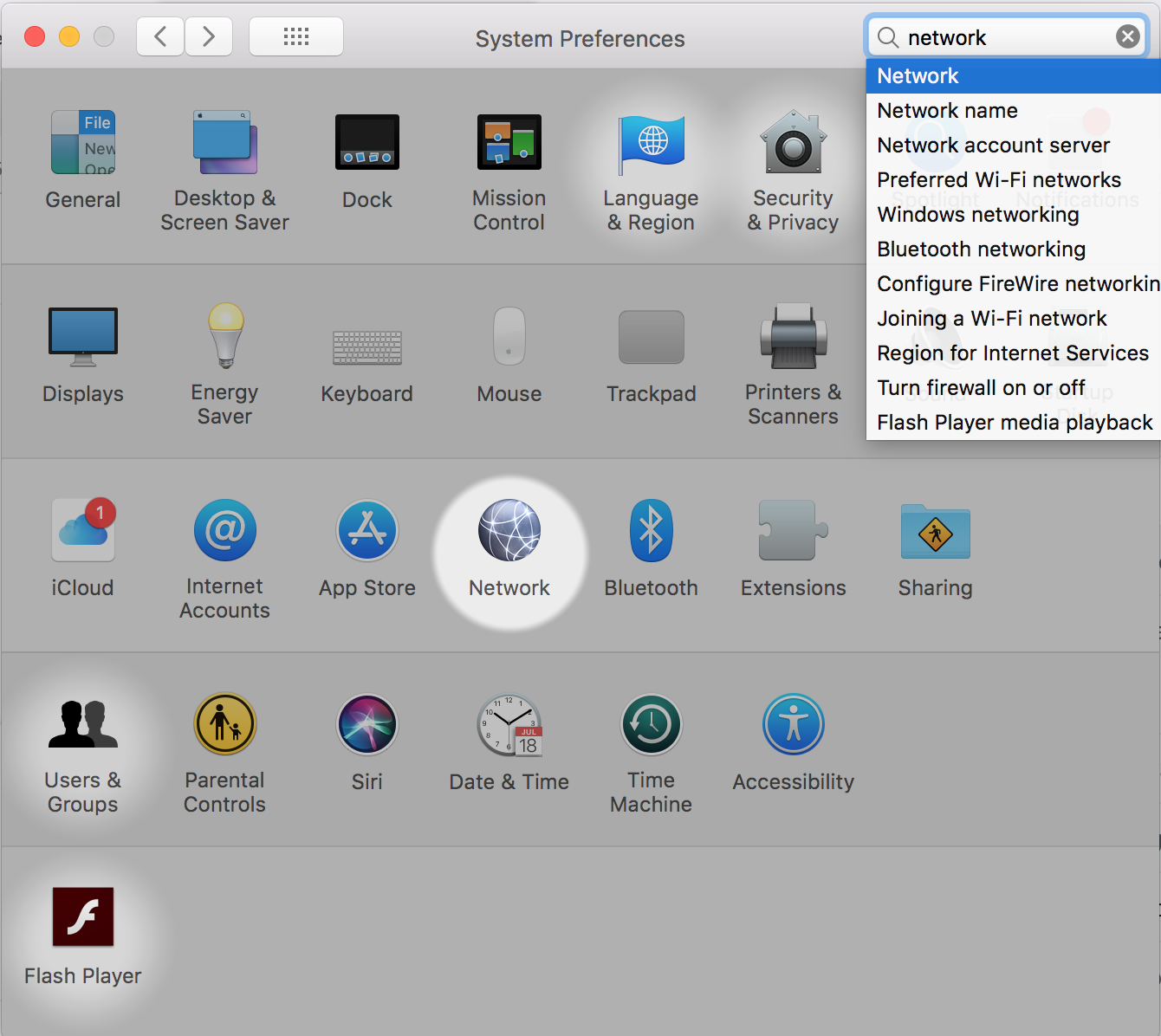
1. Navigate to **System Preferences**, then choose **Network**.
1. Choose your connection type from the sidebar on the left.
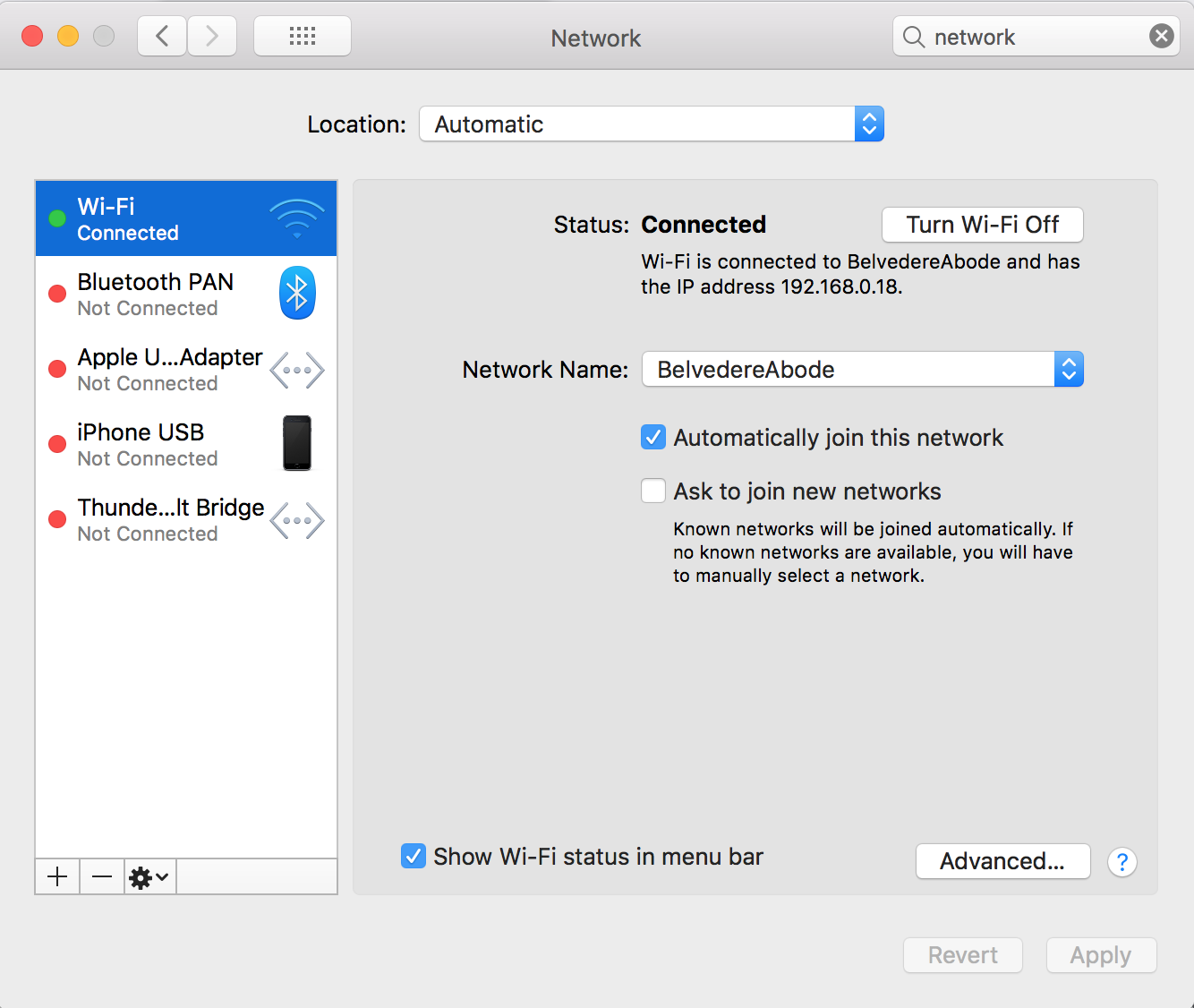
1. Click **Advanced**, then select **TCP/IP**.
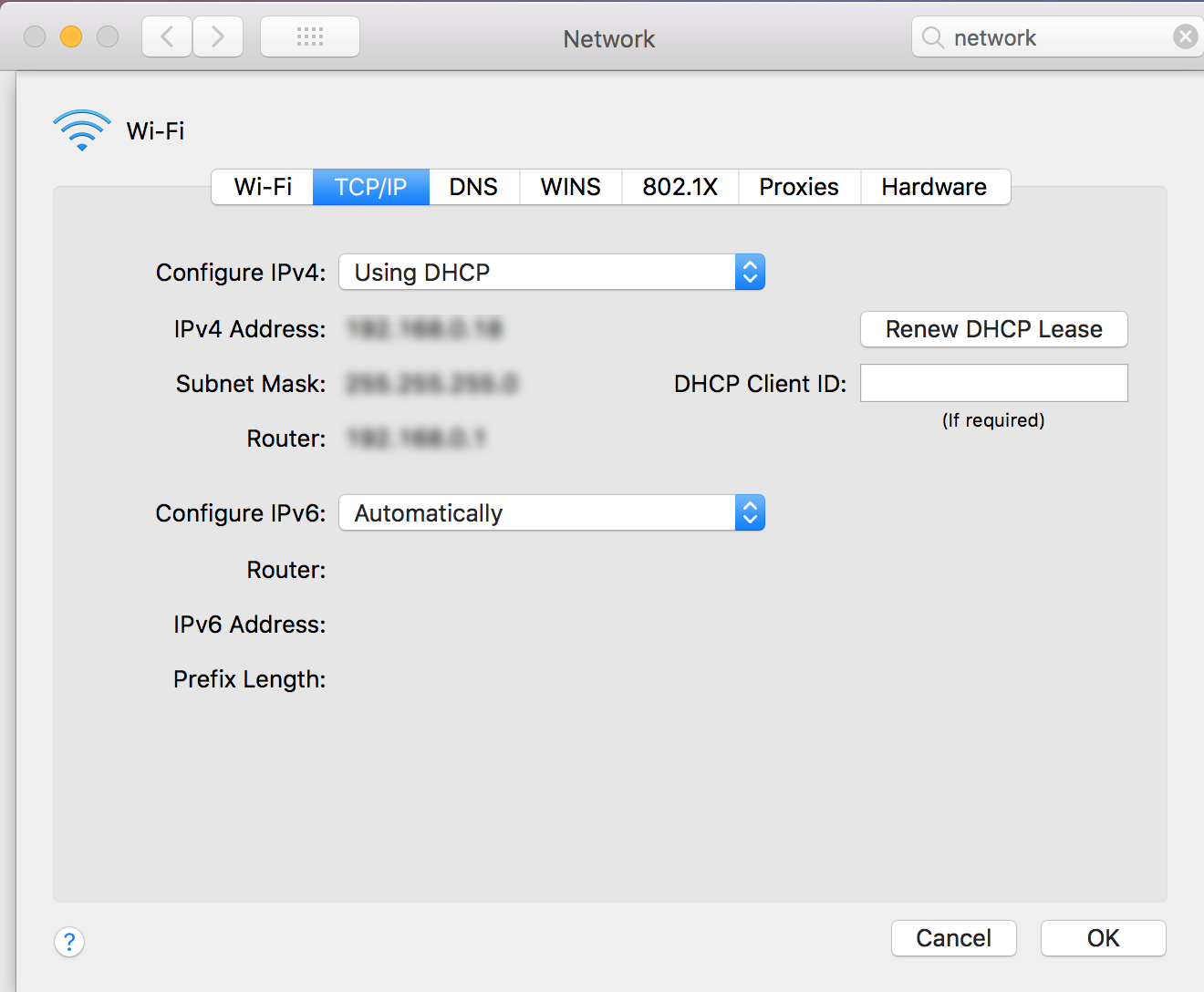
You will now see your IP and router addresses.
### **Finding Your IP Address Is Easy**
As you can see, finding your public and private IP address is quite simple. It’s best practice to avoid sharing this information unless it’s with a trusted source—even your public IP—to err on the side of caution. That said, your public IP can and does change periodically. Examples of when it may change is if you reboot your router or if your ISP refreshes it on their end. If you want to hide your public IP, you should use a [virtual private network](https://dnsmadeeasy.com/post/what-is-a-vpn) (VPN).
Published On: August 15, 2024
Last Updated: May 27, 2025
[](https://dnsmadeeasy.com/)
Follow Us
Product
- [DNS Failover](https://dnsmadeeasy.com/dns-failover)
- [ANAME Records](https://dnsmadeeasy.com/aname-records)
- [Global Traffic Director](https://dnsmadeeasy.com/global-traffic-director)
- [DNS Failover](https://dnsmadeeasy.com/dns-failover)
- [ANAME Records](https://dnsmadeeasy.com/aname-records)
- [Global Traffic Director](https://dnsmadeeasy.com/global-traffic-director)
- [Secondary DNS](https://dnsmadeeasy.com/secondary-dns)
- [DNS Analytics](https://dnsmadeeasy.com/dns-analytics)
- [Real-Time Traffic Anomaly Detection](https://dnsmadeeasy.com/real-time-traffic-anomaly-detection)
- [Secondary DNS](https://dnsmadeeasy.com/secondary-dns)
- [DNS Analytics](https://dnsmadeeasy.com/dns-analytics)
- [Real-Time Traffic Anomaly Detection](https://dnsmadeeasy.com/real-time-traffic-anomaly-detection)
Integrations
- [Terraform](https://dnsmadeeasy.com/integrations)
- [HostBill](https://dnsmadeeasy.com/integrations)
- [CHEF](https://dnsmadeeasy.com/integrations)
- [Ruby Library](https://dnsmadeeasy.com/integrations)
- [octoDNS](https://dnsmadeeasy.com/integrations)
- [Plesk](https://dnsmadeeasy.com/integrations)
- [CPanel](https://dnsmadeeasy.com/integrations)
- [Terraform](https://dnsmadeeasy.com/integrations)
- [HostBill](https://dnsmadeeasy.com/integrations)
- [CHEF](https://dnsmadeeasy.com/integrations)
- [Ruby Library](https://dnsmadeeasy.com/integrations)
- [octoDNS](https://dnsmadeeasy.com/integrations)
- [Plesk](https://dnsmadeeasy.com/integrations)
- [CPanel](https://dnsmadeeasy.com/integrations)
Resources
- [Blog](https://dnsmadeeasy.com/blog)
- [Tutorials](https://support.dnsmadeeasy.com/support/solutions)
- [FAQ](https://dnsmadeeasy.com/faq)
- [Register Domain](https://www.domainsmadeeasy.com/)
- [DNS Toolbox](https://dnstoolbox.io/)
- [Check DNS Status](https://www.dnsstatus.com/)
- [Subnet Mask Cheat Sheet](https://dnsmadeeasy.com/resources/subnet-mask-cheat-sheet)
- [BIMI Validator](https://bimivalidator.com/)
- [Blog](https://dnsmadeeasy.com/blog)
- [Tutorials](https://support.dnsmadeeasy.com/support/solutions)
- [FAQ](https://dnsmadeeasy.com/faq)
- [Register Domain](https://www.domainsmadeeasy.com/)
- [DNS Toolbox](https://dnstoolbox.io/)
- [Check DNS Status](https://www.dnsstatus.com/)
- [Subnet Mask Cheat Sheet](https://dnsmadeeasy.com/resources/subnet-mask-cheat-sheet)
- [BIMI Validator](https://bimivalidator.com/)
General
- [Pricing](https://dnsmadeeasy.com/pricing)
- [Support](https://support.dnsmadeeasy.com/hc/en-us)
- [Policies](https://dnsmadeeasy.com/about/policiesandtos)
- [Contact](https://dnsmadeeasy.com/speak-to-sales)
- [Pricing](https://dnsmadeeasy.com/pricing)
- [Support](https://support.dnsmadeeasy.com/hc/en-us)
- [Policies](https://dnsmadeeasy.com/about/policiesandtos)
- [Contact](https://dnsmadeeasy.com/speak-to-sales)
Login
- [Control Panel](https://cp.dnsmadeeasy.com/)
- [Analytics](https://analytics.dnsmadeeasy.com/)
- [Control Panel](https://cp.dnsmadeeasy.com/)
- [Analytics](https://analytics.dnsmadeeasy.com/)
Cybersecurity Insights
Directly to your inbox once a month.
© 2025 DigiCert, Inc. All rights reserved. [Privacy Policy](https://privacy.digicert.com/policies/en/?name=dns-network-security-products-privacy-notice#introduction) \| [Legal](https://dnsmadeeasy.com/terms-of-use) \| [Cookie Policy](https://privacy.digicert.com/policies/en/) \| [Do Not Sell My Personal Info](https://dnsmadeeasy.com/do-not-sell-my-personal-info) \| [Sitemap](https://dnsmadeeasy.com/sitemap) |
| Readable Markdown | While using the internet is pretty much “plug and play,” there are times when you need to find your IP address. In this resource, you’ll learn how to find your public and private IP.
Let’s get started\!
## **IP address: What is it?**
IP addresses (short for internet protocol addresses) are unique numerical addresses assigned to internet-capable machines. There is typically a public and private IP for each device. An IP’s main purpose is to identify devices that are connecting to a network or resource and to define an endpoint’s location. IP addresses are either in IPv4 or IPv6 format and stored in DNS records (A or AAAA).
**Tip**: To learn more about IP addresses, visit our What Is an IP Address blog.
## **My IP Location**
While IP addresses run in the background and aren’t something most people even need to think about, there are times when you might need to know yours. For example, you may need to know your IP address for voice over IP (VoIP) calls or if you need to provide your IP to your employer for remote server access.
Whatever the reason, here’s how you find it:
## **How to Find Your Public IP Address**
Finding your public IP address is super easy. All you have to do is google “what is my IP” or “what is my IP address” and voilà.

Can’t get any easier than that.
## **IP Address Lookup**
Another way to identify your public IP address is to perform an online IP Address Lookup. There are several free tools that provide you with your public IP address, as well as other information such as city, state, country, and internet service provider (ISP).
Here are a few examples:
[WhatIsMyIPAddress](https://whatismyipaddress.com/)

[iplocation.io](https://iplocation.io/)

[Neustar IP Lookup](https://www.home.neustar/resources/tools/ip-geolocation-lookup-tool)

[iplocation.net](https://www.iplocation.net/)

### **How to Find Your Private IP Address (Windows 10)**
Finding the actual IP address of your device requires a tad more effort, but the steps are simple.
1. Press the **Windows key + R** to pull up Run
2. Type **cmd** and click okay

1. At the command line prompt, type **ipconfig/all** and then press enter. Your IPv4 and IPv6 (if available) will be listed in the command window.

Alternatively, you can click on the internet icon from the taskbar and then click **Network & Internet Settings**.

In the Network & Internet window, click the **Properties** button.

Scroll down to the properties section to view/copy your IPv4/IPv6 addresses.

**How to Find Your Private IP Address (Mac)**
To find your device’s IP address on a Mac do the following:
1. Navigate to **System Preferences**, then choose **Network**.

1. Choose your connection type from the sidebar on the left.

1. Click **Advanced**, then select **TCP/IP**.

You will now see your IP and router addresses.
### **Finding Your IP Address Is Easy**
As you can see, finding your public and private IP address is quite simple. It’s best practice to avoid sharing this information unless it’s with a trusted source—even your public IP—to err on the side of caution. That said, your public IP can and does change periodically. Examples of when it may change is if you reboot your router or if your ISP refreshes it on their end. If you want to hide your public IP, you should use a [virtual private network](https://dnsmadeeasy.com/post/what-is-a-vpn) (VPN). |
| Shard | 158 (laksa) |
| Root Hash | 17633408683321131558 |
| Unparsed URL | com,dnsmadeeasy!/resources/what-is-my-ip-address-windows-and-mac s443 |