ℹ️ Skipped - page is already crawled
| Filter | Status | Condition | Details |
|---|---|---|---|
| HTTP status | PASS | download_http_code = 200 | HTTP 200 |
| Age cutoff | PASS | download_stamp > now() - 6 MONTH | 0.2 months ago |
| History drop | PASS | isNull(history_drop_reason) | No drop reason |
| Spam/ban | PASS | fh_dont_index != 1 AND ml_spam_score = 0 | ml_spam_score=0 |
| Canonical | PASS | meta_canonical IS NULL OR = '' OR = src_unparsed | Not set |
| Property | Value | |||||||||
|---|---|---|---|---|---|---|---|---|---|---|
| URL | https://beebom.com/service-battery-macbook-explained-fixes/ | |||||||||
| Last Crawled | 2026-04-18 00:47:48 (5 days ago) | |||||||||
| First Indexed | 2024-05-20 12:23:24 (1 year ago) | |||||||||
| HTTP Status Code | 200 | |||||||||
| Content | ||||||||||
| Meta Title | What Does "Service Battery" Mean on MacBook and How to Fix It | Beebom | |||||||||
| Meta Description | Does your Mac's Battery Heath says "Service Battery"? Read on to learn what "Service Battery" mean on a MacBook and how to deal with it. | |||||||||
| Meta Canonical | null | |||||||||
| Boilerpipe Text | Being an Apple user, I often track battery health on my iPhone,
iPad
, and MacBook. Everything seems to be nice and fine when my devices have normal battery health. I completely understand how worrisome it can be when you see “Service Battery” on your MacBook. You are stuck with a bad battery life and have no idea what to do. In this article, we’ll discuss what “Service Battery” means on a MacBook and how to deal with it. Without much talking, let’s move along.
What Does “Service Battery” or “Service Recommended” Mean on a Mac?
Just like iPhones, MacBooks also have a Battery Health feature to gauge battery degradation over time. You can check your Mac’s battery health by going to
System Settings -> Battery -> Battery Health.
Usually, the Battery Health displays one of the following:
Normal:
Your Mac’s battery is working normally.
Service Recommendation:
Your MacBook battery’s ability to hold charge is less than compared to when it was new. Or maybe, the battery isn’t functioning normally.
It’s worth knowing that some earlier versions of macOS might report battery health as
Service Battery
,
Replace Soon, or Replace Now
. Also, you might see this in the battery status menu instead of the Battery settings.
When you see “Service Battery” or “Service Recommended” on your MacBook, it means the battery needs a service or the lowered charging capacity may affect your usage. That said, you can safely continue to use your MacBook. In case the lowered battery is causing an adverse experience, you can head to the nearest Apple Store or an Apple-authorised service provider and get your battery evaluated.
That being said, before you plan a visit, you must do a quick investigation at your end.
When Should You Replace MacBook Battery?
When you see the “Service Battery” notification on your MacBook or the battery health on your Mac always say “Service Recommended”, you must check the System Report to investigate further. In simple words, you should
check the charge cycle count on your Mac.
For those unaware, MacBooks pack rechargeable lithium-ion batteries that work in charge cycles. Battery cycle count denotes the number of times you’ve discharged and charged your Mac’s battery. One cycle is counted when your MacBook is charged from o to 100%.
Your Mac’s battery might be due for a service because it has maxed out on its cycle count. Apple recommends replacing your Mac’s battery once it has reached the maximum cycle counts. This ensures optimal performance. So, it’s always recommended to check the cycle count before you decide to replace your Mac’s battery. Here’s how to do it:
On your Mac, click on the
Apple icon
while holding the
Option key.
Now, click on
System Information
and choose
Power
from the left sidebar.
Here, you’ll see the battery cycle count, battery condition, and other details.
The number of maximum battery cycle counts depends on the MacBook you’re using. Newer MacBook models offer at least 1,000 cycles before throwing service battery notifications. However, the battery on older Macs may need replacement after only 500 cycles.
If your MacBook charge cycles are above 1,000 or 500 (depending on the model), the battery is likely close to worn out. In such a case, the best thing you can do is take your Mac to an authorized Apple service provider. The experts will examine your Mac and figure out if the battery needs a replacement.
Related Articles
How to Fix “Service Battery” Warning on Mac?
The “Service Battery” warning doesn’t always mean your Mac’s battery needs a replacement. Sometimes, it’s an indication that the battery isn’t working properly. There are some easy ways to fix the “Service Battery” warning. It might help you improve the battery and you can use your existing MacBook for a longer time before you switch to a new one.
1. Reset SMC
If you’re using an older, Intel-powered MacBook, you can try resetting SMC to fix the “Service Battery” warning. The System Management Controller (or SMC) is responsible for managing power on your MacBook. Sometimes, an issue in the SMC can throw “Service battery” warnings. Fortunately, resetting SMC can help resolve complex issues related to batteries. So, it’s worth giving a try.
On Macs with T2 chip, do the following:
Shut down your Mac.
Press and hold the
Control + Option (Alt) +Shift keys
.
Keep holding the keys for 7 seconds
.
Now,
press and hold the Power button as well
.
Keep holding the
four keys for another 7 seconds
and then
release them.
After a few seconds, press the
Power button to turn ON
your MacBook.
On Macs with M-series chips, you need not reset SMC manually.
2. Recalibrate Your Mac’s Battery
Another way to fix the “Service Battery” warning is to recalibrate your MacBook battery. Putting it simply, you have to completely discharge and then recharge the battery. This optimizes your Mac’s battery so it displays the correct battery health and other information. The process is quite time-consuming and might take up to a day. Once you’re ready, here’s what to do:
Charge your MacBook to 100%.
Use your MacBook for a couple of hours while it’s connected to a power source.
Then, unplug the charger and keep using your Mac until the battery drains completely.
Leave your MacBook without power for a couple of hours or overnight.
Finally, charge your MacBook to 100%.
Still no luck? Your MacBook might have some complex battery-related issues. If this happens to be your case, we recommend heading to an Authorised Apple Service Center. Make sure to stay away from any DIYs or cheaper alternatives. | |||||||||
| Markdown | Skip to content
[Beebom](https://beebom.com/)
- [News](https://beebom.com/category/news/)
- [Opinions](https://beebom.com/tag/opinion/)
- [Reviews](https://beebom.com/category/reviews/)
- [Gaming](https://beebom.com/category/games/)
- [Roblox](https://beebom.com/tag/roblox/)
- [Roblox Codes](https://beebom.com/tag/roblox-codes/)
- [Puzzle Games](https://beebom.com/puzzle/)
- [GTA](https://beebom.com/tag/gta/)
- [Minecraft](https://beebom.com/tag/minecraft/)
- [Genshin Impact](https://beebom.com/tag/genshin-impact/)
- [Honkai Star Rail](https://beebom.com/tag/honkai-star-rail/)
- [Fortnite](https://beebom.com/tag/fortnite/)
- [Tech](https://beebom.com/category/tech/)
- [Instagram](https://beebom.com/tag/instagram/)
- [Snapchat](https://beebom.com/tag/snapchat/)
- [Apple](https://beebom.com/tag/apple/)
- [AI](https://beebom.com/tag/ai/)
- [Android](https://beebom.com/tag/android/)
- [Beebom Gadgets](https://gadgets.beebom.com/)
[Beebom Gadgets](https://gadgets.beebom.com/)
Search For :
Search Results
Load More
- [News](https://beebom.com/category/news/)
- [Opinions](https://beebom.com/tag/opinion/)
- [Reviews](https://beebom.com/category/reviews/)
- [Gaming](https://beebom.com/category/games/)
- [Roblox](https://beebom.com/tag/roblox/)
- [Roblox Codes](https://beebom.com/tag/roblox-codes/)
- [Puzzle Games](https://beebom.com/puzzle/)
- [GTA](https://beebom.com/tag/gta/)
- [Minecraft](https://beebom.com/tag/minecraft/)
- [Genshin Impact](https://beebom.com/tag/genshin-impact/)
- [Honkai Star Rail](https://beebom.com/tag/honkai-star-rail/)
- [Fortnite](https://beebom.com/tag/fortnite/)
- [Tech](https://beebom.com/category/tech/)
- [Instagram](https://beebom.com/tag/instagram/)
- [Snapchat](https://beebom.com/tag/snapchat/)
- [Apple](https://beebom.com/tag/apple/)
- [AI](https://beebom.com/tag/ai/)
- [Android](https://beebom.com/tag/android/)
- [Beebom Gadgets](https://gadgets.beebom.com/)
No results found
[Home](https://beebom.com/) \> [How To](https://beebom.com/category/how-to/) \> What Does “Service Battery” Mean on MacBook and How to Fix It
# What Does “Service Battery” Mean on MacBook and How to Fix It
[ Kanika Gogia](https://beebom.com/author/kanika/)
Published: May 20, 2024
[Comments 0](https://beebom.com/service-battery-macbook-explained-fixes/#comments-697515)
Share
Copied
In Short
- MacBooks have a Battery Health feature that shows battery degradation over time.
- "Service Battery" means either your MacBook battery's ability to hold a charge is less than when it was new or it isn't functioning normally.
- On newer Macs, you would see "Service Recommended" rather than "Service Battery".
[Click Here to Add Beebom as a Trusted Source Add as a preferred source on Google](https://www.google.com/preferences/source?q=beebom.com)
Being an Apple user, I often track battery health on my iPhone, [iPad](https://beebom.com/how-check-ipad-battery-health/), and MacBook. Everything seems to be nice and fine when my devices have normal battery health. I completely understand how worrisome it can be when you see “Service Battery” on your MacBook. You are stuck with a bad battery life and have no idea what to do. In this article, we’ll discuss what “Service Battery” means on a MacBook and how to deal with it. Without much talking, let’s move along.
## What Does “Service Battery” or “Service Recommended” Mean on a Mac?
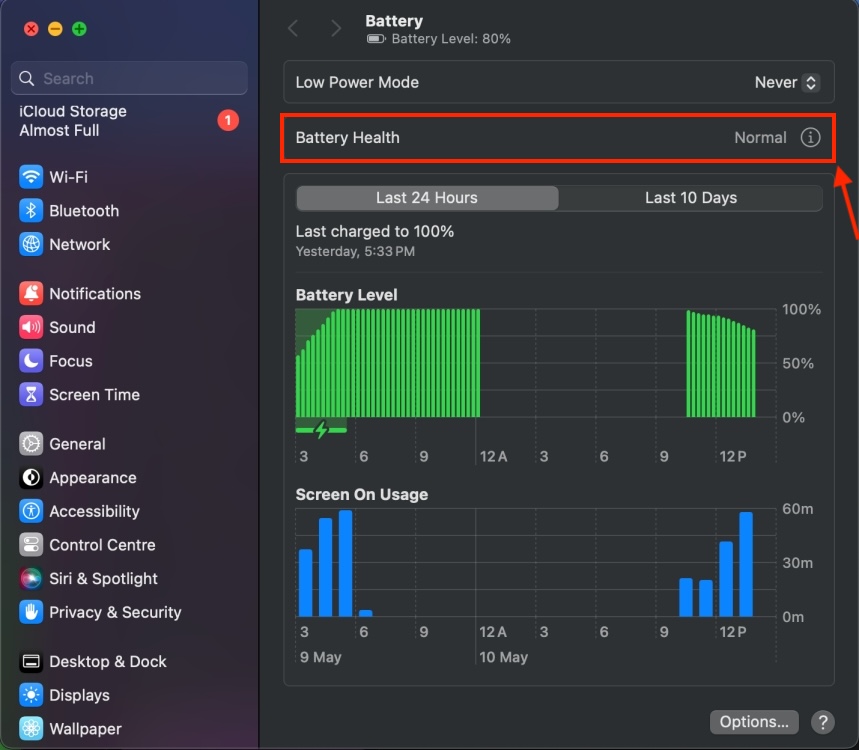
Just like iPhones, MacBooks also have a Battery Health feature to gauge battery degradation over time. You can check your Mac’s battery health by going to **System Settings -\> Battery -\> Battery Health.** Usually, the Battery Health displays one of the following:
- **Normal:** Your Mac’s battery is working normally.
- **Service Recommendation:** Your MacBook battery’s ability to hold charge is less than compared to when it was new. Or maybe, the battery isn’t functioning normally.
It’s worth knowing that some earlier versions of macOS might report battery health as **Service Battery**, **Replace Soon, or Replace Now**. Also, you might see this in the battery status menu instead of the Battery settings.
When you see “Service Battery” or “Service Recommended” on your MacBook, it means the battery needs a service or the lowered charging capacity may affect your usage. That said, you can safely continue to use your MacBook. In case the lowered battery is causing an adverse experience, you can head to the nearest Apple Store or an Apple-authorised service provider and get your battery evaluated.
That being said, before you plan a visit, you must do a quick investigation at your end.
## When Should You Replace MacBook Battery?
When you see the “Service Battery” notification on your MacBook or the battery health on your Mac always say “Service Recommended”, you must check the System Report to investigate further. In simple words, you should **check the charge cycle count on your Mac.**
For those unaware, MacBooks pack rechargeable lithium-ion batteries that work in charge cycles. Battery cycle count denotes the number of times you’ve discharged and charged your Mac’s battery. One cycle is counted when your MacBook is charged from o to 100%.
Your Mac’s battery might be due for a service because it has maxed out on its cycle count. Apple recommends replacing your Mac’s battery once it has reached the maximum cycle counts. This ensures optimal performance. So, it’s always recommended to check the cycle count before you decide to replace your Mac’s battery. Here’s how to do it:
- On your Mac, click on the **Apple icon** while holding the **Option key.**
- Now, click on **System Information** and choose **Power** from the left sidebar.
- Here, you’ll see the battery cycle count, battery condition, and other details.
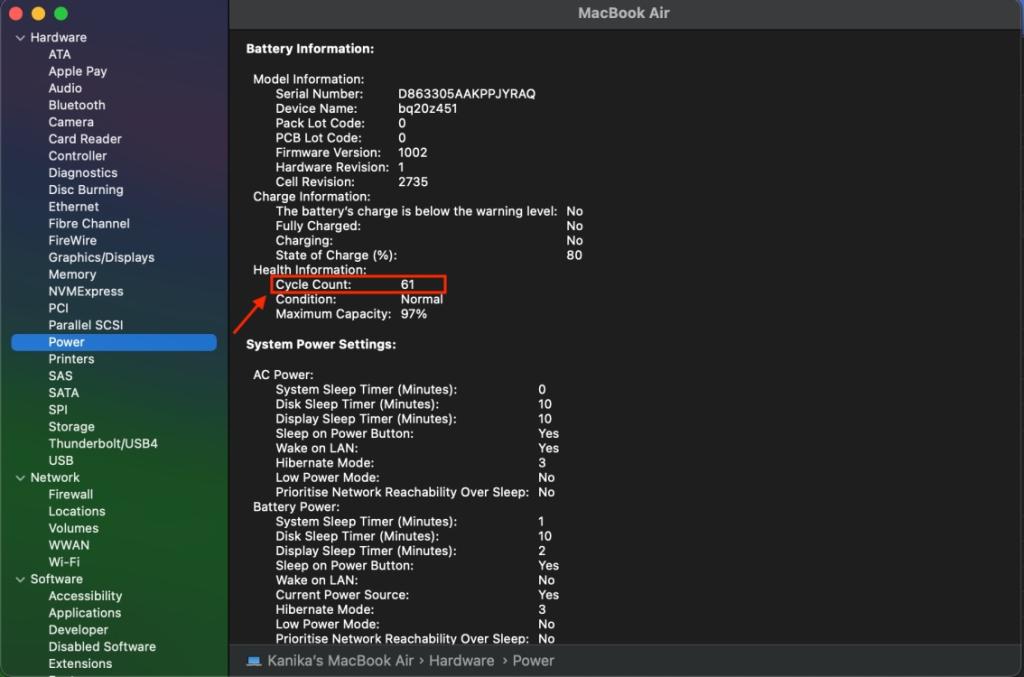
The number of maximum battery cycle counts depends on the MacBook you’re using. Newer MacBook models offer at least 1,000 cycles before throwing service battery notifications. However, the battery on older Macs may need replacement after only 500 cycles.
If your MacBook charge cycles are above 1,000 or 500 (depending on the model), the battery is likely close to worn out. In such a case, the best thing you can do is take your Mac to an authorized Apple service provider. The experts will examine your Mac and figure out if the battery needs a replacement.
Related Articles
## How to Fix “Service Battery” Warning on Mac?
The “Service Battery” warning doesn’t always mean your Mac’s battery needs a replacement. Sometimes, it’s an indication that the battery isn’t working properly. There are some easy ways to fix the “Service Battery” warning. It might help you improve the battery and you can use your existing MacBook for a longer time before you switch to a new one.
### 1\. Reset SMC
If you’re using an older, Intel-powered MacBook, you can try resetting SMC to fix the “Service Battery” warning. The System Management Controller (or SMC) is responsible for managing power on your MacBook. Sometimes, an issue in the SMC can throw “Service battery” warnings. Fortunately, resetting SMC can help resolve complex issues related to batteries. So, it’s worth giving a try.
On Macs with T2 chip, do the following:
- Shut down your Mac.
- Press and hold the **Control + Option (Alt) +Shift keys**.
- **Keep holding the keys for 7 seconds**.
- Now, **press and hold the Power button as well**.
- Keep holding the **four keys for another 7 seconds** and then **release them.**
- After a few seconds, press the **Power button to turn ON** your MacBook.
On Macs with M-series chips, you need not reset SMC manually.
### 2\. Recalibrate Your Mac’s Battery
Another way to fix the “Service Battery” warning is to recalibrate your MacBook battery. Putting it simply, you have to completely discharge and then recharge the battery. This optimizes your Mac’s battery so it displays the correct battery health and other information. The process is quite time-consuming and might take up to a day. Once you’re ready, here’s what to do:
- Charge your MacBook to 100%.
- Use your MacBook for a couple of hours while it’s connected to a power source.
- Then, unplug the charger and keep using your Mac until the battery drains completely.
- Leave your MacBook without power for a couple of hours or overnight.
- Finally, charge your MacBook to 100%.
Still no luck? Your MacBook might have some complex battery-related issues. If this happens to be your case, we recommend heading to an Authorised Apple Service Center. Make sure to stay away from any DIYs or cheaper alternatives.
\#Tags
[\#MacBook](https://beebom.com/tag/macbook/)

Kanika Gogia
Kanika has been a loyal iPhone user since 2014 and loves everything Apple. With a Master’s in Computer Applications, passion for technology, and over five years of experience in writing, she landed at Beebom as an Apple Ecosystem Writer. She specializes in writing How To’s, troubleshooting guides, App features, and roundups for Apple users to help them make the best use of their gadgets. When not writing, she loves to try out new recipes and enjoy some family time.
Comments 0
Leave a Reply
Cancel reply
Loading comments...
***
Recommended Articles
[](https://beebom.com/why-macbook-fan-loud-how-fix/)
[Why Is My MacBook Fan So Loud and How to Fix It](https://beebom.com/why-macbook-fan-loud-how-fix/)
 Kanika Gogia
[](https://beebom.com/mac-keeps-restarting-fixes/)
[What to Do If My Mac Keeps Restarting? 10 Tips to Fix the Issue](https://beebom.com/mac-keeps-restarting-fixes/)
 Rajesh Mishra
[](https://beebom.com/what-to-expect-from-apple-march-2026-event/)
[What to Expect from Apple's March 2026 Event: Budget MacBook, iPhone 17e, New iPads and More](https://beebom.com/what-to-expect-from-apple-march-2026-event/)
 Anshuman Jain
[](https://beebom.com/fix-your-system-has-run-out-of-application-memory-error-mac/)
[Fix 'Your System Has Run Out of Application Memory' Error on Mac](https://beebom.com/fix-your-system-has-run-out-of-application-memory-error-mac/)
 Rajesh Mishra
[](https://beebom.com/surface-laptop-7-vs-m3-macbook-air-comparison/)
[Surface Laptop 7 vs MacBook Air M3: Which Should Be Your Next Laptop?](https://beebom.com/surface-laptop-7-vs-m3-macbook-air-comparison/)
 Abubakar Mohammed
[](https://beebom.com/why-is-my-mac-fan-so-loud-fixes-troubleshooting-solved/)
[Why is My Mac Fan So Loud? 14 Ways to Fix Overheating Mac\!](https://beebom.com/why-is-my-mac-fan-so-loud-fixes-troubleshooting-solved/)
 Rajesh Mishra
[](https://beebom.com/apple-macbook-neo-review/)
[MacBook Neo Review: Are We in the Matrix or Is This Real?](https://beebom.com/apple-macbook-neo-review/)
 Anshuman Jain
More In
[](https://beebom.com/microsoft-muse-xbox-generative-ai-model-revealed/)
[Microsoft's Muse AI Model Will Generate Gameplay Visuals and Actions](https://beebom.com/microsoft-muse-xbox-generative-ai-model-revealed/)
 Upanishad Sharma
[](https://beebom.com/how-get-heavenly-restriction-jujutsu-infinite/)
[How to Get Heavenly Restriction in Jujutsu Infinite](https://beebom.com/how-get-heavenly-restriction-jujutsu-infinite/)
 Bipradeep Biswas
[](https://beebom.com/ultimate-black-friday-deals-roundup/)
[This Ultimate Black Friday Deals Roundup Is All You Need Today](https://beebom.com/ultimate-black-friday-deals-roundup/)
 Sagnik Das Gupta
[](https://beebom.com/cronos-the-new-dawn-announced/)
[Cronos The New Dawn Announced: Coming 2025](https://beebom.com/cronos-the-new-dawn-announced/)
 Upanishad Sharma
[](https://beebom.com/what-to-expect-wwdc-2024/)
[What to Expect from Apple WWDC 2024: iOS 18, macOS 15, and AI Features](https://beebom.com/what-to-expect-wwdc-2024/)
 Kanika Gogia
[](https://beebom.com/ipad-launch-delayed-report/)
[Waiting for Apple to Launch New iPads? Well, Your Wait Just Got Longer](https://beebom.com/ipad-launch-delayed-report/)
 Kanika Gogia
[](https://beebom.com/whatsapp-text-formatting-options-how-to-use/)
[WhatsApp Gains New Text Formatting Options; Here's How to Use Them](https://beebom.com/whatsapp-text-formatting-options-how-to-use/)
 Anshuman Jain
### Trending Stories in \#MacBook
01
[Apple Is Preparing to End This Year with Its Most “Ultra” Products Yet](https://beebom.com/apple-preparing-macbook-ultra-iphone-fold-airpods-ultra/)
Anshuman Jain
02
[Apple Launches \$600 MacBook Neo with A18 Pro Chipset](https://beebom.com/apple-launches-macbook-neo-with-a18-pro-chipset/)
Anshuman Jain
03
[Apple Releases MacBook Pro with M5 Pro and M5 Max Chipsets and MacBook Air M5](https://beebom.com/apple-macbook-pro-m5-pro-m5-max-macbook-air-m5-launched/)
Anshuman Jain
04
[Apple M5 Geekbench Score Breaks Record, Leaves Snapdragon X2 Elite Behind](https://beebom.com/apple-m5-geekbench-score-breaks-record-leaves-snapdragon-x2-elite-behind/)
Arjun Sha
05
[Apple’s First Touchscreen MacBook Will Also Include an OLED Display, M6 Chip](https://beebom.com/apple-first-touchscreen-macbook-will-include-an-oled-display-m6-chip/)
Anshuman Jain
Beebom is one of the leading consumer technology websites aimed at helping people understand and use technology in a better way.
- [About Us](https://beebom.com/about-us/)
- [Careers](https://beebom.com/careers/)
- [Get in touch](https://beebom.com/contact-us/)
- [Advertise](https://beebom.com/advertise/)
- [Privacy Policy](https://beebom.com/privacy-policy/)
- [Editorial Guidelines](https://beebom.com/editorial-guidelines/)
Beebom is one of the leading consumer technology websites aimed at helping people understand and use technology in a better way.
- [About Us](https://beebom.com/about-us/)
- [Careers](https://beebom.com/careers/)
- [Get in touch](https://beebom.com/contact-us/)
- [Advertise](https://beebom.com/advertise/)
- [Privacy Policy](https://beebom.com/privacy-policy/)
- [Editorial Guidelines](https://beebom.com/editorial-guidelines/)
***
© Beebom Media Private Limited | |||||||||
| Readable Markdown | Being an Apple user, I often track battery health on my iPhone, [iPad](https://beebom.com/how-check-ipad-battery-health/), and MacBook. Everything seems to be nice and fine when my devices have normal battery health. I completely understand how worrisome it can be when you see “Service Battery” on your MacBook. You are stuck with a bad battery life and have no idea what to do. In this article, we’ll discuss what “Service Battery” means on a MacBook and how to deal with it. Without much talking, let’s move along.
## What Does “Service Battery” or “Service Recommended” Mean on a Mac?
Just like iPhones, MacBooks also have a Battery Health feature to gauge battery degradation over time. You can check your Mac’s battery health by going to **System Settings -\> Battery -\> Battery Health.** Usually, the Battery Health displays one of the following:
- **Normal:** Your Mac’s battery is working normally.
- **Service Recommendation:** Your MacBook battery’s ability to hold charge is less than compared to when it was new. Or maybe, the battery isn’t functioning normally.

It’s worth knowing that some earlier versions of macOS might report battery health as **Service Battery**, **Replace Soon, or Replace Now**. Also, you might see this in the battery status menu instead of the Battery settings.
When you see “Service Battery” or “Service Recommended” on your MacBook, it means the battery needs a service or the lowered charging capacity may affect your usage. That said, you can safely continue to use your MacBook. In case the lowered battery is causing an adverse experience, you can head to the nearest Apple Store or an Apple-authorised service provider and get your battery evaluated.
That being said, before you plan a visit, you must do a quick investigation at your end.
## When Should You Replace MacBook Battery?
When you see the “Service Battery” notification on your MacBook or the battery health on your Mac always say “Service Recommended”, you must check the System Report to investigate further. In simple words, you should **check the charge cycle count on your Mac.**
For those unaware, MacBooks pack rechargeable lithium-ion batteries that work in charge cycles. Battery cycle count denotes the number of times you’ve discharged and charged your Mac’s battery. One cycle is counted when your MacBook is charged from o to 100%.
Your Mac’s battery might be due for a service because it has maxed out on its cycle count. Apple recommends replacing your Mac’s battery once it has reached the maximum cycle counts. This ensures optimal performance. So, it’s always recommended to check the cycle count before you decide to replace your Mac’s battery. Here’s how to do it:
- On your Mac, click on the **Apple icon** while holding the **Option key.**
- Now, click on **System Information** and choose **Power** from the left sidebar.
- Here, you’ll see the battery cycle count, battery condition, and other details.

The number of maximum battery cycle counts depends on the MacBook you’re using. Newer MacBook models offer at least 1,000 cycles before throwing service battery notifications. However, the battery on older Macs may need replacement after only 500 cycles.
If your MacBook charge cycles are above 1,000 or 500 (depending on the model), the battery is likely close to worn out. In such a case, the best thing you can do is take your Mac to an authorized Apple service provider. The experts will examine your Mac and figure out if the battery needs a replacement.
Related Articles
## How to Fix “Service Battery” Warning on Mac?
The “Service Battery” warning doesn’t always mean your Mac’s battery needs a replacement. Sometimes, it’s an indication that the battery isn’t working properly. There are some easy ways to fix the “Service Battery” warning. It might help you improve the battery and you can use your existing MacBook for a longer time before you switch to a new one.
### 1\. Reset SMC
If you’re using an older, Intel-powered MacBook, you can try resetting SMC to fix the “Service Battery” warning. The System Management Controller (or SMC) is responsible for managing power on your MacBook. Sometimes, an issue in the SMC can throw “Service battery” warnings. Fortunately, resetting SMC can help resolve complex issues related to batteries. So, it’s worth giving a try.
On Macs with T2 chip, do the following:
- Shut down your Mac.
- Press and hold the **Control + Option (Alt) +Shift keys**.
- **Keep holding the keys for 7 seconds**.
- Now, **press and hold the Power button as well**.
- Keep holding the **four keys for another 7 seconds** and then **release them.**
- After a few seconds, press the **Power button to turn ON** your MacBook.
On Macs with M-series chips, you need not reset SMC manually.
### 2\. Recalibrate Your Mac’s Battery
Another way to fix the “Service Battery” warning is to recalibrate your MacBook battery. Putting it simply, you have to completely discharge and then recharge the battery. This optimizes your Mac’s battery so it displays the correct battery health and other information. The process is quite time-consuming and might take up to a day. Once you’re ready, here’s what to do:
- Charge your MacBook to 100%.
- Use your MacBook for a couple of hours while it’s connected to a power source.
- Then, unplug the charger and keep using your Mac until the battery drains completely.
- Leave your MacBook without power for a couple of hours or overnight.
- Finally, charge your MacBook to 100%.
Still no luck? Your MacBook might have some complex battery-related issues. If this happens to be your case, we recommend heading to an Authorised Apple Service Center. Make sure to stay away from any DIYs or cheaper alternatives. | |||||||||
| ML Classification | ||||||||||
| ML Categories |
Raw JSON{
"/Computers_and_Electronics": 994,
"/Computers_and_Electronics/Computer_Hardware": 991,
"/Computers_and_Electronics/Computer_Hardware/Laptops_and_Notebooks": 969
} | |||||||||
| ML Page Types |
Raw JSON{
"/Article": 999,
"/Article/How_to": 565
} | |||||||||
| ML Intent Types |
Raw JSON{
"Informational": 998
} | |||||||||
| Content Metadata | ||||||||||
| Language | en-us | |||||||||
| Author | Kanika Gogia | |||||||||
| Publish Time | 2024-05-20 12:22:56 (1 year ago) | |||||||||
| Original Publish Time | 2024-05-20 12:22:56 (1 year ago) | |||||||||
| Republished | No | |||||||||
| Word Count (Total) | 1,571 | |||||||||
| Word Count (Content) | 937 | |||||||||
| Links | ||||||||||
| External Links | 10 | |||||||||
| Internal Links | 50 | |||||||||
| Technical SEO | ||||||||||
| Meta Nofollow | No | |||||||||
| Meta Noarchive | No | |||||||||
| JS Rendered | Yes | |||||||||
| Redirect Target | null | |||||||||
| Performance | ||||||||||
| Download Time (ms) | 5,583 | |||||||||
| TTFB (ms) | 5,381 | |||||||||
| Download Size (bytes) | 36,513 | |||||||||
| Shard | 167 (laksa) | |||||||||
| Root Hash | 3942313026910408367 | |||||||||
| Unparsed URL | com,beebom!/service-battery-macbook-explained-fixes/ s443 | |||||||||