ℹ️ Skipped - page is already crawled
| Filter | Status | Condition | Details |
|---|---|---|---|
| HTTP status | PASS | download_http_code = 200 | HTTP 200 |
| Age cutoff | PASS | download_stamp > now() - 6 MONTH | 0.1 months ago |
| History drop | PASS | isNull(history_drop_reason) | No drop reason |
| Spam/ban | PASS | fh_dont_index != 1 AND ml_spam_score = 0 | ml_spam_score=0 |
| Canonical | PASS | meta_canonical IS NULL OR = '' OR = src_unparsed | Not set |
| Property | Value |
|---|---|
| URL | https://9meters.com/technology/phones/how-to-reset-an-iphone-using-the-buttons |
| Last Crawled | 2026-04-07 15:57:04 (2 days ago) |
| First Indexed | 2024-05-05 17:14:28 (1 year ago) |
| HTTP Status Code | 200 |
| Meta Title | How to Reset an iPhone Using the Buttons: A Step-by-Step Guide - 9meters |
| Meta Description | Resetting an iPhone using the buttons may be necessary if your device becomes unresponsive or if you just want to restart the phone. A hard reset, also known |
| Meta Canonical | null |
| Boilerpipe Text | Resetting an iPhone using the buttons may be necessary if your device becomes unresponsive or if you just want to restart the phone. A hard reset, also known as a force restart, does not delete any data from your iPhone. It is similar to resetting a computer and may resolve issues like a frozen screen or software glitches. However, if you want to do a full factory reset and wipe all data from your iPhone, you should first back up your device to avoid losing important information such as contacts, photos, and app data.
If your iPhone has Face ID, you can perform a force restart by pressing and quickly releasing the volume up button, followed by the volume down button, and then pressing and holding the side button until the Apple logo appears. On models with a Home button, you need to press and hold the Home and top (or side) buttons simultaneously until the Apple logo shows up. Before performing a full factory reset, make sure to back up to iCloud or a computer. Then, go to Settings, General, Reset, and select Erase All Content and Settings.
Troubleshooting Your iPhone: Hard Reset Guide
If your iPhone is frozen or unresponsive, a hard reset (also called a force restart) can often solve the issue. The exact steps vary depending on your iPhone model:
iPhones with Face ID (iPhone X and Newer)
Quick Press Volume Up:
Press and quickly release the Volume Up button.
Quick Press Volume Down:
Press and quickly release the Volume Down button.
Press & Hold Side Button:
Keep holding the side button (power button) until the Apple logo appears on the screen.
iPhones with a Home Button, iPhone 7, and iPhone 8 Series
Press and Hold:
Simultaneously press and hold the Side (or Top) button and the Volume Down button.
Apple Logo:
Keep holding both buttons until you see the Apple logo appear.
Older iPhones (iPhone 6s and Prior)
Press and Hold:
Press and hold the Home button and the Side (or Top) button at the same time.
Apple Logo:
Keep holding both buttons until you see the Apple logo appear on the screen.
Important Notes
Forced Restart:
A hard reset forces your iPhone to abruptly shut down and restart. This should always be a last resort after normal troubleshooting.
Unsaved Data:
Any unsaved work in apps will likely be lost during the reset.
When to Consider a Hard Reset
Here’s a table outlining when a hard reset might be helpful:
Issue
Description
Frozen Screen
Your iPhone is completely unresponsive and the screen doesn’t react to touch.
App Crash
An app freezes and you can’t exit it.
Unresponsiveness
Your device is sluggish or unresponsive to basic commands.
Unexpected Behavior
The iPhone is acting strangely (strange sounds, random screen glitches, etc.).
If a hard reset doesn’t fix your issue, consider reaching out to Apple Support for further assistance.
Key Takeaways
Hard reset or force restart resolves minor glitches without erasing data.
To factory reset, back up your iPhone before erasing all content and settings.
Specific button combinations for a reset vary depending on the iPhone model.
Step-by-Step Reset Process
When resetting an iPhone using buttons, it’s crucial to backup data, understand the
force restart
process,
enter recovery mode
correctly, and use iTunes or Finder for a restore.
Preparing for Reset
Before initiating a reset, back up your iPhone to iCloud or a computer to protect photos, contacts, and settings. Turn off ‘Find My iPhone’ in your settings for privacy and to ensure the process goes smoothly.
Force Restarting iPhone
For a force restart, quickly press and release the
Volume Up button
, then the
Volume Down button
. Hold the
Side button
until you see the Apple logo. This does not erase data but can solve minor errors.
Entering Recovery Mode
To enter recovery mode, connect the iPhone to a computer and open iTunes or Finder. For iPhones without a home button, quickly press and release the
Volume Up
and
Volume Down buttons
, then hold the
Side button
even after the Apple logo appears until the recovery mode screen shows up. For iPhone 6s and earlier, press and hold both the
Home button
and the
Top (or Side) button
simultaneously.
Restoring iPhone Using iTunes/Finder
While in recovery mode, locate the iPhone on your computer. Click ‘Restore’ to erase your iPhone and install the
latest iOS
. After this, the device is like new and can be set up as a new device or restored from a backup.
Factory Reset Without a Computer
If you have no access to a computer, go to Settings > General > Reset. Select ‘Erase All Content and Settings.’ You’ll be prompted to enter your passcode, then tap ‘Erase’ to confirm. This will completely delete all data and settings. |
| Markdown | [Skip to content](https://9meters.com/technology/phones/how-to-reset-an-iphone-using-the-buttons#content "Skip to content")
[](https://9meters.com/)
Menu
Menu
- [Home](https://9meters.com/)
- [Articles](https://9meters.com/articles)
- [Games](https://9meters.com/category/entertainment/games)
- [Movies](https://9meters.com/category/entertainment/movies)
- [Shows](https://9meters.com/category/entertainment/shows)
- [Phones](https://9meters.com/category/technology/phones)
- [Technology](https://9meters.com/category/technology)
- [Social Media](https://9meters.com/category/entertainment/social-media)
- [Streaming](https://9meters.com/category/entertainment/streaming)
- [About](https://9meters.com/about)
- [Contact](https://9meters.com/contact)
# How to Reset an iPhone Using the Buttons: A Step-by-Step Guide
[Scott Daly](https://9meters.com/author/scottdaly)
May 5, 2024
[Phones](https://9meters.com/category/technology/phones)
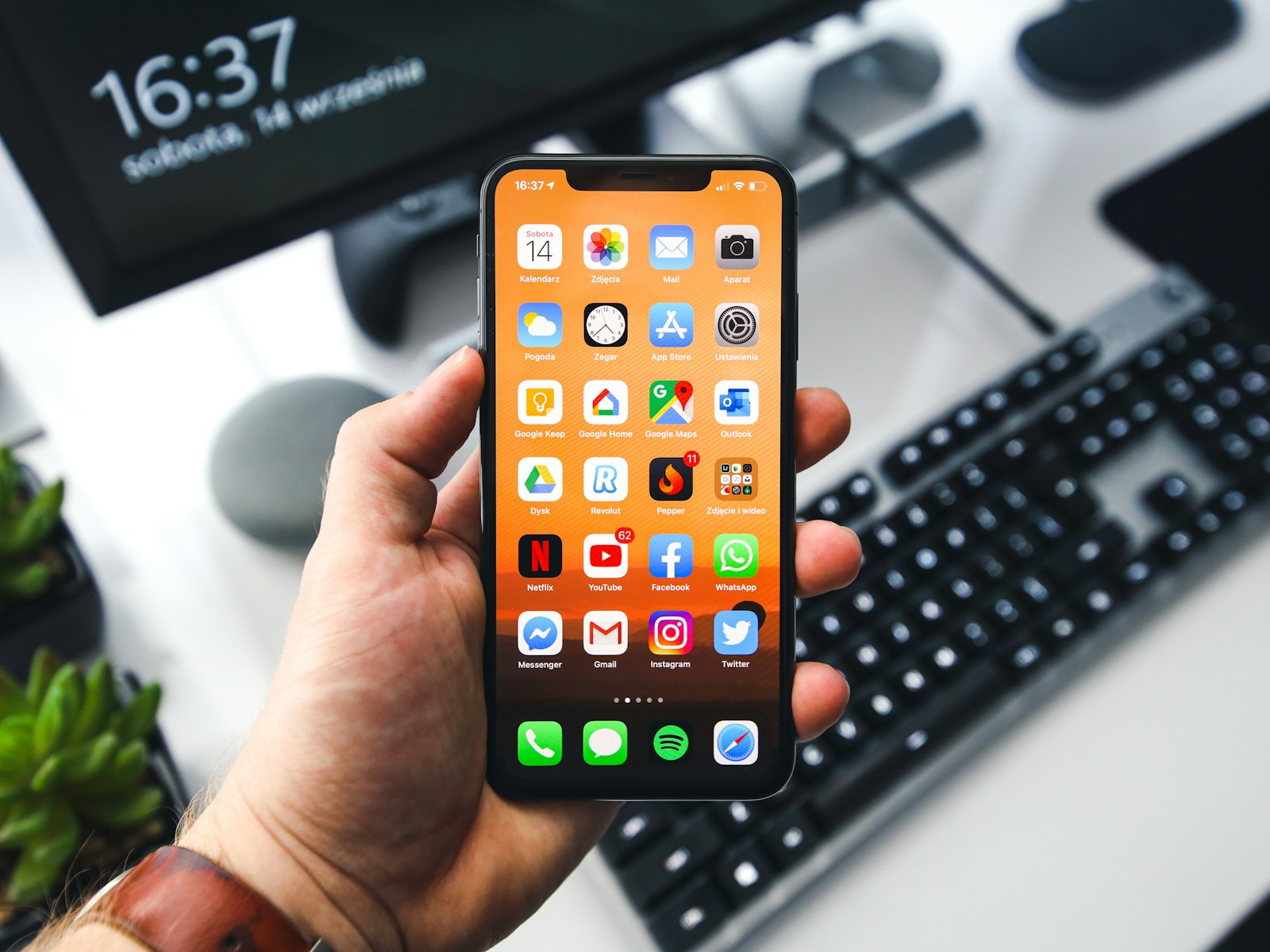
Resetting an iPhone using the buttons may be necessary if your device becomes unresponsive or if you just want to restart the phone. A hard reset, also known as a force restart, does not delete any data from your iPhone. It is similar to resetting a computer and may resolve issues like a frozen screen or software glitches. However, if you want to do a full factory reset and wipe all data from your iPhone, you should first back up your device to avoid losing important information such as contacts, photos, and app data.
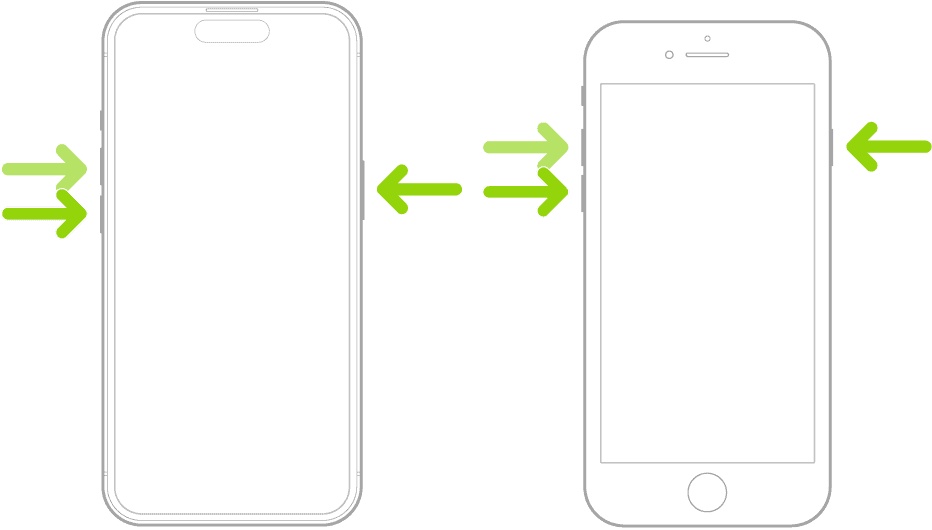
If your iPhone has Face ID, you can perform a force restart by pressing and quickly releasing the volume up button, followed by the volume down button, and then pressing and holding the side button until the Apple logo appears. On models with a Home button, you need to press and hold the Home and top (or side) buttons simultaneously until the Apple logo shows up. Before performing a full factory reset, make sure to back up to iCloud or a computer. Then, go to Settings, General, Reset, and select Erase All Content and Settings.
## Troubleshooting Your iPhone: Hard Reset Guide
If your iPhone is frozen or unresponsive, a hard reset (also called a force restart) can often solve the issue. The exact steps vary depending on your iPhone model:
### iPhones with Face ID (iPhone X and Newer)
1. **Quick Press Volume Up:** Press and quickly release the Volume Up button.
2. **Quick Press Volume Down:** Press and quickly release the Volume Down button.
3. **Press & Hold Side Button:** Keep holding the side button (power button) until the Apple logo appears on the screen.
### iPhones with a Home Button, iPhone 7, and iPhone 8 Series
1. **Press and Hold:** Simultaneously press and hold the Side (or Top) button and the Volume Down button.
2. **Apple Logo:** Keep holding both buttons until you see the Apple logo appear.
### Older iPhones (iPhone 6s and Prior)
1. **Press and Hold:** Press and hold the Home button and the Side (or Top) button at the same time.
2. **Apple Logo:** Keep holding both buttons until you see the Apple logo appear on the screen.
### Important Notes
- **Forced Restart:** A hard reset forces your iPhone to abruptly shut down and restart. This should always be a last resort after normal troubleshooting.
- **Unsaved Data:** Any unsaved work in apps will likely be lost during the reset.
### When to Consider a Hard Reset
Here’s a table outlining when a hard reset might be helpful:
| Issue | Description |
|---|---|
| Frozen Screen | Your iPhone is completely unresponsive and the screen doesn’t react to touch. |
| App Crash | An app freezes and you can’t exit it. |
| Unresponsiveness | Your device is sluggish or unresponsive to basic commands. |
| Unexpected Behavior | The iPhone is acting strangely (strange sounds, random screen glitches, etc.). |
**If a hard reset doesn’t fix your issue, consider reaching out to Apple Support for further assistance.**
## Key Takeaways
- Hard reset or force restart resolves minor glitches without erasing data.
- To factory reset, back up your iPhone before erasing all content and settings.
- Specific button combinations for a reset vary depending on the iPhone model.
## Step-by-Step Reset Process
When resetting an iPhone using buttons, it’s crucial to backup data, understand the [force restart](https://9meters.com/technology/phones/iphone-charges-but-doesnt-turn-on) process, [enter recovery mode](https://9meters.com/technology/how-to-put-ipad-in-recovery-mode) correctly, and use iTunes or Finder for a restore.
### Preparing for Reset
Before initiating a reset, back up your iPhone to iCloud or a computer to protect photos, contacts, and settings. Turn off ‘Find My iPhone’ in your settings for privacy and to ensure the process goes smoothly.
### Force Restarting iPhone
For a force restart, quickly press and release the **Volume Up button**, then the **Volume Down button**. Hold the **Side button** until you see the Apple logo. This does not erase data but can solve minor errors.
### Entering Recovery Mode
To enter recovery mode, connect the iPhone to a computer and open iTunes or Finder. For iPhones without a home button, quickly press and release the **Volume Up** and **Volume Down buttons**, then hold the **Side button** even after the Apple logo appears until the recovery mode screen shows up. For iPhone 6s and earlier, press and hold both the **Home button** and the **Top (or Side) button** simultaneously.
### Restoring iPhone Using iTunes/Finder
While in recovery mode, locate the iPhone on your computer. Click ‘Restore’ to erase your iPhone and install the [latest iOS](https://9meters.com/technology/fixes-for-ios-17-4-1-problems). After this, the device is like new and can be set up as a new device or restored from a backup.
### Factory Reset Without a Computer
If you have no access to a computer, go to Settings \> General \> Reset. Select ‘Erase All Content and Settings.’ You’ll be prompted to enter your passcode, then tap ‘Erase’ to confirm. This will completely delete all data and settings.
Categories [Phones](https://9meters.com/category/technology/phones)
[AMD Radeon Adrenalin vs Pro: Drivers Comparison](https://9meters.com/technology/graphics/amd-radeon-adrenalin-vs-pro)
[iPhone Settings You Should Turn Off for Safety Reasons](https://9meters.com/technology/phones/iphone-settings-you-should-turn-off-for-safety)
#### **most recent**
[More](https://9meters.com/technology/phones/how-to-reset-an-iphone-using-the-buttons)
[](https://9meters.com/technology/internet/best-ip-address-for-gaming)
###### Internet
### [Best IP Address DNS for Gaming (2026)](https://9meters.com/technology/internet/best-ip-address-for-gaming)
[](https://9meters.com/technology/networking/best-nas-for-home)
###### Networking
### [Best NAS for Home (2026 Guide)](https://9meters.com/technology/networking/best-nas-for-home)
[](https://9meters.com/technology/ai/latest-about-what-is-apple-intelligence)
###### AI
### [Apple Intelligence: Accidental China Rollout, iOS 26.5 Updates, and a Bigger AI Strategy Shift](https://9meters.com/technology/ai/latest-about-what-is-apple-intelligence)
[](https://9meters.com/entertainment/social-media/reddit-app-not-working-heres-what-to-try)
###### Social Media
### [Reddit App Not Working? Here’s What to Try](https://9meters.com/entertainment/social-media/reddit-app-not-working-heres-what-to-try)
[](https://9meters.com/technology/software/latest-about-free-video-editing-software)
###### Software
### [Free Video Editing Software Options in 2026](https://9meters.com/technology/software/latest-about-free-video-editing-software)
[](https://9meters.com/technology/software/disk-at-100-windows-10)
###### Software
### [Disk at 100% Usage In Windows](https://9meters.com/technology/software/disk-at-100-windows-10)
info
Welcome to 9meters.com, where you can explore a wide range of articles, how-to guides, and news covering the latest in technology and entertainment. We provide insight into movies, shows, games, gadgets, new releases, and much more. Our content spans from current trends to future developments.
Feel free to navigate through our categories or use the search function to find information on any topic of interest.
**AFFILIATE STATEMENT**
This site participates in the Amazon Services LLC Associates Program, an affiliate advertising program designed to provide a means for sites to earn advertising fees by advertising and linking to Amazon.com
© 2026 9meters.com
[Accessibility](https://9meters.com/accessibility) \| [Privacy](https://9meters.com/privacy-policy) \| [Terms](https://9meters.com/terms-of-service) \| [Articles](https://9meters.com/articles) \| [Sitemap](https://9meters.com/sitemap) \| [Contact](https://9meters.com/contact) |
| Readable Markdown | Resetting an iPhone using the buttons may be necessary if your device becomes unresponsive or if you just want to restart the phone. A hard reset, also known as a force restart, does not delete any data from your iPhone. It is similar to resetting a computer and may resolve issues like a frozen screen or software glitches. However, if you want to do a full factory reset and wipe all data from your iPhone, you should first back up your device to avoid losing important information such as contacts, photos, and app data.
If your iPhone has Face ID, you can perform a force restart by pressing and quickly releasing the volume up button, followed by the volume down button, and then pressing and holding the side button until the Apple logo appears. On models with a Home button, you need to press and hold the Home and top (or side) buttons simultaneously until the Apple logo shows up. Before performing a full factory reset, make sure to back up to iCloud or a computer. Then, go to Settings, General, Reset, and select Erase All Content and Settings.
## Troubleshooting Your iPhone: Hard Reset Guide
If your iPhone is frozen or unresponsive, a hard reset (also called a force restart) can often solve the issue. The exact steps vary depending on your iPhone model:

### iPhones with Face ID (iPhone X and Newer)
1. **Quick Press Volume Up:** Press and quickly release the Volume Up button.
2. **Quick Press Volume Down:** Press and quickly release the Volume Down button.
3. **Press & Hold Side Button:** Keep holding the side button (power button) until the Apple logo appears on the screen.
### iPhones with a Home Button, iPhone 7, and iPhone 8 Series
1. **Press and Hold:** Simultaneously press and hold the Side (or Top) button and the Volume Down button.
2. **Apple Logo:** Keep holding both buttons until you see the Apple logo appear.
### Older iPhones (iPhone 6s and Prior)
1. **Press and Hold:** Press and hold the Home button and the Side (or Top) button at the same time.
2. **Apple Logo:** Keep holding both buttons until you see the Apple logo appear on the screen.
### Important Notes
- **Forced Restart:** A hard reset forces your iPhone to abruptly shut down and restart. This should always be a last resort after normal troubleshooting.
- **Unsaved Data:** Any unsaved work in apps will likely be lost during the reset.
### When to Consider a Hard Reset
Here’s a table outlining when a hard reset might be helpful:
| Issue | Description |
|---|---|
| Frozen Screen | Your iPhone is completely unresponsive and the screen doesn’t react to touch. |
| App Crash | An app freezes and you can’t exit it. |
| Unresponsiveness | Your device is sluggish or unresponsive to basic commands. |
| Unexpected Behavior | The iPhone is acting strangely (strange sounds, random screen glitches, etc.). |
**If a hard reset doesn’t fix your issue, consider reaching out to Apple Support for further assistance.**
## Key Takeaways
- Hard reset or force restart resolves minor glitches without erasing data.
- To factory reset, back up your iPhone before erasing all content and settings.
- Specific button combinations for a reset vary depending on the iPhone model.
## Step-by-Step Reset Process
When resetting an iPhone using buttons, it’s crucial to backup data, understand the [force restart](https://9meters.com/technology/phones/iphone-charges-but-doesnt-turn-on) process, [enter recovery mode](https://9meters.com/technology/how-to-put-ipad-in-recovery-mode) correctly, and use iTunes or Finder for a restore.
### Preparing for Reset
Before initiating a reset, back up your iPhone to iCloud or a computer to protect photos, contacts, and settings. Turn off ‘Find My iPhone’ in your settings for privacy and to ensure the process goes smoothly.
### Force Restarting iPhone
For a force restart, quickly press and release the **Volume Up button**, then the **Volume Down button**. Hold the **Side button** until you see the Apple logo. This does not erase data but can solve minor errors.
### Entering Recovery Mode
To enter recovery mode, connect the iPhone to a computer and open iTunes or Finder. For iPhones without a home button, quickly press and release the **Volume Up** and **Volume Down buttons**, then hold the **Side button** even after the Apple logo appears until the recovery mode screen shows up. For iPhone 6s and earlier, press and hold both the **Home button** and the **Top (or Side) button** simultaneously.
### Restoring iPhone Using iTunes/Finder
While in recovery mode, locate the iPhone on your computer. Click ‘Restore’ to erase your iPhone and install the [latest iOS](https://9meters.com/technology/fixes-for-ios-17-4-1-problems). After this, the device is like new and can be set up as a new device or restored from a backup.
### Factory Reset Without a Computer
If you have no access to a computer, go to Settings \> General \> Reset. Select ‘Erase All Content and Settings.’ You’ll be prompted to enter your passcode, then tap ‘Erase’ to confirm. This will completely delete all data and settings. |
| Shard | 137 (laksa) |
| Root Hash | 10772221485276886737 |
| Unparsed URL | com,9meters!/technology/phones/how-to-reset-an-iphone-using-the-buttons s443 |